
Care Groups: Organizing Your Team for Ministry
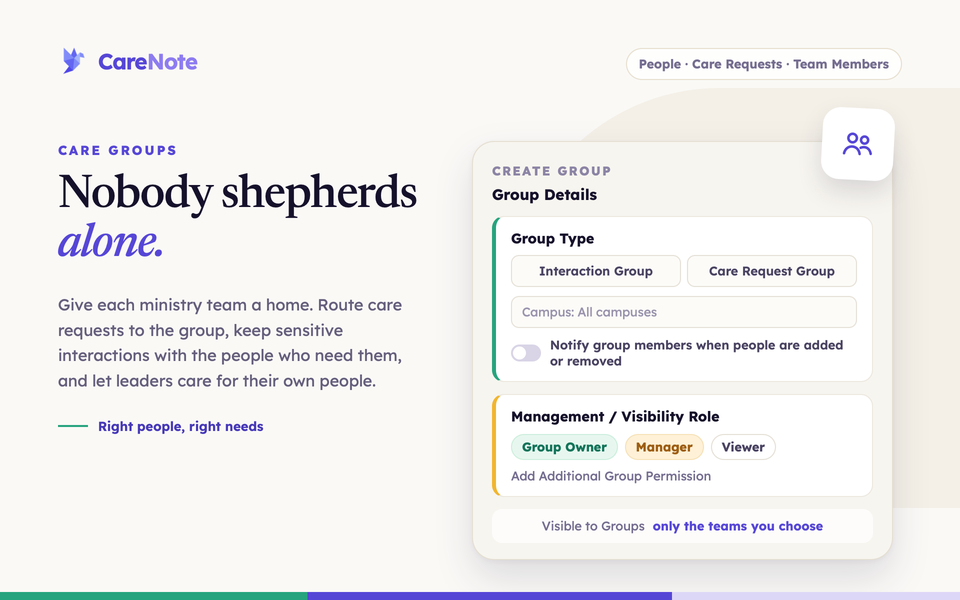
Care rarely happens alone. A hospital visit, a follow-up call, a meal delivered to a family in crisis: most care takes a team. Care Groups turn your staff and caregivers into coordinated ministry teams, so the right people see the right needs and no one is left guessing who has it covered.
Watch how Care Groups organize your care ministry into coordinated teams.
Groups route care requests to a team instead of one person, and they control who sees sensitive interactions. This guide covers both, plus how team members can lead groups of their own.
What a Care Group is
A Care Group is a named team with a type, members with roles, and an optional list of people it looks after.
There are two group types, chosen when you create the group:
- Care Request Group: handles care requests, like a hospital visitation team.
- Interaction Group: receives visibility into specific interactions, used mainly for privacy control.
Every member has one of three roles: Group Owner (manages settings and leadership), Manager (assigns care requests and manages the roster), or Viewer (handles the requests assigned to them).
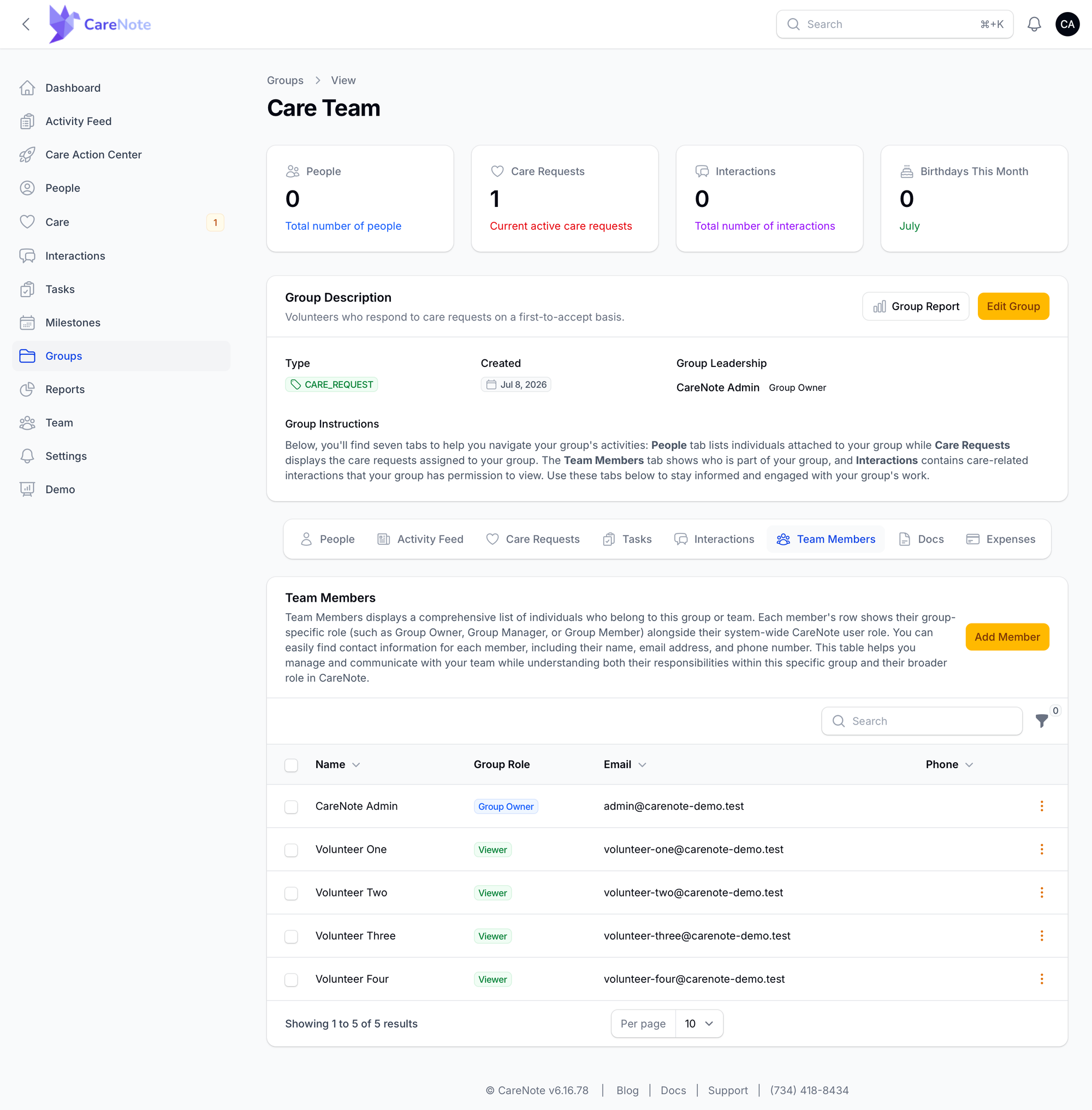
The People tab and the Team Members tab are different. People are the congregants your group cares for. Team Members are the CareNote users who do the caring.
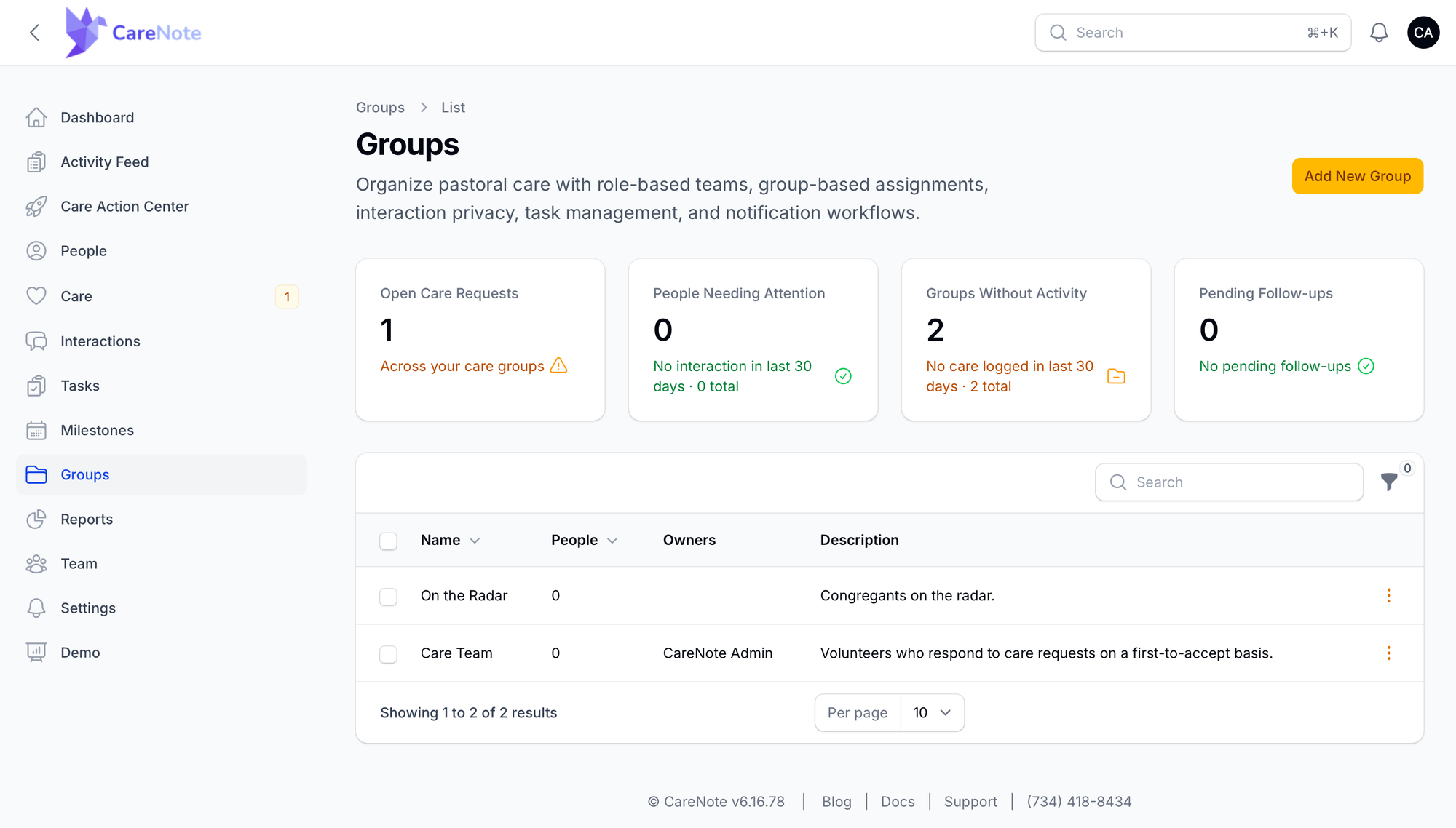
1. Create a group and add your team
- From the Groups page, click Add New Group.
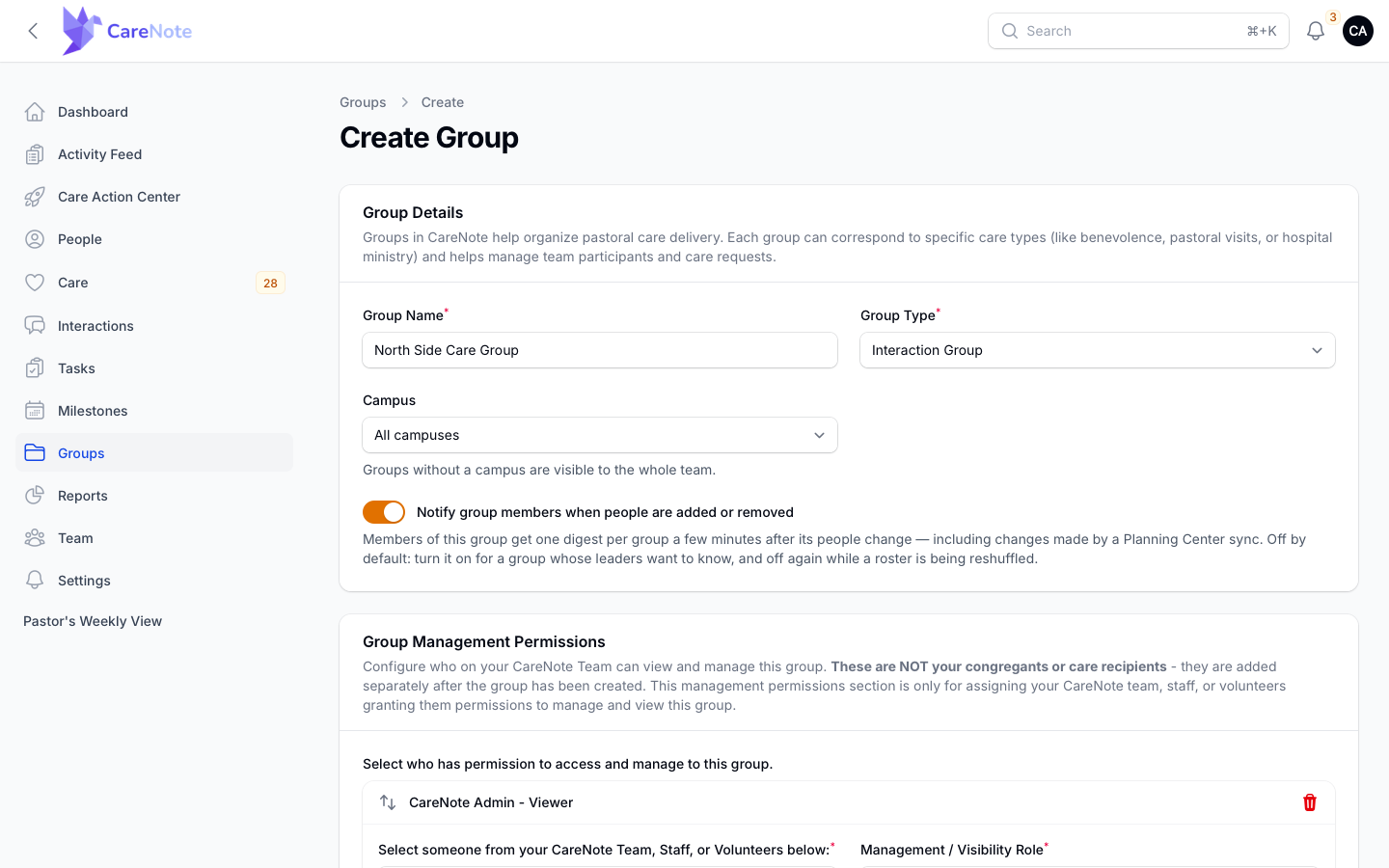
- Enter a clear Group Name, such as "Hospital Visitation Team."
- Choose the Group Type.
- If your church has campuses, pick a Campus, or leave it on "All campuses."
- Decide on Notify group members when people are added or removed. It is off by default.
- Under Group Management Permissions, click Add Additional Group Permission for each team member, pick the person, and set their Management / Visibility Role.
- Click Create.
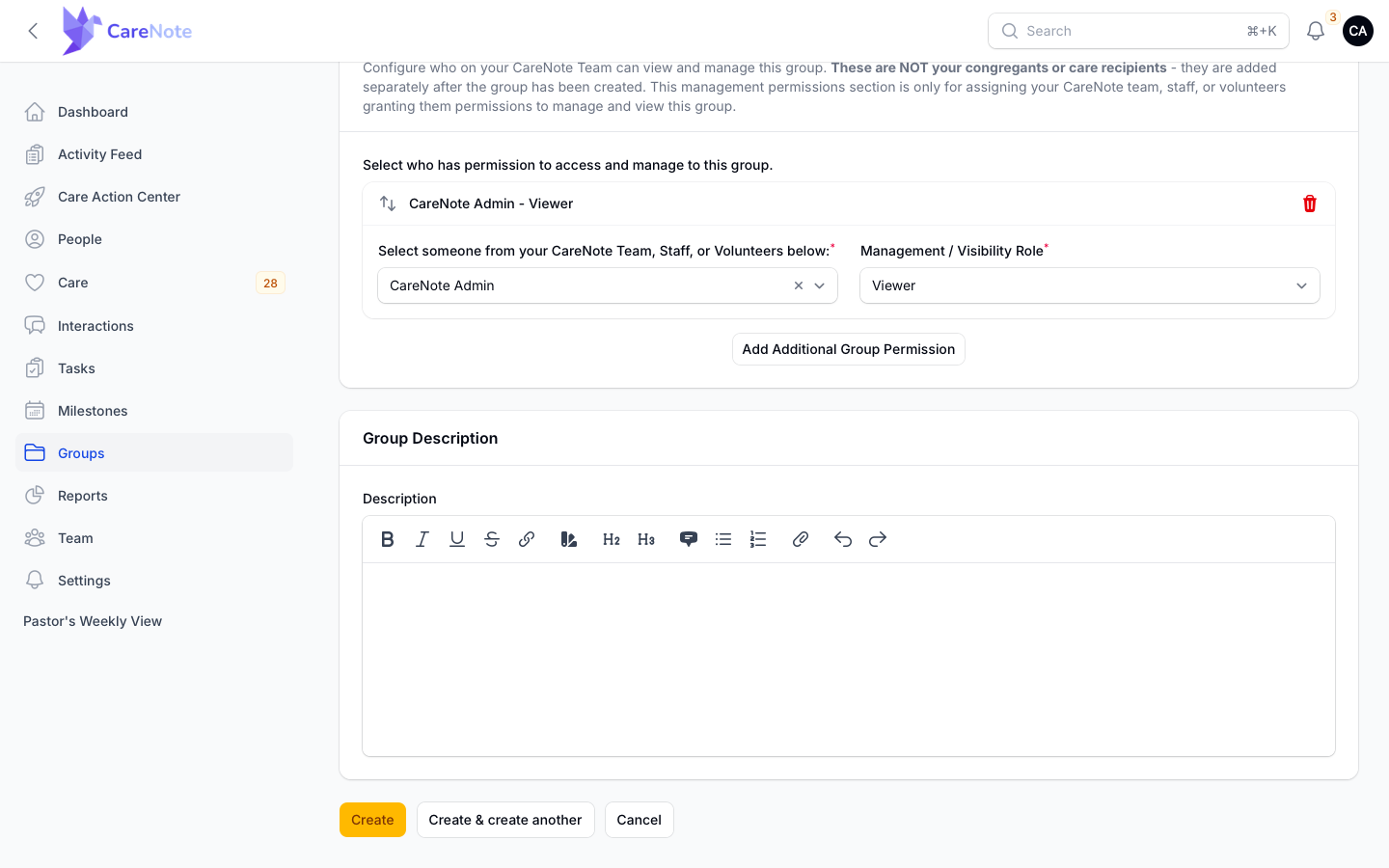
You can change members later from the group's Team Members tab. A group with no Group Owner shows "No leaders assigned," so add an owner if you see that.
2. Care for the people in a group
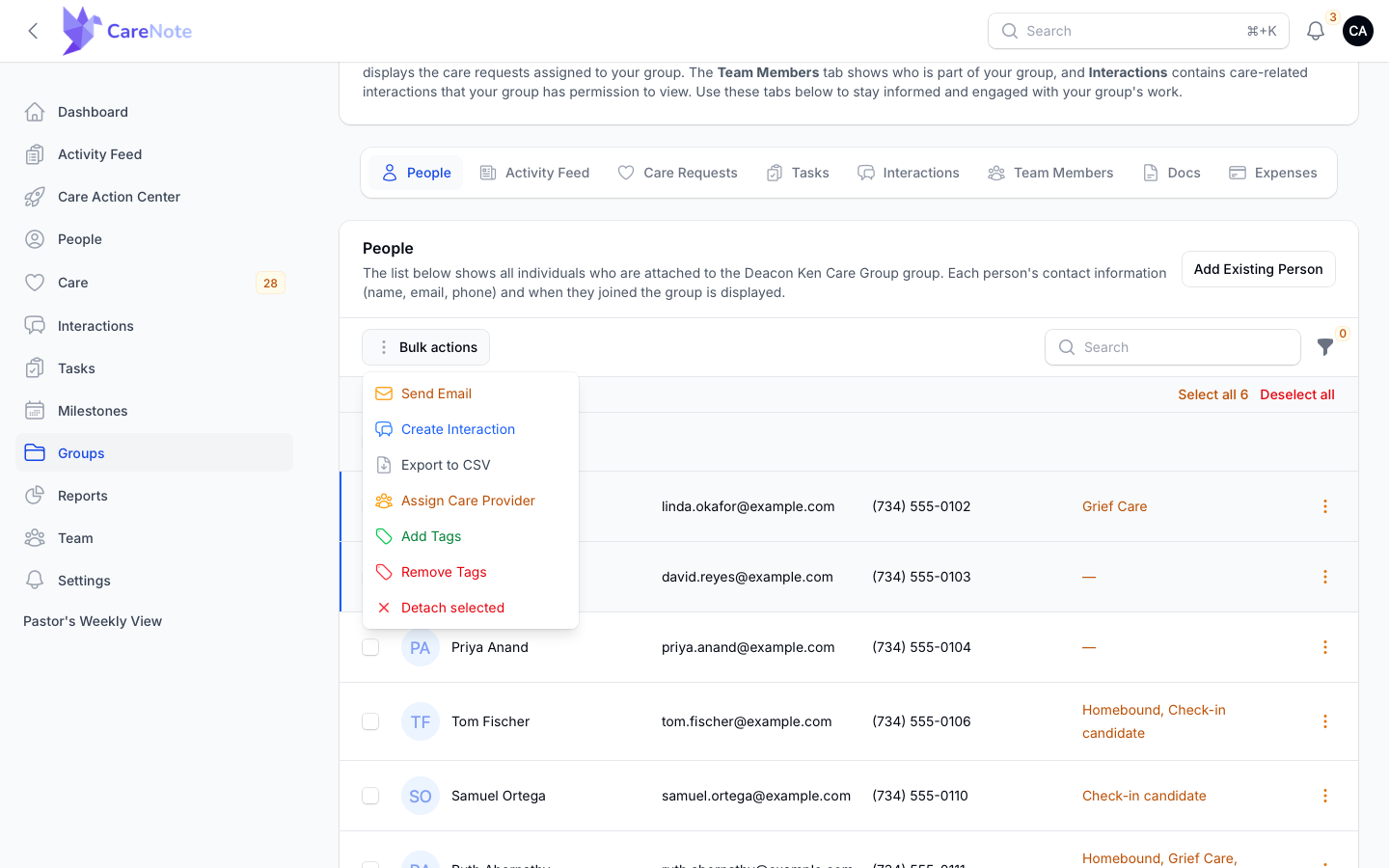
The People tab lists the congregants your group looks after. Use Add Existing Person to bring someone in. Select several people and open the bulk menu to Send Email, Create Interaction (one interaction logged for everyone you picked), Export to CSV, Assign Care Provider, Add Tags or Remove Tags.
Each row's menu adds Add Interaction and Add Care Request for one person. Logging care for a couple? See logging one interaction for a couple or household.
3. Assign care requests to a group
Every care request goes to a Care Group, a Care Provider, or both. On the care request form, set Assign To to Care Group and pick the group. If your team uses Privacy Mode, the request is visible only to that group's members, and the group's Owners and Managers are notified.
On CareNote Plus, choosing a group also shows Send acceptance request to group members. Everyone in the group gets an invitation, and the first member to accept is assigned automatically. If the Response deadline passes with no one accepting, you are notified.
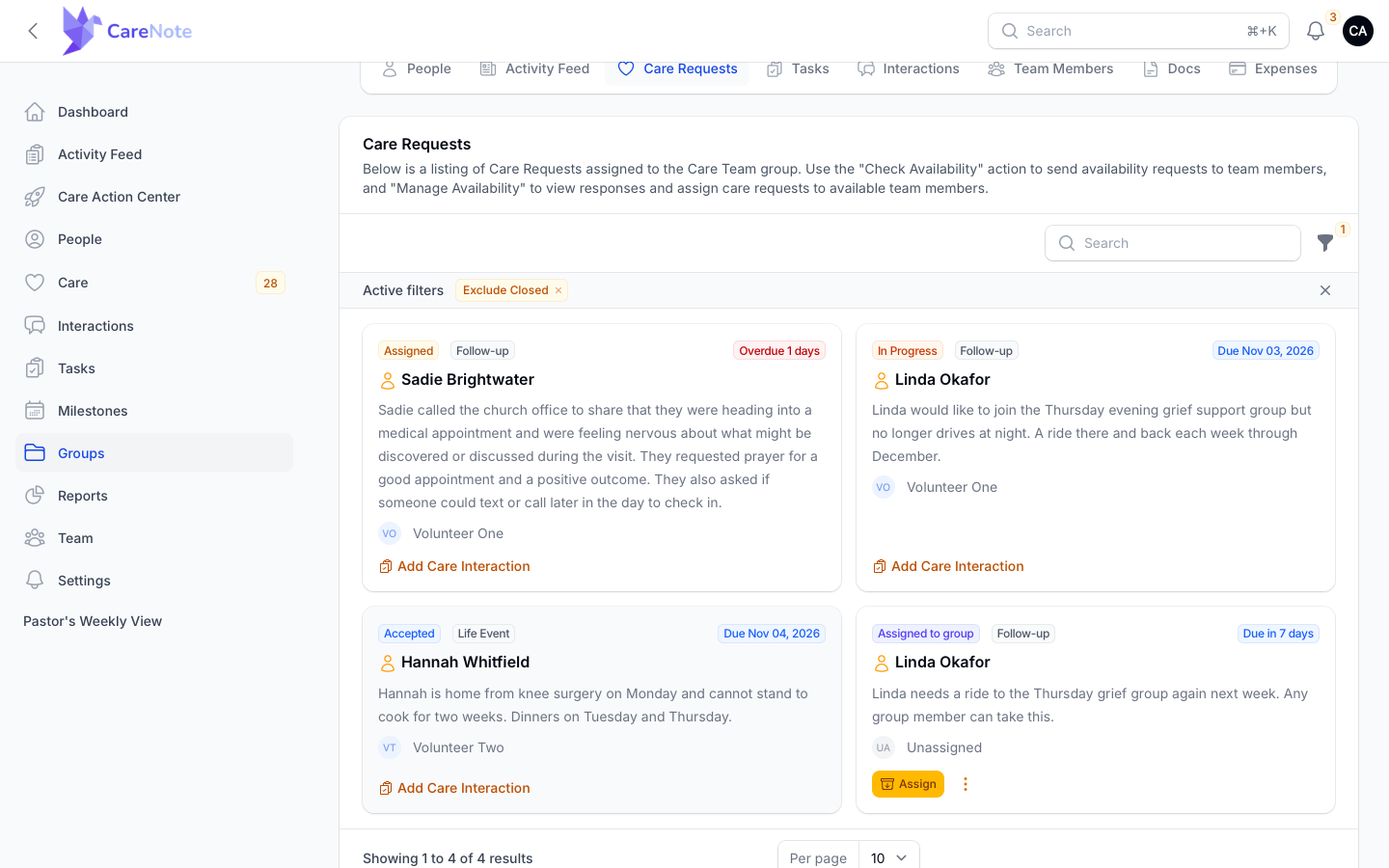
A request a group holds with no provider yet shows the Assigned to group badge.
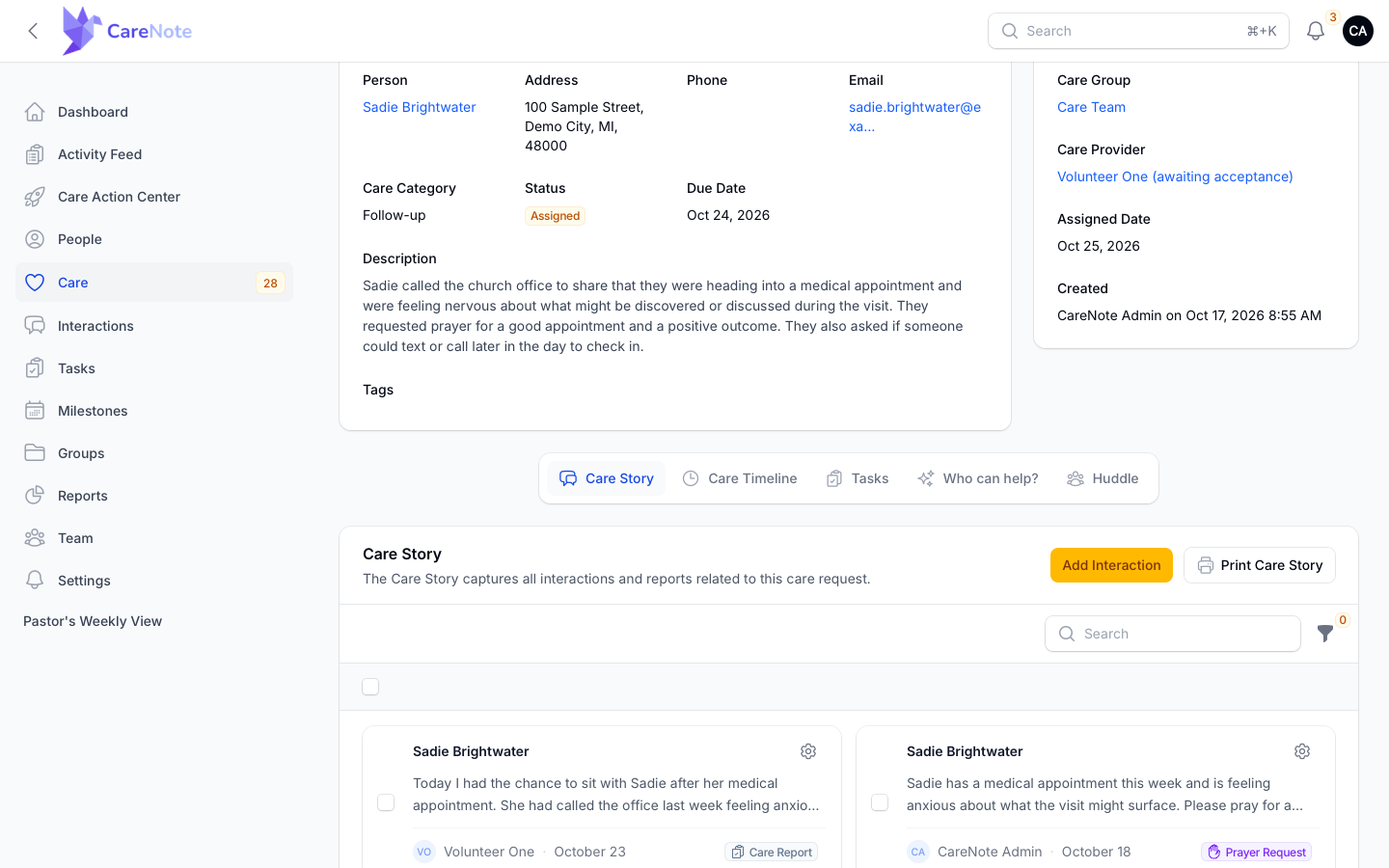
To add a group to a request that already has a provider, open the request, choose Actions, then Attach to group. The provider keeps the request, and Assignment Details lists both. For the full walkthrough, see Assigning a Care Request.
On a request that is still Entered, Group Owners and Managers also see Check Availability to ask team members when they are free, Manage Availability to see the responses, and Assign.
4. Protect sensitive interactions with groups
- On the Create or Edit Interaction form, open the Privacy & Visibility panel.
- Pick a Privacy Preset, or leave it on "Custom (configure below)."
- In Visible to Groups, choose one or more groups. Only their members can see that interaction.
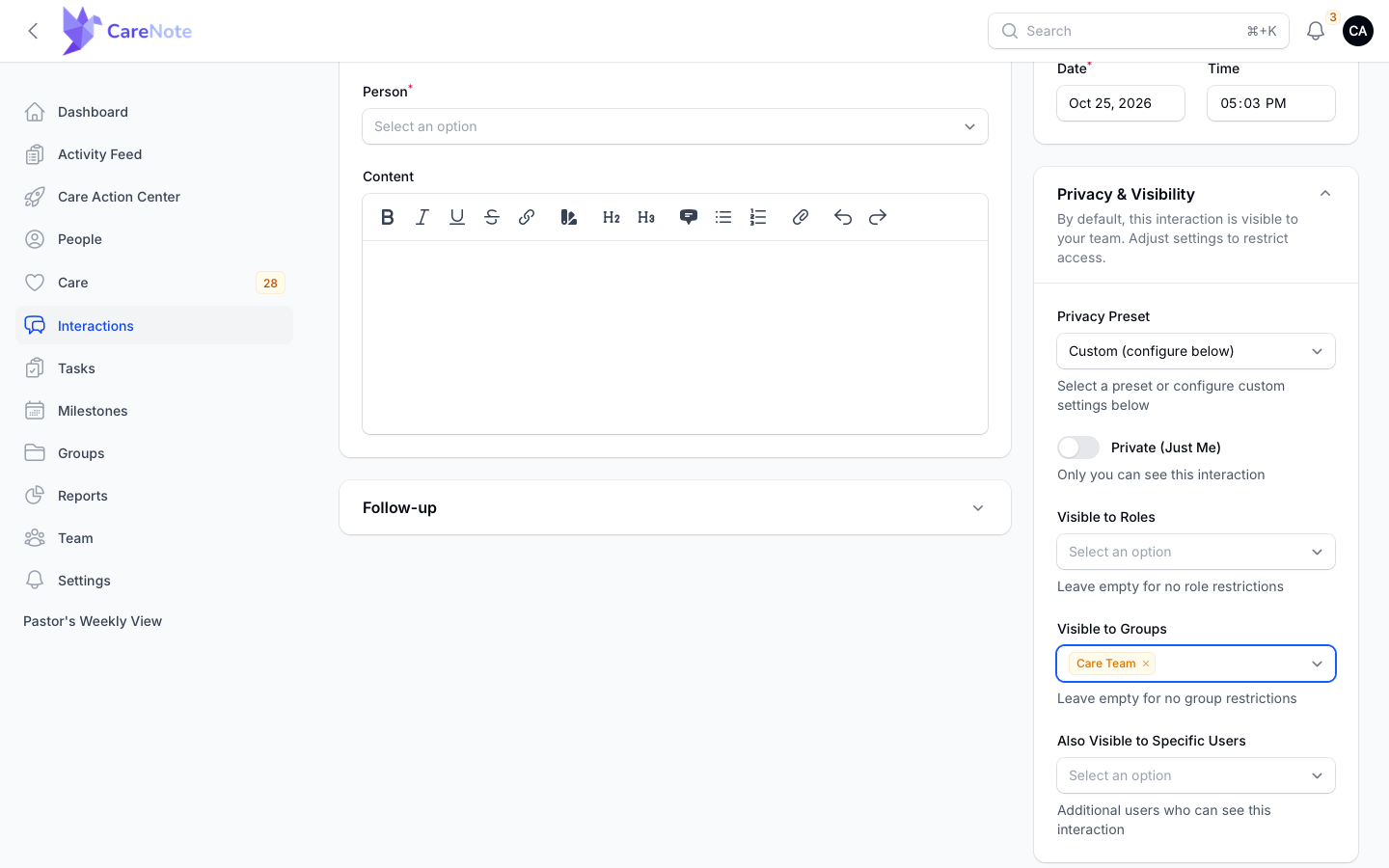
Admins can save presets on the Privacy Presets page, share them with the team, and mark one as the Team Default so every new note starts from it. Record enough for continuity, and restrict the sensitive detail to the people who truly need it.
5. Let team members run their own groups
In Team Settings > Team Access, Team Member Record Creation and Editing is on by default. While it is on, team members can create groups from their own Dashboard, and they see an Add New Group button on their Groups list. Full Group Access for Admins on the same page lets administrators see all groups, not just their own.
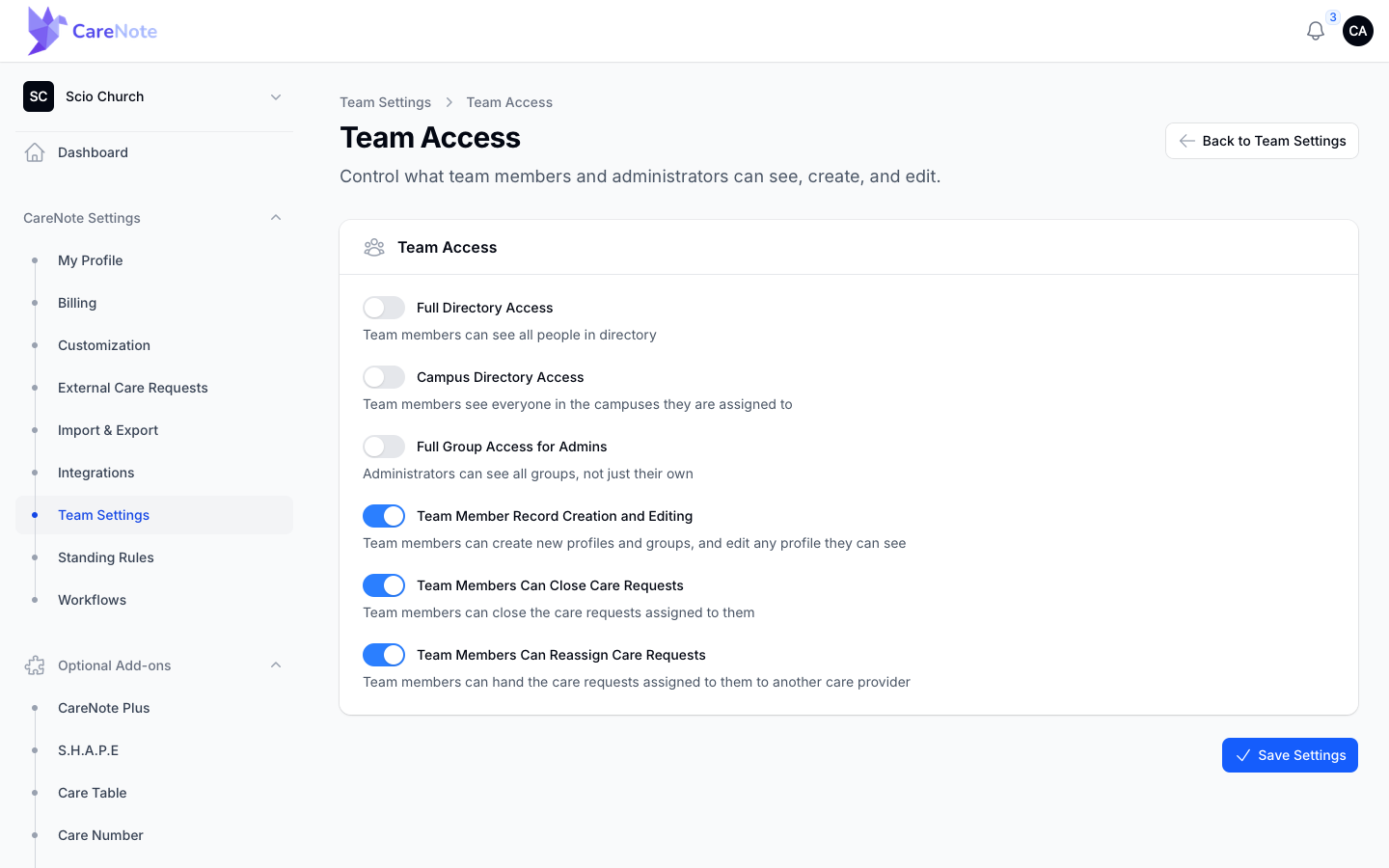
Inside their group, leaders can switch Membership notices on or off, and hand a care request to someone in their group with Assign to Group Member.
Frequently asked questions
What can each role do? Group Owners manage the group and its leadership, Managers assign care requests and manage the roster, and Viewers handle the requests assigned to them. CareNote will not remove a group's last owner.
Do I have to assign every care request to a group? Only if your team has Privacy Mode turned on, under Team Settings > Privacy. Then every item must be assigned to a group, and people see only the requests for their own groups.
Is First-to-Accept included on every plan? It is part of CareNote Plus. Without it, assign the request to the group and let a Manager pick a provider, or use Check Availability first.
Can I use a group just for privacy? Yes. Create an Interaction Group and choose it in Visible to Groups.
Watch
- Church Care Teams & Groups: Organize Your Care Ministry
- How to Create a Group in CareNote: Name, Type, Permissions & People
- Group Care Collaboration: Shared Feeds & Check Availability
- Group and Provider on Every Assignment: Route to a Care Group, Link a Provider
- What Team Members Can Reach and Edit: Team Access, Shared Privacy Presets, Groups
- Care Groups 1/8: What's New for Group Leaders