
Team Settings: Language, AI, Privacy and Access in One Hub
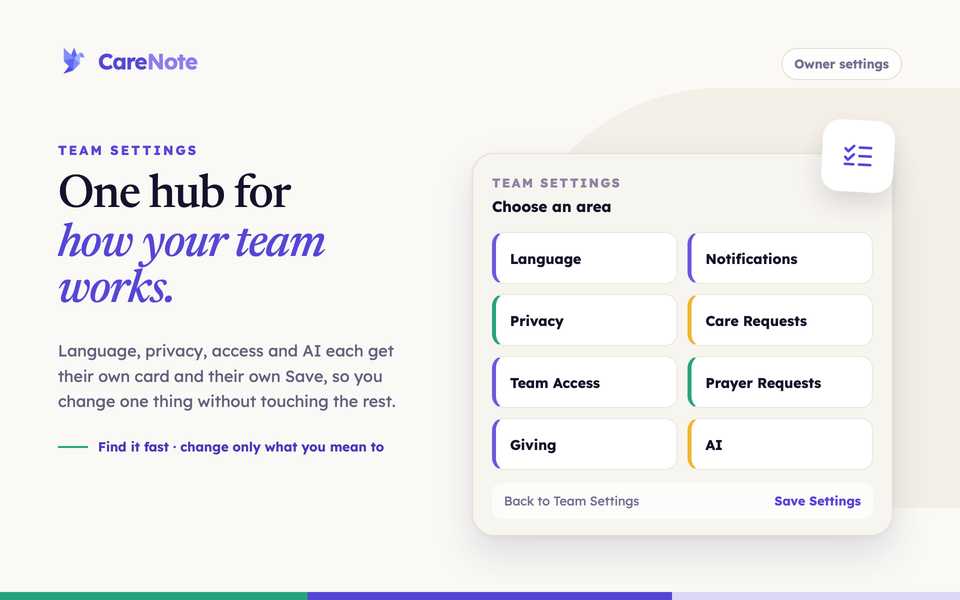
Every church runs care a little differently. Some want the screens in Spanish, some want private interactions kept away from everyone but the author, and some want a say in exactly which features may send text to an AI model. Team Settings is where you make those choices once for your whole team.
Watch how Team Access settings decide what team members can reach and edit.
Team Settings is a hub of eight cards. Each card opens its own focused page with its own Save Settings button, so you can change one area without touching the others. Team Settings is available to owners only.
1. Open Team Settings
Open the CareNote Settings home and choose Team Settings under Configuration. You can also reach it from the left navigation.
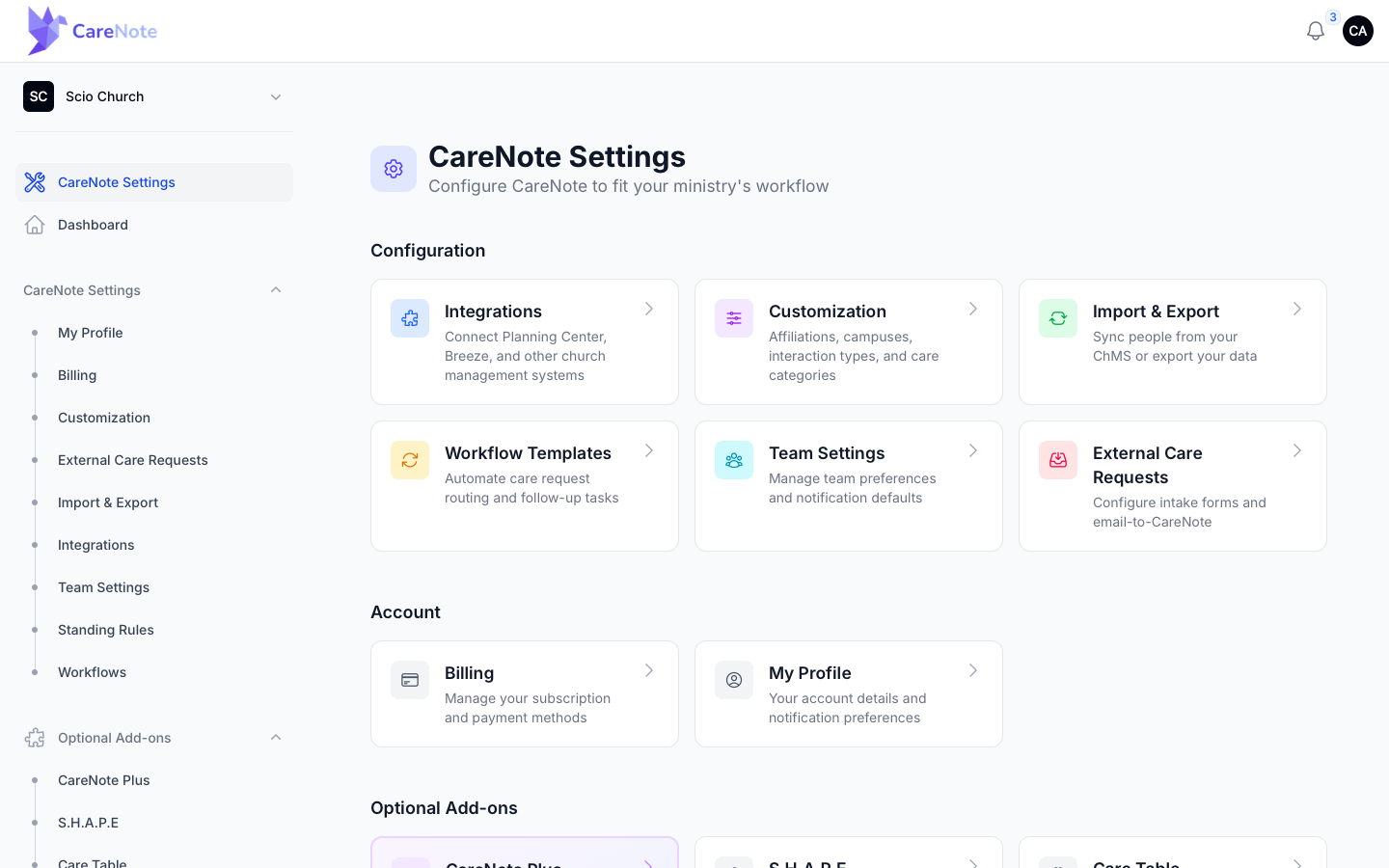
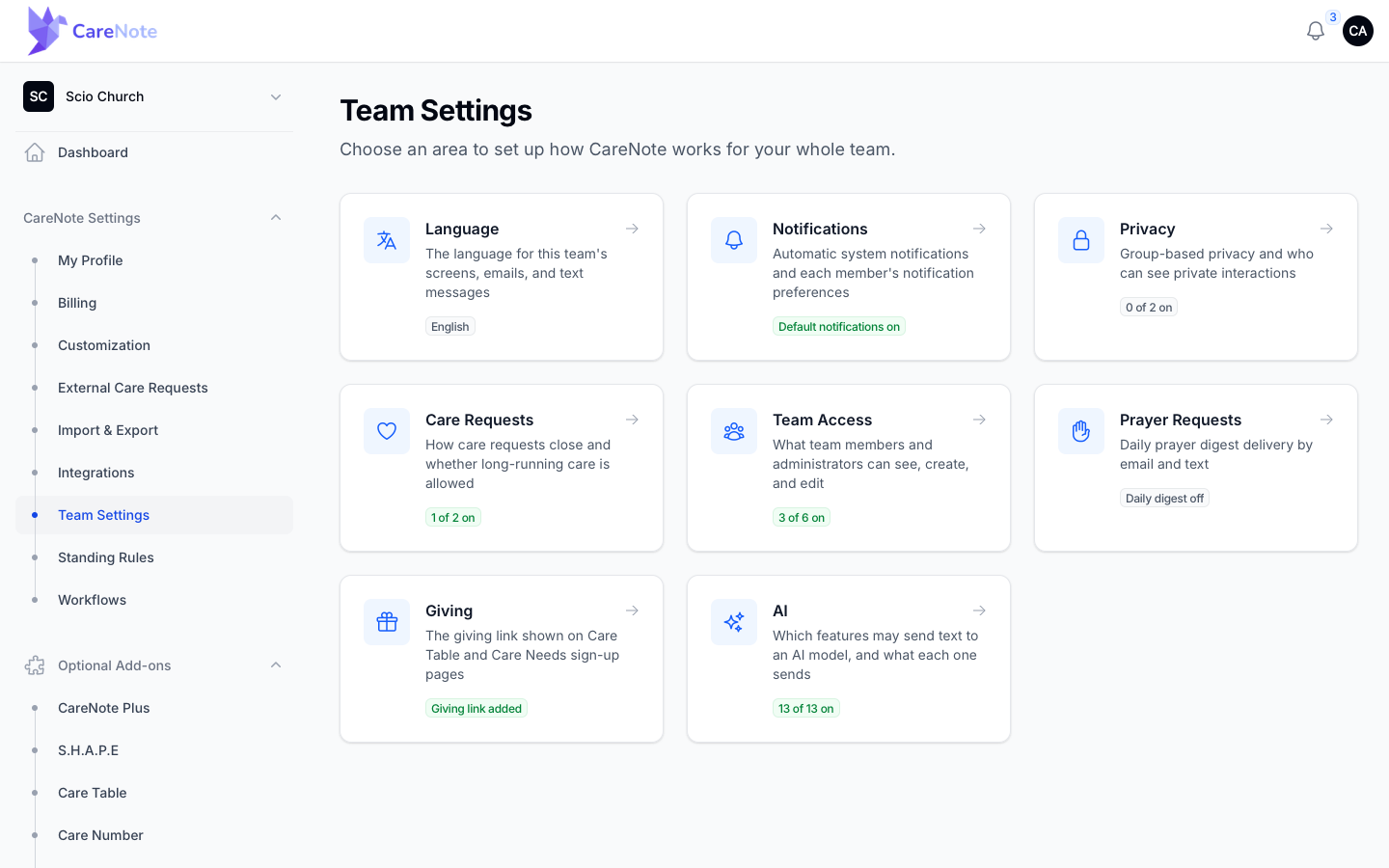
The hub shows eight cards: Language, Notifications, Privacy, Care Requests, Team Access, Prayer Requests, Giving and AI. Each card carries a small status pill, such as "3 of 6 on", so you can see where things stand before you open anything.
Every page inside has a breadcrumb, a Back to Team Settings button at the top right and a Save Settings button at the bottom right.
2. Choose your team language
Open Language. The Language select offers English, Nederlands and Español, and it applies to everyone on the team: screens, emails and text messages.
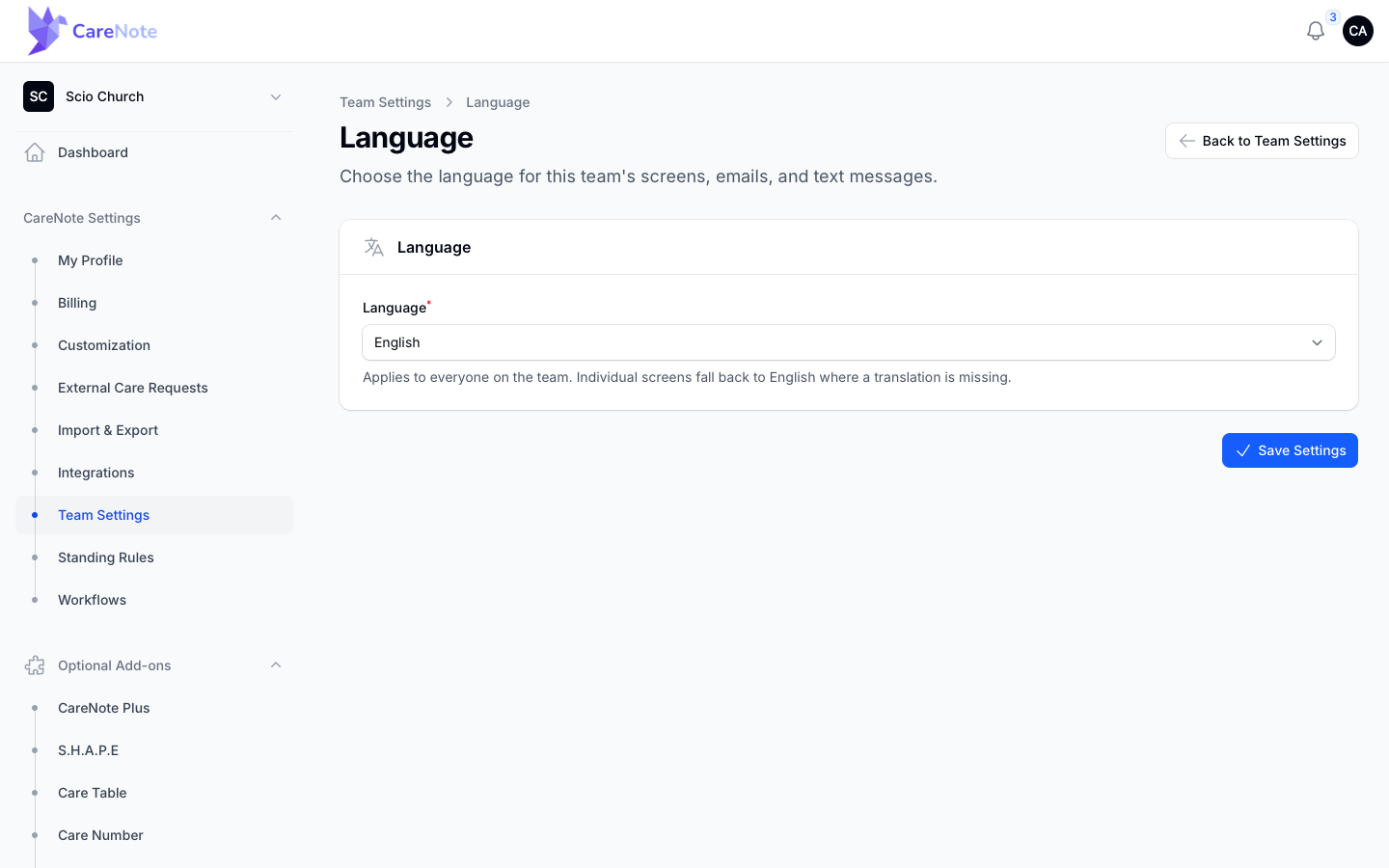
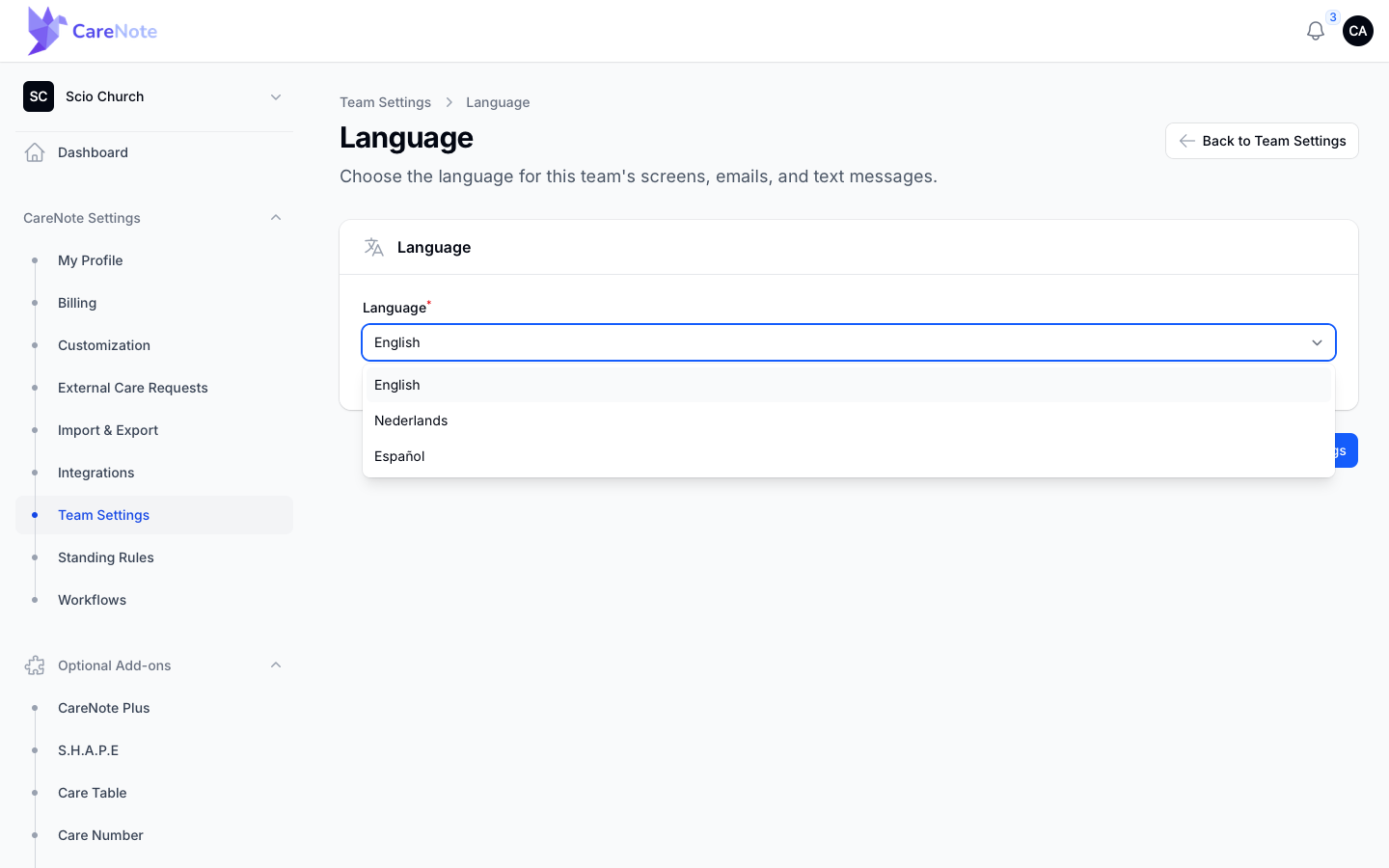
Where a screen has no translation yet, CareNote falls back to English, so nothing goes blank.
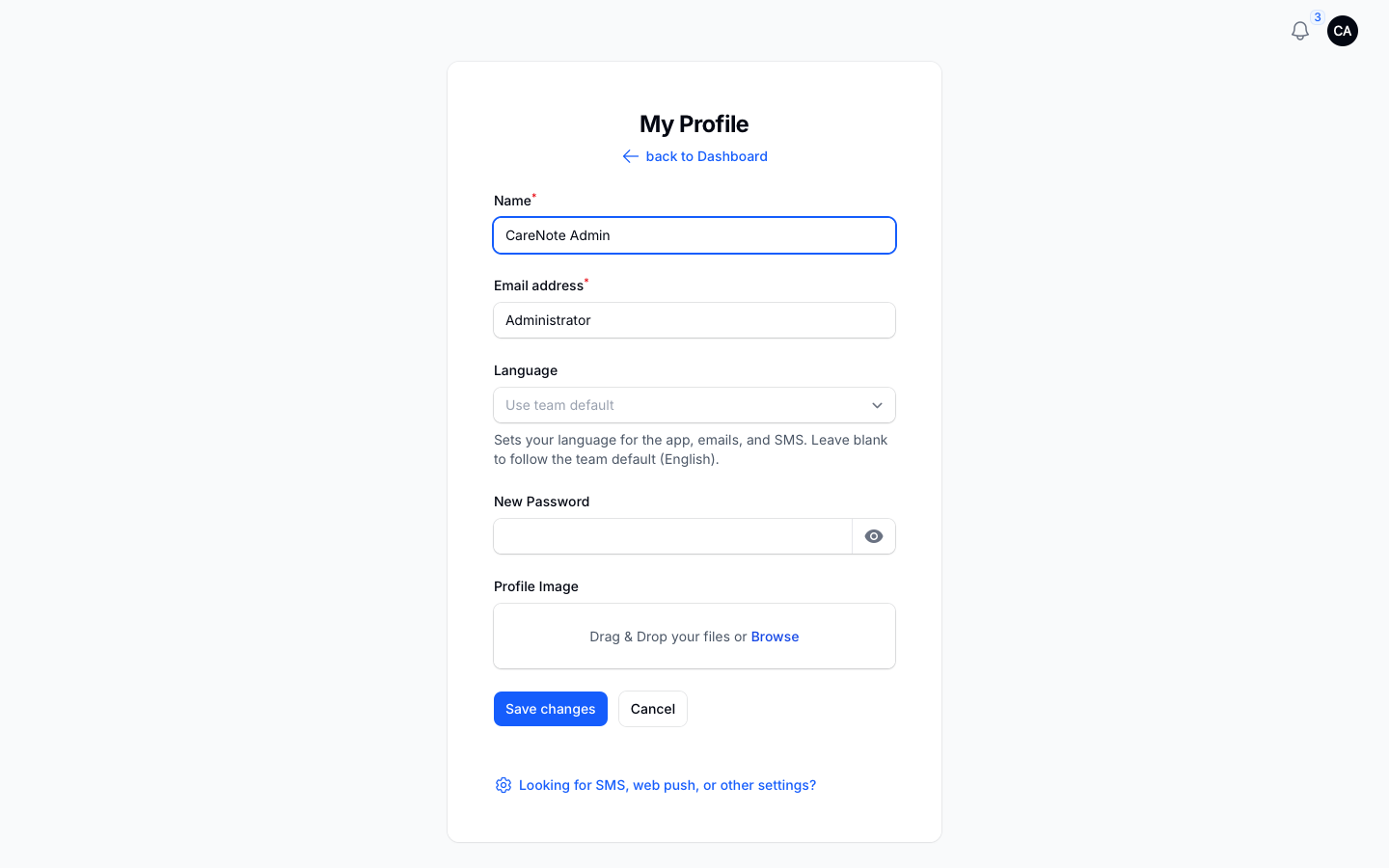
Individuals can choose too. On My Profile, the Language field starts as "Use team default". Pick a language there and your own screens, emails and texts follow it. Leave it blank to follow the team.
3. Set notifications
Open Notifications. The Enable Default Notifications switch controls the automatic system notifications your team receives. Two rows below it lead deeper:
- In-App Notifications shows each member's unread and total counts.
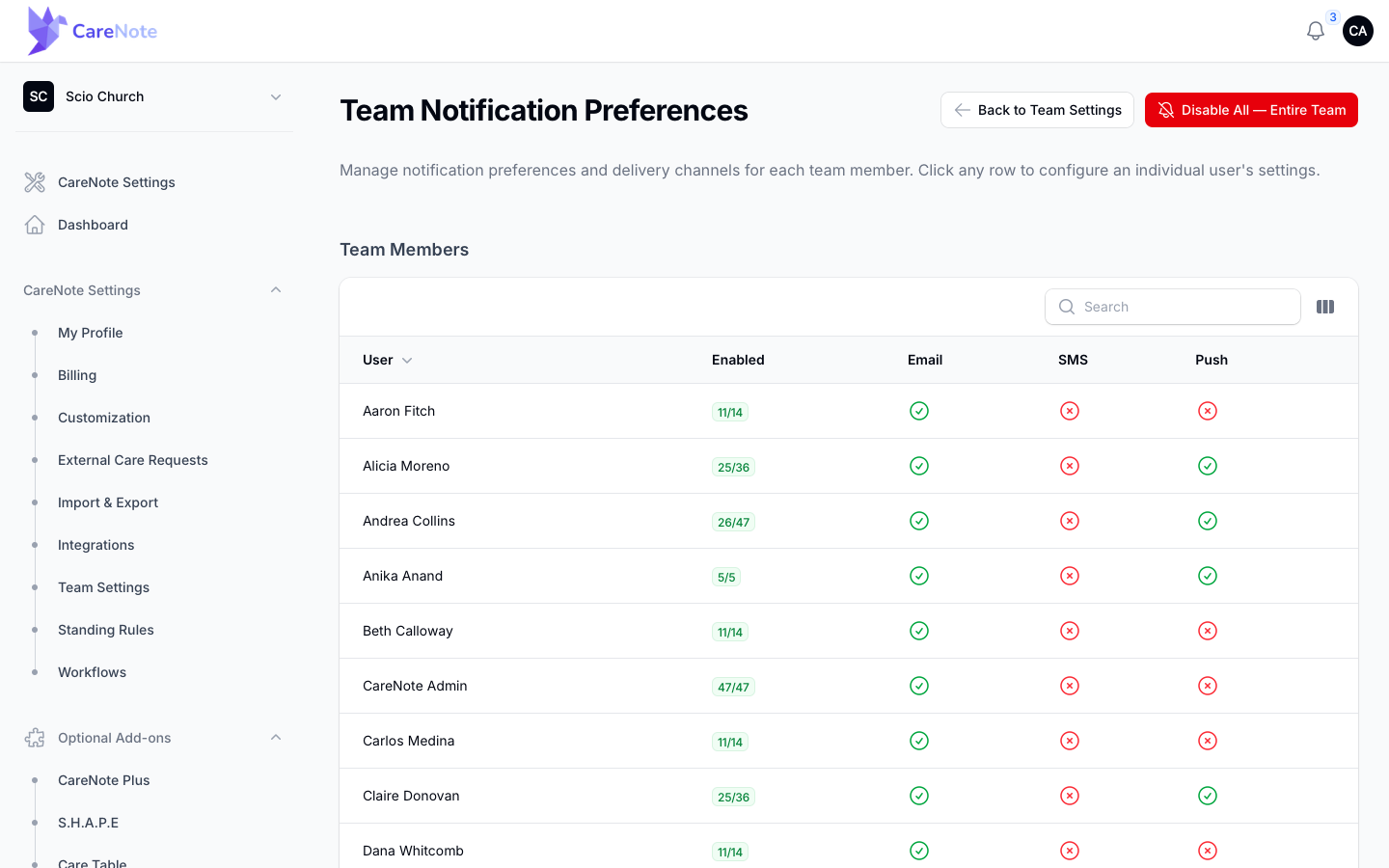
- Notification Preferences is a table of every member with their Email, SMS and Push settings, plus a Disable All button for the entire team. Click a row to see one member.
4. Decide who sees what
Three pages shape privacy and reach.
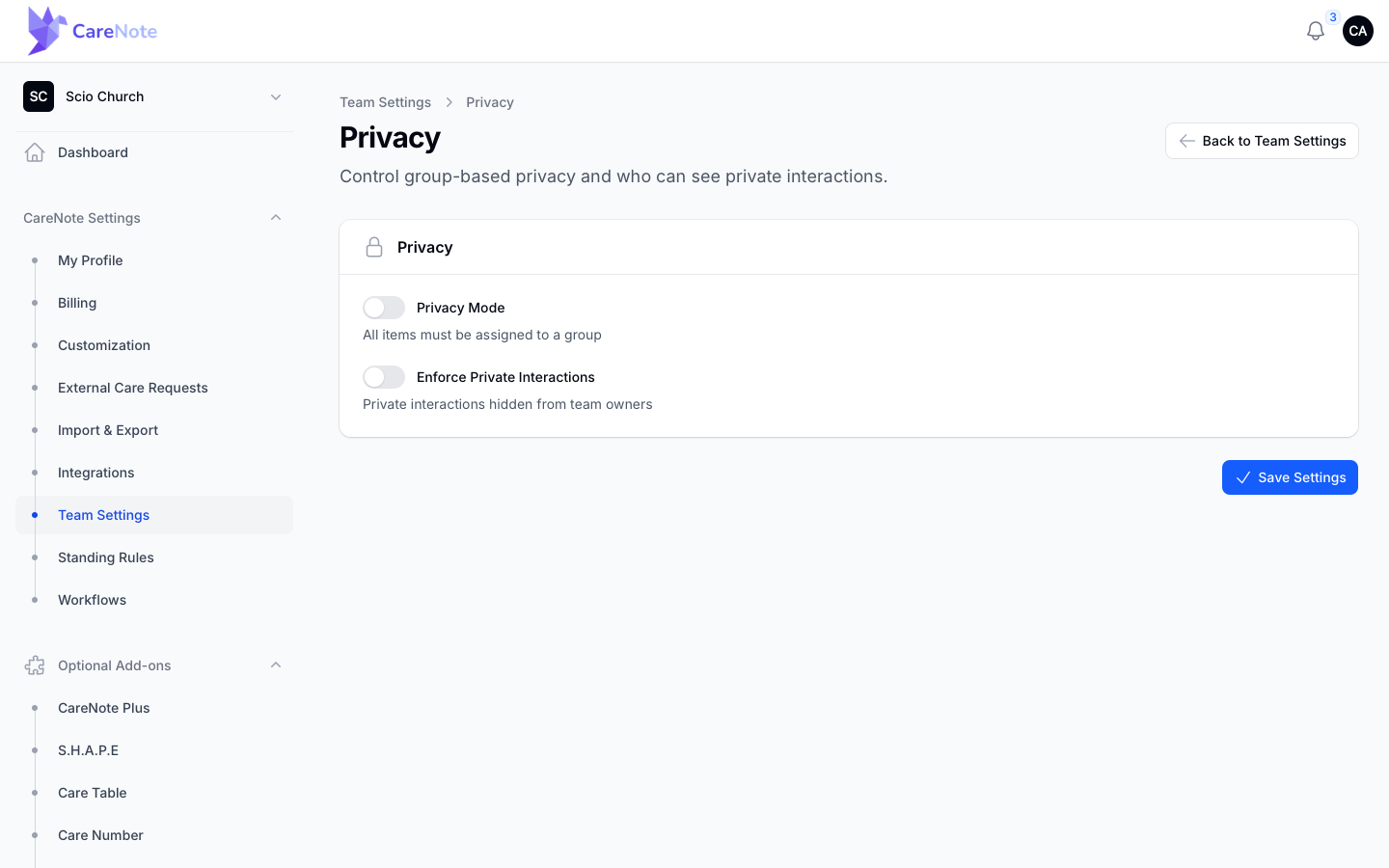
Privacy has two switches. Privacy Mode requires every item to be assigned to a group. Enforce Private Interactions hides private interactions from team owners.
Care Requests has Auto-close After Report, which closes a care request when a report is submitted, and Allow Ongoing Care Requests, which adds an Ongoing toggle to each care request so long-running care skips overdue notifications.
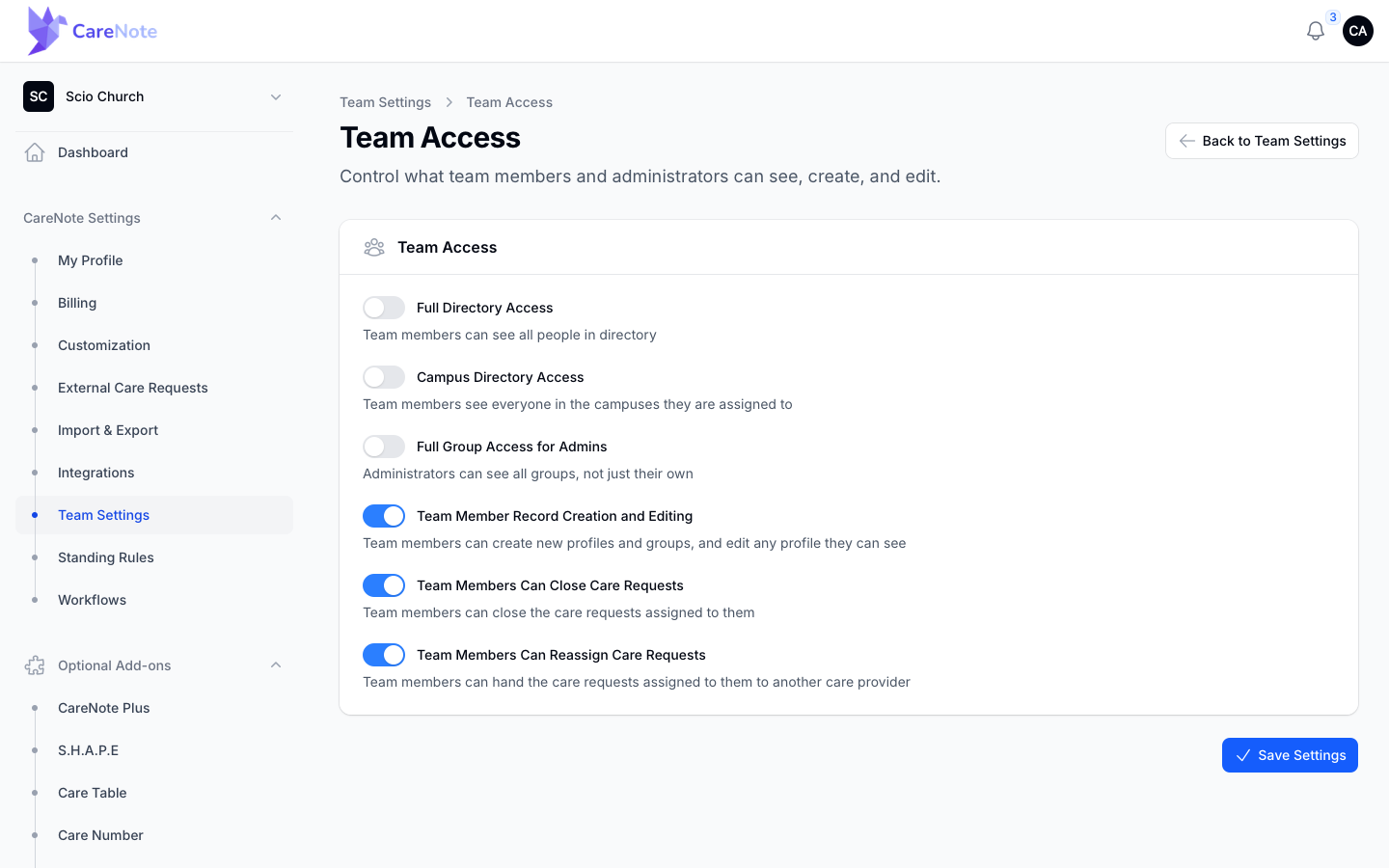
Team Access has six switches: Full Directory Access, Campus Directory Access, Full Group Access for Admins, Team Member Record Creation and Editing, Team Members Can Close Care Requests, and Team Members Can Reassign Care Requests.
5. Prayer digest and giving
On Prayer Requests, switch on Daily Prayer Digest to email your intercessors a daily list of recent requests. Members can opt out in their own notification preferences. With CareNote Plus you can also text the digest to members who confirmed text messaging, and that option needs the digest turned on first.
On Giving, add your Benevolence giving link. It shows on Care Table and Care Needs sign-up pages so members can give toward a family through your benevolence fund.
6. Control AI feature by feature
Open AI. The page lists every CareNote feature that sends text to an AI model, and whether it may run for your church. At the top, the Allow AI features master switch decides whether any of it runs. CareNote uses Anthropic and OpenAI models, and no church name, account details or login identity are sent with any request.
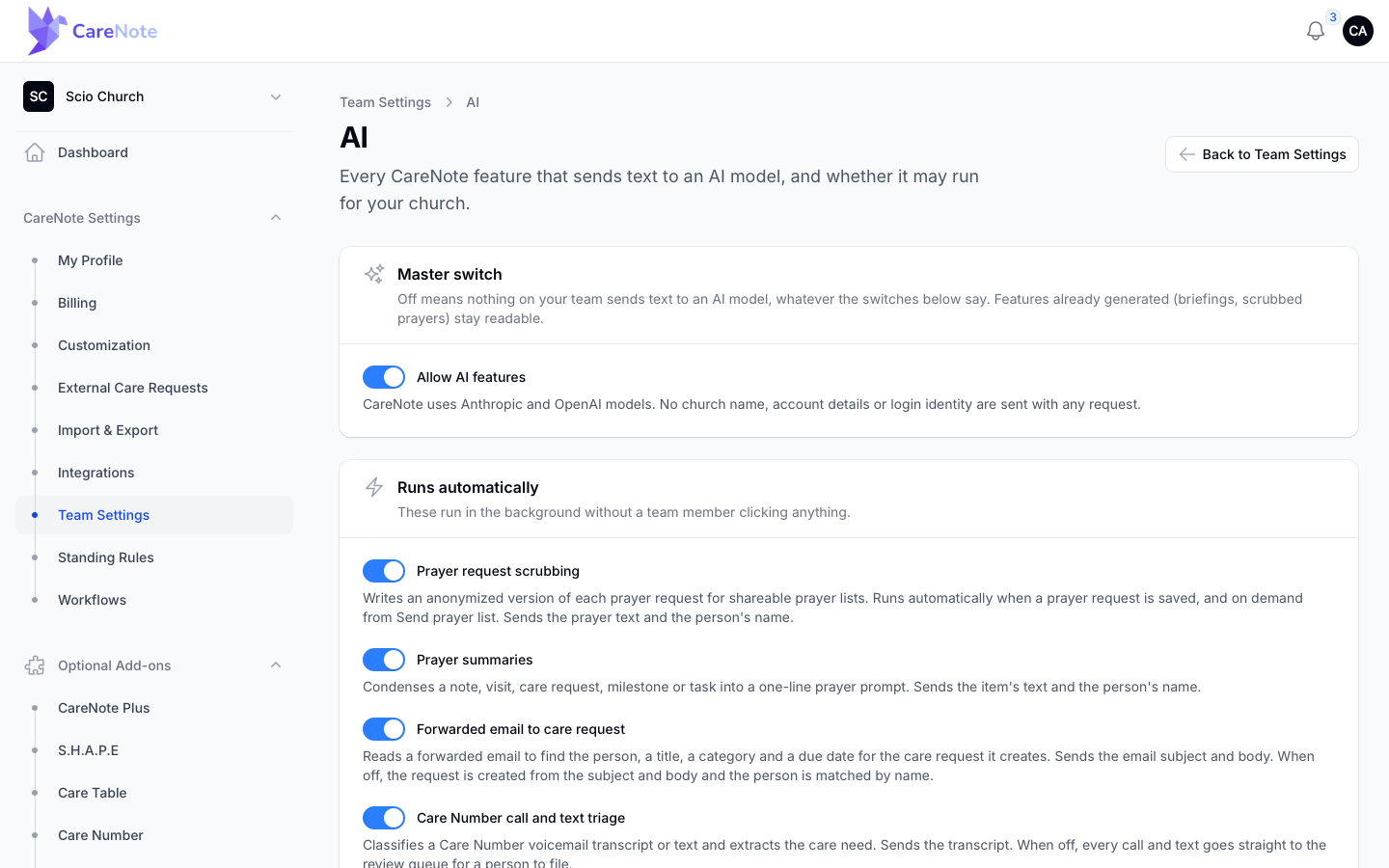
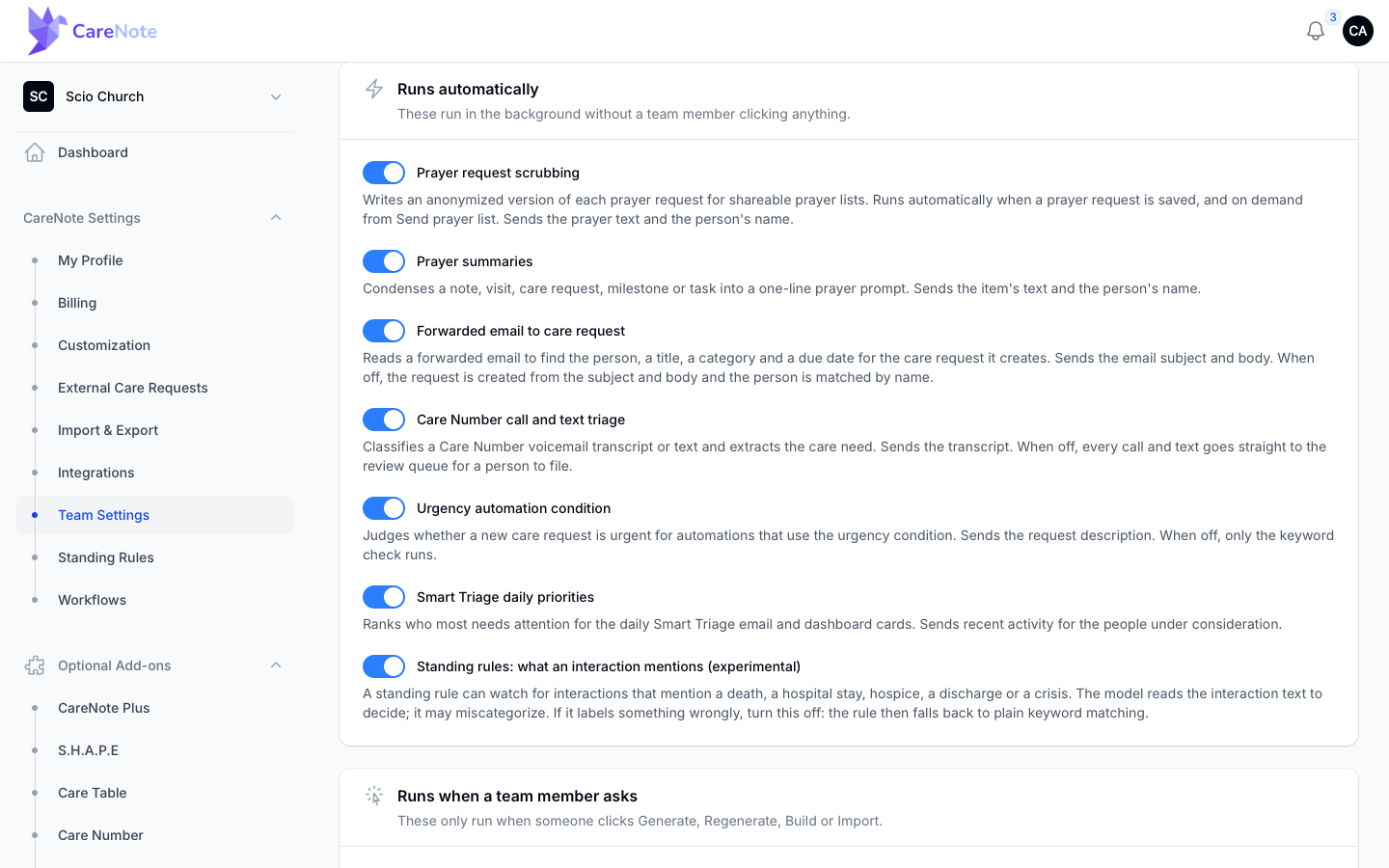
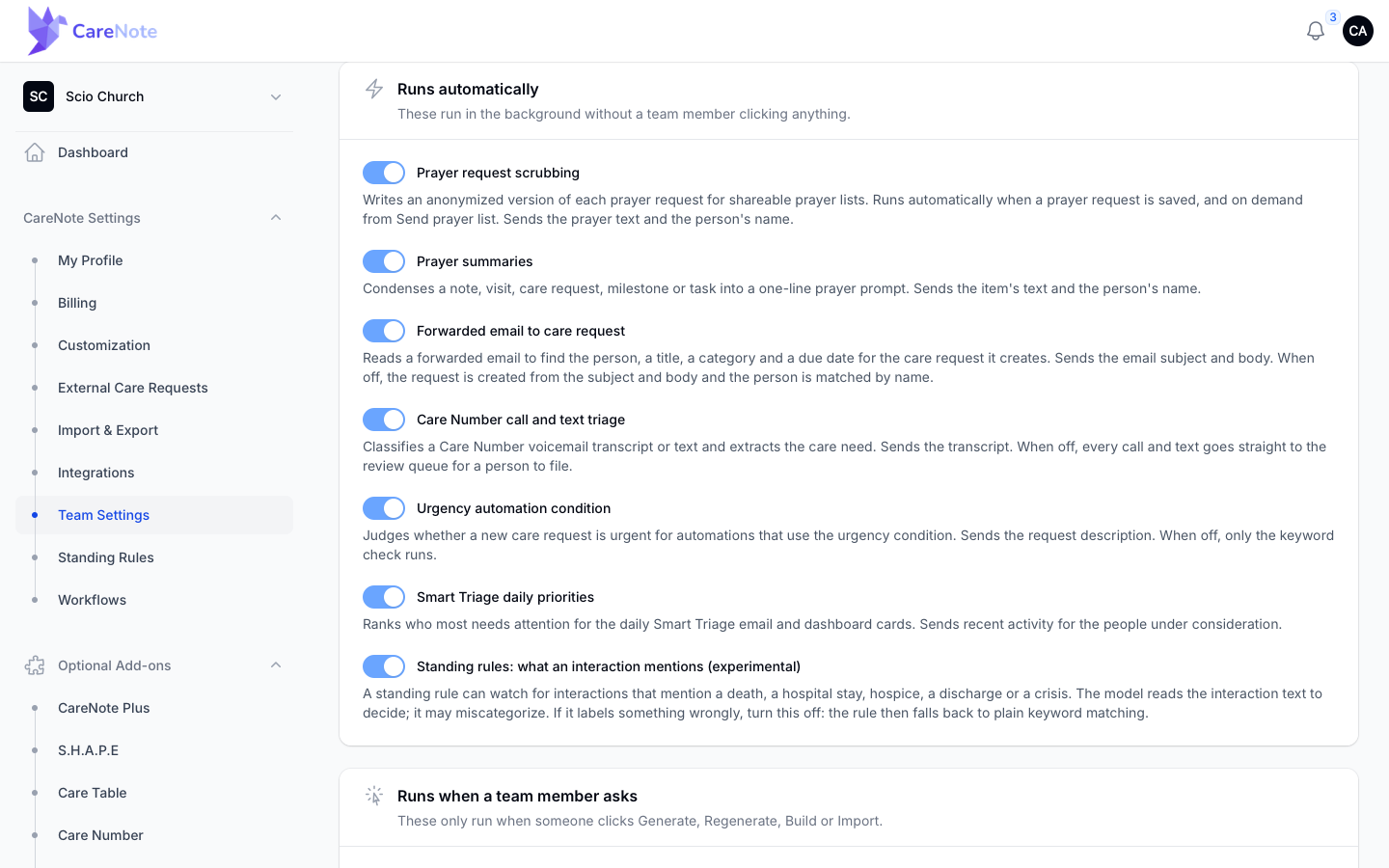
Below it, 13 switches sit in two cards. Each switch's help text says what text it sends.
Runs automatically covers work in the background: prayer request scrubbing, prayer summaries, forwarded email to care request, Care Number call and text triage, the urgency automation condition, Smart Triage daily priorities, and standing rules (experimental).
Runs when a team member asks covers person care briefings, care request briefings, group interaction summaries, the AI Report Builder, the AI workflow generator and CSV import column mapping.
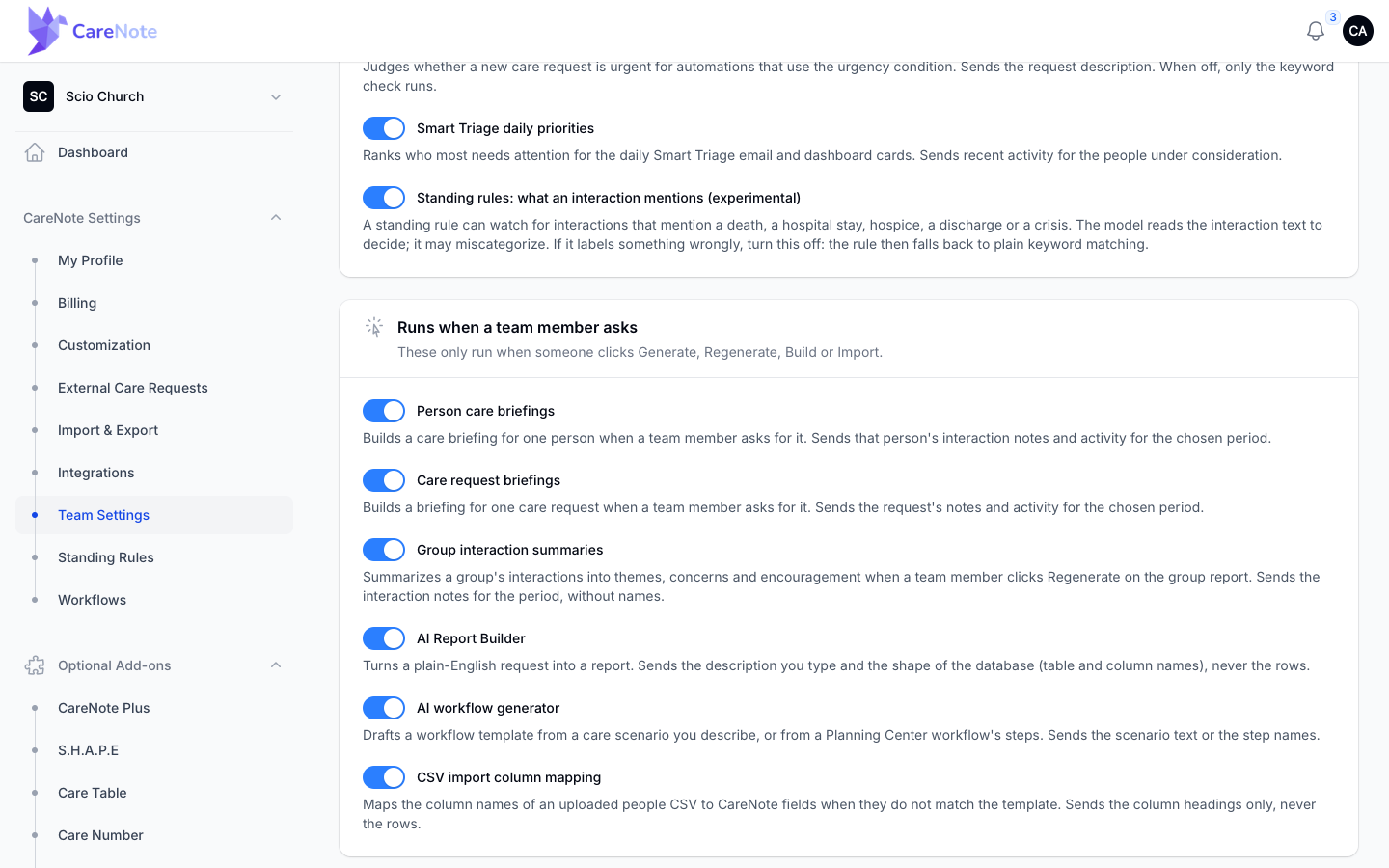
When you turn a feature off, CareNote falls back to a plain approach. Forwarded email is created from its subject and body with the person matched by name. Care Number messages all go to the review queue. Urgency uses a keyword check only, and standing rules use plain keyword matching.
Turning the master switch off stops everything at once. The feature switches stay where they are but fade, and features already generated, such as briefings and scrubbed prayers, stay readable.
Frequently asked questions
Who can open Team Settings? Owners. It lives in the owner settings area, so team members and administrators do not see it.
If I change the team language, does everyone have to switch? Everyone follows the team language unless they set their own on My Profile. Anyone who leaves that field blank follows the team.
If I turn the AI master switch off, do I lose my briefings? No. Features already generated, such as briefings and scrubbed prayers, stay readable. Nothing new is sent to an AI model until you turn it back on.
Do I need to save each page? Yes. Every page has its own Save Settings button, which is how one area changes without disturbing another.
Where are dropdown options and imports? They live in neighboring hubs: Customization for dropdown values and Import & Export for CSV Import, Interactions Import, Data Export and Reconcile Import.