
Logging Care: The Complete Guide to Interactions
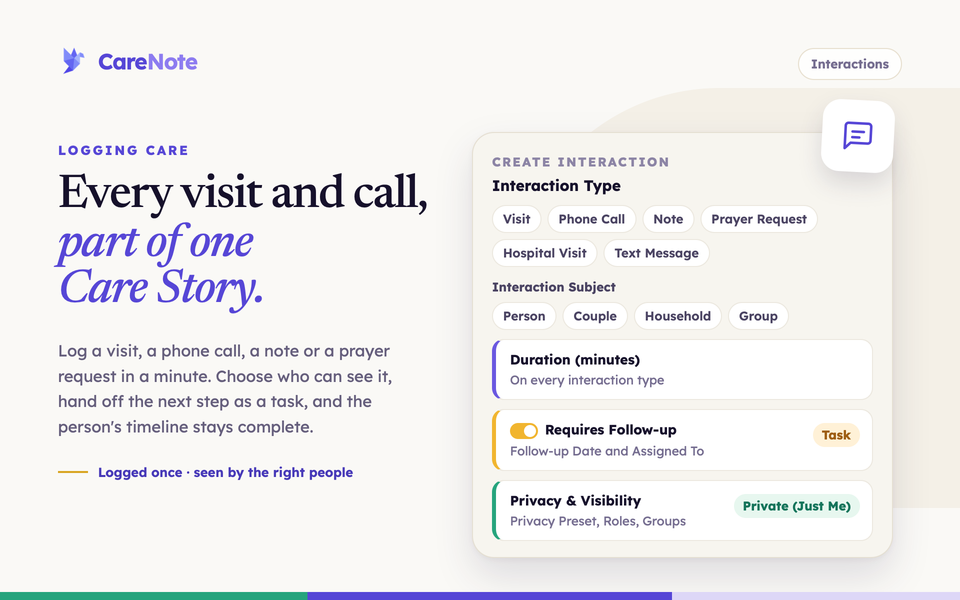
When someone on your care team visits a member in the hospital, makes a phone call, or prays over a request, that moment matters. Interactions are how CareNote captures those moments. Every interaction you log becomes part of a person's Care Story: a single timeline of every touchpoint your team has had with them.
Watch how to log pastoral care visits, calls and notes with privacy controls.
What counts as an interaction?
An interaction is any care touchpoint you want to remember. CareNote supports these types:
- Note: general documentation about a person or situation
- Update: a status update on ongoing care
- Visit, Home Visit, and Hospital Visit: in-person time together
- Phone Call: a conversation by phone
- Email and Text Message: written correspondence
- Care Report: a report submitted after completing assigned care
- Prayer Request: a request you want your team praying over
1. Open the Interactions page
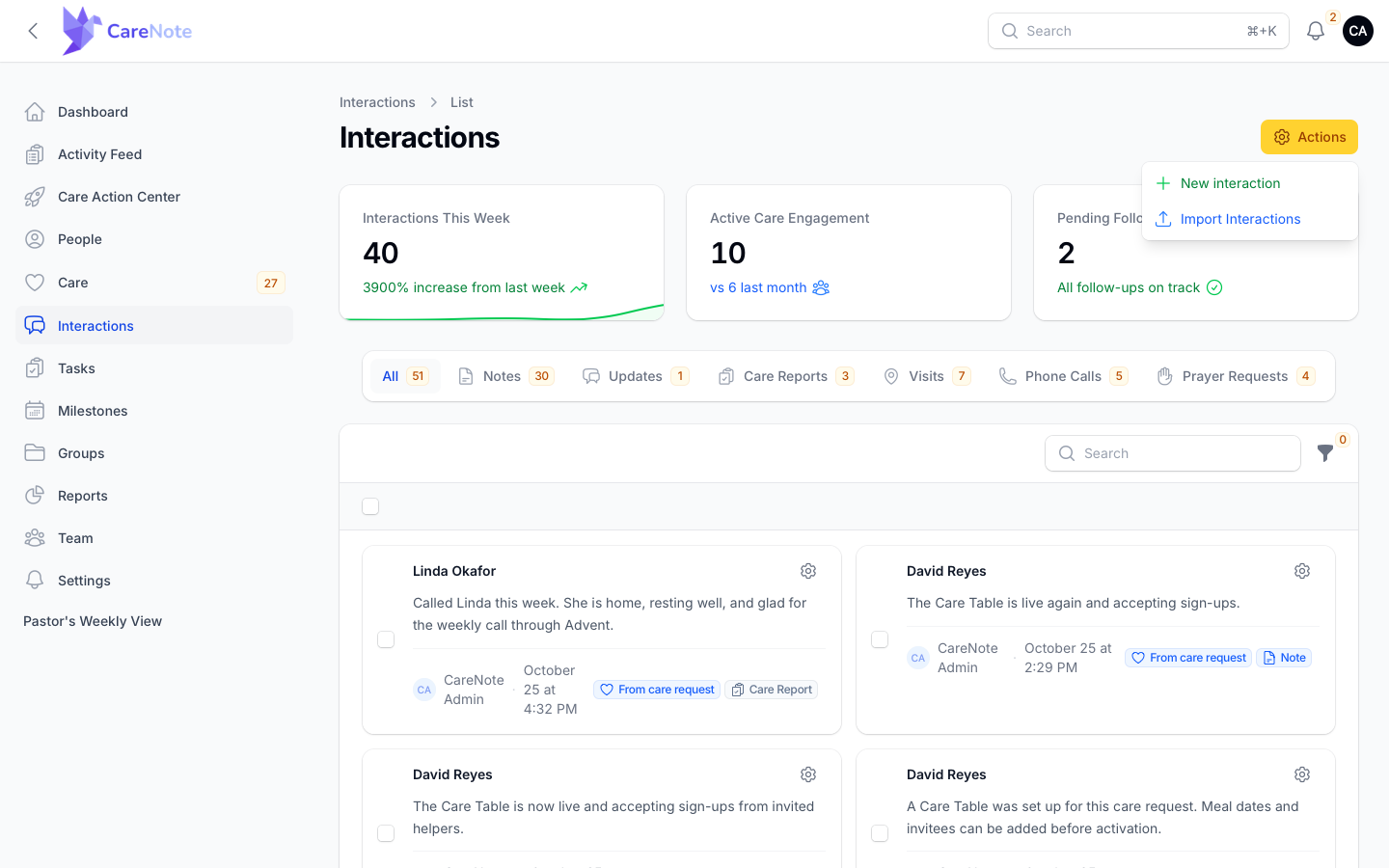
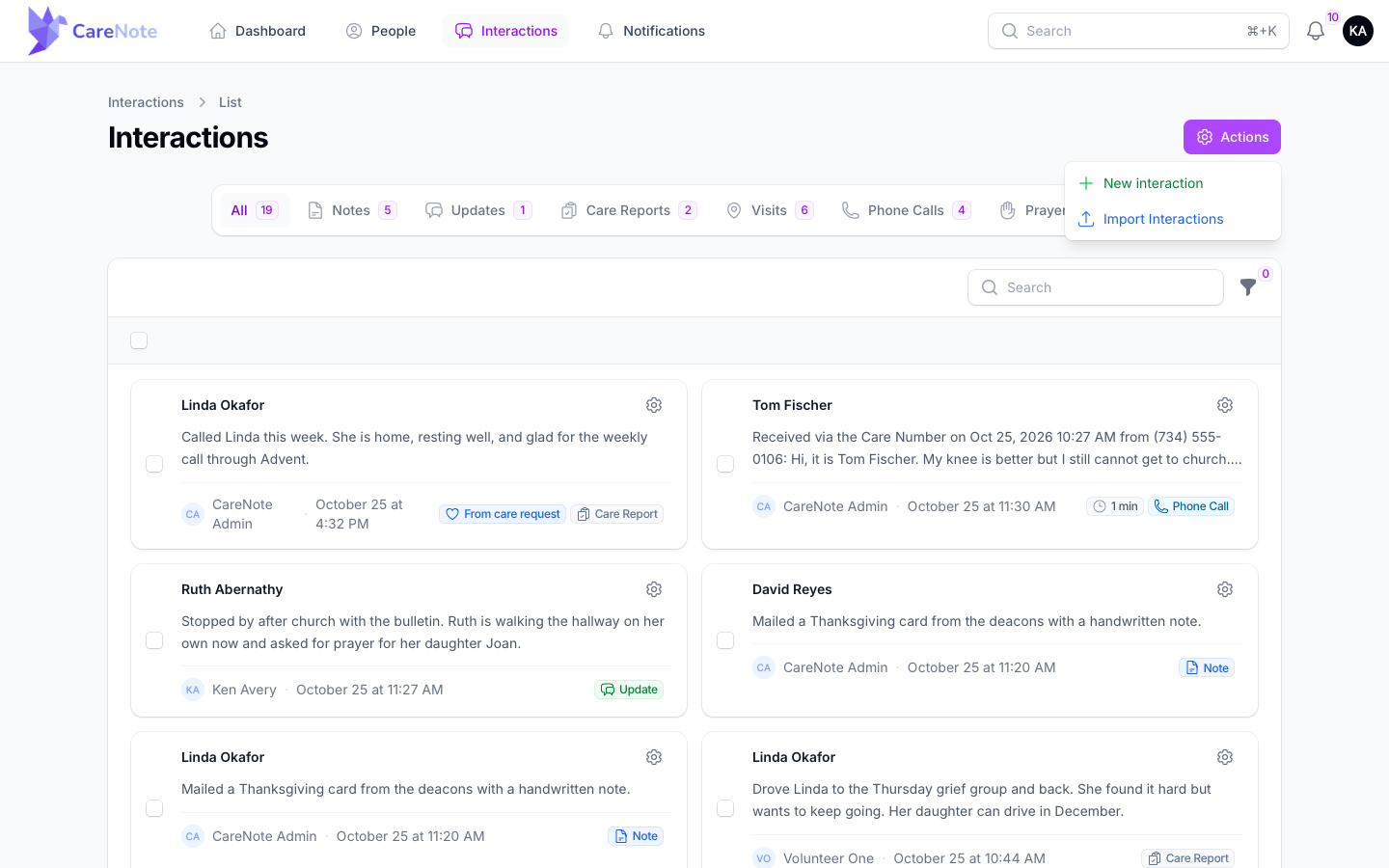
Click Interactions in the left navigation. The stat cards at the top give you a quick pulse on your team: Interactions This Week, Active Care Engagement, and Pending Follow-ups.
The tabs sort the list by kind: All, Notes, Updates, Care Reports, Visits, Phone Calls, and Prayer Requests, each with a count. Prayer Requests has its own tab for your team's prayer list.
New entries start from the gear Actions button in the page header, which holds New interaction and Import Interactions.
2. Log an interaction
- Open Actions and choose New interaction.
- Choose the Interaction Type.
- Choose the Interaction Subject: Person, Couple, Household, Care Request, Visitation Assignment, or Group.
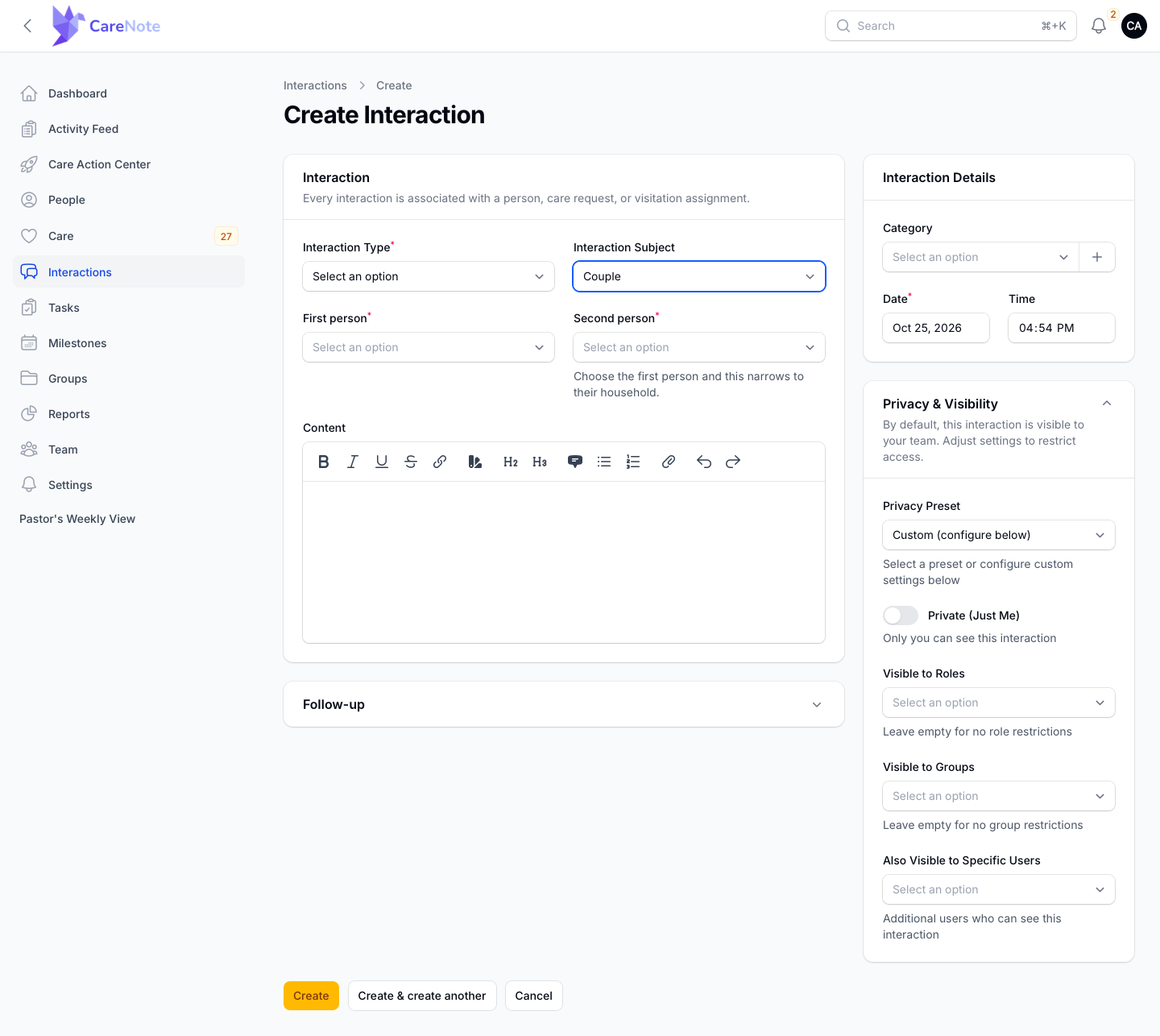
- Pick who it is about. The Person search finds people by first and last name together, as well as by email or phone.
- Write what happened in the Content field. Formatting, links, images, and file attachments are supported.
- Set the Date and Time the interaction actually happened, so the Care Story stays in true order even when you log something a day later.
- Add Duration (minutes). Every type has it, from a hospital visit to a text thread, so your reports can total the time your team gives. Visits and updates also show a Location card for the place.
- Click Create, or Create & create another to keep going.
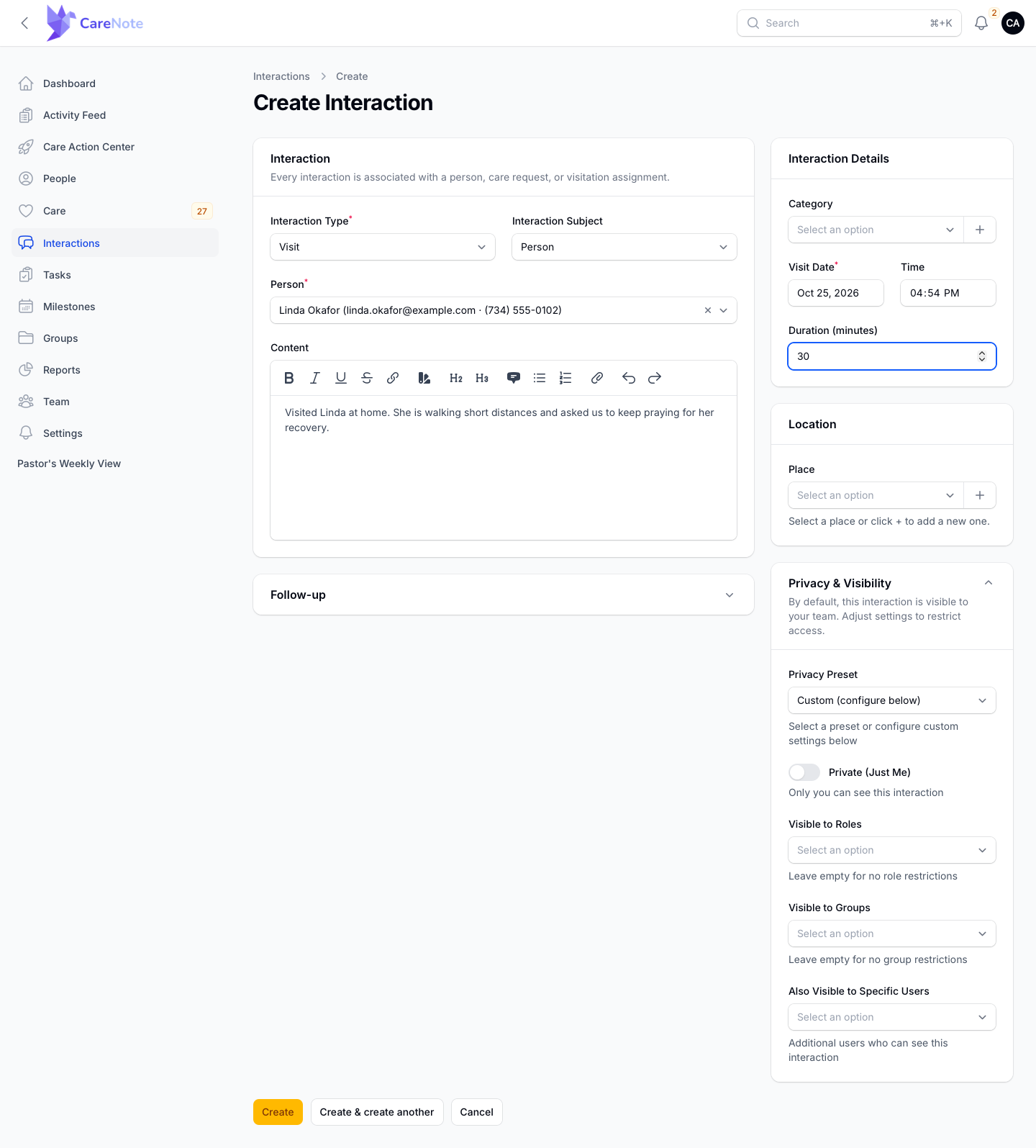
Visiting a married couple? Choose Couple and pick the First person and Second person, and one entry lands on both Care Stories. Logging One Interaction for a Couple or a Household walks through it.
You can also log from a person's page: open their Interactions tab and click Add Interaction.
3. Add a follow-up
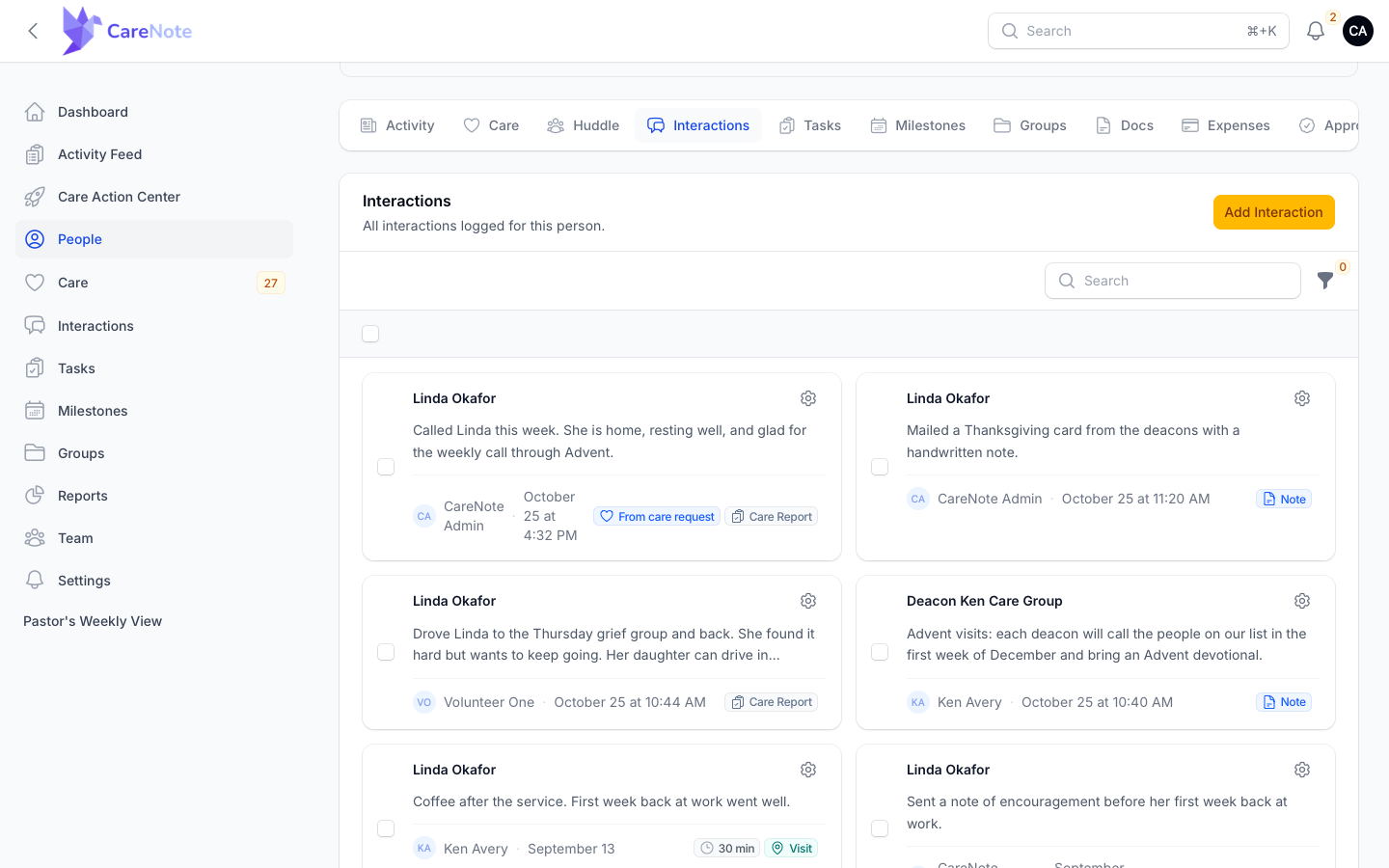
Open the Follow-up card and turn on Requires Follow-up. Add Follow-up Notes, a Follow-up Type, a Follow-up Date, and who it is Assigned To. Turn on Include Contact Details to put the person's contact information at the top of the task.
When you save, CareNote creates a task for the person you assigned (or for you, if you leave it blank). Completing, rejecting, or deleting that task closes the follow-up, so the Pending Follow-ups count stays honest.
4. Choose who can see it
Privacy & Visibility controls who can see this interaction. By default, an interaction is visible to your team. You can:
- Turn on Private (Just Me) so only you can see it
- Restrict it with Visible to Roles (for example, pastors only)
- Restrict it with Visible to Groups (for example, your Care Team)
- Add people with Also Visible to Specific Users
When you combine restrictions, Matching Logic decides whether someone needs to match any of them or all of them.
A Privacy Preset applies saved settings in one click. Presets are managed under Settings, then Privacy Presets. You can keep your own, and an administrator can share one as the team default. A new interaction starts from your own default preset, or the team default if you have none.
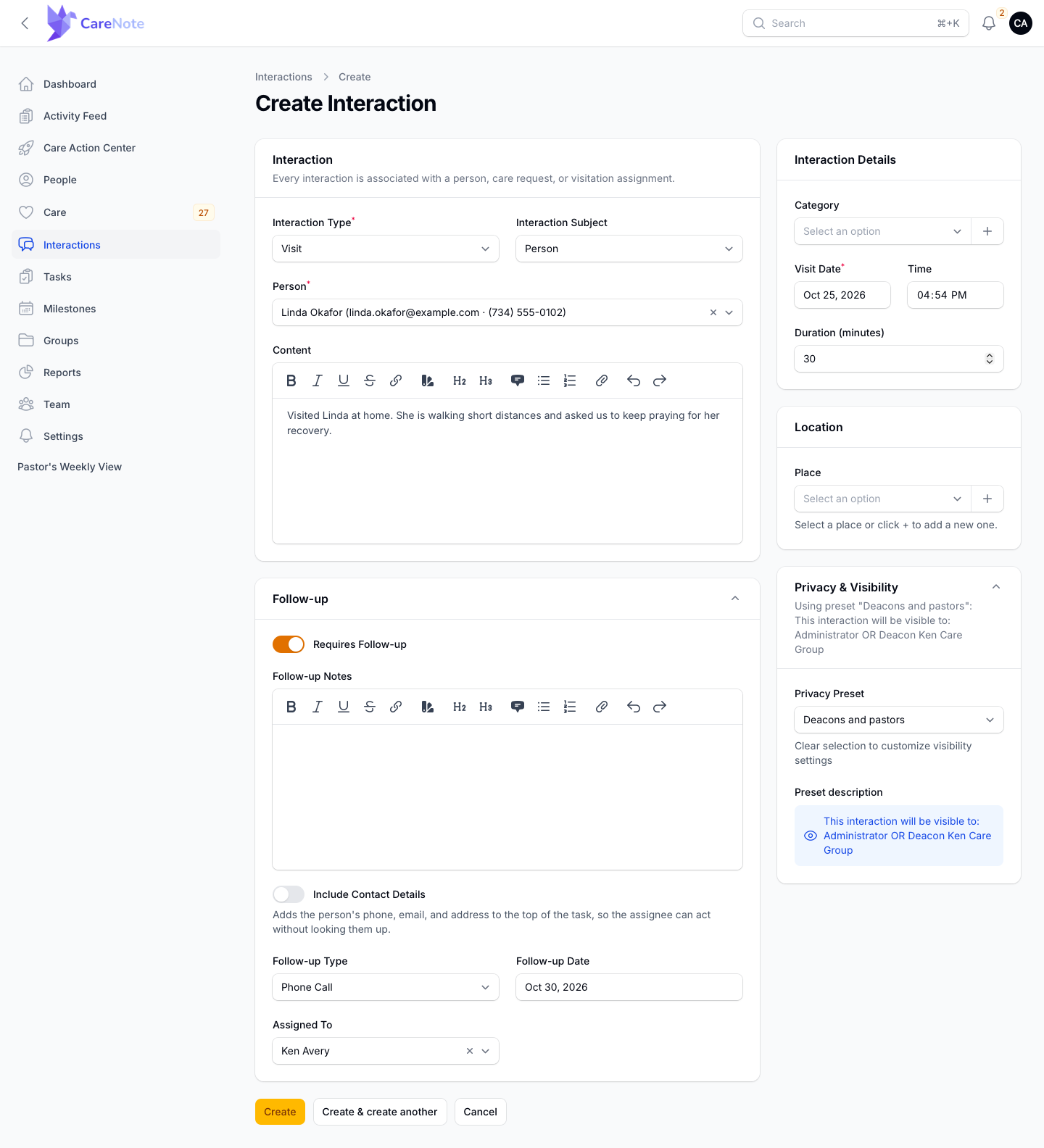
To share a prayer request more widely, edit it and click Generate Shareable Version above the Content editor for an anonymized copy you can review. This link shows only when Prayer request scrubbing is on in Team Settings, AI.
5. Copy an interaction to another person
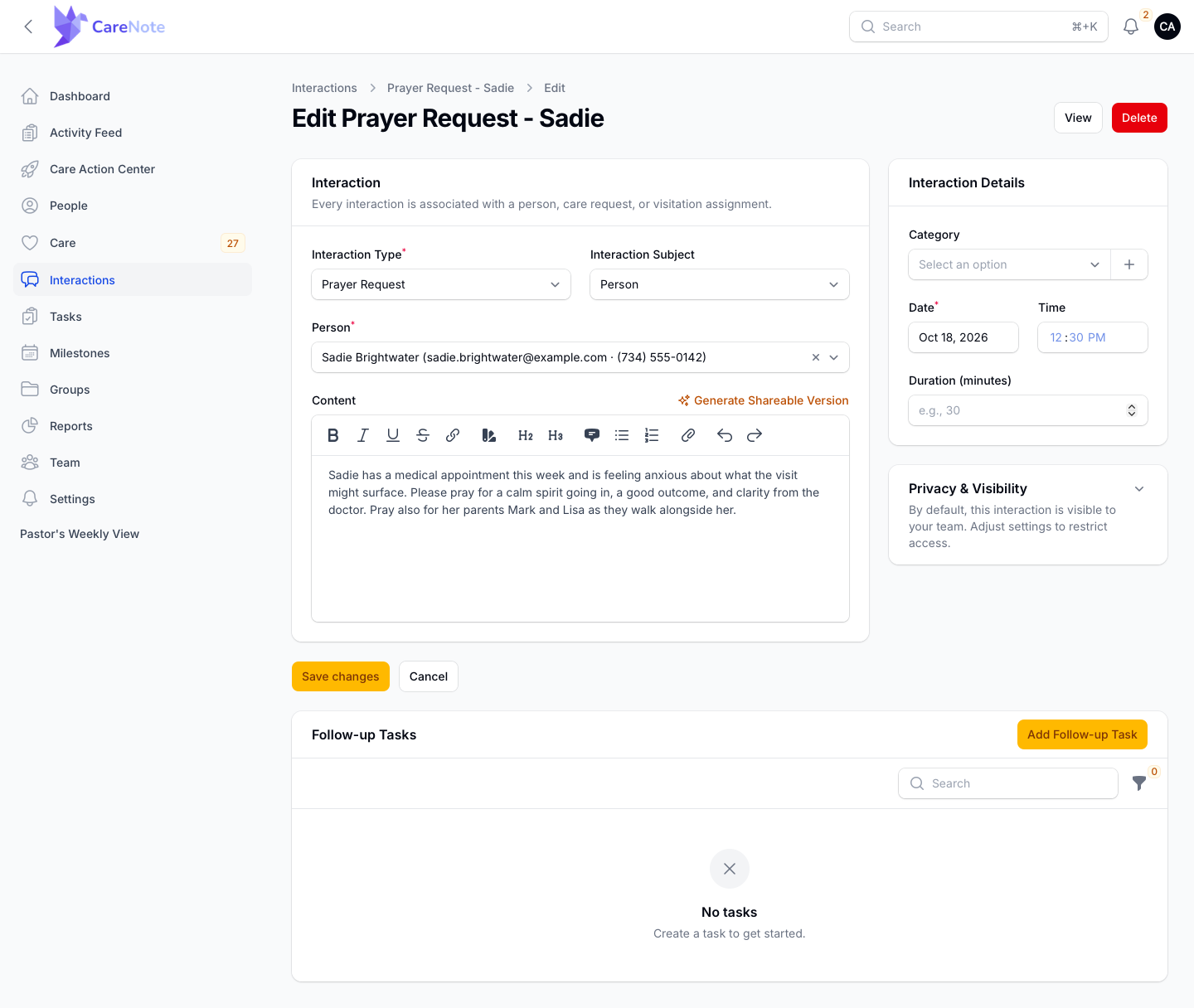
Sometimes a report about one person belongs on a spouse's Care Story too. Open the interaction, then Actions, then Copy to another person. Choose one or more people in Copy to. Members of the same household are offered first, and you can search to look outside it.
Each copy is linked to the original and keeps the same privacy settings. Follow-up tasks are not copied.
6. Import interactions from a spreadsheet
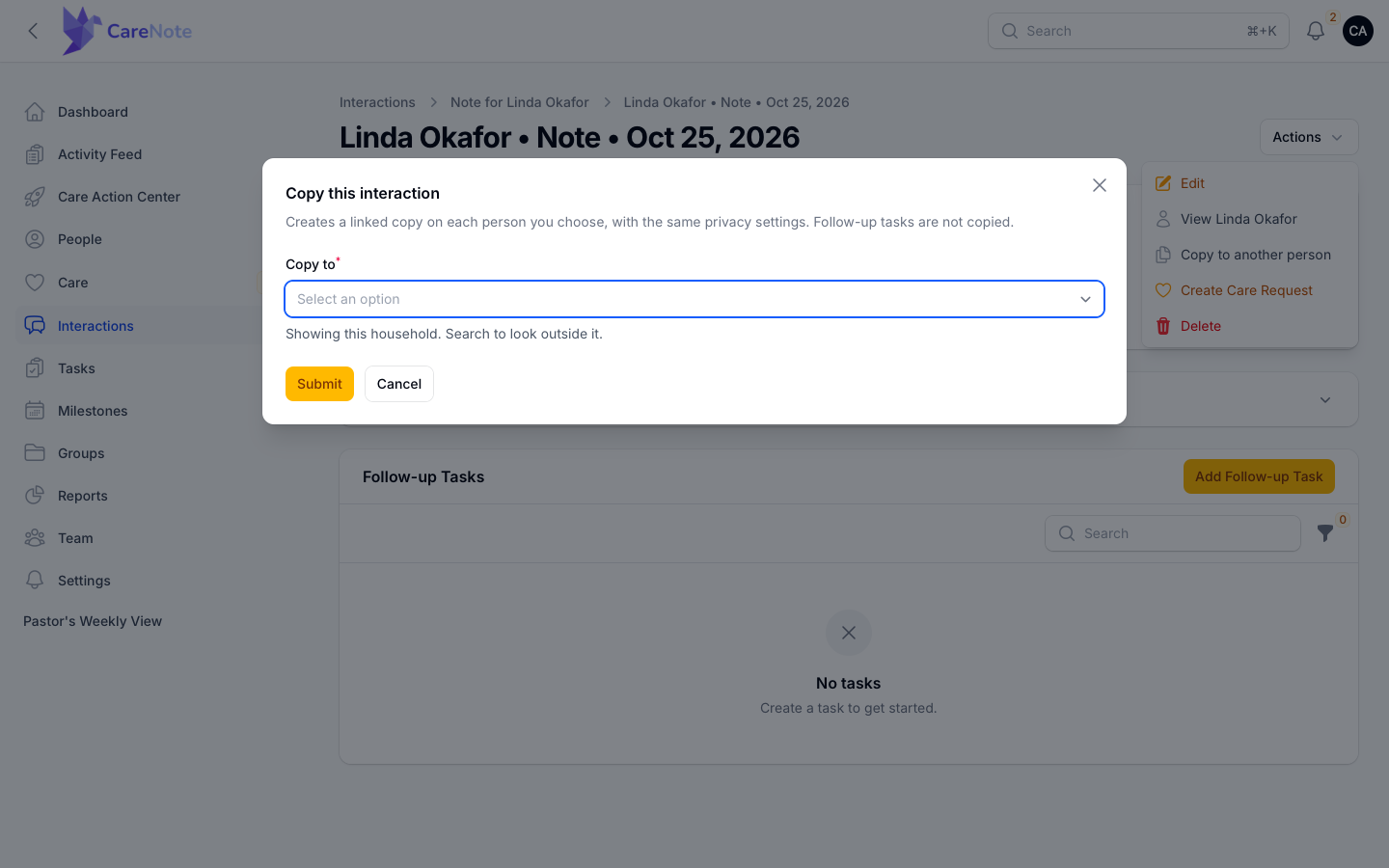
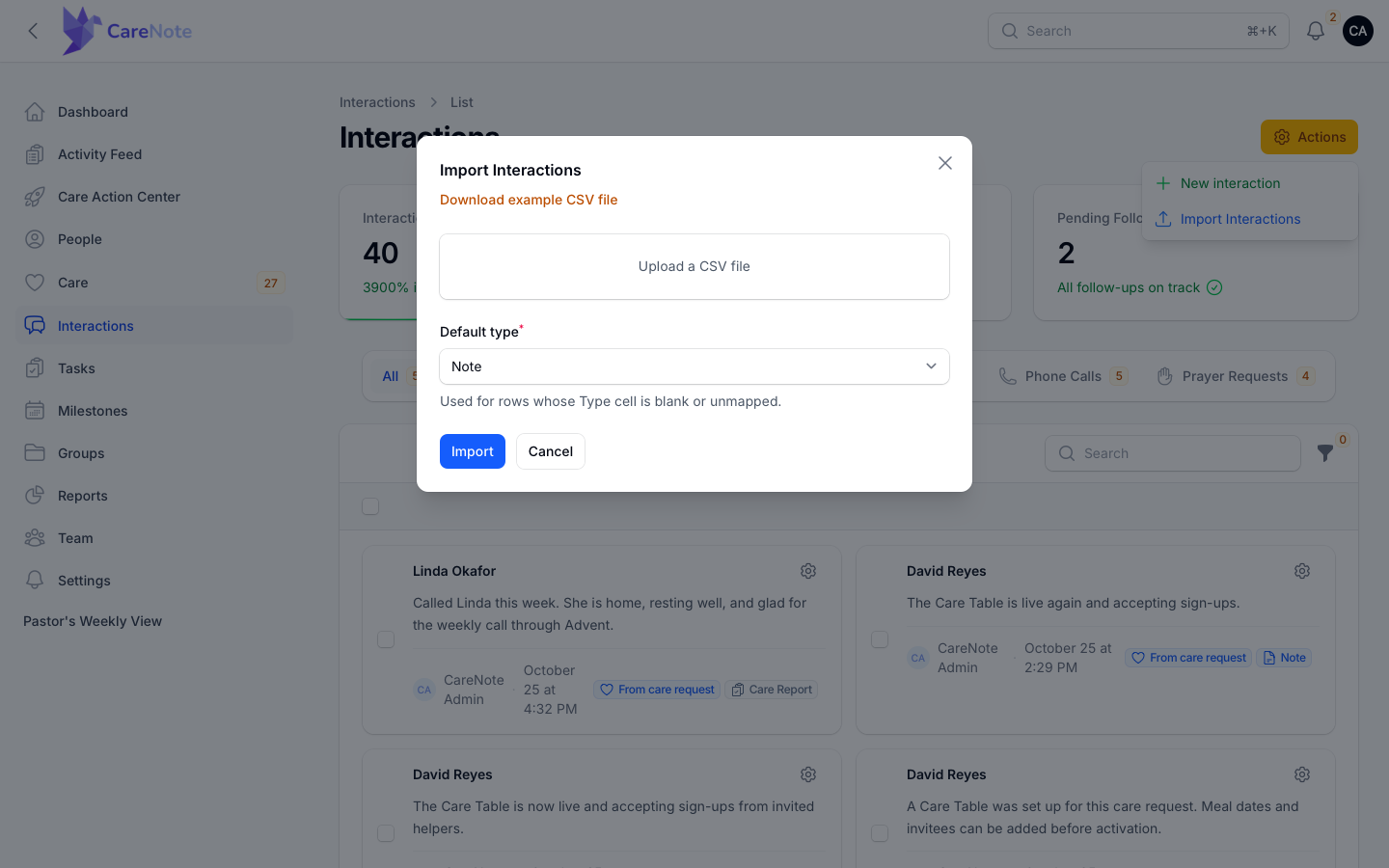
Moving from paper logs or another system? Open Actions, then Import Interactions. Click Download example CSV file to see the layout, then upload your file and pick a Default type for rows whose Type cell is blank or unmapped.
CareNote matches each row to someone already on your team by CareNote ID, email, phone, full name, or first and last name. Rows it cannot place go into a failed-rows file with the reason, so you can fix and re-upload. Rows already recorded are skipped, so nothing doubles.
7. Find interactions and read the Care Story
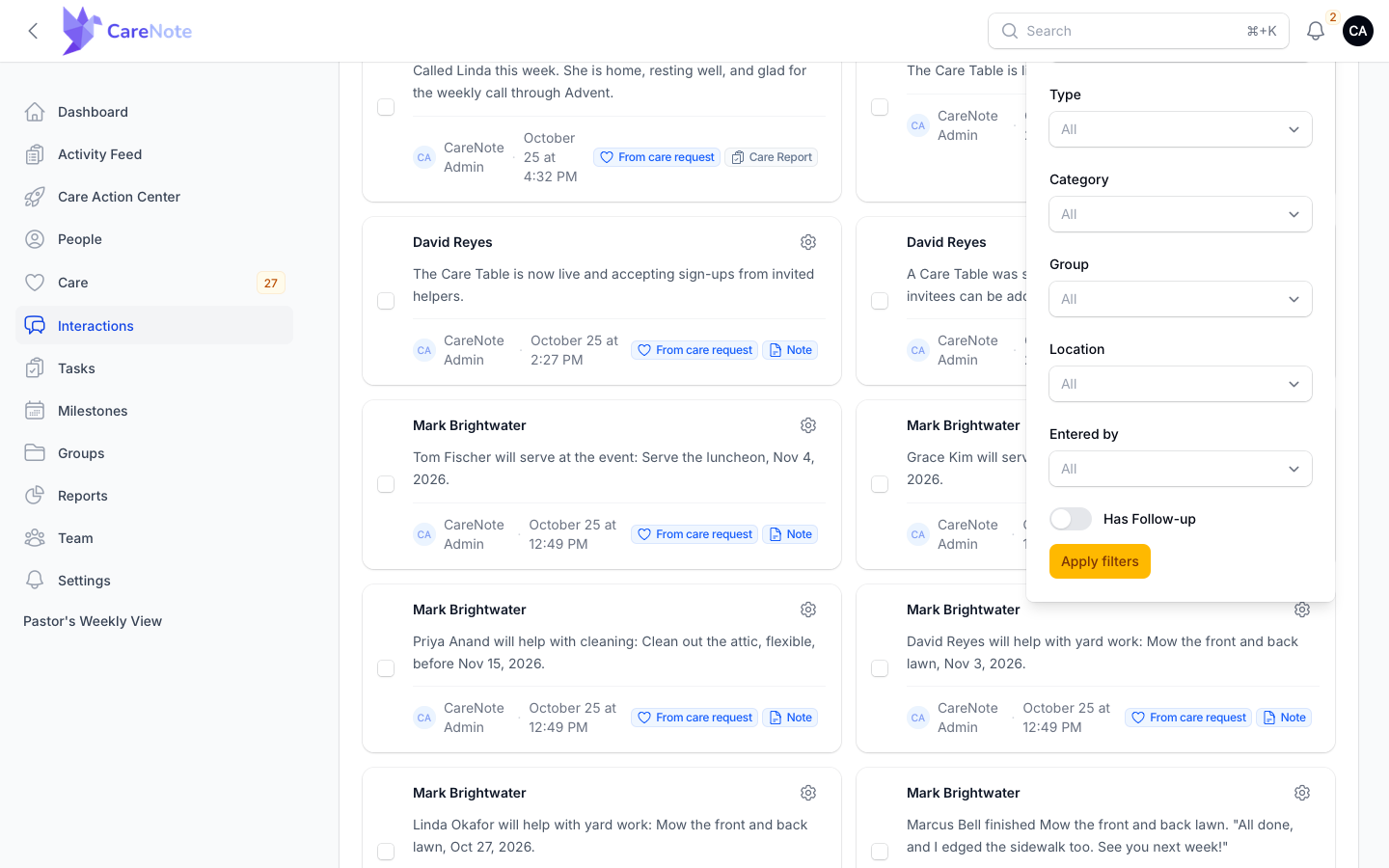
Use the search box and filter panel on the Interactions list to narrow by Date Range, Type, Category, Group, Location, Entered by, or Has Follow-up.
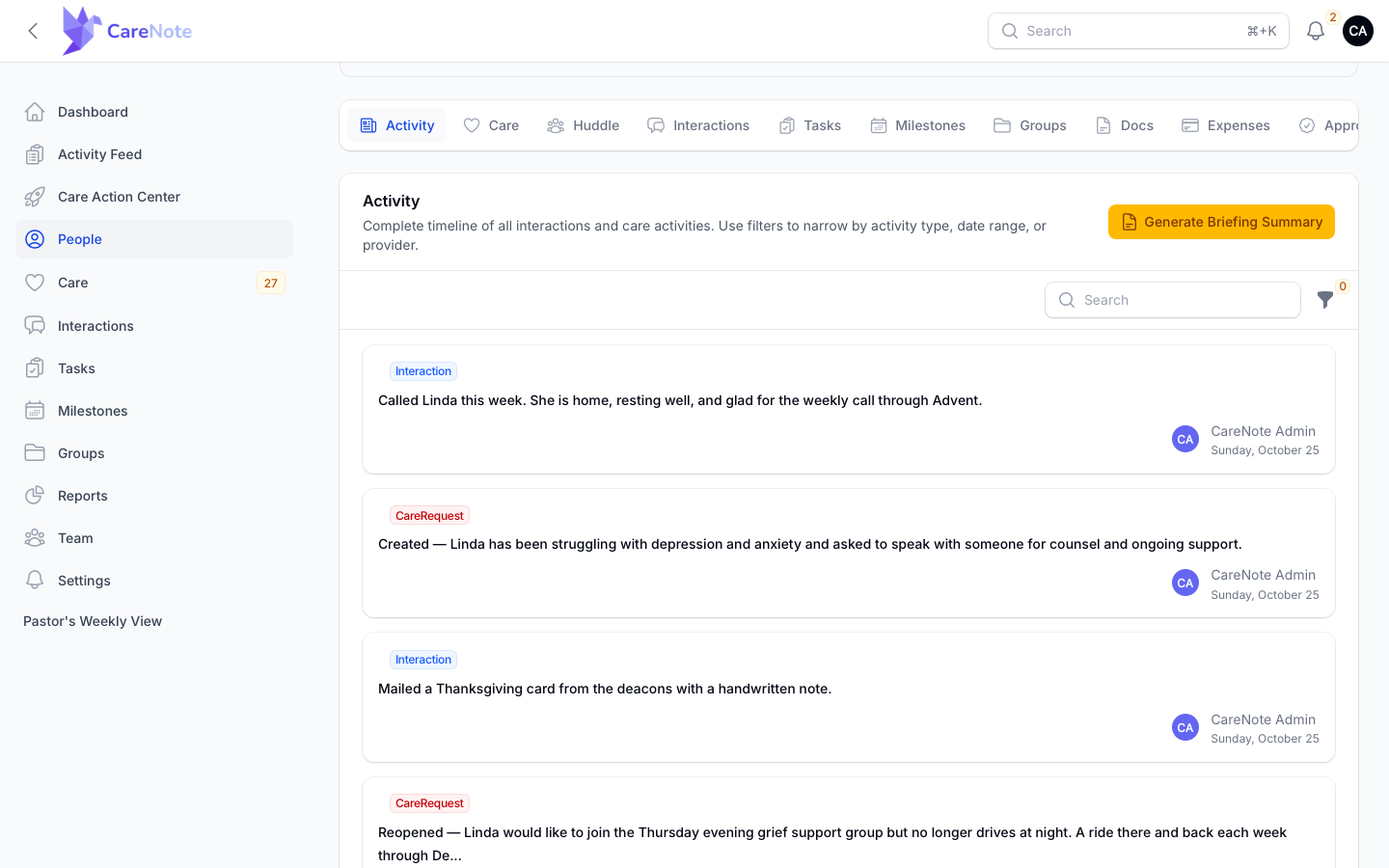
Open any person's page and the Activity tab shows their Care Story: every interaction, care request, task, and milestone in one timeline, with its own search and filters, including Entered by.
Frequently asked questions
What happened to Notes and Updates? They are now interaction types. Everything you logged before is still there, and everything new lives in one timeline.
Can Team Members log and see interactions? Yes. Team Members have the same Interactions list, tabs, filters, and Actions menu, and see only what privacy settings and their group memberships allow.
Can I attach files? Yes. Use the paperclip icon in the content editor to attach files to any interaction.
Watch
- How to Log Pastoral Care Visits, Calls and Notes (with Privacy Controls)
- Team Members 2/7: Logging Visits, Calls and Notes in 30 Seconds
- The Care Timeline: Every Visit, Call and Task in One Story
- Import Interactions: Bring Visits, Calls and Notes from Any Spreadsheet into CareNote
- Care Groups 6/8: Record Care From Your Group, One Person or Many
- Bulk Actions in CareNote: Convert Care Requests to Interactions, One Note on Many People