
Managing People and Households in CareNote
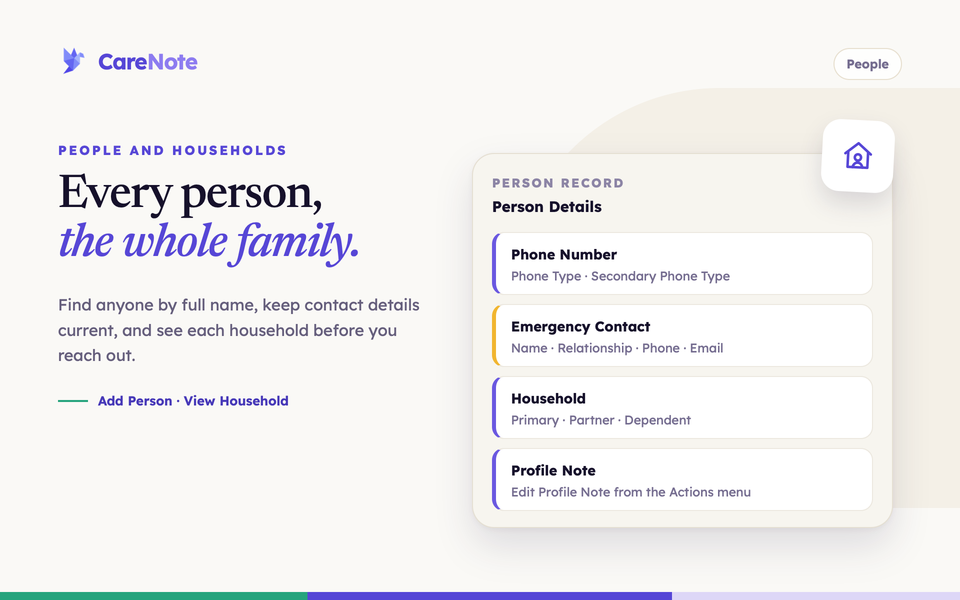
Everything in CareNote revolves around people: the members, visitors, and neighbors your church cares for. Care requests, visits, tasks, and prayer all connect back to a person's record. When those records are complete and easy to find, your team walks into every conversation with the context it needs.
Watch the person record walkthrough: household, profile note, phone types and places on one page.
This guide covers how to find and add people, organize them into households, read a person's record at a glance, and decide who on your team can see and edit each profile.
1. Find people on the People page
Click People in the left navigation to see everyone your team serves. Three cards at the top show how many Households and People you have, plus their Average Age. Beside the page title you will find Assignments, Households, SHAPE Assessments, and Add Person.
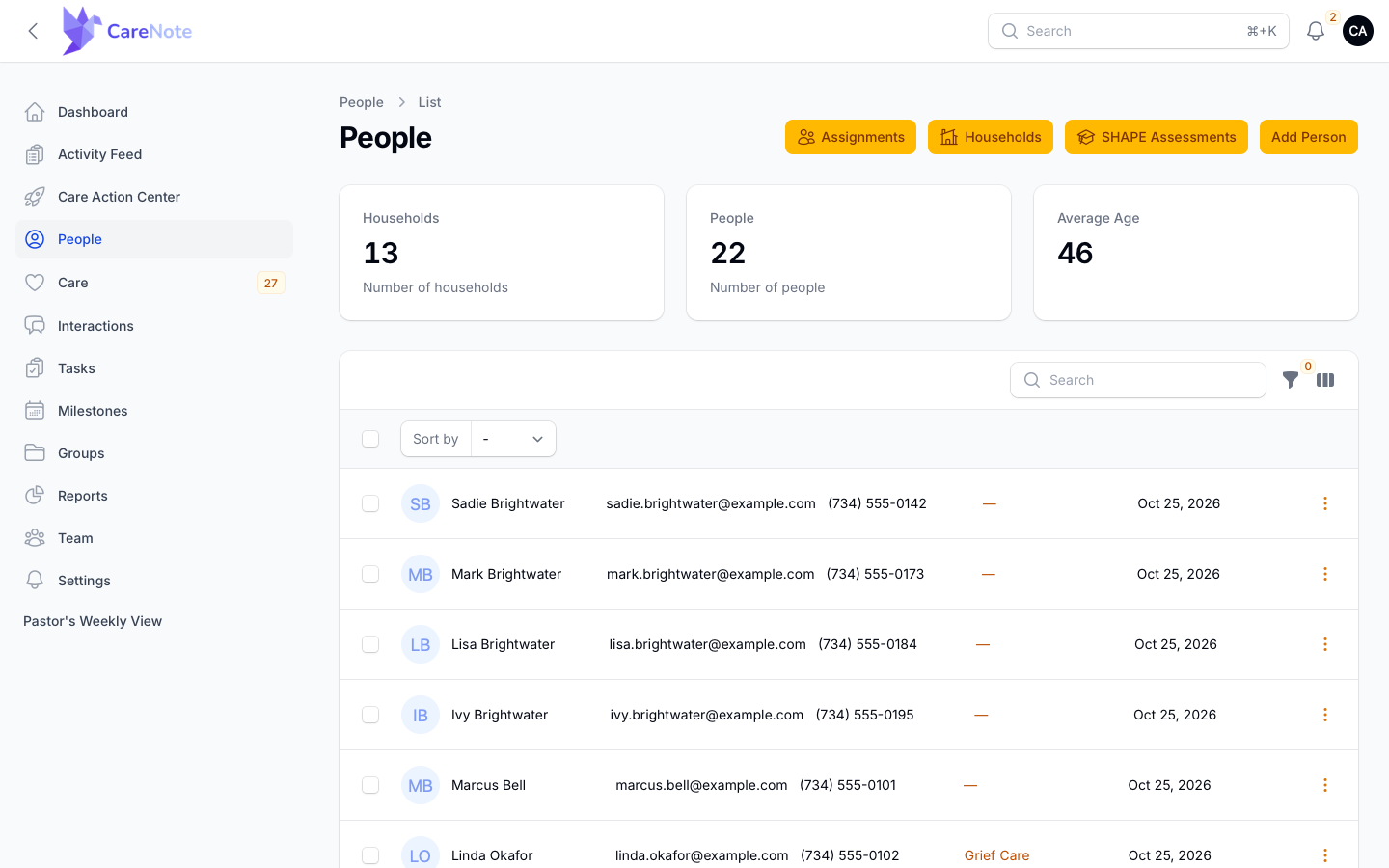
Type in the search box for a quick lookup. Search matches first and last name together, so typing a full name like "Mark Brightwater" goes straight to that one person instead of a long list of everyone named Mark.
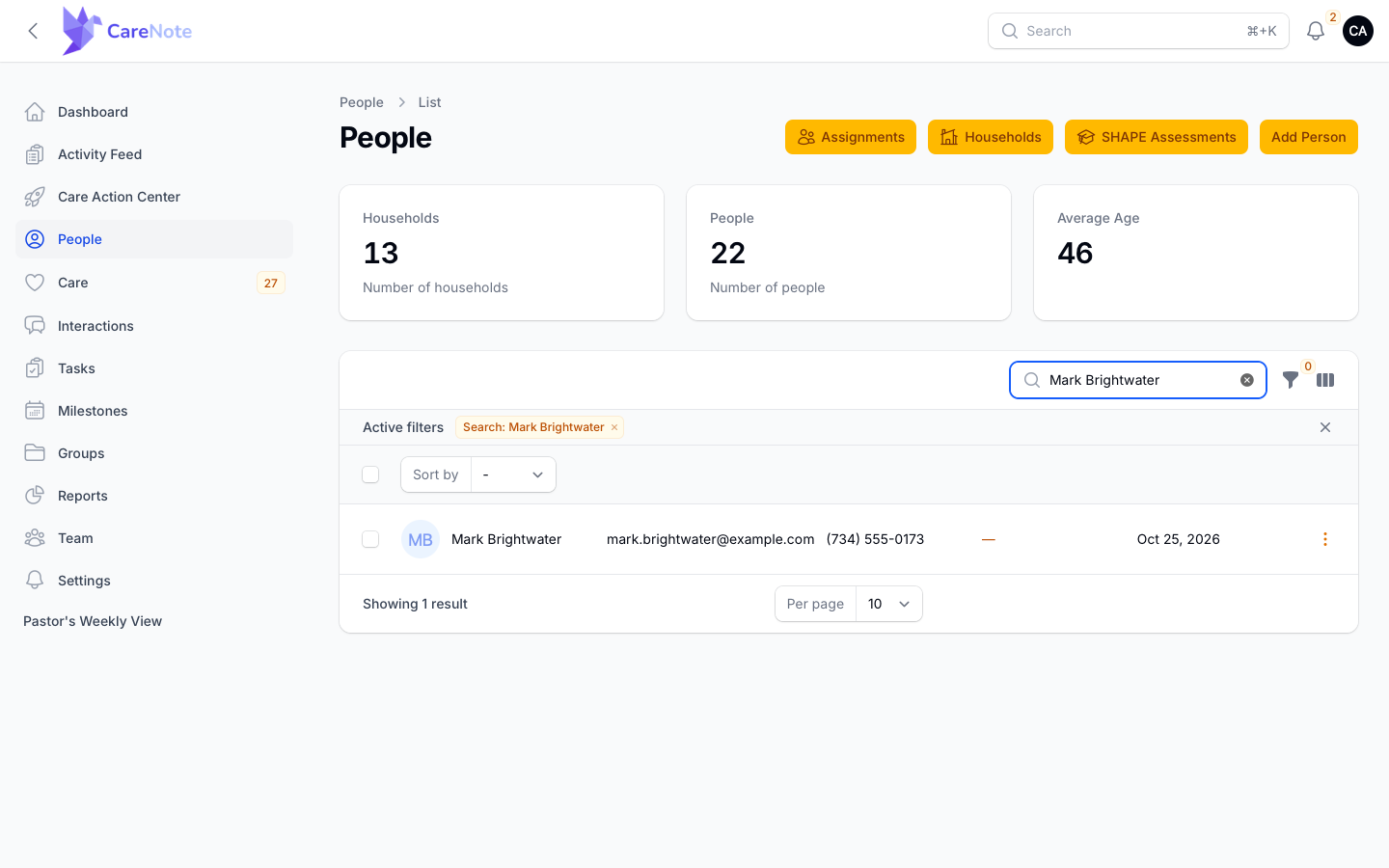
For more precise lists, open the filter funnel. You can filter by Campus, Affiliation, Classification, Gender, Group, age, Birthday, and Tags, then click Apply filters. The age filter is the pair of boxes marked At least and At most, handy for finding everyone over 80 before a season of home visits. Reset clears everything.
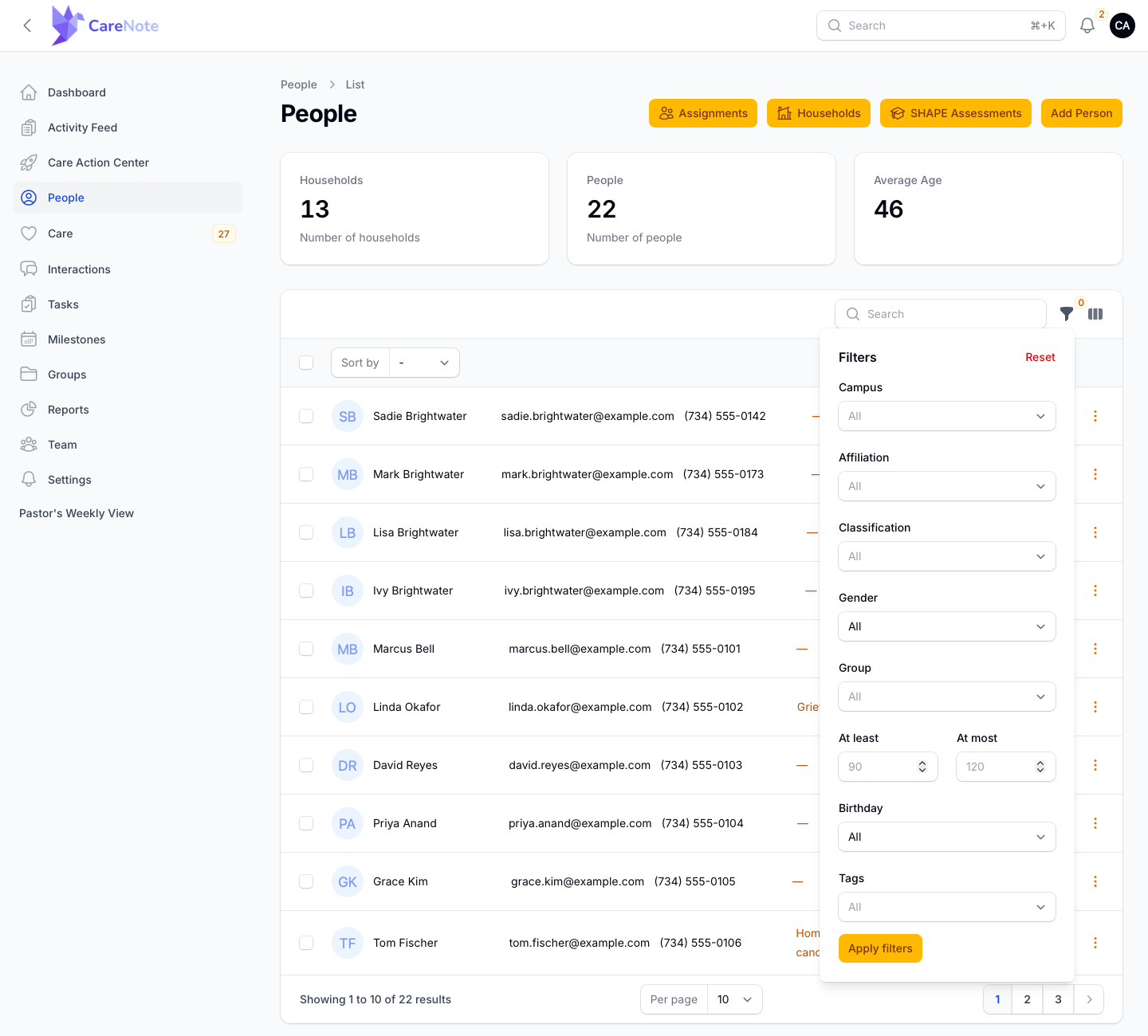
Use the column manager to choose which details appear in the list.
2. Add a person
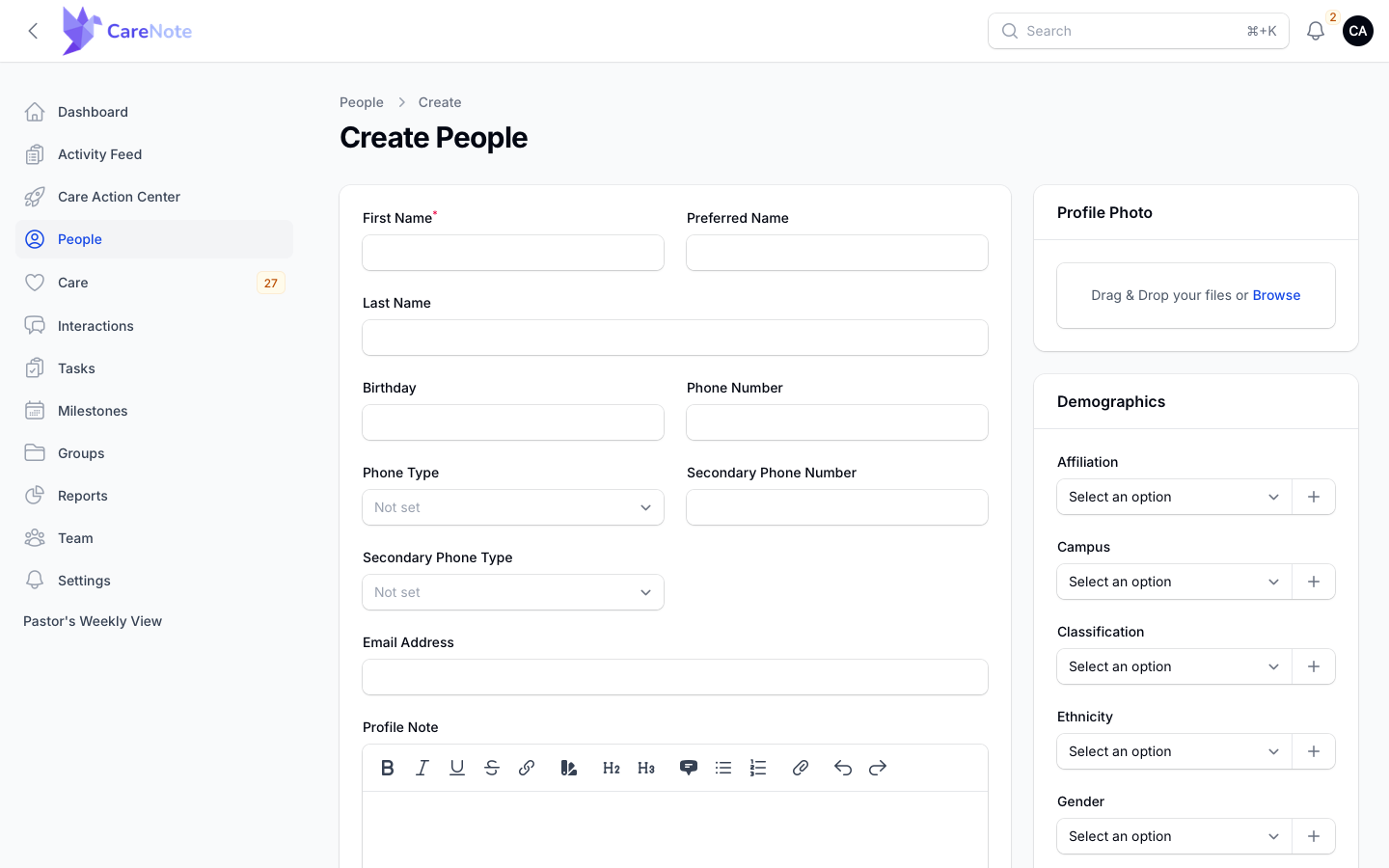
- On the People page, click Add Person.
- Enter their name. Only First Name is required, so you can capture someone quickly and fill in details later. Preferred Name is used anywhere their name is displayed.
- Add contact details: Phone Number and Phone Type, Secondary Phone Number and Secondary Phone Type, and Email Address. Both phone types start as "Not set".
- Optionally add a Birthday (CareNote surfaces it on your dashboard when it comes around), a Profile Photo, and a Profile Note. Keep sensitive details out of the profile note; log those as interactions instead.
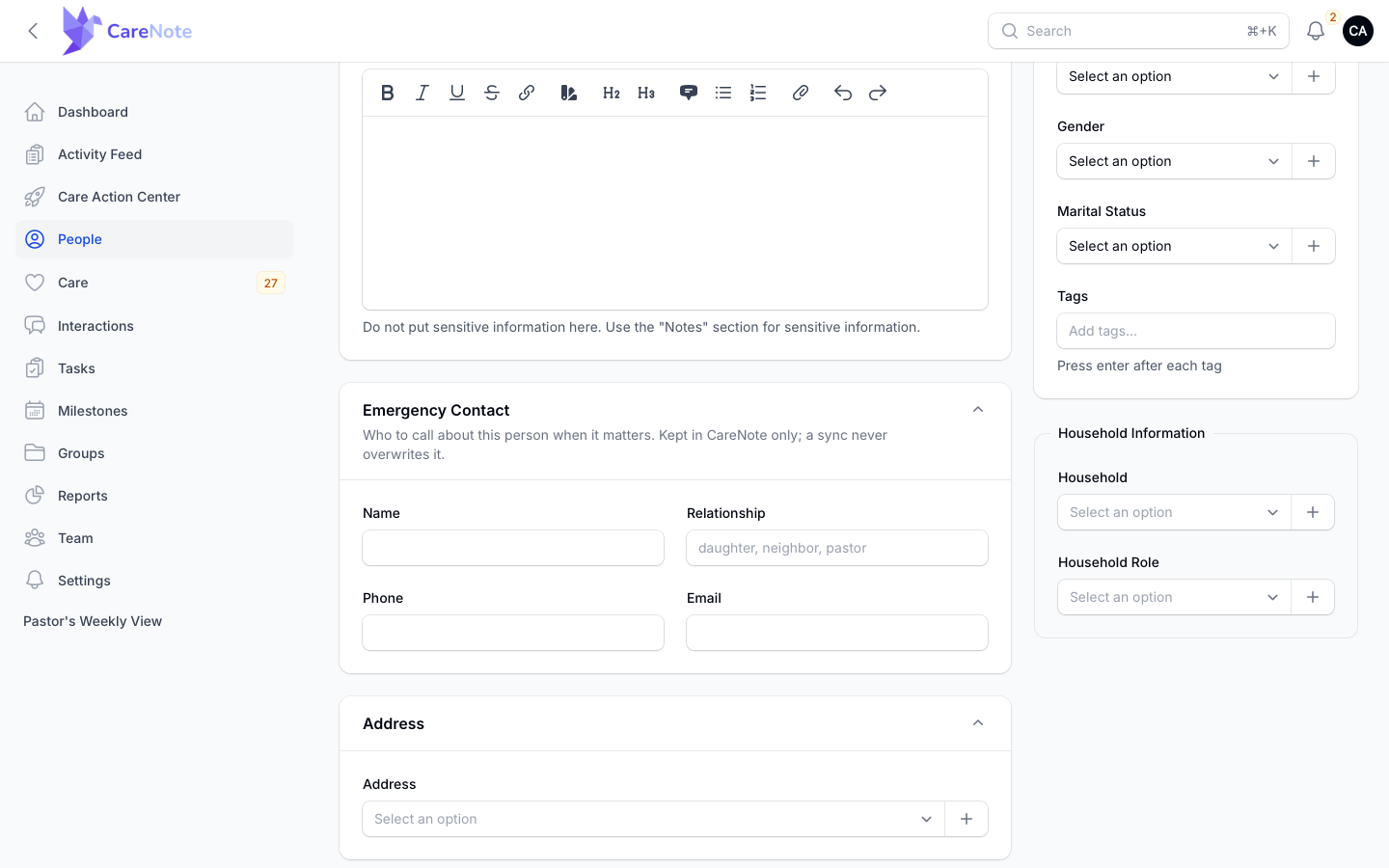
- Open Emergency Contact if you know who to call about this person when it matters: Name, Relationship, Phone, and Email. This is kept in CareNote only, and a sync never overwrites it.
- Choose an Address, or add a new one with the plus button.
- Fill in Demographics as needed: Affiliation, Campus, Classification, Ethnicity, Gender, and Marital Status. Each list is customizable, and the plus button adds a new option right from the form. Type Tags and press Enter after each one.
- Under Household Information, pick their Household and Household Role.
- Click Create, or Create & create another if you are entering a family.
Syncing from your church management system? People can be imported and kept in sync automatically, so you rarely need to add them by hand. In the Owner panel, open CareNote Settings, then Integrations, to see every system CareNote connects to. You can also import a CSV file from any spreadsheet.
3. Read a person's record
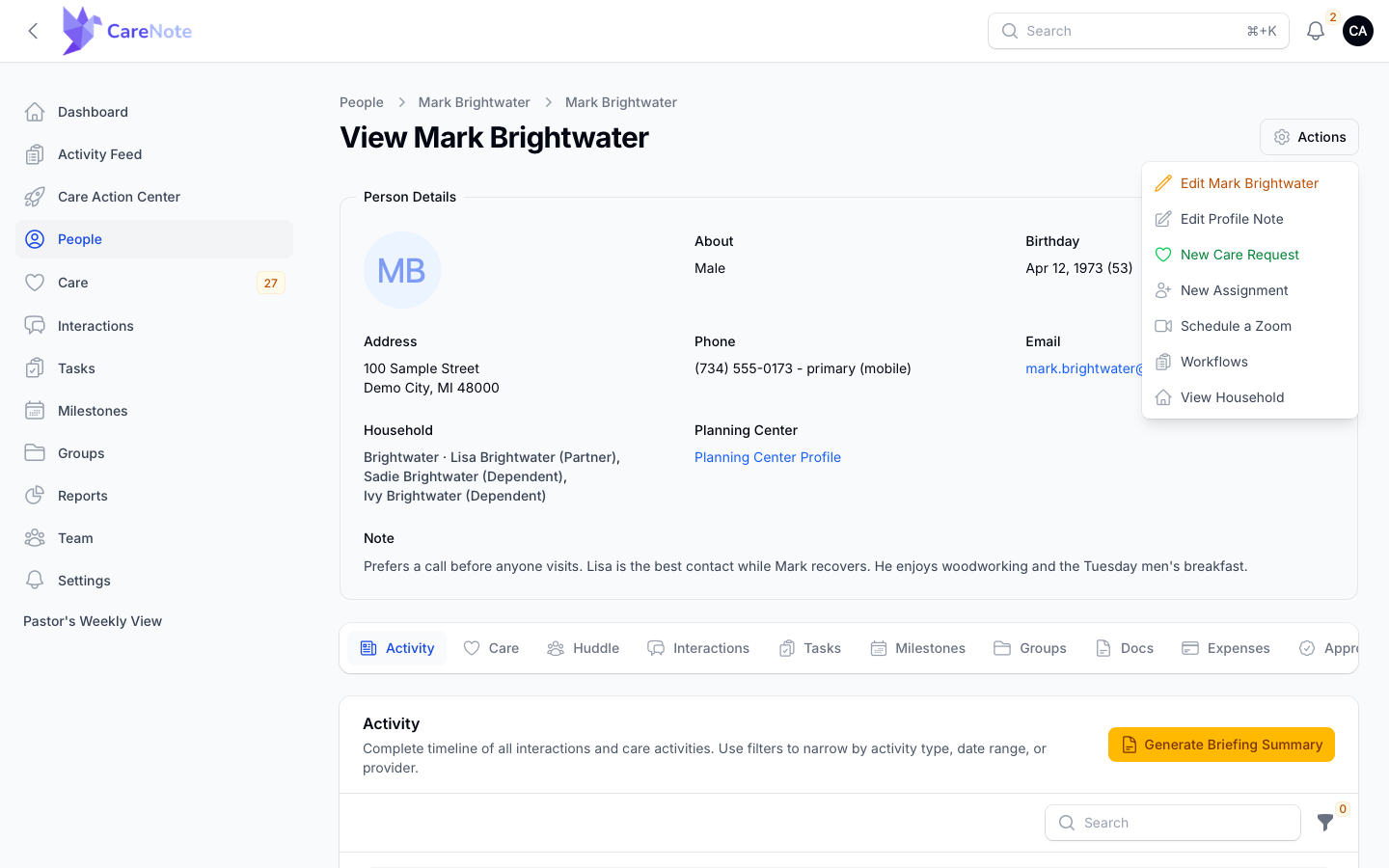
Click any person to open their record. The Person Details card shows what you need before you pick up the phone: birthday and age, address, phone numbers with their type (such as primary, mobile), email, and the Profile Note right on the page. The household line lists everyone they live with and each person's role, so you can ask about the whole family. If the person came from Planning Center, a Planning Center Profile link takes you straight to their record there.
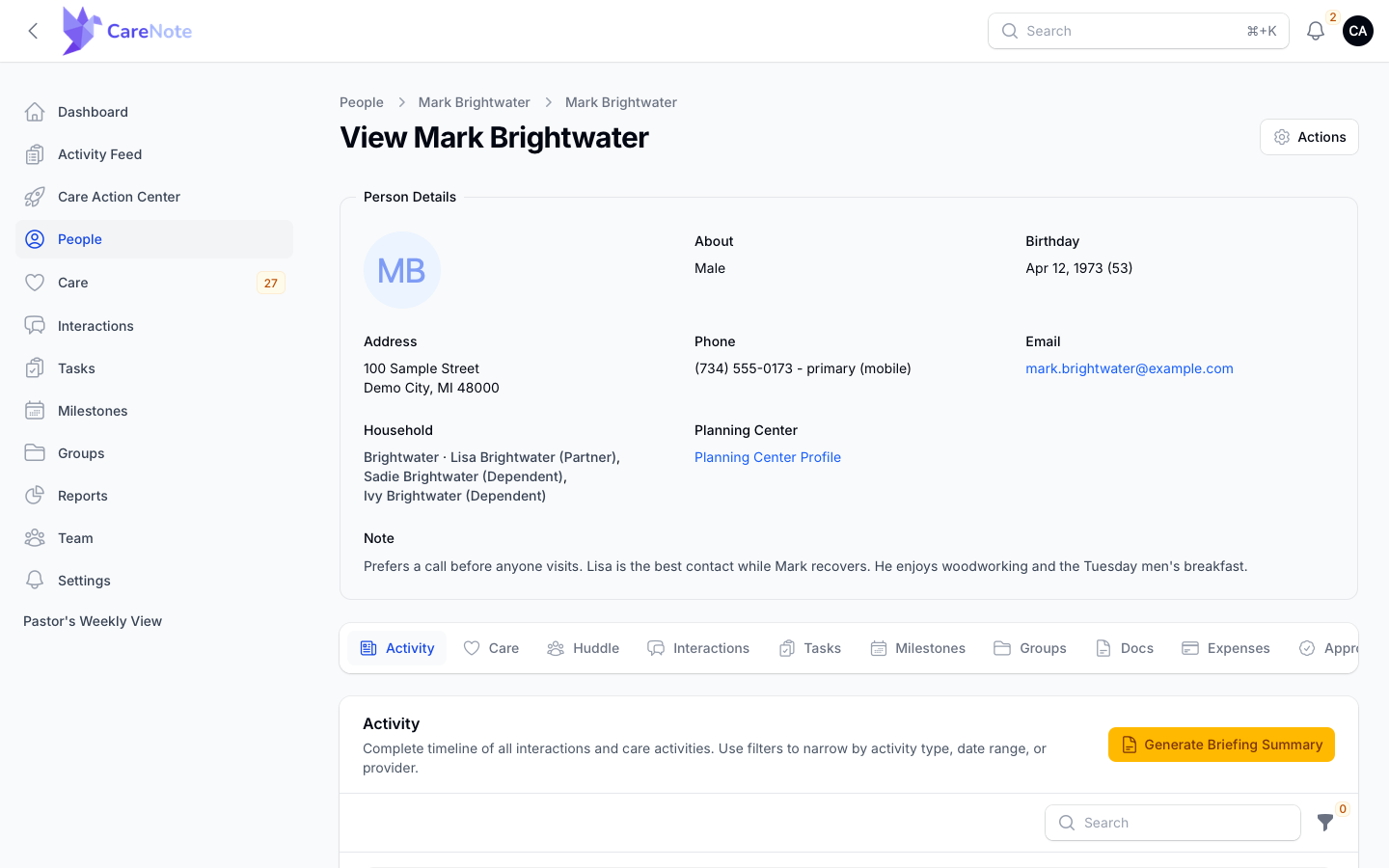
The tabs below tell the story of your church's care for them:
- Activity: the complete timeline of everything (this is the Care Story)
- Care: their care requests. Care requests and tasks can carry a place, such as the hospital where a visit happens, so whoever picks up the work knows where to go
- Huddle: the trusted people gathered to shepherd this person (see Huddles)
- Interactions: visits, calls, notes, and prayer requests
- Tasks, Milestones, Groups, Docs, and Expenses: everything else connected to them
- Approvals: any approval requests created for this person
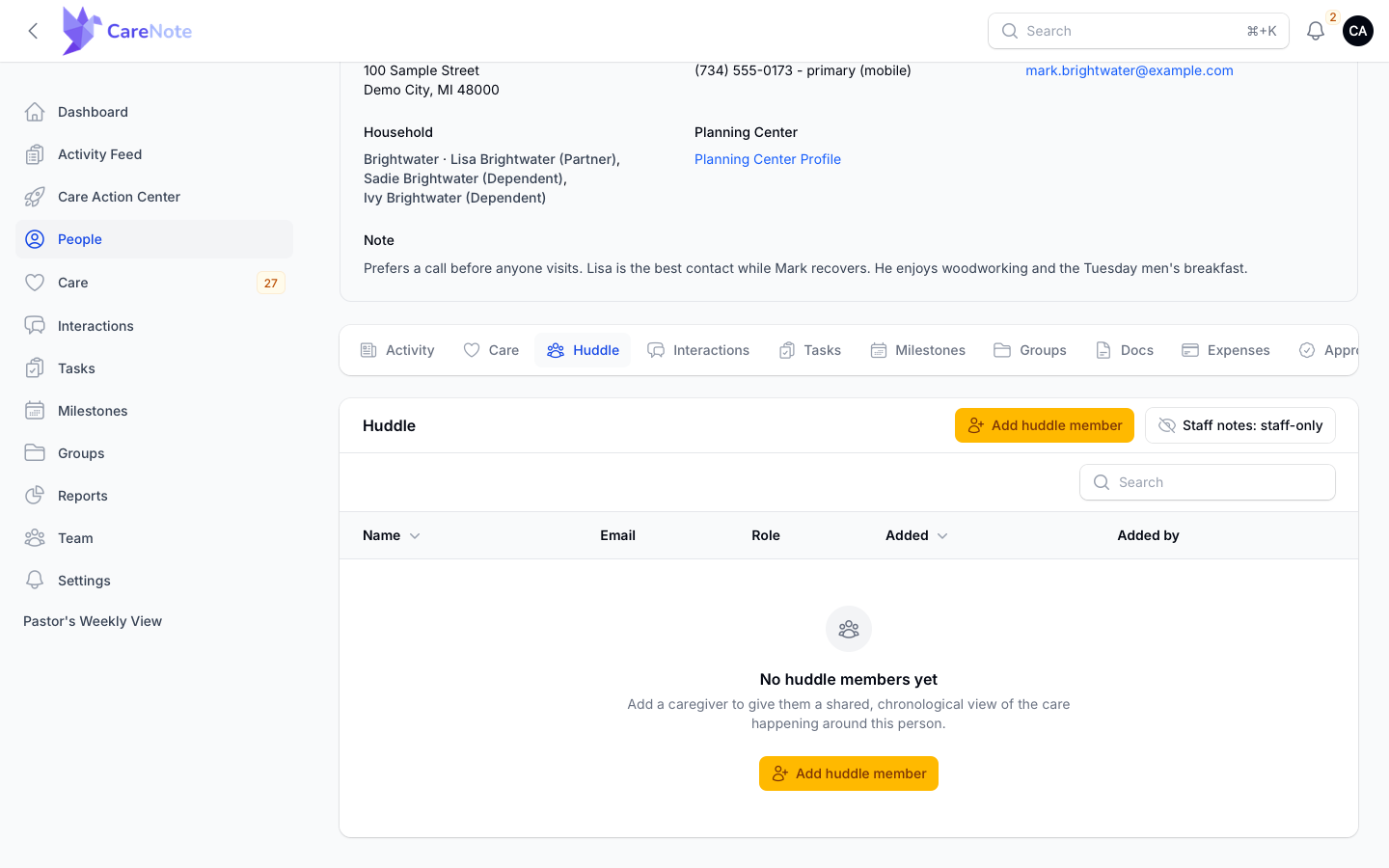
Everything you can do for the person lives in the gear Actions menu: Edit followed by their name, Edit Profile Note, New Care Request, New Assignment, Schedule a Zoom (when Zoom is connected), Workflows, and View Household (when they belong to one).
4. Care for whole households
Care rarely stops with one person. When Sadie is in the hospital, you also want to check in on her parents. Households group profiles into families so your team sees the whole picture.
Open People, then Households, and select a family to see:
- Household Members with their roles (Primary, Partner, Dependent), ages, and contact details
- A shared Primary Address
- The household's combined Activity Feed, Care Requests, and Interactions
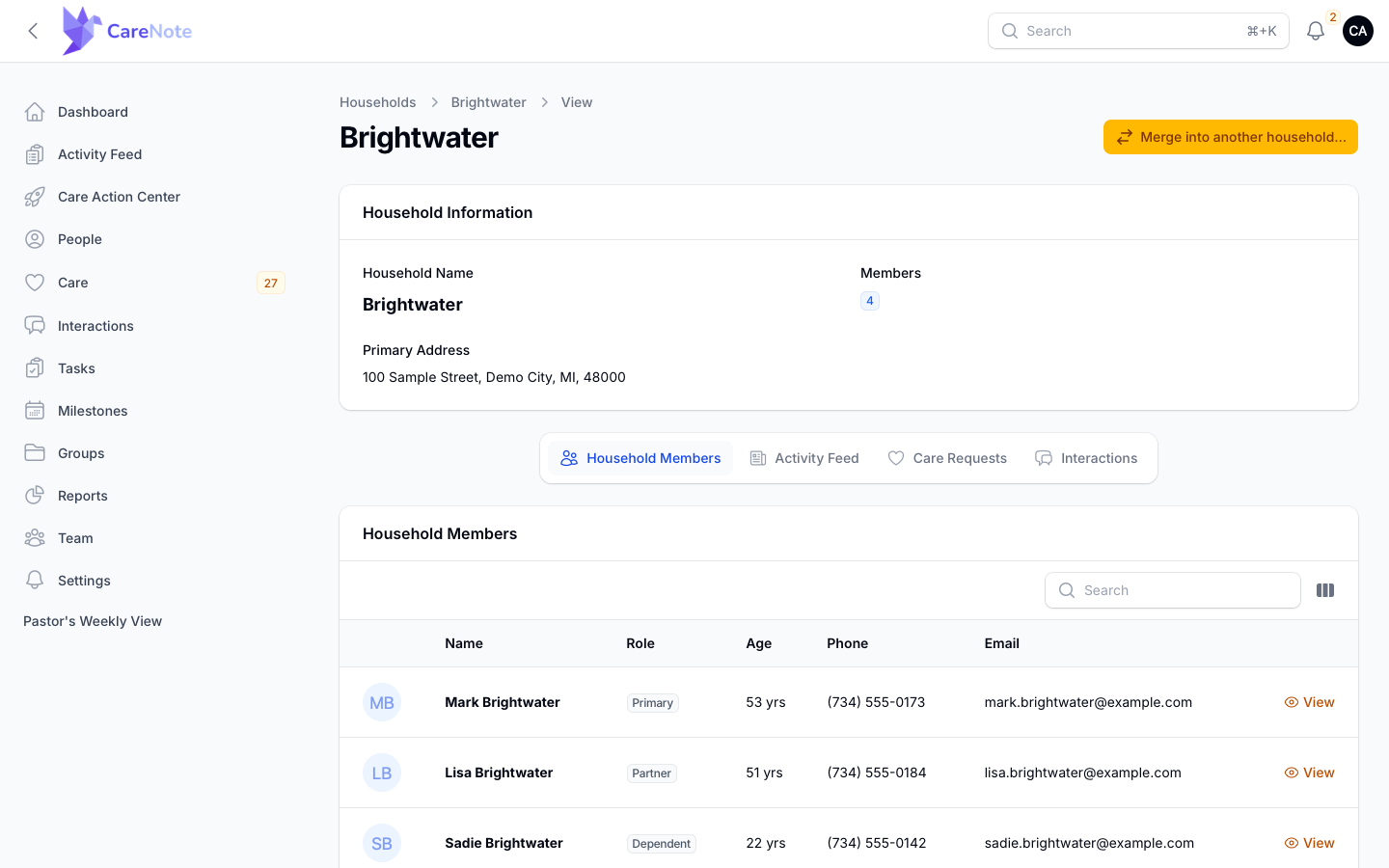
If the same family ends up split across two households (a common result of imports), the Merge into another household… button combines them without losing any history.
5. Decide who can see and edit people
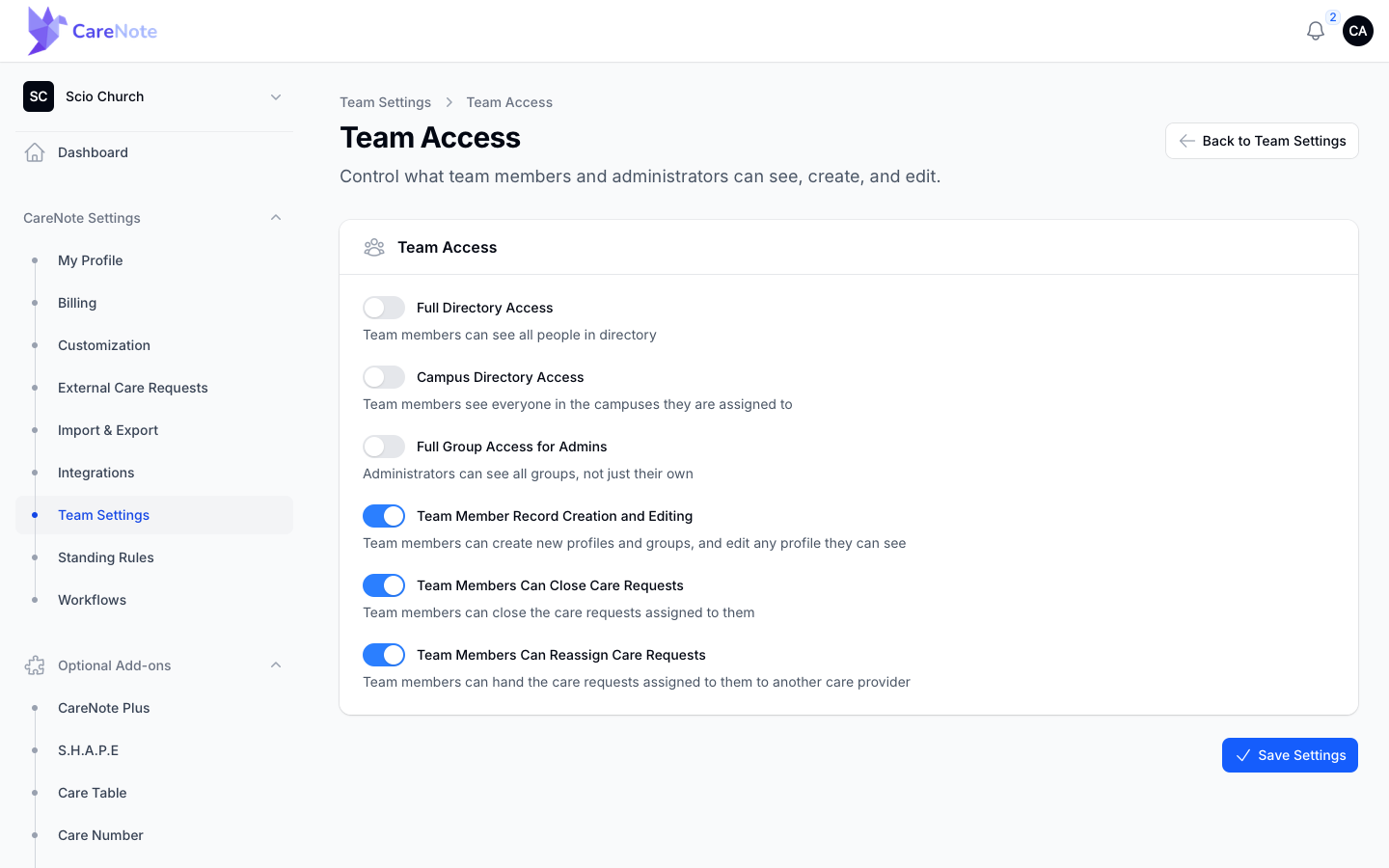
What each person on your team sees depends on their role and your Team Access settings. In the Owner panel, open Team Settings, then Team Access:
- Full Directory Access lets team members see everyone in the directory.
- Campus Directory Access lets team members see everyone in the campuses they are assigned to.
- Team Member Record Creation and Editing (on by default) lets team members create new profiles and groups, and edit any profile they can see. Turn it off if you want administrators to own data entry.
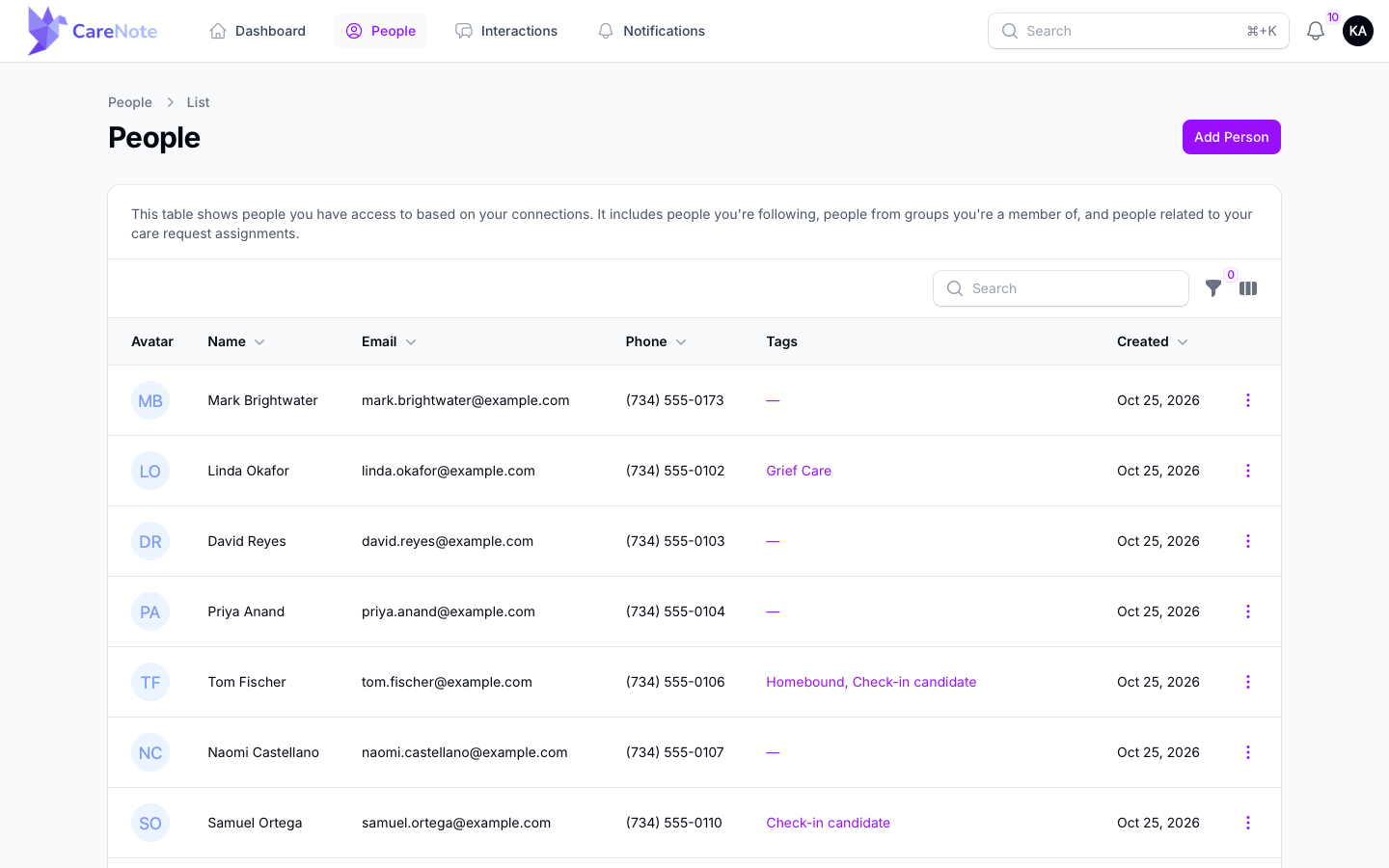
Without directory access, a team member's People list shows the people they are connected to: people they follow, people in their groups, and people on their care request assignments. Their Add Person button opens the same complete form administrators use, with household, address, tags, and demographics.
Multi-campus churches can also restrict a user to their campuses with Restrict this user to their campuses on the user form. A restricted user sees only people in their campuses, and anyone they add is placed in their campus automatically.
Frequently asked questions
Who can see a person's profile? It depends on role and Team Access. Campus-restricted users see only their campuses, and team members see the people Team Access lets them reach. Individual interactions and notes on the profile also respect their own privacy settings, so sensitive conversations stay with the people who need them.
Can team members edit people? Yes, when Team Member Record Creation and Editing is on. They can then correct a spelling or add a new phone number on any profile they can see, the same day they learn it.
What happens if I delete a person? Their profile is archived rather than destroyed, so history stays intact. If the person came from an integration, the sync settings control whether they reappear.
Can I track people who are not members? Yes. Affiliation is just a label. Many churches use CareNote for neighbors, hospital referrals, and community members who never attend a service.
How do birthdays show up? The dashboard highlights birthdays today and this week. Click View Birthdays List on the Birthdays card for the full list, or use the Birthday filter on the People page.
Watch
- The Person Record: Household, Profile Note, Phone Types and Places in One Page
- Family-Based Pastoral Care: Households in CareNote
- Team Members: Editing People from Your Dashboard: Records, Group Notes, Adding People
- What Team Members Can Reach and Edit: Team Access, Shared Privacy Presets, Groups
- How to Import Your Congregation from Planning Center into CareNote (People Sync)
- How to Import Church Members from Breeze, Excel or Any CSV into CareNote
- Finding People in CareNote: Full-Name Search, Age Filter, Entered By and the Tag Report
- Households, Refreshed: Family Care Requests, Household Interactions and Merging Duplicates