
Huddles: Inviting Trusted Care Providers into One Care Request
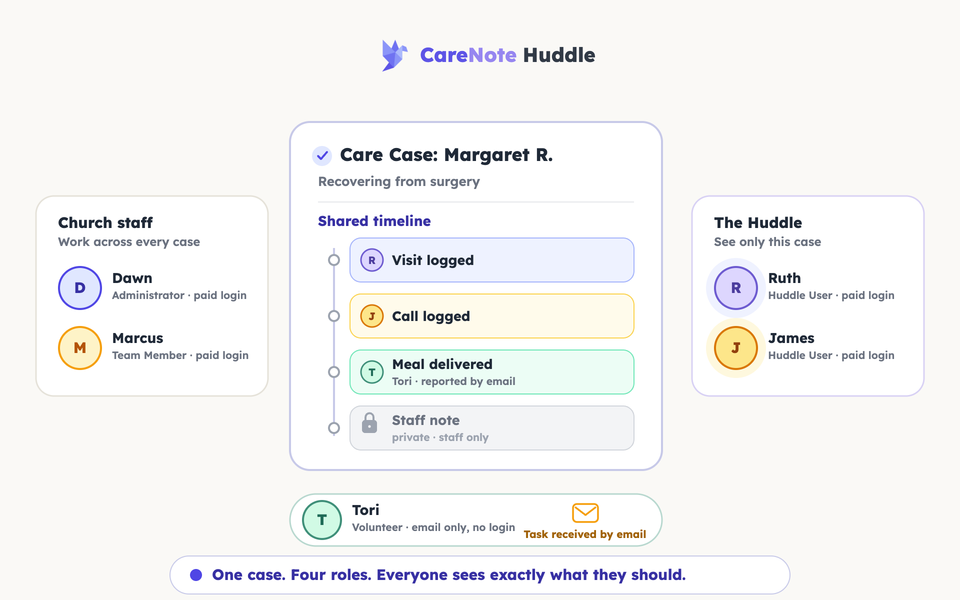
CareNote has three kinds of login users, and all three are paid seats: Administrators, Team Members, and Huddle Users. Volunteers are the fourth role: often free, email-only, and never logging in or seeing care history.
Administrators and Team Members work across your care roster. The Huddle User is different. It is the same kind of paid login as the other two, with one difference: it is scoped to exactly the care request (or requests) you add the person to, and nothing else.
Watch: how a Huddle gathers the right people around one care case (2 minutes)
What a Huddle is
A Huddle is a shared, chronological view of the care happening around one care request, built for the trusted care providers you invite into it. It is a CareNote Plus feature. If your Huddle tab shows an upsell message instead of the roster described below, you will need to add that feature first.
Each Huddle User gets a real login of their own at a dedicated /huddle panel, separate from your team's admin login. From there they can see the cases they have been added to, read the care story, and log their own updates. They cannot edit, close, or reassign the care request itself, and they cannot manage who else is in the huddle. Think of it as a narrow, safe window into one situation rather than a smaller version of your admin view.
How to add a trusted care provider to a care request
- Open the care request in Care Requests and look at the tab bar below the detail cards: Care Story | Care Timeline | Tasks | Huddle. Click Huddle.
- If no one has been added yet, click Add huddle member on the empty state (the same button also appears once the huddle has people in it).
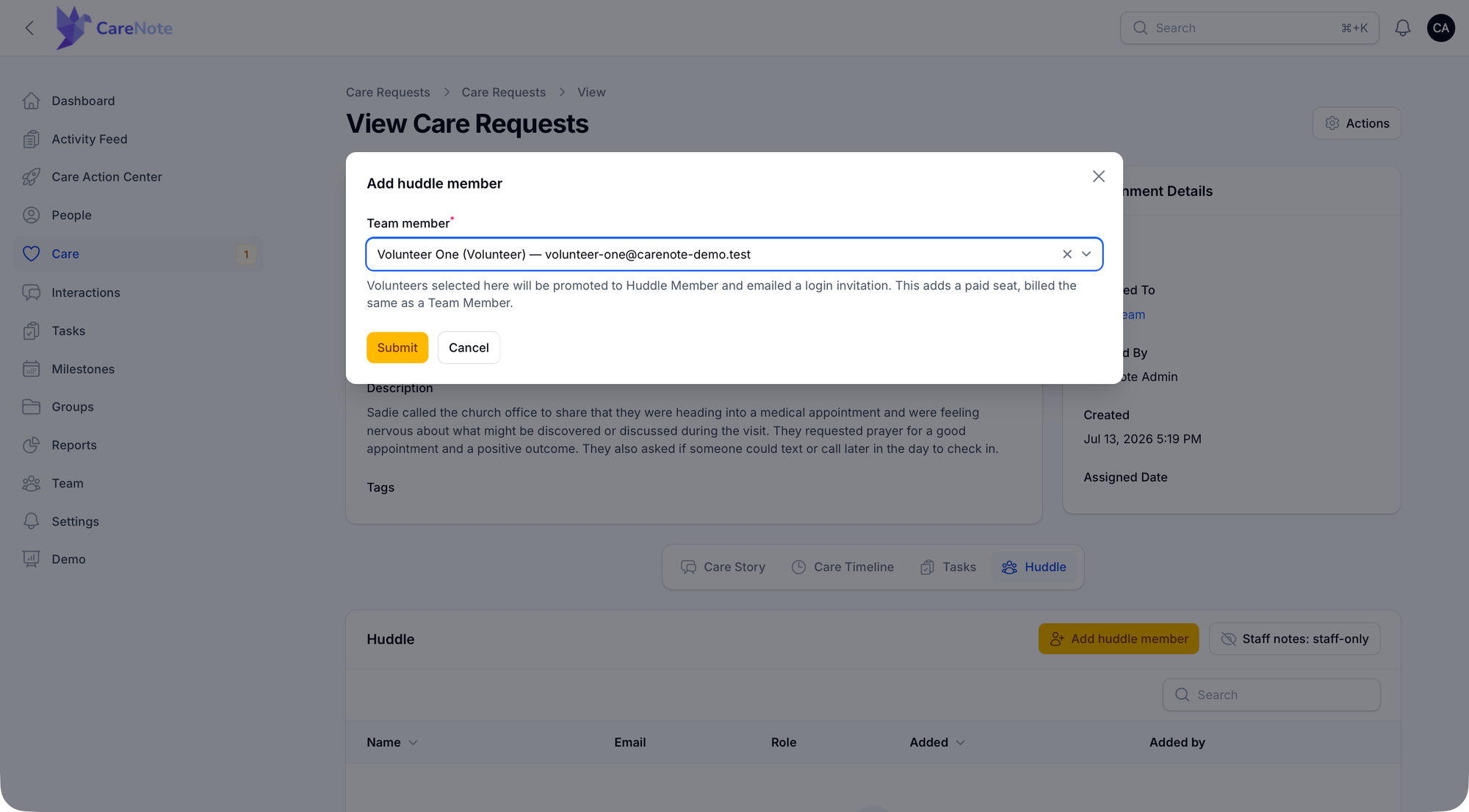
- In the Team member field, search for the person you want to add. The list only shows existing Volunteers and existing Huddle Users from elsewhere on your team. Staff Team Members and Owners are not eligible.
- Click Submit. What happens next depends on who you picked:
- If you selected a Volunteer, they are promoted to a Huddle User, given a billed seat, and emailed a login invitation with a link to set their password. The confirmation message spells this out before anything changes.
- If you selected someone who is already a Huddle User on another case, they are simply added to this one. No new invitation goes out, since they already have a login.
- The new member appears in the roster table with their name, email, role, and when they were added.
Deciding whether to share staff notes
By default, a Huddle User sees only their own entries and the non-private entries logged by other Huddle Users on that case. Anything your staff writes internally, like an admin's private note or a staff-only prayer request, stays out of view unless you choose to share it.
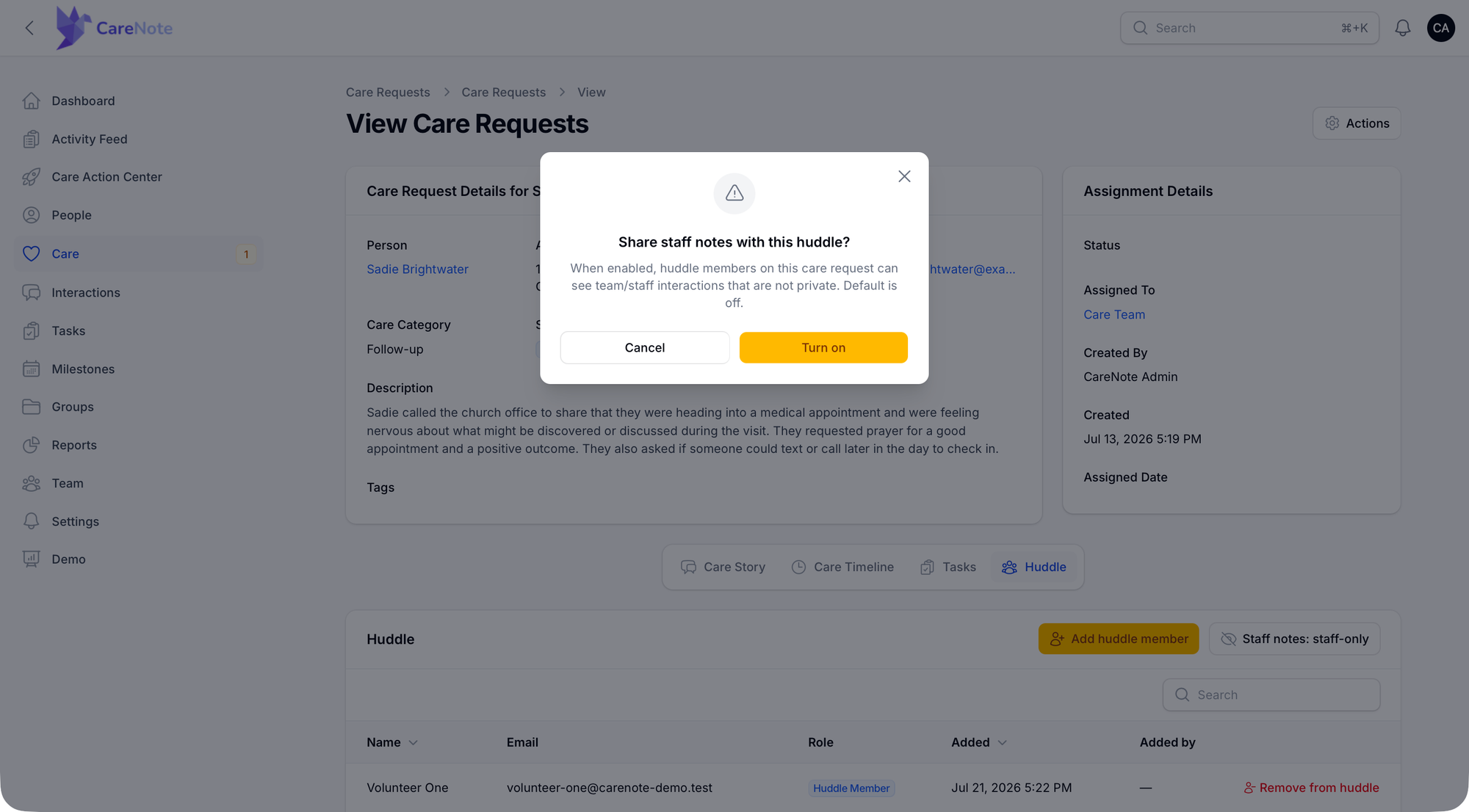
If you want Huddle Users to see staff and team activity on this one case, click the Staff notes: staff-only button next to Add huddle member. A confirmation dialog explains the tradeoff: "When enabled, huddle members on this care request can see team/staff interactions that are not private. Default is off." Click Turn on to confirm, and the button flips to a green Staff notes: shared state. Turn it back off the same way at any time.
This setting lives on the care request itself, so turning it on for one case never shares staff notes on any other case. No matter how this toggle is set, anything marked private stays private and visible only to its author.
What your care providers see once they log in
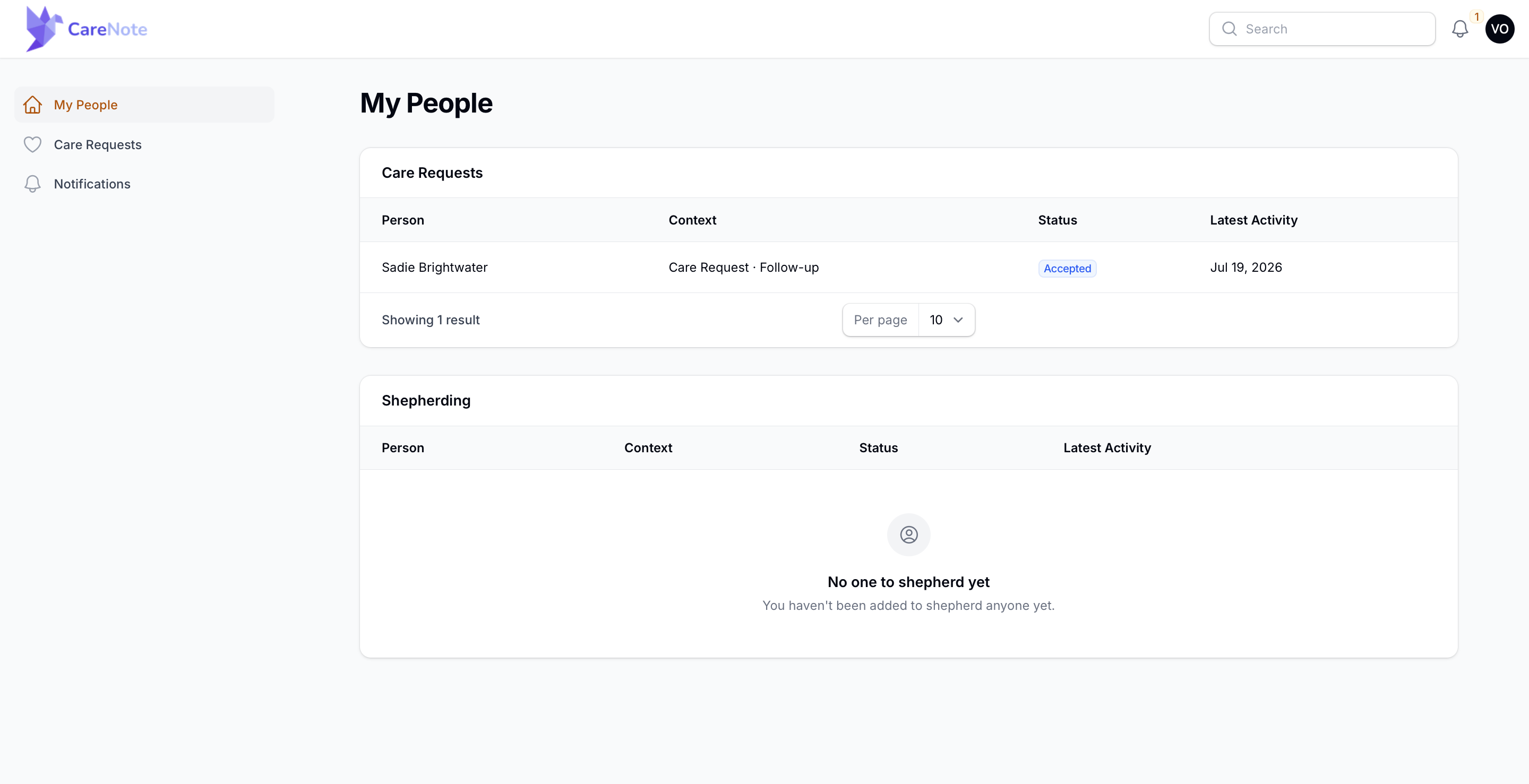
Once invited, your Huddle User sets a password and logs in at their own panel. Their landing page is My People, with two sections:
- Care Requests: the cases they have been added to as a Huddle User, with the person's name, context, status, and latest activity. Clicking a row opens that care request.
- A second section lists any profiles they have been granted a wider, person-level huddle on. This is a separate kind of grant from a single care request huddle, and it often stays empty unless you have set one up.
Opening a care request, they see the same four tabs your admins see: Care Story, Care Timeline, Tasks, and Huddle. Nothing is removed from the tab bar, but what shows up inside each tab is narrowed to what they are allowed to see. On the Care Timeline tab they can browse and filter by type just like an admin can, but staff-only entries that were never shared simply do not appear.
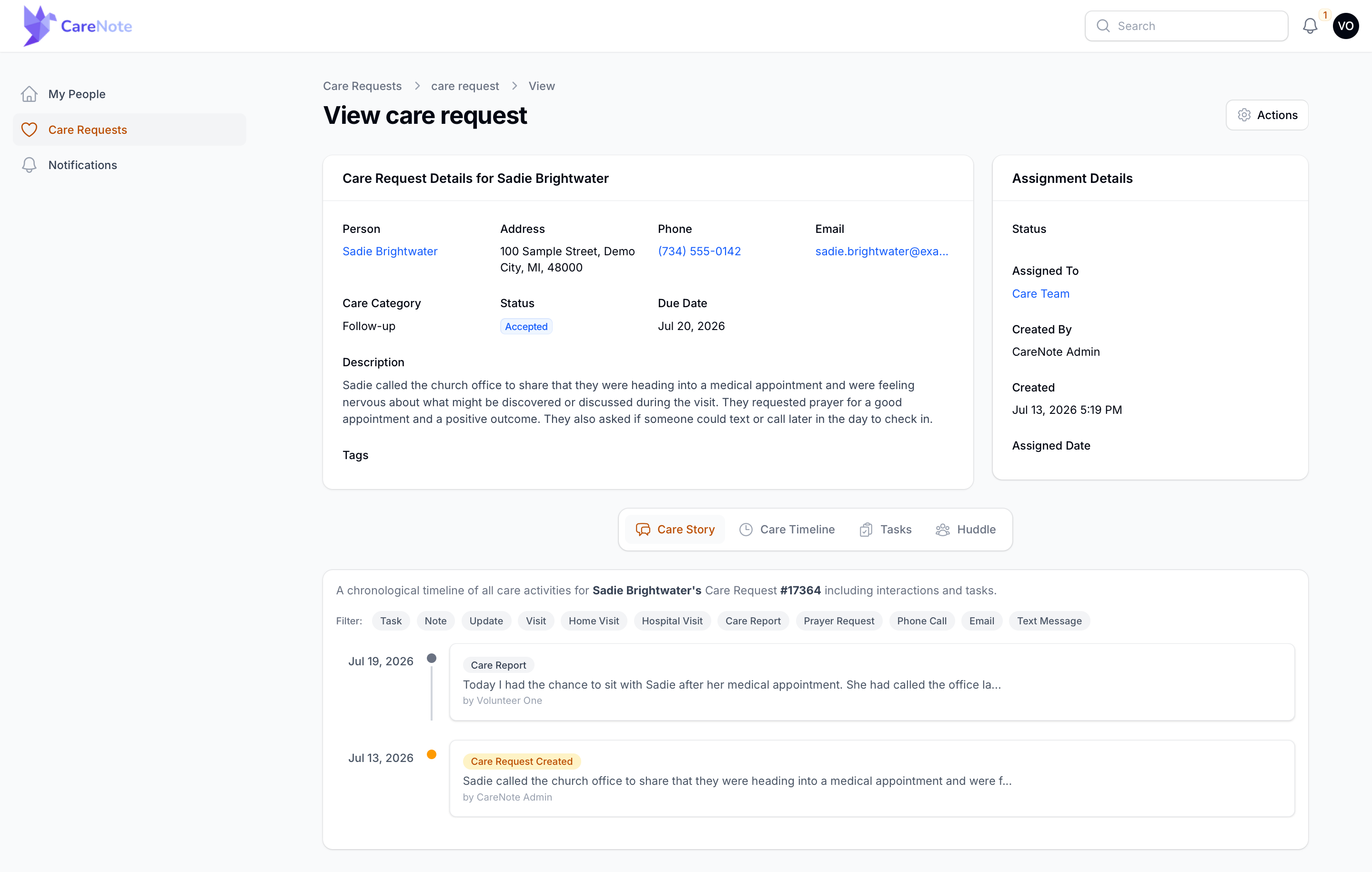
Huddle Users can add their own interactions and updates on the Care Story tab, so they are not just observers. Their Huddle tab shows the same member roster your admins see, but read-only: no add, remove, or staff-notes controls. They can see who else is helping, but they cannot change the huddle.
Removing someone from a huddle
When a care provider's involvement in a case ends, go back to the Huddle tab and click Remove from huddle on their row. A confirmation explains what this does: "This immediately revokes their access to this care request through the huddle panel." That is a hard, immediate cutoff, not a pending change.
Removal is separate from demotion. The confirmation includes a second, optional toggle, off by default: "Also demote to Volunteer (they lose huddle access everywhere)." Leave it off and the person keeps their Huddle User login for any other cases they are still on. Turn it on and they revert to a Volunteer, losing login access and their billed seat, once they have no other huddles left.
Frequently asked questions
Does adding someone to a huddle cost extra? Promoting a Volunteer to a Huddle User adds a billed seat to your team, the same as any Team Member seat. Adding someone who is already a Huddle User to a second case does not add another seat.
Can a Huddle User see other congregants' records? No. Their login only shows the care requests and profiles they have been explicitly added to. Everything else on your team stays out of view.
Can a Huddle User close or reassign the care request? No. Their access is read and contribute only: they can view the case and log their own interactions, but they cannot edit, close, or reassign it.
What happens to private entries? Entries marked private are visible only to the person who wrote them, regardless of the staff-notes sharing setting. Turning on staff notes sharing only affects non-private staff and team entries.
Do I need CareNote Plus to use Huddles? Yes. Huddles are gated behind the CareNote Plus feature set. If your Huddle tab shows an upsell instead of a roster, reach out about adding that feature.