
Creating a Care Request
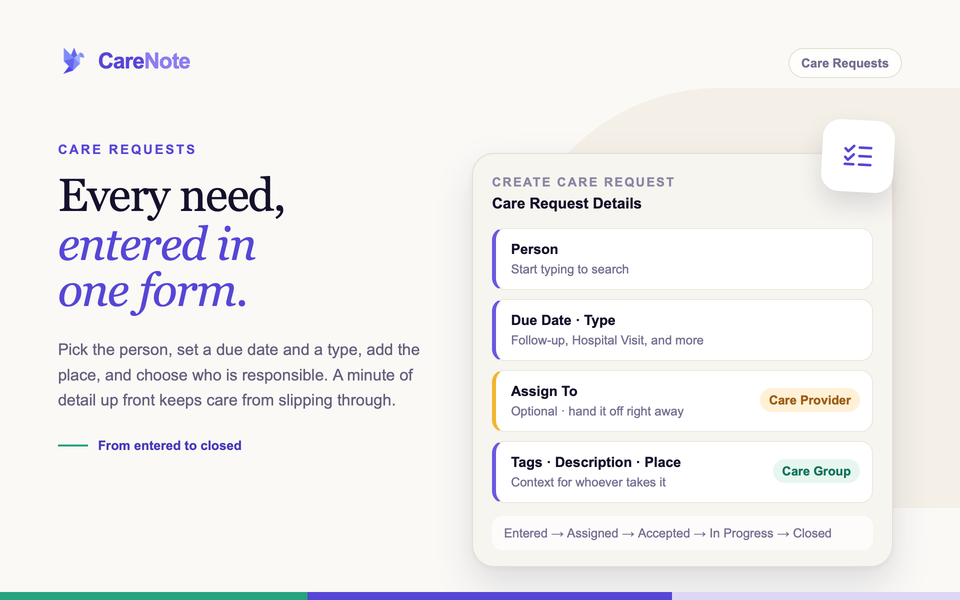
When someone in your congregation needs care, whether it is a hospital visit, a meal sign-up, or a follow-up call after a hard week, a care request is how your team tracks it from "someone should look into this" all the way to "done." Getting the details right up front keeps needs from slipping through the cracks.
Watch: creating your first care request.
What is a care request?
A care request is a documented care need tied to a specific person. It moves through a few states as your team works it:
Entered → Assigned → Accepted → In Progress → Closed
A request can also be Rejected if the person it is assigned to declines it. This guide covers entering one by hand.
Create a care request as an administrator
- Set the Due Date. It starts seven days out, and you can pick any date that fits the need.
- Choose a Type, such as Follow-up or Hospital Visit. The + button adds a new type on the spot.
- Optionally, use Assign To to hand the request off right away (see the next section). Leave it blank and the request is saved as Entered, ready for someone to pick up.
- Write the Care Request Description. The editor supports formatting, links, and attachments.
- Click Create to save, Create & create another to save and start a new one, or Cancel to back out.
Choose the Place if the person is at a hospital, hospice, or facility. The place travels with the request to whoever takes it. If your description names one of your team's places, a line appears that says "Looks like this mentions" the place and asks whether to attach it. Click Attach to fill the Place field, or Dismiss to ignore it. Use the + beside Place to add a new one.
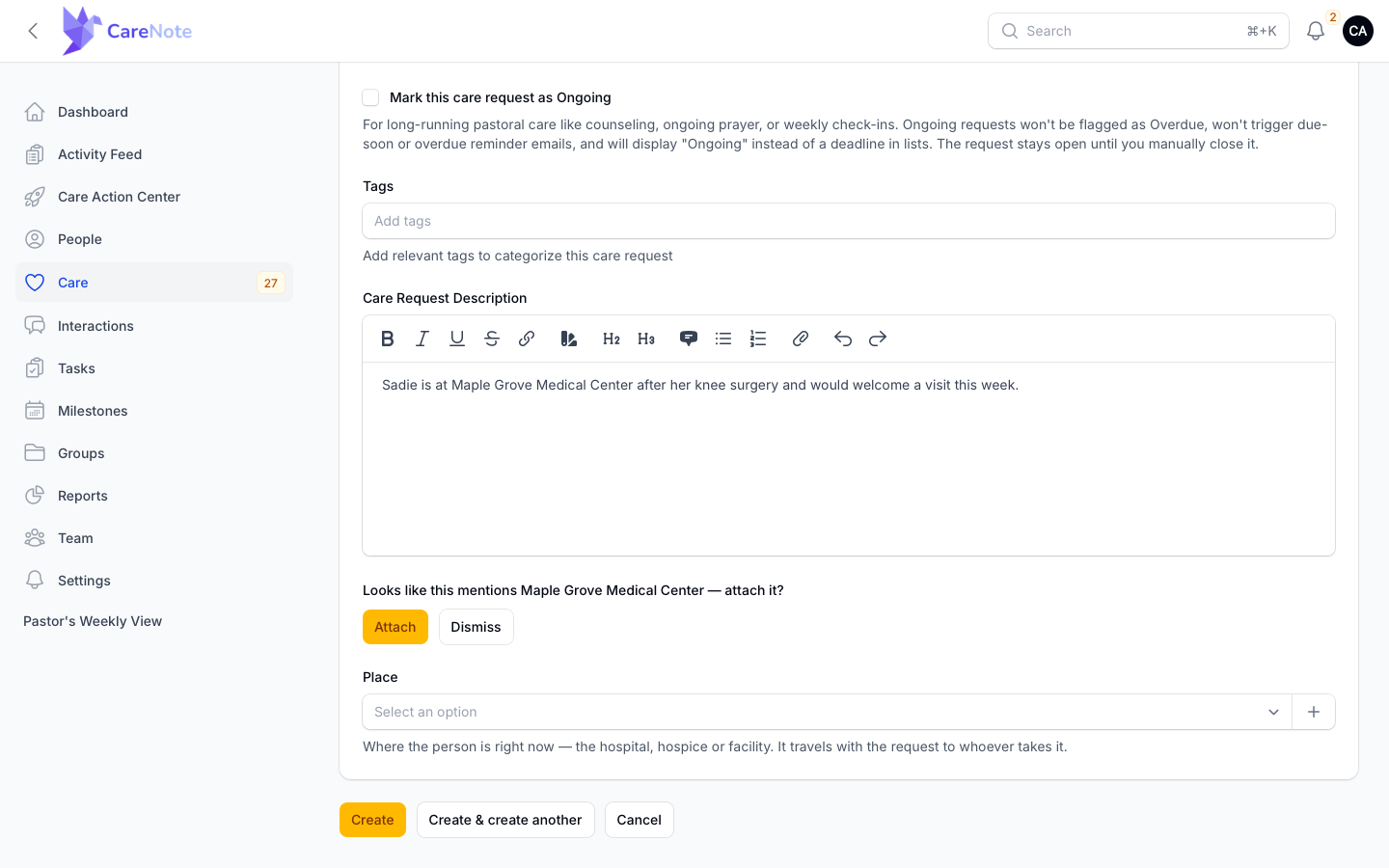
Add Tags to help your team search and filter later. Tab, space, comma, and Enter all end a tag, so typing "hospital visit" makes two tags, "hospital" and "visit."
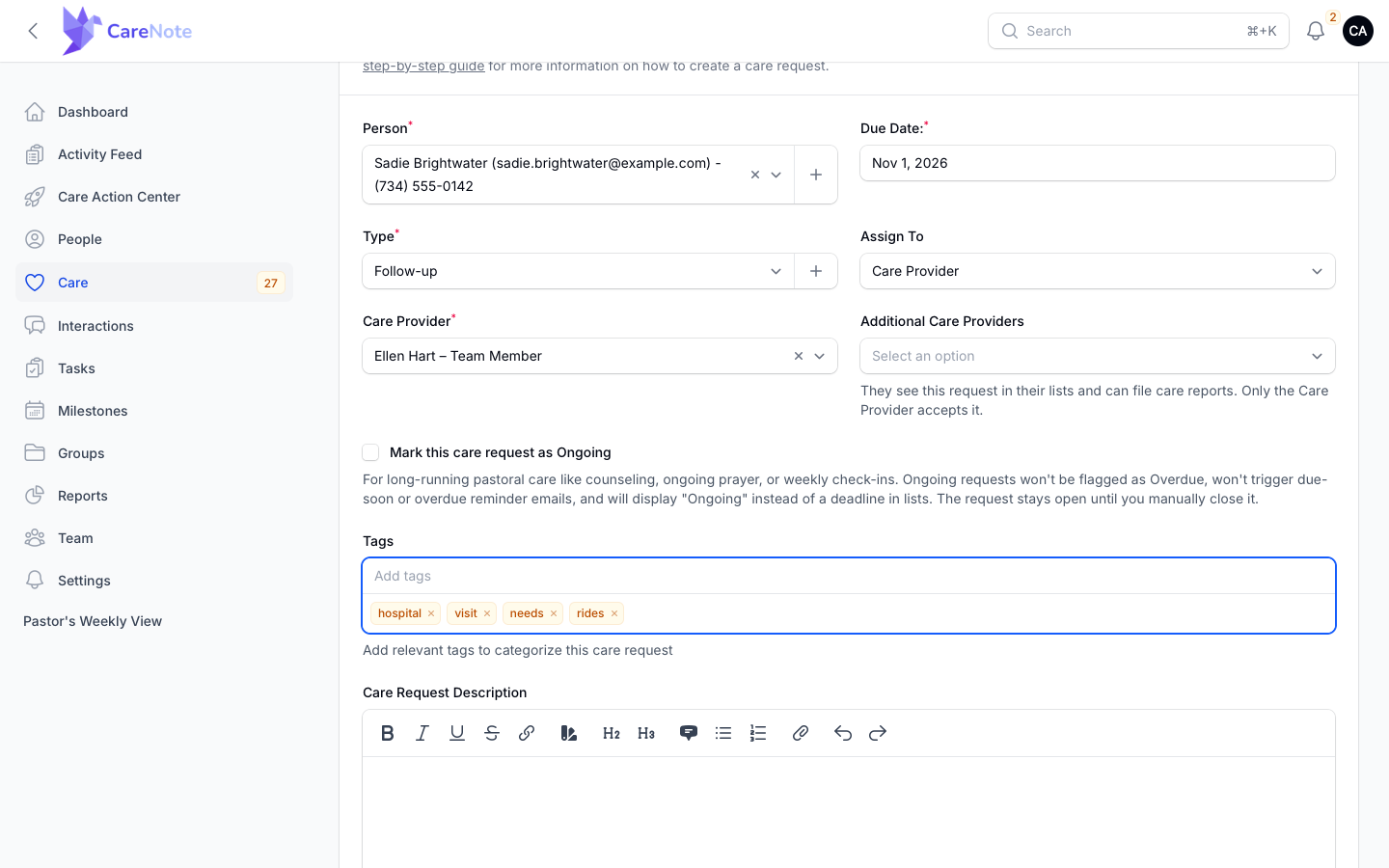
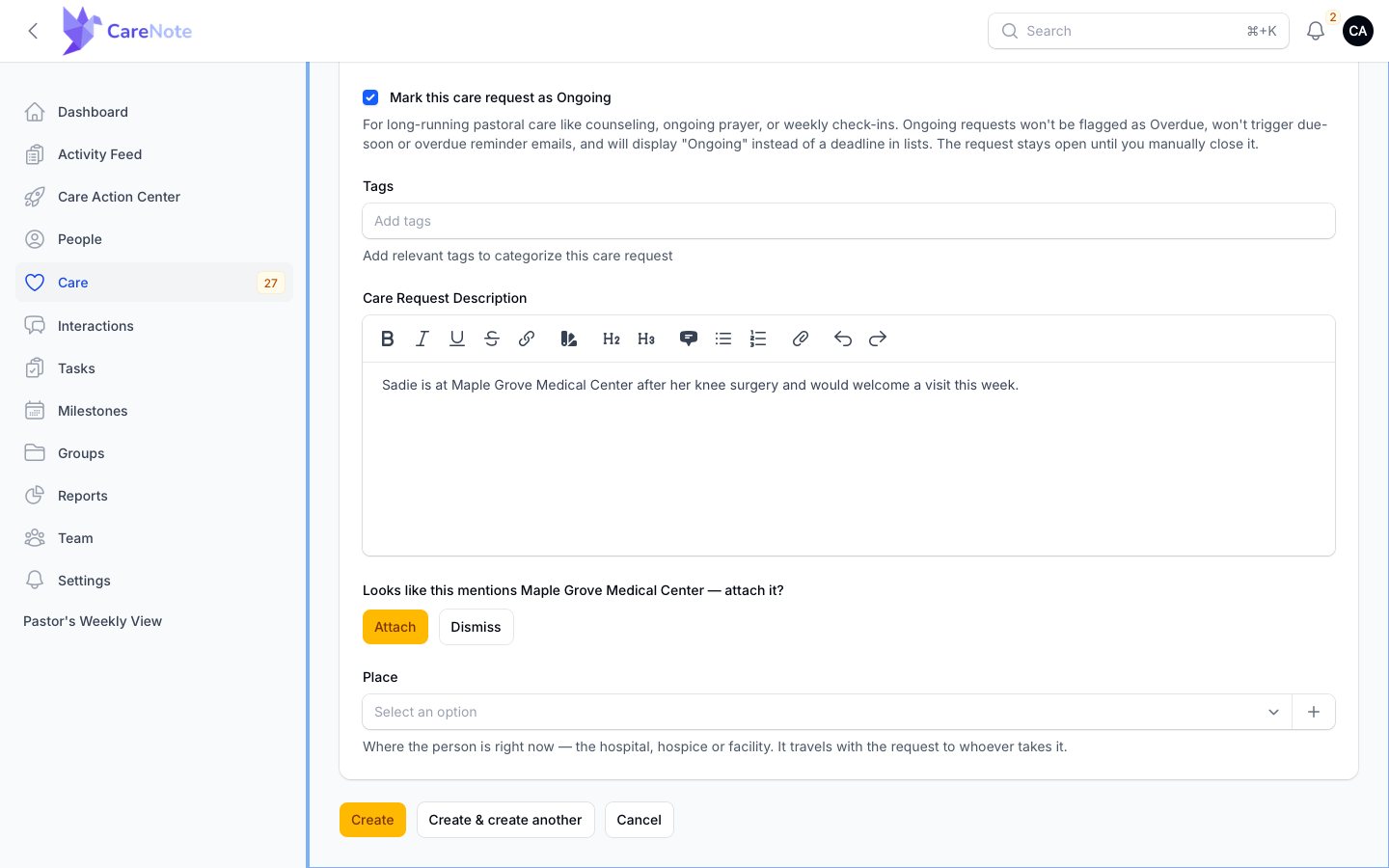
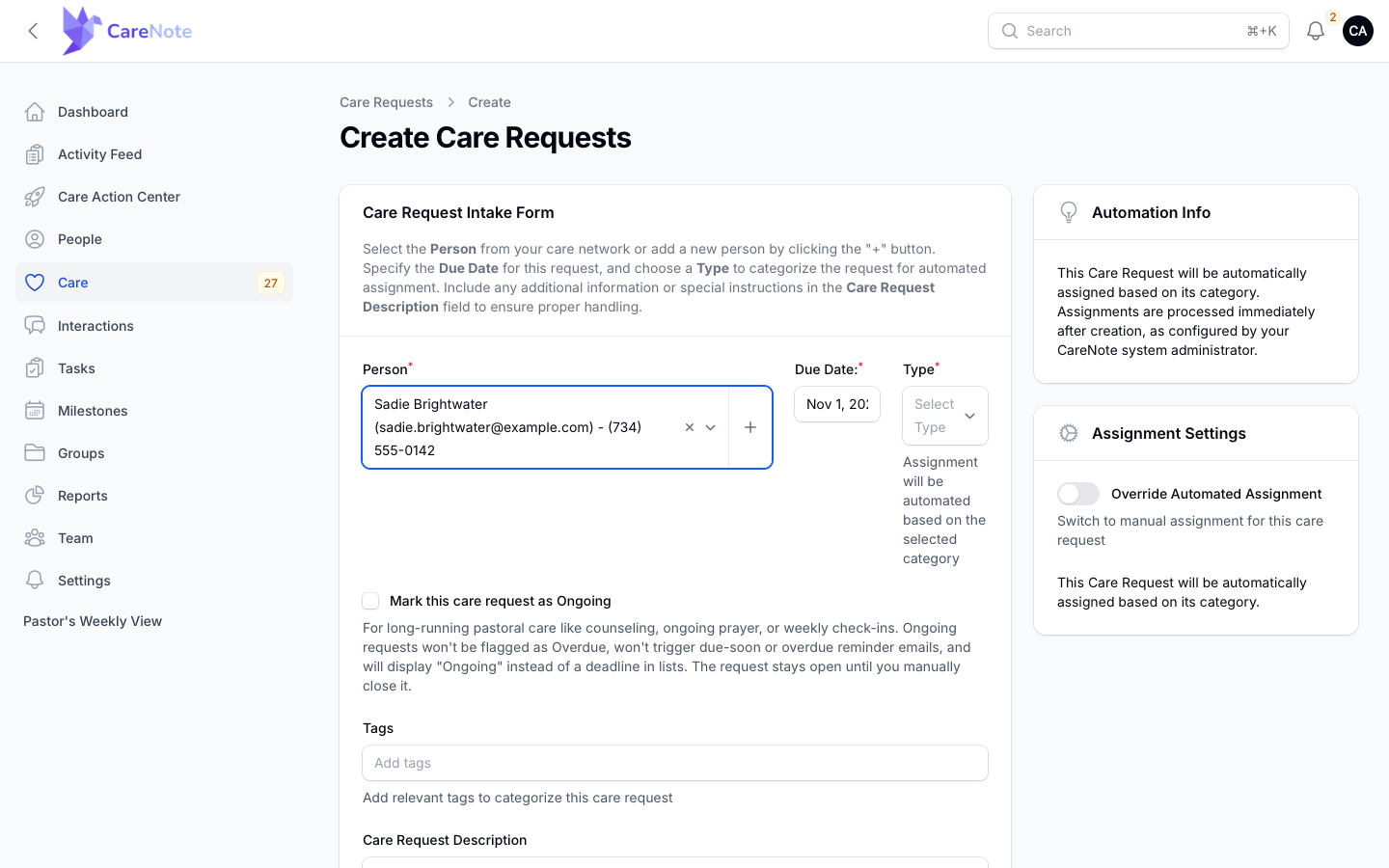
If this is long-running care like counseling, ongoing prayer, or weekly check-ins, tick Mark this care request as Ongoing. This box only appears if your team allows ongoing requests. Ongoing requests are never flagged Overdue, send no due-soon or overdue reminders, and show "Ongoing" instead of a deadline until you close them.
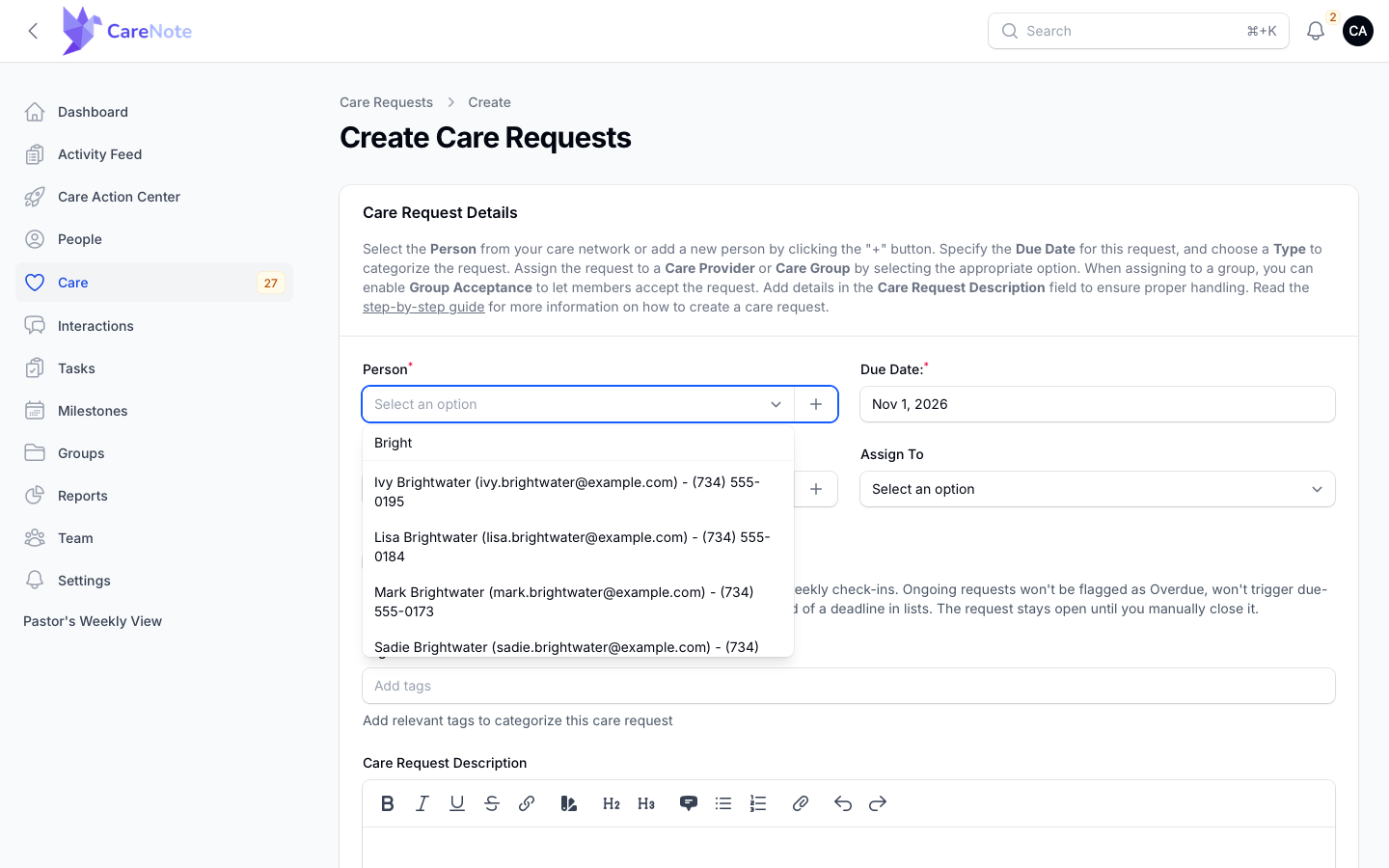
Choose the Person. Start typing a name, email, or phone number. This is the same person search used across CareNote, and results read Name (email) - phone. If the person is not in CareNote yet, click the + button beside the field to add them without leaving the form.
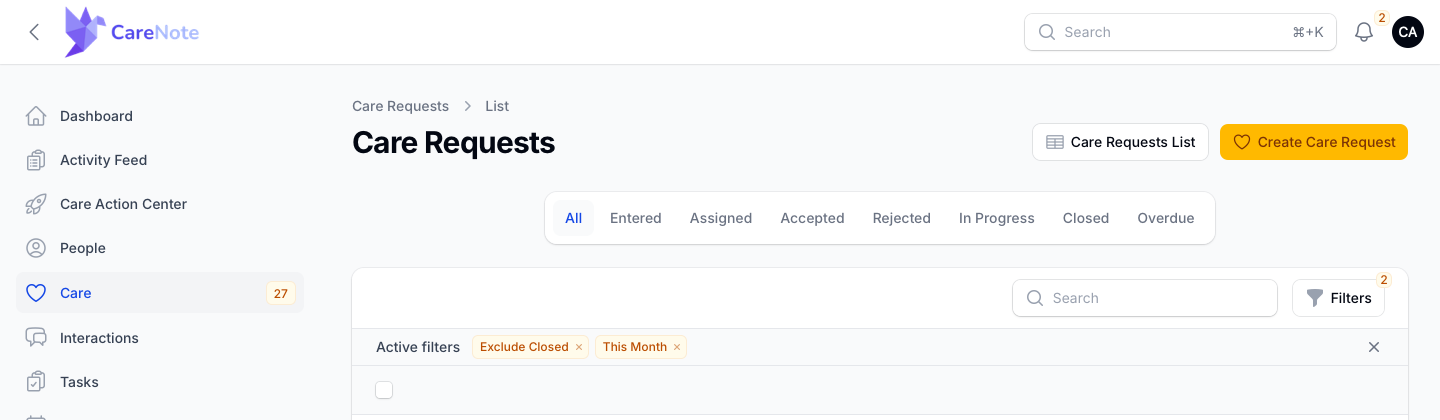
Click Care in the sidebar, then click Create Care Request at the top of the list. The page that opens is titled "Create Care Requests."
Assigning while you create
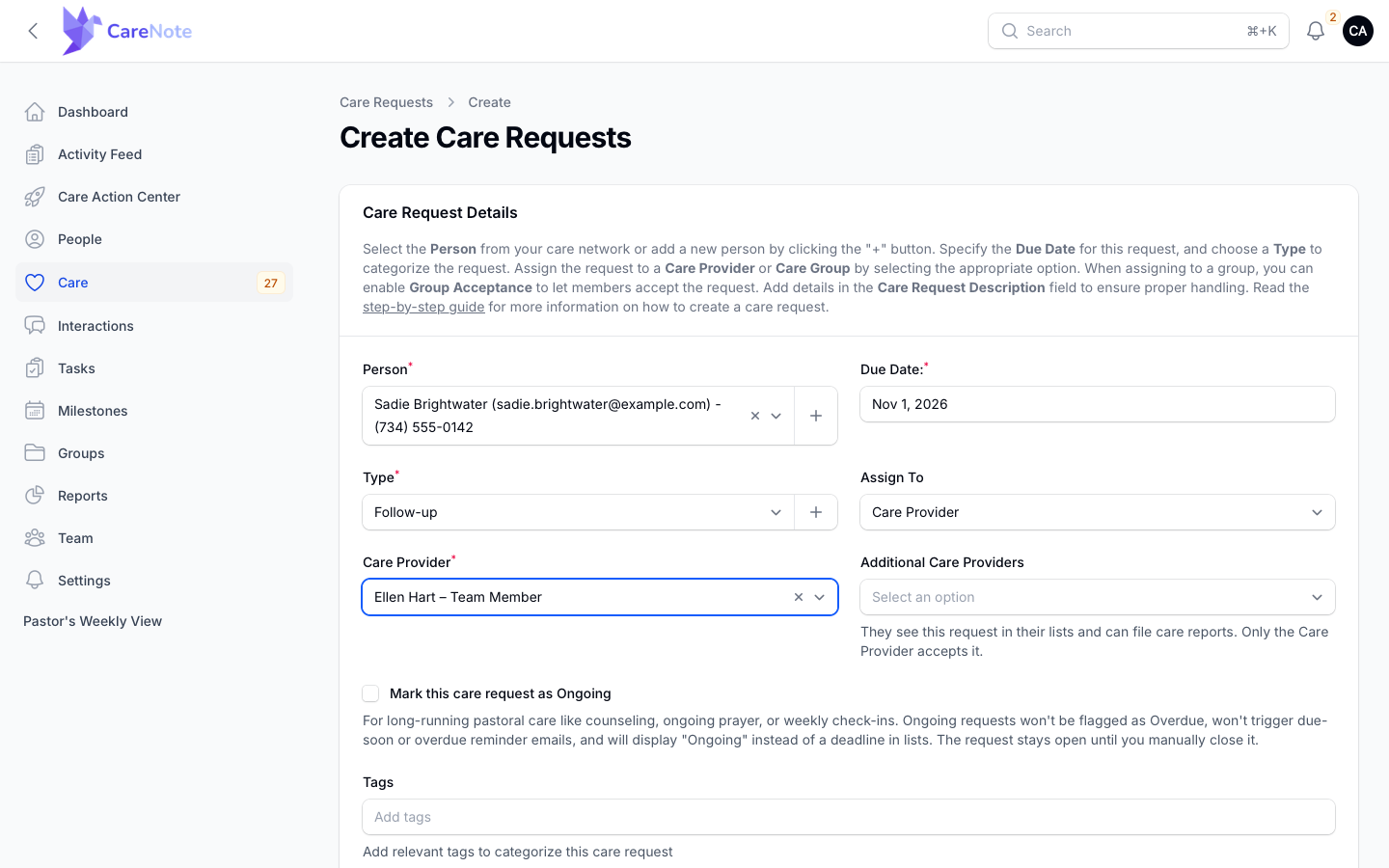
Under Assign To, choose one of two paths. For the full story on routing, reassigning, and what each person sees, see the Assigning a Care Request guide.
- Care Provider reveals a required Care Provider list, shown as
Name – Role. Once you have chosen a Person, the list respects your campus settings, so it may not show every team member. Choosing someone moves the request to Assigned right away. - Additional Care Providers sits beside it on CareNote Plus teams. These people see the request in their lists and can file care reports, but only the Care Provider accepts it. Teams without Plus see a short upgrade hint instead.
- Care Group reveals a required Care Group list. On Plus teams you can switch on Send acceptance request to group members, and the first member to accept is assigned automatically.
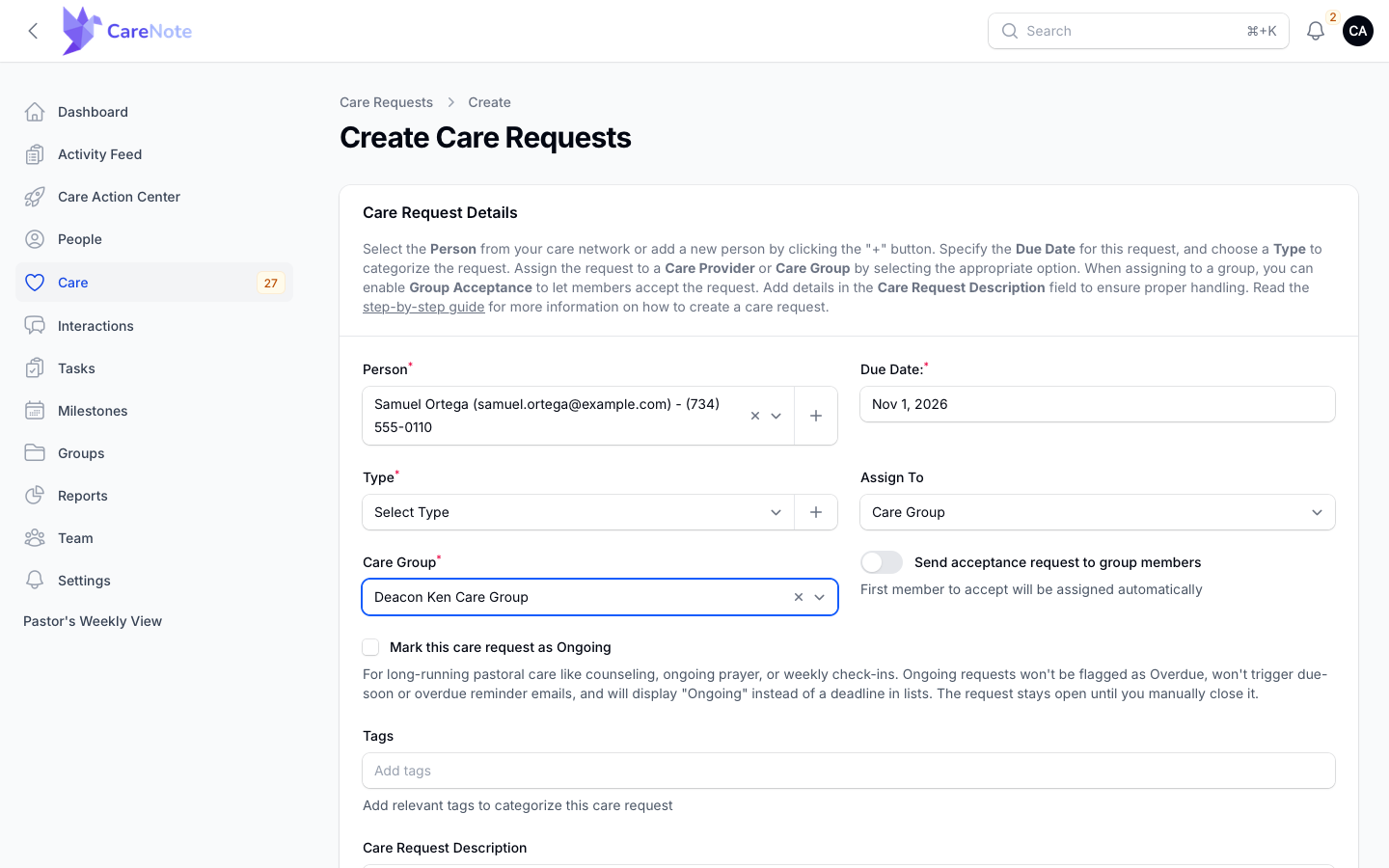
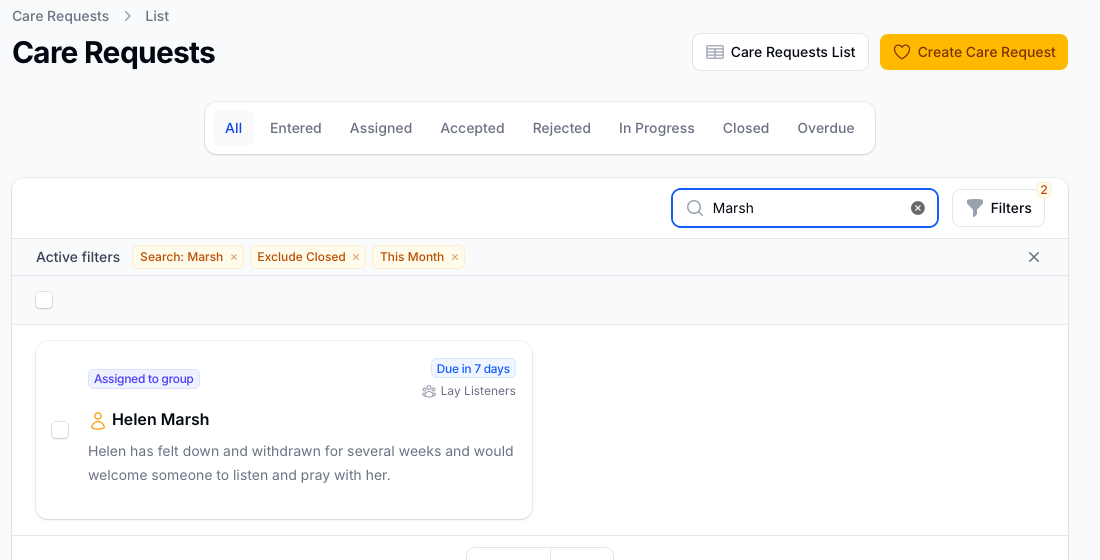
A request routed to a group with no provider yet shows an indigo Assigned to group badge, with the group's name below the due date. Behind the scenes it is still in the Entered state until someone accepts it.
If your team uses automatic assignment
Some teams set up automation so a request's Type decides who gets it. The form is then titled Care Request Intake Form, and there is no Assign To on the main card. Instead, the right side shows an Automation Info card and an Assignment Settings card. Assignment happens right after you save.
Need to pick someone yourself? Switch on Override Automated Assignment. Assign To appears, with the same Care Provider and Care Group choices described above.
If you are a Team Member
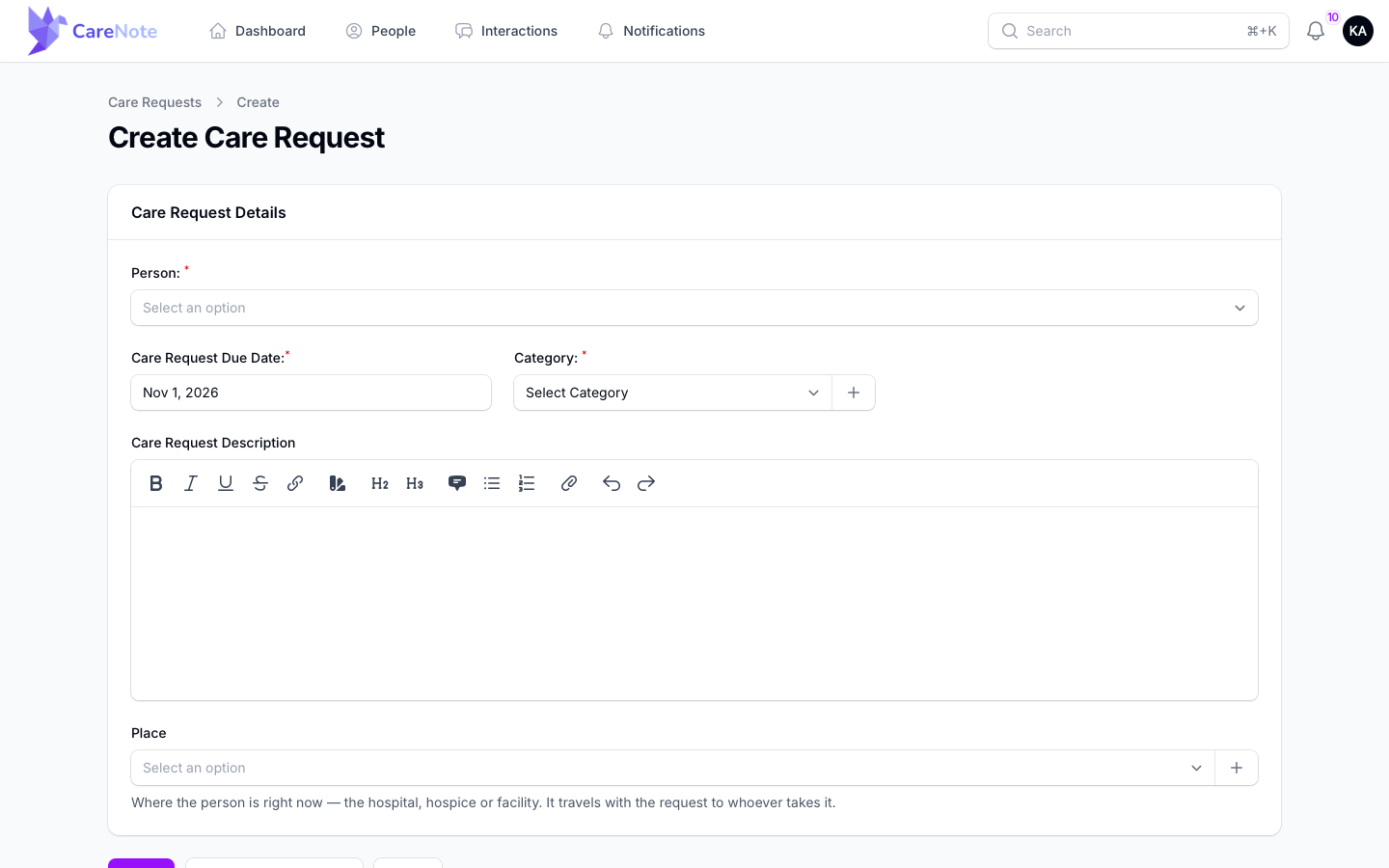
Team Members create requests from their own dashboard, and the form is simpler: Person, Care Request Due Date, Category, Care Request Description, and Place. There is no Assign To, Tags, or Ongoing option. The Team Member list also has no Create button, so start from the create page your administrator links you to. Afterward, use the Assign to Group Member row action to route a request.
You can also start a request from a logged interaction. Open the interaction's Actions menu and choose Create Care Request. It is created for the same person and assigned to you.
What next
Once a request is saved, open it and use the Actions menu to add more help. Add Care Needs organizes practical help like rides and yard work, and Add a Care Table sets up a meal sign-up. See the Care Needs and Care Table guides.
Frequently asked questions
Who can create a care request? Administrators and Team Members can. Administrators see the full form. Team Members get a shorter one, described above.
Do I have to assign the request when I create it? No. Leave Assign To blank and the request is created as Entered. Someone can claim or assign it later.
Why can't I see the Ongoing checkbox? Your team has to allow ongoing requests first. If you do not see it, ask an administrator.
Why did my tag turn into two? Space ends a tag, as do comma, Tab, and Enter. Stick to one word per tag.
Watch
- How to Create Your First Care Request in CareNote: creating a person and filing your first request.
- CareNote Onboarding 2/5: Getting Care In: the five ways care reaches your team.