
Completing and Managing Care Requests
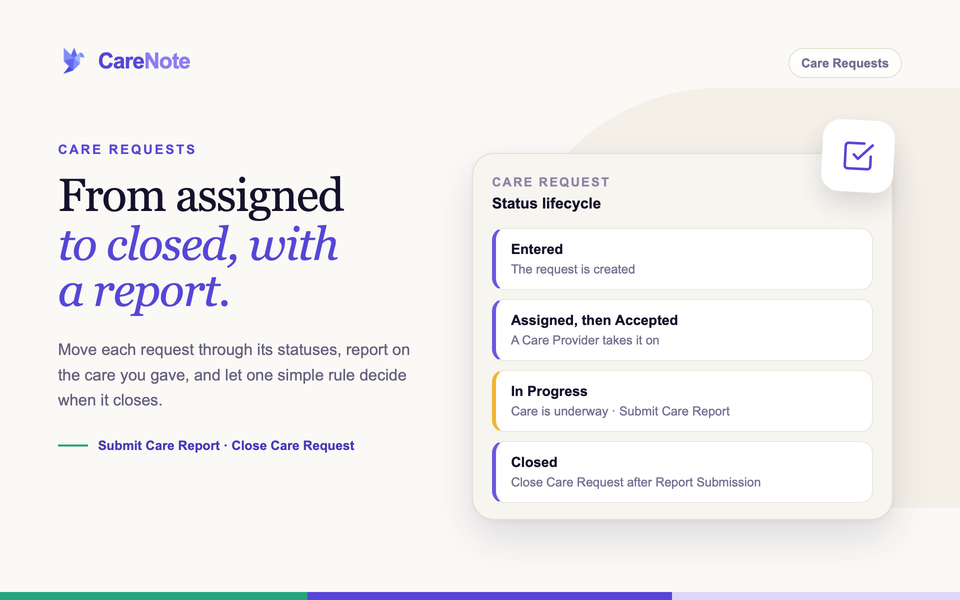
A care request is not finished when someone is assigned to it. It is finished when the visit happened, the call was made, and your team can point to a record of it. CareNote gives every request a clear status, a place to report what happened, and a simple rule for when it closes, so a pastor or board member never has to dig through email threads to find out.
Watch: care reports and follow-ups.
This guide follows the whole lifecycle. If your report needs a follow-up task, see Streamlining Follow-up Care Requests.
1. Read the status lifecycle
Every request carries one status at a time. They show as tabs across the top of the Care Requests list in the Admin panel: All, Entered, Assigned, Accepted, Rejected, In Progress, Closed, Overdue. By default the list hides Closed requests and shows this month, so your active queue stays easy to scan.
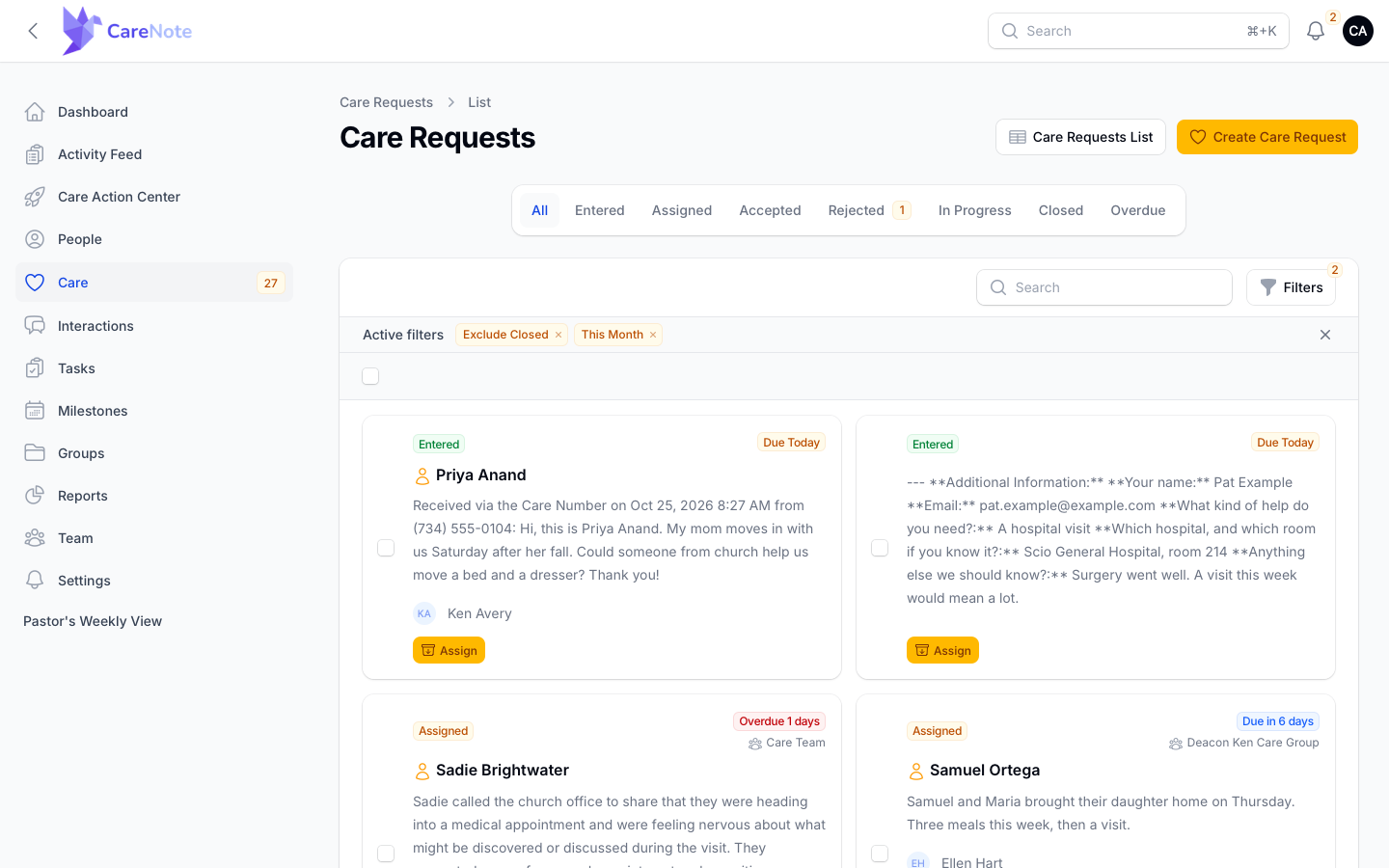
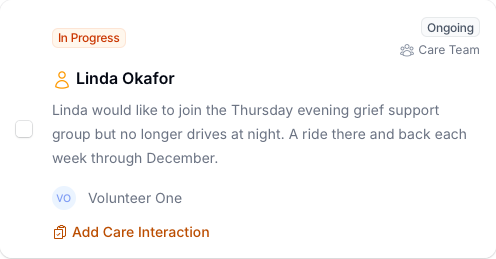
Each card shows its status, a due label, who it is assigned to, and the person's name. When a request is assigned to a care group, the group's name appears as a badge under the due label.
2. Accept or reject an assignment
When a request is Assigned to you as the Care Provider, Accept and Reject buttons appear on its card in the Admin list. Each one simply changes the status to Accepted or Rejected. There is no reason prompt and no confirmation, so click carefully.
3. Use the Actions menu
Open a request and click Actions in the top right. The menu changes with the status and with your role. For an assigned Care Provider it includes Submit Care Report, Close Care Request, Mark In Progress, Reassign, Attach to group, Add Task, Refer to a professional, Add a Care Table, Add Care Needs, Edit Care Request, and more.
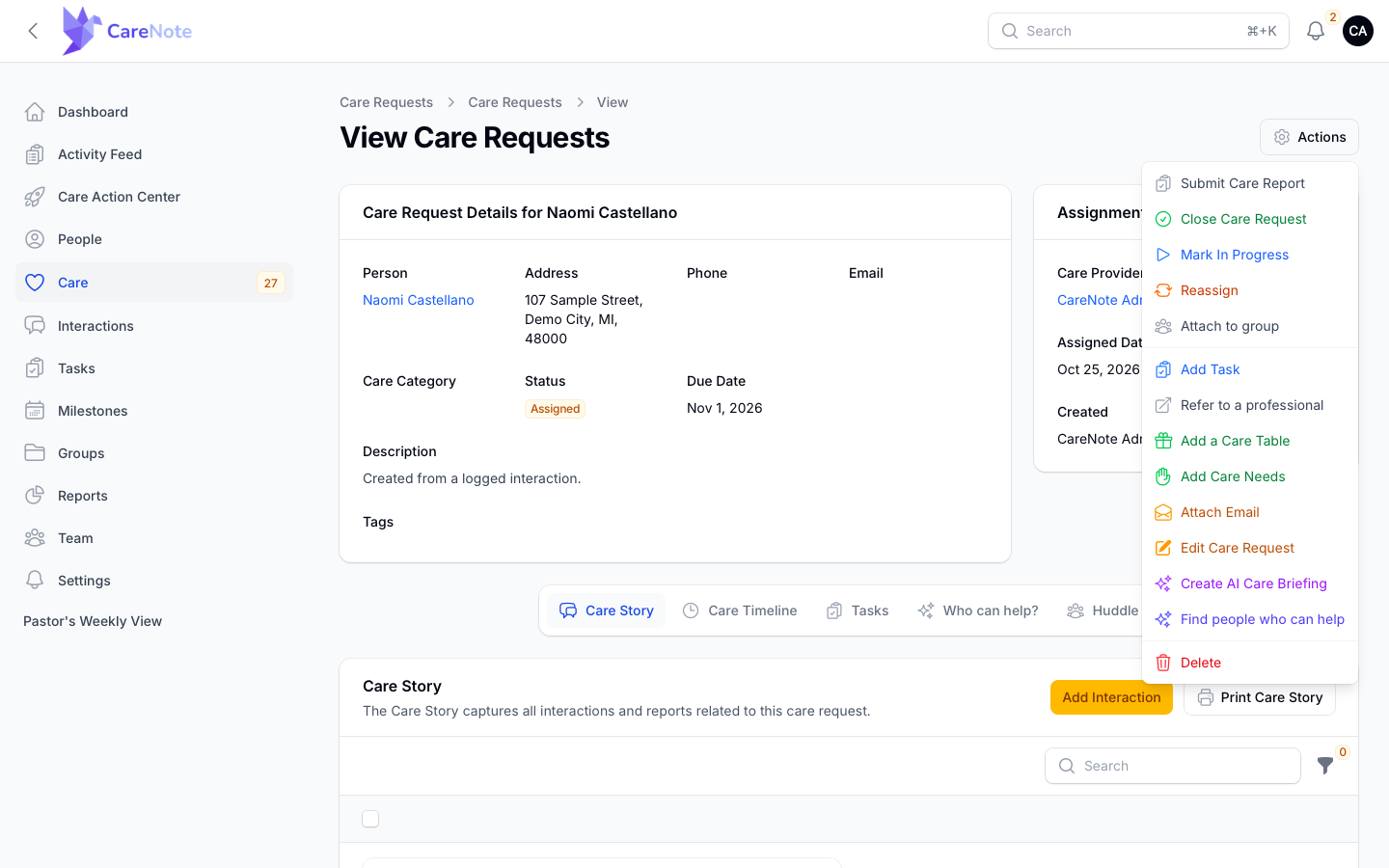
- Assign appears on an Entered request. Reassign appears once a provider or group is set.
- Mark In Progress shows on Assigned and Accepted requests. Click it and confirm.
- Close Care Request asks you to confirm. It does not require a report first.
4. Submit a Care Report
- Open the care request and choose Actions, then Submit Care Report.
- Set the Date, and optionally the Time, Duration (minutes), and Category.
- Write what happened in Content.
- Open Privacy & Visibility if you need to limit who sees the report.
- Choose Submit.
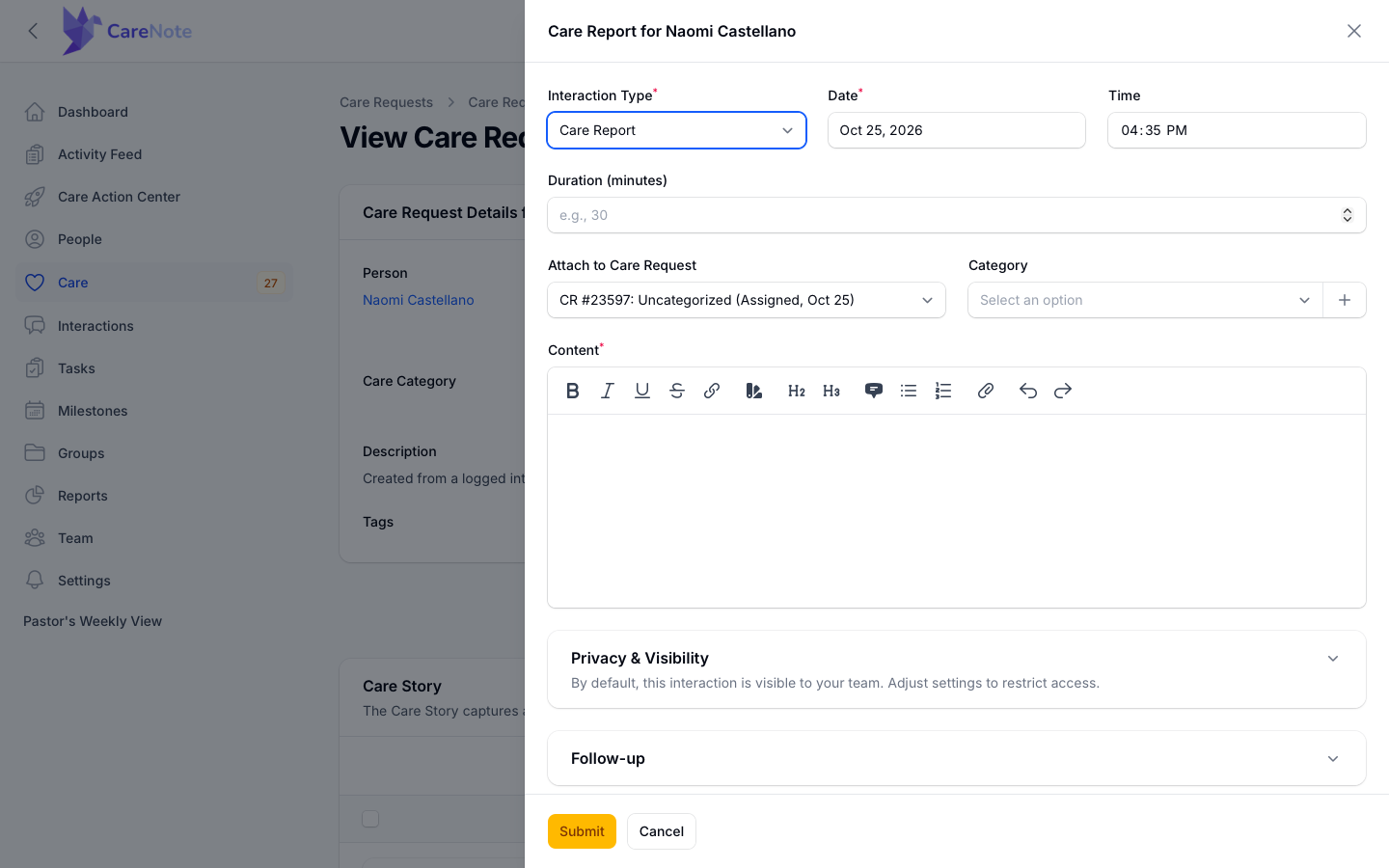
At the bottom is the toggle Close Care Request after Report Submission. Its helper reads: "Your team's default: the Care Request closes after a report. Turn off to leave it open for continued care."
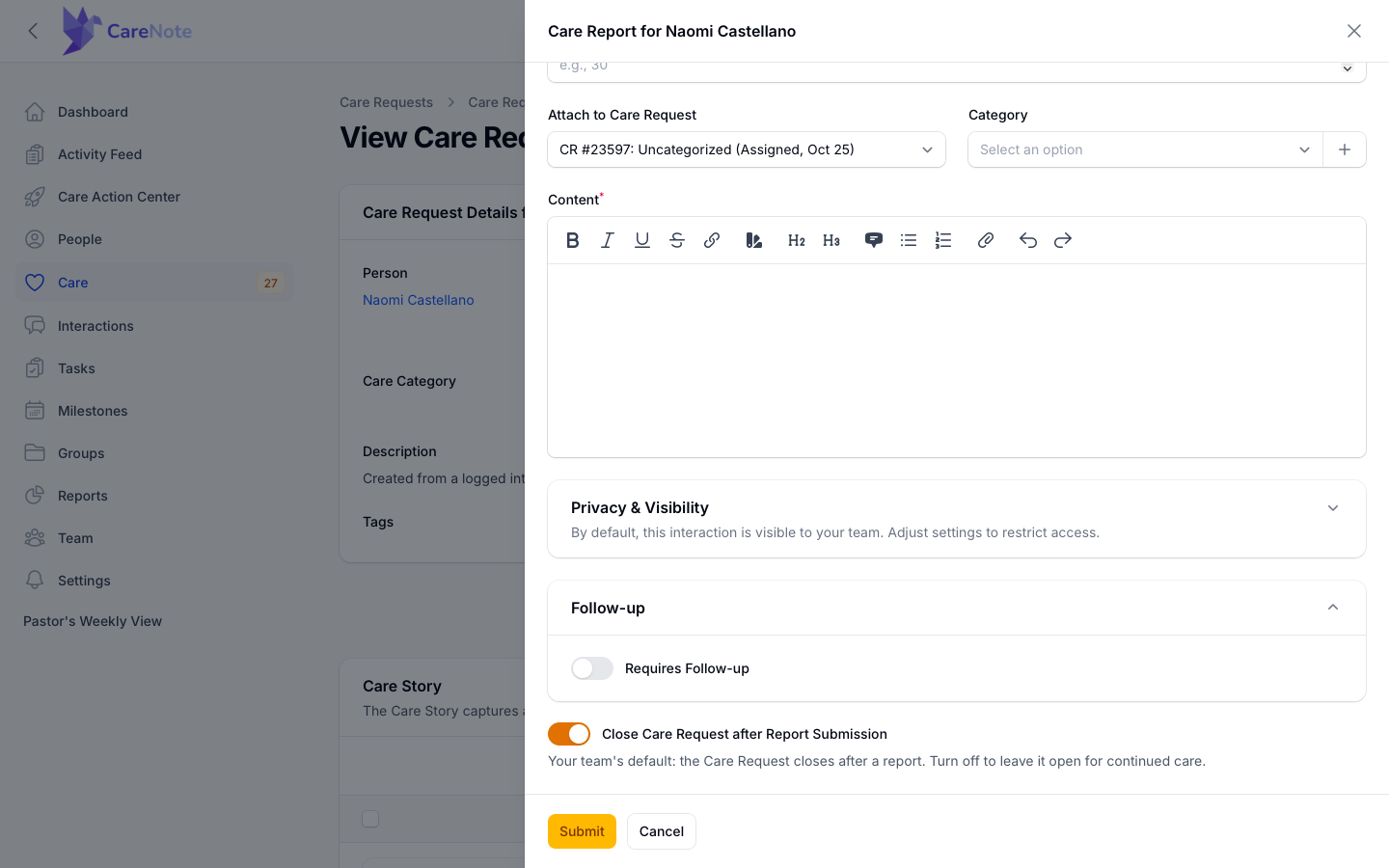
If more care is needed, open Follow-up and switch on Requires Follow-up. Add the notes, type, date, and who it is assigned to. The close toggle disappears, because a report with a follow-up keeps the request open. CareNote creates one linked task, which you will find on the Tasks tab.
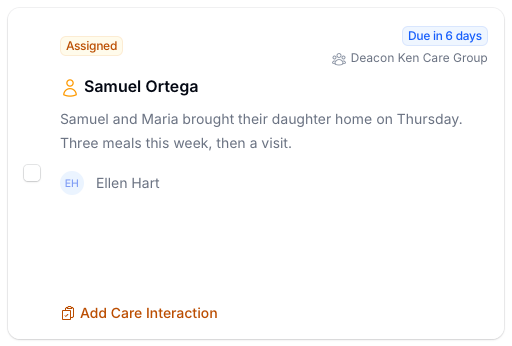
You can also log a Care Report from the Add Care Interaction button on a card or from Add Interaction on the Care Story tab. All three paths follow the same close rule below.
5. Know when a report closes the request
A report closes the request only when all four of these are true:
- Your team's Auto-close After Report setting is on (it is on by default).
- No follow-up was requested.
- The request is not marked Ongoing.
- You are an assigned care provider, or you are allowed to close requests.
Anyone else can still log an interaction, but it will not close anything. Whichever way a request closes, CareNote sends the closed notification.
6. Set your team's rules (Administrators)
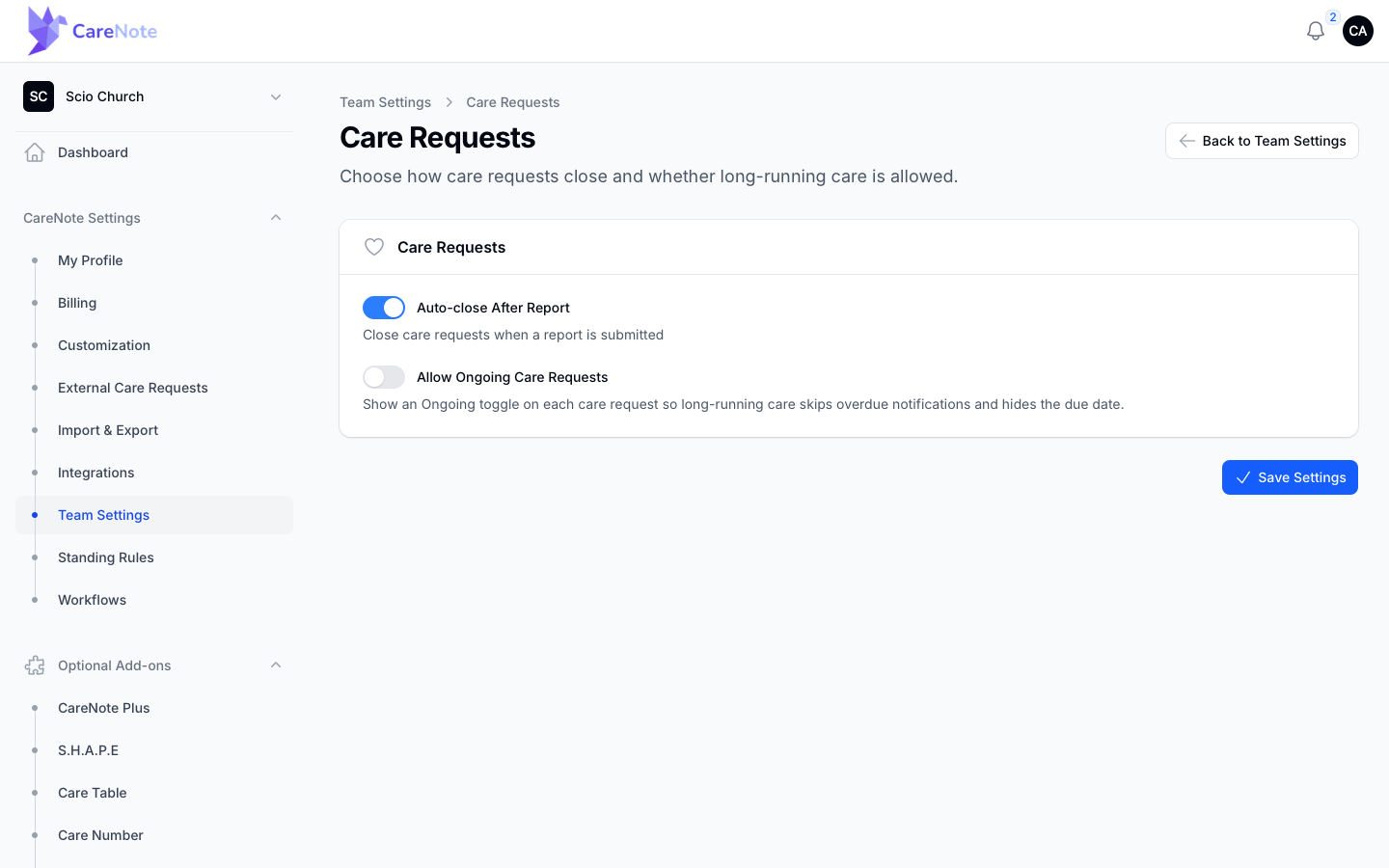
In the Owner panel, open Team Settings and choose Care Requests. Here you control Auto-close After Report and Allow Ongoing Care Requests (off by default).
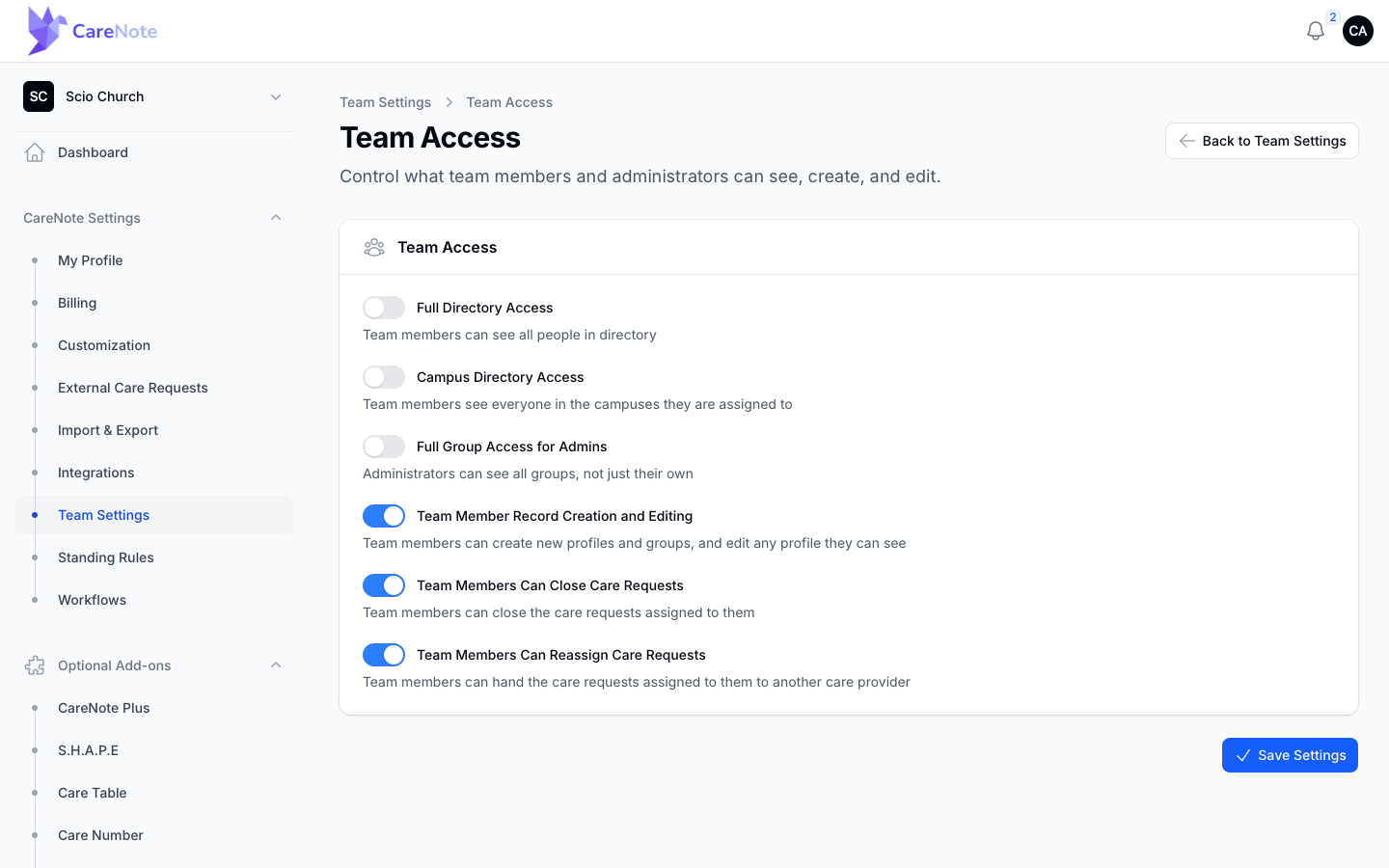
Who may close a request is set on the separate Team Access page. Administrators can always close. Turn on Team Members Can Close Care Requests and Team Members can close the ones assigned to them. Huddle Members never can.
7. Mark long-running care as Ongoing
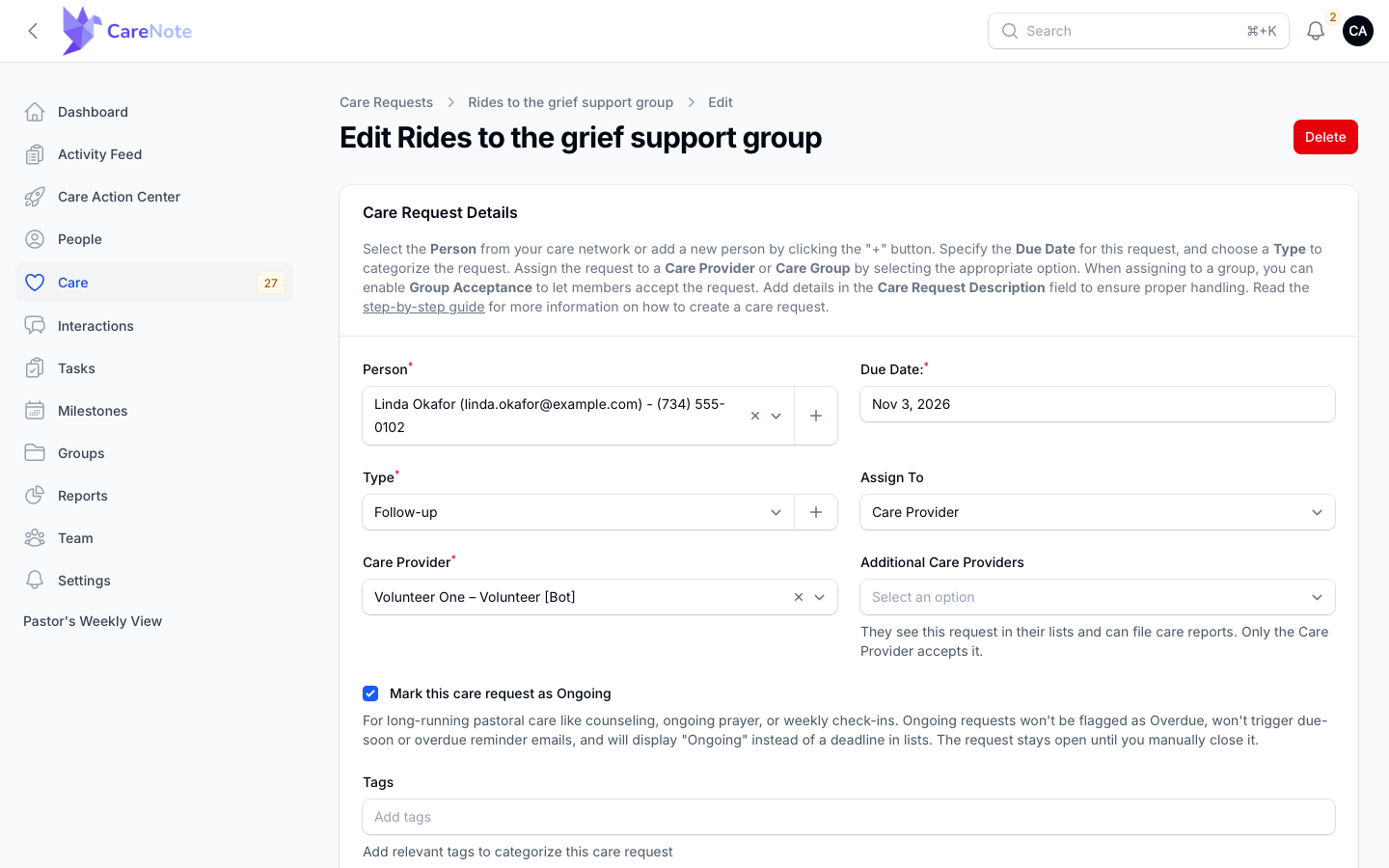
For counseling, weekly check-ins, or ongoing prayer, choose Edit Care Request and check Mark this care request as Ongoing. This option appears only when your team allows it, and a Type is required to save. Ongoing requests are never flagged Overdue, send no due-soon or overdue reminders, and stay open until someone closes them.
8. Reopen a closed request
Open the closed request, choose Actions, then Reopen. You can pick a Care Provider and add a reason, and both are optional. With no provider it returns to Entered. If you pick a provider who had already accepted, the request returns to their Accepted or In Progress status and they get their report link again instead of a new invitation.
9. Work the list in bulk
Tick the checkbox on one or more cards and a bulk menu appears with three actions.
- Close Selected asks you to confirm with "Yes, Close Them". It skips requests that are already closed or that you may not close.
- Convert to Interactions is for requests that were really prayer requests or notes. Choose an Interaction Type, and each request becomes an interaction on the same person, dated when the request was entered. The request itself is removed. Requests that have interactions, tasks, or a Care Table are skipped.
- Delete Selected removes the requests.
Use Filters to narrow the list first, including Group, Provider, and Entered by.
10. Review the history
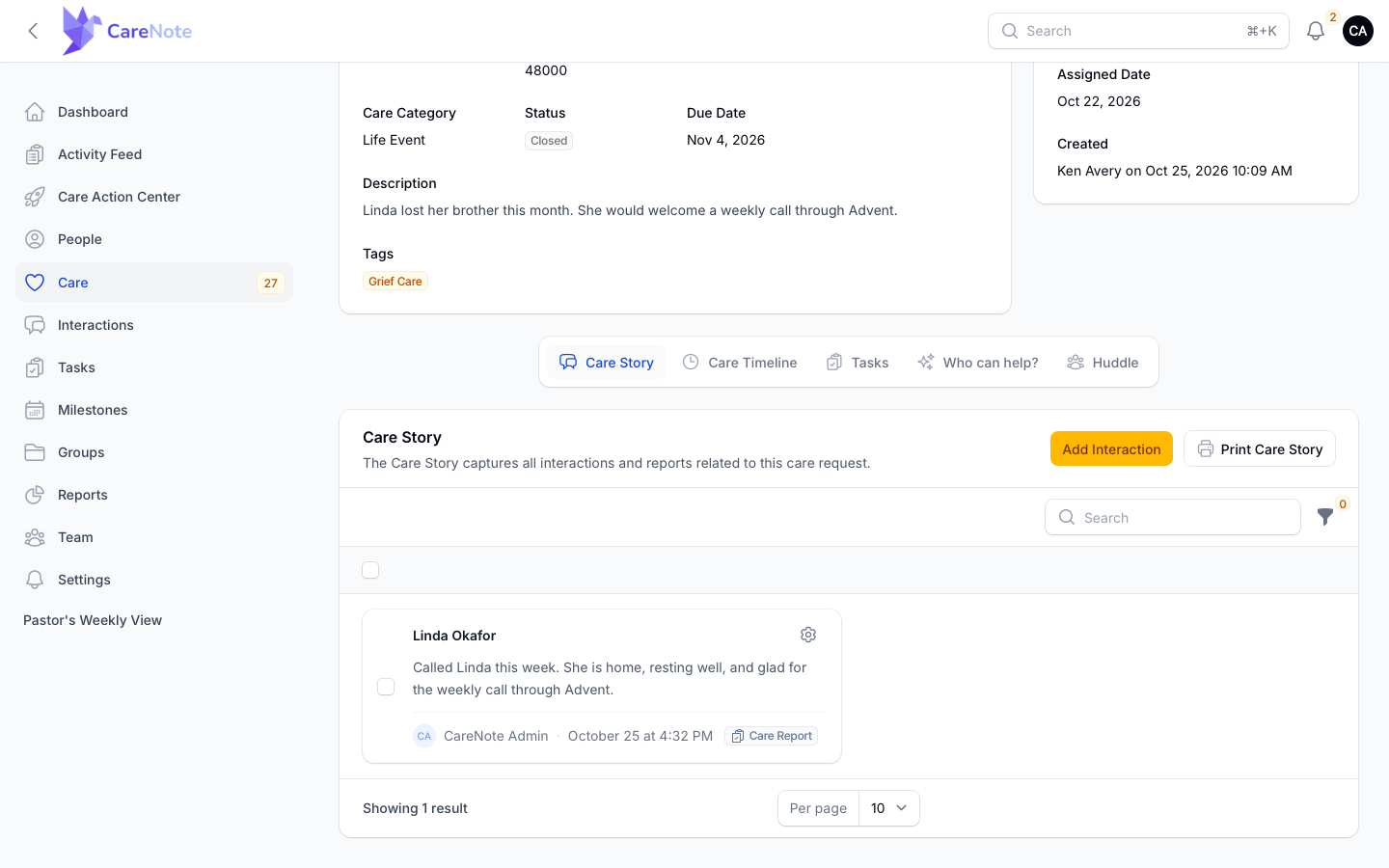
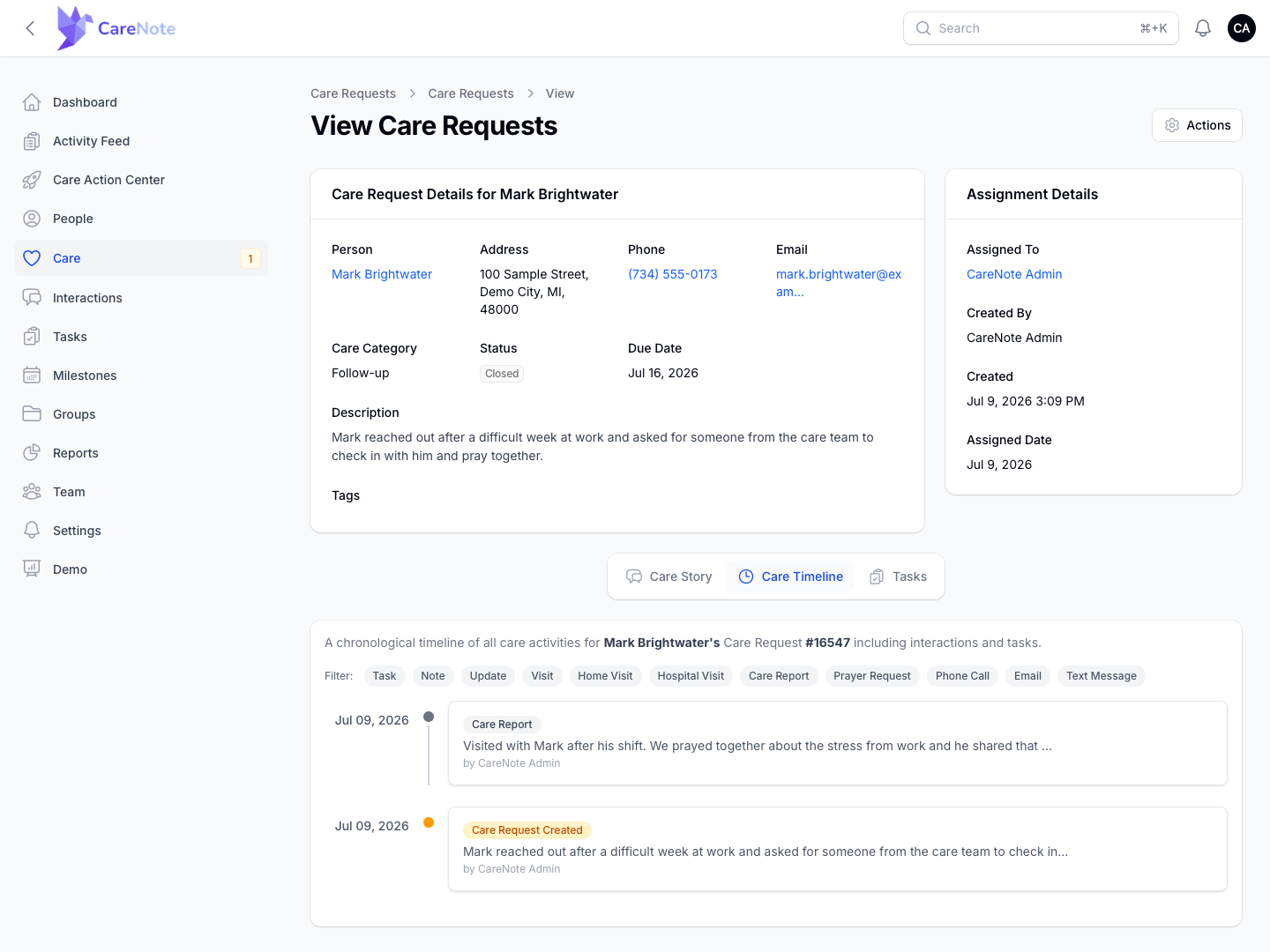
The Care Story tab shows each interaction, newest first. The Care Timeline tab lays out every interaction and task in order, beginning with the creation of the request.
Frequently asked questions
Does closing a request require a Care Report? No. You can close with no report, or report before or after closing.
Why did my report not close the request? Check the four conditions in step 5. A follow-up, an Ongoing request, a team setting that is off, or not being an assigned provider will each keep it open.
Do Volunteers get a confirmation after a report? If your church uses CareNote Plus, an Administrator can turn on Volunteer Report Confirmation under CareNote Settings, and Volunteers then receive an email confirming their report.