
Declining or Handing Off a Care Request
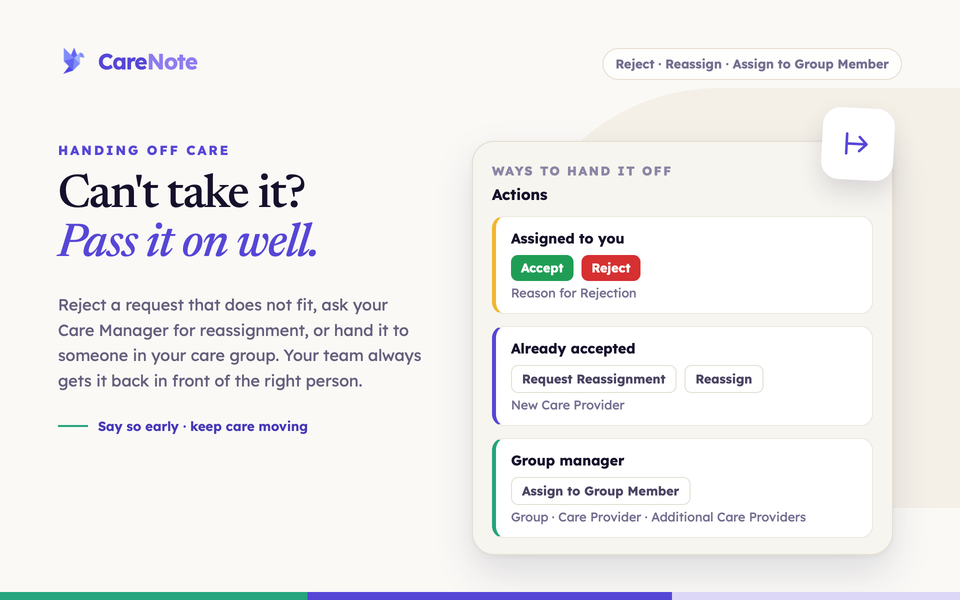
Sometimes a care request lands on you at the wrong moment. You are traveling, you are out sick, or the person would be better served by someone with a different relationship. A request that sits unanswered is the worst outcome, because the person waiting never knows it stalled. CareNote gives you a few quick ways to say "not me" so the request gets back in front of someone who can help.
Watch: care requests on the Team Member dashboard.
What this feature does
Which option you see depends on where the request stands and how your team is set up.
| Where the request is | What you can do |
|---|---|
| Assigned to you, not yet accepted | Reject it |
| Accepted by you | Request Reassignment, or Reassign if your team allows it |
| Open and in your hands, and you manage a care group | Assign to Group Member |
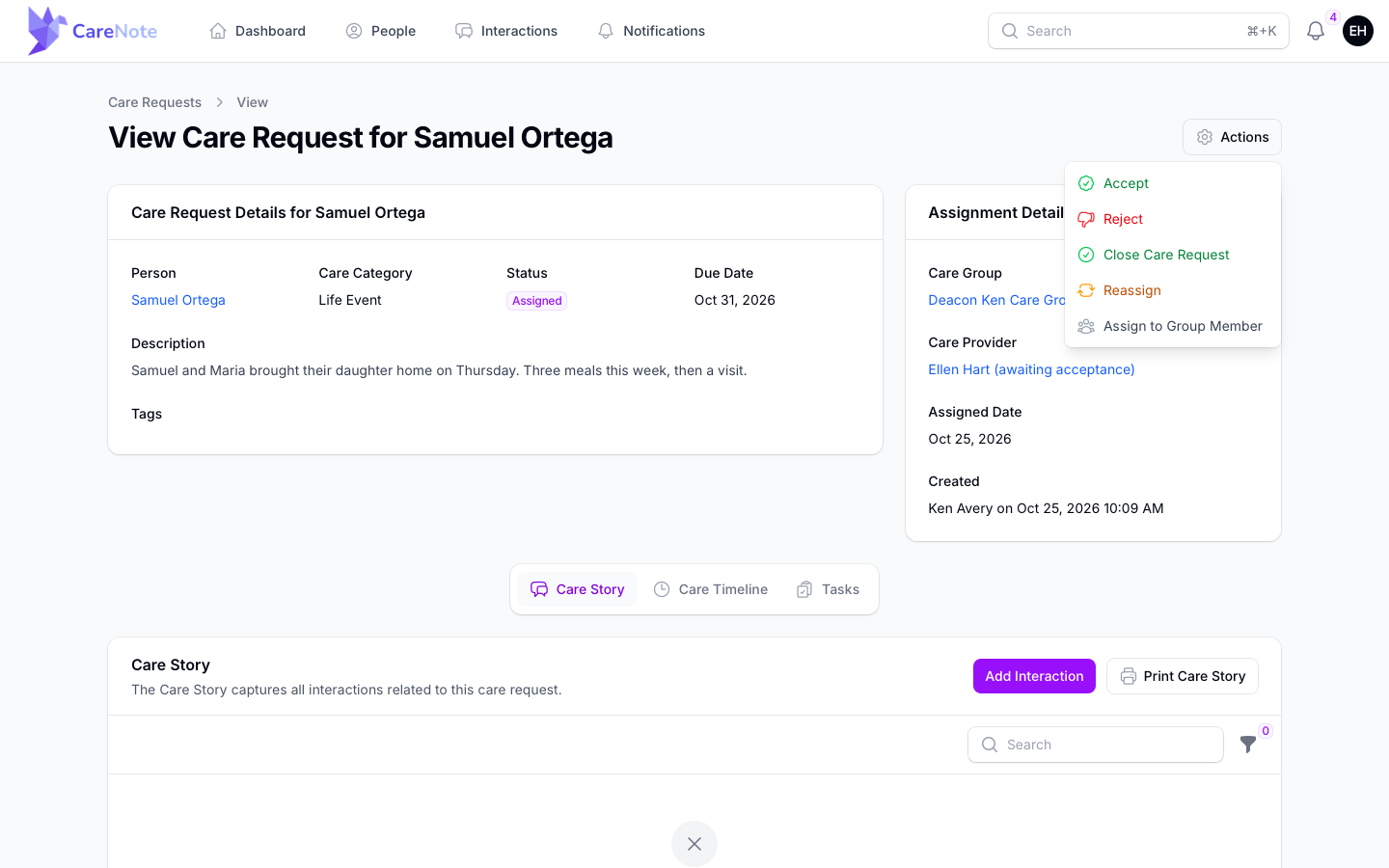
On the dashboard, all of these live in one gear Actions menu at the top right of the care request. Accept and Reject are items in that menu, not separate buttons.
1. Reject a request assigned to you
- Open the care request from your dashboard.
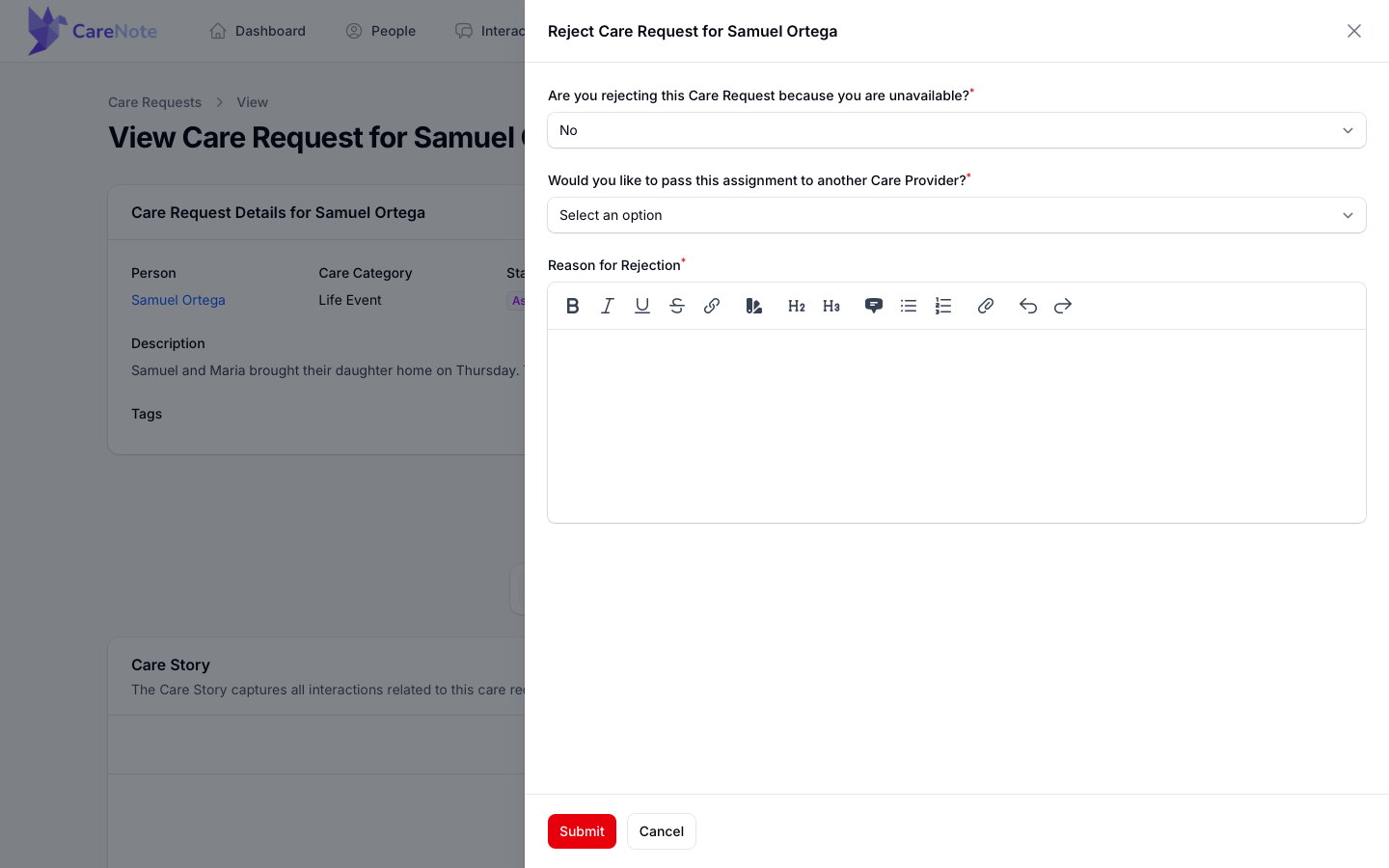
- Click Actions, then Reject. A panel slides in titled "Reject Care Request for" the person's name.
- Answer "Are you rejecting this Care Request because you are unavailable?" This question is required.
- Choose Yes, I am unavailable to provide care at this time and a date field appears asking when you are available again. It starts a week out, and the date is saved to your profile.
- Choose No and a second question appears, "Would you like to pass this assignment to another Care Provider?" You can answer it, but CareNote does not use the answer. Every rejection goes back to your coordinator the same way, so the reason you write is what helps them.
- Fill in Reason for Rejection. It is always required. A sentence or two is plenty.
- Click Submit. You will see "Care Request Report was just rejected."
2. Already accepted? Request reassignment
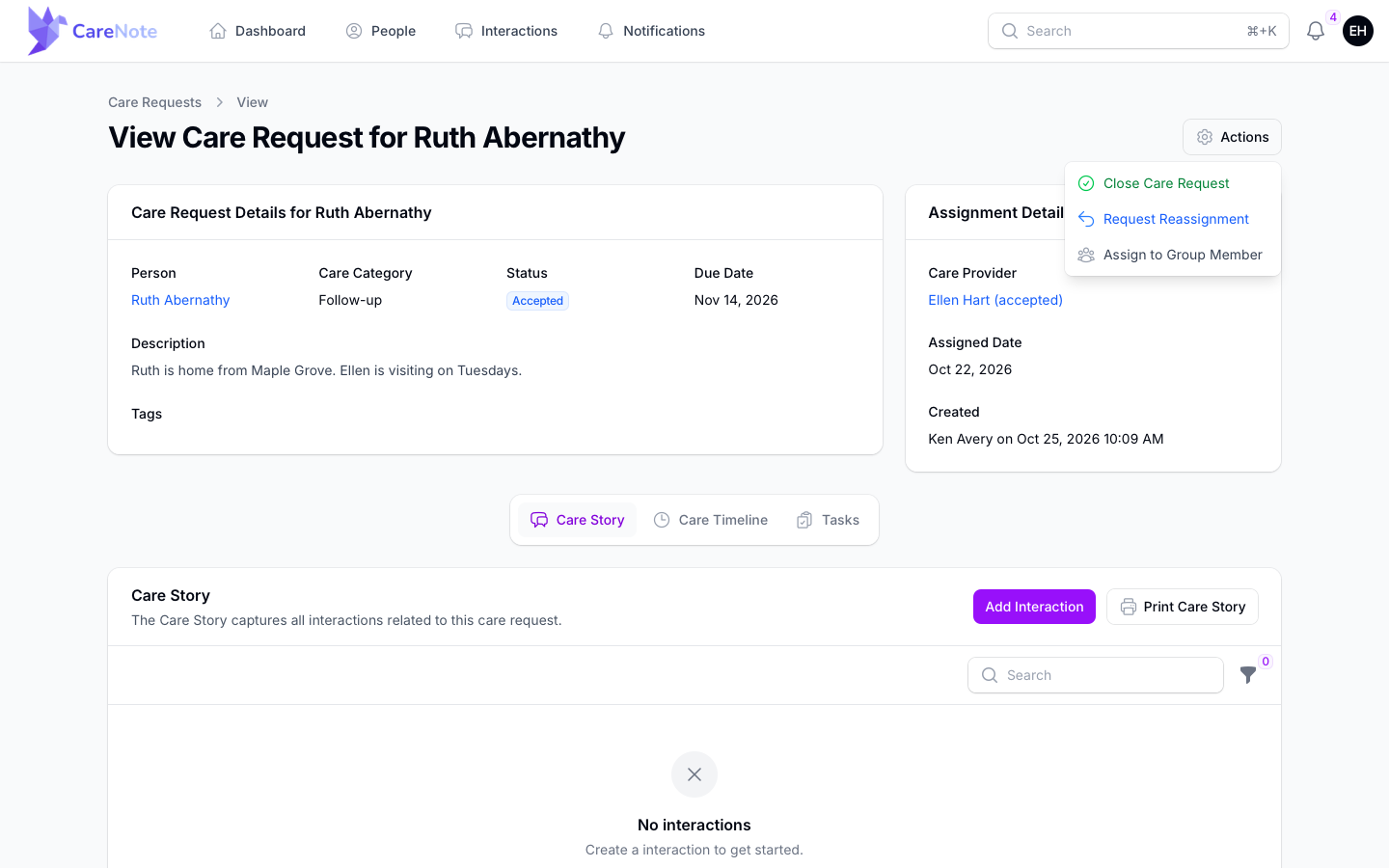
Plans change after you say yes. On a request you have accepted, choose Actions, then Request Reassignment. There is no form. CareNote tells your Care Manager that you need to hand it off, and you see "Your request for reassignment has been sent to the Care Manager."
3. Hand it to someone yourself
Your church can let team members reassign directly. An administrator turns on Team Members Can Reassign Care Requests on the Team Access page in the Owner panel. It is off by default.
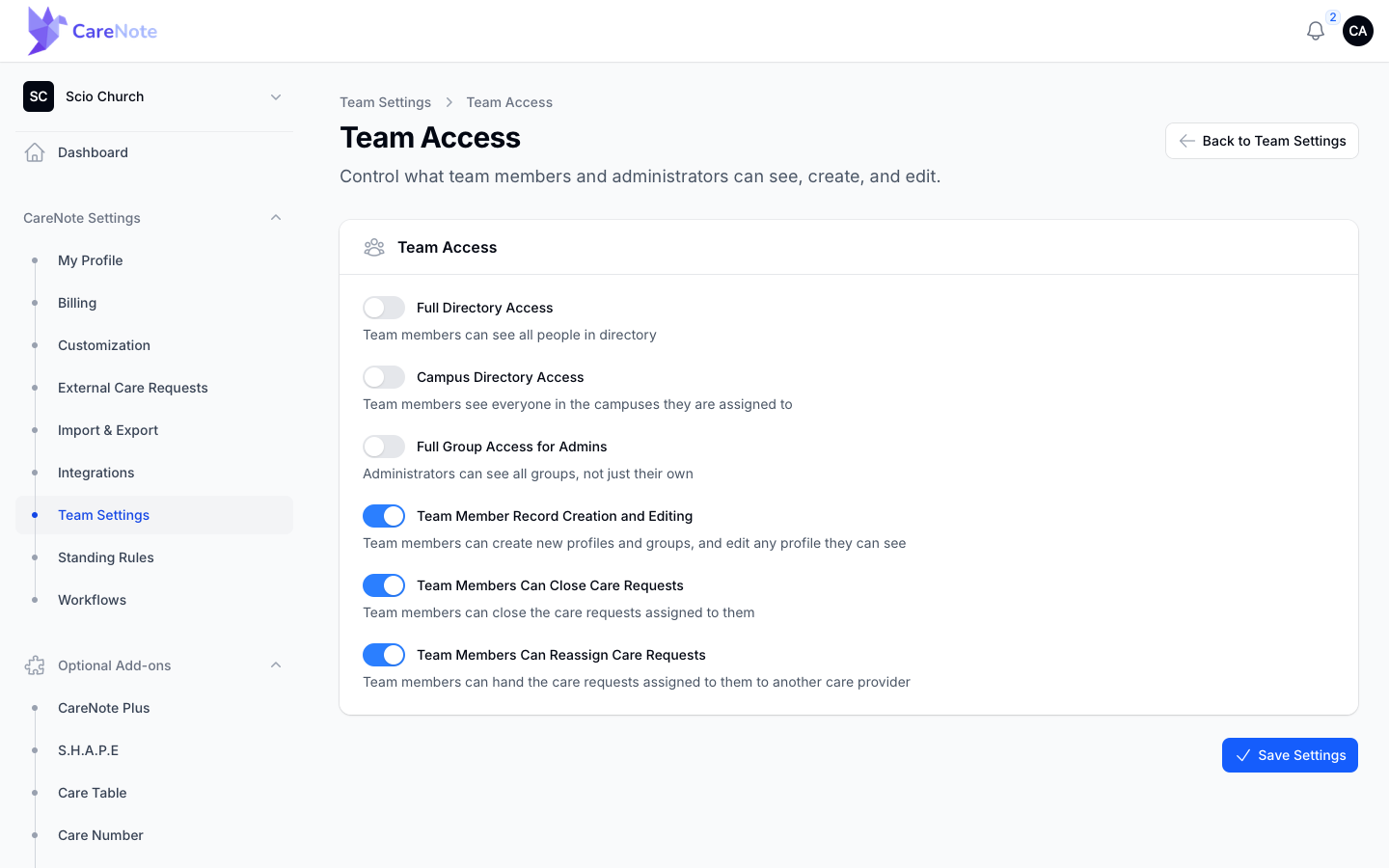
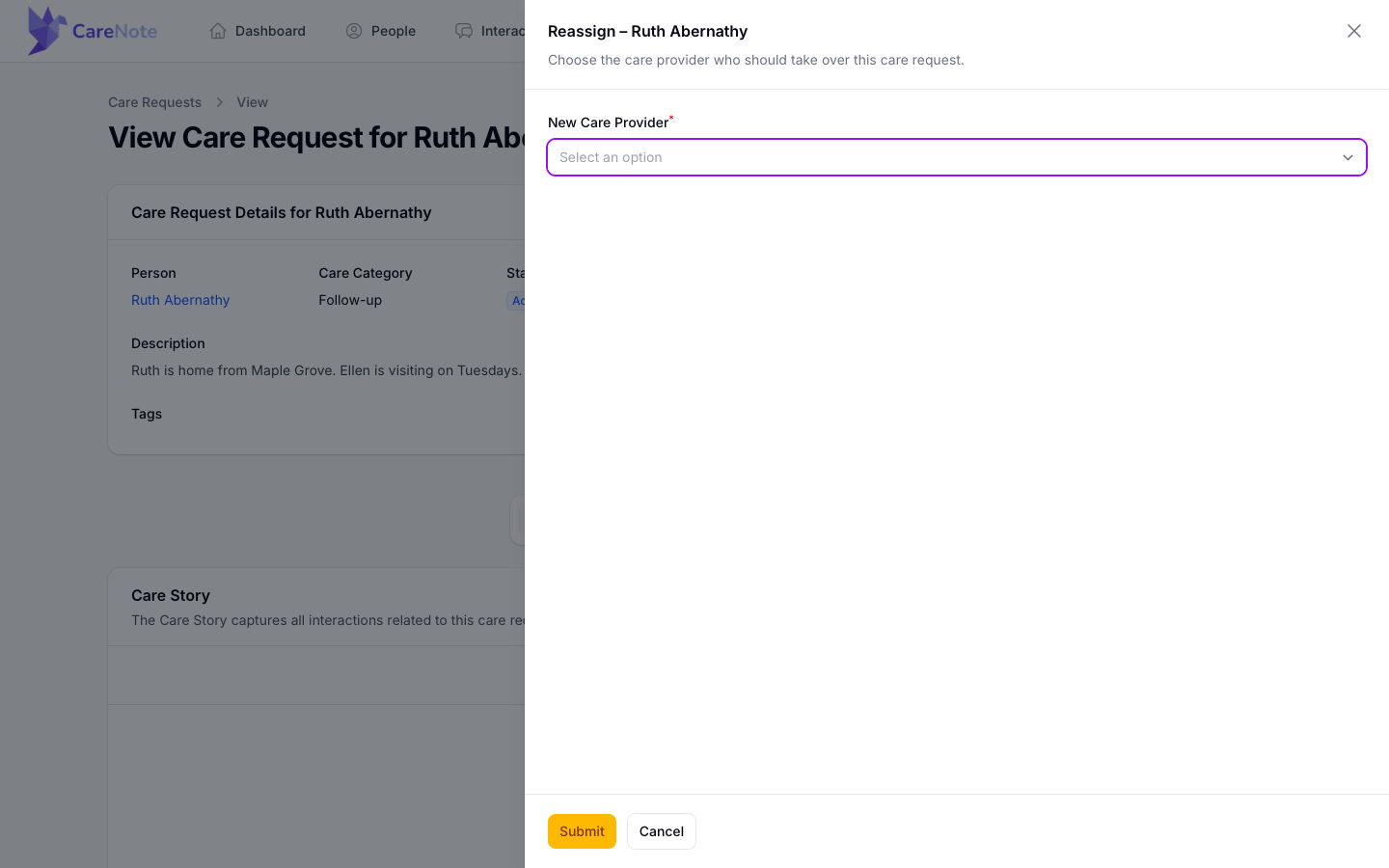
With the switch on, Reassign replaces Request Reassignment in your Actions menu. Choose it, pick a New Care Provider, and click Submit. The new provider is notified. You are not sent a notification, and your earlier accept, reject and report links stop working.
4. Assign to Group Member
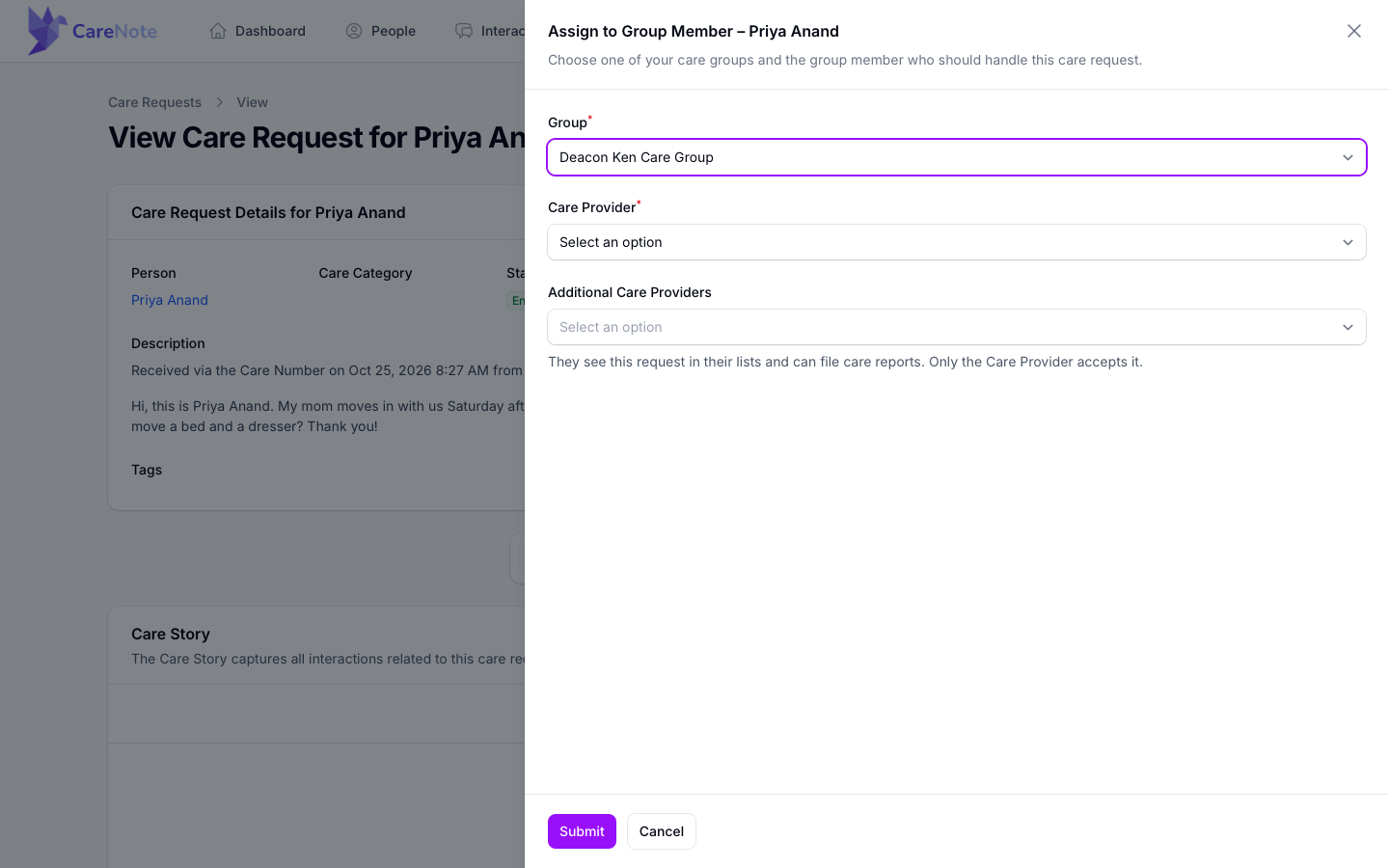
If you manage a care group, or you hold an open request, Actions then Assign to Group Member lets you pass it inside your group.
- Choose the Group. If you manage only one, it is already filled in.
- Choose the Care Provider, the one person who will accept the request.
- Optionally add Additional Care Providers. They see the request in their lists and can file care reports, but only the Care Provider accepts it.
- Click Submit.
5. What happens after you reject
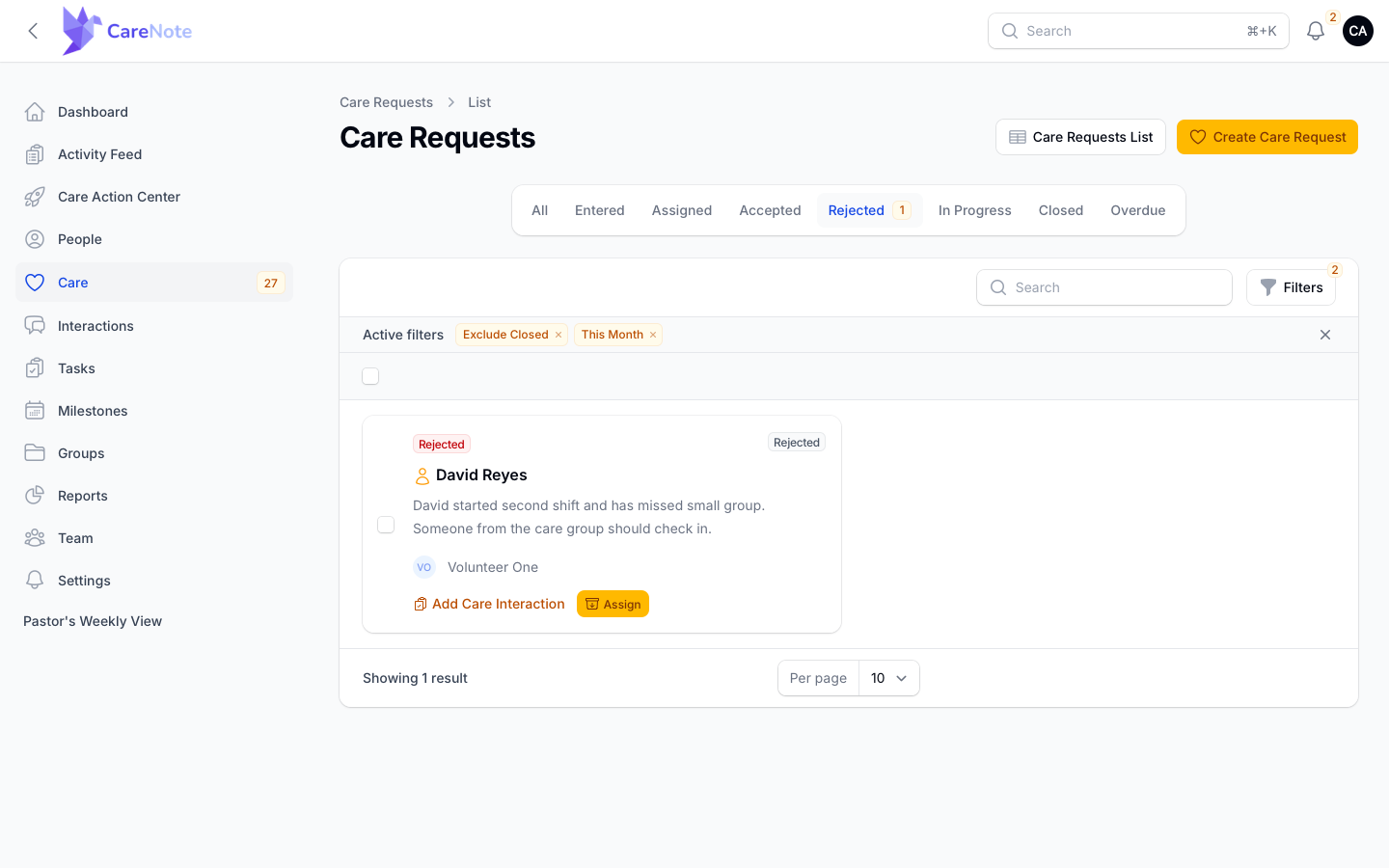
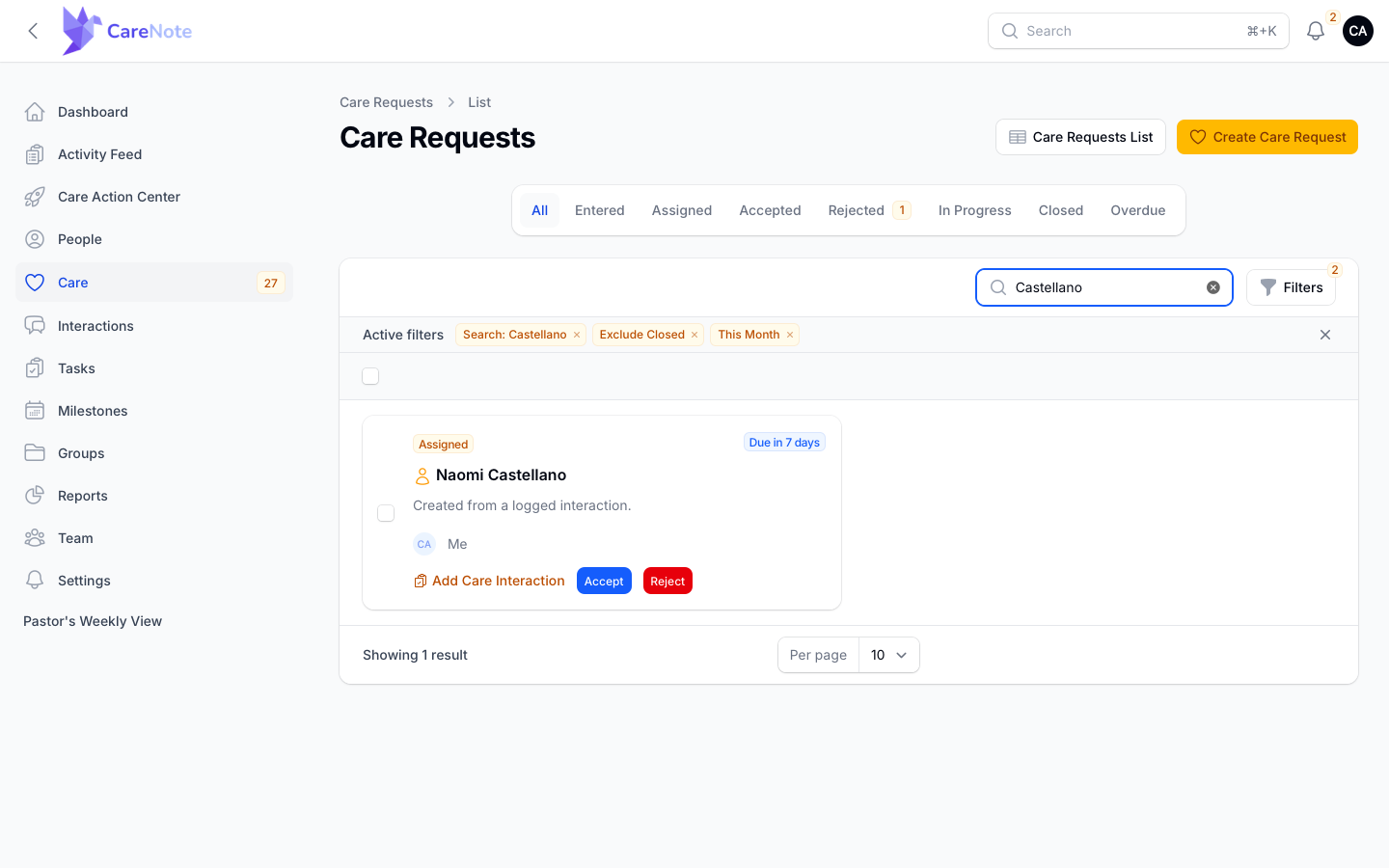
Your coordinator is notified by email and in the app. On the admin Care Requests list, the request shows a red Rejected pill under the Rejected tab, still shows your name, and has an amber Assign button so they can choose someone new.
Once you have rejected, you can no longer file a care report on that request, and the links in your earlier emails stop working for it. Additional Care Providers keep the request in their lists while a new provider is found.
If you are an administrator
Administrators working in the Admin panel have a one-click Reject on the list card of a request they hold in Assigned status. There is no form, no reason, and nobody is notified, so tell your team yourself when you use it. The admin view page has no Reject at all.
If you are a Volunteer (email-only)
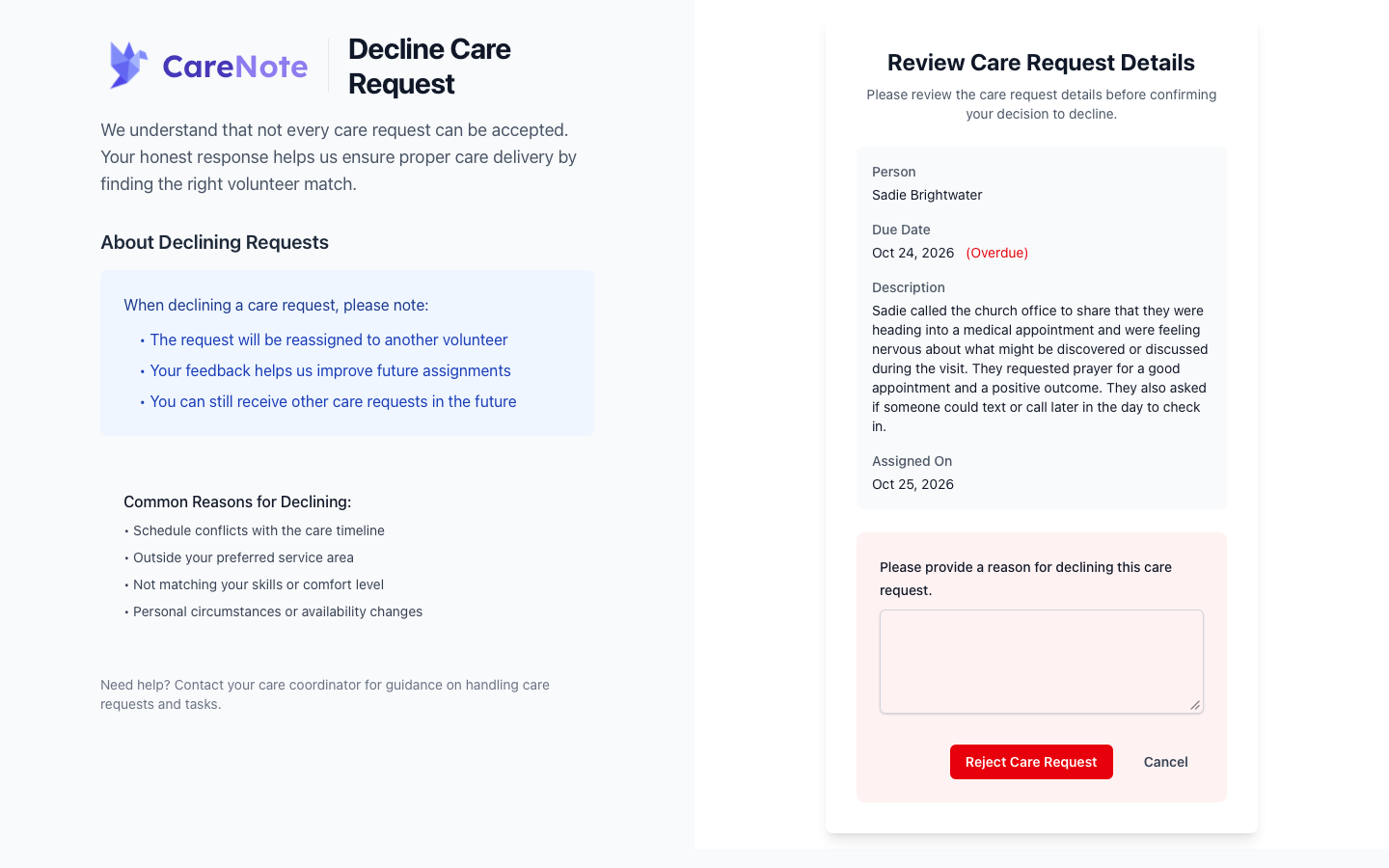
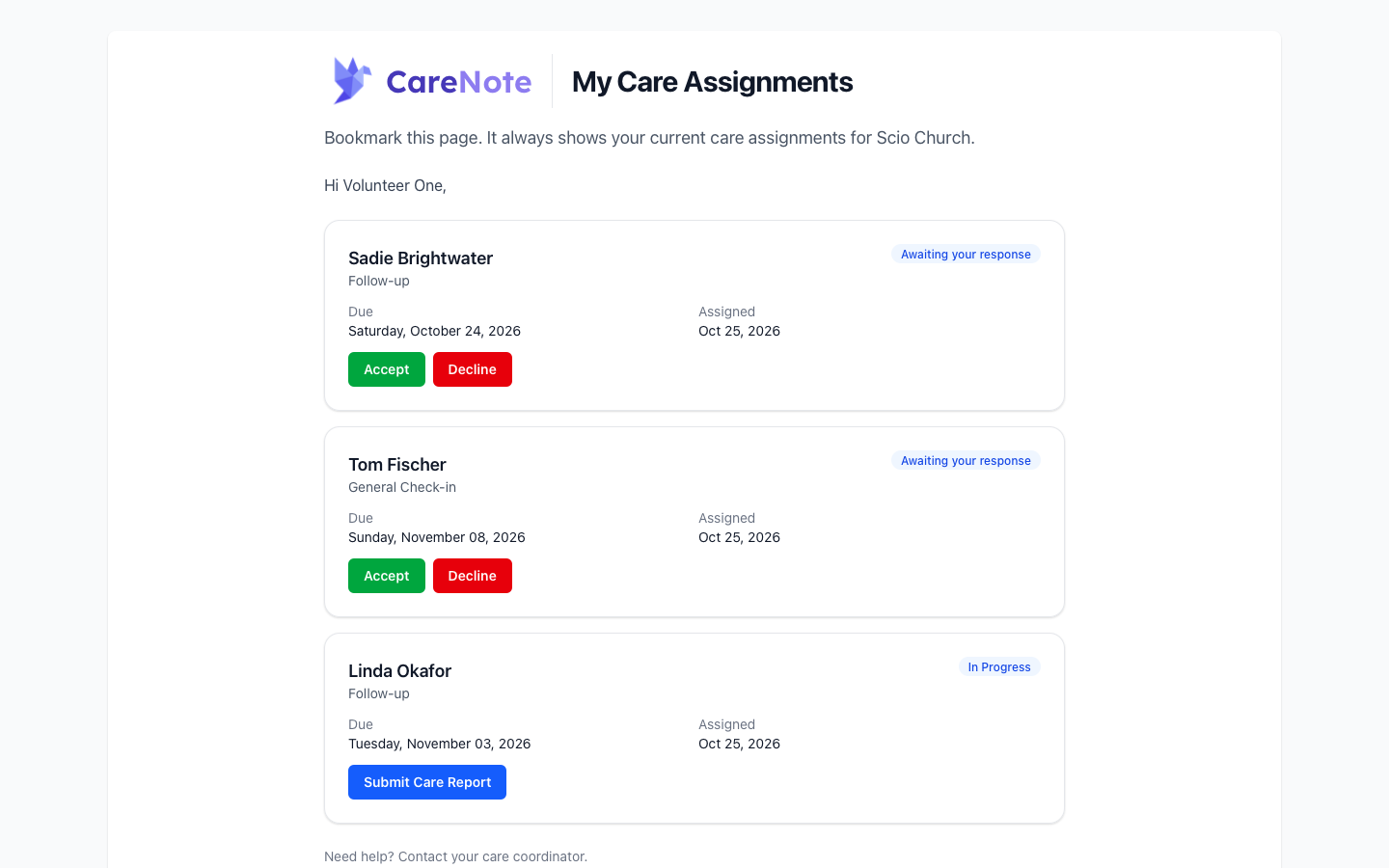
Volunteers are an email-only role, with no login or password, and can decline straight from their email.
- From the email: choose Decline to open the Decline Care Request page. It asks for a reason, but unlike the dashboard, a reason is optional (up to 1,000 characters).
- From My Care Assignments: your bookmarked page lists each request with Accept and Decline.
- By text: if your church has turned on SMS acceptance, reply PASS and the request number.
Frequently asked questions
Do I always have to explain why I am rejecting? On the dashboard, yes. Reason for Rejection is required every time. Volunteers declining from an email can leave it blank.
Does answering "pass this to another Care Provider" change anything? No. CareNote does not save or use that answer. Your coordinator is notified either way.
Will rejecting hurt my standing? No. If you say you are unavailable, the date is saved so you are less likely to be assigned something else in that window.
Can I undo a rejection? Not yourself. Ask your coordinator to assign the request back to you from the Rejected tab.
Why don't I see Reassign? Your team has not turned on Team Members Can Reassign Care Requests. Use Request Reassignment instead.