
Assigning a Care Request
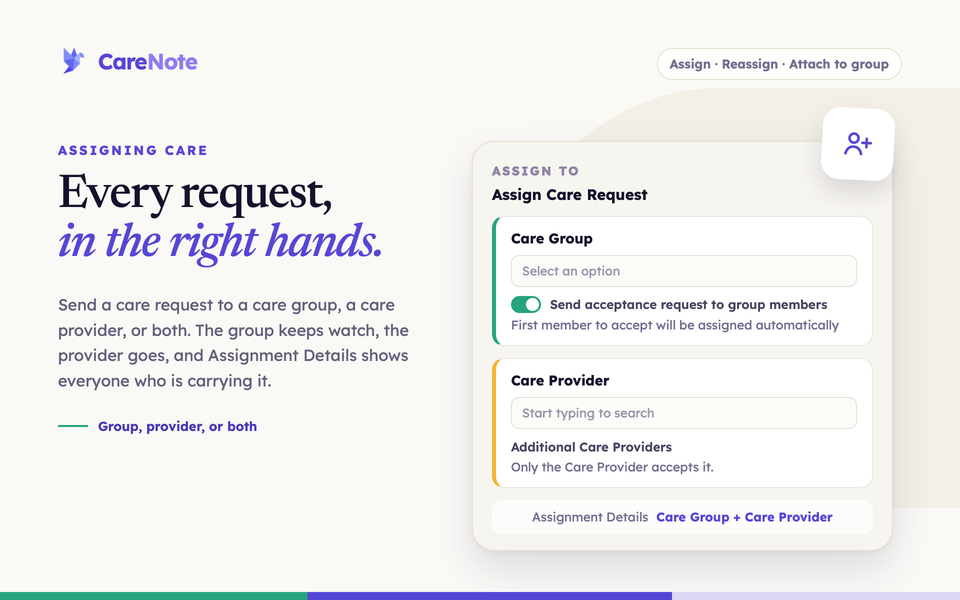
A care request only helps someone once it lands with a person who can act on it. Assigning it tells your team who is carrying the need and starts the notifications that get them moving.
Watch: what happens when care is assigned.
Group, provider, or both
You can hand a care request to:
- A Care Group, such as your Care Team or Hospital Visitors, so the group can keep watch and decide who goes.
- A Care Provider, one person on your team who will follow up.
- Both. A group can hold the request while one of its members is the provider who goes. The Assignment Details card on the request shows the Care Group and the Care Provider side by side, along with any Additional Care Providers and the Assigned Date.
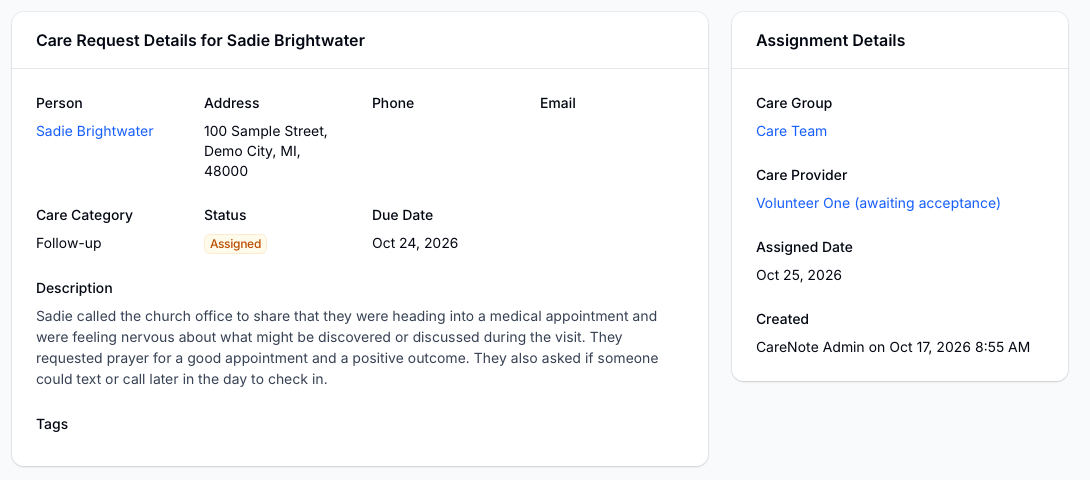
When a group holds a request and no provider has taken it yet, its badge reads Assigned to group. On the Care Requests list, open Filters and choose Assigned to group to see every request waiting on a group.
1. Assign a new request
- Open the care request and click Actions, then Assign. A smaller version of this panel, with the Care Group choice but no acceptance request, opens from the Assign button on Care Requests list cards, a person's Care tab, a group's care requests and your Dashboard.
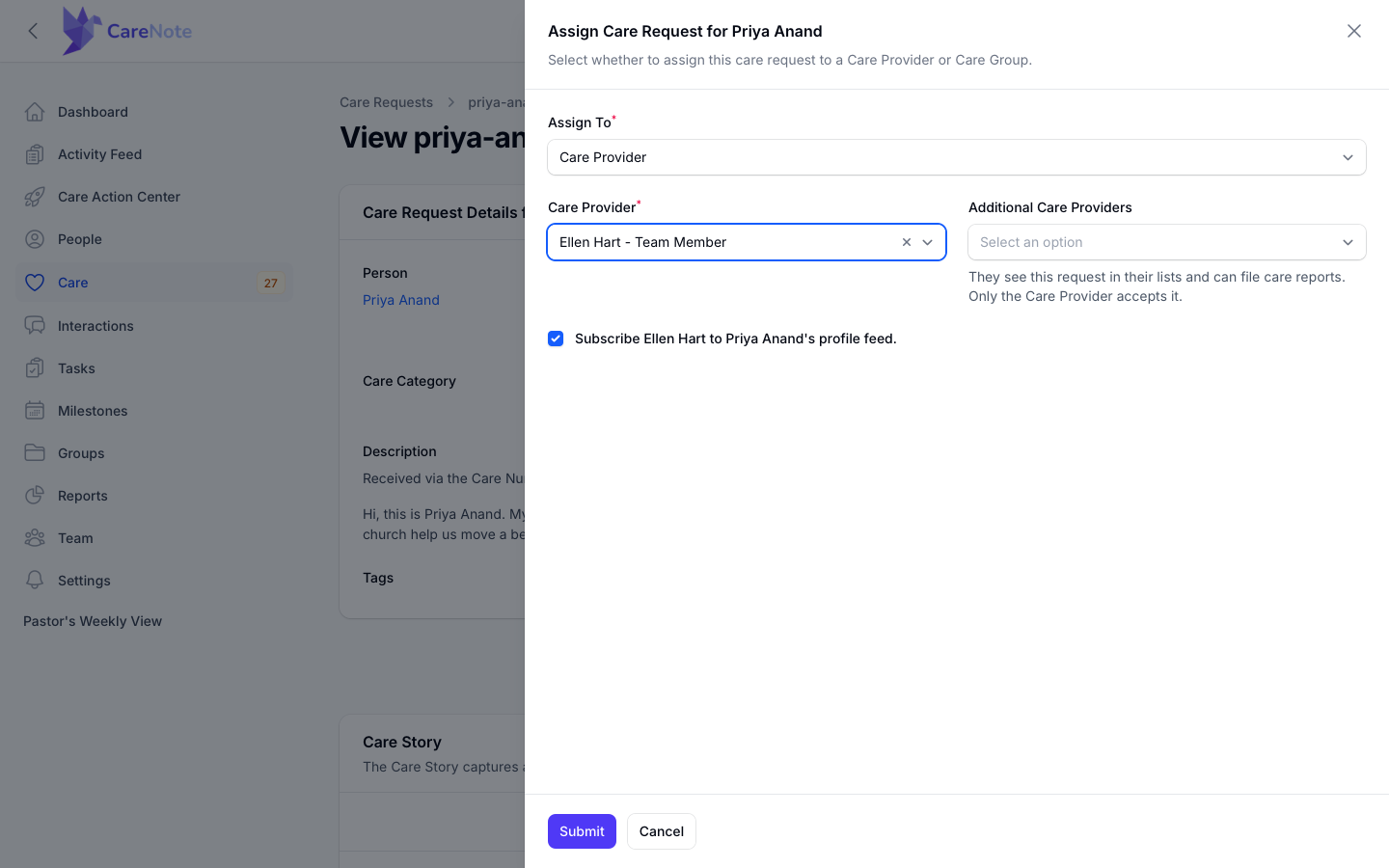
- In the Assign Care Request for panel, set Assign To to Care Provider or Care Group.
- Fill in the fields for your choice (below), then click Submit.
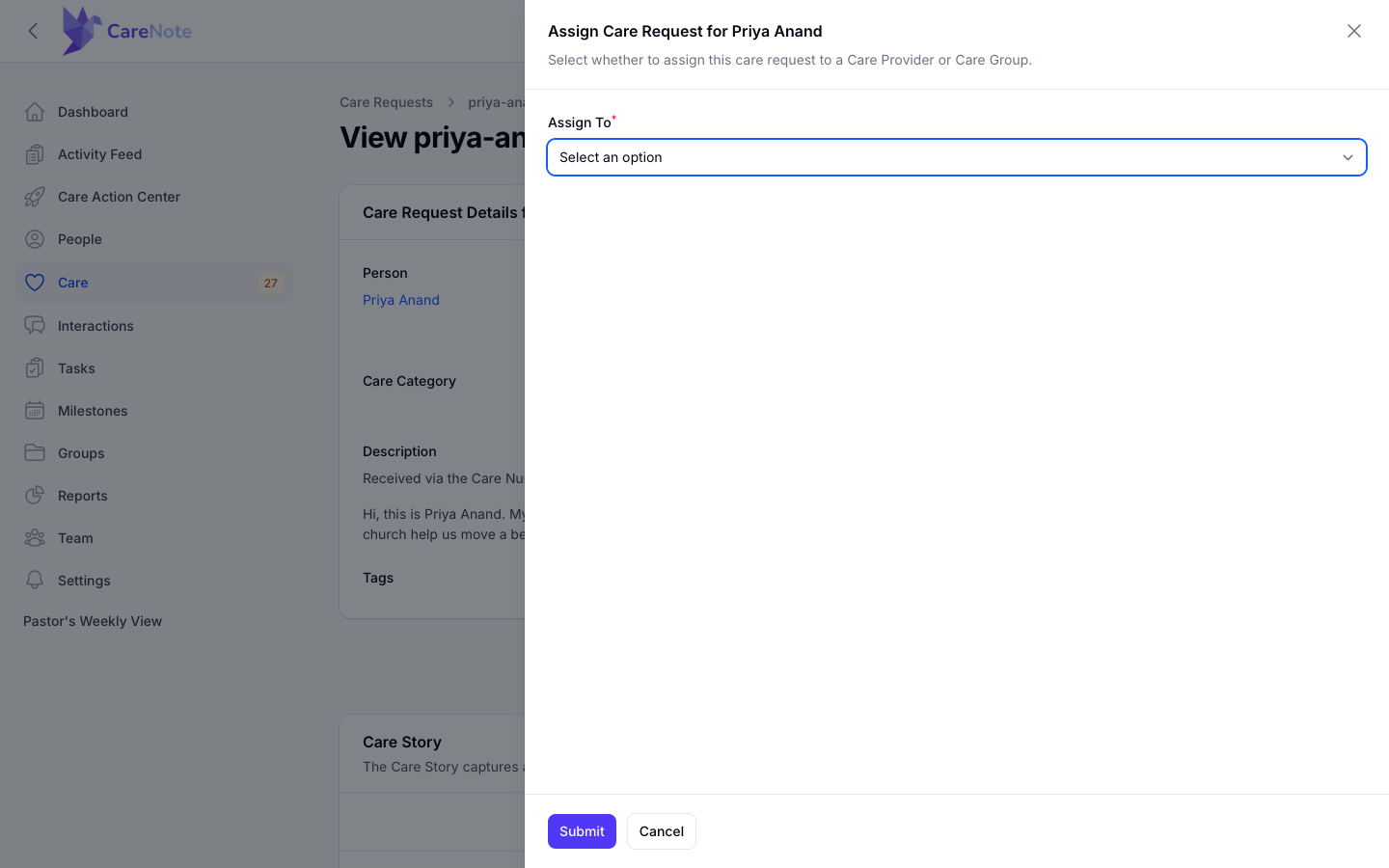
Assign appears on requests that are Entered or Rejected and do not yet have both a group and a provider. That means a request a group already holds still shows Assign, so you can link the provider who will go while the group stays on it.
2. Choose a Care Provider
Pick the person in the Care Provider field. Each option reads as name and role, so you can tell an Administrator from a Team Member at a glance. The list only includes people whose campus access covers the person in the request. If your team uses the Church Cares Toolkit, people whose focus area matches the request's category are listed first, with that focus area after their name.
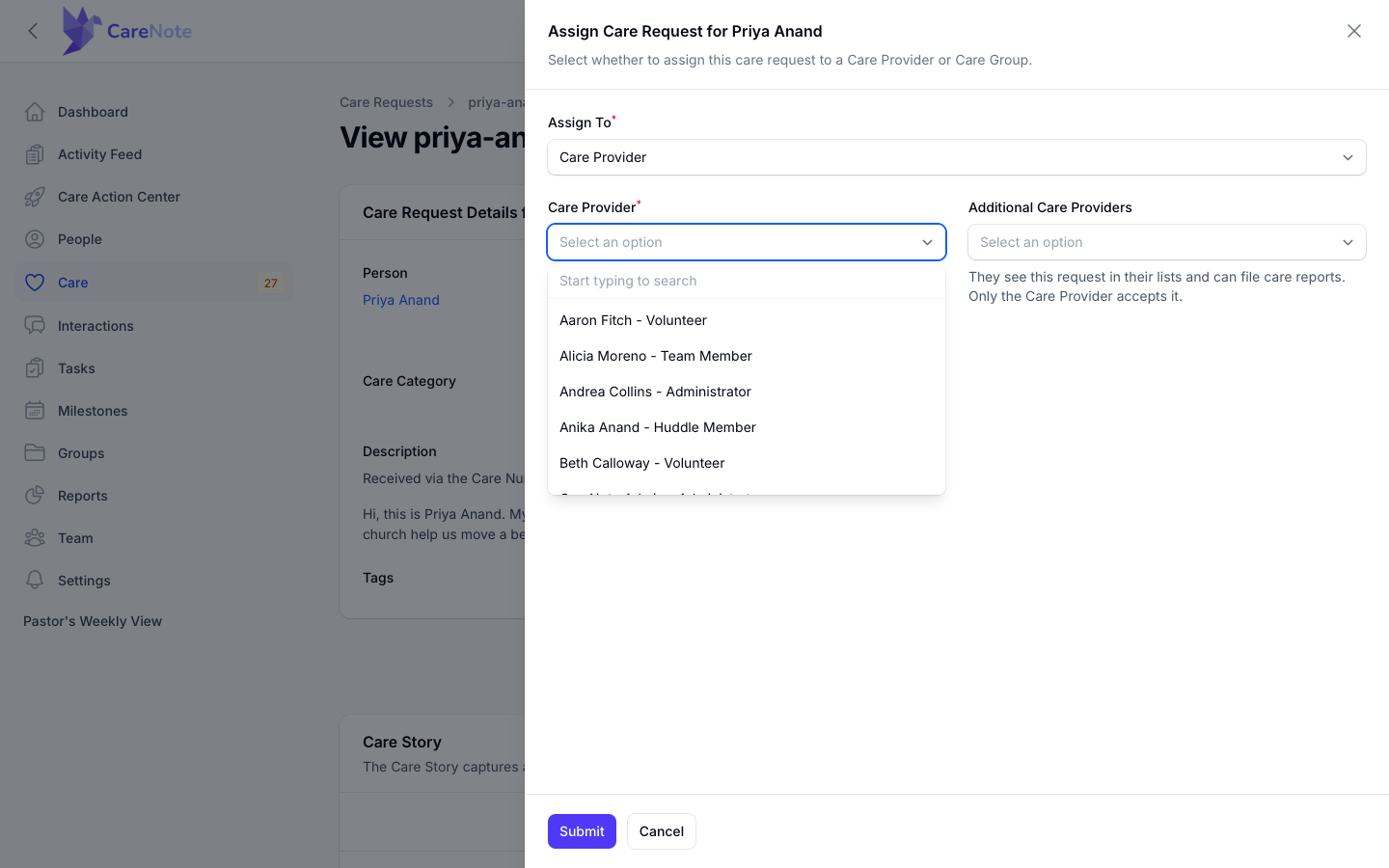
Two more choices appear once you pick someone:
- Additional Care Providers (CareNote Plus) adds more people to the request. They see it in their lists, are told they were added, and can file the care report. Only the Care Provider accepts it. Teams without Plus see a short note with a Learn more link instead.
- Subscribe [Provider] to [Person]'s profile feed is checked by default and keeps the provider up to date on that person.
The provider gets a notification in CareNote and an email that the request was assigned to them for follow-up. The email includes the person's contact details, the due date and the description. If the request has a Place attached, such as a hospital, the email also shows its name, address and a Directions link.
3. Choose a Care Group and use First-to-Accept
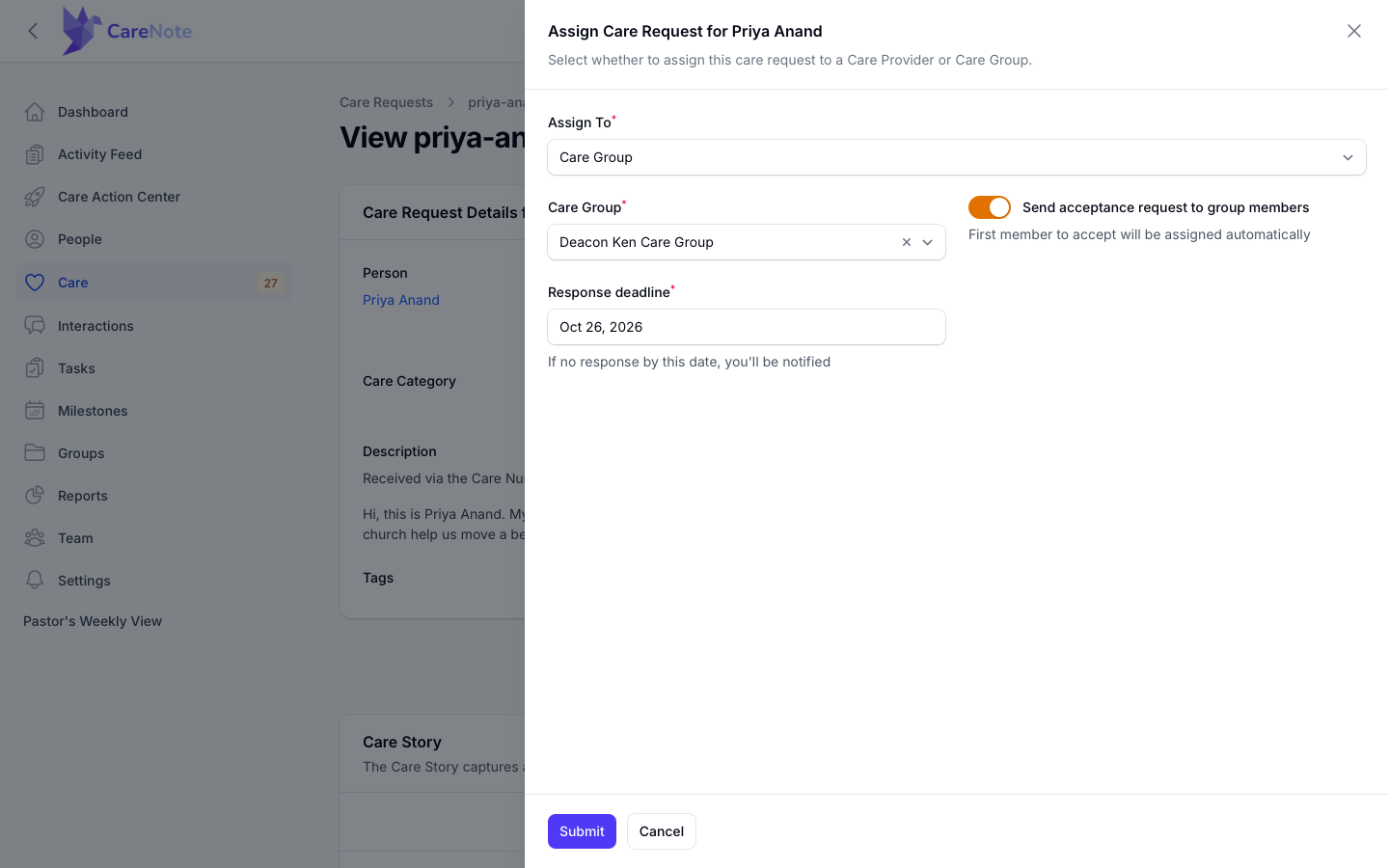
Pick the group in the Care Group field. The request stays Entered, shows the Assigned to group badge, and the group's owners and managers are notified so they can decide who goes.
On CareNote Plus teams, a toggle appears once you choose a group: Send acceptance request to group members. It is on the care request's own page only (Actions, then Assign); the Assign button on list cards, a person's Care tab, a group's care requests and your Dashboard offers just the Care Group choice. With the toggle on, every member of the group is asked at once, and the first member to accept is assigned automatically. Turning it on adds a required Response deadline date picker. It defaults to today at 6 pm when you set it before 6 pm, and to tomorrow at 6 pm after that. If no one responds by then, you are notified.
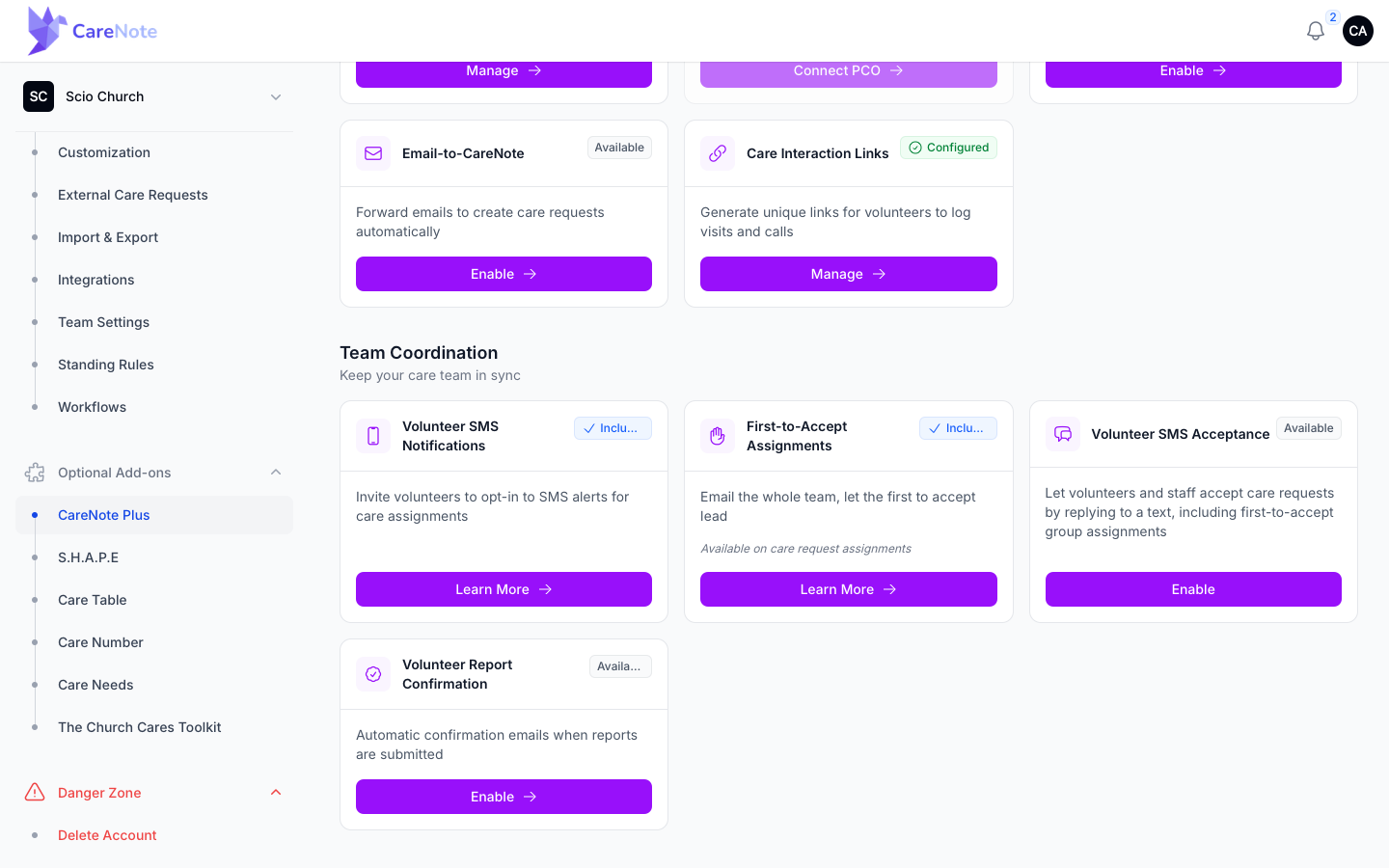
First-to-Accept is included with CareNote Plus, so this toggle is the whole setup. Site owners can read how it works on the First-to-Accept Assignments page in Settings.
To let people accept by text, a site owner can open the CareNote Plus page in Settings and click Enable on the Volunteer SMS Acceptance card. Group members who have agreed to texts then get a message they can answer with ACCEPT to take the request. Everyone still gets the email, and the first yes wins whether it comes by text or by email.
4. Reassign a request
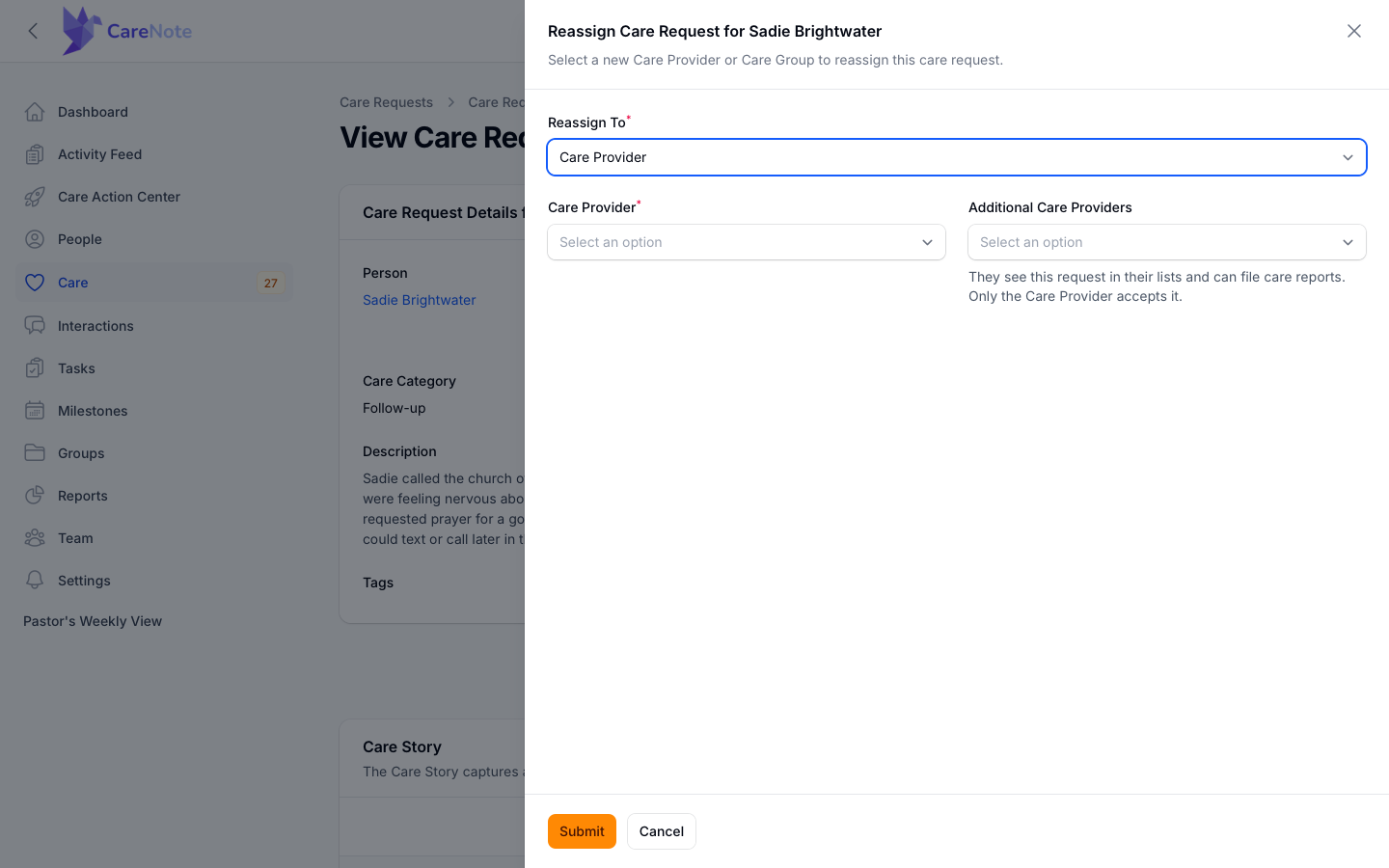
Once a request has a provider or a group, Actions shows Reassign. In the panel, set Reassign To to Care Provider or Care Group, choose the new one, and click Submit.
- To a Care Provider: the new provider replaces the old one, any groups are removed, and the status becomes Assigned. You can adjust Additional Care Providers here too.
- To a Care Group: the current provider is removed and the request moves to the new group in Entered status.
You see a "Care Request Reassigned" confirmation. The new provider gets the same assignment notification and email as any first assignment. The previous provider is not sent a notification, but their accept, reject and report links stop working.
5. Attach a group without changing the provider
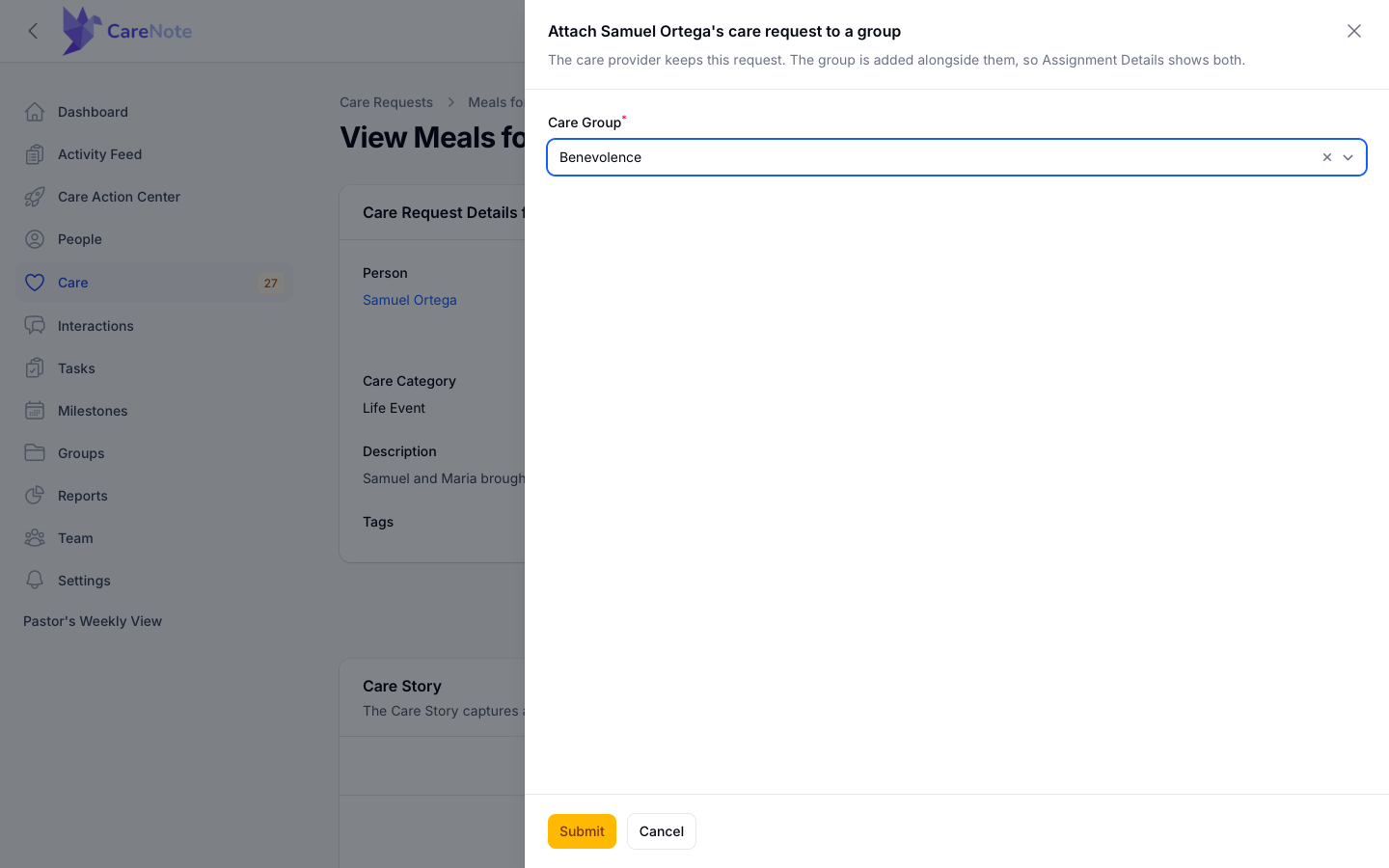
When a provider already has the request and you want a group involved too, click Actions, then Attach to group. Choose the Care Group and click Submit. The provider keeps the request, the group is added alongside them, and the group's leaders are told the request is shared with them, with nothing to claim.
6. Let Team Members pass care along
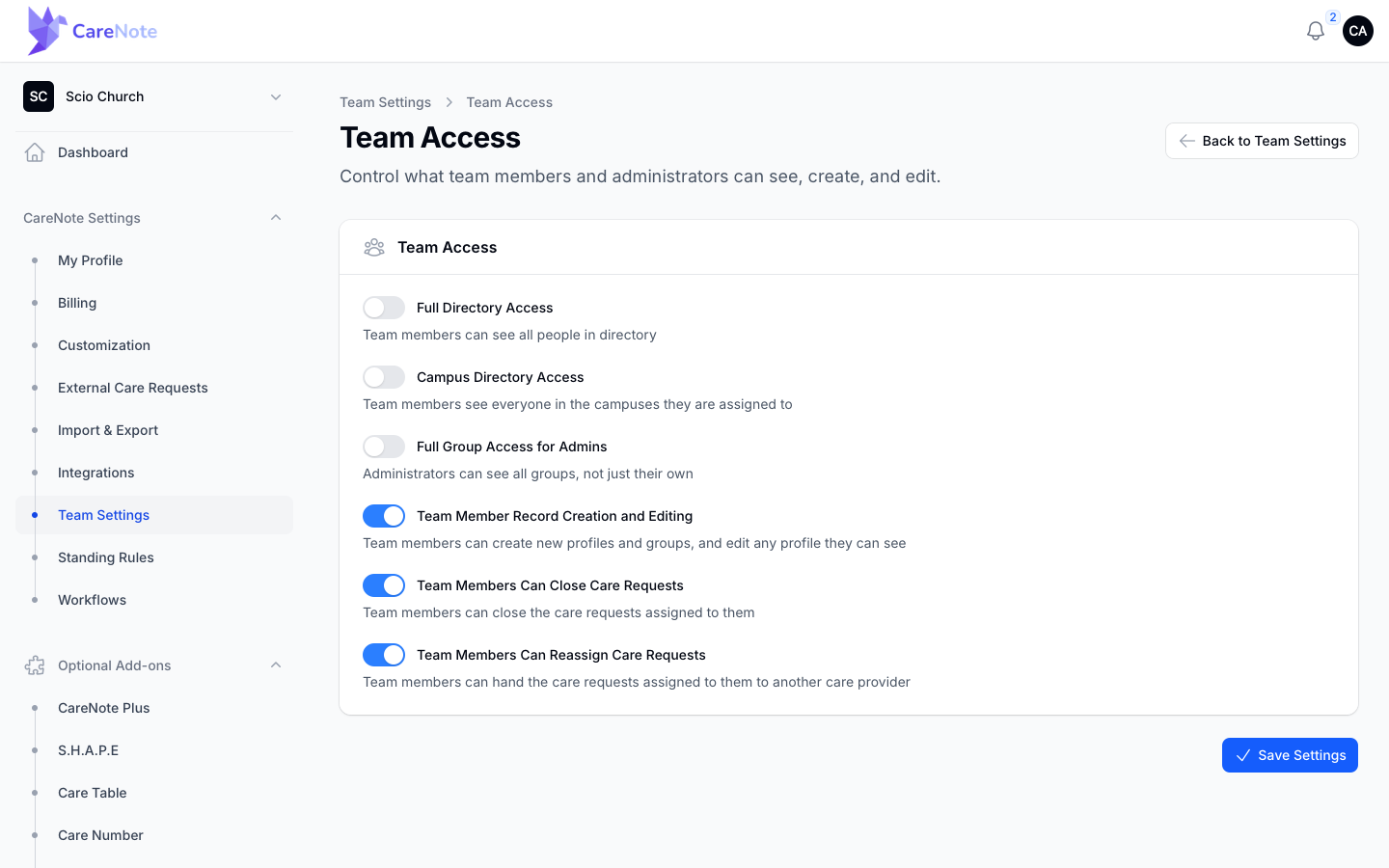
Team Members can hand off their own requests, too. A site owner turns this on in Settings under Team Access with Team Members Can Reassign Care Requests, then clicks Save Settings.
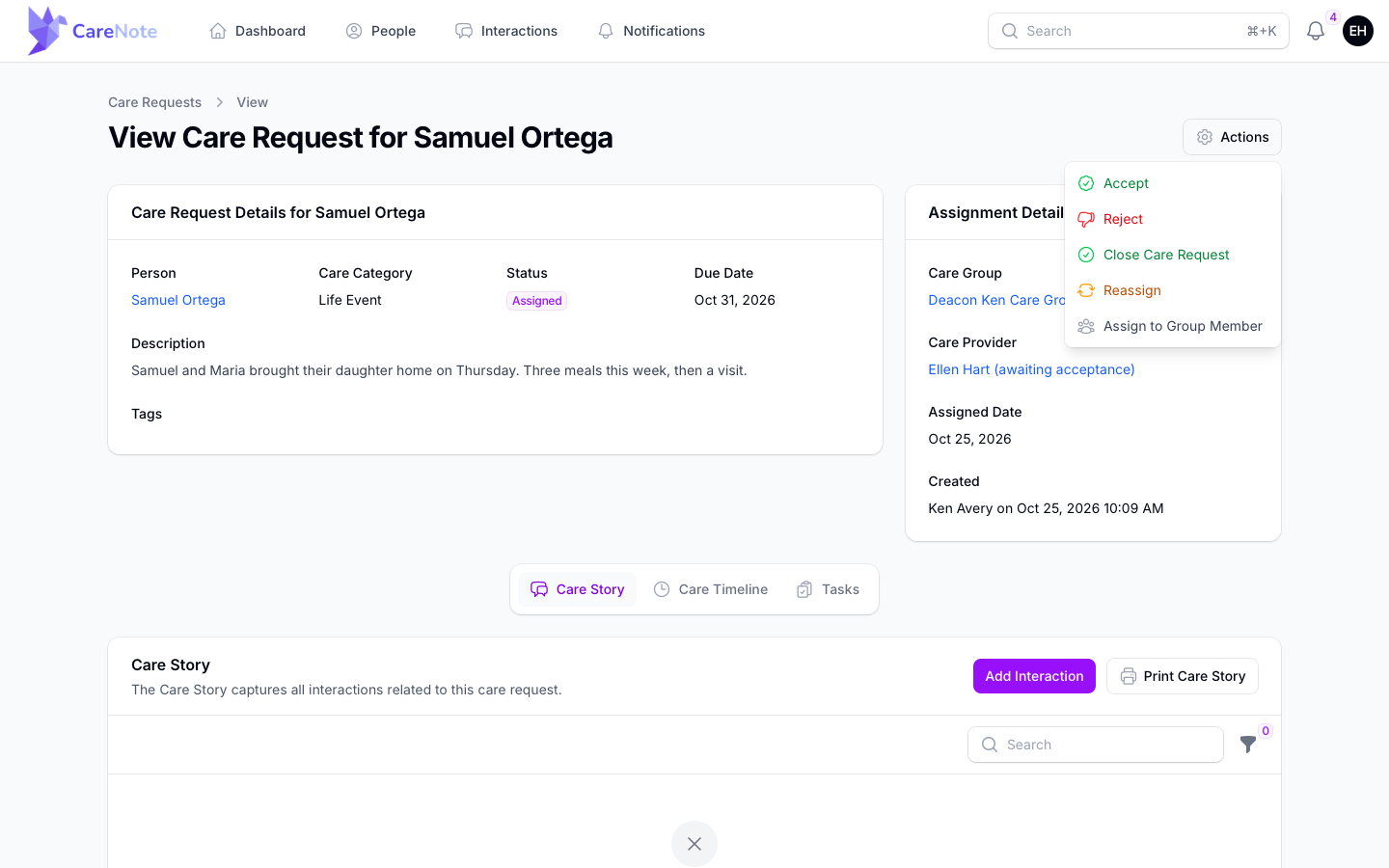
The Care Provider then sees two choices in their Actions menu:
- Reassign, with a single New Care Provider field. The new provider is notified. The outgoing provider is not sent a notification, and their accept, reject and report links stop working.
- Assign to Group Member, to pick one of their care groups and the member who should take it.
Group managers can also assign or re-assign requests from their group's care requests page, and open the Assignment Report to see who is caring for each request.
Frequently asked questions
Why do I see both Assign and Reassign? A request a group holds without a provider shows both. Use Assign to link a provider while the group stays on it. Use Reassign to move the request somewhere else entirely.
Why isn't someone in the Care Provider list? The list only shows people whose campus access covers the person in the request.
What can an Additional Care Provider do? They see the request in their lists and can file the care report. Only the Care Provider accepts or rejects it.
A Volunteer lost their assignment email. How do I resend it? Open Team, click the menu on that Volunteer's row, and choose Send care assignments page, then Send link. It is the same link they already have, so a saved link keeps working.
Can CareNote assign requests for me? Yes. Automations can route requests by category to a care group or to whoever is on call. See Automating Care Group Assignments.