
Accepting a Care Request
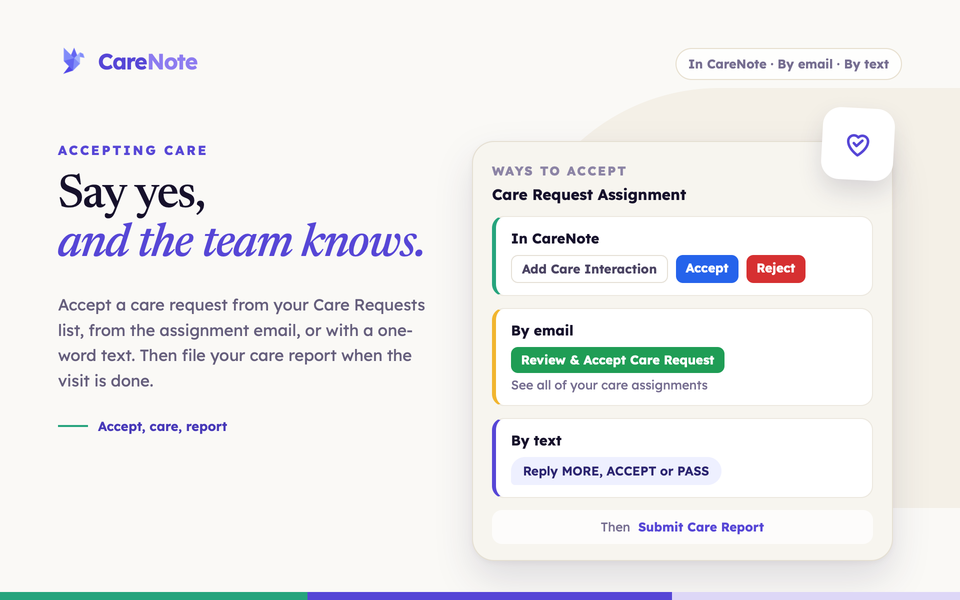
When a care request lands with you, saying yes matters. Your coordinator stops wondering whether the need was seen, the team can see at a glance who is carrying it, and the person waiting is one step closer to help.
Watch how Team Members accept and respond to a care request in CareNote.
What accepting is
Every care request moves through a status: Entered, then Assigned once it is handed to someone, then Accepted once that person says yes, then In Progress or Closed as care happens.
How you accept depends on how you use CareNote:
- Administrators and Team Members sign in and accept inside CareNote.
- Volunteers are the email-only role with no login. They accept from the assignment email, from their My Care Assignments page, or by text.
Only the Care Provider accepts. Additional Care Providers are told they were added, see the request in their lists, and can file the report, but they never need to accept.
1. Accept as an Administrator
- Click Care in the left navigation to open Care Requests, then choose the Assigned tab.
- Find a card that shows Me as the assignee. Only cards that are Assigned to you show the Accept and Reject buttons, even if you are an Administrator.
- Click Accept.
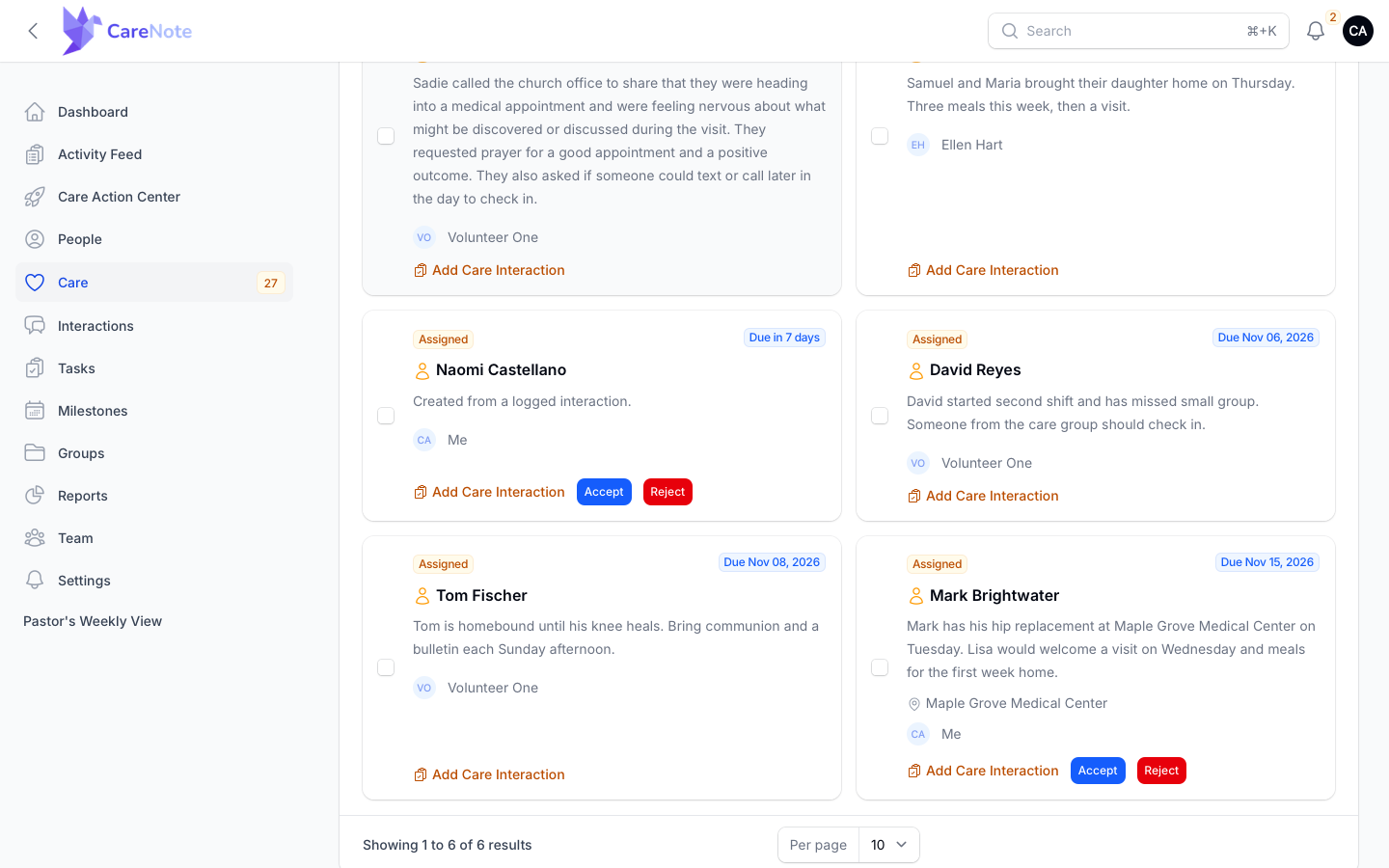
The status changes to Accepted right away, with no confirmation step, and the change is recorded on the request's Care Timeline. That is all these two buttons do today: they do not send anyone a notice and Reject does not ask for a reason, so let your coordinator know if they need to hear from you.
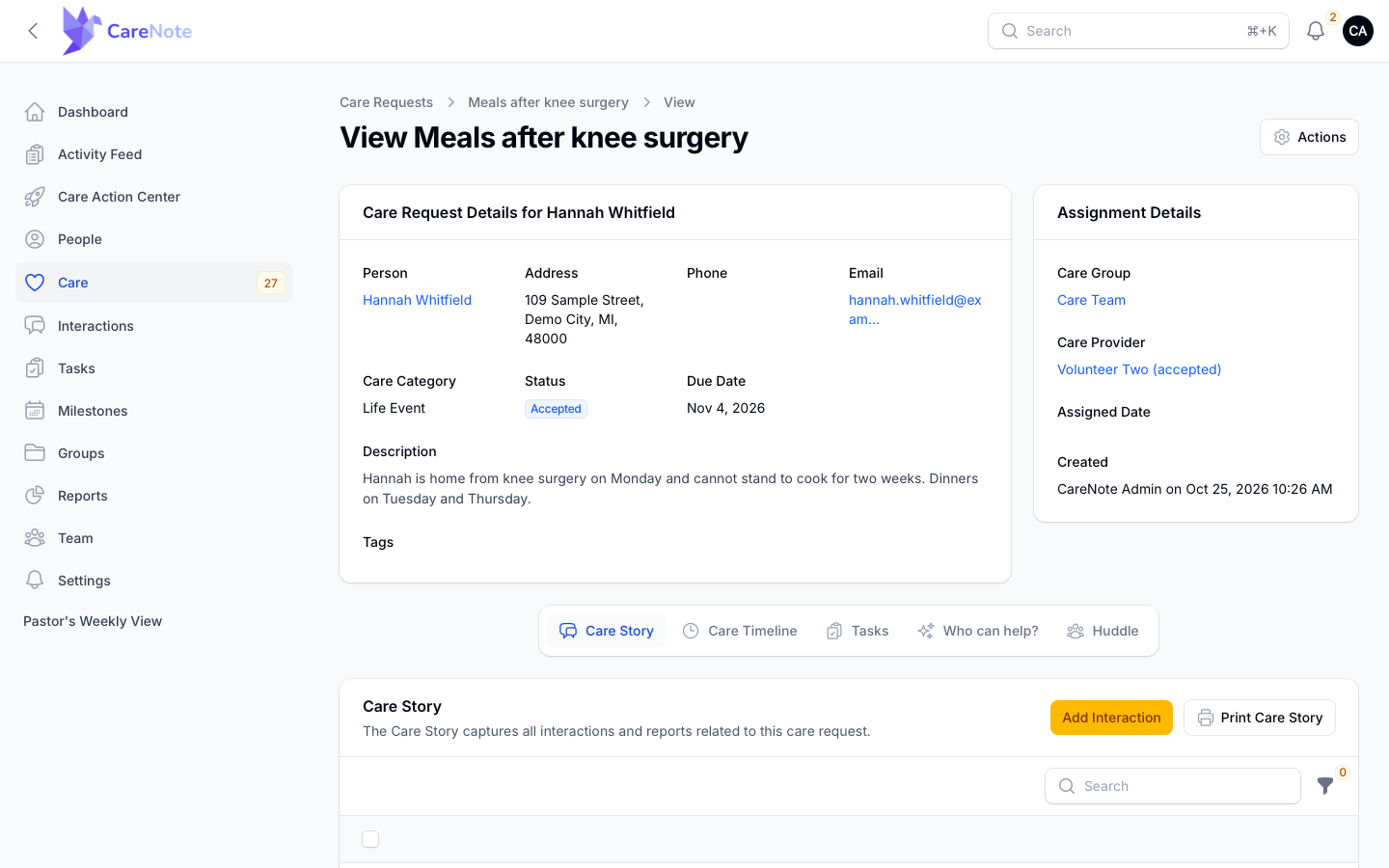
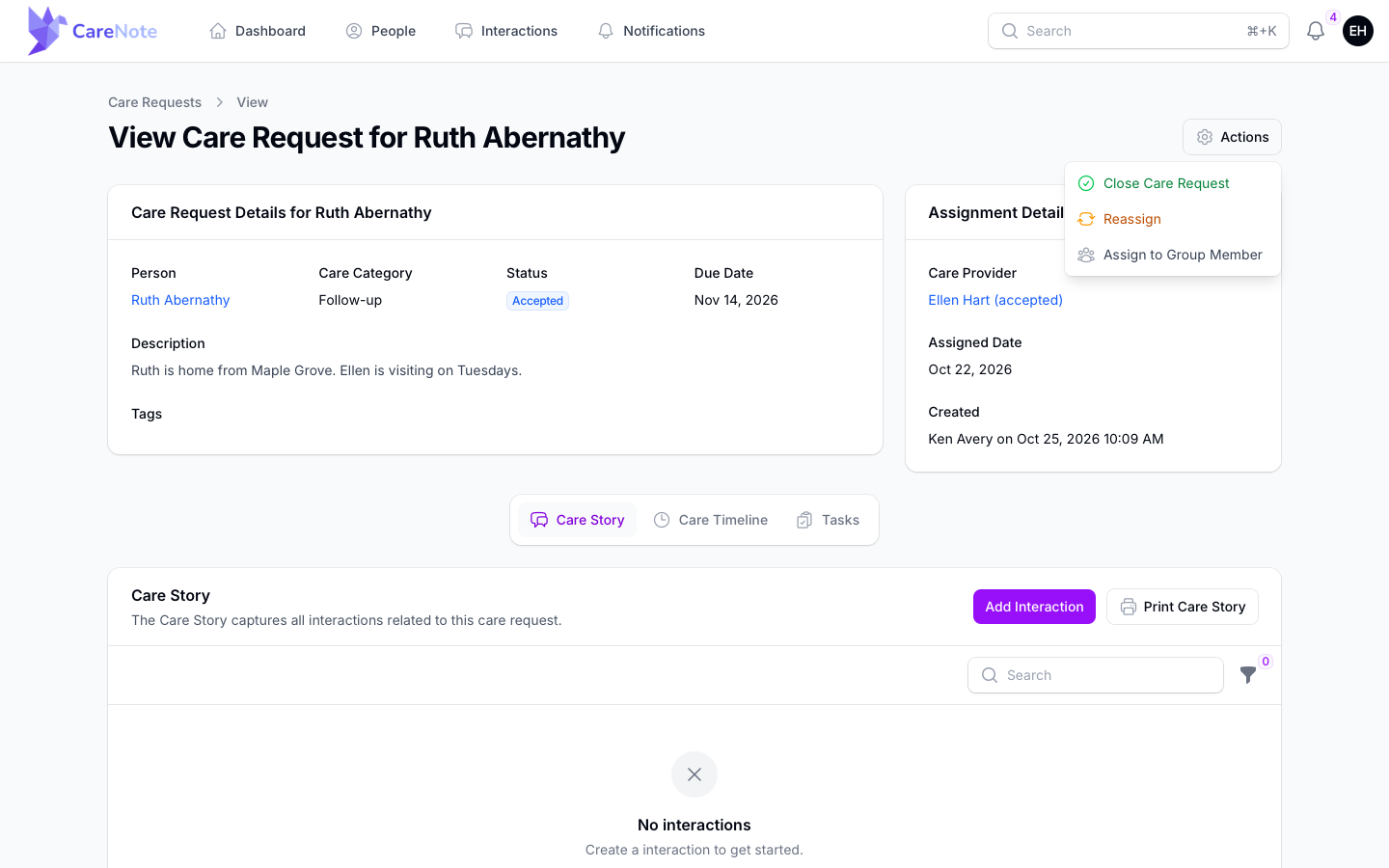
Assignment Details lists the Care Group and the Care Provider, marked "(accepted)" once someone says yes.
2. Accept as a Team Member
On your dashboard, Care Requests lists the requests assigned to you. Accept and Reject are not separate buttons here. They live in menus:
- On the list, click the three-dots menu on the request and choose Accept. The menu also offers View, Reject and Add Care Interaction.
- Or open the request and choose Accept from the Actions menu.
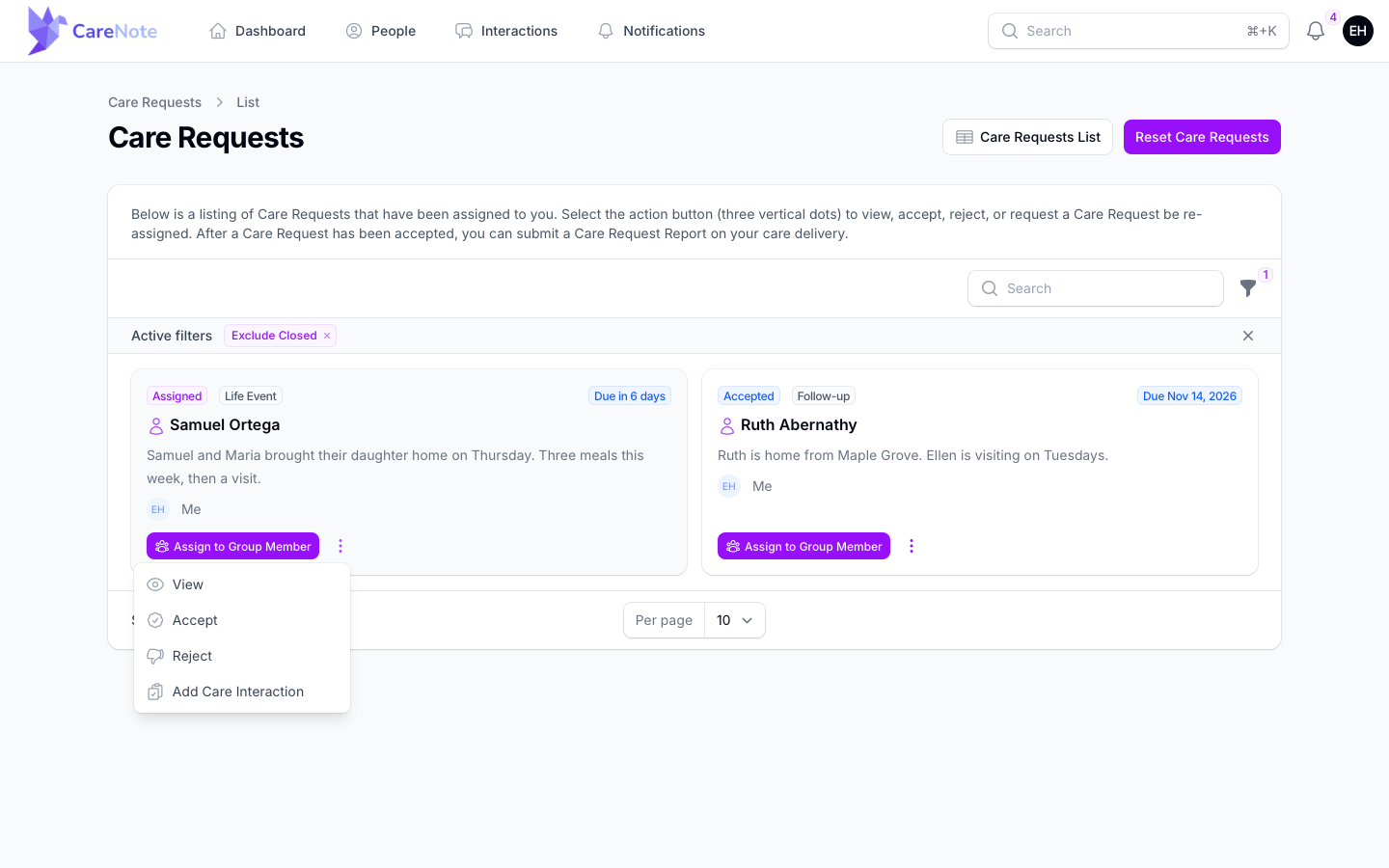
When you accept, CareNote lets the person who created the request and the care group's owners and managers know. After acceptance, the Actions menu offers Close Care Request, Reassign and Assign to Group Member.
3. Accept from the assignment email
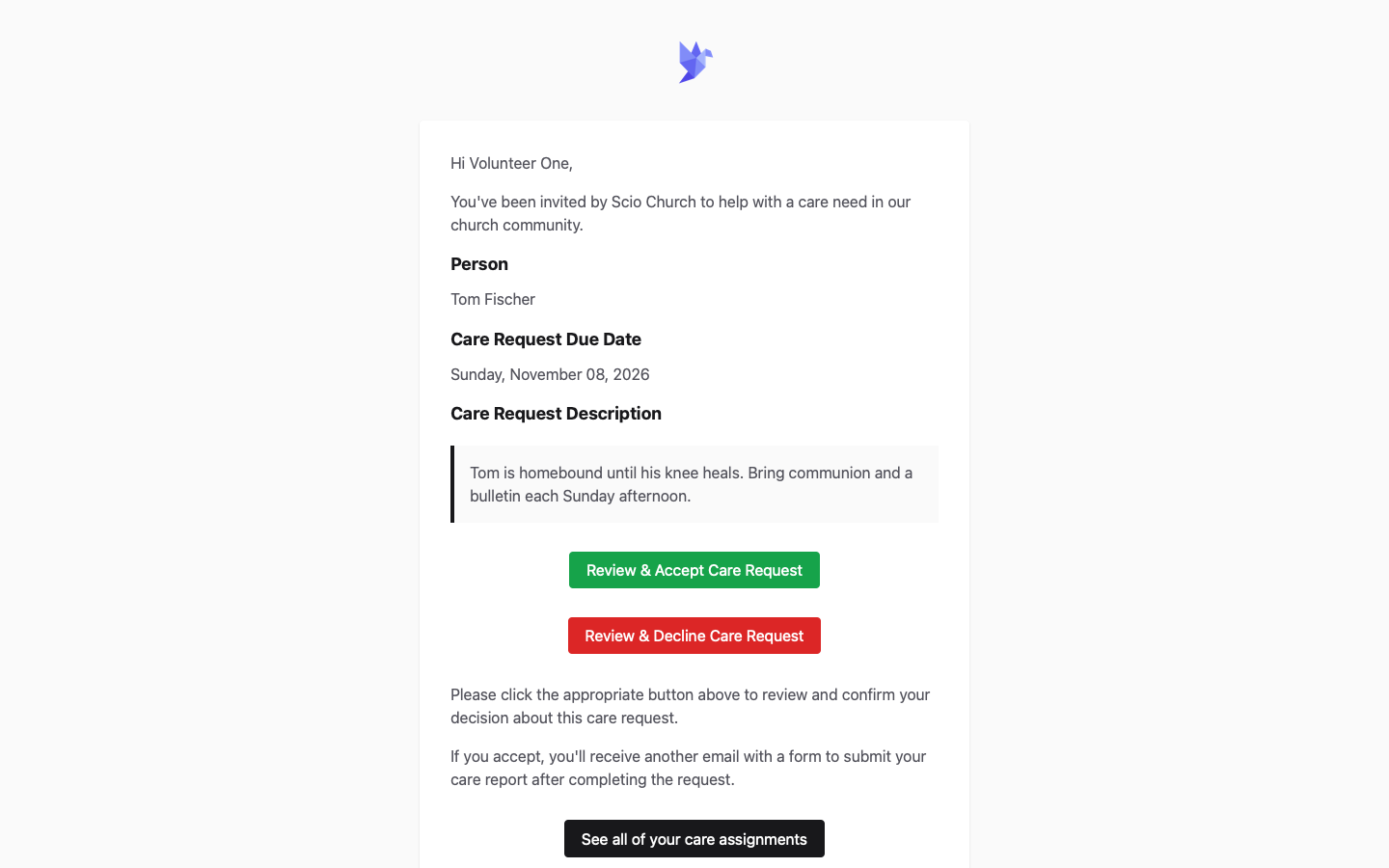
When a request is assigned to a Volunteer, they get an email with the subject "Care Request Needs Your Response." It shows the person, the due date and the description, plus the place and a Directions link when the request names one.
- Click Review & Accept Care Request.
- Review the details on the Care Request Assignment page.
- Click Accept Care Request.
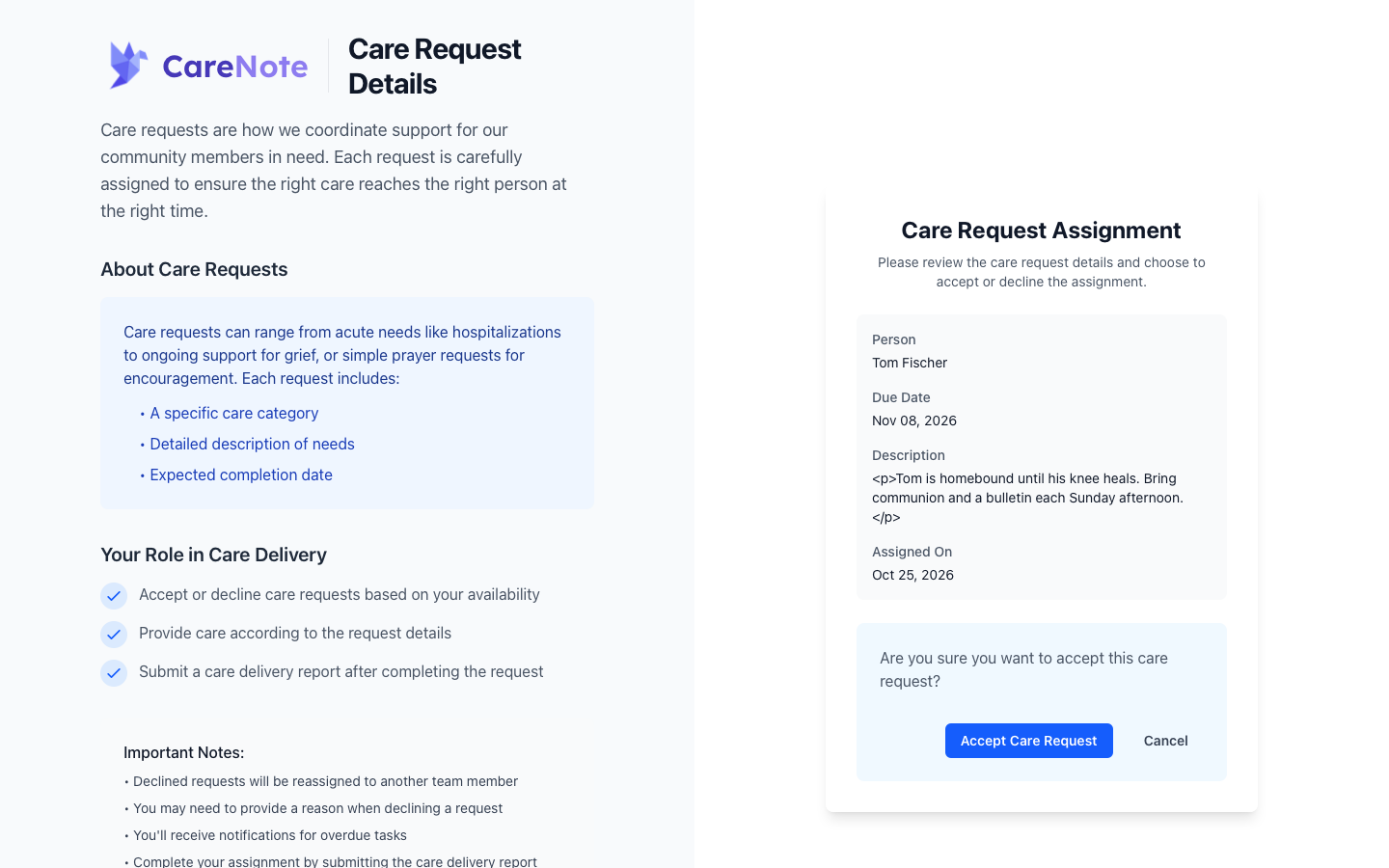
After you accept, a second email arrives with a Submit Care Delivery Report button. Your accept, decline and report links keep working for the life of the request. They stop working when the request closes, is handed to someone else, or you are removed from it.
4. Use My Care Assignments
The See all of your care assignments button opens My Care Assignments, one page that lists every request you hold. Each card shows the due date and, when you still need to answer, an "Awaiting your response" badge with Accept and Decline buttons.
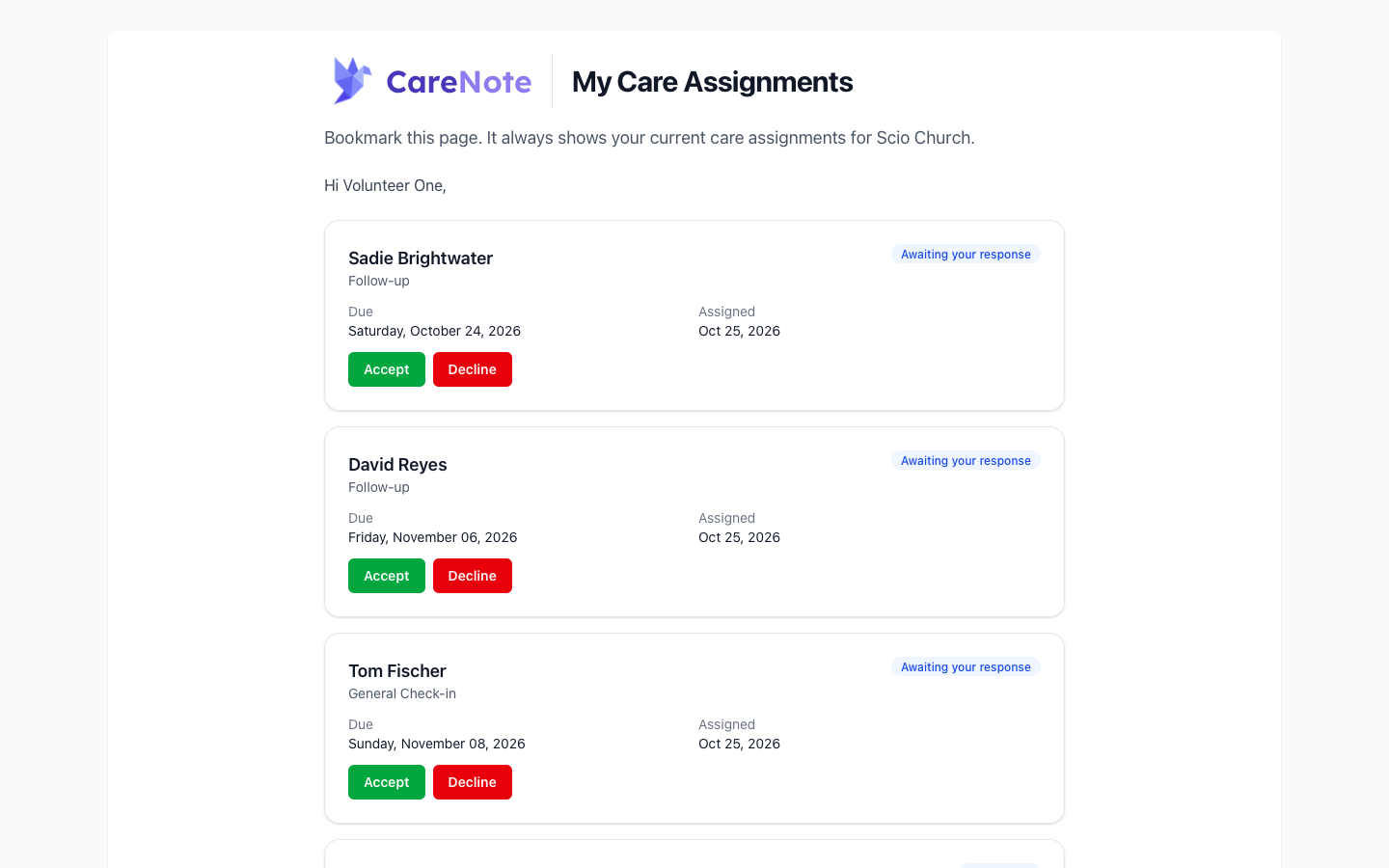
If someone loses the link, an Administrator can open Team, choose the person's row menu, and click Send care assignments page. It resends the same link, so a saved bookmark keeps working.
5. When a request is offered to your group
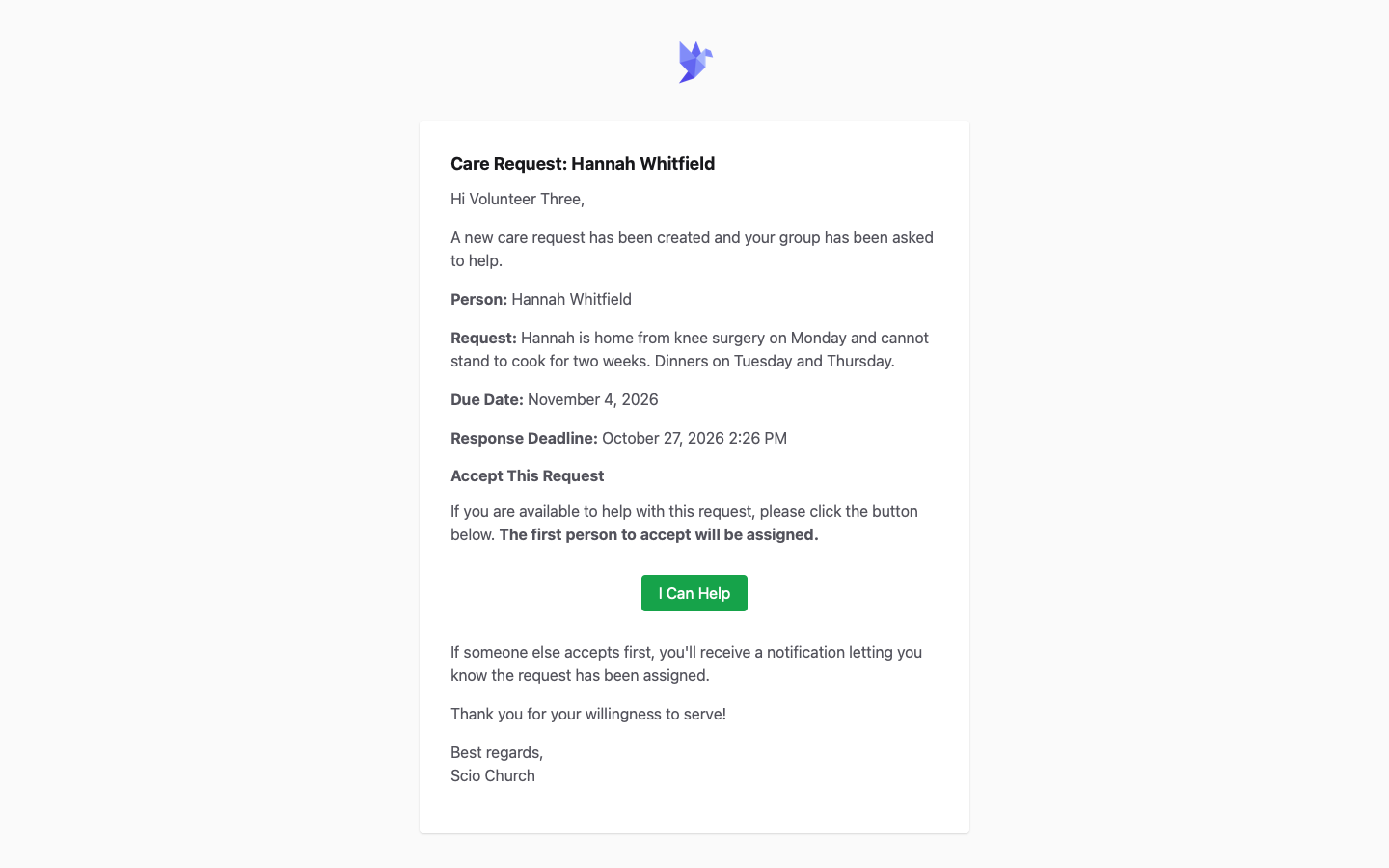
With First-to-Accept on, everyone in the care group gets a request to help. The email says "The first person to accept will be assigned." Click I Can Help to take it. If someone else accepts first, you get a notice that the request has been assigned.
6. Accept by text
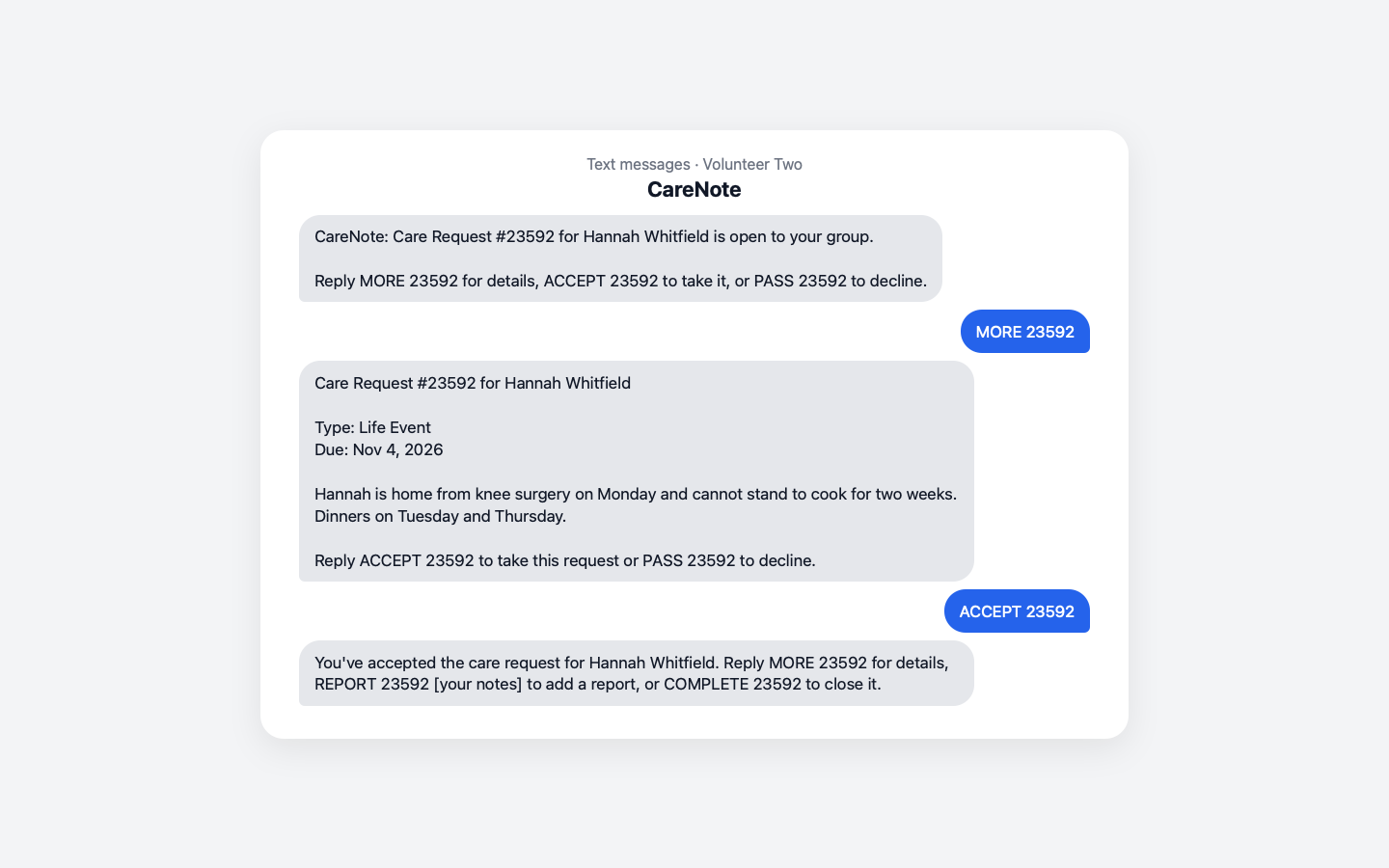
If your team has turned on Volunteer SMS Acceptance, a CareNote Plus feature, the request arrives as a text too. Reply with the keyword and the request number:
- MORE for details
- ACCEPT to take it
- PASS to decline
After ACCEPT, you can reply REPORT with your notes to add a report, or COMPLETE to close it.
7. Submit your care report
Accepting is not the finish line. After the visit or call, tell your team how it went.
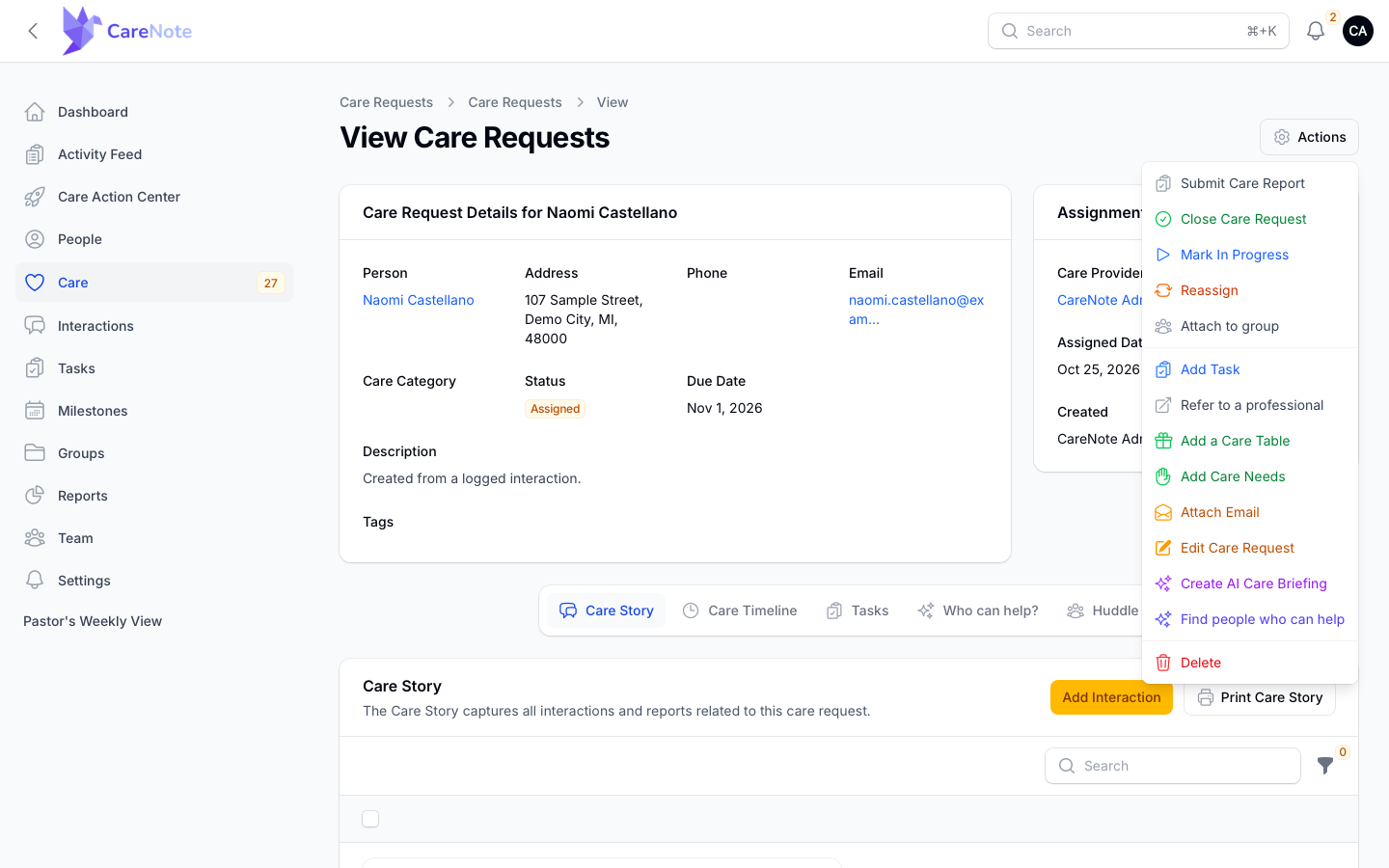
Administrators: open the request and choose Submit Care Report, the first item in the Actions menu. Only the Care Provider and Additional Care Providers see it.
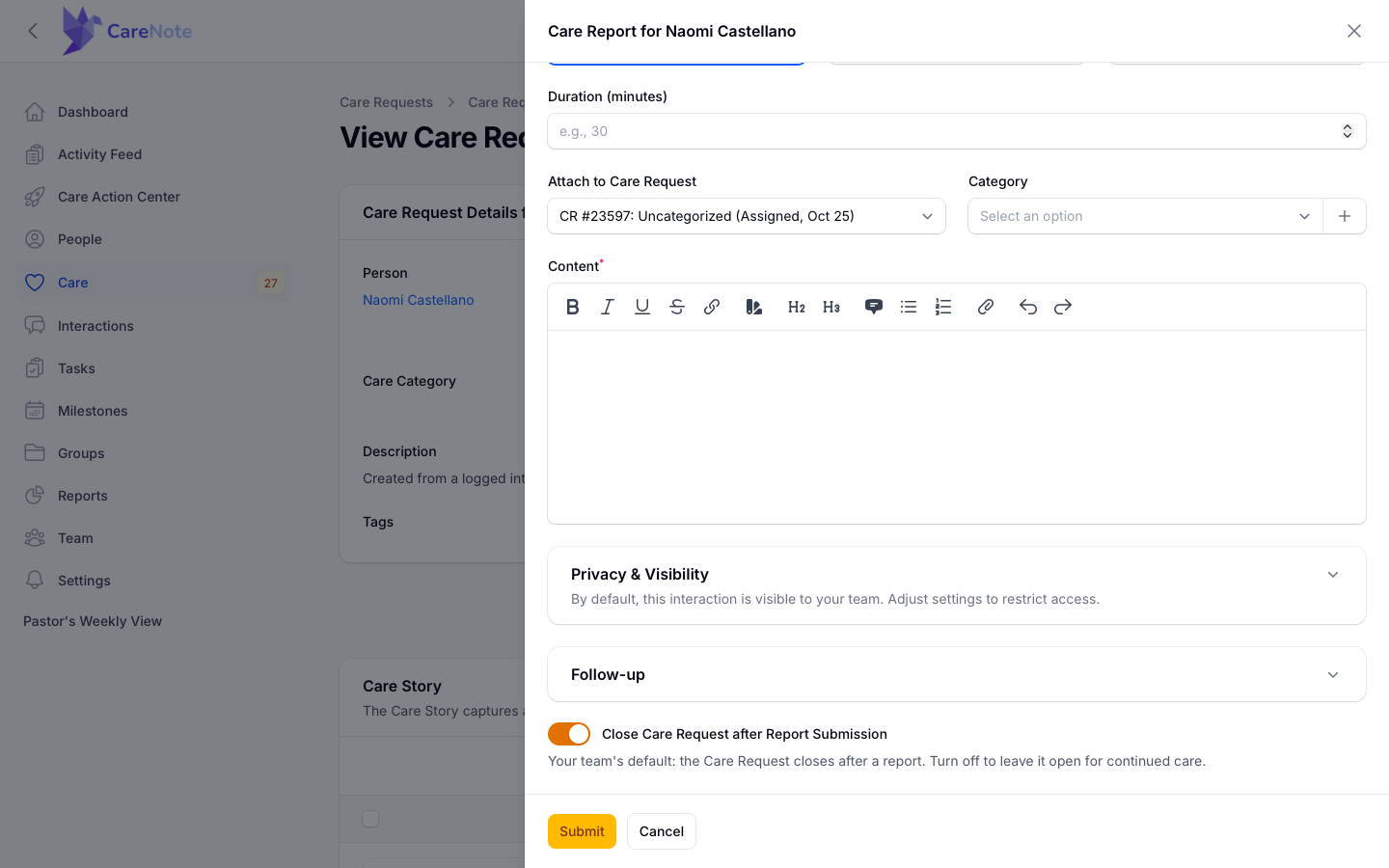
Write what happened in Content, then check Close Care Request after Report Submission. It starts at your team's default. The toggle is hidden when you ask for follow-up, when the request is ongoing, or when it is already Closed.
Team Members: open the request, go to the Care Story tab, click Add Interaction, and choose the Care Report type.
Volunteers: click Submit Care Delivery Report in your acceptance email, or Submit Care Report on My Care Assignments. Fill in Care Delivery Date, Care Delivery Method and Care Results/Notes, and turn on Additional Follow Up Required if the person needs more.
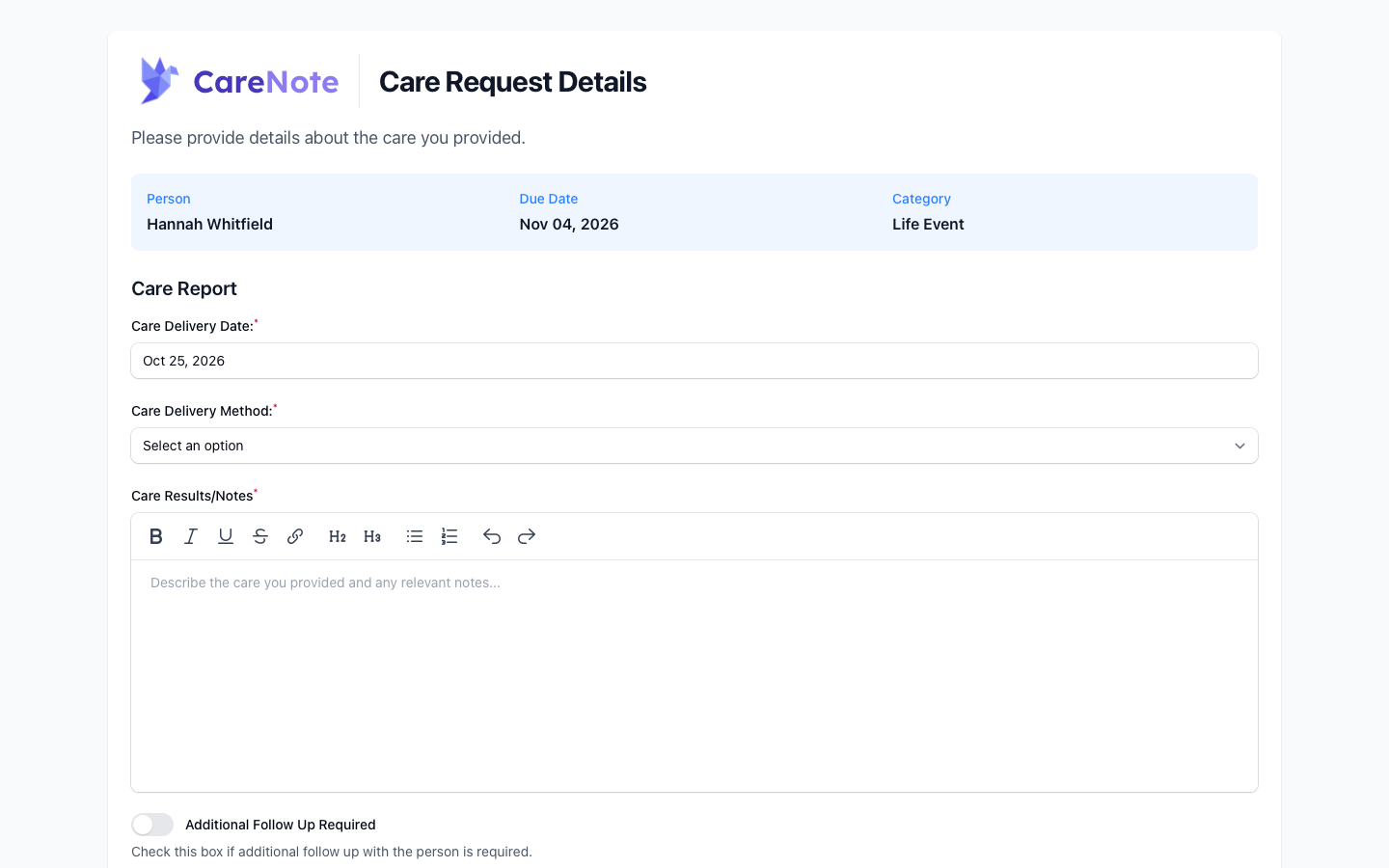
Every path follows the same rule. The request closes per your team's default unless follow-up is requested or the request is ongoing. Asking for follow-up keeps the request open and adds one task to it.
If you can't take it
Choose Reject, or Decline in the email or on My Care Assignments, so it can go to someone else. On the Team Member dashboard, Reject asks whether you are unavailable and for a reason. See Passing on a Care Request for the details, including Request Reassignment after you have accepted.
Frequently asked questions
Why don't I see Accept or Reject on a request? They appear only while the request is Assigned and you are its Care Provider. If it is already accepted, assigned to someone else, or you are an Additional Care Provider, you won't see them.
Can I accept a request that went to my care group? Yes, when First-to-Accept is on. Click I Can Help in the email, or reply ACCEPT by text if your team uses Volunteer SMS Acceptance. The first person to accept is assigned.
What happens if a Volunteer never responds? The request stays Assigned until someone acts. Due and overdue reminders include the My Care Assignments link, and an Administrator can resend it with Send care assignments page.
I'm an Additional Care Provider. What do I do? Nothing to accept. You are told you were added, the request shows in your lists, and you can file the care report.
Does accepting in the Admin Care Requests list tell anyone? Not today. The Accept and Reject buttons there only change the status, so follow up with your coordinator yourself.
Watch
- Team Members 3/7: Accepting & Responding to a Care Request
- Volunteers 2/6: Your Assignments Arrive by Email (No Login Needed)
- Volunteers: Accepting a Care Request by Text
- Volunteers: My Care Assignments, Every Request on One Page
- Volunteers 3/6: Filing Your Care Report After a Visit
- Volunteer SMS Acceptance: Let Your Care Team Accept by Text
- Team Members 6/7: SMS Alerts, Reply ACCEPT to Serve