
Standing Rules: Write the Rule Once, CareNote Keeps It
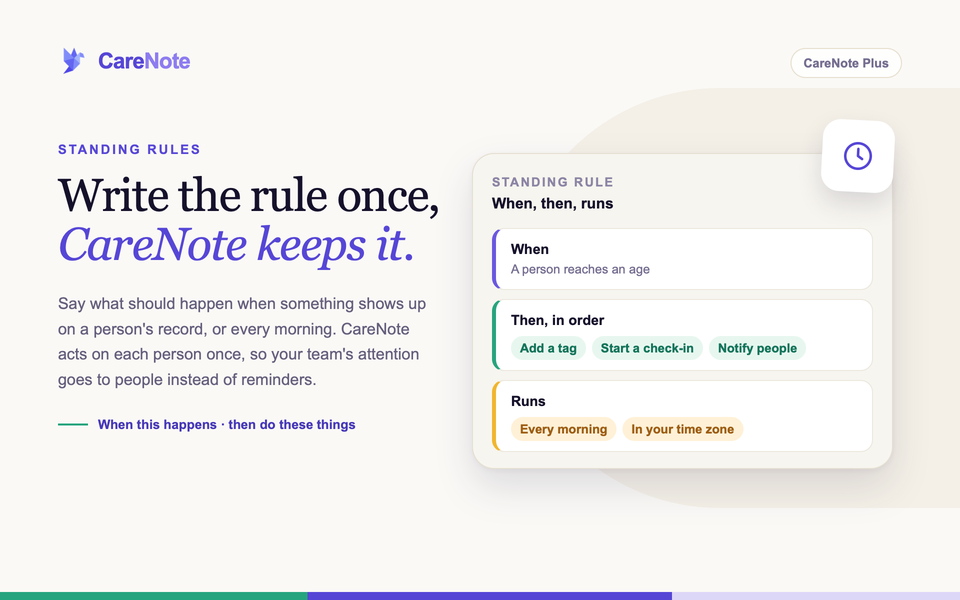
Every care team has things it means to do and sometimes forgets: check in on everyone over 90, follow up when a visit is logged with nothing scheduled next, notice when no one has contacted a person in three months. Standing Rules turn those intentions into something CareNote does for you.
Watch: Standing Rules in two minutes.
A Standing Rule is one sentence you write once: when something happens on a person's record (or every morning), then do the things you chose. CareNote acts on each person once, so a rule never nags and never repeats itself unless you ask it to.
Standing Rules is part of CareNote Plus and is available to owners and administrators. Team Members and Huddle users will not see it.
1. Find Standing Rules
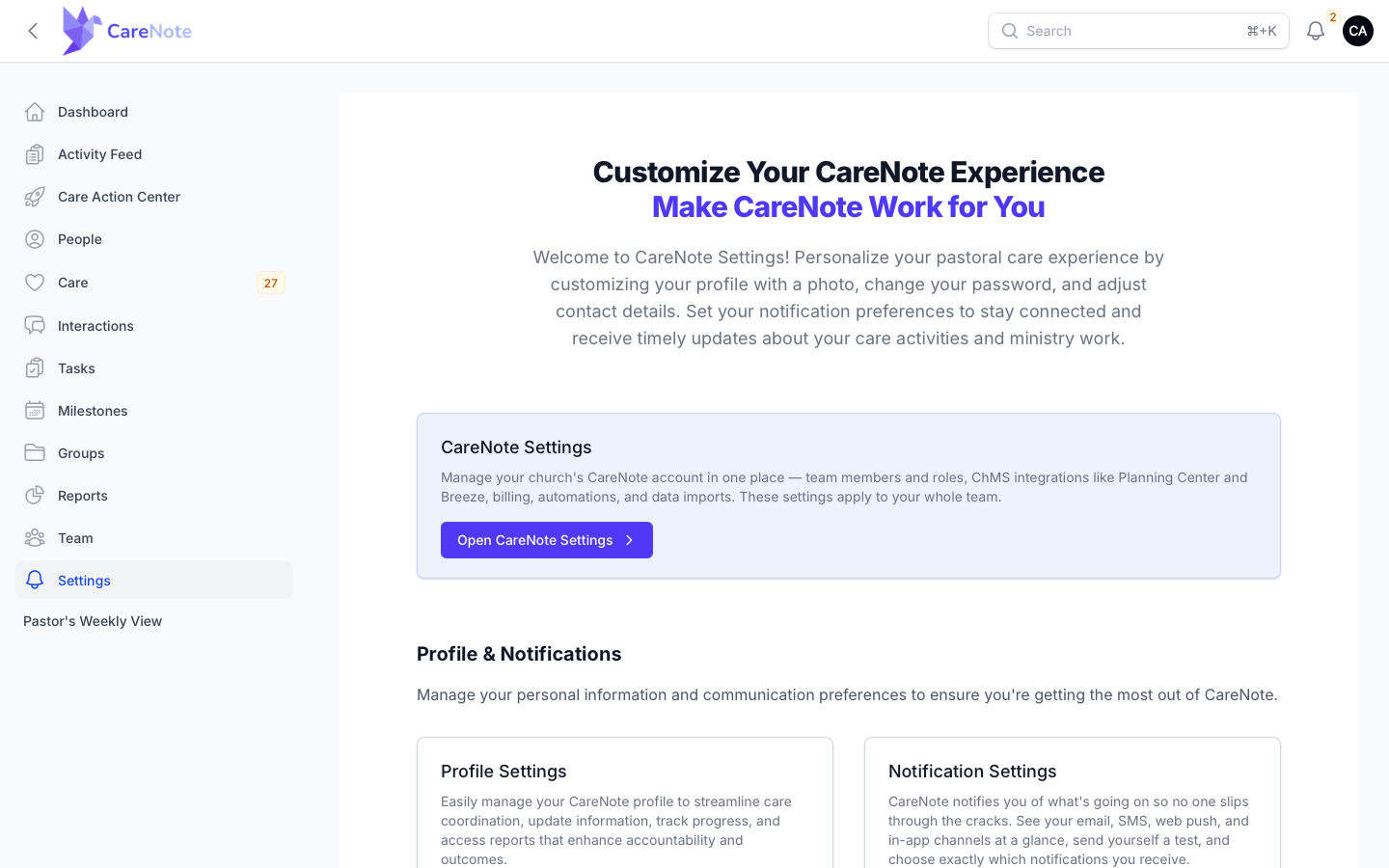
- Open the Admin panel and go to Settings.
- On the CareNote Settings card, click Open CareNote Settings.
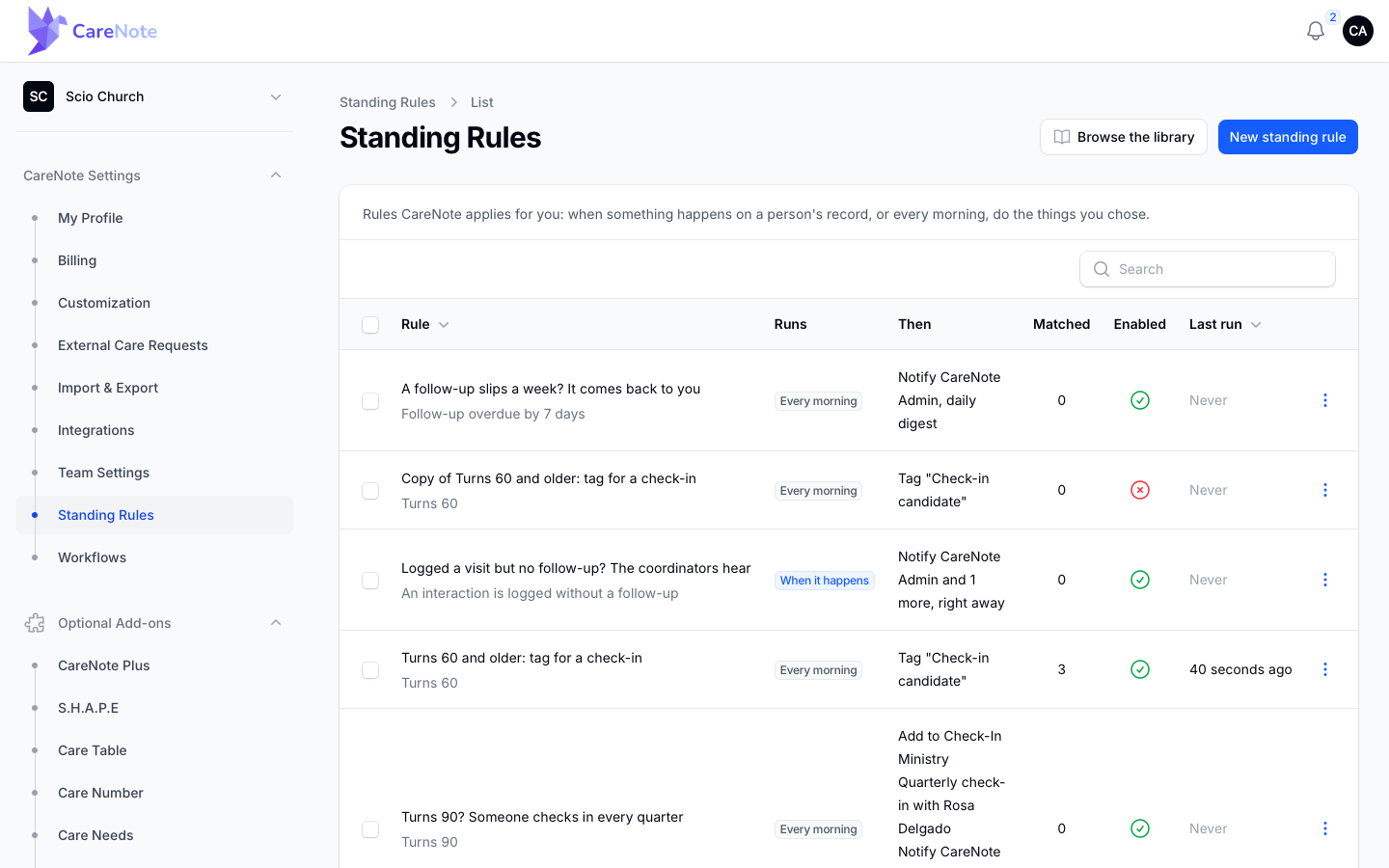
- In the sidebar, choose Standing Rules. It sits just above Workflows.
The list shows each rule's schedule, actions, matches, and last run. Before you add anything, it reads "No standing rules yet" and points you to the library.
2. Start with the library
Click Browse the library. It holds 13 ready-made rules. Five are marked Start here and eight are marked More. Each is labeled Every morning or When it happens, and the On your team column shows Not yet or Installed.
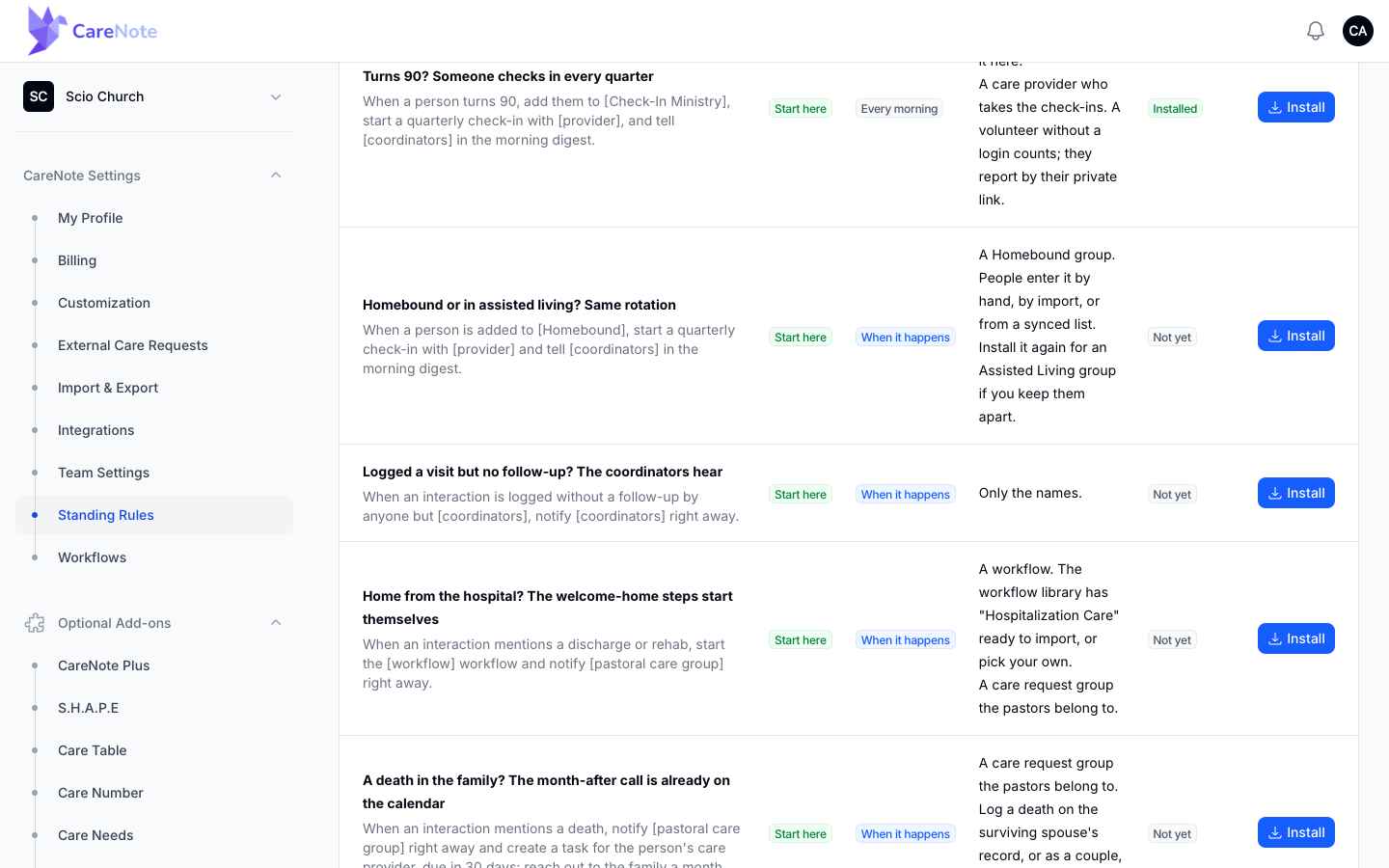
Click Install on a card and CareNote asks only what that card needs: a group, the coordinators who get notified, or the care provider who takes the check-ins. Give the rule a name, then click Install rule.
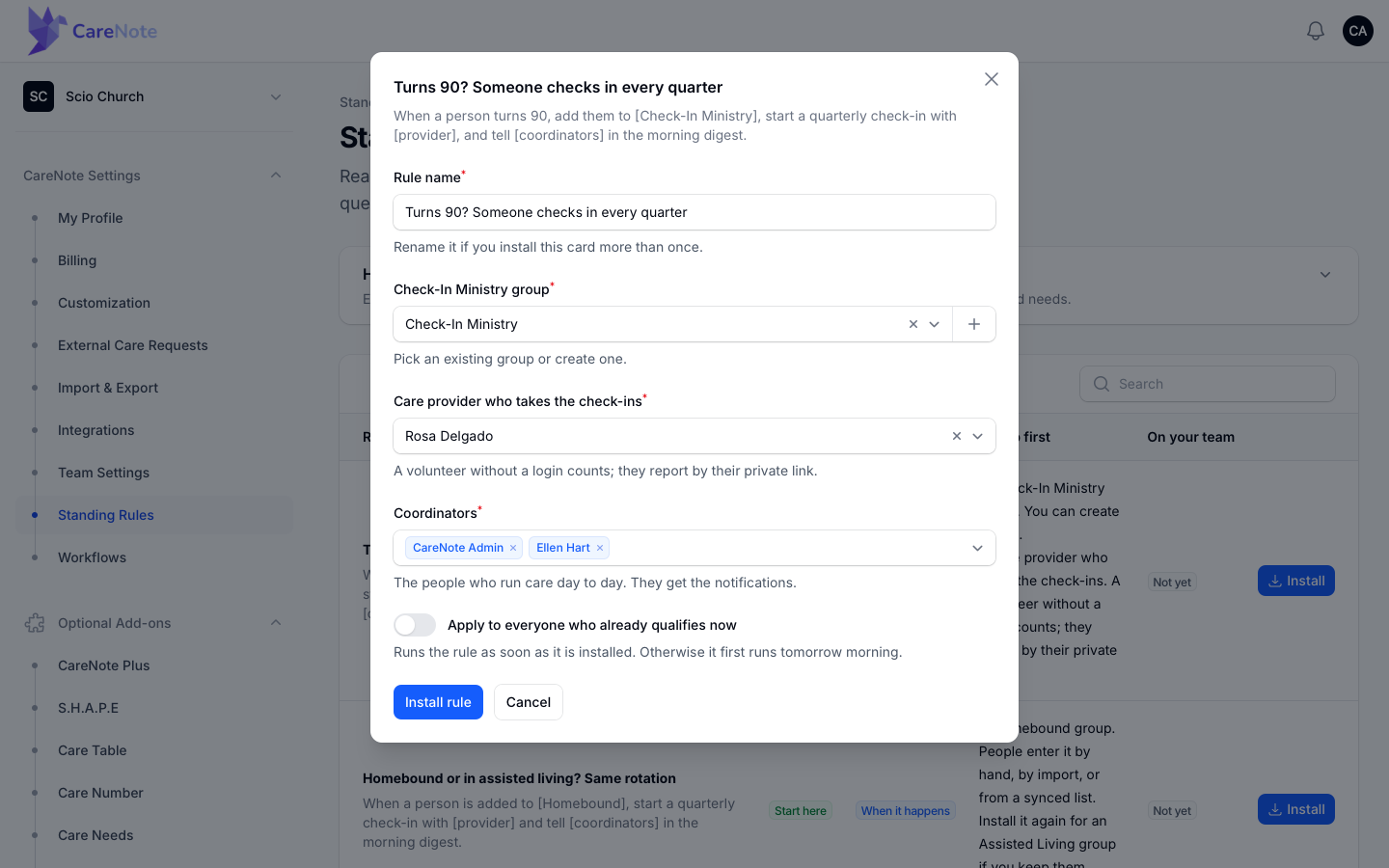
- If the group you need does not exist yet, the + beside the group field opens Create a group. Creating it closes the install window, so click Install again afterward.
- A care provider without a login counts. They report through their private link.
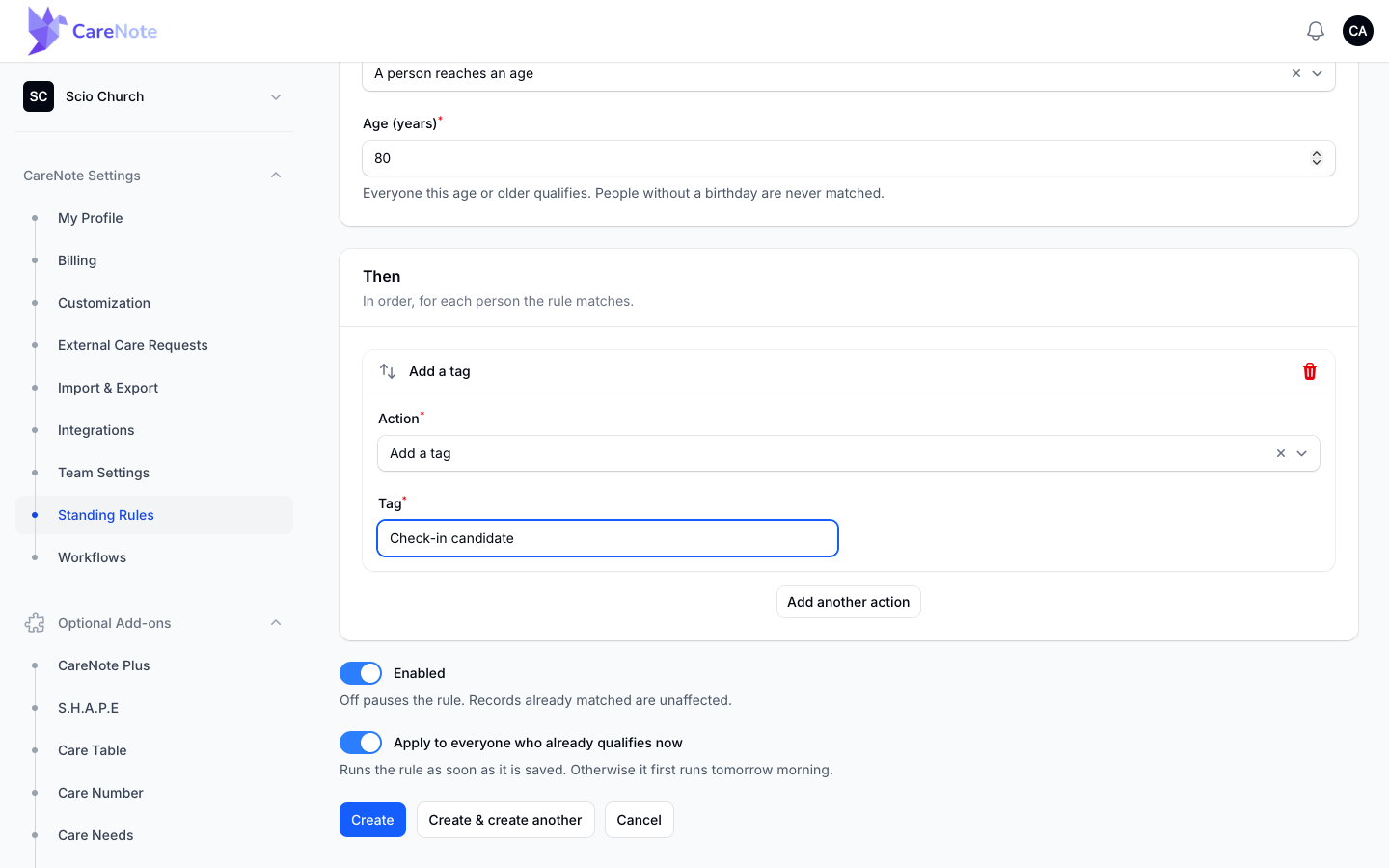
- Daily cards include Apply to everyone who already qualifies now. Each card sets its own starting position, and it shows off in the screenshot above. Turn it on if you want existing people picked up today; leave it off and the rule first runs tomorrow morning.
An installed rule is an ordinary rule: pause, edit, duplicate, or apply it any time.
3. Write your own rule
Click New standing rule. The form has two parts, When and Then.
Pick the When
Choose a Condition. Six react the moment something happens:
- An interaction is logged
- A follow-up is set on an interaction
- A person's record changes to a value
- A person is added to a group
- A person is removed from a group
- A care request is created
Six run every morning:
- A person reaches an age
- No contact with a person for a number of days
- A follow-up is overdue by a number of days
- A person has been in a group for a number of days
- A care request has gone unaccepted for a number of days
- A task is overdue by a number of days
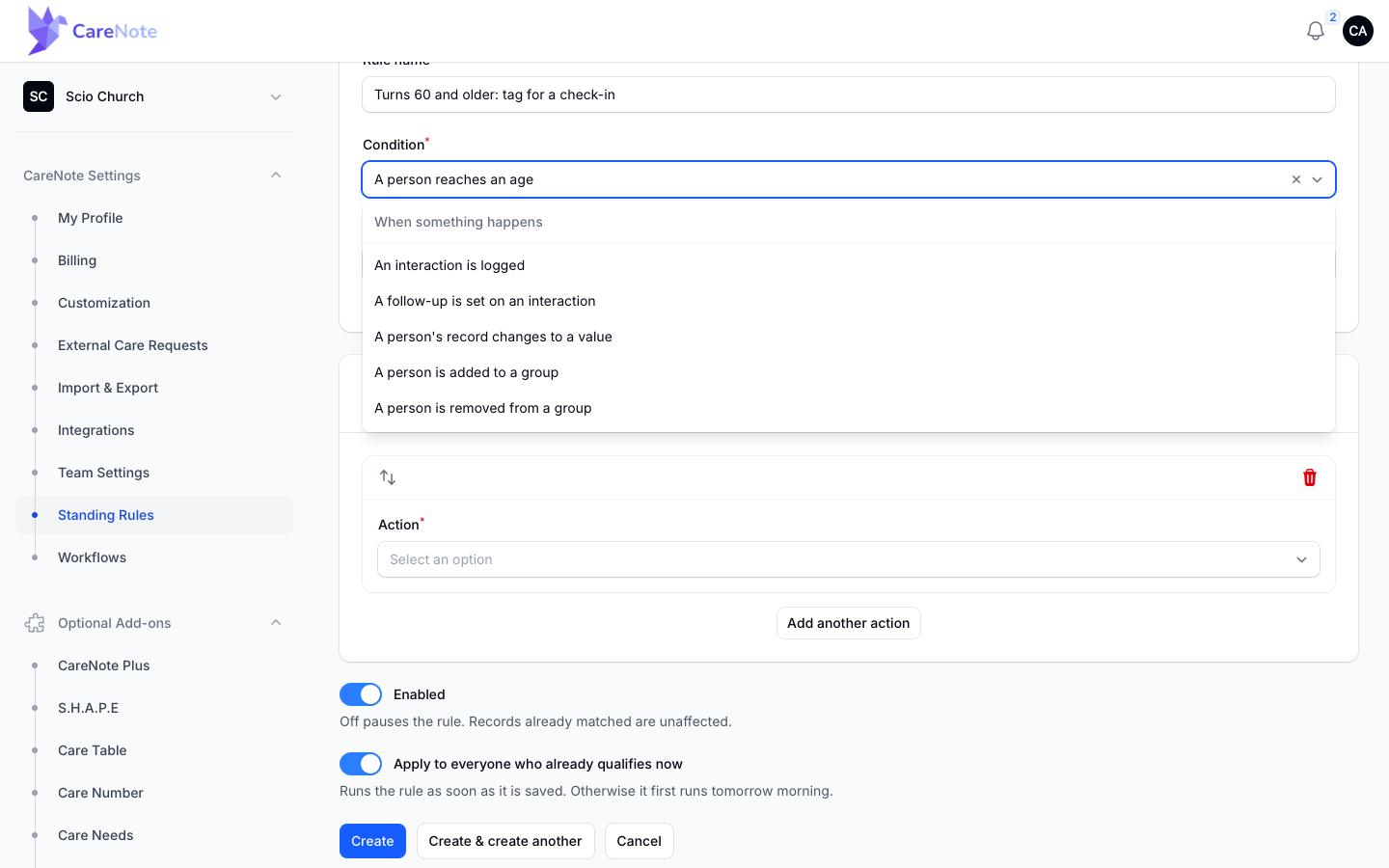
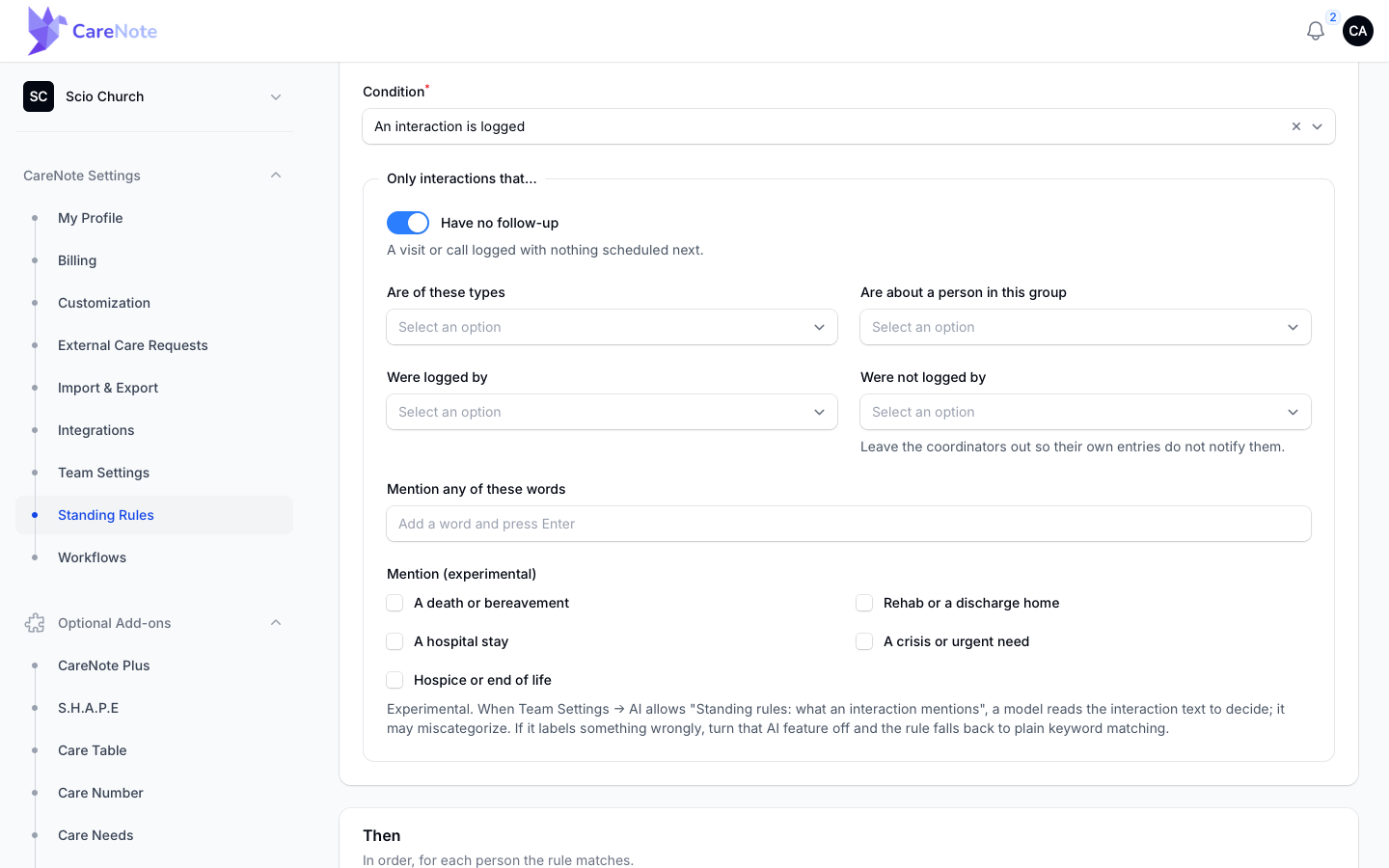
Each condition adds its own filters, such as type, group, who logged it, or words it mentions.
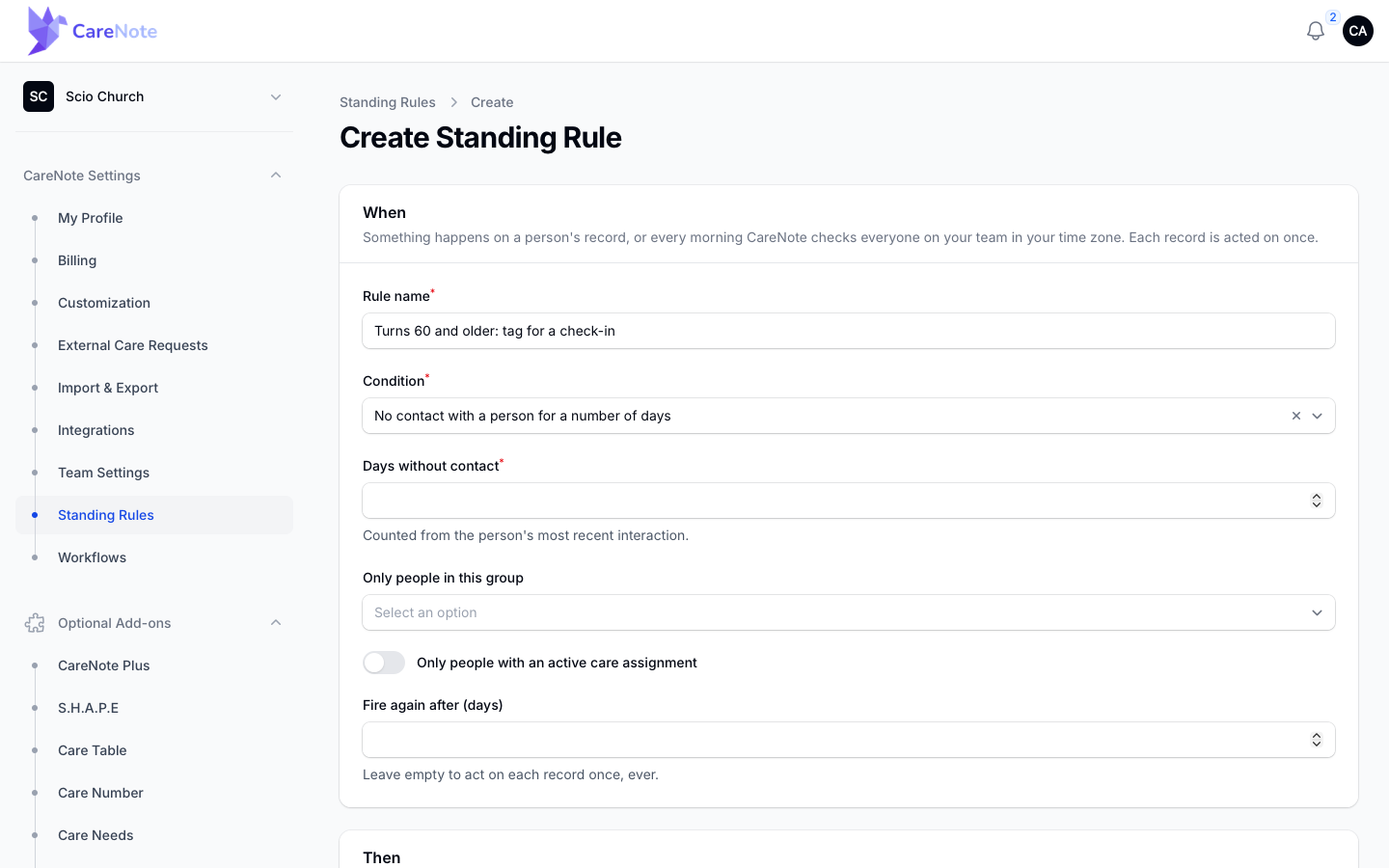
Four daily conditions (no contact, follow-up overdue, care request unaccepted, task overdue) also show Fire again after (days). Leave it empty and CareNote acts on each record once, ever. Fill it in and the rule can come back for the same person after that many days.
Choose the Then
Under Then, add actions with Add another action. They run in order for each person the rule matches, and you can drag them to reorder.
- Notify people: choose people, team groups, or roles.
- Create a task: set the title, due date, and who it is assigned to.
- Add to a group or Remove from a group
- Add a tag
- Start a workflow: pick one of your workflow templates.
- Start a check-in: choose the care provider and how often (Quarterly by default).
- Create a care request: set the title, due date, and who to offer it to.
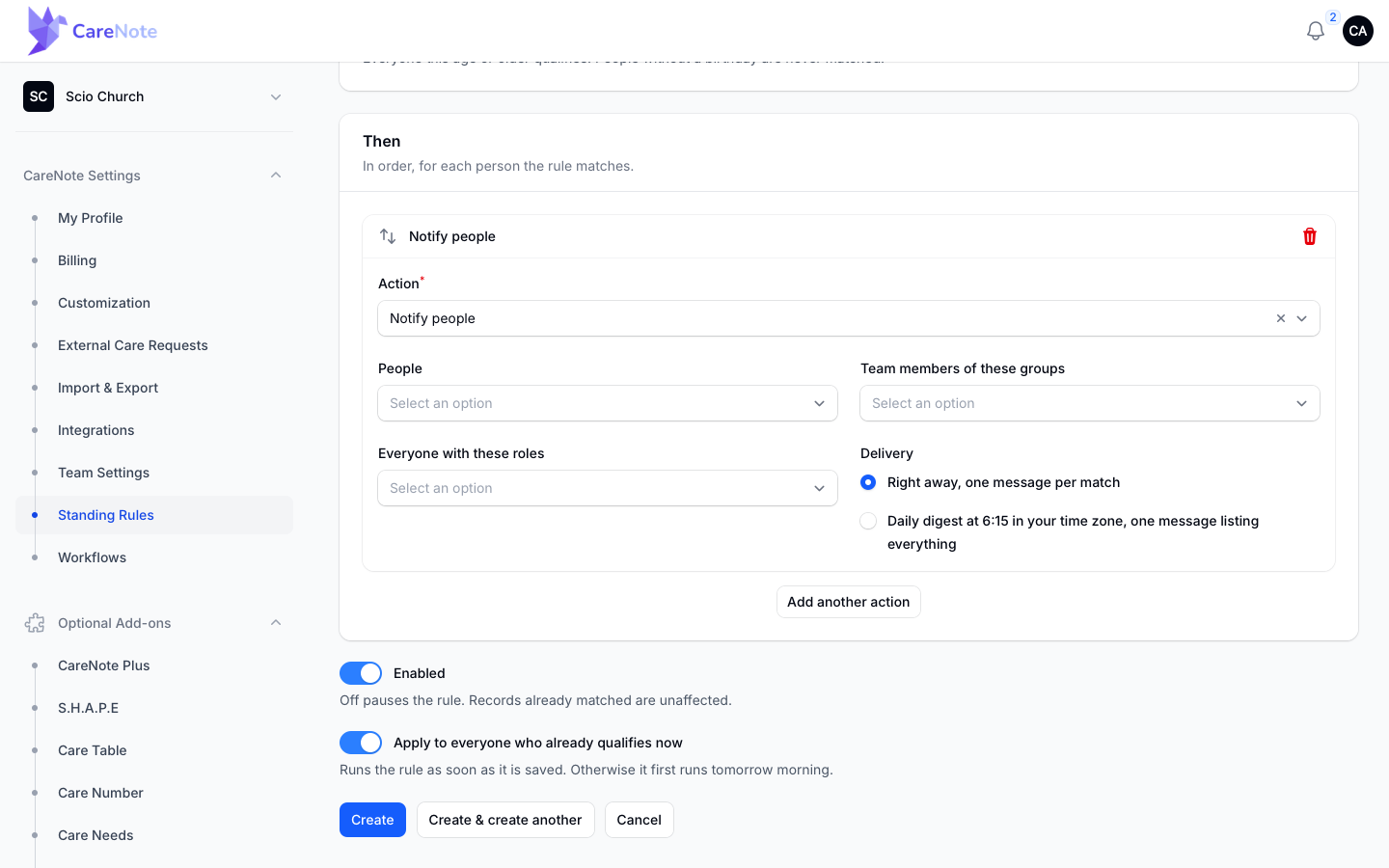
For Notify people, Delivery is either "Right away, one message per match" or a daily digest, one message listing everything.
Save it
Enabled is on by default. For rules that run every morning, Apply to everyone who already qualifies now is also on by default, so the rule catches up on existing records as soon as you save. Turn it off if you want the rule to first run tomorrow morning instead, then click Create.
4. When rules run
Rules that run every morning are evaluated at 6:15 in your team's time zone, which comes from the team owner's settings. Notifications set to a daily digest go out a few minutes later. If you chose "Right away", the message goes out as the match happens.
5. See what a rule did
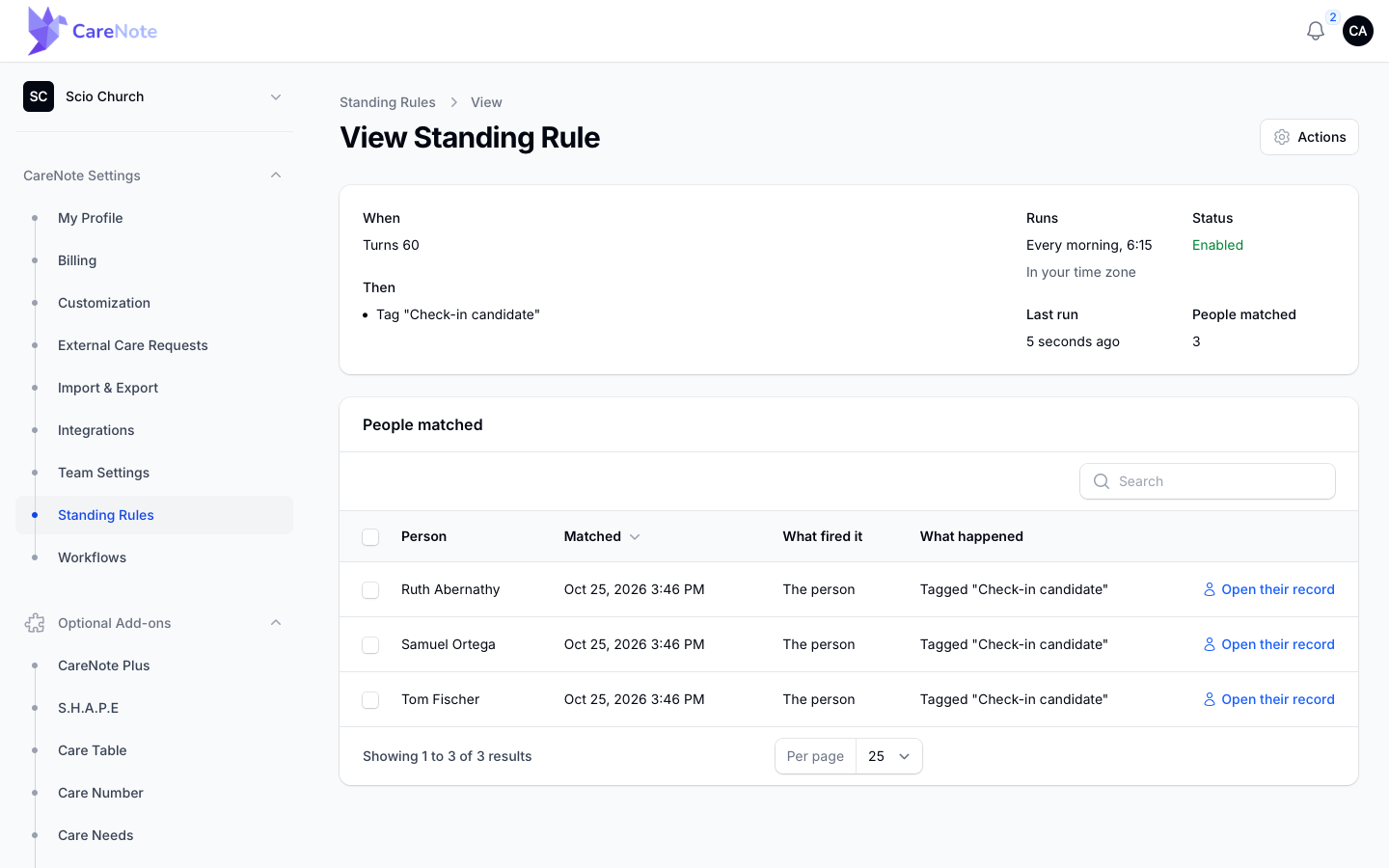
Click a rule in the list to open its page. The summary shows the rule's When, Then, schedule, status, last run, and how many people it has matched. Below it, People matched is a log of who matched and what CareNote did. Use Open their record to jump to a person, or tick rows and choose Export CSV.
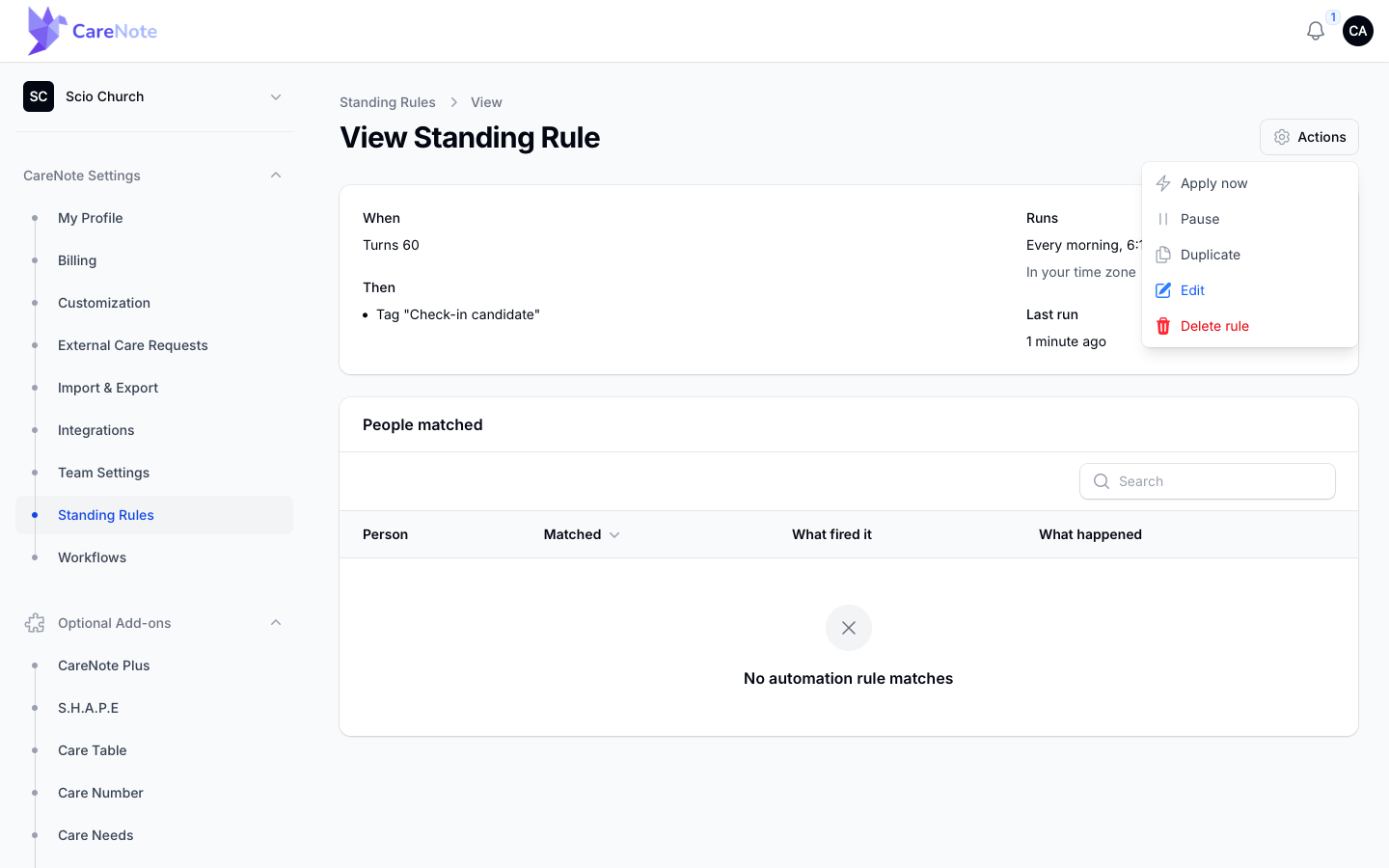
The gear Actions menu has what you need to manage the rule:
- Apply now (daily rules only) shows how many people qualify today, then acts on them once, immediately.
- Pause stops the rule. Resume turns it back on. Records already matched are unaffected.
- Duplicate makes "Copy of" your rule, switched off, and opens it to edit.
- Edit changes the rule.
- Delete rule asks you to confirm. It stops the rule and removes its matched list, but does not undo anything it already did.
Frequently asked questions
Will a rule act on the same person over and over? No. Each record is acted on once per rule. The exception is Fire again after (days), on the four conditions that offer it.
Why did nothing happen when I installed a rule? Daily rules first run the next morning at 6:15 unless Apply to everyone who already qualifies now was on.
Can I undo what a rule did? Pausing or deleting a rule stops it, but does not reverse tags, group changes, tasks, or check-ins it already made. Change those on the person's record.
Who can see Standing Rules? Owners and administrators on teams with CareNote Plus. Everyone else gets an access error if they open the link.