
Automating Care with Workflows
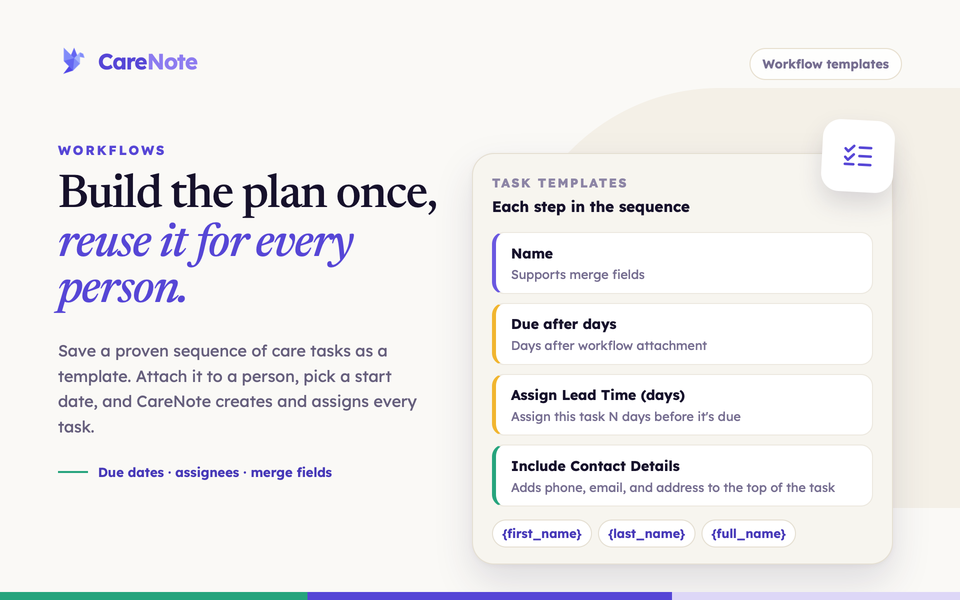
Some kinds of care follow a pattern: a first year of grief, baptism preparation, a hospital stay. The steps are similar every time and unfold over weeks or months. Rebuild that plan from memory for every person and things get missed. A follow-up call slips. A book never gets mailed.
Watch: workflow templates.
Workflows fix that. A workflow is a saved sequence of care tasks that you build once and reuse. When someone needs that kind of care, you attach the workflow to their profile, pick a start date, and CareNote creates every task, schedules each one, and hands it to the right person on your team.
What a workflow is
A workflow template is a named bundle of task templates, each describing one thing your team needs to do. Every task template has a Due after days value: a whole number of days counted from the workflow's start date. A task set to 21 lands three weeks after you attach the workflow. A task set to 0 is due the same day.
This guide is about workflow templates that you attach yourself. If you want CareNote to notice a situation on its own, such as a birthday milestone, and start a workflow for you, that is a Standing Rule. See the Standing Rules guide.
1. Find Workflows in CareNote Settings
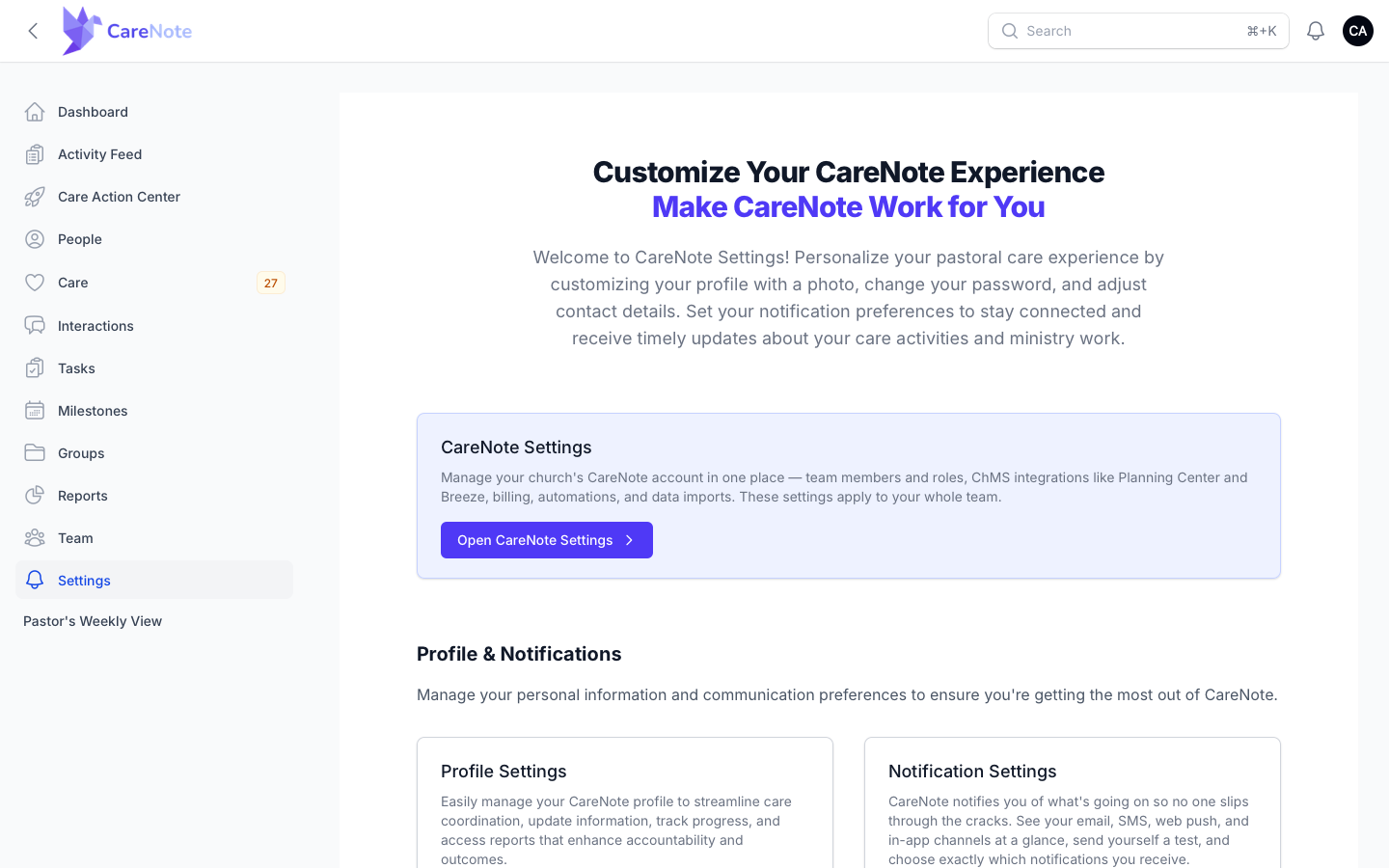
Workflow templates live in CareNote Settings, which only the account owner sees in the sidebar. If you are an administrator, open Settings in the Admin panel and click Open CareNote Settings on the first card. The owner can go straight to the CareNote Settings sidebar.
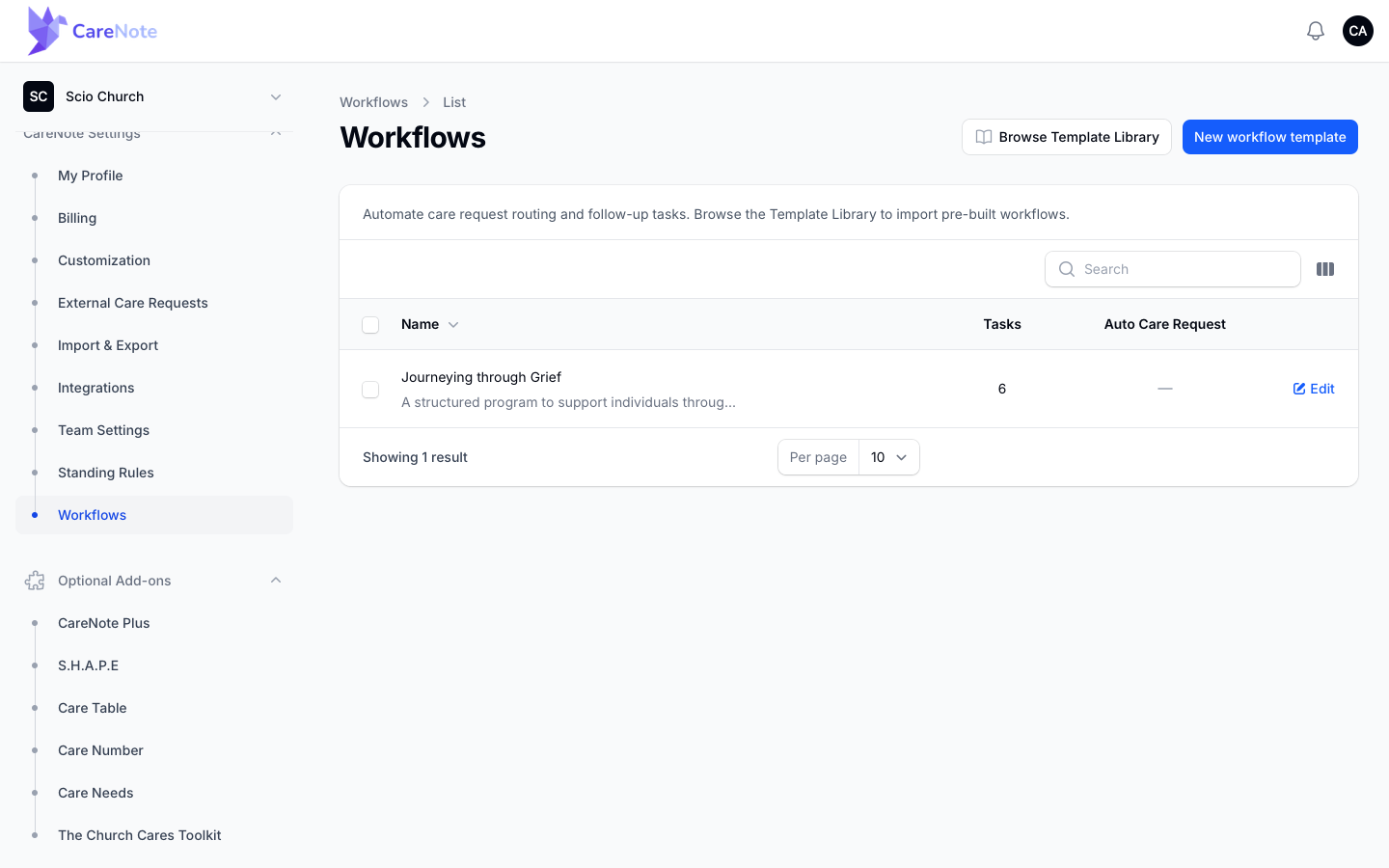
In the CareNote Settings sidebar, click Workflows. You will find it directly below Standing Rules.
2. Start from the Template Library
You do not have to build from scratch. CareNote ships with pre-built starters you can copy into your own account.
- On the Workflows page, click Browse Template Library.
- Look through the starters: Journeying through Grief, Miscarriage Support, and Baptism Preparation.
- Click Add to My Account on the one you want and confirm.
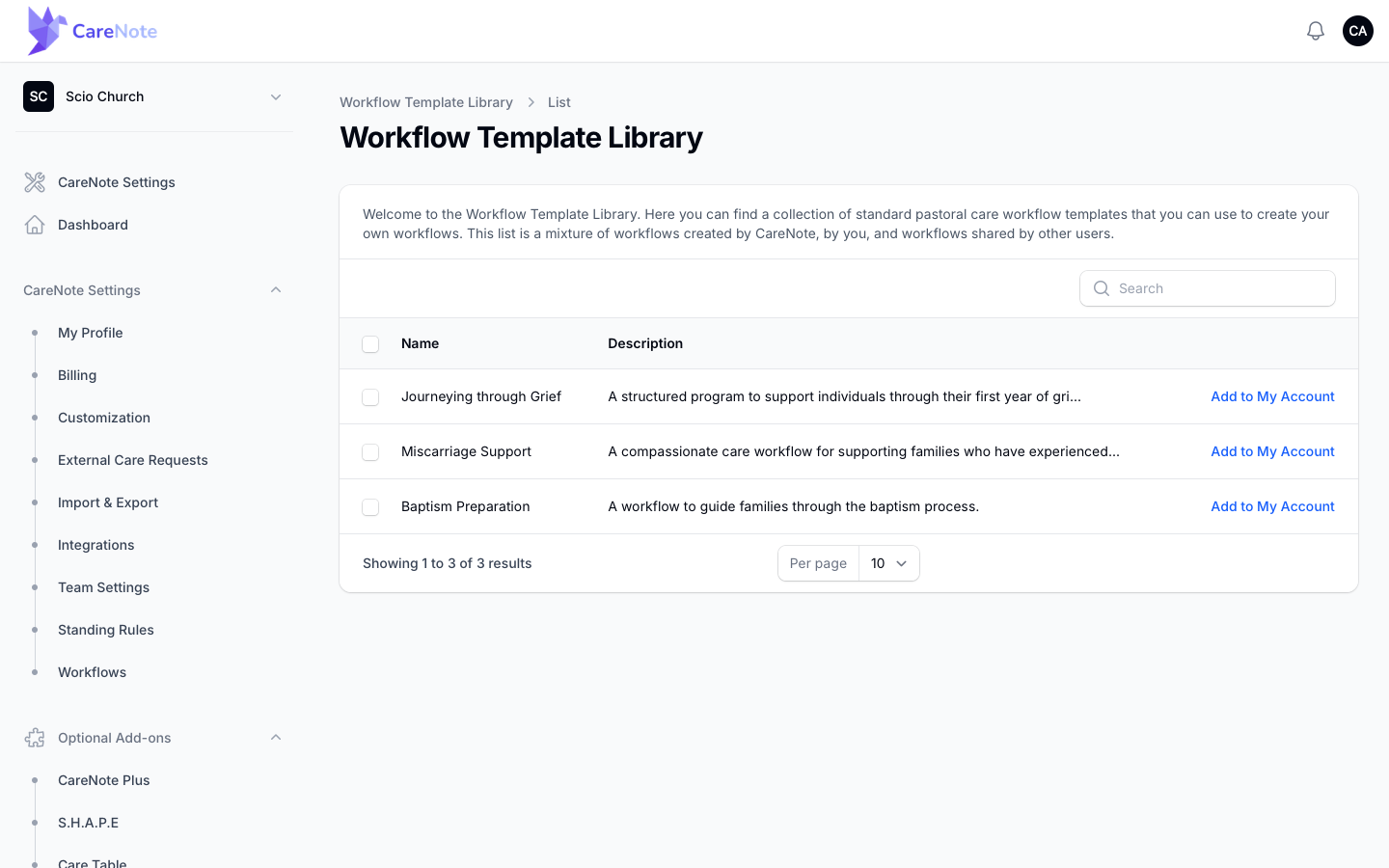
The template is copied into your own Workflows list, where you can edit it freely. Your changes stay in your copy and never touch the shared library.
3. Build your own template
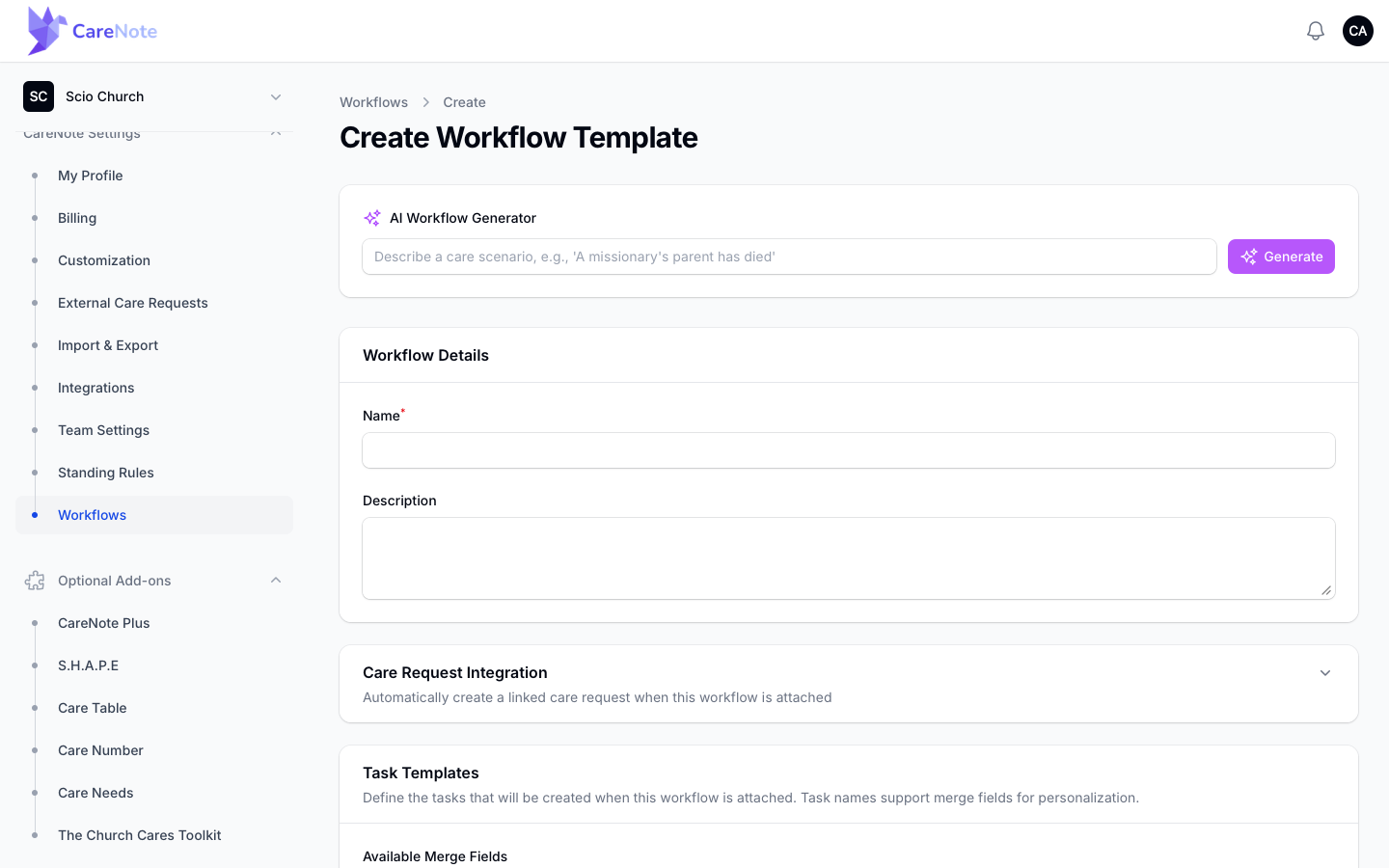
- On the Workflows page, click New workflow template.
- Give it a Name and, optionally, a Description.
- Under Task Templates, click Add Task Template for each step.
- Fill in each task (details below), then click Create.
Want a head start? The AI Workflow Generator card on the Create page lets you describe a care scenario, such as "A missionary's parent has died," and click Generate. CareNote fills in the form as a draft to review. The card is hidden if your church has turned the generator off in Team Settings > AI.
What goes in each task
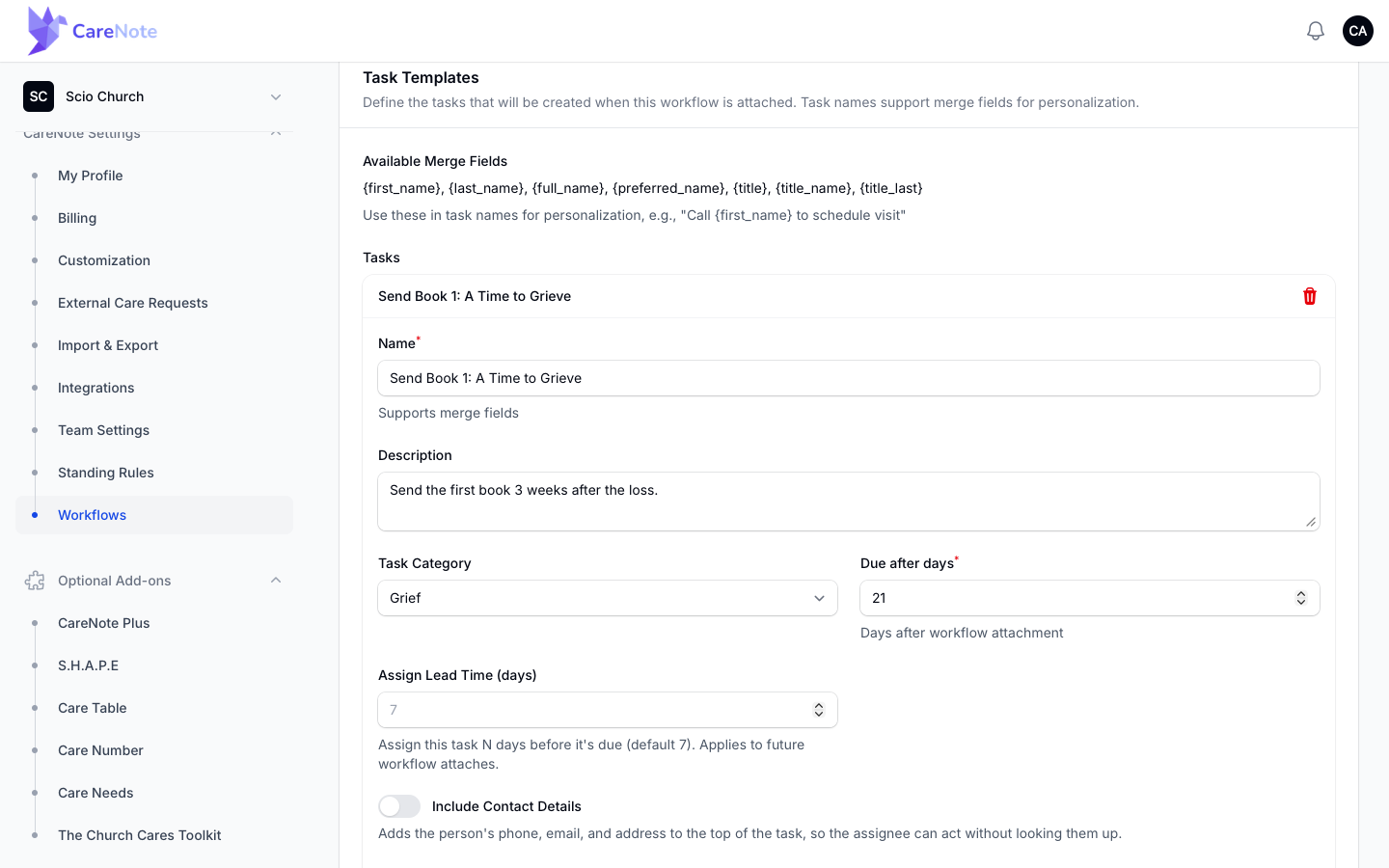
- Name: what needs to be done. Names support merge fields (see below).
- Description: instructions for whoever picks it up.
- Task Category: the category the created task will use.
- Due after days: days after the start date that this task is due.
- Assign Lead Time (days): assign the task this many days before it is due. The default is 7.
- Include Contact Details: turn this on to add the person's phone, email, and address to the top of the task, so the assignee can act without looking anything up. It is off by default.
- Default Assignment: choose Assign by Role to give the task to the first available user with that role, or Assign to Specific User to name someone. If you set both, the specific user wins.
Personalize with merge fields
Task names can pull in the person's details. The available merge fields are {first_name}, {last_name}, {full_name}, {preferred_name}, {title}, {title_name}, and {title_last}. A task named "Call {first_name} to schedule visit" becomes "Call Sadie to schedule visit" once the workflow is attached to Sadie's profile.
Optionally create a care request
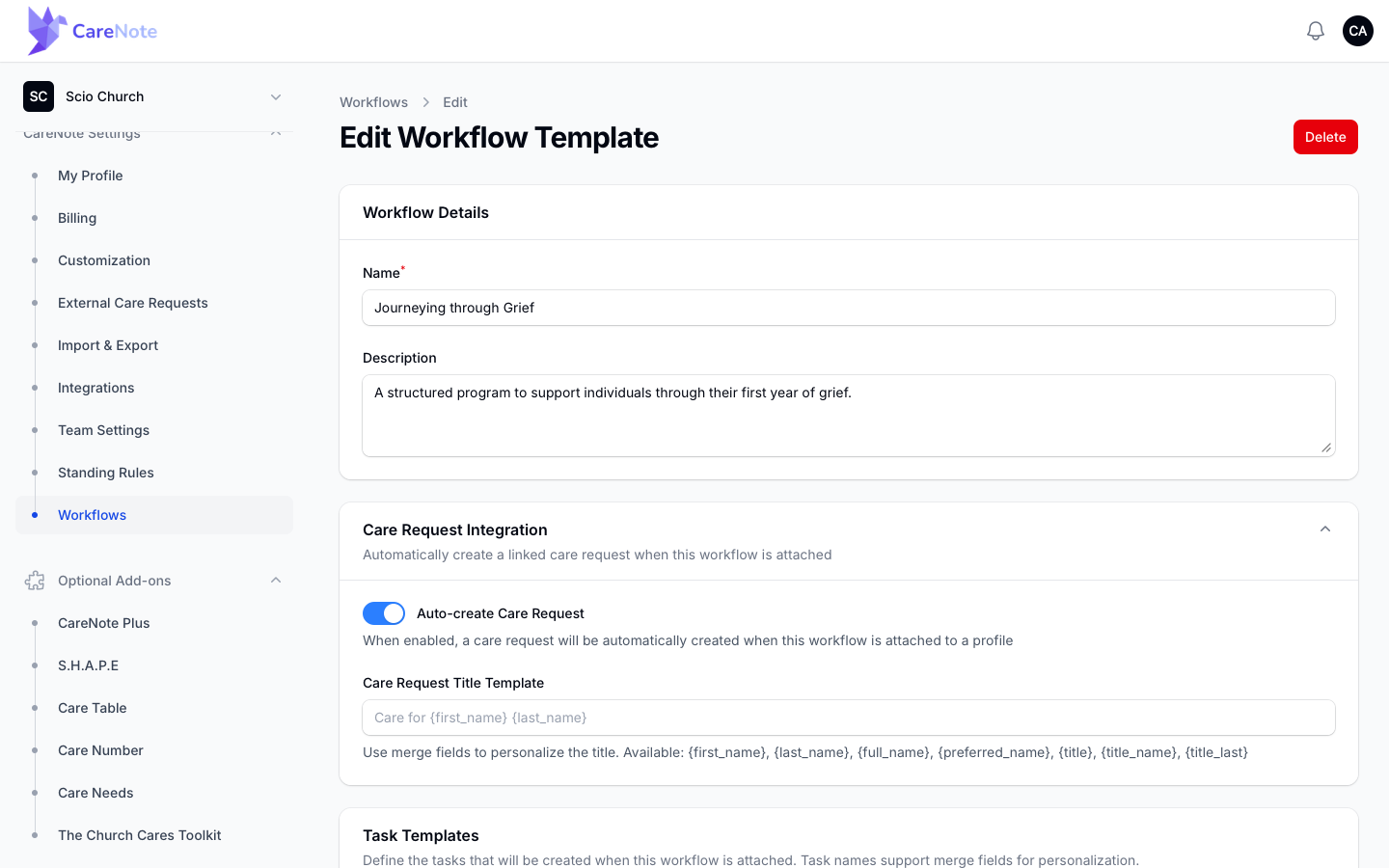
The Care Request Integration section has an Auto-create Care Request toggle. Turn it on when the workflow represents an ongoing care situation you also want tracked as a care request. Once it is on, a Care Request Title Template field appears. It uses the same merge fields, so "Care for {first_name} {last_name}" gives each care request a title with the person's name.
4. Attach a workflow to a person
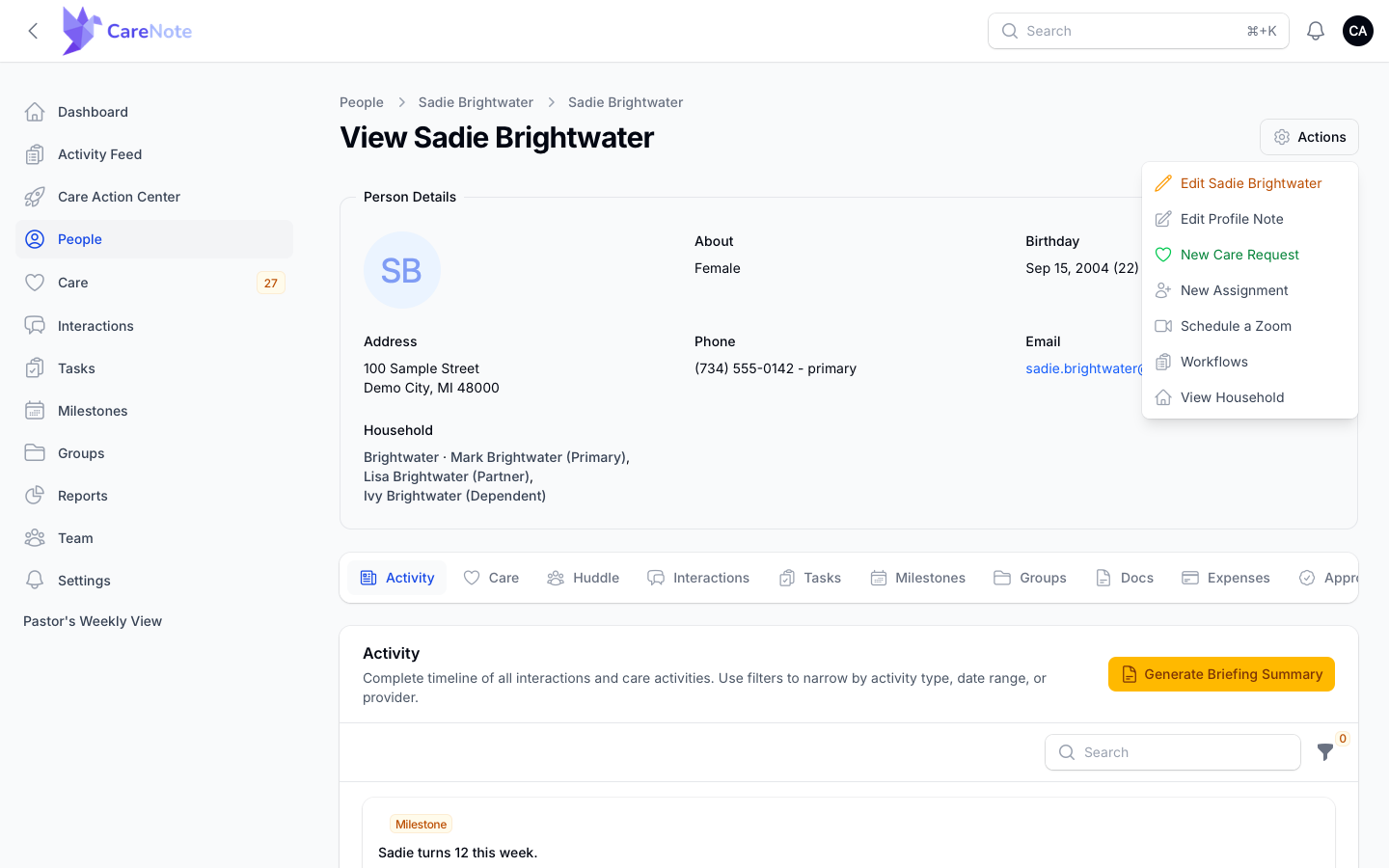
- Open the person's profile.
- Click the gear Actions button at the top right and choose Workflows. If the person already has active workflows, a count badge shows next to it.
- On their Workflows page, click Attach Workflow.
- In Select Workflow, choose the template, then set the Start Date. Every due date is that date plus the task's Due after days.
Once you pick a template, the modal expands:
- Mail Merge Preview shows the first task's description with this person's details merged in, cut to 200 characters. If that description has no merge fields, it shows unchanged, as in the screenshot below.
- Task Assignments lists every task, sorted by due date, each with its own Assign to picker. Defaults come from the template, and you can override any of them for this person without changing the template.
- Create linked Care Request lets you turn the care request on or off for this attach.
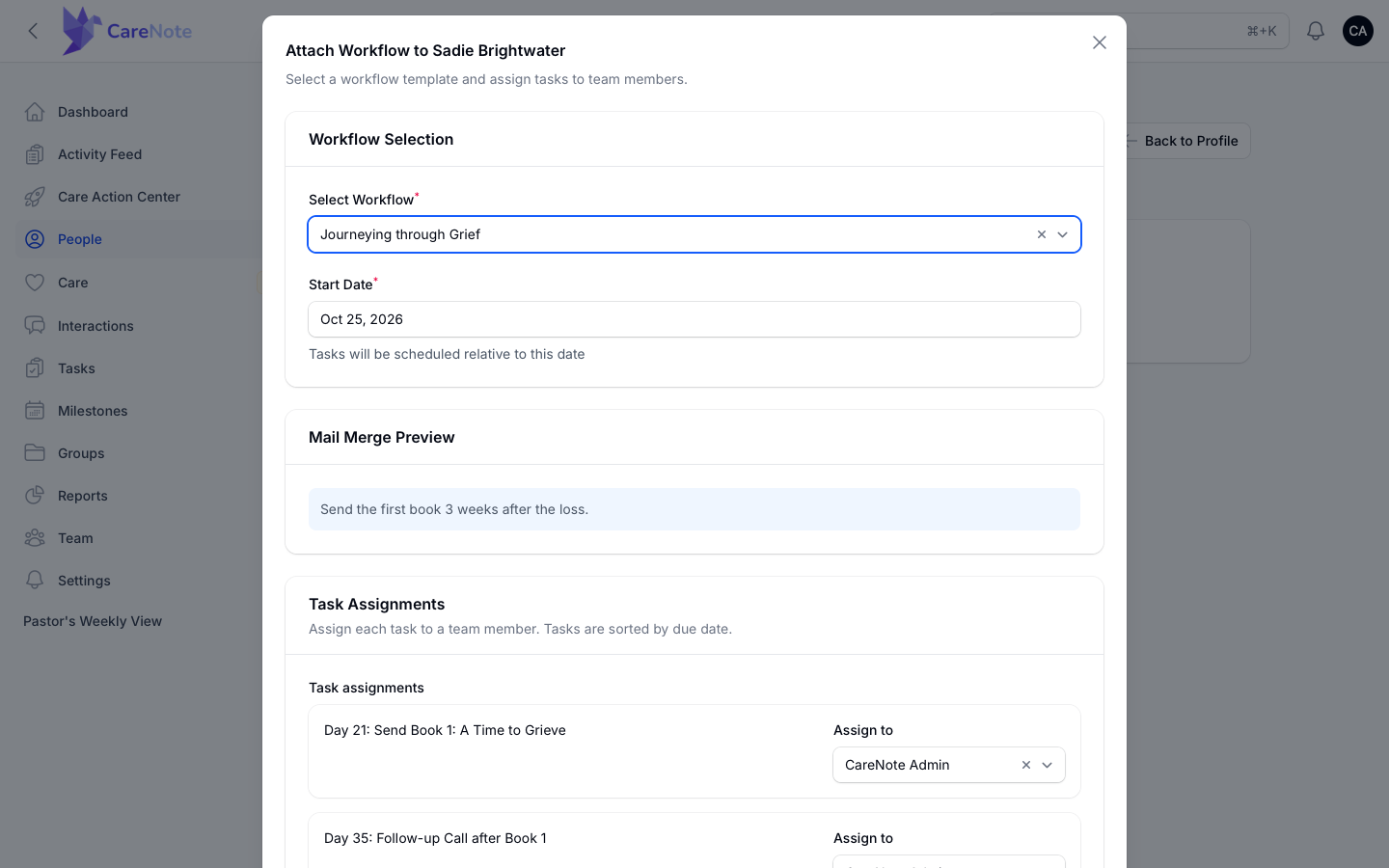
Click Attach Workflow. CareNote creates the tasks and confirms with "Workflow Attached" and how many tasks it created for that person.
5. What your team is notified about
Attaching a workflow does notify people. Each assignee is told about their new tasks, and the notifications are batched per assignee, so someone with six tasks gets one notice, not six.
If a task has an Assign Lead Time, it works differently. Tasks that are still far off are not handed out yet. Each one is assigned, and its assignee notified, only when its lead time arrives.
6. Track progress
After you attach a workflow, the person's Workflows page shows an Active Workflows card with percent complete and a NEXT TASK line showing the due date and assignee.
To watch every workflow at once, open the Reports page and choose View Workflow Report on the Workflow Report card. It shows Total Workflows, Active Workflows, Completed, Avg Completion Time, and Overdue Tasks, with a Workflow Triggers table you can export with Export CSV. The Workflow Report is part of CareNote Plus.
Frequently asked questions
What is the difference between Workflows and Standing Rules? You attach a workflow yourself to a specific person. A Standing Rule watches your church data and can start a workflow automatically when a rule matches. See the Standing Rules guide.
Does attaching a workflow send emails or texts? It notifies the people assigned to the tasks. It does not contact the person receiving care.
Can I change who is assigned to a task for one person? Yes. The Task Assignments list in the Attach Workflow modal lets you override each default for that person only.
Can I edit a template after I copy it from the library? Yes. It becomes your own copy, and the shared library is not affected.
Does changing Assign Lead Time affect workflows already attached? No. It applies to future attaches.