
Reports in CareNote: Seeing Your Care at a Glance
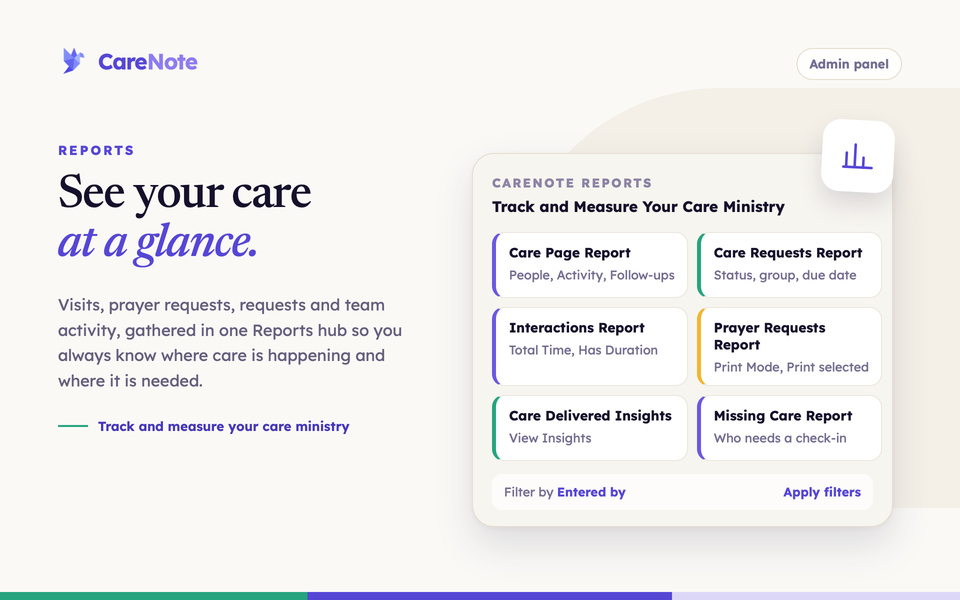
Pastoral care happens in a hundred small moments: a hospital visit, a phone call, a prayer request jotted down after a Sunday conversation. It is hard to step back and ask how your care ministry is really doing. CareNote's Reports hub answers that by turning everything your team has logged into views you can read in a minute: who has fallen through the cracks, how your team is spending its time, and which prayer requests still need coverage.
Watch: reports in CareNote.
This guide shows how to open and filter a report, and which one to reach for.
What the Reports hub is
The Reports hub is a page in the Admin panel, headed "CareNote Reports" with the line "Track and Measure Your Care Ministry." It is a grid of cards, each with a short description and a button that opens the report.
The hub lives in the Admin panel only. Team Members do not have a Reports page.
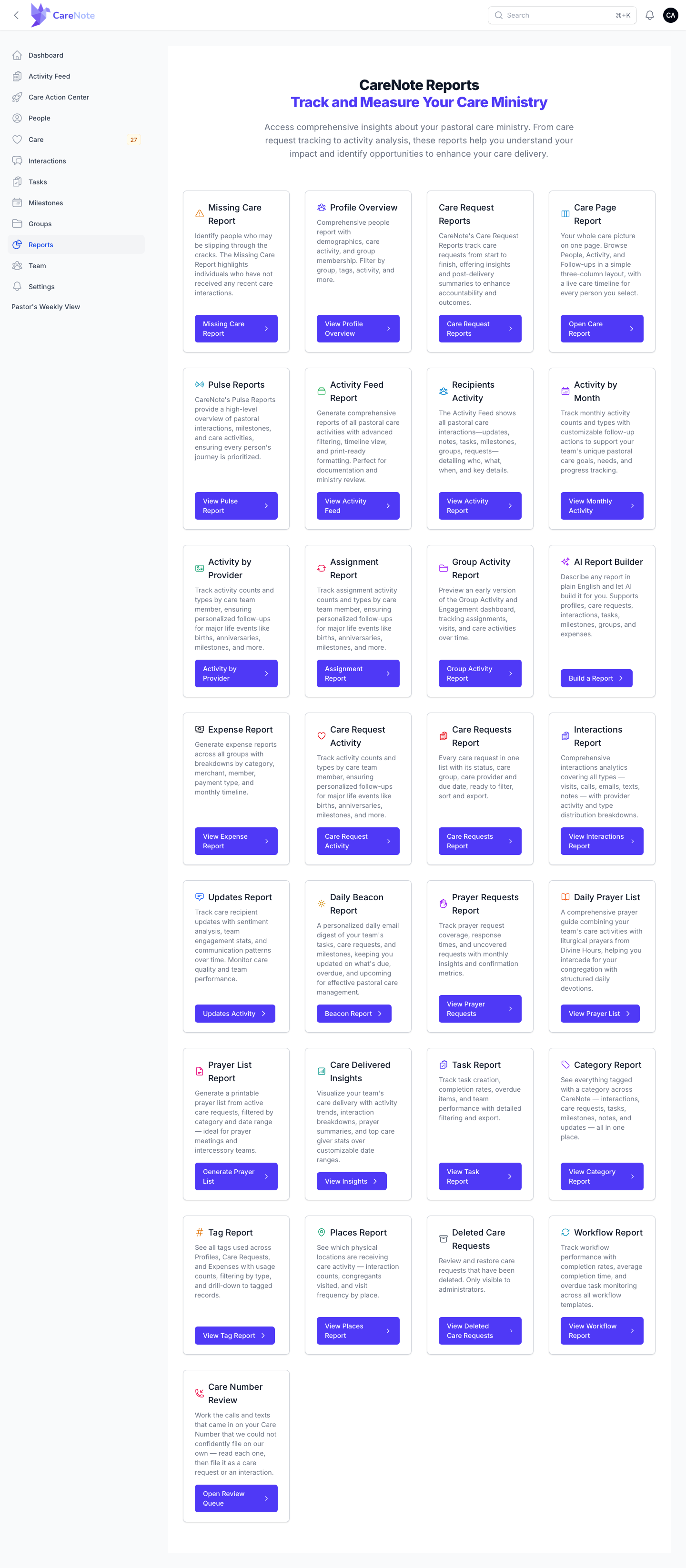
Not every team sees the same cards. Some are shown only when a feature is turned on for your team:
- Workflow Report and Expense Report appear with CareNote Plus.
- AI Report Builder appears whenever AI features are on for your team in Team Settings (see below). Opening it needs CareNote Plus.
- Care Number Review appears only for teams that use a Care Number.
- Deleted Care Requests is visible to Administrators only.
1. Open a report and narrow it down
- Click Reports to open the hub.
- Click the button on the card you want, such as View Insights or View Prayer Requests.
- Use the Search box and the Filter button on the report. Many reports also have a Date Range with presets like This Week or Custom Range.
- To share the results, look for Export CSV or Download CSV. A few reports have print buttons instead, covered below.
Filter by who entered it
The Entered by filter shows only what one team member logged. It is a select that starts on "All." You will find it on the Interactions list, on the Care Requests Report and on Activity Logs. The Interactions Report analytics page does not have this filter.
2. See your whole care picture
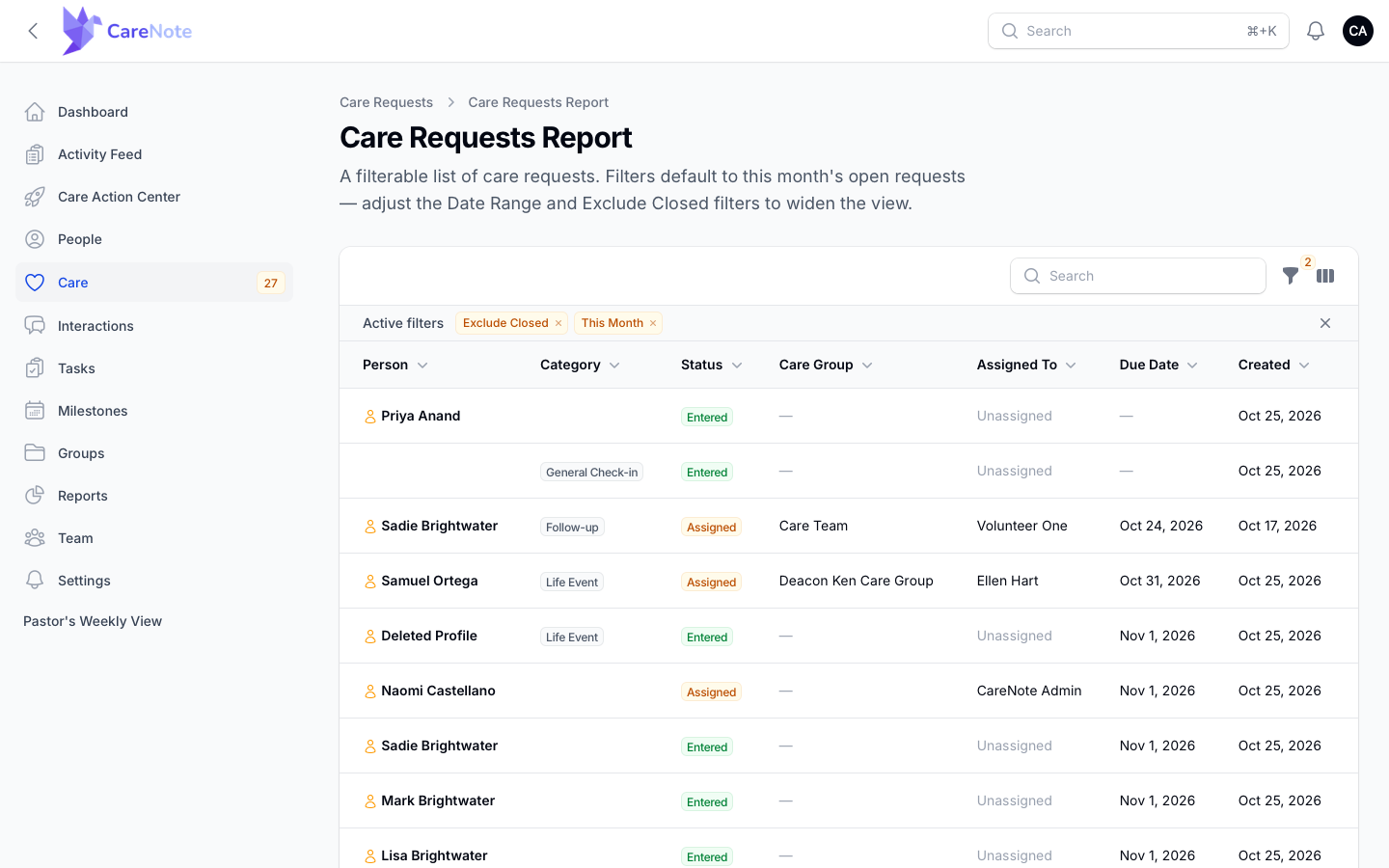
Care Page Report opens the Care page with three tabs: People, Activity and Follow-ups. It opens on Activity. On the People tab, pick someone to see their contact information and Recent Contact. The Activity tab adds a Milestones this week card.
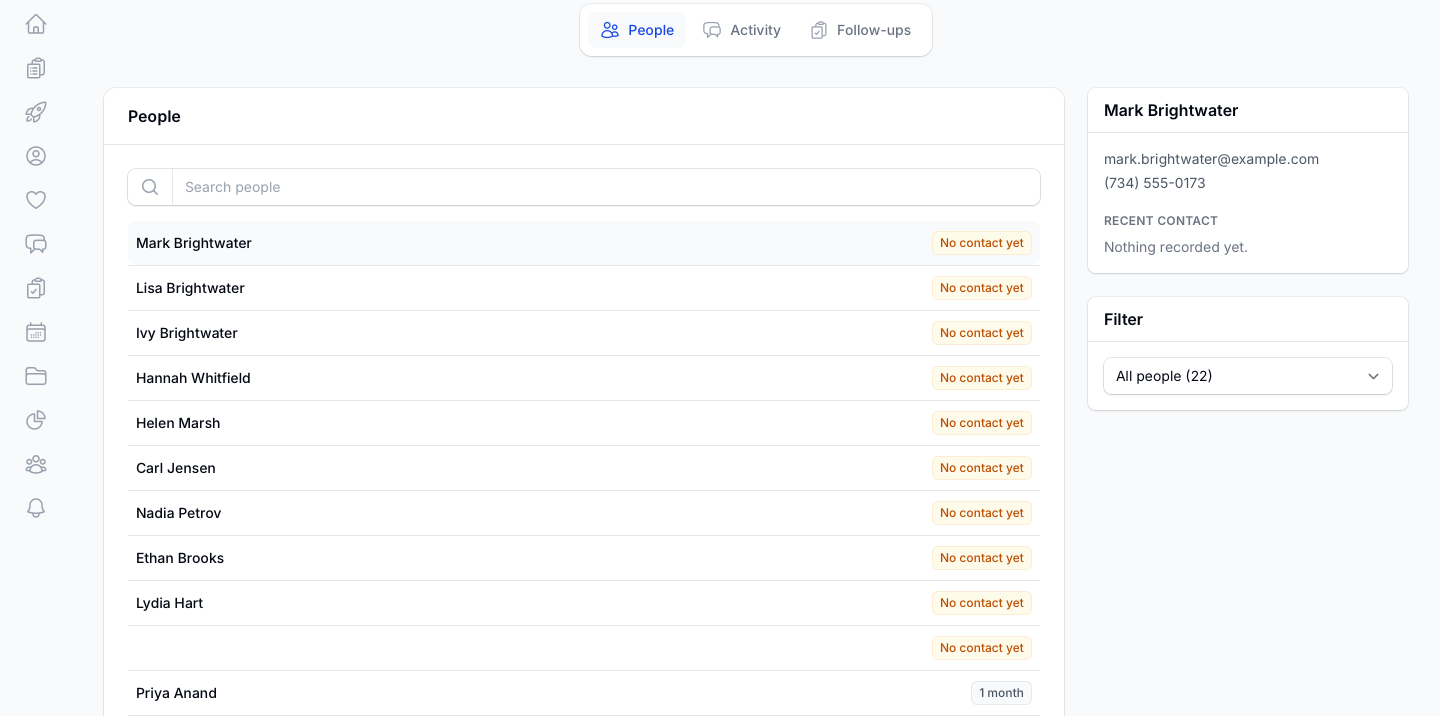
Care Requests Report lists every care request with its Person, Category, Status, Care Group, Assigned To, Due Date and Created date. It opens showing open requests created this month, using the Exclude Closed and This Month filters, so widen the Range when you want more. Filters include Category, Tags, Group, Provider and Entered by.
Missing Care Report answers "who has not been checked on in a while?" It lists people with no recent care activity and exports to CSV. Profile Overview gives a census of your people, with active profiles and each person's open care requests.
3. Understand how your team spends its time
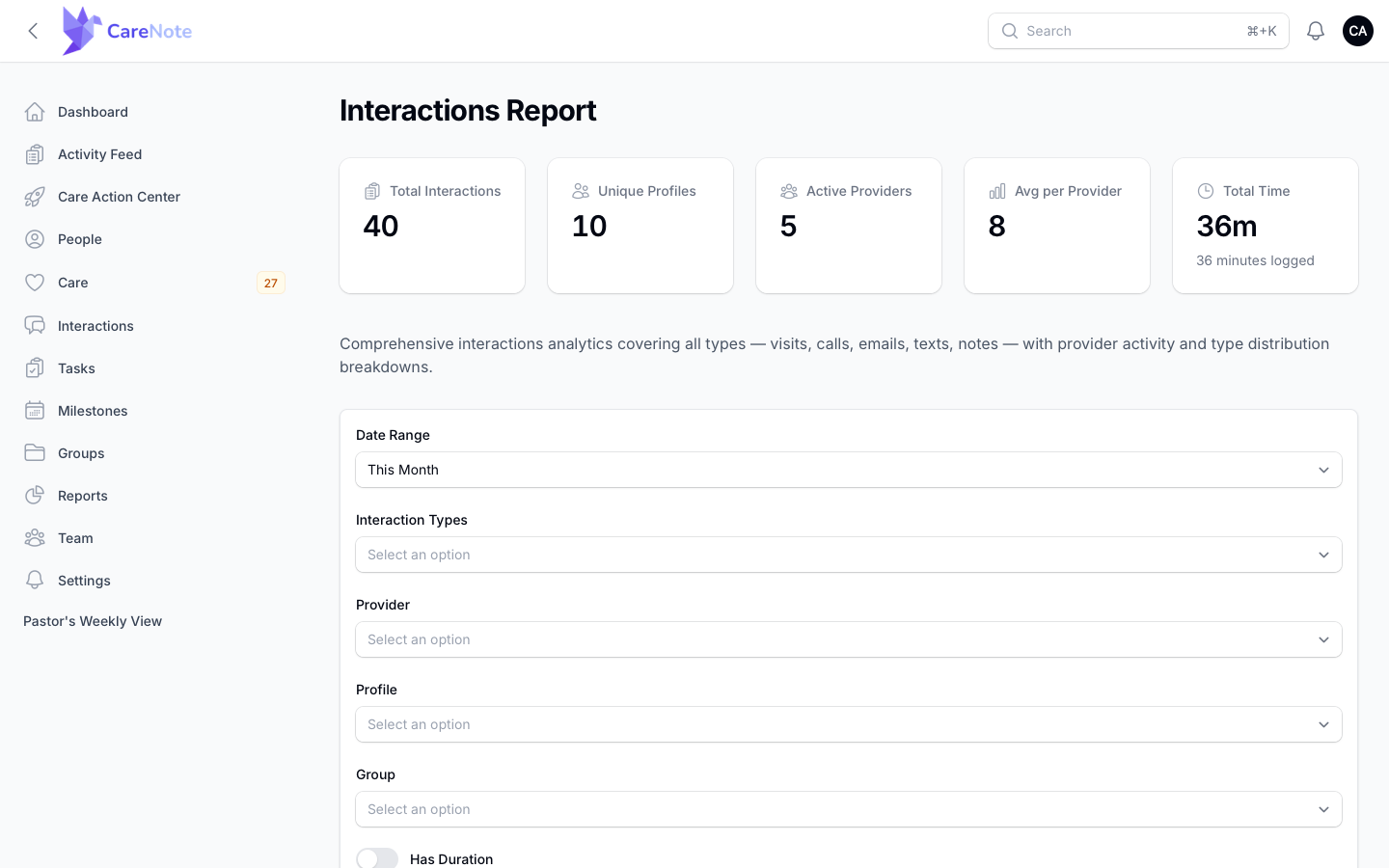
The Interactions Report is the broadest view: total interactions, unique profiles, active providers, and a breakdown by type and provider. When your team records how long a visit or call took, those minutes roll up into a Total Time tile, and the Has Duration toggle limits the report to entries that have a time. The Recent Interactions table adds a Duration column.
Other activity reports look at your team from different angles:
- Activity by Provider, Assignment Report and the Group Activity Report (Experimental) show workload per person or group.
- Activity by Month is a single trend chart.
- Activity Feed Report lists every logged activity in a timeline and has Print Mode.
- Task Report, Category Report, Tag Report and Places Report show how tasks, categories, tags and locations are used.
4. Cover prayer requests
Three reports cover prayer:
- Prayer Requests Report tracks requests received, how many are covered and the average hours to first prayer. It also has Print Mode for your prayer meeting.
- Prayer List Report generates a printable list of active requests.
- Daily Prayer List is a day-by-day view for personal devotion, with Previous and Next arrows.
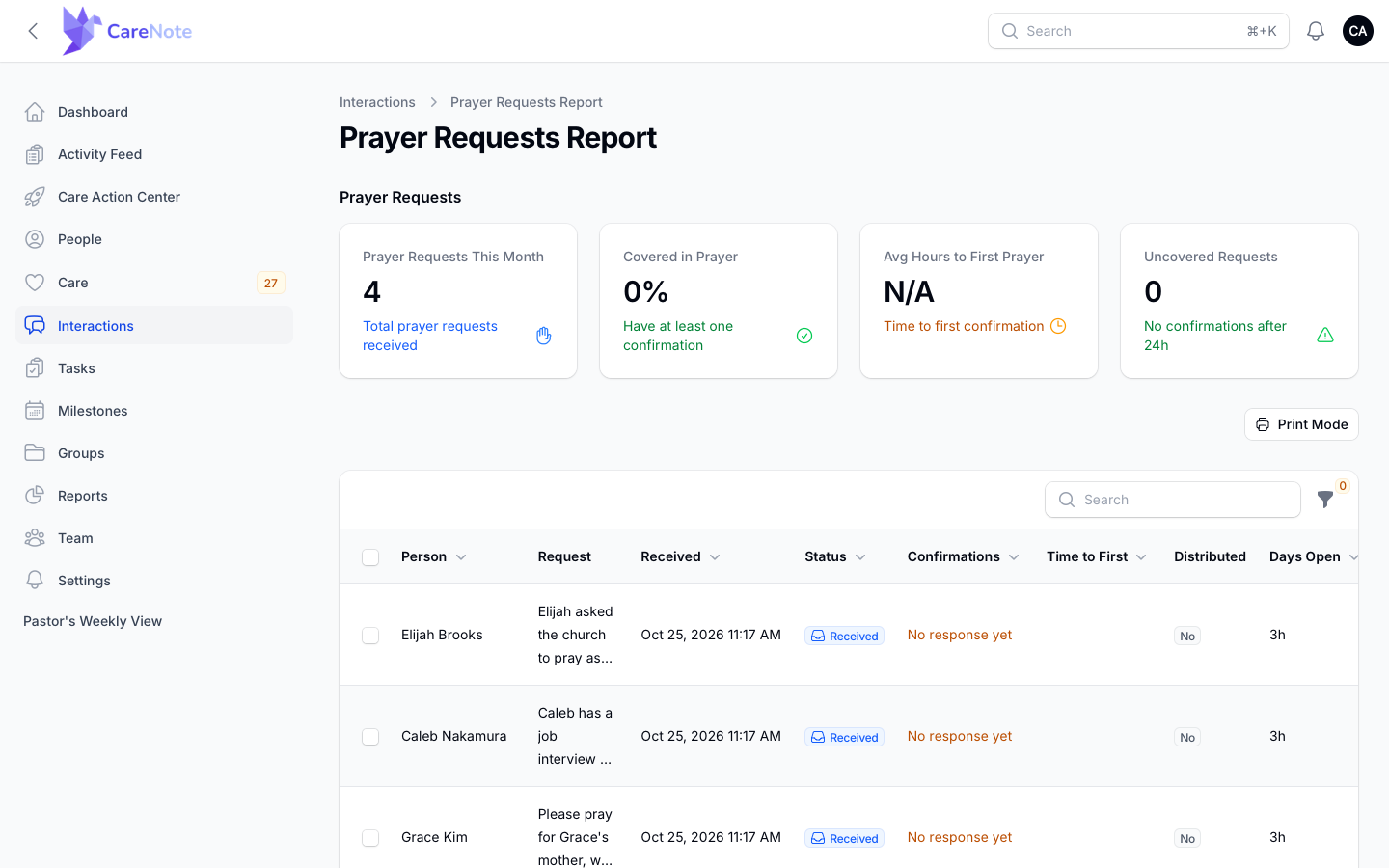
To print from the Prayer Requests Report:
- Click Print Mode.
- Choose a Date Range. It starts on Open Requests.
- Decide whether to turn on Include Phone & Email. It is off by default so a printed copy left behind does not expose contact details.
- Click Print, or View Mode to return to the table.
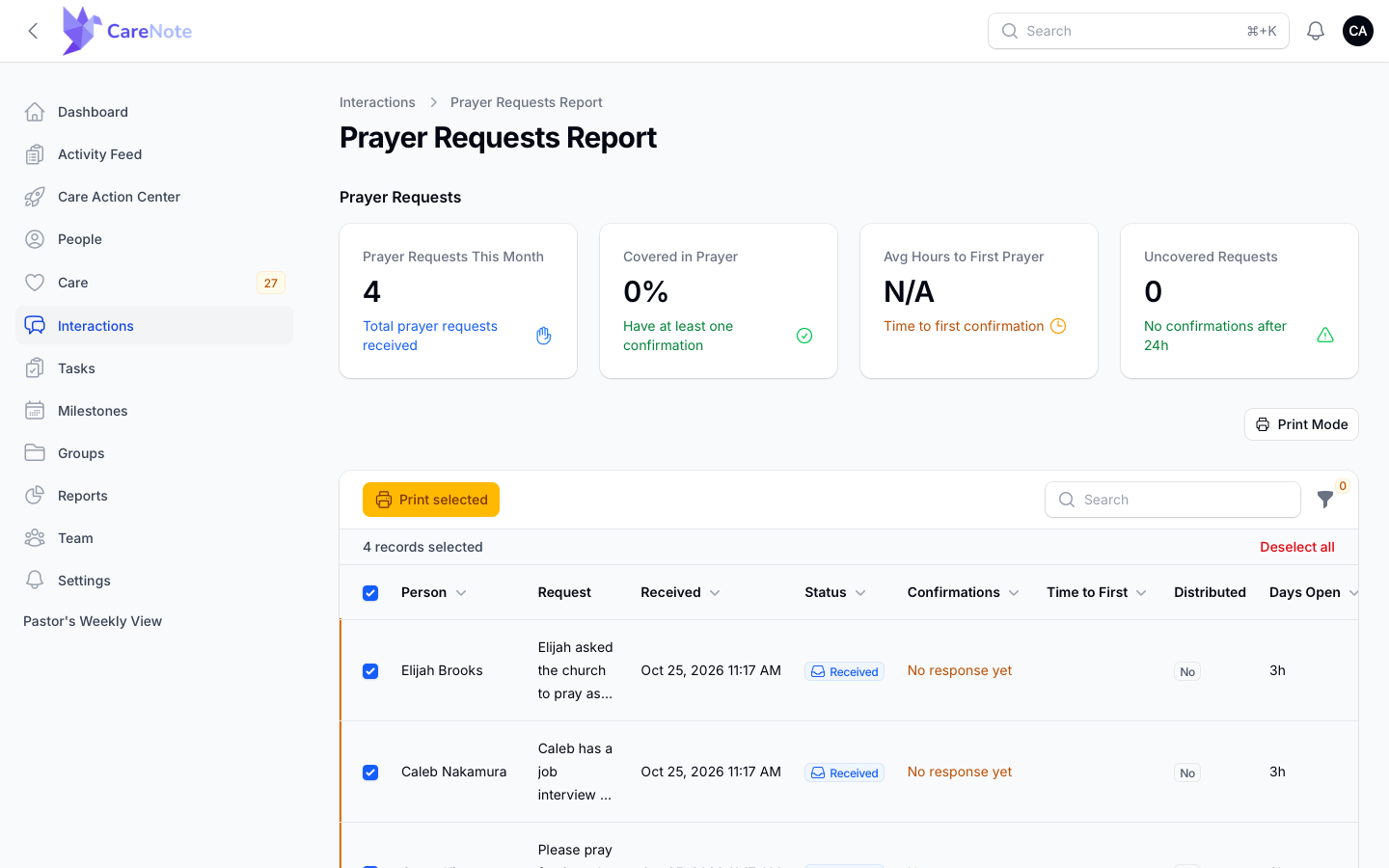
You can also tick a few rows in the table and click Print selected, which appears beside the search box.
5. Dashboards and summaries
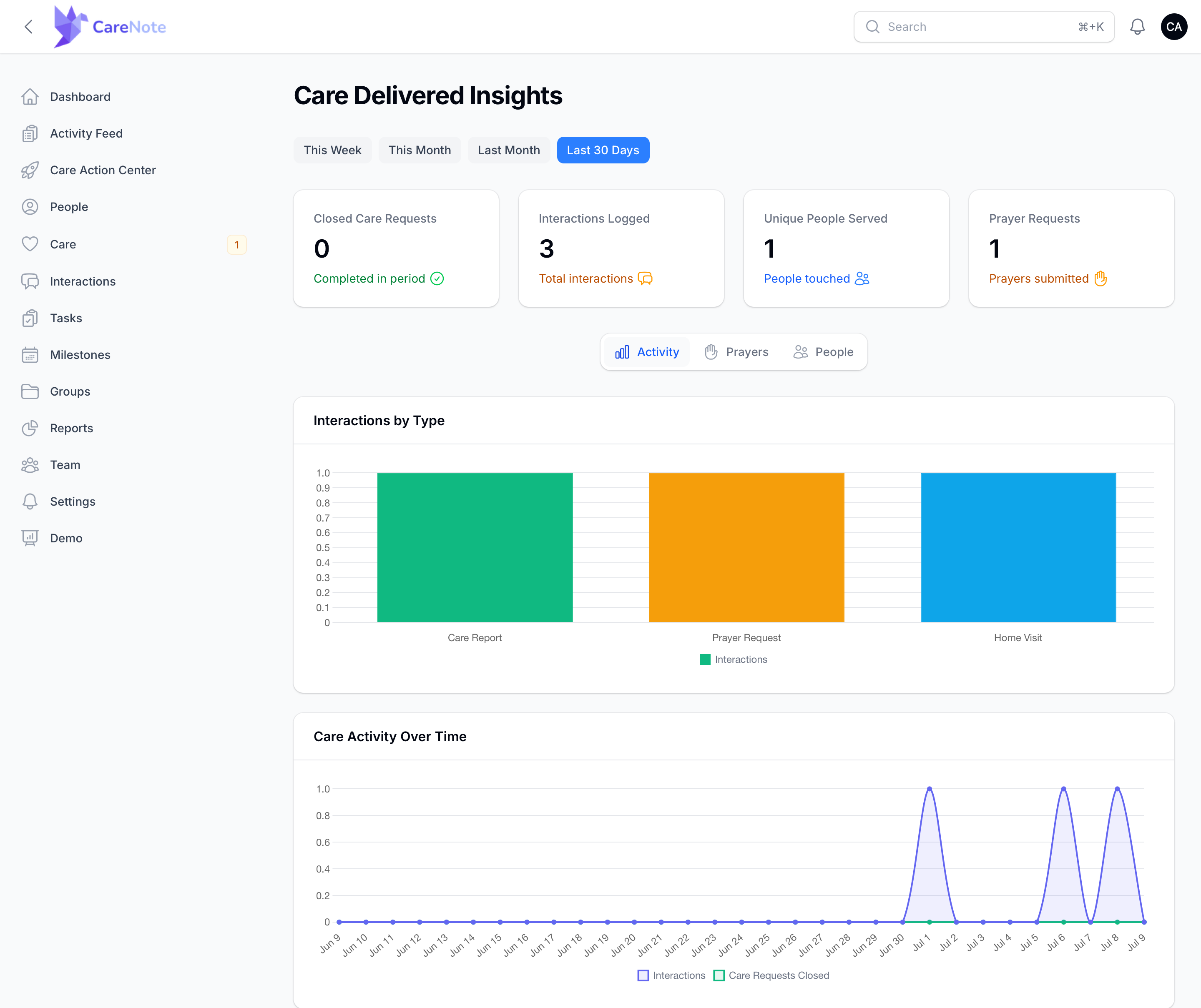
Care Delivered Insights is the closest thing to an at-a-glance dashboard: quick date-range buttons above stat cards for closed care requests, interactions logged, unique people served and prayer requests submitted, with Activity, Prayers and People tabs. Bring it to a leadership meeting.
Pulse Reports are generated on demand. Click Generate Report and CareNote writes an AI summary of team activity with metrics and sentiment.
6. Reports with CareNote Plus, AI and Care Number
If your team has CareNote Plus, the hub adds a Workflow Report with a Workflow Triggers table you can export, and an Expense Report where you choose a Group, Report Type and dates, then click Generate Report.
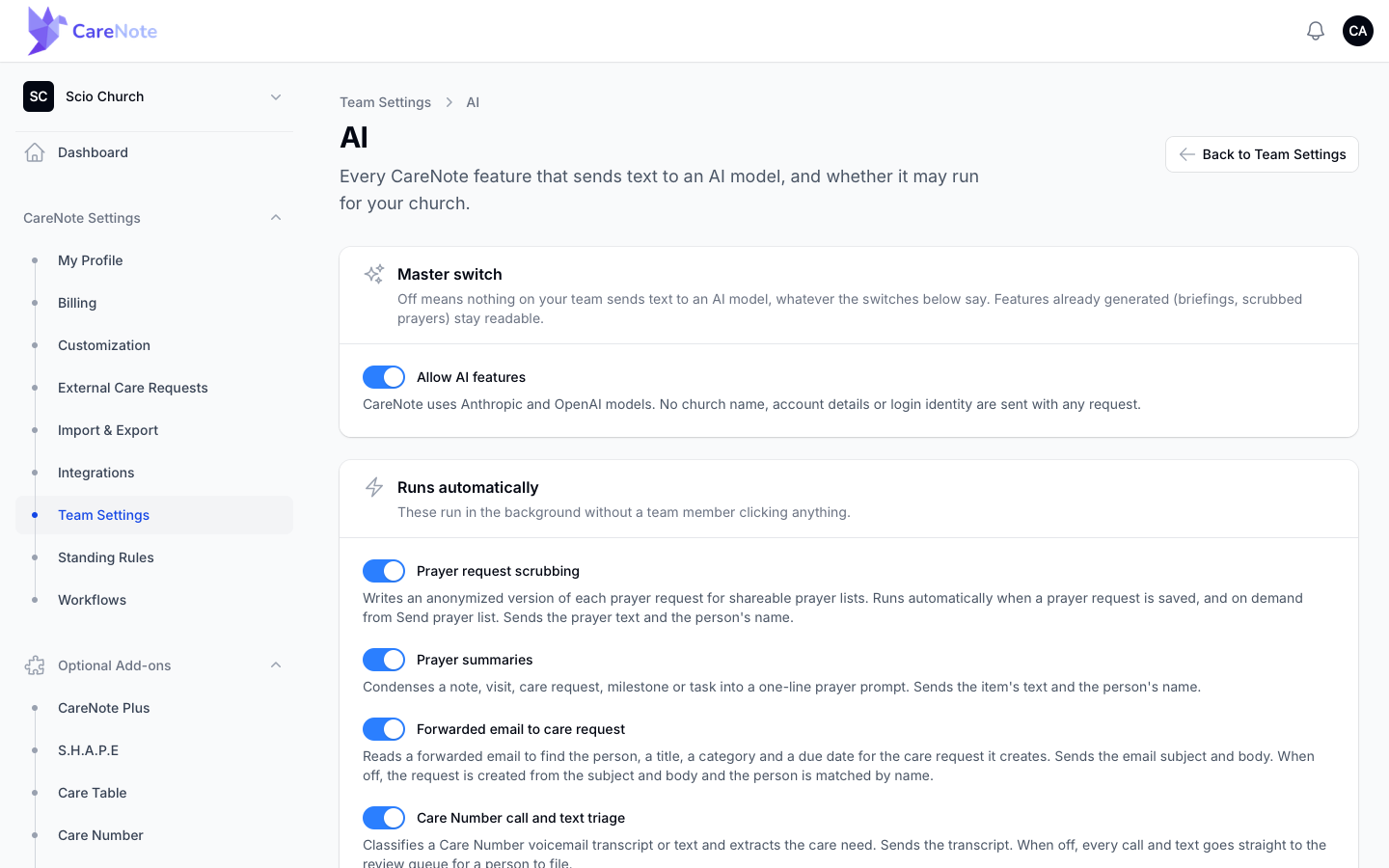
The AI Report Builder lets you describe the report you want in plain words. Opening it needs CareNote Plus. It is experimental, so check results. An Administrator controls it in Team Settings under AI, where the Allow AI features switch turns every AI feature off or on. When AI Report Builder is off, its card leaves the hub.
Teams that use a Care Number also see Care Number Review, where you read the calls and texts CareNote could not confidently file and turn each into a care request or an interaction.
The form providers fill in after a visit is covered in Completing and Managing Care Requests.
Frequently asked questions
Can Team Members see the Reports hub? No. The hub is in the Admin panel only. Administrators open it from there.
Why can't I see the AI Report Builder, Workflow Report or Expense Report? The Workflow and Expense reports need CareNote Plus. The AI Report Builder card is hidden when Allow AI features or the AI Report Builder switch is off in Team Settings. When it is on, the card shows, but opening it needs CareNote Plus.
How do I see only what one person logged? Use the Entered by filter on the Interactions list, the Care Requests Report or Activity Logs.
How do I print prayer requests for a meeting? Open the Prayer Requests Report, then use Print Mode, or select rows and click Print selected. Phone and email stay off the printout unless you turn on Include Phone & Email.
Watch
- Pastoral Care Reports Your Elder Board Will Actually Read shows Care Delivered Insights, activity by month and provider workload.
- CareNote Onboarding 5/5: Proving the Work covers the care timeline, AI briefings and board reports.
- Finding People in CareNote covers the Entered by filter and the Tag Report.