
Choosing How CareNote Notifies You
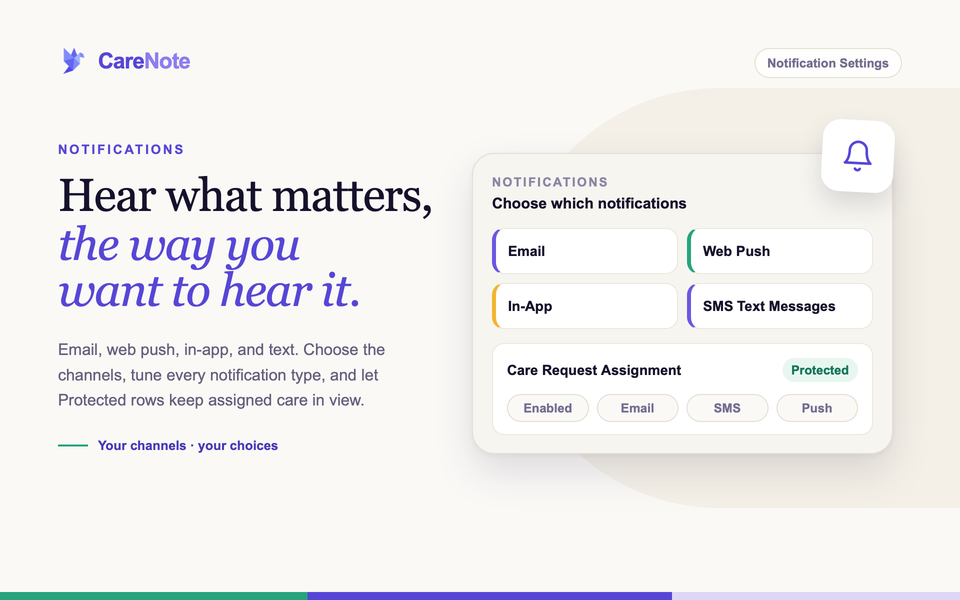
CareNote keeps your team in the loop: a new care request, a task that is due, a message that needs a person. Some people want a text the moment they are assigned. Others would rather everything wait quietly in the bell. CareNote lets you choose, channel by channel and notification by notification, and lets you send yourself a test to prove each channel works.
Watch: managing your workload and notifications.
What it is
CareNote can notify you through four channels: email, web push (a browser notification), in-app (the bell at the top of the page), and text message. Every notification type can be tuned on its own, so you decide what you hear about and which channels carry it.
Admins, Team Members, and Huddle Members all get the same two pages: a Notifications hub that shows how each channel is doing, and a Notification Settings page with one row per notification type. What you see on the settings page depends on your role. Admins have 12 tabs, Team Members have 8, and Huddle Members have 4.
A few notification types are marked Protected. They are built so that assigned care is never missed. More on that below.
How to check your notification channels
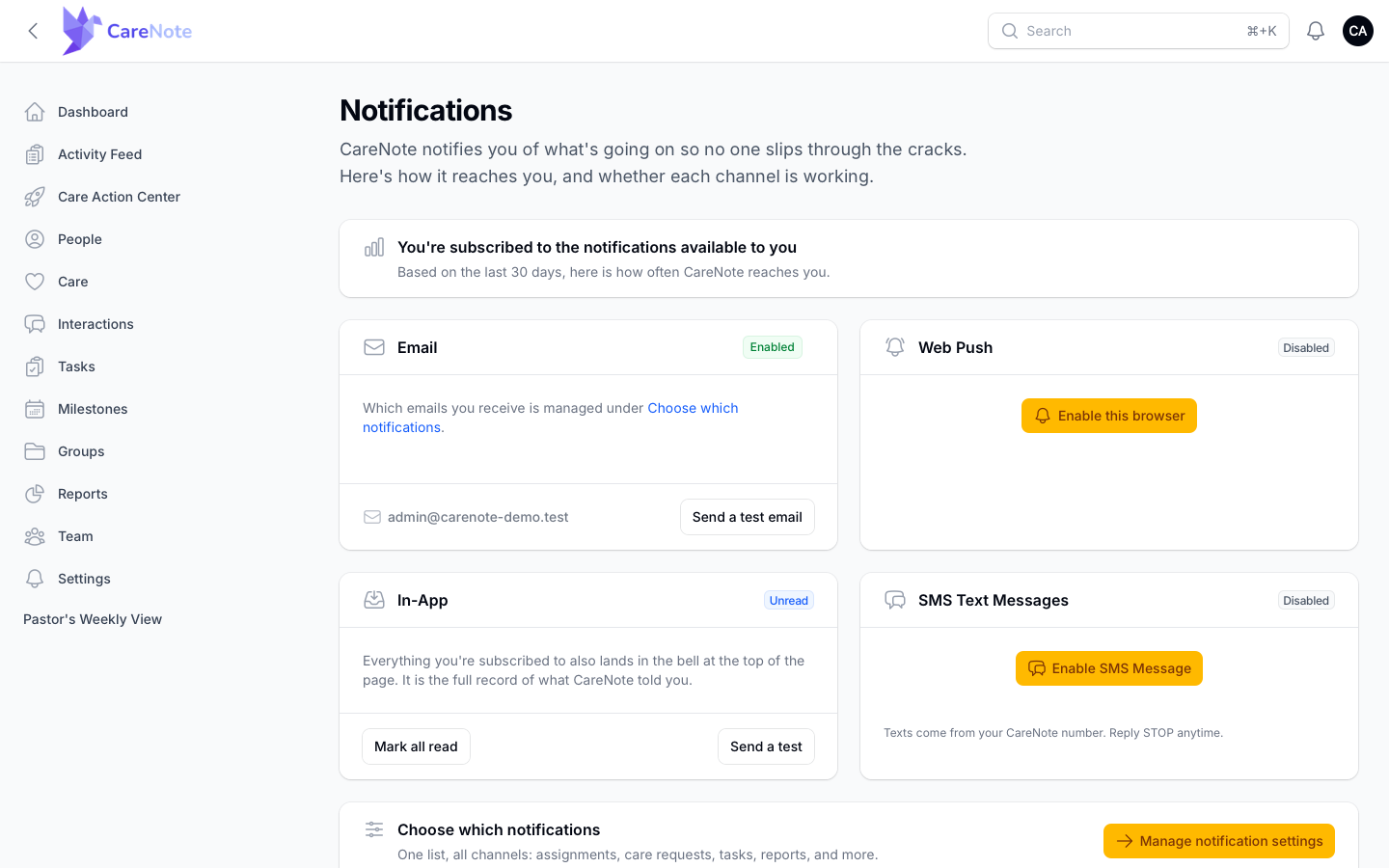
- Open the Notifications hub. Admins: go to Settings, find the Notification Settings card, and click Manage Notifications. Team Members and Huddle Members: click Notifications in the navigation.
- Look at the four channel cards:
- Email shows an Enabled badge. Clicking the badge turns off all email from CareNote after a confirmation, including email about work assigned to you. Fine-tune which emails you get on the settings page.
- Web Push shows Disabled until you click Enable this browser and approve your browser's permission prompt. Repeat this on each browser you use.
- In-App shows a badge with the number of notifications you have not read yet. Everything you are subscribed to lands in the bell, so it is the full record of what CareNote told you. Mark all read clears that number.
- SMS Text Messages shows Disabled until you click Enable SMS Message, enter your mobile phone, and reply YES to the text you receive. Reply STOP anytime to stop texts. Our SMS guide covers consent and verification in full.
How to send yourself a test
- On the Email card, click Send a test email, then check your inbox.
- On the In-App card, click Send a test and watch the bell.
- Once push is on, click Send a test push on the Web Push card and watch for the browser notification. If you see "Enable push on this device first," finish the Enable this browser step.
- Once SMS is enabled, click Send a test text on the SMS Text Messages card. If CareNote asks you to confirm your number first, finish the text opt-in before testing.
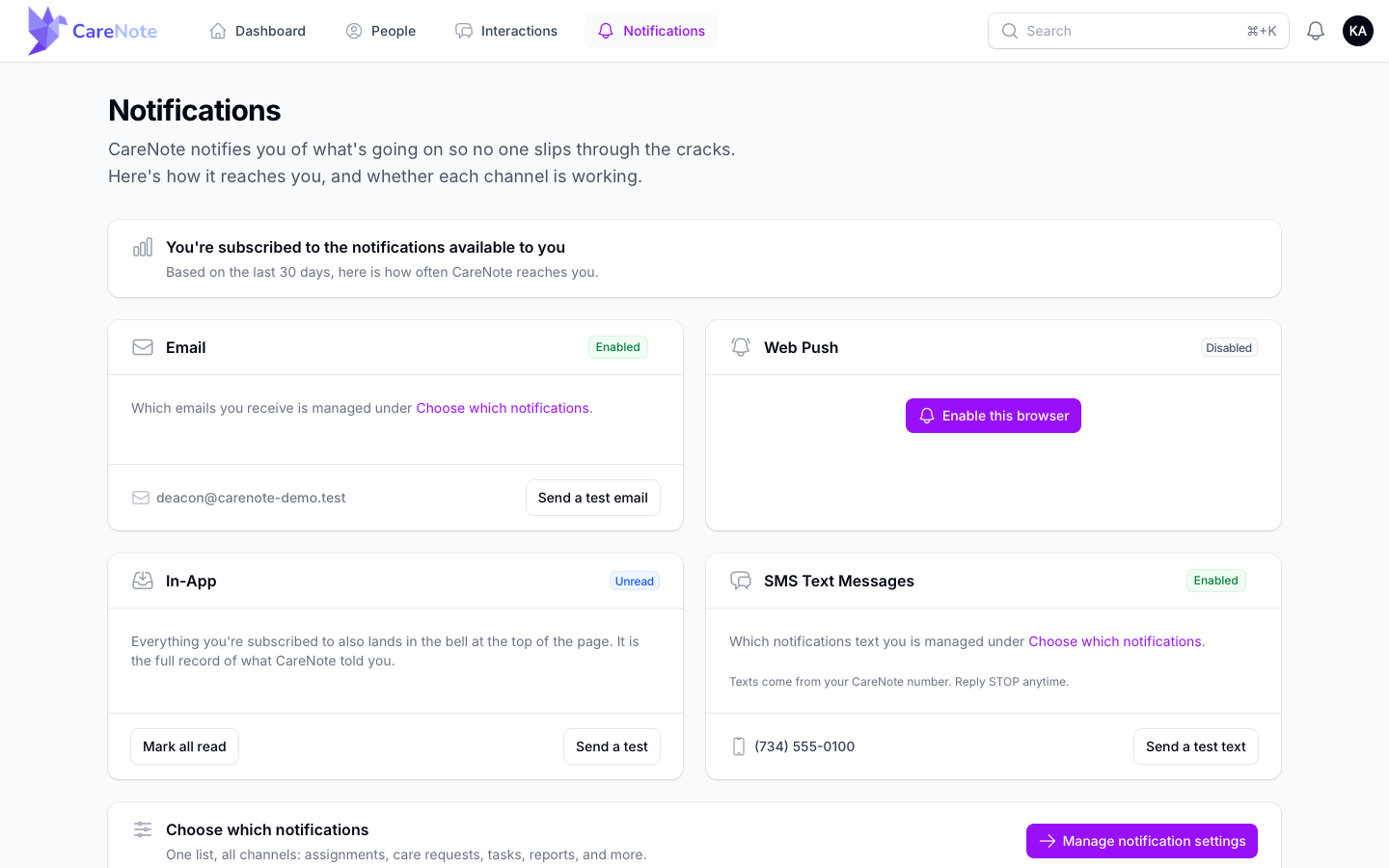
Huddle Members see the same hub in the Huddle panel.
How to fine-tune individual notifications
- At the bottom of the hub, find the Choose which notifications card and click Manage notification settings.
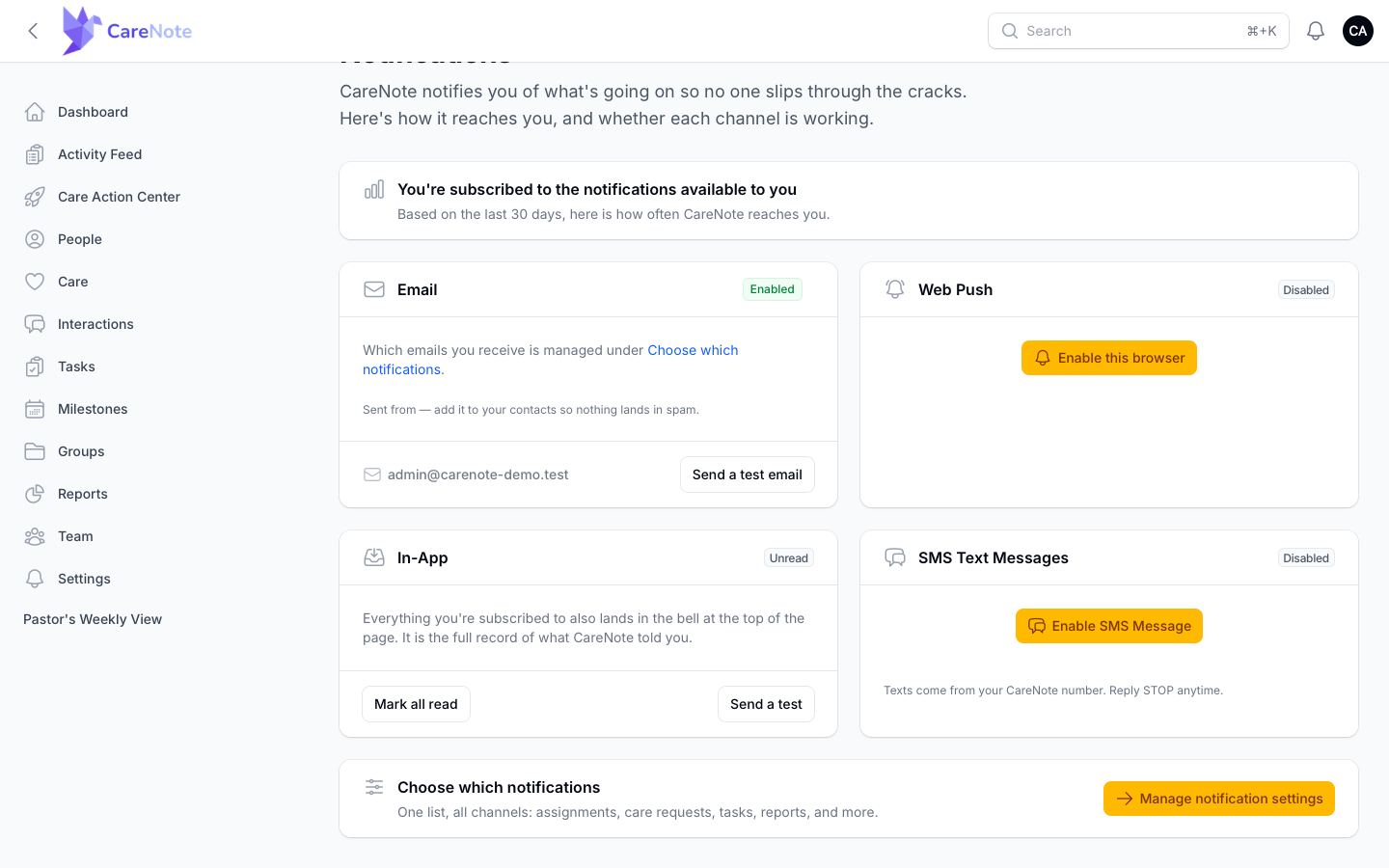
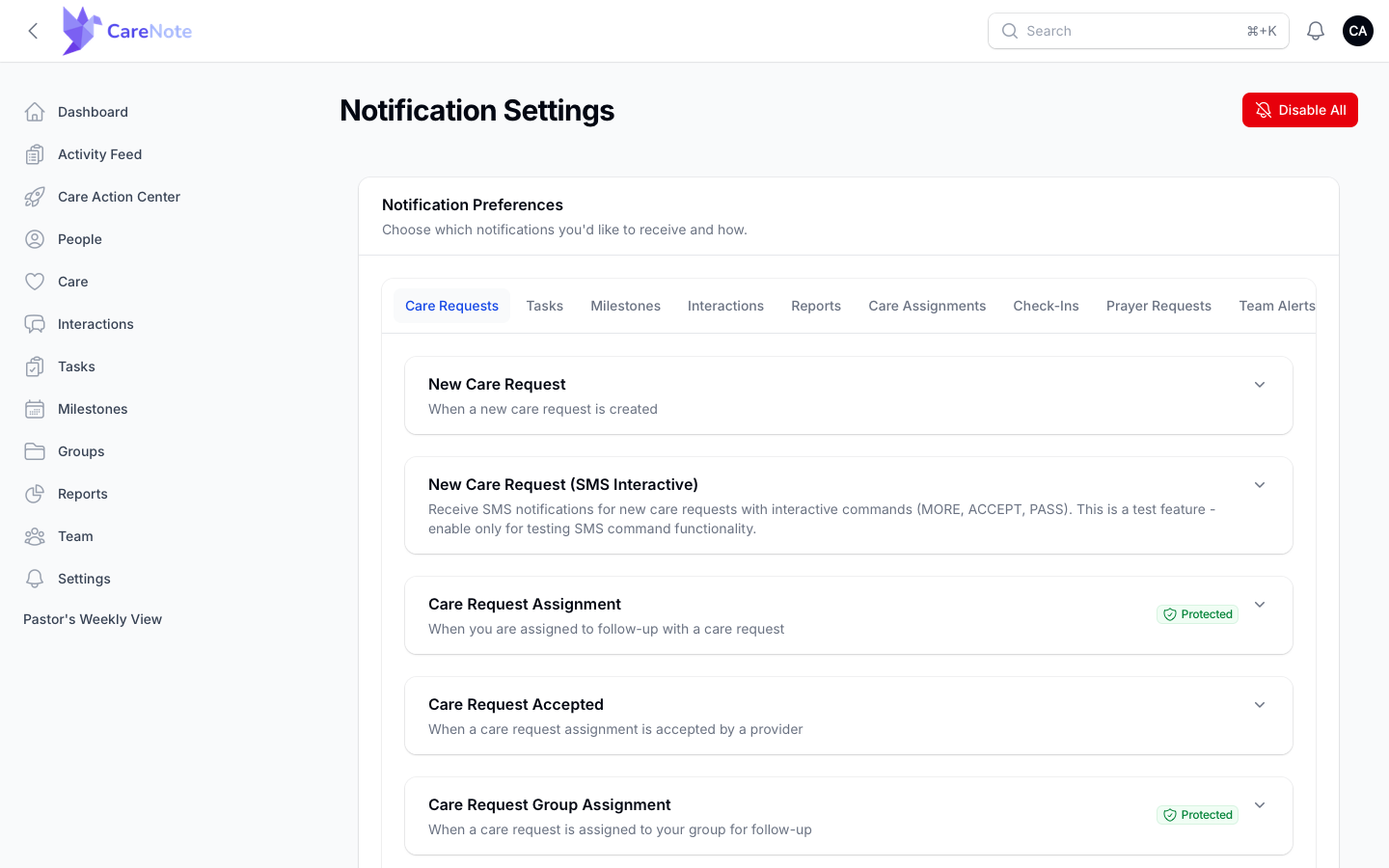
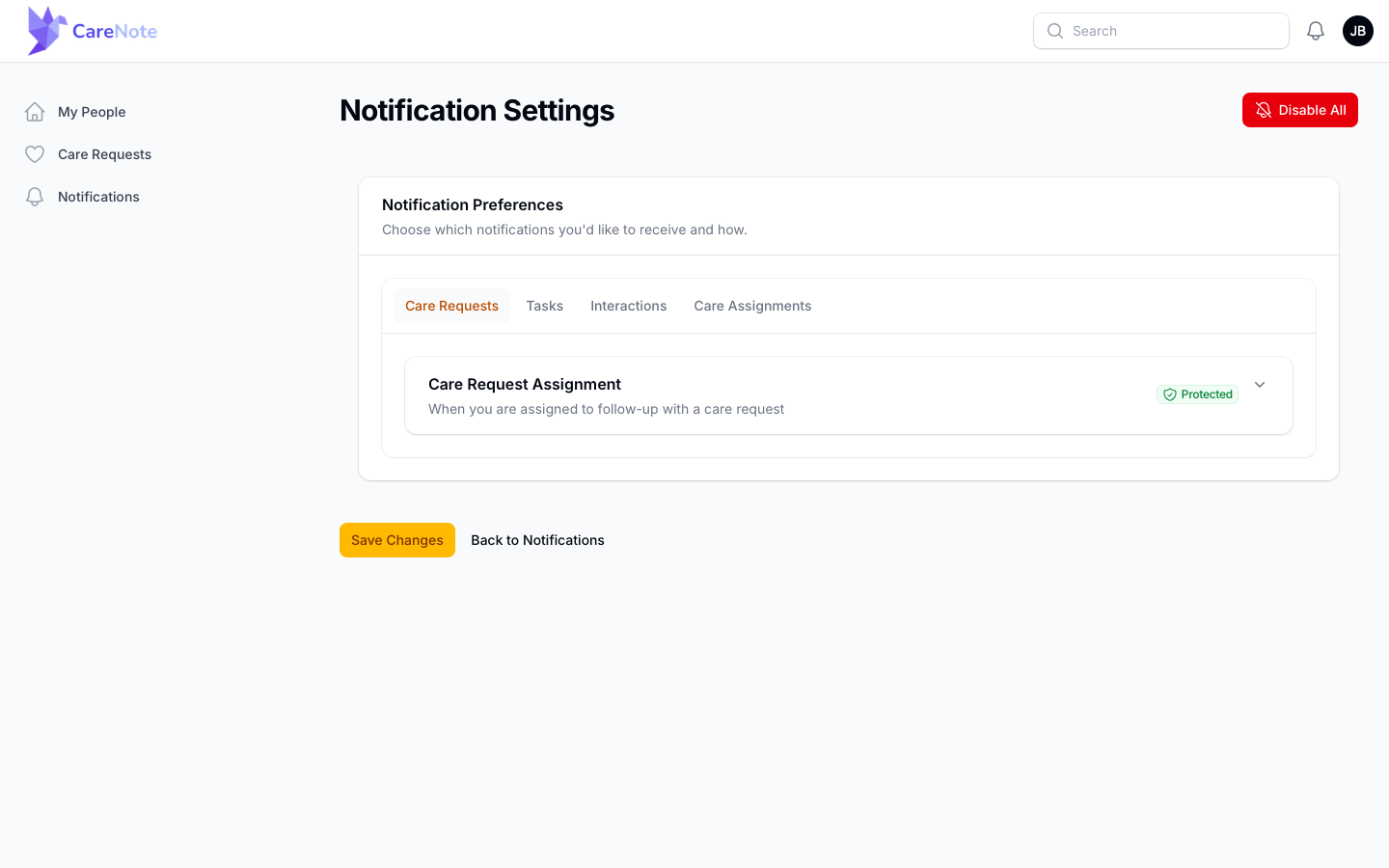
- On Notification Settings, open the Notification Preferences card. Types are grouped into tabs for your role, such as Care Requests, Tasks, Milestones, Interactions, Care Assignments, Check-Ins, and Prayer Requests.
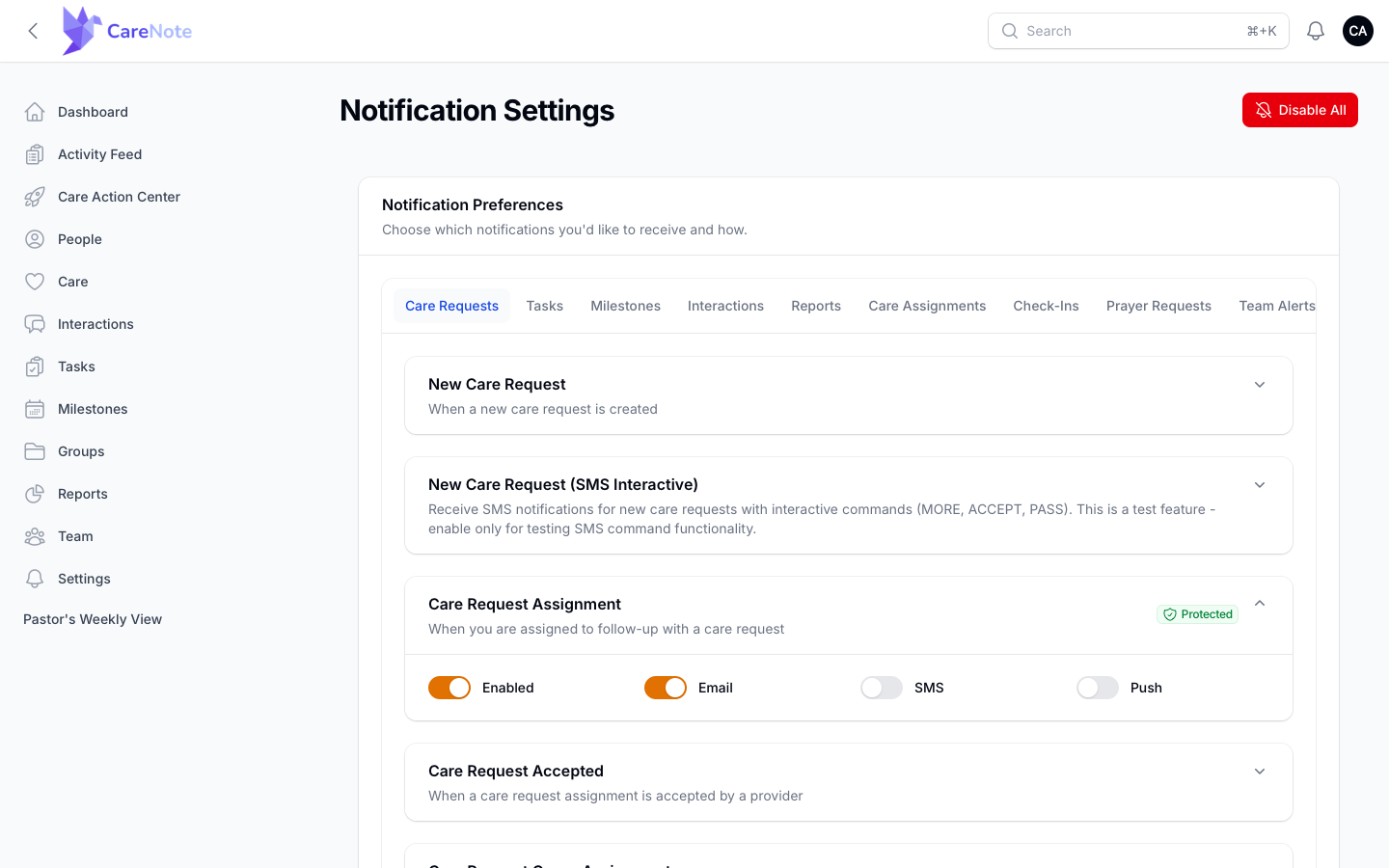
- Click a tab, then click a row to expand it. Each row explains when the notification fires and shows four toggles: Enabled, Email, SMS, and Push.
- Enabled is the master switch for that type.
- Email, SMS, and Push choose which channels carry it.
- There is no separate in-app toggle. If a type is Enabled, it appears in the bell. If you switch Email, SMS, and Push all off, CareNote saves the row as disabled, so it leaves the bell too.
- Click Save Changes. Back to Notifications returns you to the hub.
What the extra tabs cover
Admins see tabs other roles do not.
- Care Requests includes "Care request attached to your group," sent to that group's owners and managers.
- Care Number has "Care Number Message Needs Review," a real-time alert when a call or text needs a person, and "Care Number Review Reminder," a daily email when messages have waited more than a day. If you do not want after-hours texts, turn off SMS on the first one.
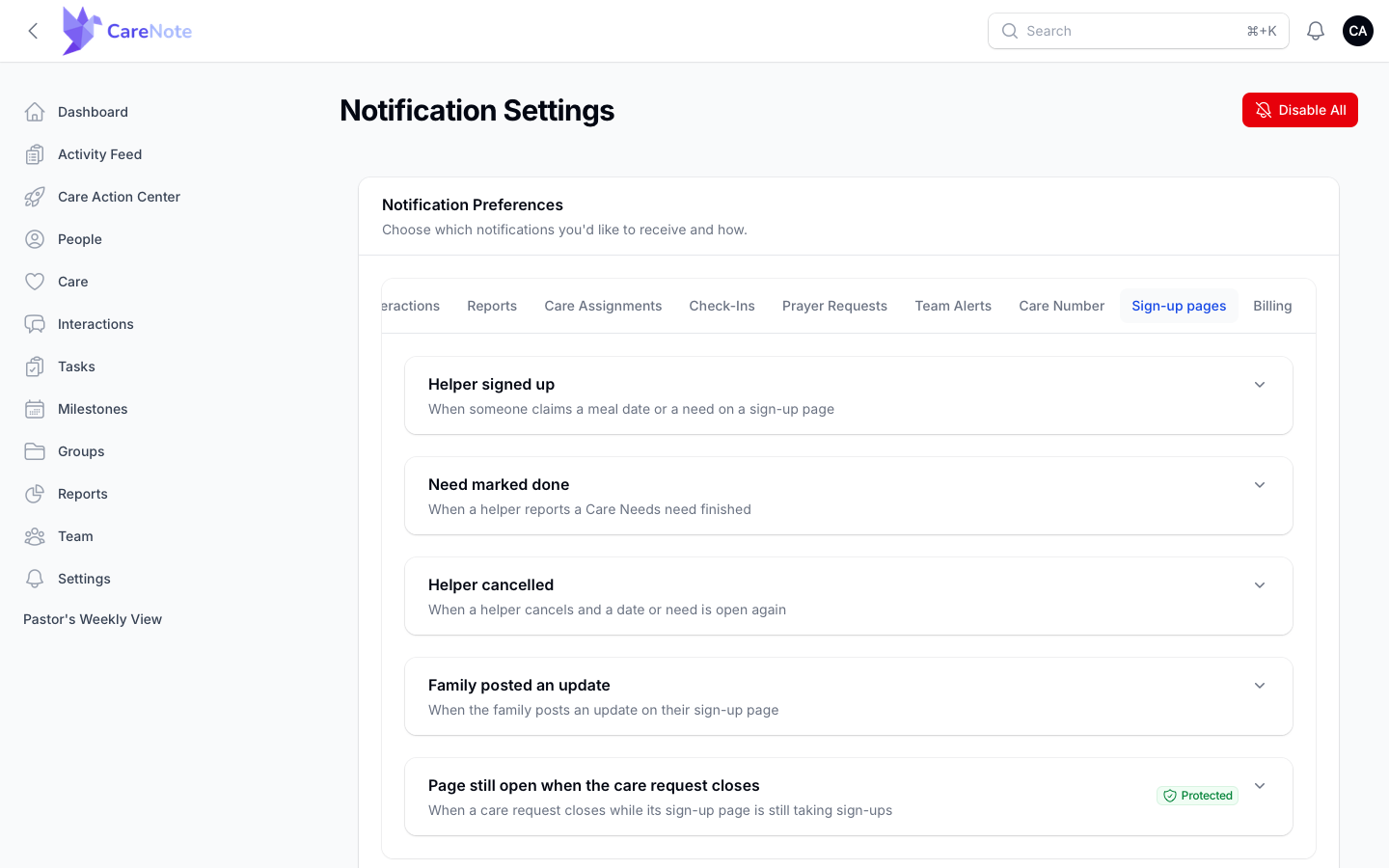
- Sign-up pages covers meal sign-ups and Care Needs pages: a helper signed up, a need marked done, a helper cancelled, a family posted an update, and "Page still open when the care request closes."
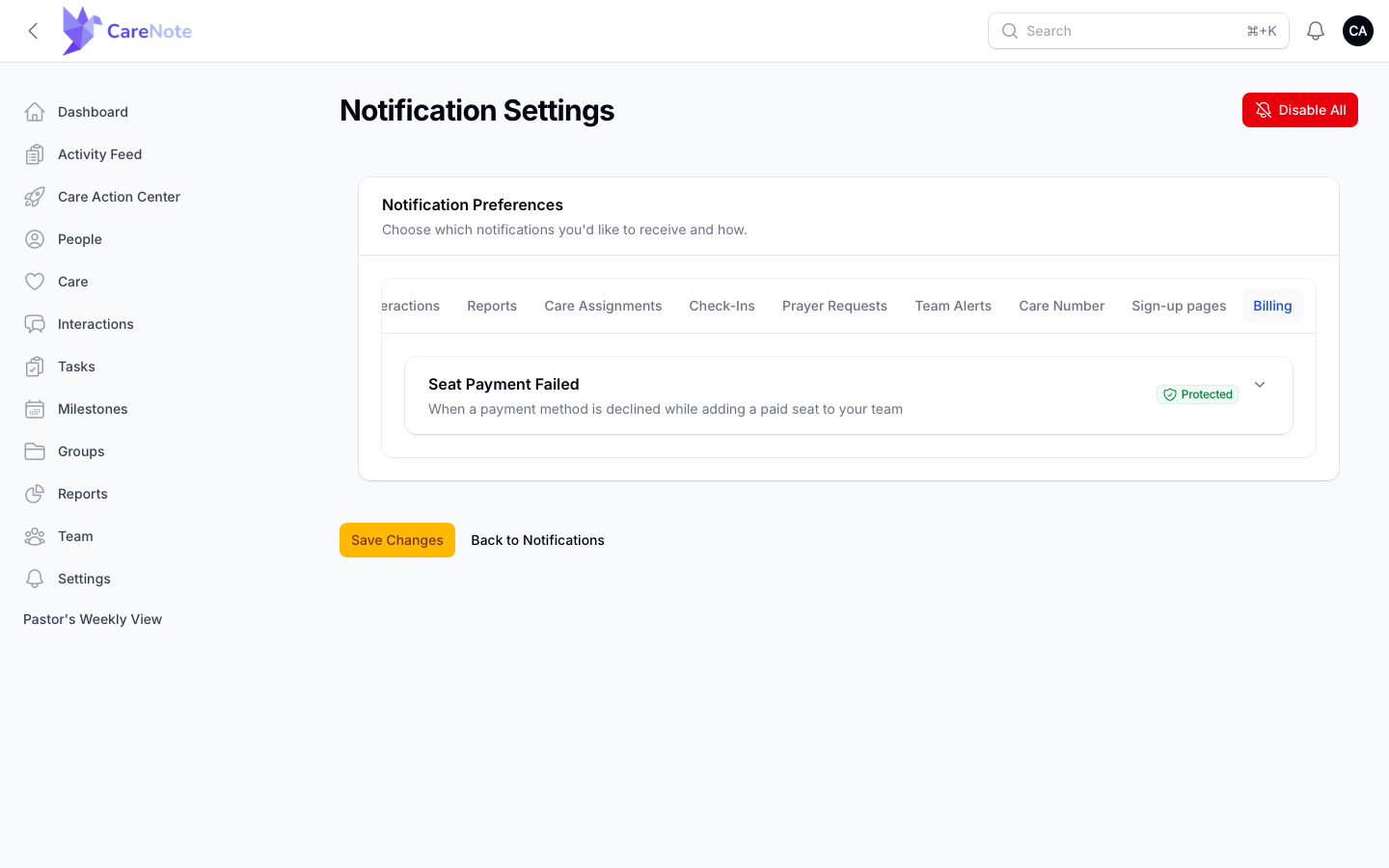
- Billing has "Seat Payment Failed."
Team Members have 8 tabs, with no Reports, Team Alerts, Care Number, or Billing. Huddle Members have 4: Care Requests, Tasks, Interactions, and Care Assignments.
What Protected means
Rows with a green Protected badge exist to make sure assigned care never goes unseen. They include Care Request Assignment, New Task Assigned, Care Request Group Assignment, New Profile Assignment, Added to a Care Huddle (for Huddle Members), Seat Payment Failed, and the sign-up page "still open" notice. Protected means three things:
- If your settings for the row are ever missing, CareNote still delivers it instead of silently skipping it.
- If you turn it off yourself, that choice is always respected.
- If you turn off every notification you have, your team owner is notified, so assigned care does not go unseen. The alert fires once when your settings go from at least one type on to none on.
For administrators: the team-level switch
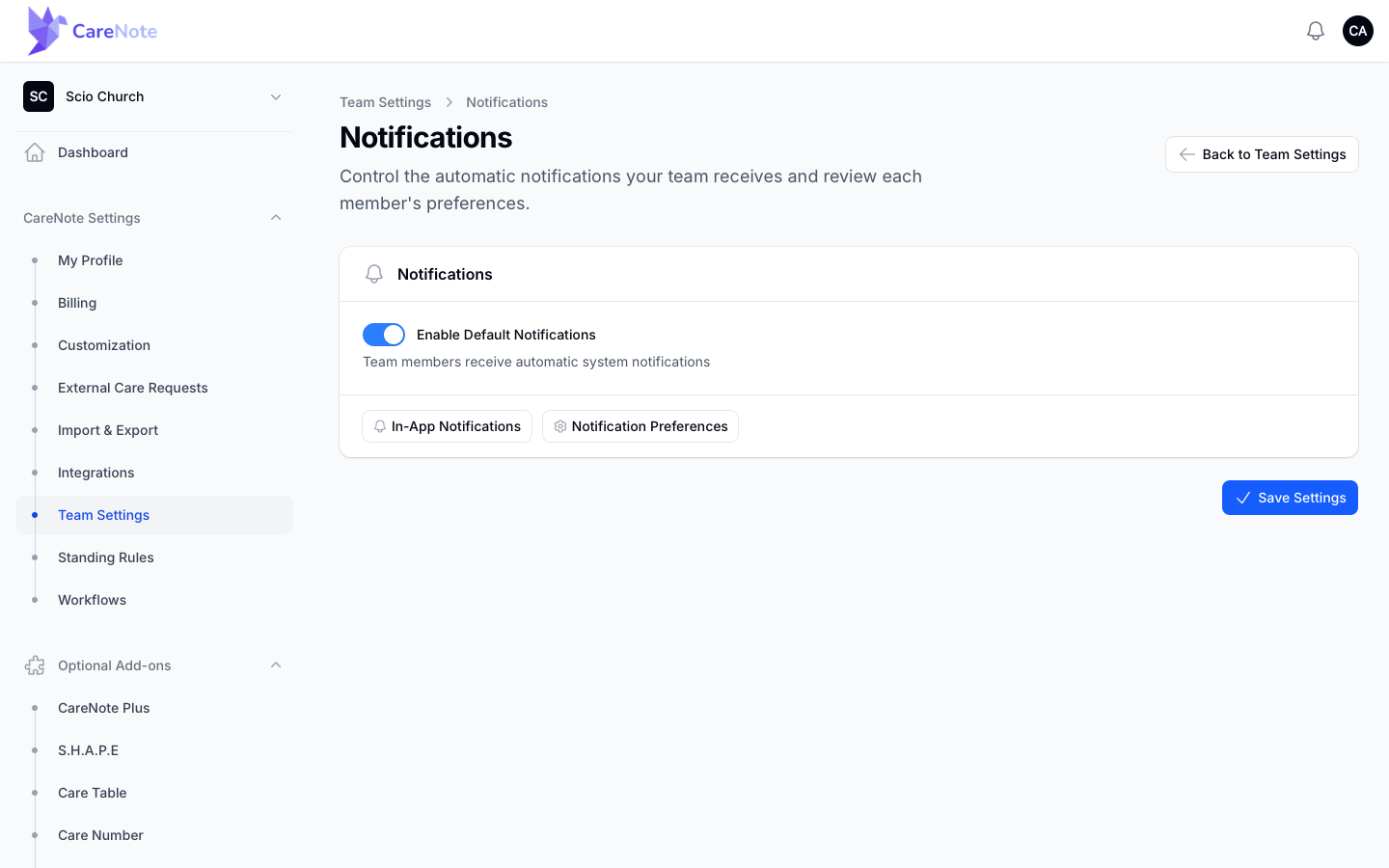
In the Owner panel, open Team Settings and then Notifications. The Enable Default Notifications switch ("Team members receive automatic system notifications") controls whether your team receives CareNote's automatic notifications. The In-App Notifications and Notification Preferences buttons on the same card take you to the notification lists, and Save Settings saves the switch.
The Daily Prayer Digest also has its own team switch on the Prayer Requests card in Team Settings.
Frequently asked questions
Is there a single button to turn everything off? Yes. Disable All at the top right of Notification Settings turns off every notification type, including assignments. If you only want less noise, turn off individual types or a single channel instead.
Why does the bell still show a notification I turned email off for? Turning off Email only stops email. While a type is Enabled and any channel is on, it still lands in the bell. To stop it everywhere, turn off Enabled, or turn off Email, SMS, and Push together.
Can I get a daily summary instead of single alerts? Yes. The Care Beacon reports (daily, weekly, and monthly) are email digests, so their rows show an Email toggle only. Look on the Reports tab.
Do I need to opt in separately for text messages? Yes. Texts need a mobile phone number and your YES reply. If you change your number, you confirm again. See our SMS guide for the full steps.
Will changing my settings change what my teammates get? No. These settings are personal. The only link between people is the Protected safety net, which tells your team owner if you turn everything off.
Watch
- Team Members 5/7: Tuning Your Notifications (Email, In-App, Push) shows the hub, the test buttons, and the full preference list.