
Managing Tasks
A care request without a follow-up plan is just a note nobody acts on. Tasks are how CareNote turns "someone should reach out about this" into a tracked item with an owner and a due date. That might be a one-off reminder you set yourself, a step in a longer workflow, or a follow-up that came out of a visit. This guide shows you how to create tasks, work them, and clear a long list quickly.
Watch the full tour of creating, working, and completing tasks in CareNote.
What is a task?
A task is an action item assigned to someone on your team. Every task has a title, a note, a due date and time, a category (General by default), a place if it happens somewhere specific, and an assignee. Its state is To Do, In-Progress, or Completed. A fourth state, Rejected, records "we are not doing this".
Tasks come from four places:
- One at a time. A team member creates one from the Tasks page or from a person's profile.
- Workflows. Steps in a workflow become tasks, like a "Journeying through Grief" sequence that reminds a coordinator to send a book or make a call. A workflow step is assigned when its lead time arrives, and until then it shows a "Starts" badge with its date on the admin Tasks list.
- Standing Rules. A rule such as a call a month after a loss creates an ordinary task.
- Follow-ups. When a teammate logs an interaction and flags it as needing follow-up, CareNote creates a matching task. A care report that asks for a follow-up keeps the care request open and creates one linked task.
1. Create a task
- Click Tasks in the left navigation, then New task.
- Give it a short, specific title in the Task field.
- Add detail in Task Note if it helps.
- Set the Due Date, then the Hour, Minute, and AM/PM selects.
- Leave State at To Do unless the work is already in progress.
- Choose a Category, or click the + button to add one for your team.
- If the task happens somewhere specific, pick a Place, or click + to add a new one.
- Confirm Assign Task to. It defaults to you, but you can search for anyone on your team.
- Click Create, or Create & create another if you are adding several in a row.
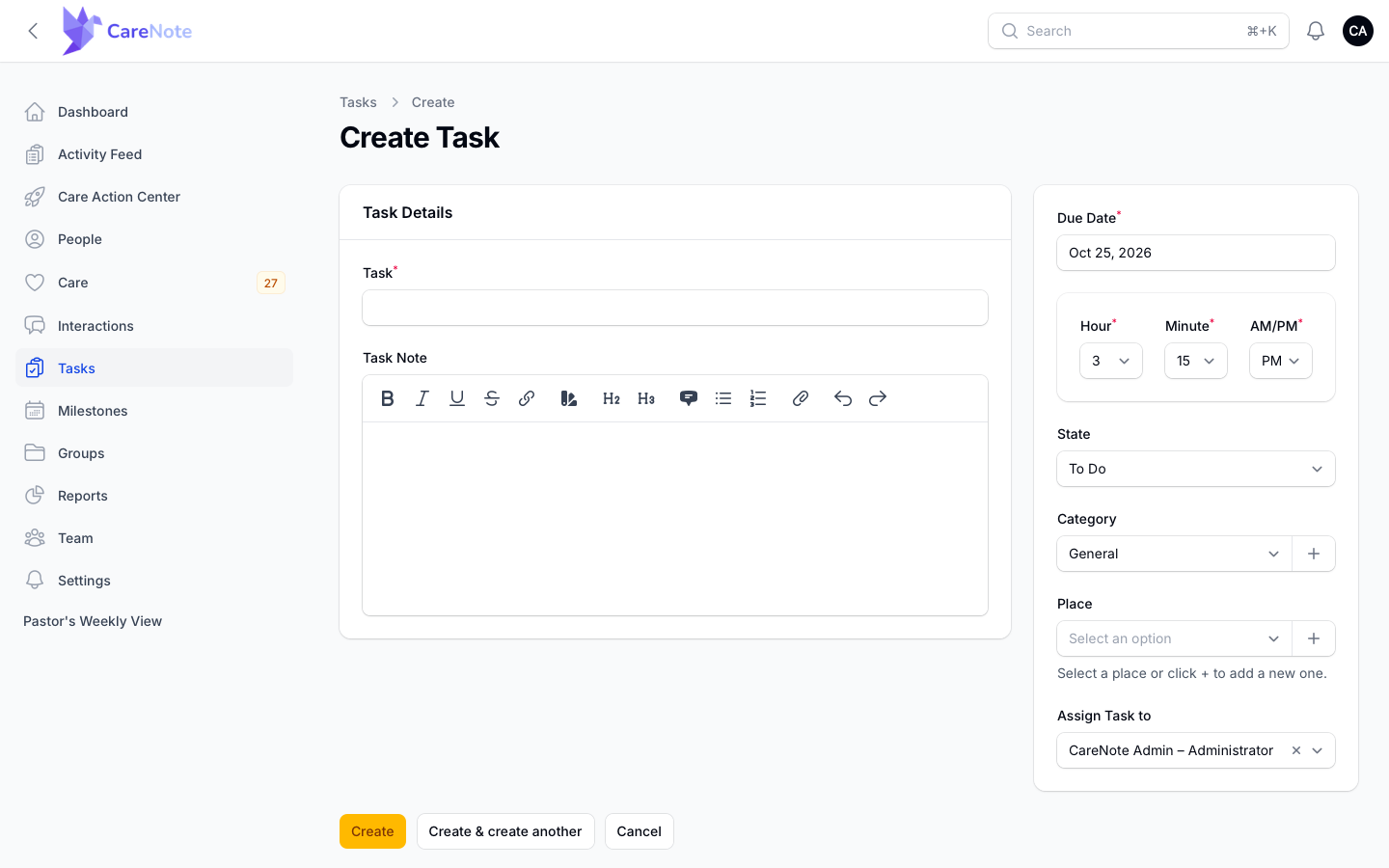
This standalone form has no person picker, so a task started here is not linked to anyone's profile. To tie a task to a person, create it from their profile instead.
2. Create a task from a person's profile
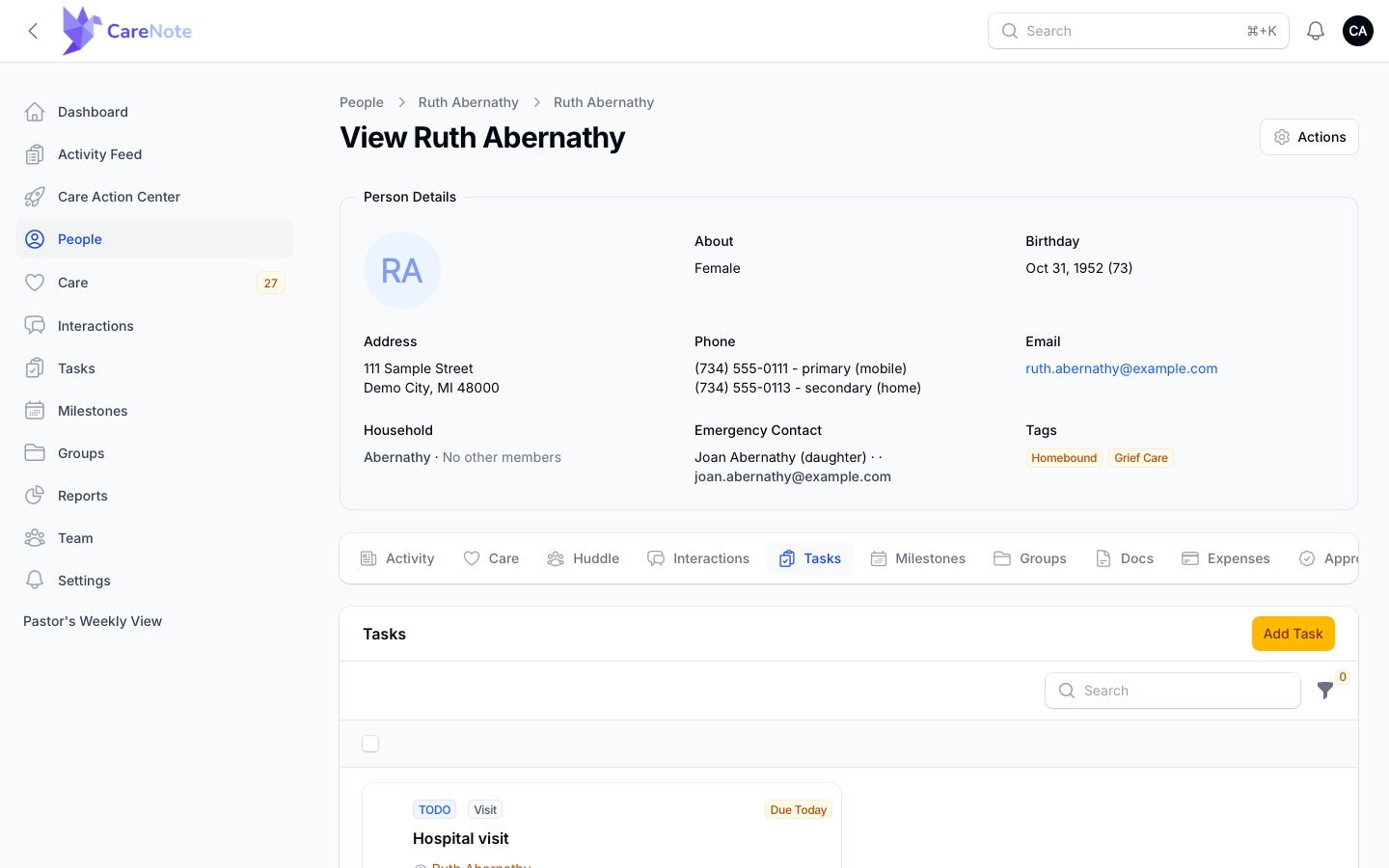
Open the person's profile, go to the Tasks tab, and click Add Task.
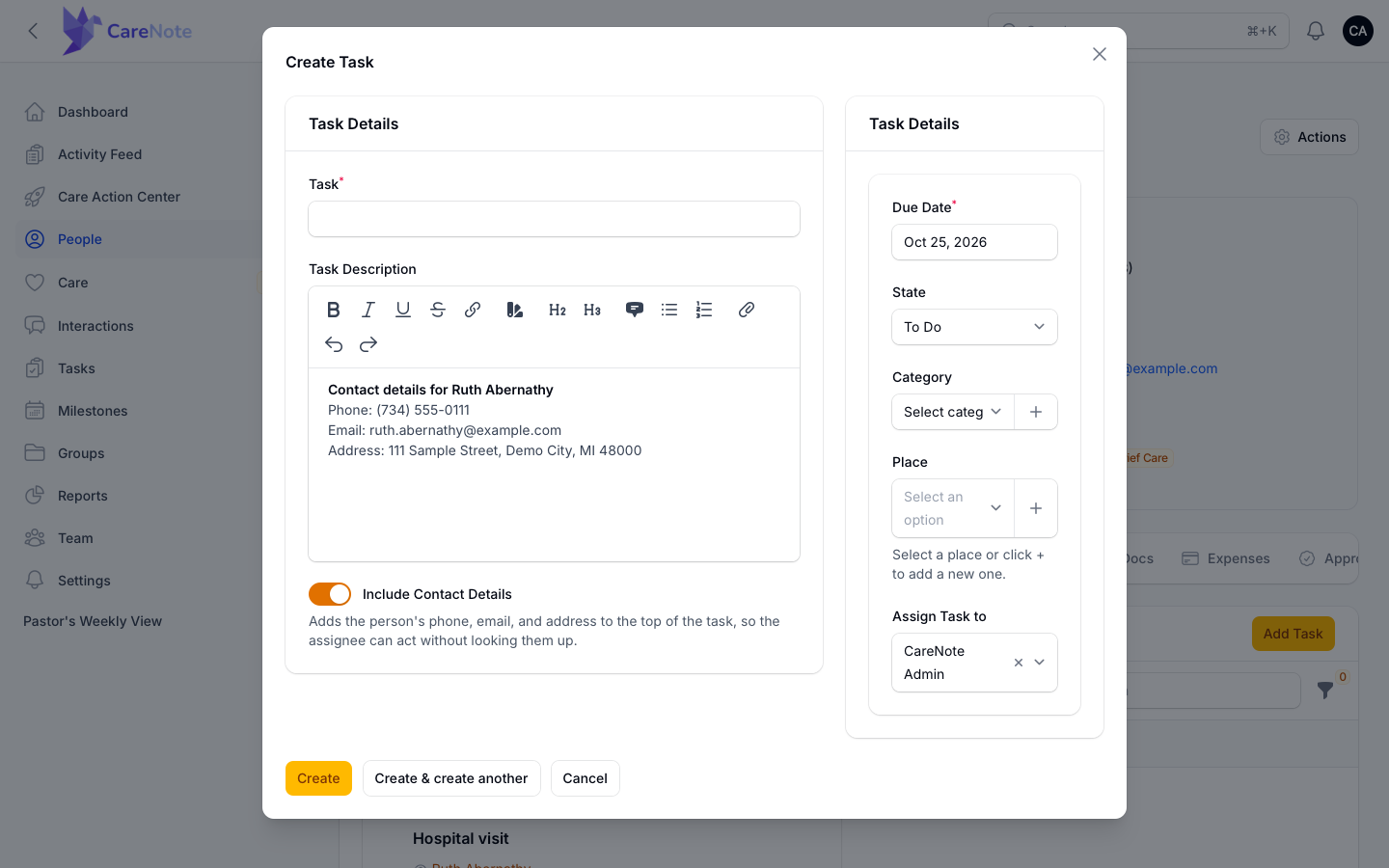
This version of the form has an Include Contact Details toggle. Turn it on and CareNote adds the person's phone, email, and address to the top of the task, so the assignee can act without looking them up.
3. Read the Tasks list
Open Tasks and your team's tasks appear as cards in a two-column grid. Each card shows its state, category, due date, title, the linked person, the first line of the note, and the assignee.
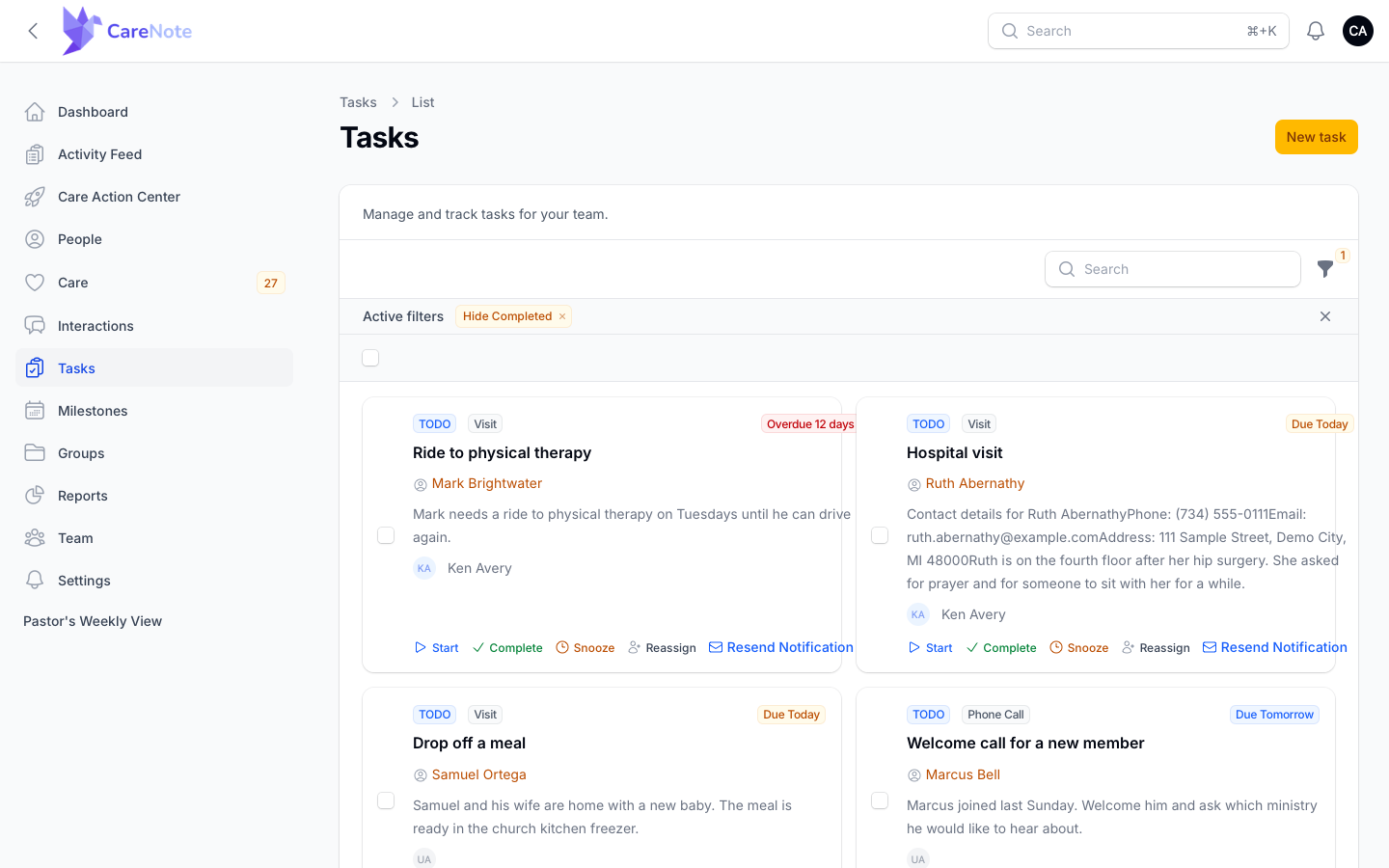
Hide Completed is on by default. It hides both Completed and Rejected tasks, and you can turn it off in the filters. The filter icon also offers Status, Assigned To, Due Date (Overdue, Today, This Week, Next 7 Days, or a custom range), and Workflow.
4. Work a task
Open cards have actions right on the card:
- Start moves a To Do task to In-Progress
- Complete marks it done right away, with no confirmation step
- Snooze picks a new due date and changes nothing else
- Reassign opens a quick modal to hand the task to someone else
- Resend Notification sends the assignment email again. It asks you to confirm first, and there is a short wait before you can resend the same task
- View opens the full task
Completed and rejected cards keep only View.
Click View to open the task page. It shows Task Details (Person, Status, Due Date, Place, Description) and Assignment Details, with a Notes section below for notes and interactions about the task. If the assignee submitted a completion report, a Completion Report section shows their notes and any follow-up they asked for.
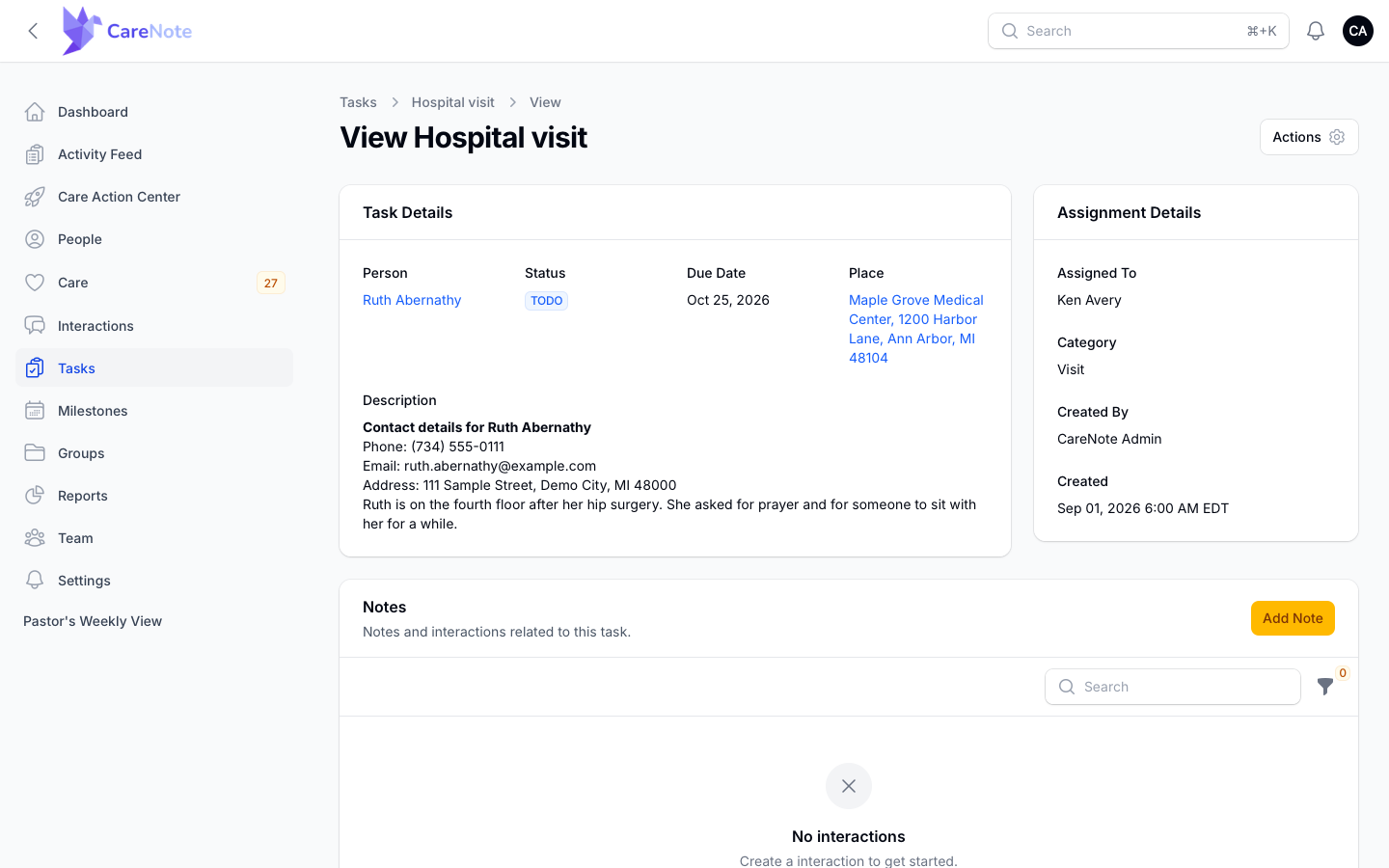
The gear Actions menu on this page holds Edit, Resend Notification, Mark as Started, Mark as Completed, Snooze, and Reject. A To Do task can be completed directly, without starting it first. Reject is how you record "we are not doing this" without deleting the task.
Edit is available only to the person who created the task. Anyone else can still Snooze or Reassign it.
5. Work a large caseload from the Tasks tab
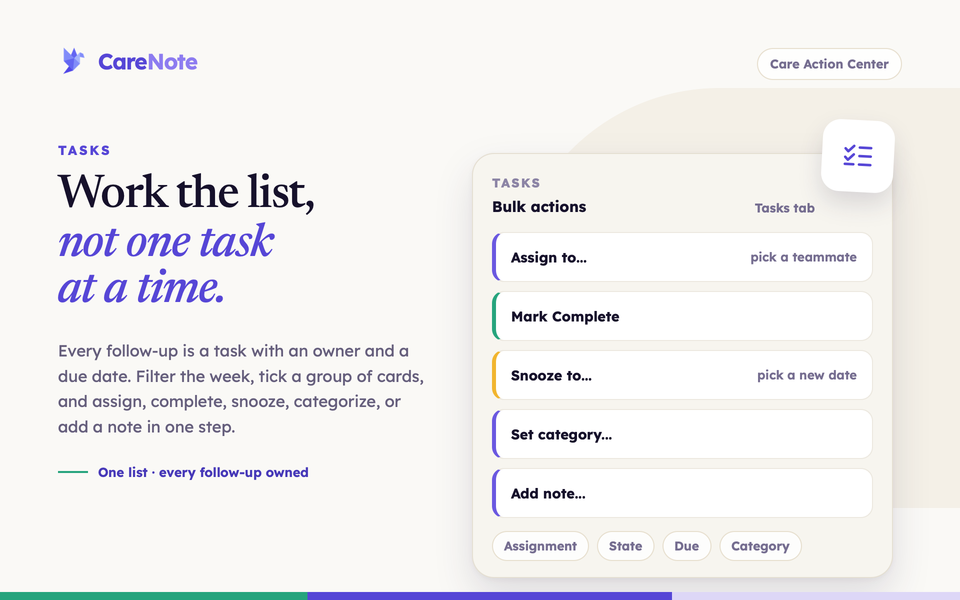
When you have dozens of follow-ups, open the Care Action Center and choose the Tasks tab. A badge on the tab tells you how many need attention.
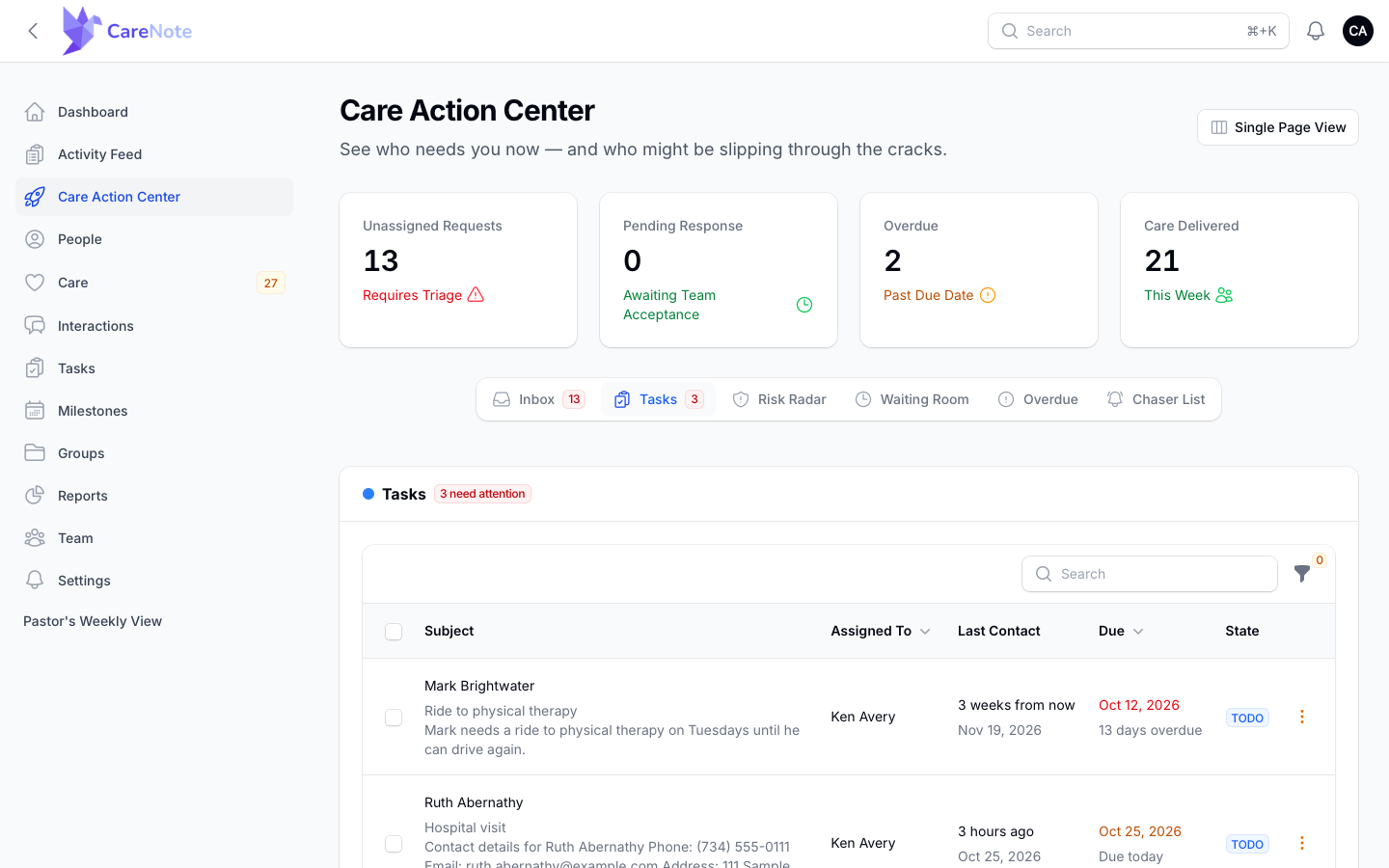
Use the Assignment, State, Due, and Category filters to narrow the list to the week you are planning. Your filters are remembered for the session.
Tick the rows you want, then open the bulk menu:
- Assign to… hands the selected tasks to one teammate
- Mark Complete completes them all
- Snooze to… moves them all to a new date
- Set category… changes their category
- Add note… logs one note on every selected task, which shows on each person's record as a touch point
- Delete selected removes them (admins only)
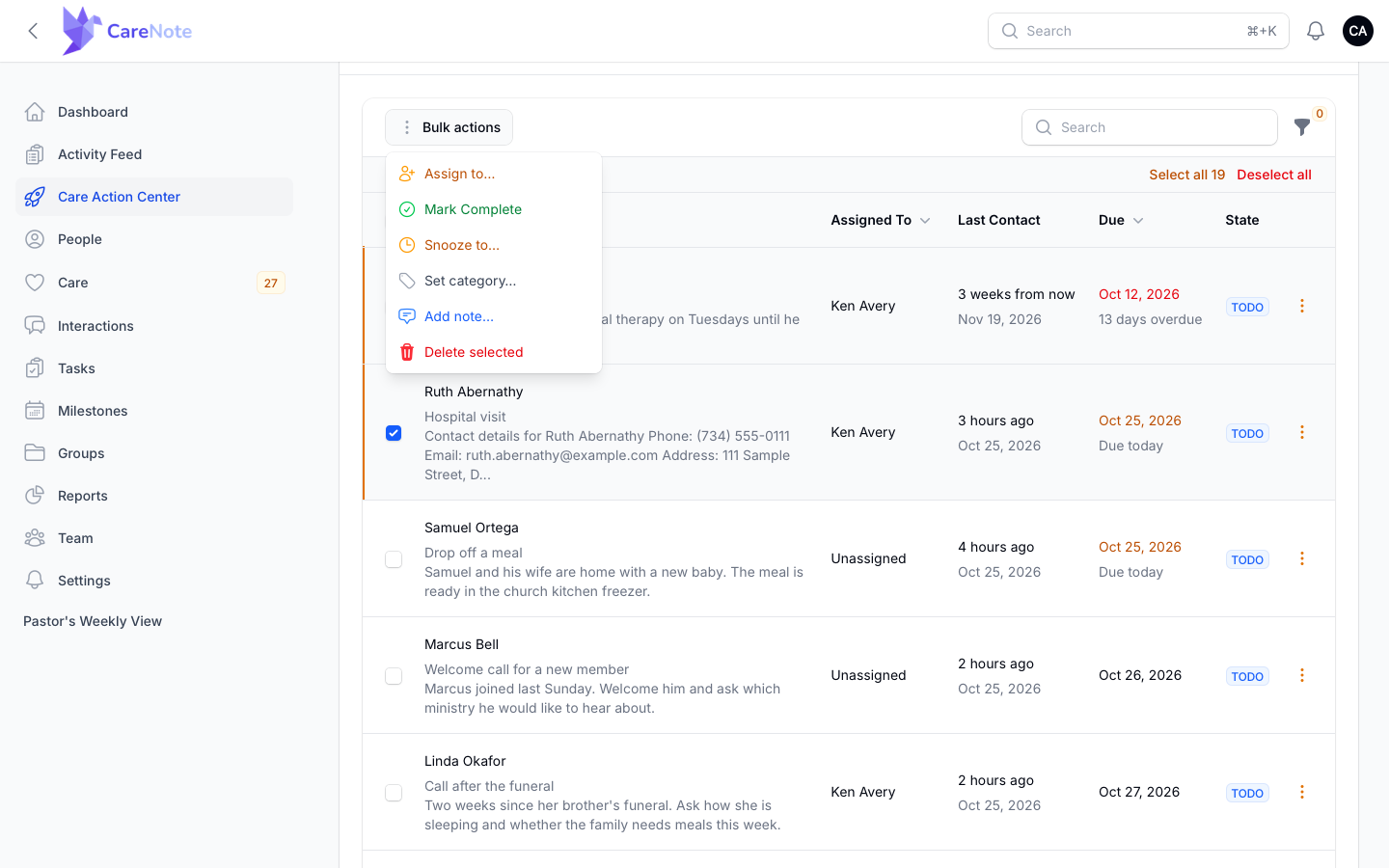
Actions that change a task skip tasks already Completed or Rejected.
Team members get the same cards and bulk actions on their own Tasks page, without Delete.
Frequently asked questions
Who can edit or delete a task? Only the creator can edit a task or delete it from its Edit page. Administrators can delete any task on their team, one at a time or in bulk.
Does completing a task affect anything else? If the task came from an interaction's follow-up, completing, rejecting, or deleting it closes that follow-up. If it is the last step of a workflow, the workflow marks itself complete.
Do all tasks need to be linked to a person? No. A task from the standalone Tasks page stands alone. Create it from a person's profile to link it.
Watch
- How to manage follow-up tasks: the full tour of creating and working tasks.
- The Tasks tab for a large caseload: filter the week and work it in bulk.
- Assigning tasks to teammates: turn a visit into a follow-up and hand it off.
- When a care report has a follow-up: the request stays open and one task is created.