
Tracking Care Expenses
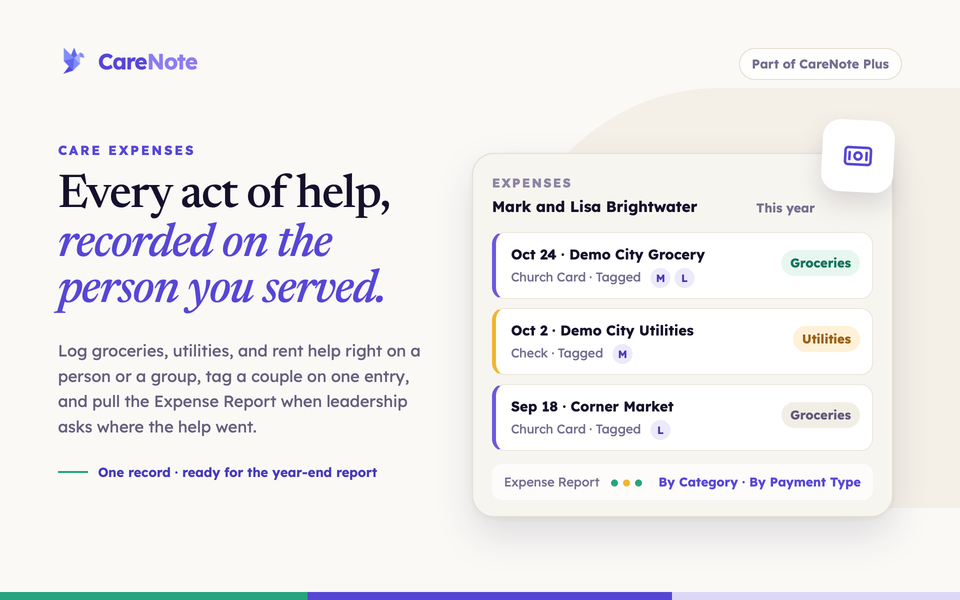
When your church helps a family with rent, covers a utility bill, or picks up a grocery run, that act of care is easy to remember in the moment and easy to lose track of by the end of the year. Expense tracking gives you a simple way to record that help right where your care already lives, so you always know what was given, to whom, and when.
Watch: the Plus toolbox for Team Members.
What it is
An expense in CareNote is a record of money your church spent caring for someone. Each one carries the date, the amount, the merchant, a category (such as Groceries or Utilities), and a payment type (such as Church Card). You can tag every person the expense helped, add free-form tags, and write a description of the need.
Expenses live in two places:
- On a person, in the Expenses tab of their record, so the financial side of care sits beside their visits, tasks, and care requests.
- On a group, in the group's Expenses tab, for costs that belong to a ministry or team rather than one person.
When you need totals, the Expense Report adds everything up across your whole team, with breakdowns by category, payment type, group member, merchant, and month.
Expense tracking is part of CareNote Plus. Without Plus, the Expenses tab shows an "Expense Tracking" page with a "Learn about CareNote Plus" link instead of the buttons below.
1. Open a person's Expenses tab
- Open People and find the individual or family you helped.
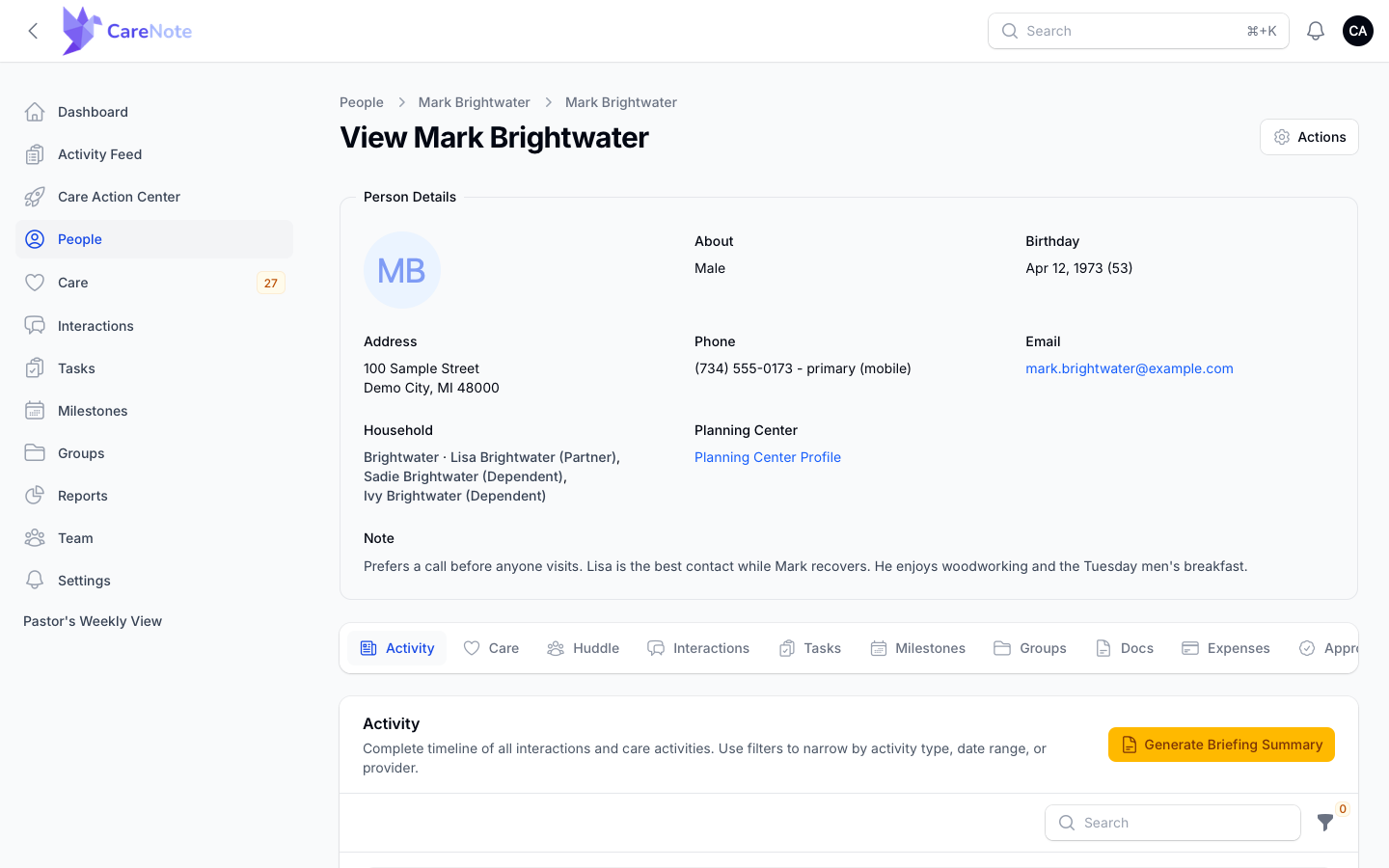
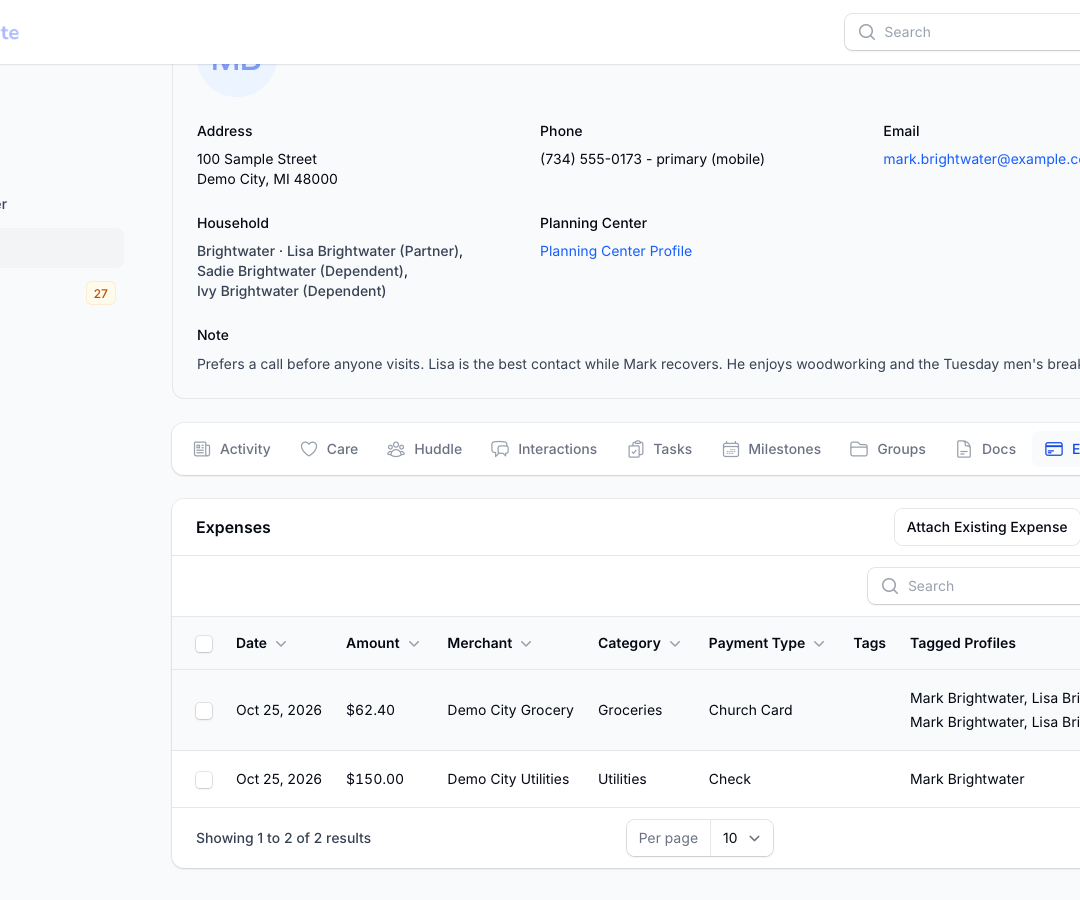
- Open their record. In the Admin panel the tab row reads Activity, Care, Huddle, Interactions, Tasks, Milestones, Groups, Docs, Expenses, and Approvals.
- Click Expenses.
The tab lists each expense with Date, Amount, Merchant, Category, Payment Type, Tags, and Tagged Profiles, newest first. Above the table are two buttons: Attach Existing Expense and Add Expense.
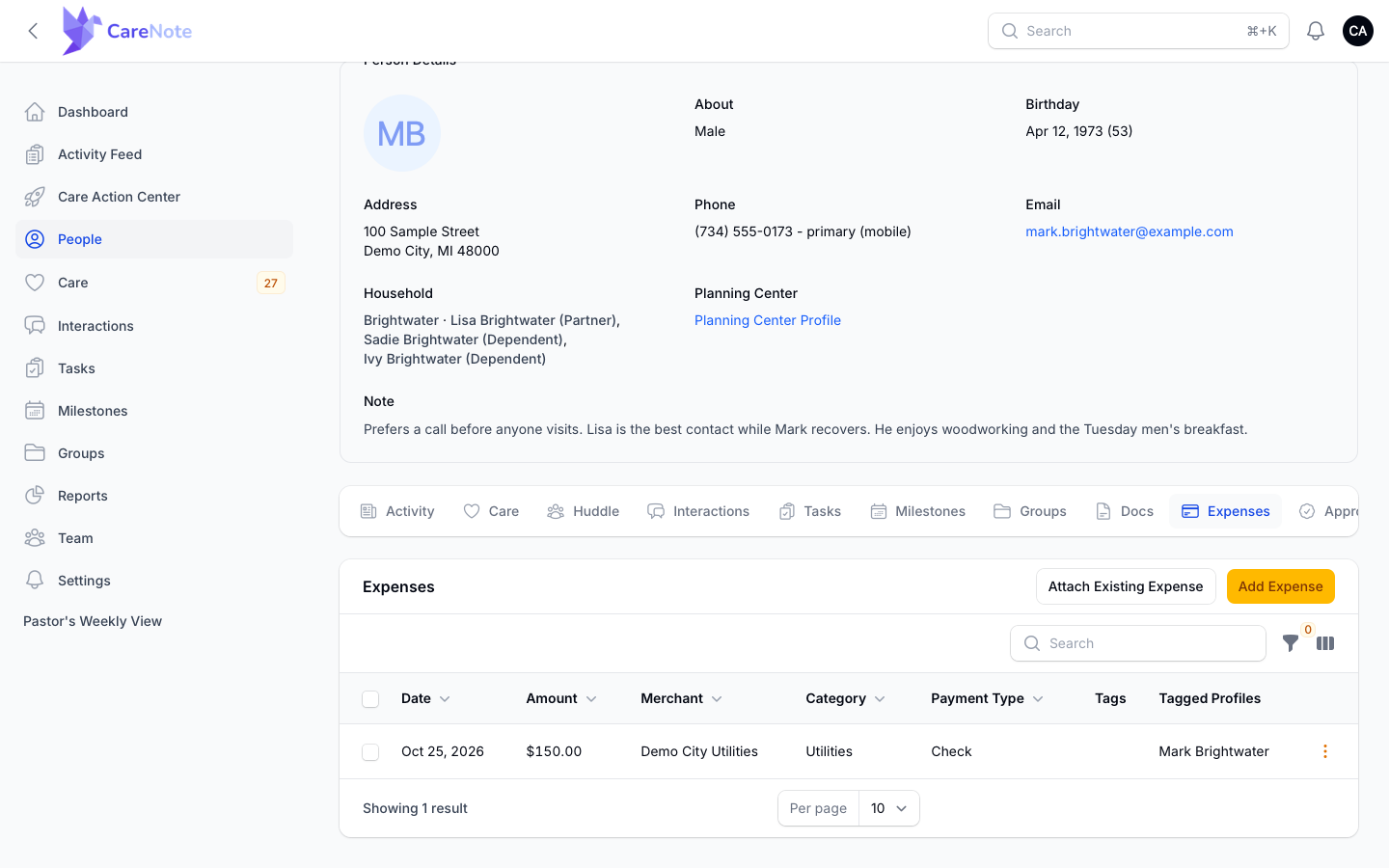
Team Members see the same tab, with the same buttons, on the person record in their Dashboard.
2. Add an expense
- Click Add Expense. The Create Expense form opens.
- Fill in the required fields: Expense Date (today by default), Amount, Merchant, Category, and Payment Type.
- If the category or payment type you need is not in the list yet, click the + button beside the field, type a name, and save it. It is ready for everyone on your team from then on.
- Under Tagged Profiles, the person you started from is already selected. Add anyone else the expense served, for example both spouses for couple's counseling.
- Optionally add Tags and an Expense Description to capture the story behind the need.
- Click Create, or Create & create another if you have several receipts to enter.
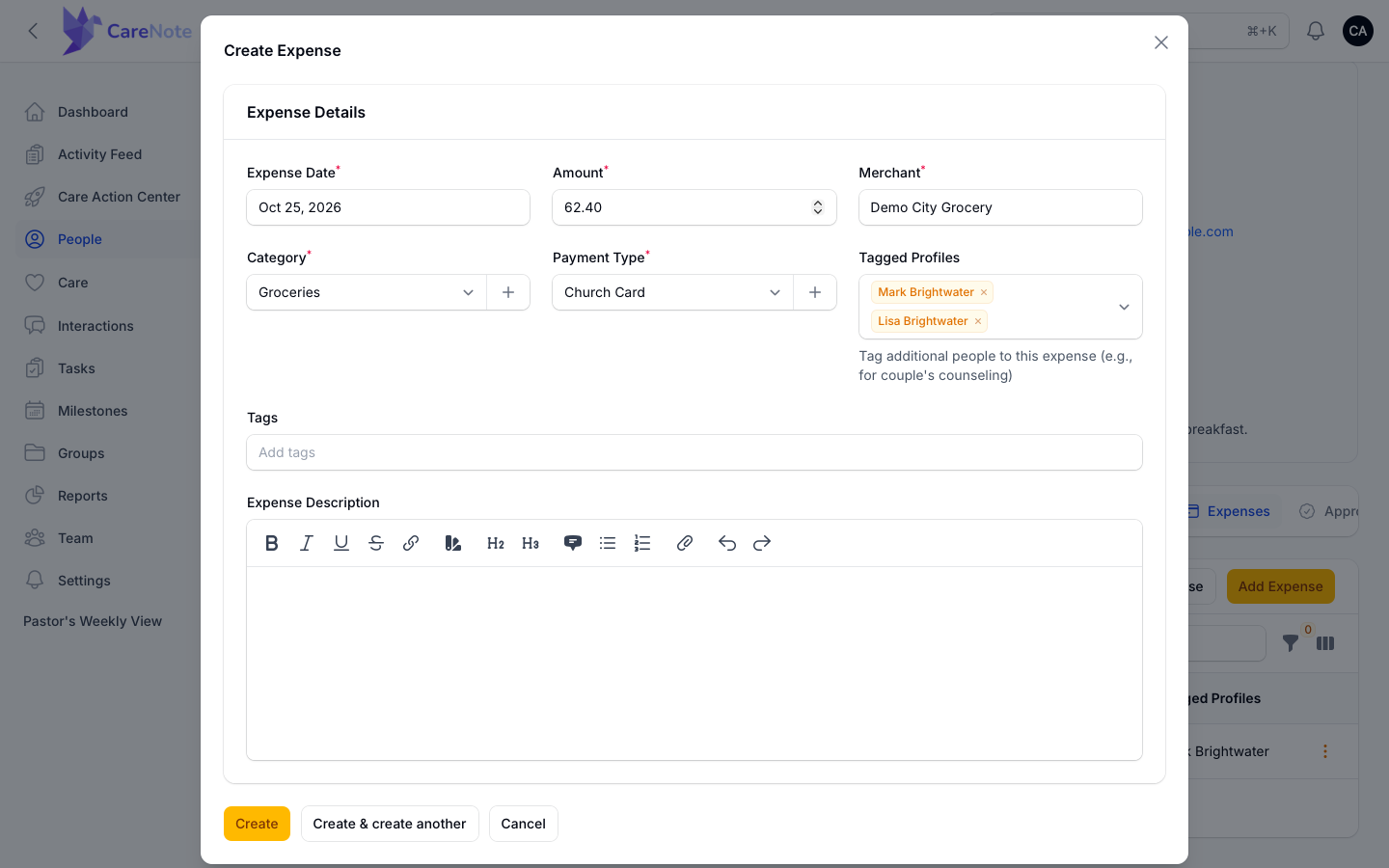
The new expense appears at the top of the table, and on the Expenses tab of everyone you tagged.
3. Attach an expense that already exists
Sometimes an expense was logged on one person and also belongs to another, such as a spouse or a parent. Instead of entering it twice:
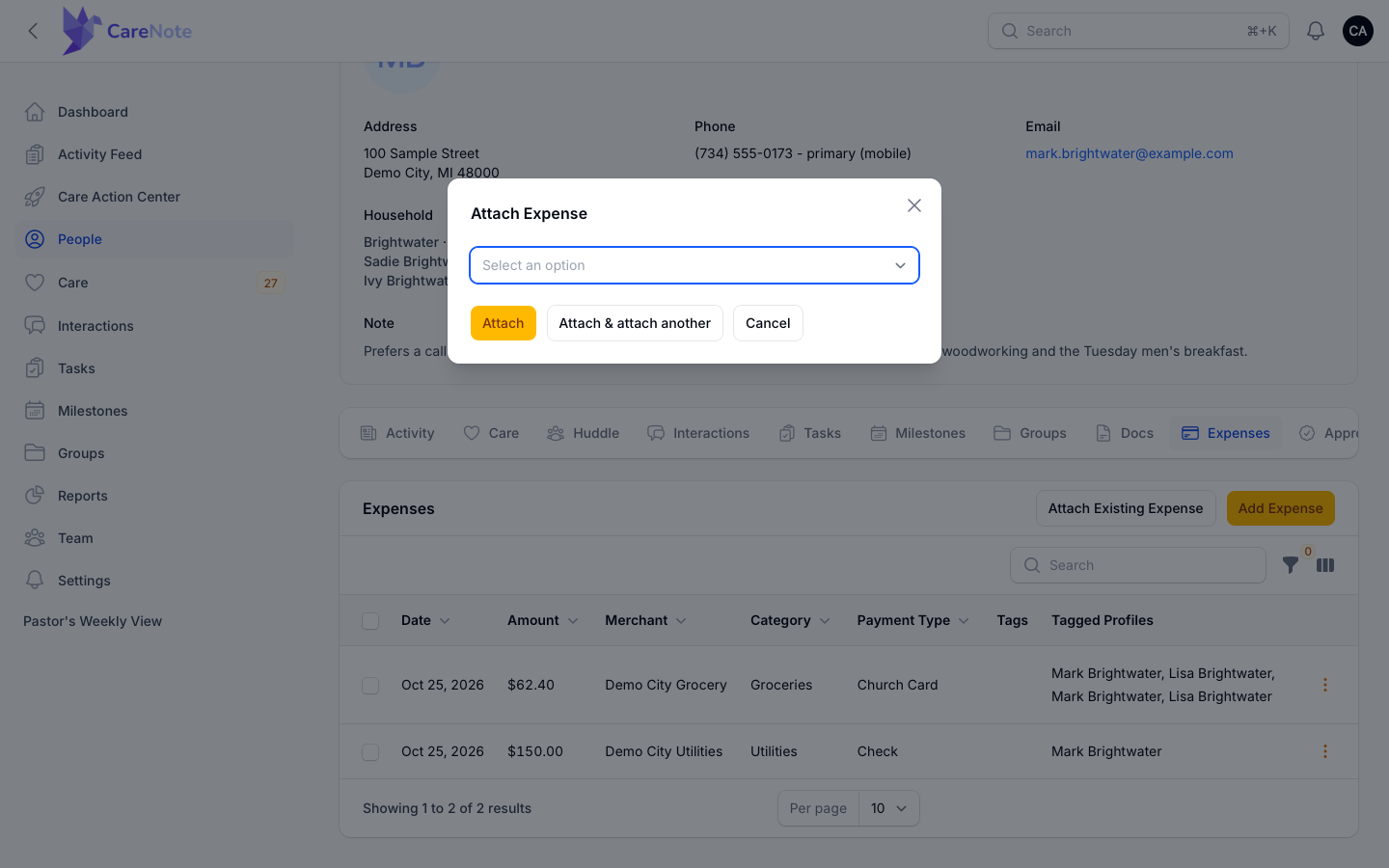
- Click Attach Existing Expense.
- In the Attach Expense window, search by merchant or description. Each option shows the date, merchant, and amount.
- Click Attach, or Attach & attach another.
4. Review, edit, or detach an expense
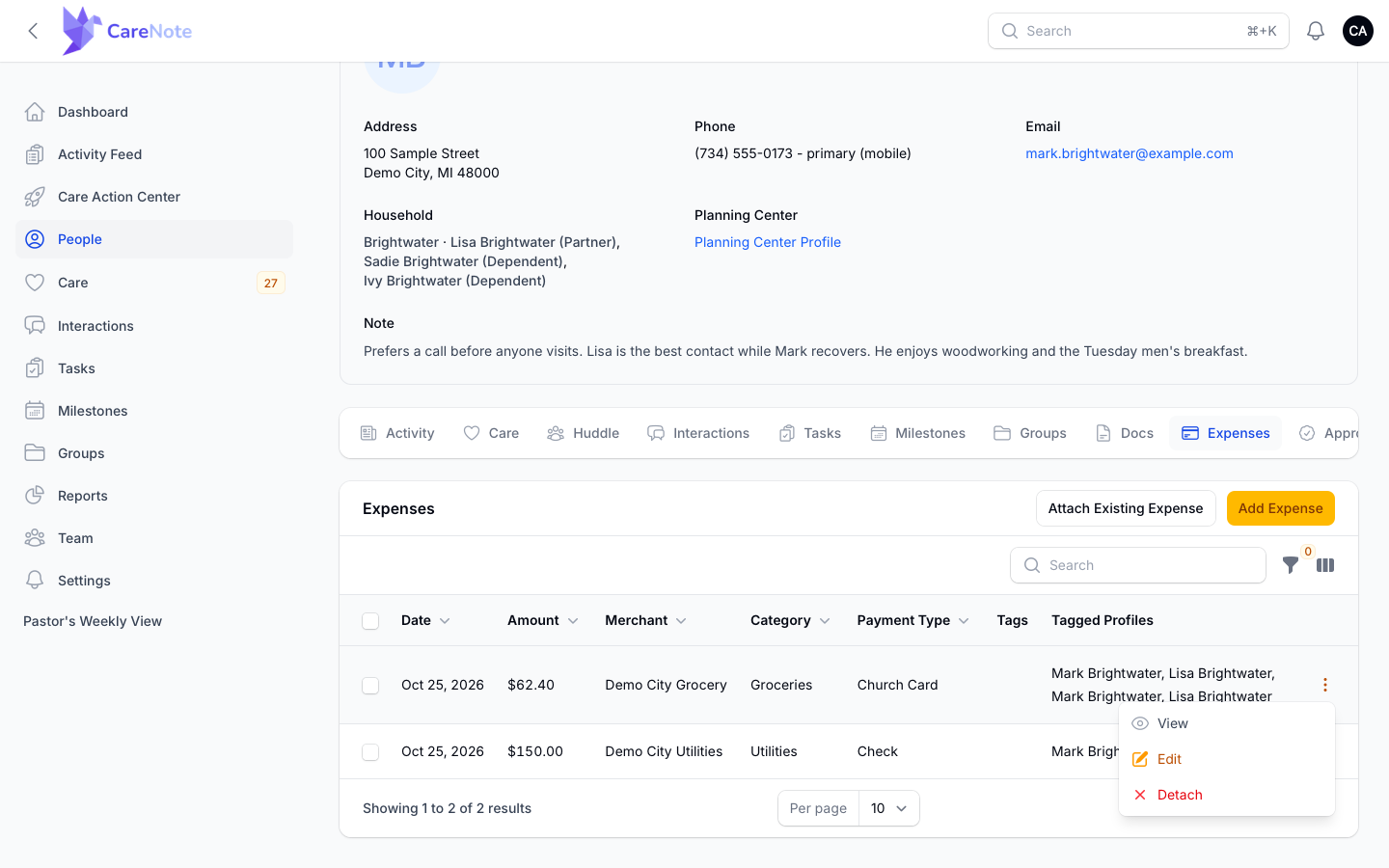
Each row has a menu with View, Edit, and Detach.
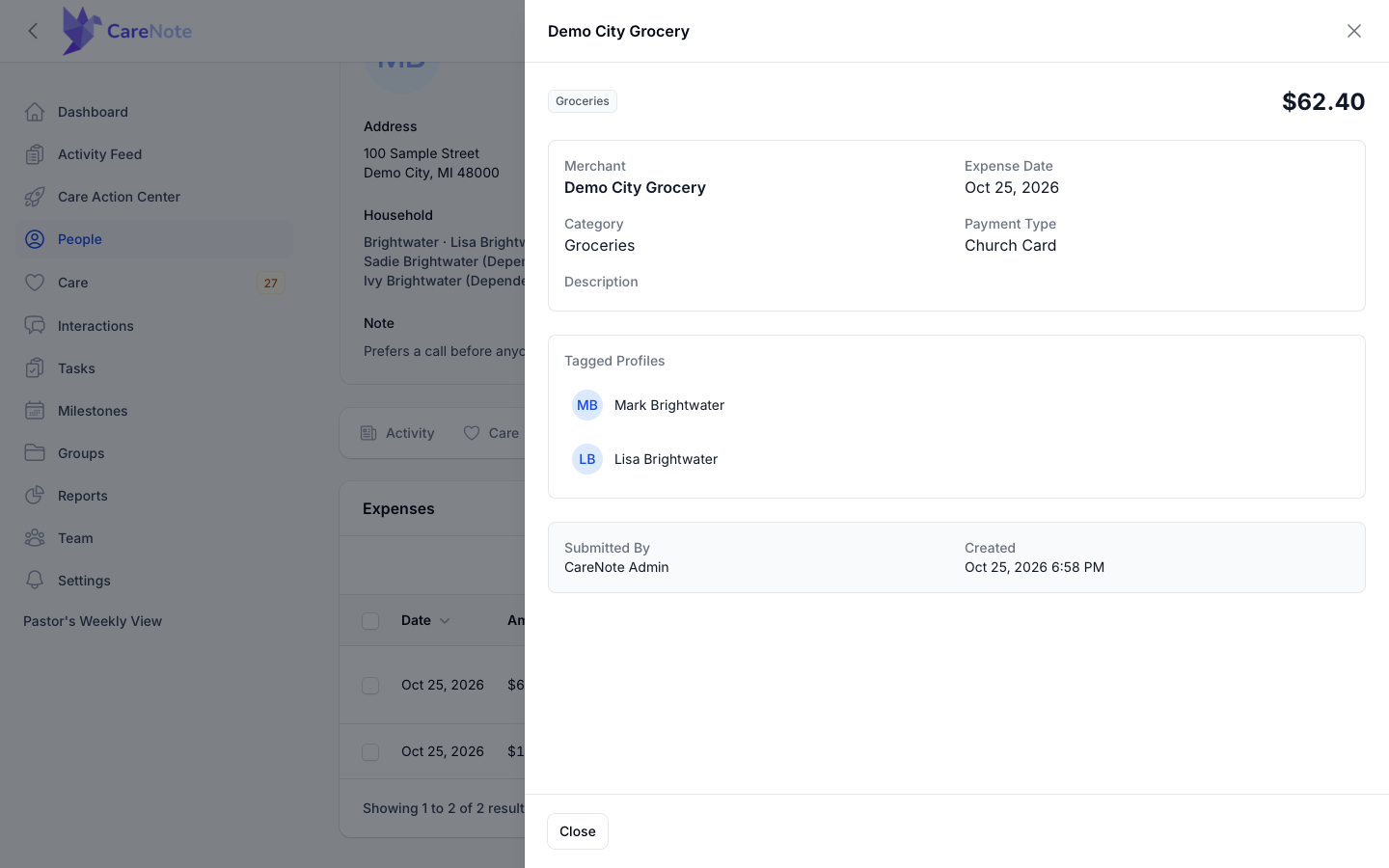
View opens a side panel with the merchant, amount, date, category, payment type, description, tagged people, who submitted it, and when it was created.
To narrow the list, open Filters. Choose a Year (Current Year, Last Year, or 2 Years Ago), a Category, or a Type (the payment type), then click Apply filters. Reset clears them.
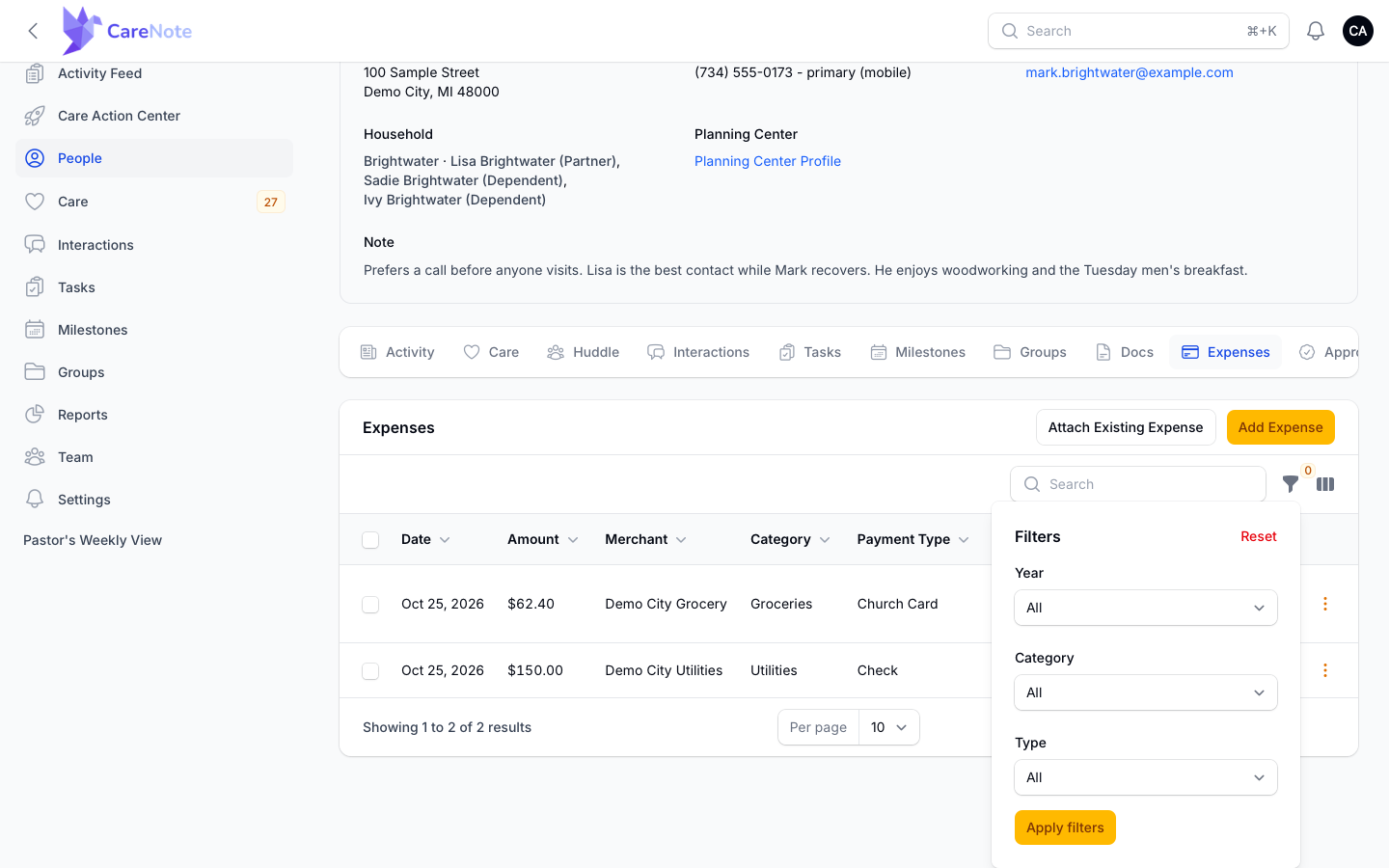
The tab itself does not show a running total. For totals, use the Expense Report in step 6.
5. Track expenses for a group
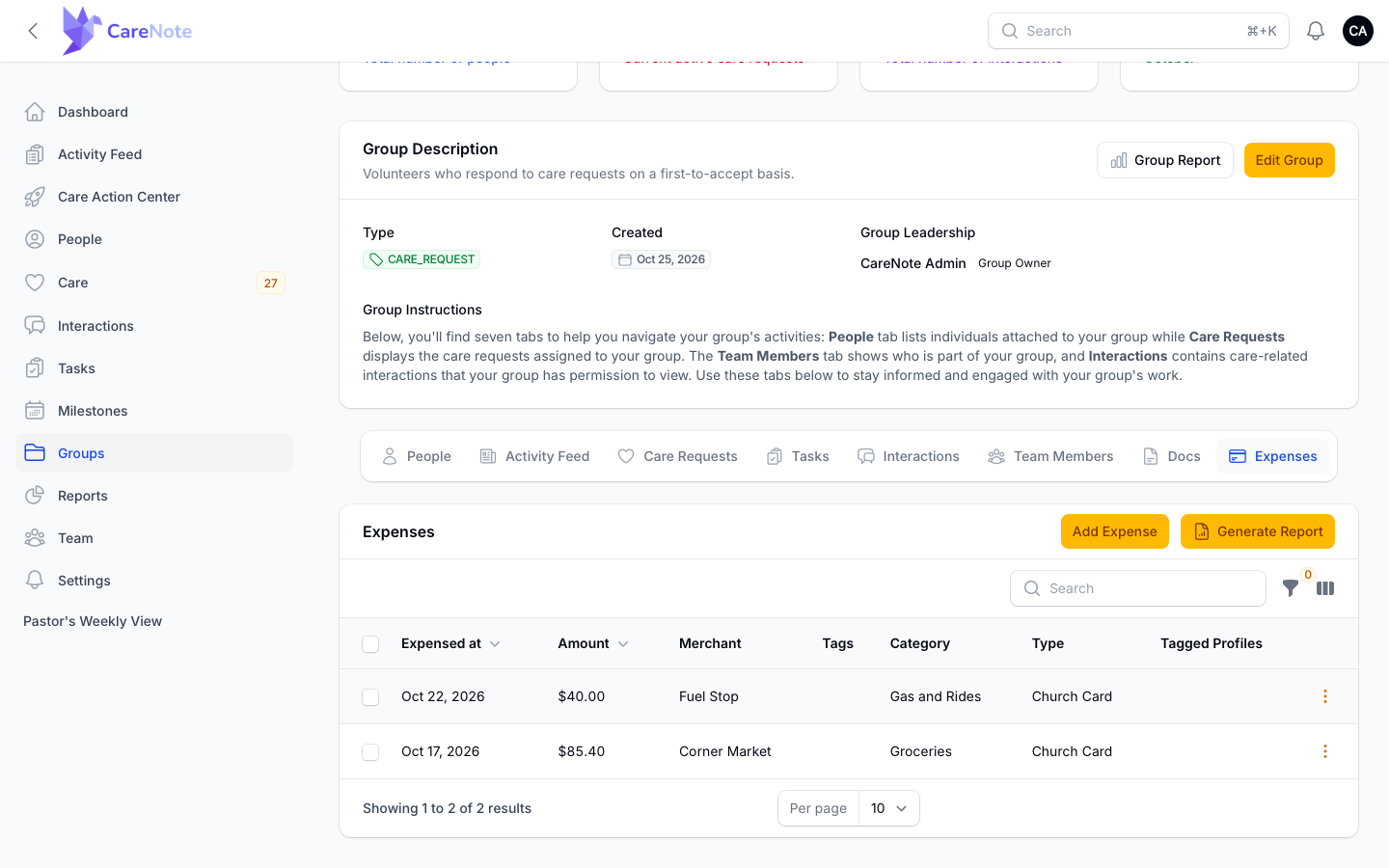
Open a group and click its Expenses tab. Add Expense works the same way it does on a person. In the Admin panel, each row's menu offers View, Edit, and Delete.
Administrators also see Generate Report, which builds a report for just that group: pick a Report Type, a Start Date, and an End Date. Team Members who manage a group can add expenses to it.
6. See totals in the Expense Report
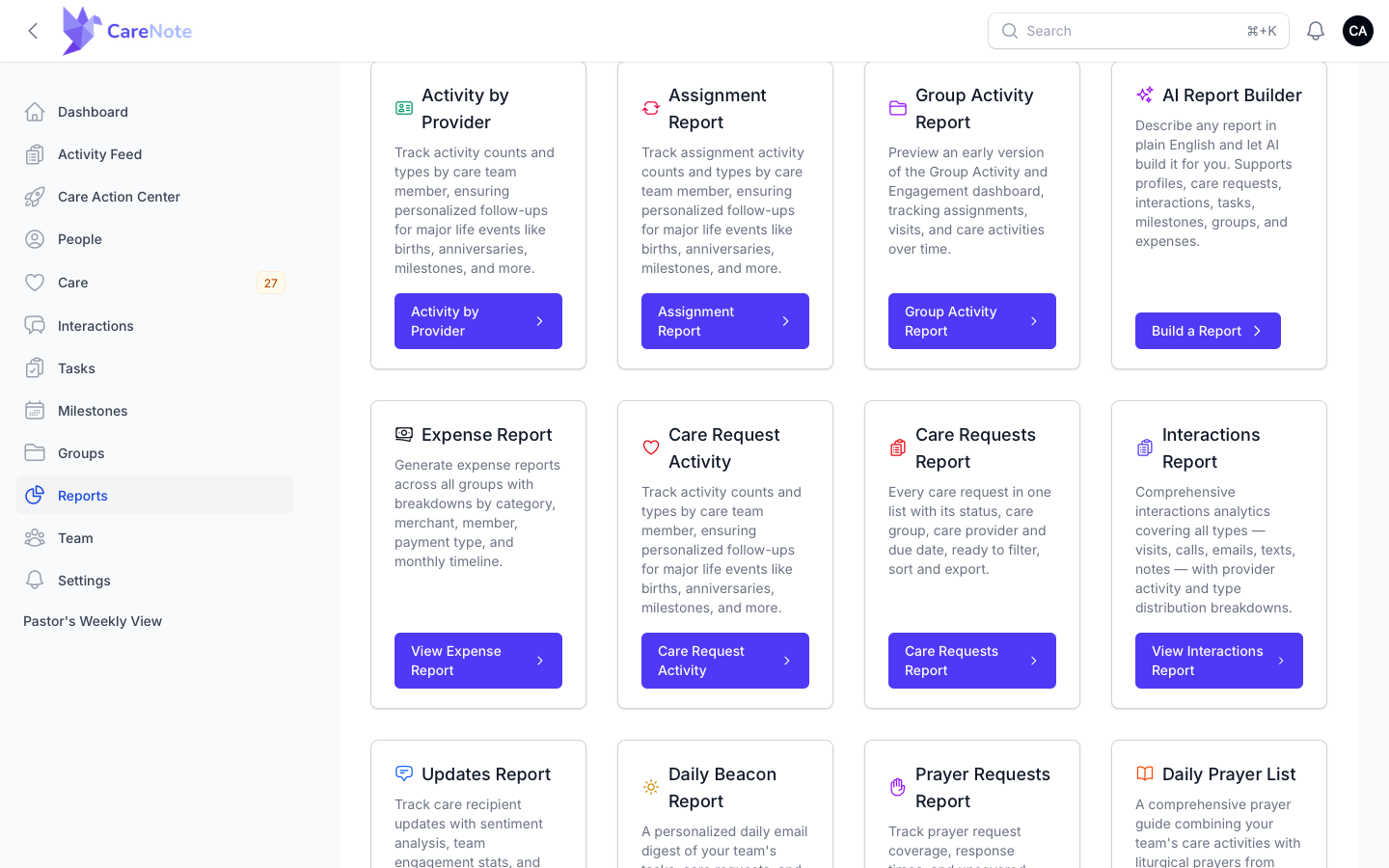
Administrators find the Expense Report on the Reports page.
- Open Reports and find the Expense Report card.
- Click View Expense Report.
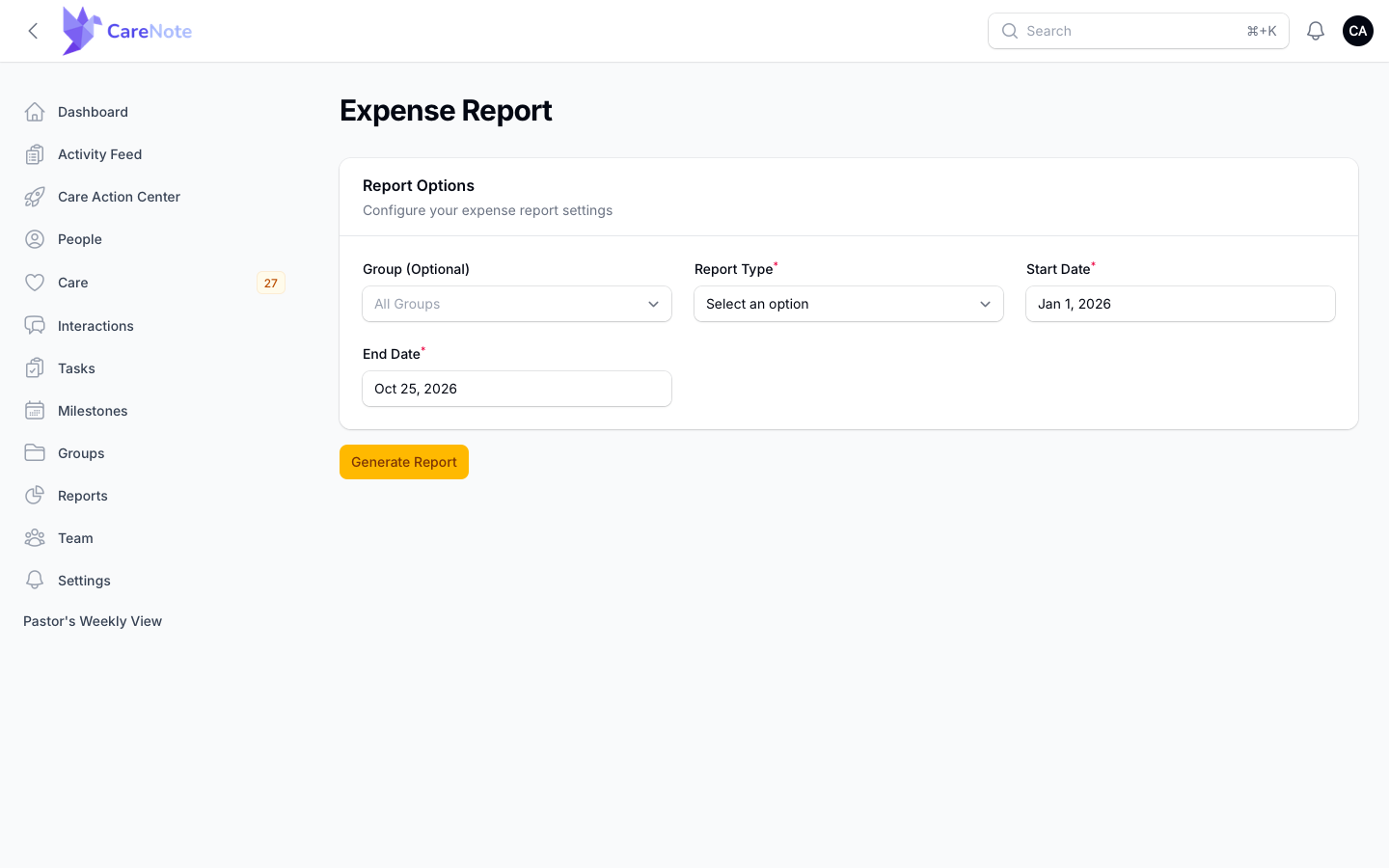
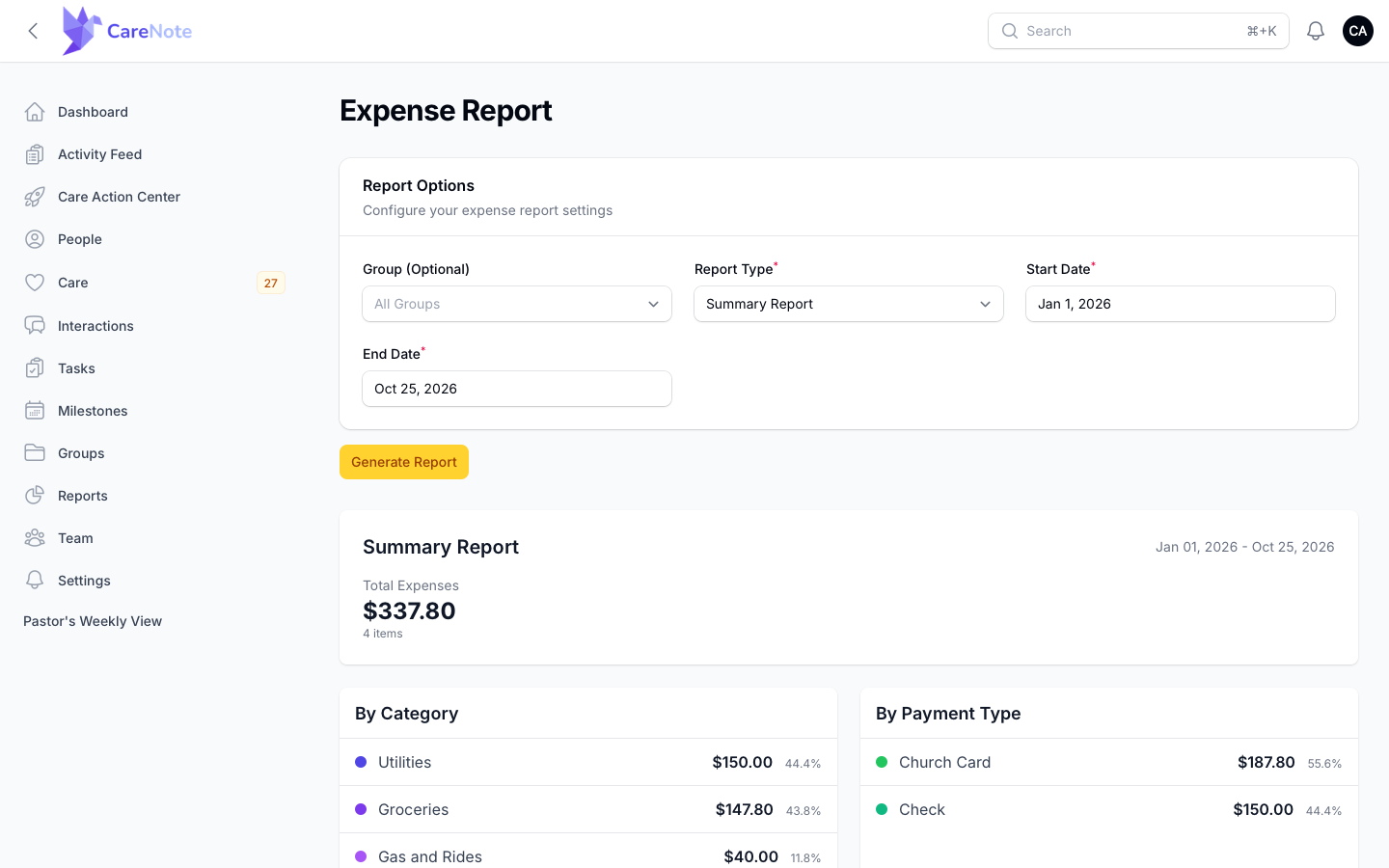
- Under Report Options, choose a Report Type: Summary Report, Detailed Report, Expenses by Category, Expenses by Payment Type, Expenses by Group Member, Expenses by Merchant, or Monthly Expense Timeline.
- Optionally pick a Group. Leave it on All Groups to include everything.
- Set the Start Date and End Date. They default to January 1 through today.
- Some report types add a Chart Type, or filters for category and payment type. Set those if you like, then click Generate Report.
The Summary Report shows your total and item count, then breaks it down by category and by payment type.
Benevolence Approvals
Your Admin person record also has an Approvals tab for deciding on a benevolence request before money is spent. Approving a request and logging the expense are separate steps. Our Benevolence Approvals guide covers how that works.
Frequently asked questions
Do I need CareNote Plus to track expenses? Yes. Expense tracking and the Expense Report are part of CareNote Plus. Without it, the Expenses tab shows an information page with a "Learn about CareNote Plus" link.
Who can add expenses? Anyone who signs in as an Administrator or a Team Member can add, edit, and attach expenses on a person. Team Members who manage a group can add expenses to it. Email-only helpers who do not sign in to CareNote cannot.
Can one expense cover a couple or a whole household? Yes. Tag everyone it served under Tagged Profiles when you add it, or use Attach Existing Expense later. It then appears on each person's Expenses tab.
Is there a report that totals expenses across the whole team? Yes. Administrators open Reports, then View Expense Report, and choose from seven report types with any date range.
Does an expense go through an approval status? No. Once you save it, the expense is recorded. If your church wants a decision before money is spent, use Benevolence Approvals first.