
Documents: Attaching and Protecting Files in CareNote
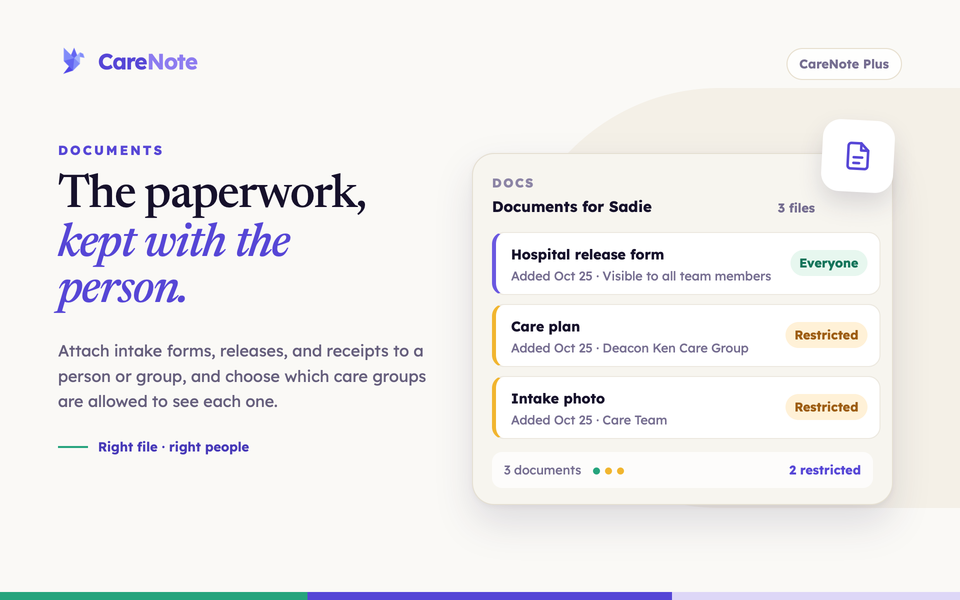
Intake forms, signed releases, benevolence receipts, photo IDs: every care team collects paperwork, and it tends to end up in inboxes, shared drives, and desk drawers. Documents keeps each file with the person or group it belongs to, so the next caregiver who opens a record finds everything in one place. Just as important, you decide who is allowed to see it.
Watch: the Plus toolbox for Team Members.
What Documents is
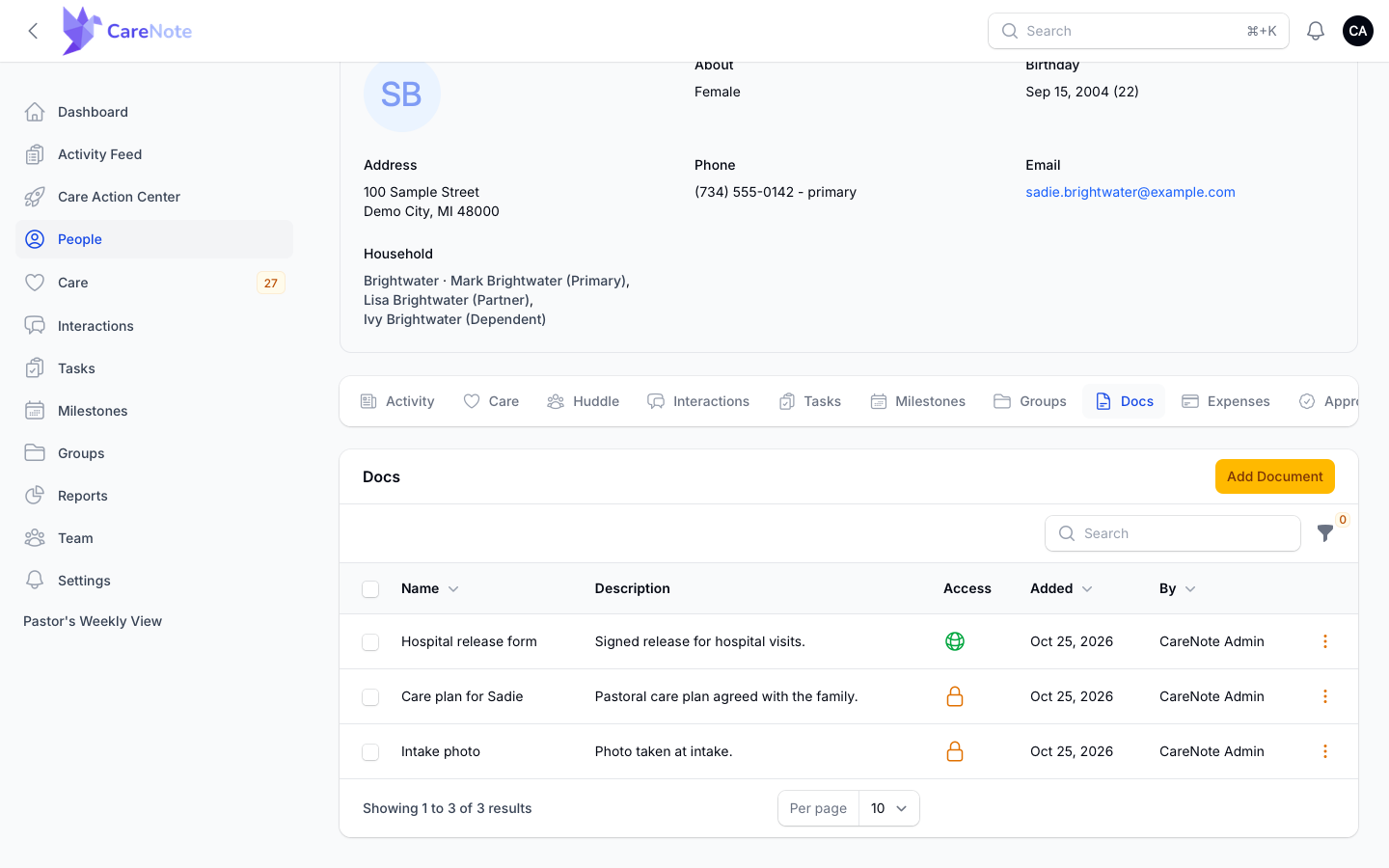
Documents is part of CareNote Plus. It adds a Docs tab to people and groups. The tab lists every file with its Name, Description, Access, Added date, and By (who uploaded it). You can attach PDFs and images (JPEG, PNG, WebP, and HEIC), so a phone photo of a signed form works as well as a scan.
Every document is either visible to everyone on your team or restricted to one or more care groups. A benevolence application can be limited to the Benevolence group while a hospital release form stays open to the whole team.
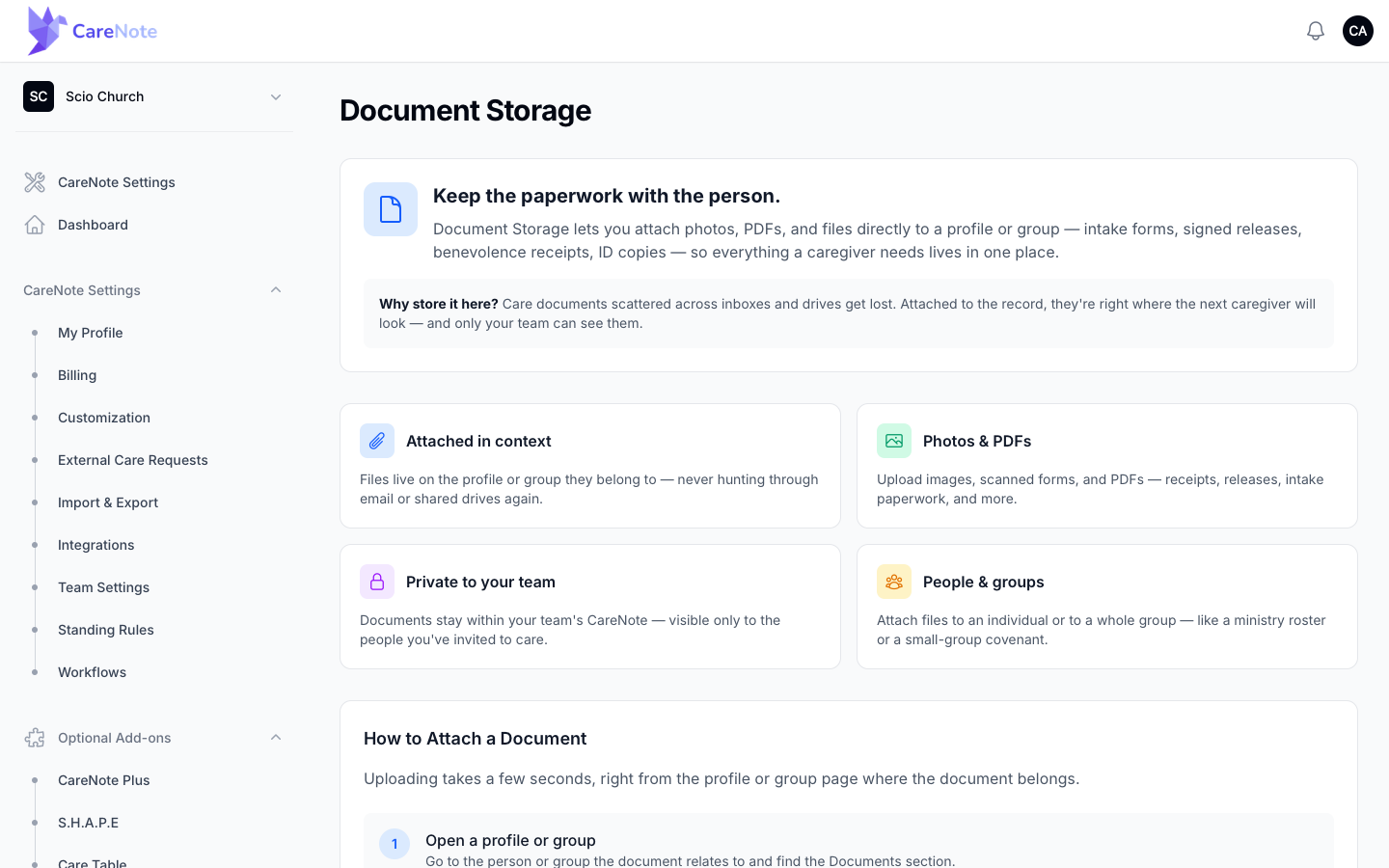
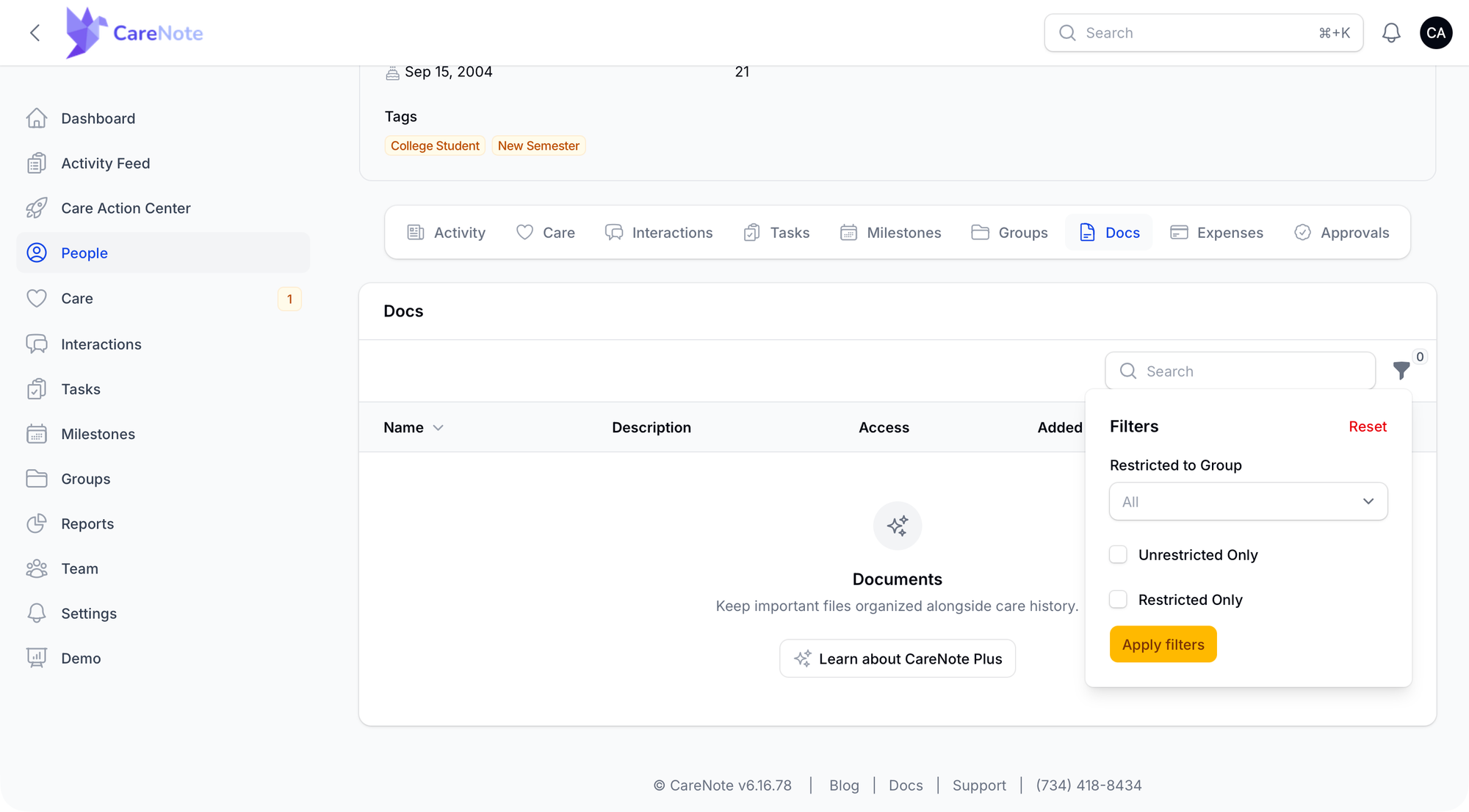
If your team does not have Plus, the Docs tab shows "Documents" with a short description and a Learn about CareNote Plus button instead. Team owners can read about the add-on on the Document Storage page in settings.
1. Find the Docs tab
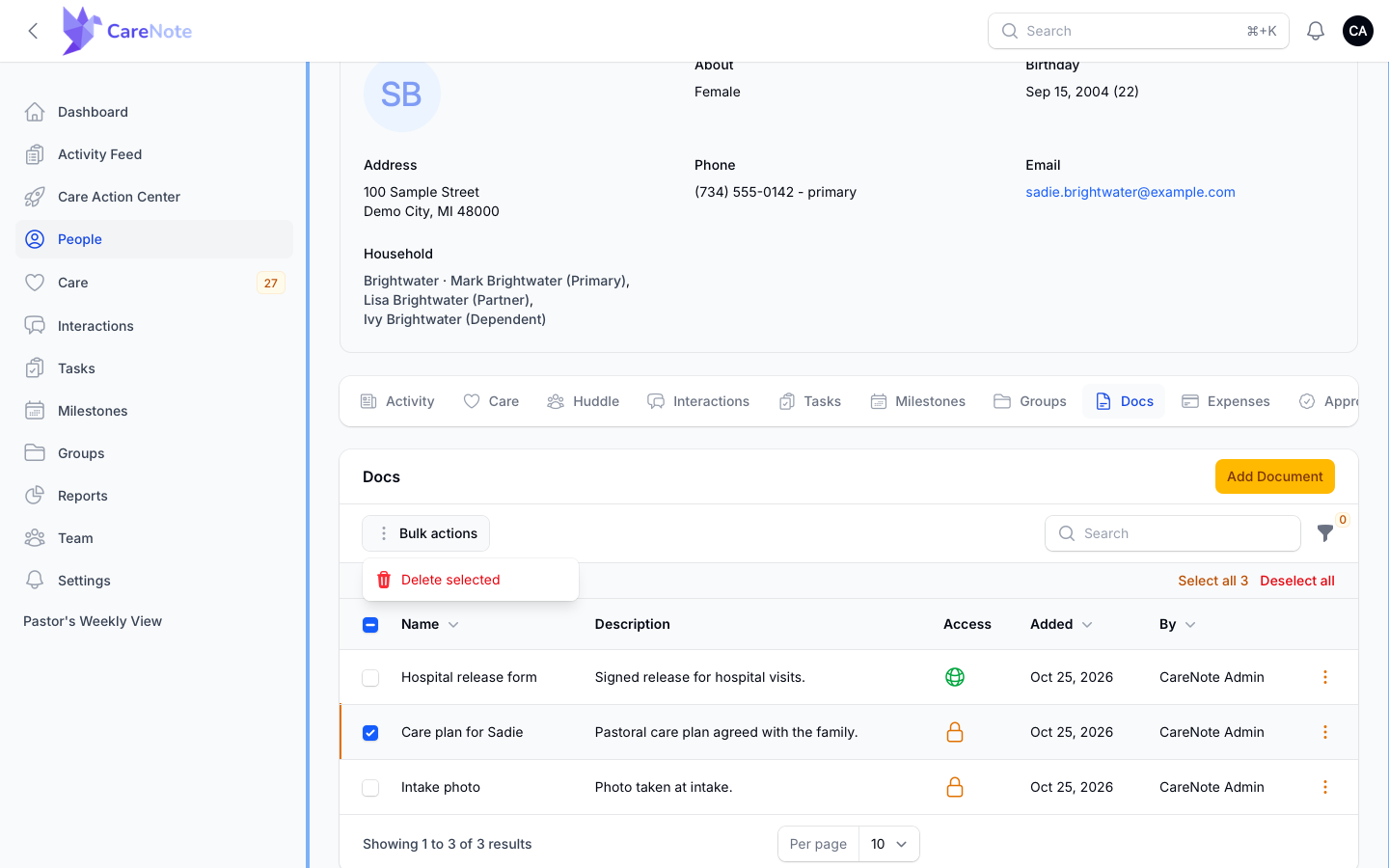
- Open a person from People and click the Docs tab. In the admin panel it sits between Groups and Expenses.
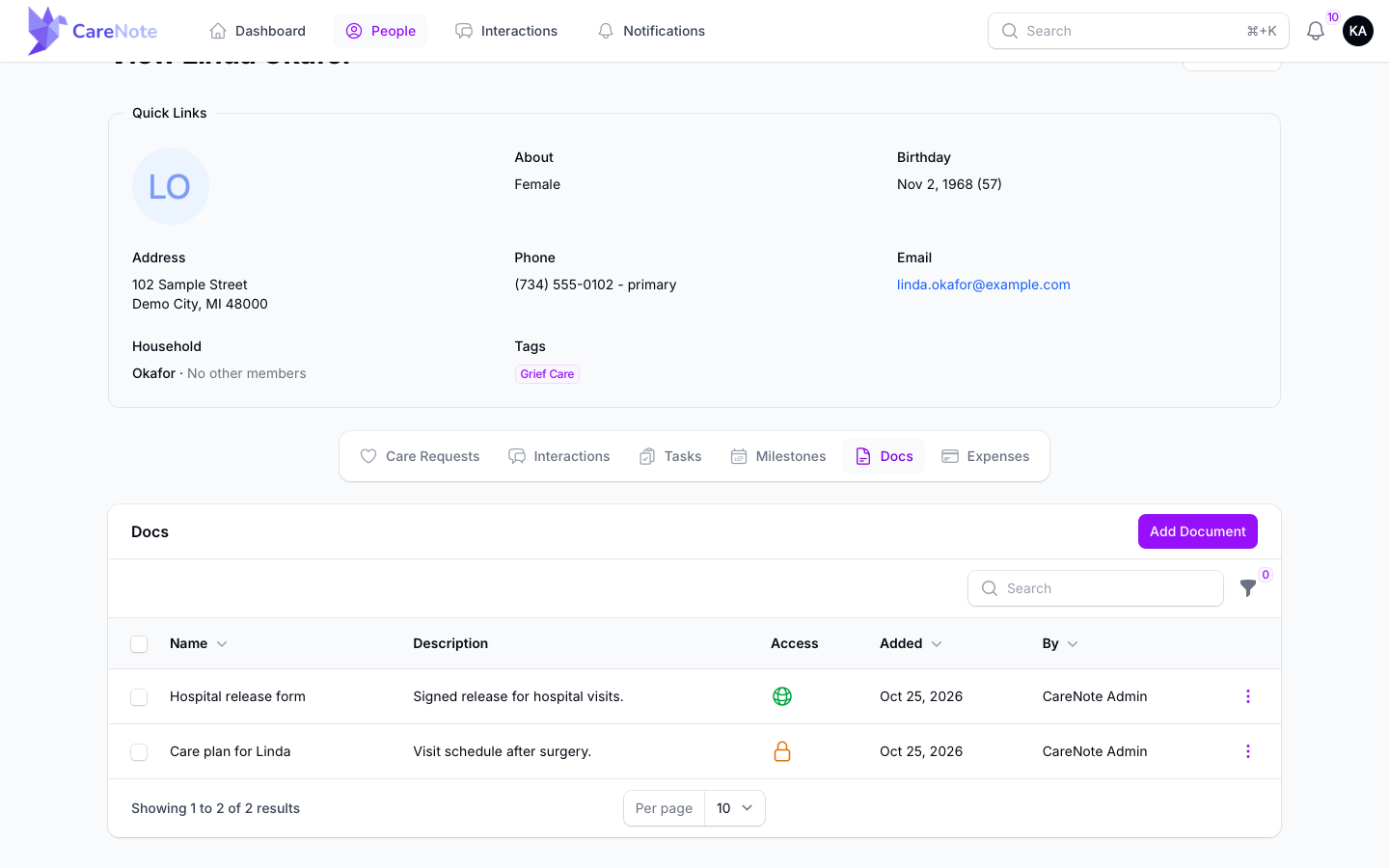
- Team Members have a Docs tab too. On a person's page in the Team Member dashboard, it appears after Milestones and before Expenses.
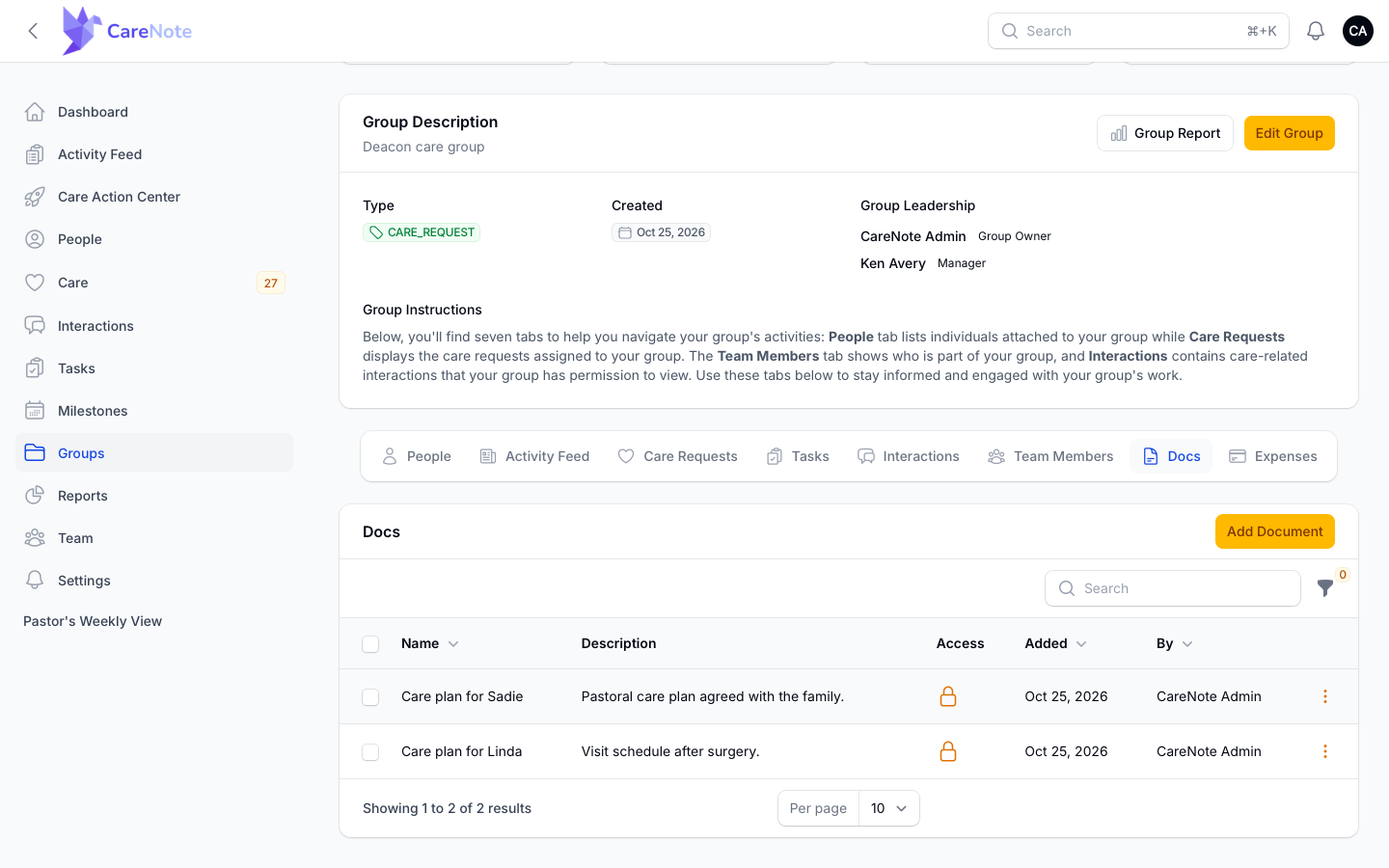
- Groups have their own Docs tab, which lists the documents shared with that group.
2. Add a document to a person
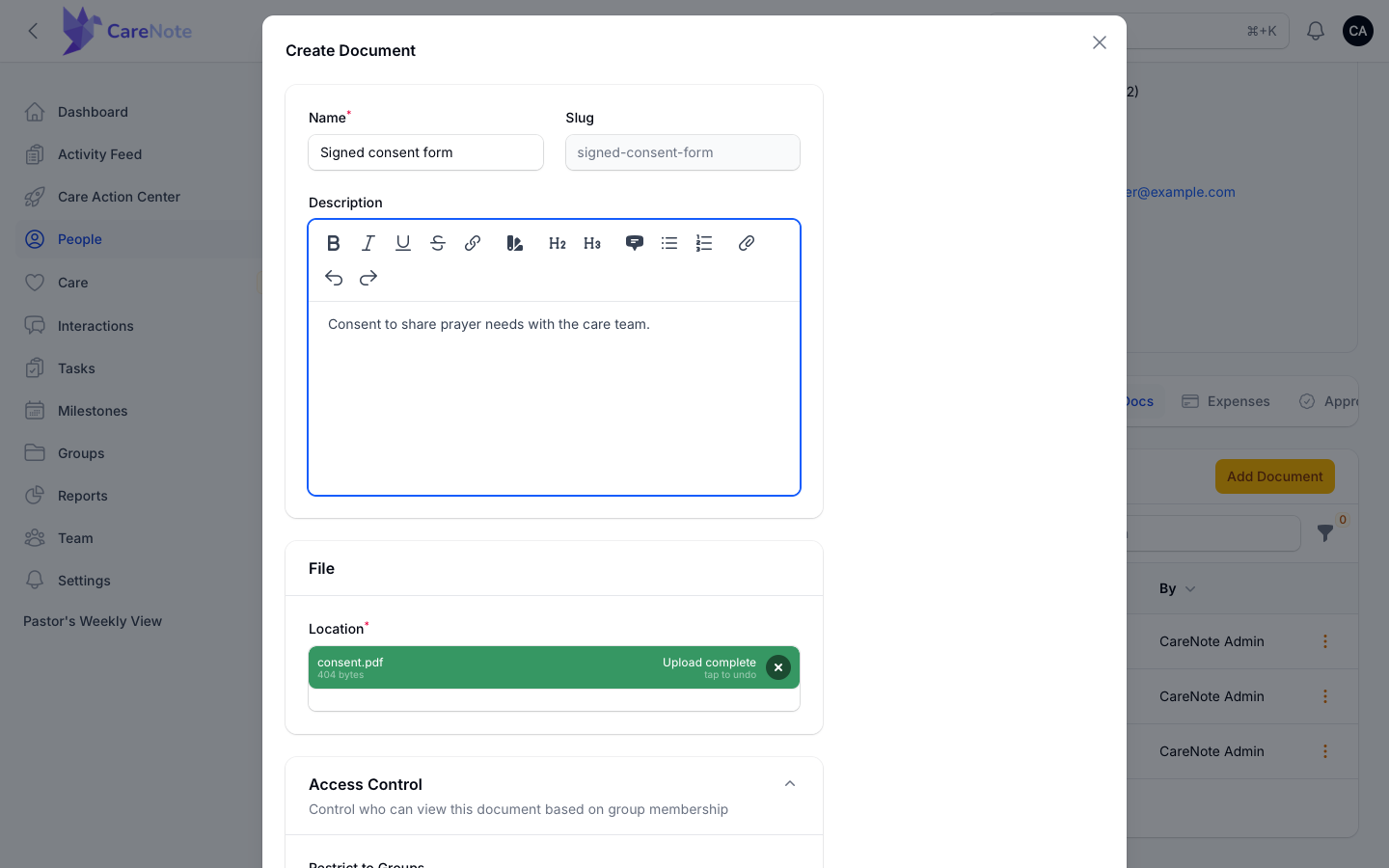
- On the person's Docs tab, click Add Document. A form titled Create Document opens.
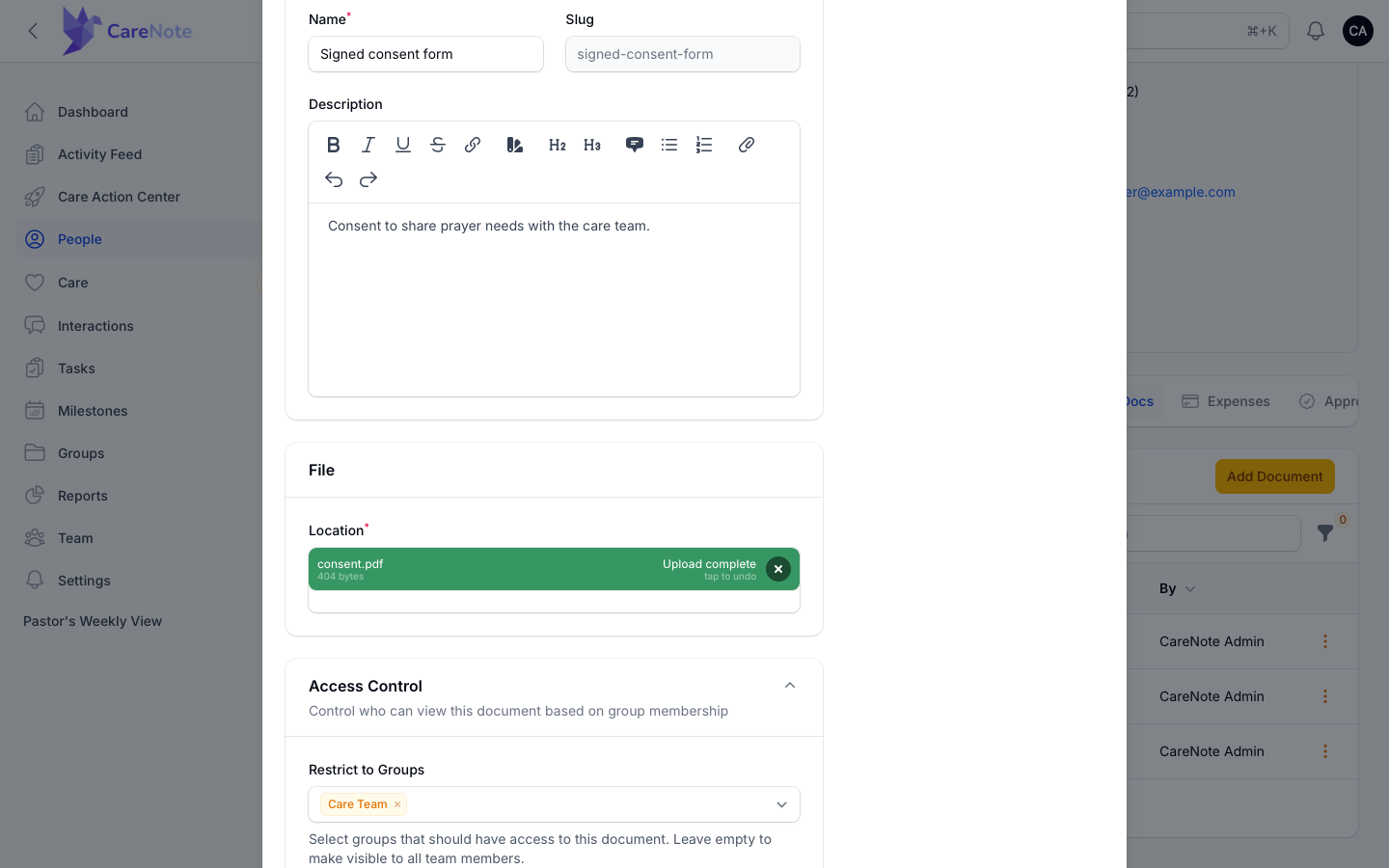
- Type a Name that tells the next caregiver what the file is. The Slug fills in on its own from the name and cannot be edited.
- Add a Description if it helps. It is a rich-text box, so you can use bold, links, and lists.
- Under File, choose the Location of your file. This is required, and it accepts PDF, JPEG, PNG, WebP, and HEIC.
- Decide who can see it in the next step, then click Create. Choose Create & create another if you have a stack of files for the same person.
A "Created" message confirms the save, and the document appears in the list.
3. Choose who can see it
The Access Control section is open by default and is labeled "Control who can view this document based on group membership."
- Leave Restrict to Groups empty and the document is visible to all team members. The field's placeholder reads "No restrictions (visible to all)."
- Pick one or more groups and only members of those groups can see the file. People who uploaded a document can still see their own.
You can change this later by editing the document.
4. Read the Access column
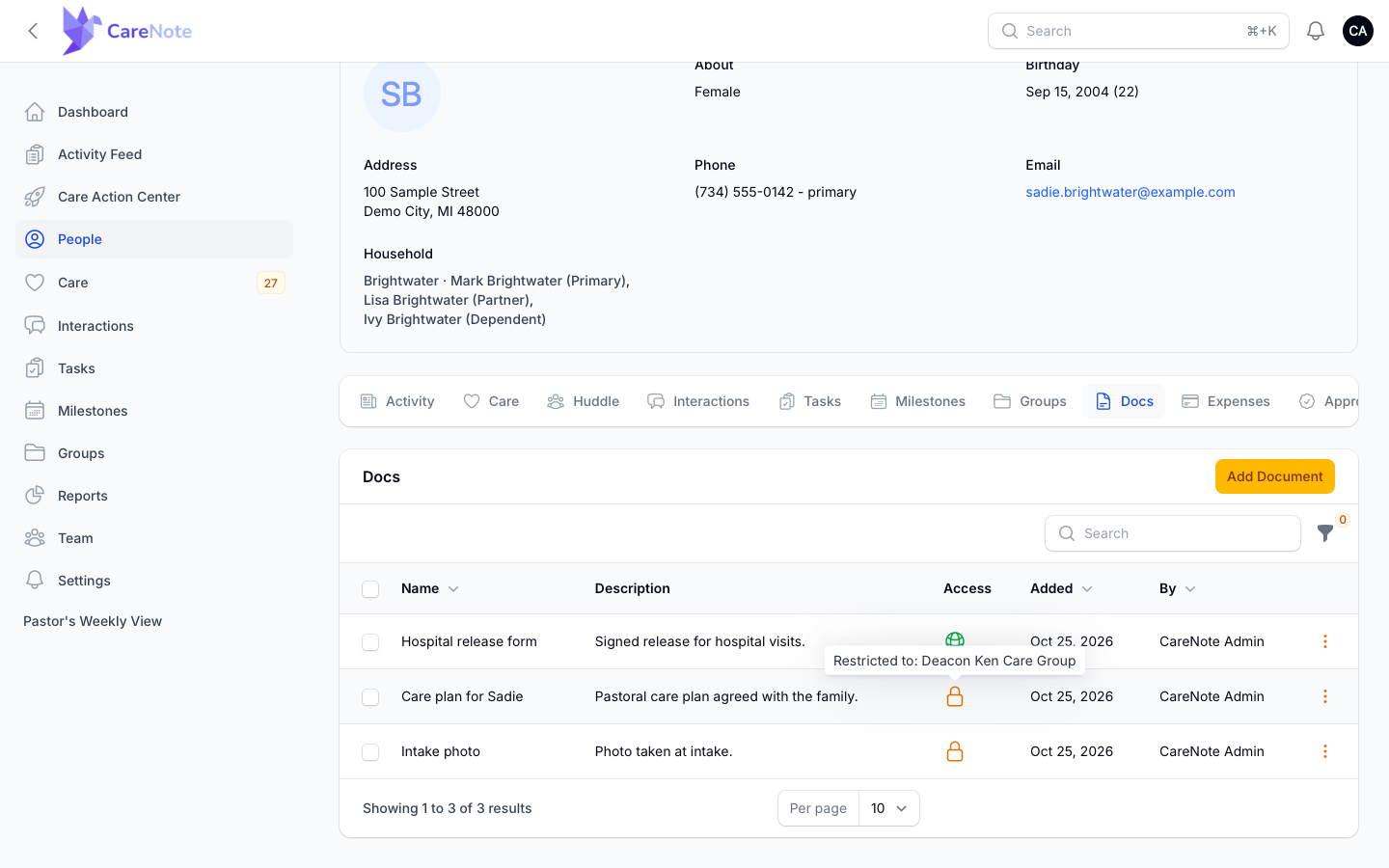
The Access column gives you the answer without opening the file. A green globe means "Visible to all team members." An amber padlock means the file is restricted. Hover over the padlock to see which groups, for example "Restricted to: Deacon Ken Care Group."
To narrow a long list, click the filter icon. You can pick Restricted to Group, check Unrestricted Only or Restricted Only, then click Apply filters. Reset clears them.
5. View, edit, and delete
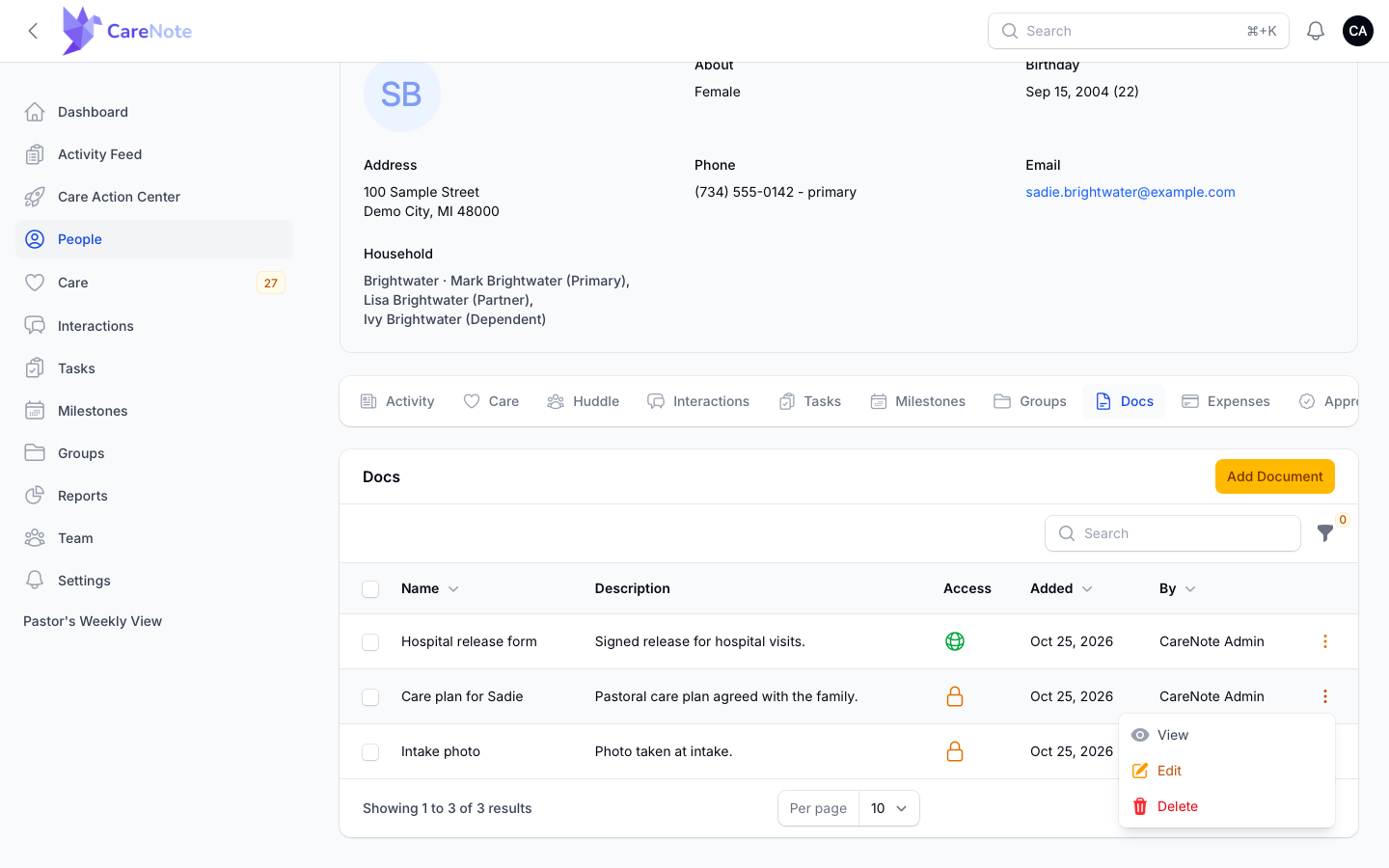
Each row has a menu at the right with View, Edit, and Delete. Team admins and the person who uploaded a document can edit or delete it. Everyone else with access can view it.
To clear out several files at once, tick the checkboxes on the left and open Bulk actions. The only choice is Delete selected, and it skips any document you are not allowed to delete.
6. What Team Members see
Team Members see only the documents they are meant to. On a person's Docs tab, a Team Member sees unrestricted files plus files restricted to a group they belong to. In our example, Ken Avery is in the Deacon Ken Care Group, so he sees the hospital release form and the Deacon-restricted care plan, but not Linda Okafor's Benevolence-restricted application. He can also add documents from that tab.
7. Group documents
On a group's Docs tab you see the files shared with that group. A group document is always visible to members of that group, and on the group tab you will see a Share with additional Groups field that only adds more groups. It cannot make a group file team-wide, so if a file should be open to everyone, attach it to the person instead. Uploading from a group tab is covered once that form is fixed; until then, follow the steps above on the person tab.
Frequently asked questions
Do I need CareNote Plus to use Documents? Yes. Documents is a CareNote Plus feature. Without Plus the Docs tab appears but offers a link to learn more instead of Add Document.
What file types can I upload? PDF, JPEG, PNG, WebP, and HEIC. That covers scans and photos taken on a phone.
What happens if I leave Restrict to Groups empty? The document is visible to all team members. Restricting is optional.
Who can edit or delete a document? Team admins and the person who uploaded it. Others with access can view it.
A person's page shows a "Digital Detour" page. Why? That page appears when a Team Member opens a person outside their groups. Ask an admin if you need access.