
SHAPE Assessments: Discovering How Your People Are Gifted
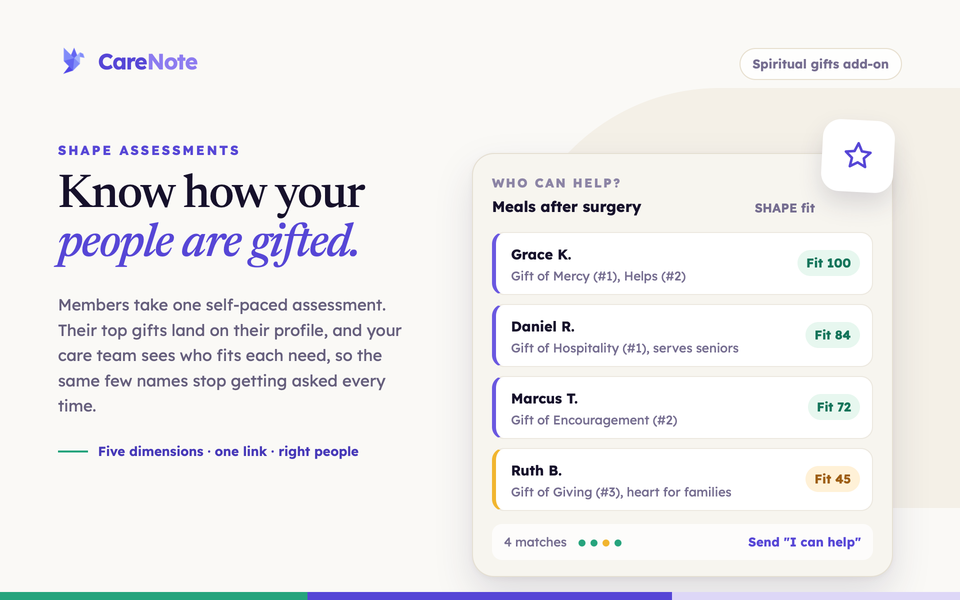
The people your care ministry needs are already in your congregation. The hard part is that you don't always know how each person is gifted, so the same few names get asked again and again.
Watch: SHAPE assessments in two minutes.
SHAPE is an add-on for CareNote that finds them. Members take a self-paced assessment, their results appear on their profile, and your care team gets suggested helpers right on a care request.
What SHAPE looks at
SHAPE is a spiritual gifts assessment that looks at five dimensions of how a person is made, not just one:
- S for Spiritual Gifts: scored across 19 gifts and ranked from highest to lowest.
- H for Heart: the people, causes, and passions that move them.
- A for Abilities: the practical skills they love using, and the ones they don't.
- P for Personality: a full DISC profile across all four dimensions.
- E for Experiences: the spiritual, painful, educational, and ministry experiences that shaped them.
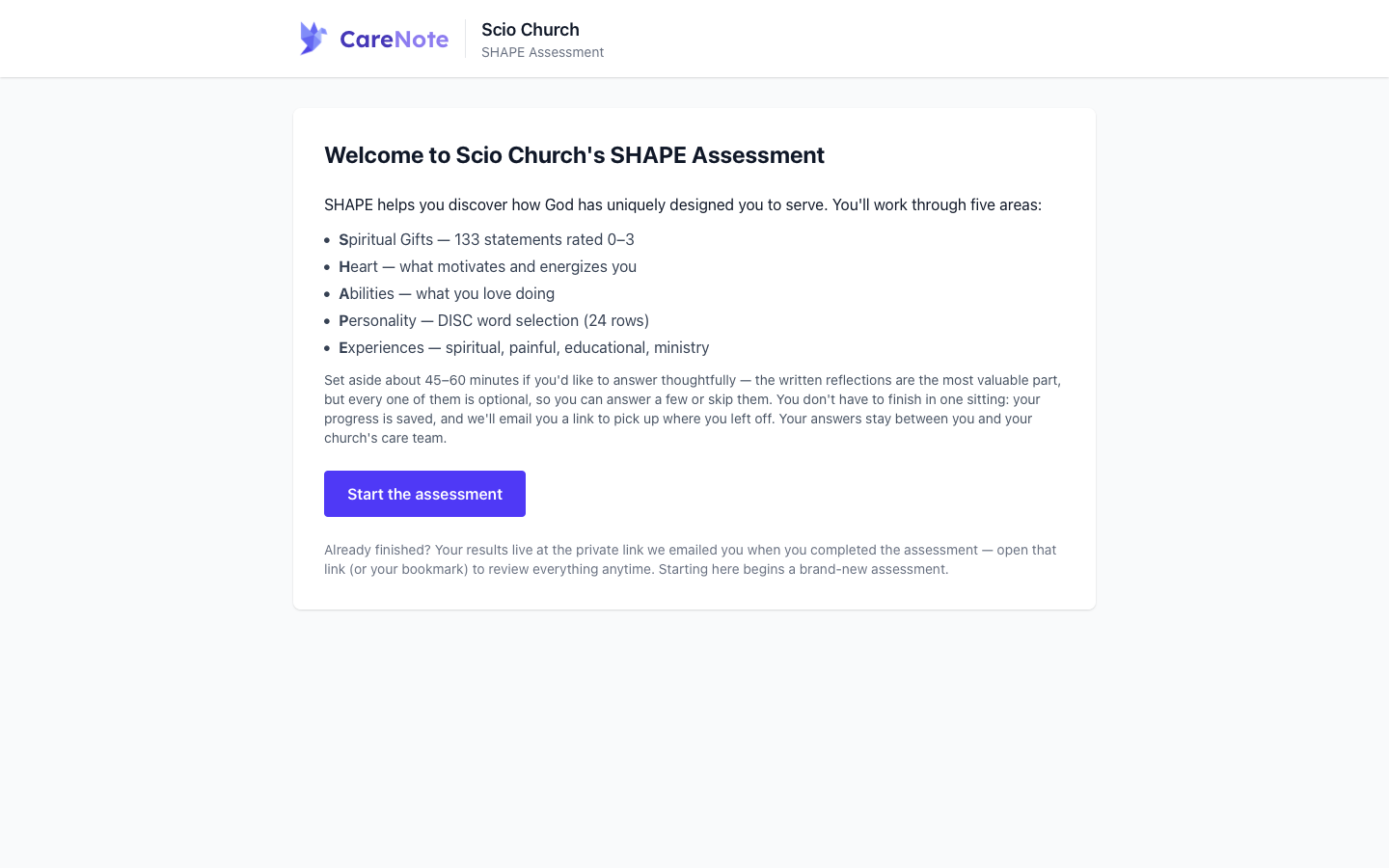
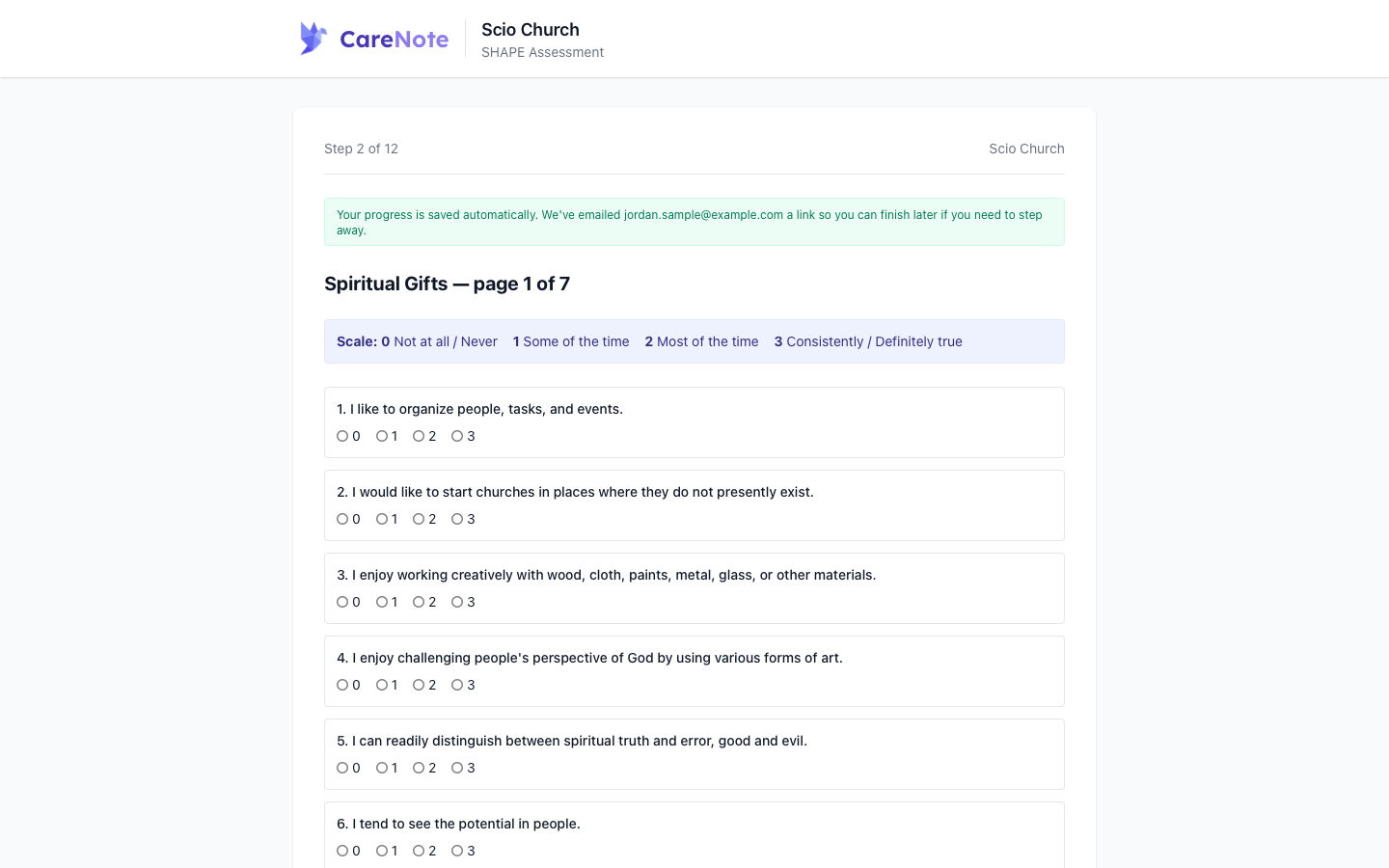
The assessment needs no login for the person taking it. Most people set aside about 45 to 60 minutes. The written reflections are optional, and progress saves as people go, so they can pick it back up later from a personal link.
Turning SHAPE on for your team
- In the left sidebar, click Settings.
- Expand the Optional Add-ons group.
- Click S.H.A.P.E.
- Review the overview page and activate the add-on when you're ready.
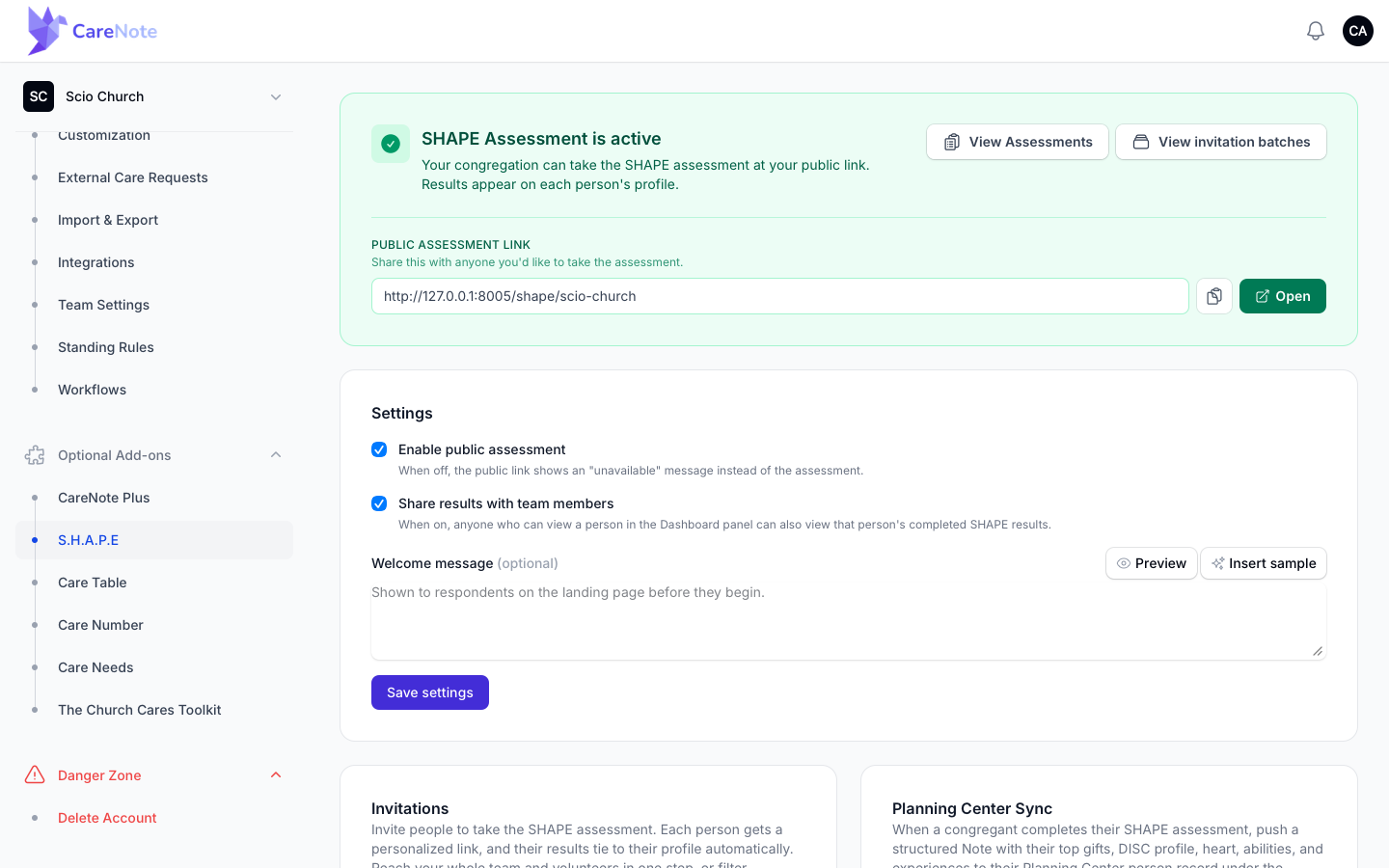
Once active, this page becomes your control panel. A green SHAPE Assessment is active banner has View Assessments and View invitation batches buttons. Below it sits your read-only Public Assessment Link with Copy link and Open buttons. A Settings card holds two checkboxes:
- Enable public assessment. Untick it to close the assessment for a season; the public link shows an unavailable notice.
- Share results with team members. When on, Team Members can view completed results for people they can already see.
Add a Welcome message if you like, then click Save settings.
Inviting your congregation
Once SHAPE is active, there are two ways to get people started, both from the settings page:
- Share your public link. It's right at the top of the settings page with Copy and Open buttons. Post it in a newsletter or group chat. No login needed.
- Send personalized invitations. Use Invite CareNote Users to reach your team, or Invite Congregants to filter by affiliation, classification, campus, or age. Each person gets their own link, so results tie back to their profile automatically. Every send is tracked under View invitation batches.
Reading the results
When someone submits, CareNote ranks the 19 gifts and tallies the DISC responses. Results show up in a few places.
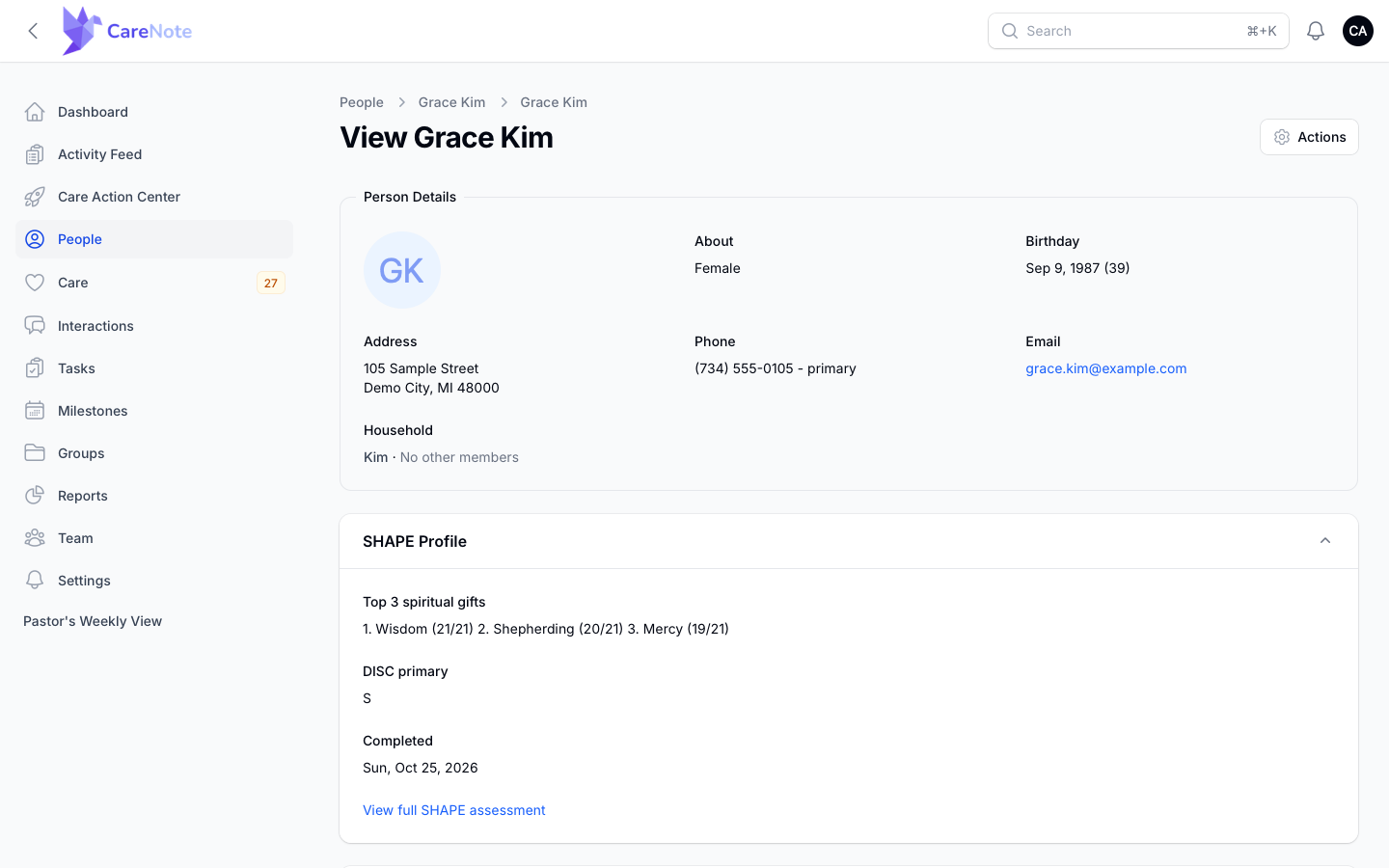
On the member's profile. Open a person who has completed the assessment and you'll find a collapsible SHAPE Profile section showing their top 3 spiritual gifts with scores, their DISC primary, the completed date, and a View full SHAPE assessment link.
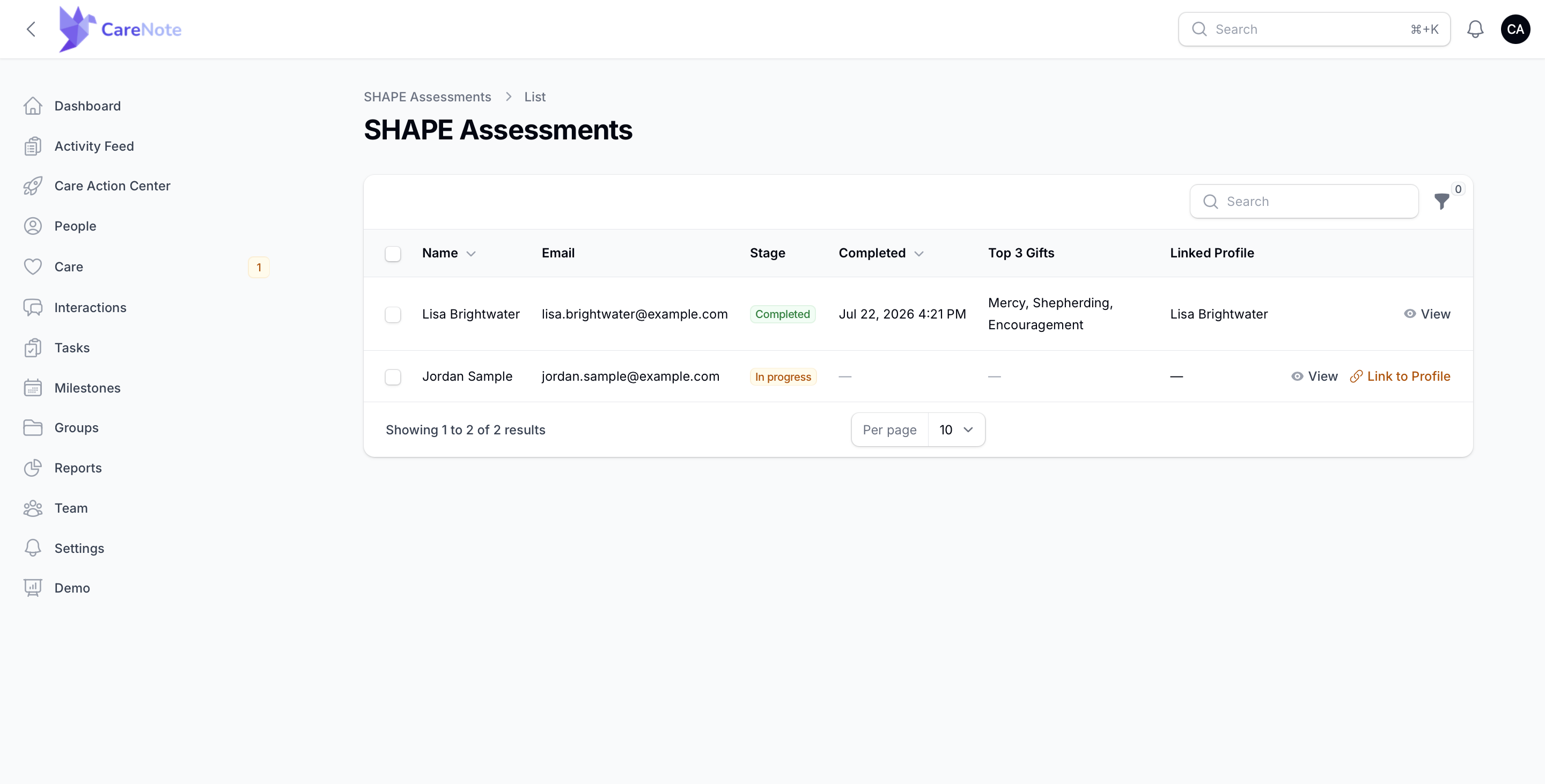
In the SHAPE Assessments list. Click View Assessments on the settings page (or the link on any profile) to see everyone at a glance, with each person's stage (Completed, In progress, or Invited), top gifts, and linked profile. Assessments without a matching profile show a Link to Profile action. If your church uses campuses, people limited to certain campuses only see assessments for their campus.
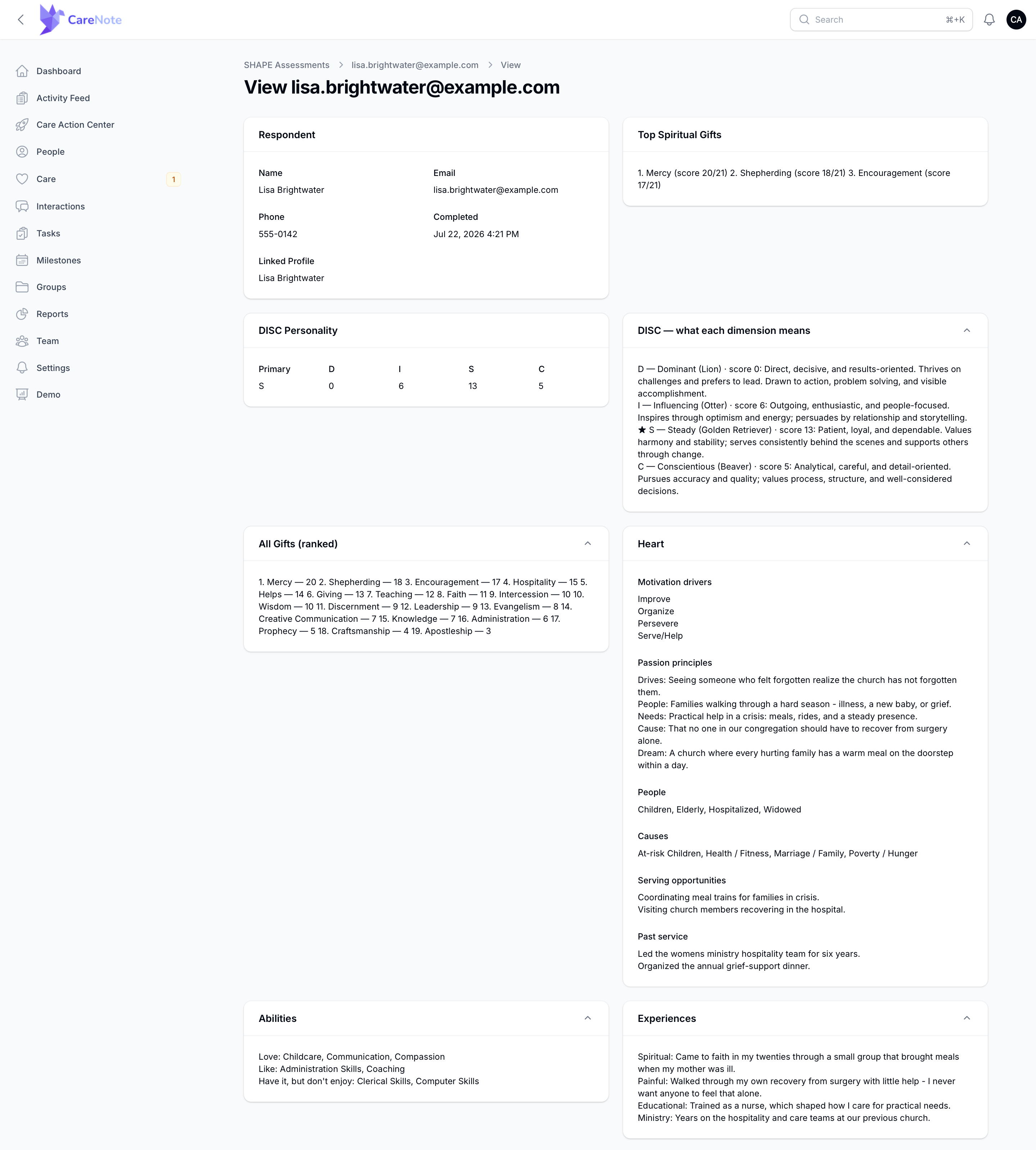
In the full assessment. Open any assessment to see every gift ranked, the DISC breakdown, and every written answer. The Download PDF button in its header is handy for a one-on-one conversation.
Letting Team Members see results
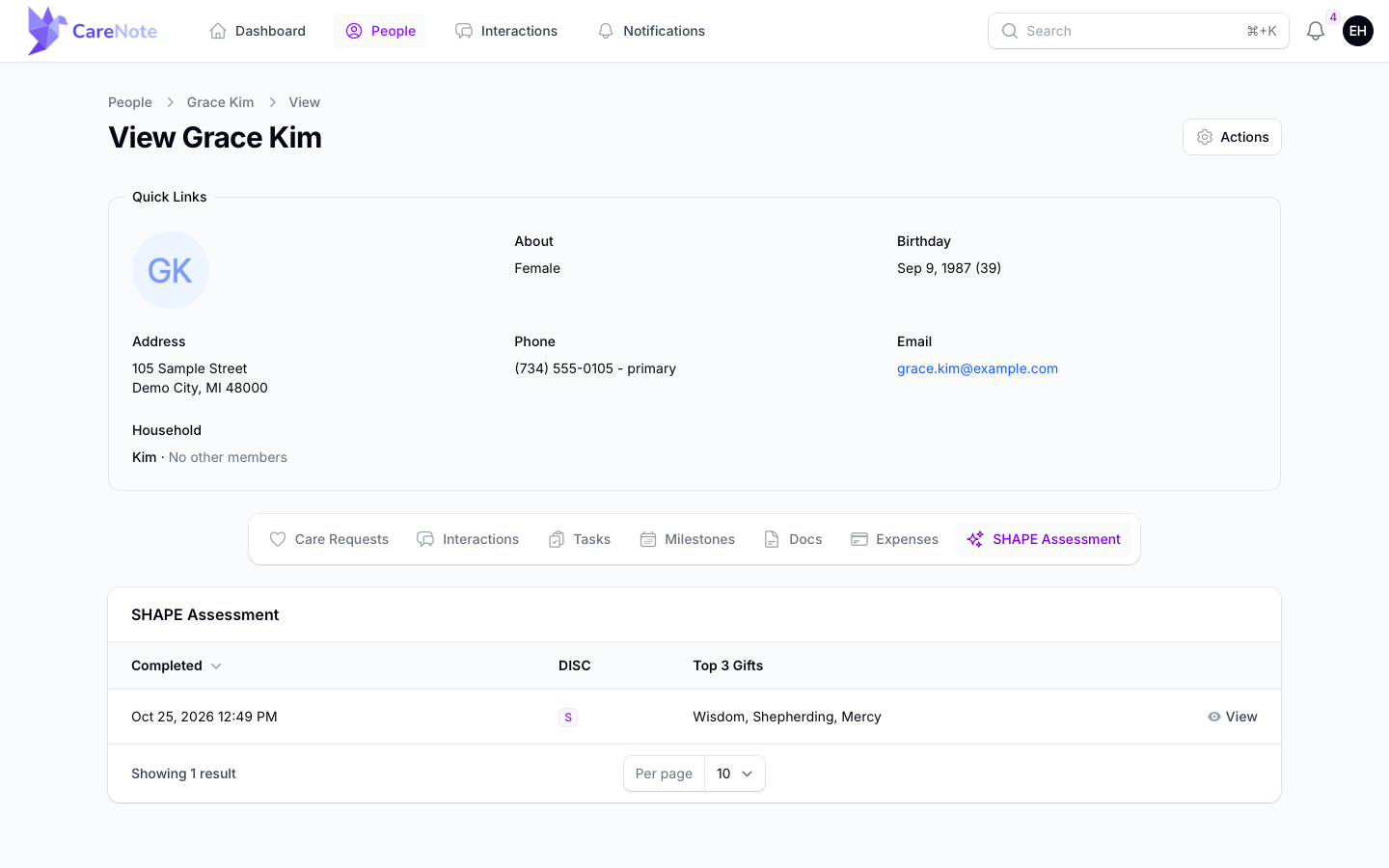
When Share results with team members is on, Team Members see a read-only SHAPE Assessment tab (the last tab) on a person's profile, once that person has a completed assessment. View opens a SHAPE results slide-over with a Download PDF button. Team Members can't edit or create assessments.
Putting gifts to work: Who can help?
Once people have completed the assessment, SHAPE can suggest who might help with a care request.
- Open a care request in the Admin panel.
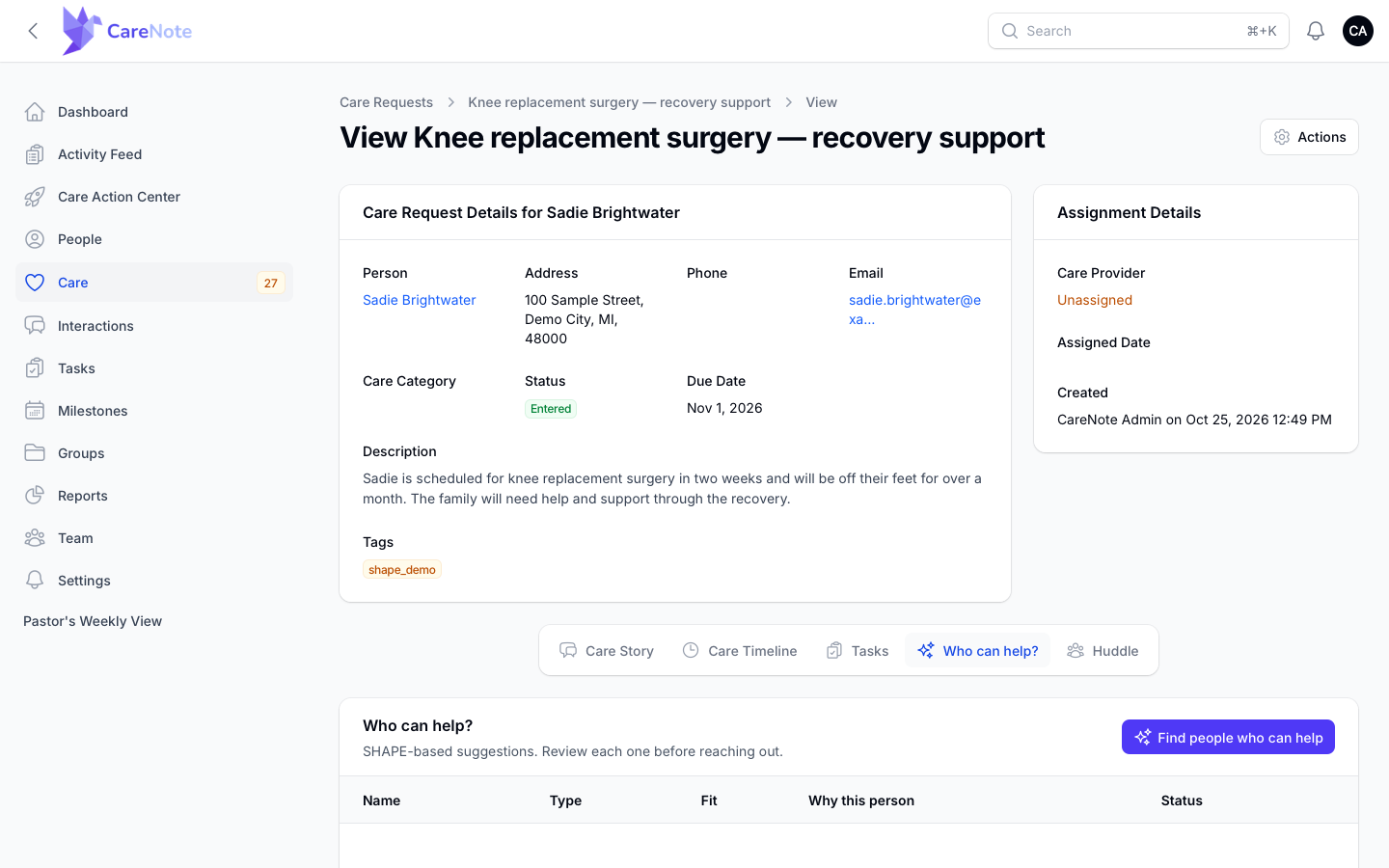
- Click the Who can help? tab, between Tasks and Huddle. It appears only when SHAPE is active and you can edit the request.
- Click Find people who can help. CareNote ranks completed assessments against the need and shows a message such as "Found 6 people who may be able to help".
- Review the list. Each row shows Name, Type, a Fit score out of 100, Why this person, and Status.
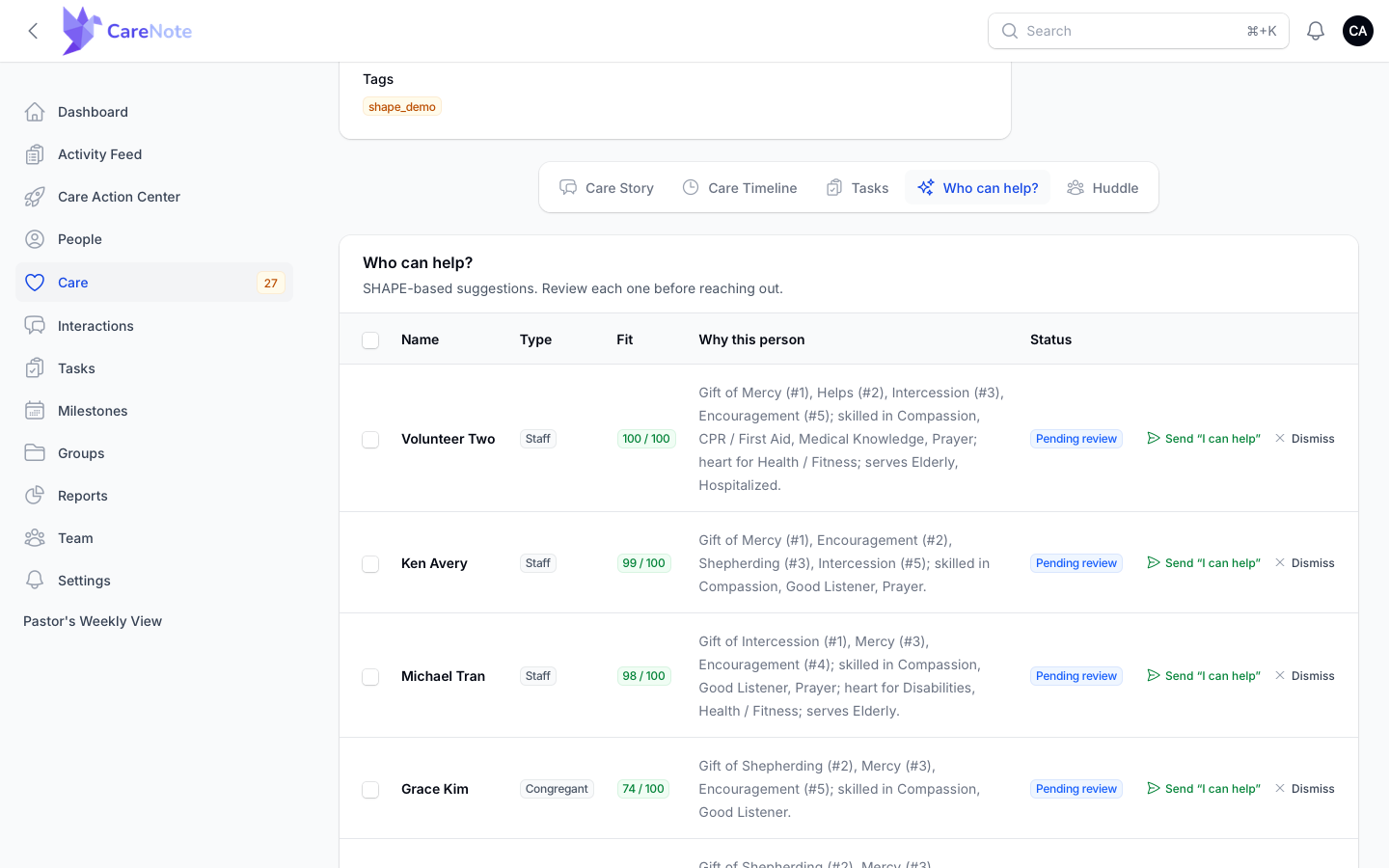
- For a good fit, click Send "I can help" on the row. Tick checkboxes to send in bulk, or click Dismiss to remove a suggestion. The invitation email asks only whether the person can help; no care details are shared.
These are suggestions, not assignments, so review each one before reaching out.
Frequently asked questions
How long does the assessment take? Most people set aside about 45 to 60 minutes, and they can resume anytime from the link CareNote emails them.
Where do we see the results? Top gifts and DISC primary appear on each member's profile. For the full picture, use View full SHAPE assessment there, or View Assessments on the settings page.
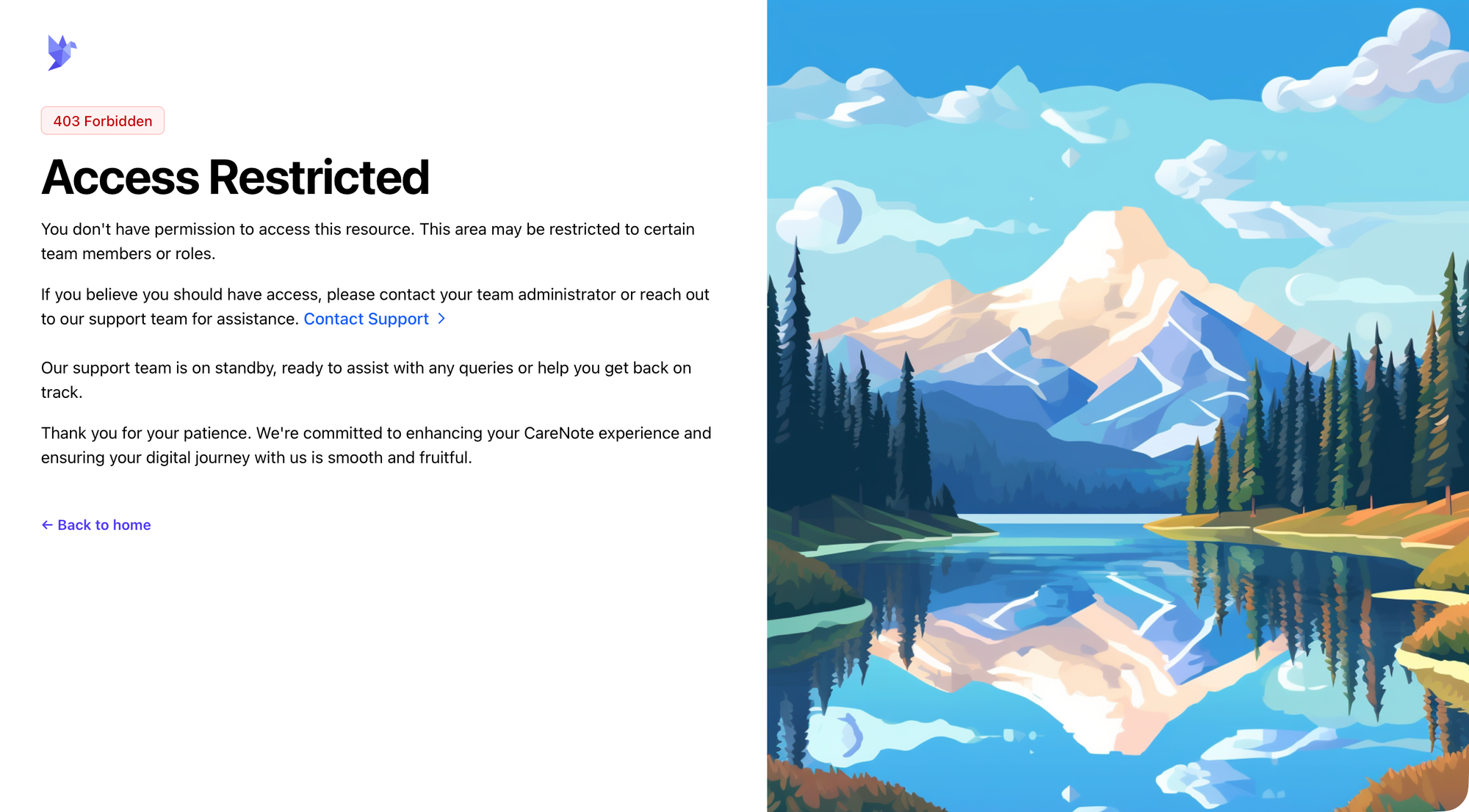
I clicked a SHAPE link and hit an "Access Restricted" page. What happened? The SHAPE add-on most likely isn't active for your team yet, or your role doesn't have access. Check Settings, Optional Add-ons, S.H.A.P.E, or ask your team administrator.
Is this a recognized framework? Yes. The SHAPE framework was developed by Erik Rees and Rick Warren at Saddleback Church. This is a digital adaptation built for CareNote, used with permission. Portions are adapted from Rees, Erik. S.H.A.P.E: finding and fulfilling your unique purpose for life. Zondervan, 2006.