
Care Table: Organizing Meal Sign-Ups
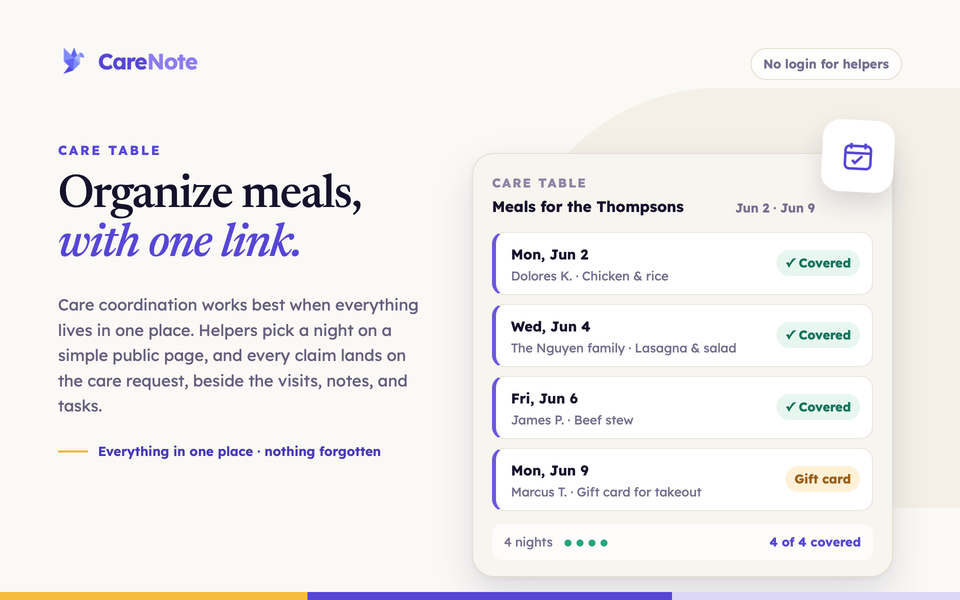
When someone in your congregation is recovering from surgery, welcoming a new baby, or grieving a loss, a meal is one of the most practical ways people show up. Coordinating who brings what, and on which day, usually means a phone tree, a shared spreadsheet, or a sign-up tool that lives outside your care records. Care coordination works best when everything lives in one place, so Care Table puts the meal sign-up inside the Care Request, beside the visits, notes, and tasks.
Watch: Care Table in two minutes.
What Care Table is
Care Table is an optional add-on that adds a meal sign-up to a Care Request. You set the dates and the delivery details, then invite people to help. Helpers claim a date on a public page with no CareNote account. You can invite specific people, a whole group, or anyone by email.
Care Table is not turned on by default. Turn it on under CareNote Settings > Optional Add-ons > Care Table.
If the family needs yard work, an event, or help that is not a meal, use Care Needs instead. See Care Needs: Practical Help Sign-Ups.
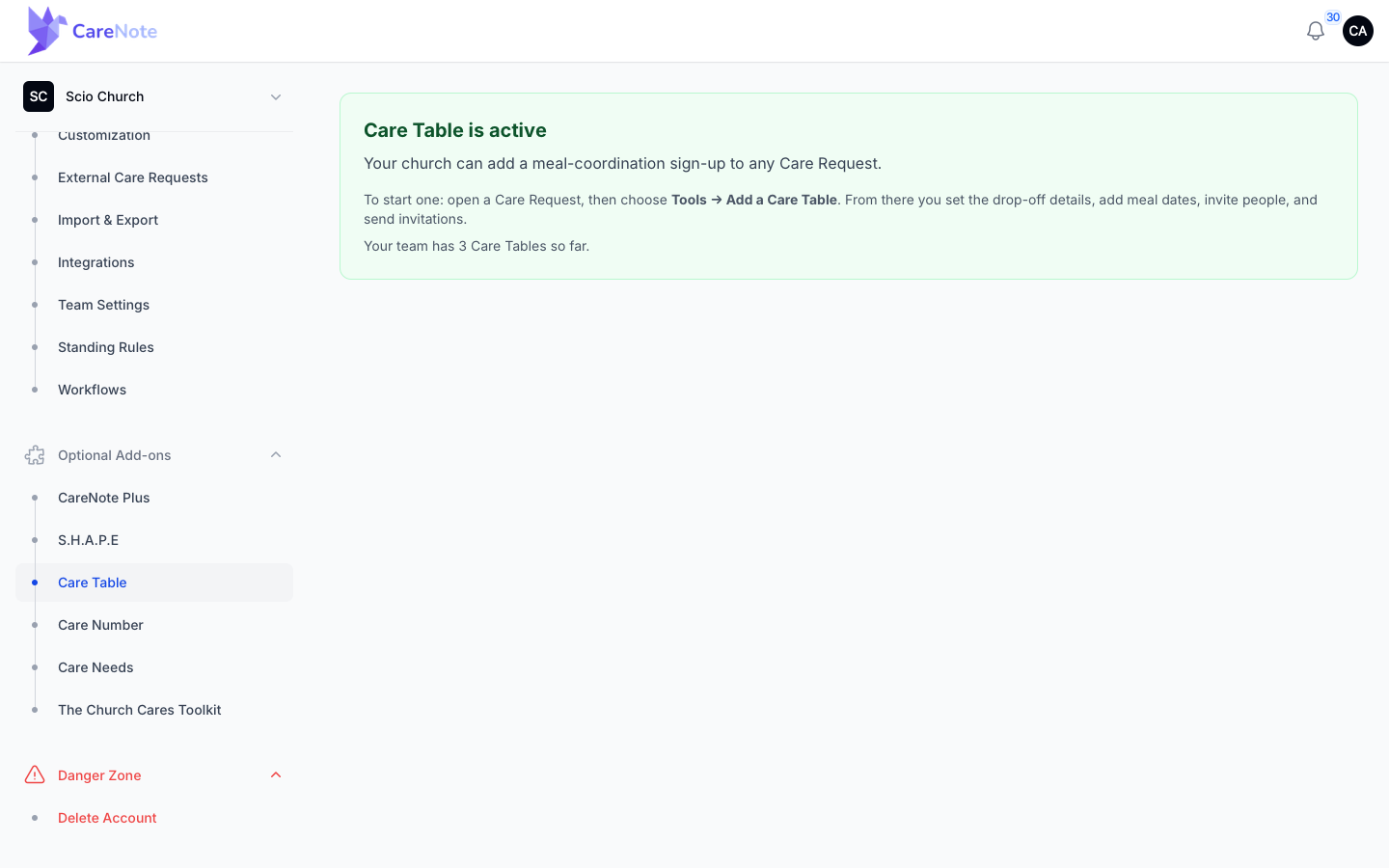
1. Start a Care Table
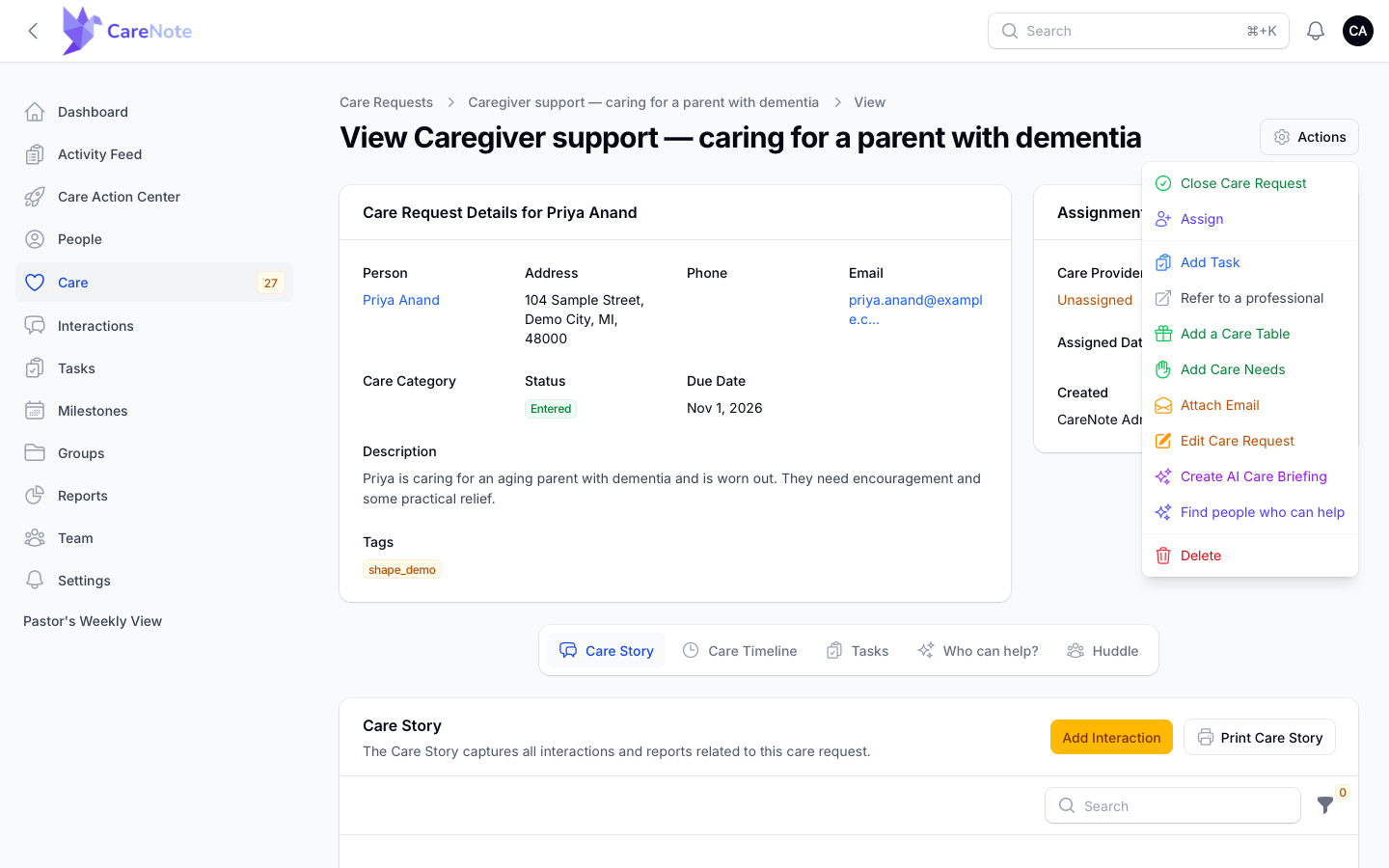
Open the Care Request, click Actions in the top right, and choose Add a Care Table. CareNote creates a draft called "Meals for (first name)" and opens the setup form. Once a table exists, the same menu item reads Manage Care Table. You can also start one from a Care Request in the Huddle panel.
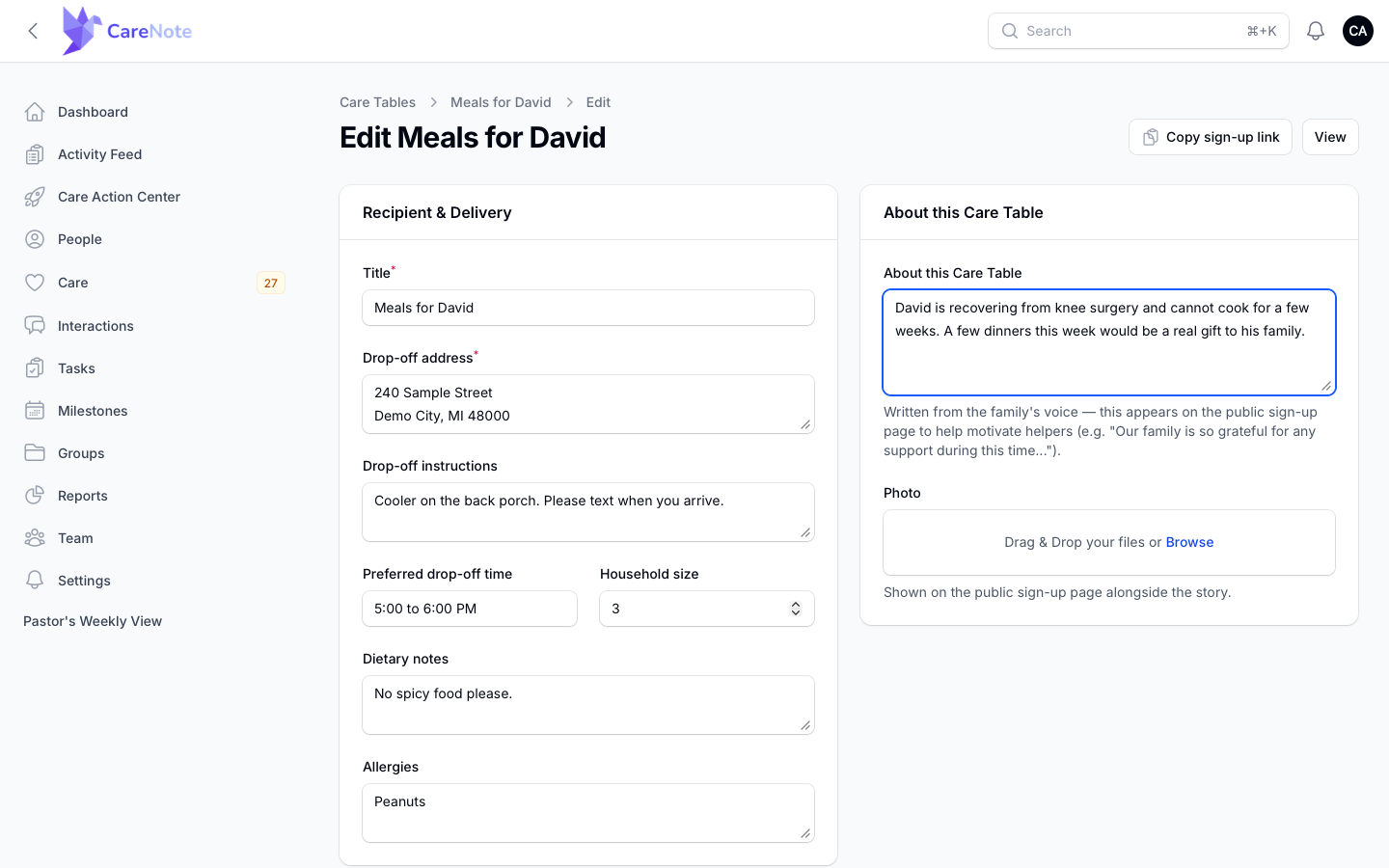
2. Fill in the setup form
Under Recipient & Delivery, enter a title, the drop-off address, instructions, a preferred time, household size, dietary notes, and allergies. There is no contact name or phone field, because helpers reach the family through the link.
Under About this Care Table, write a short note in the family's voice and add a Photo. Both appear at the top of the public page to help people say yes.
Add a Family point person if a relative should help run things. Under Options, Send reminders to helpers and Allow non-meal contributions (gift cards, etc.) are both on by default.
3. Add dates
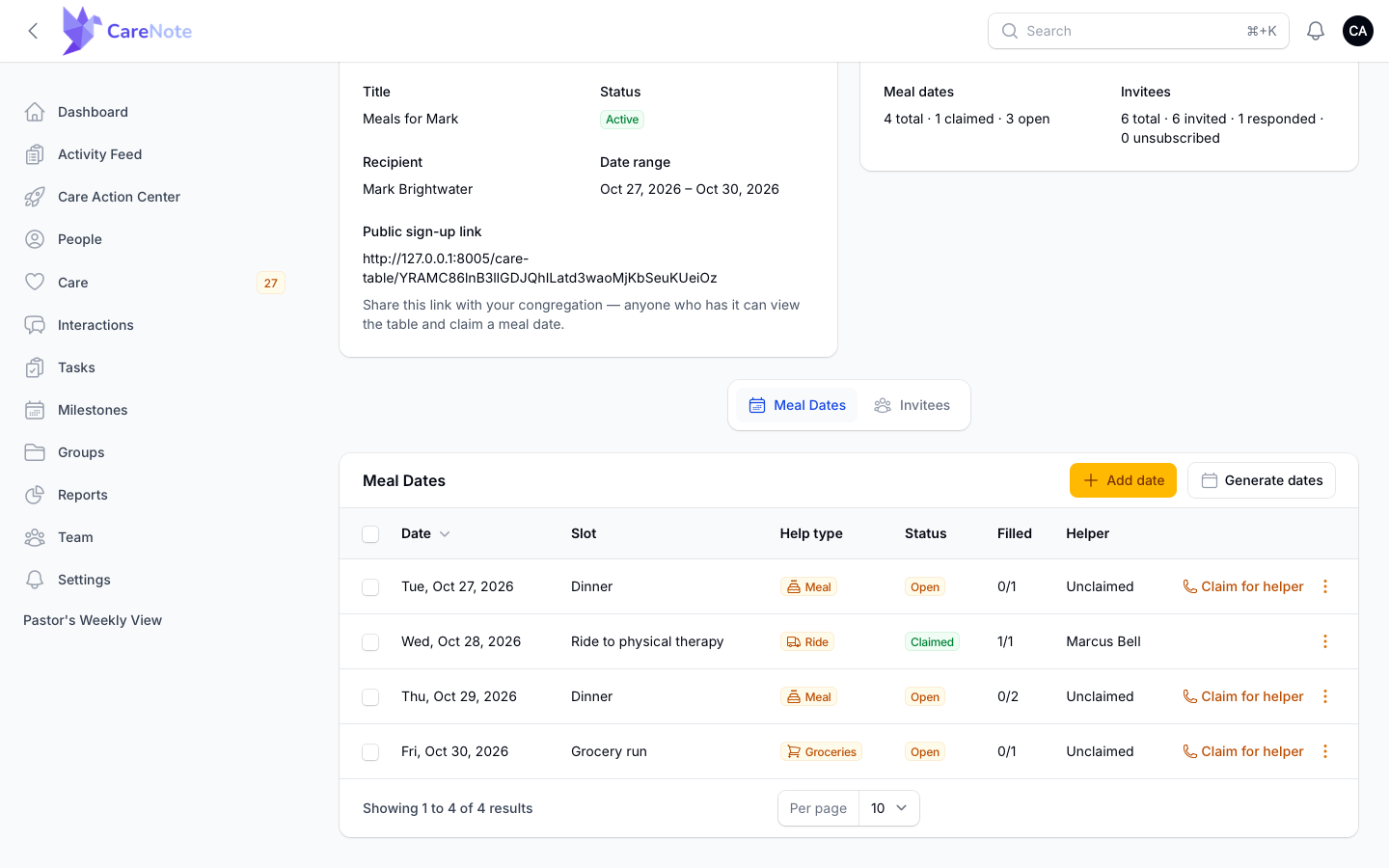
On the Meal Dates tab, use Add date for one day or Generate dates for a recurring run, such as every Monday, Wednesday, and Friday.
Each date has a Help type (Meal, Ride, Groceries, Childcare, Errand, Visit, or Other) and Helpers needed. A date that needs two people shows 0/2 in the Filled column. Meals are what Care Table is built for, but a ride or a grocery run can share the same calendar when it belongs with the meals.
4. Invite helpers
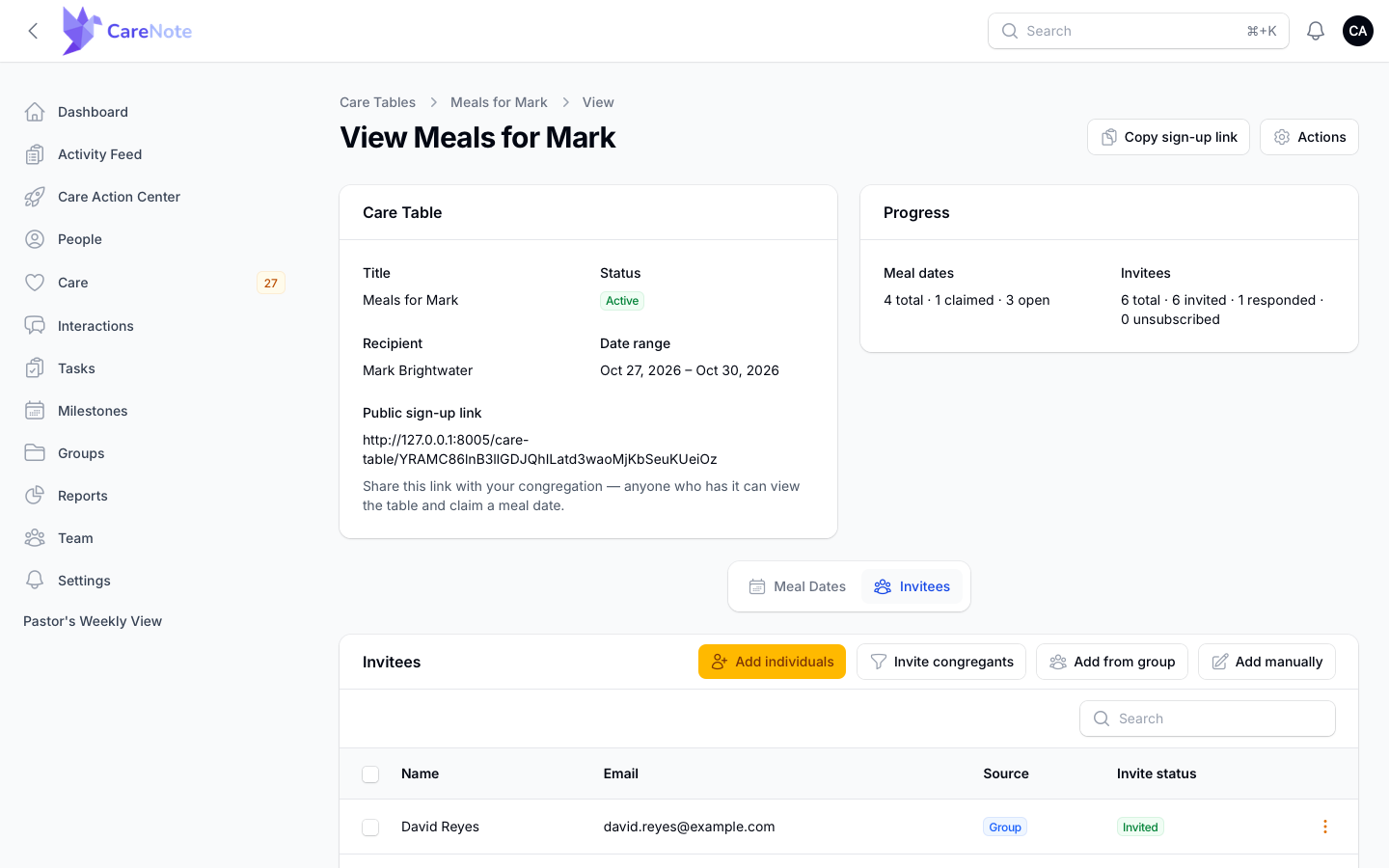
On the Invitees tab, build your list from four sources: Add individuals, Invite congregants, Add from group, and Add manually. Each invitee gets a personal email, and duplicate emails are skipped.
Add from group asks for a group, then two checkboxes, Team Members and Congregants (with email). Both are on by default, so a whole care group is invited in one step.
5. Go live
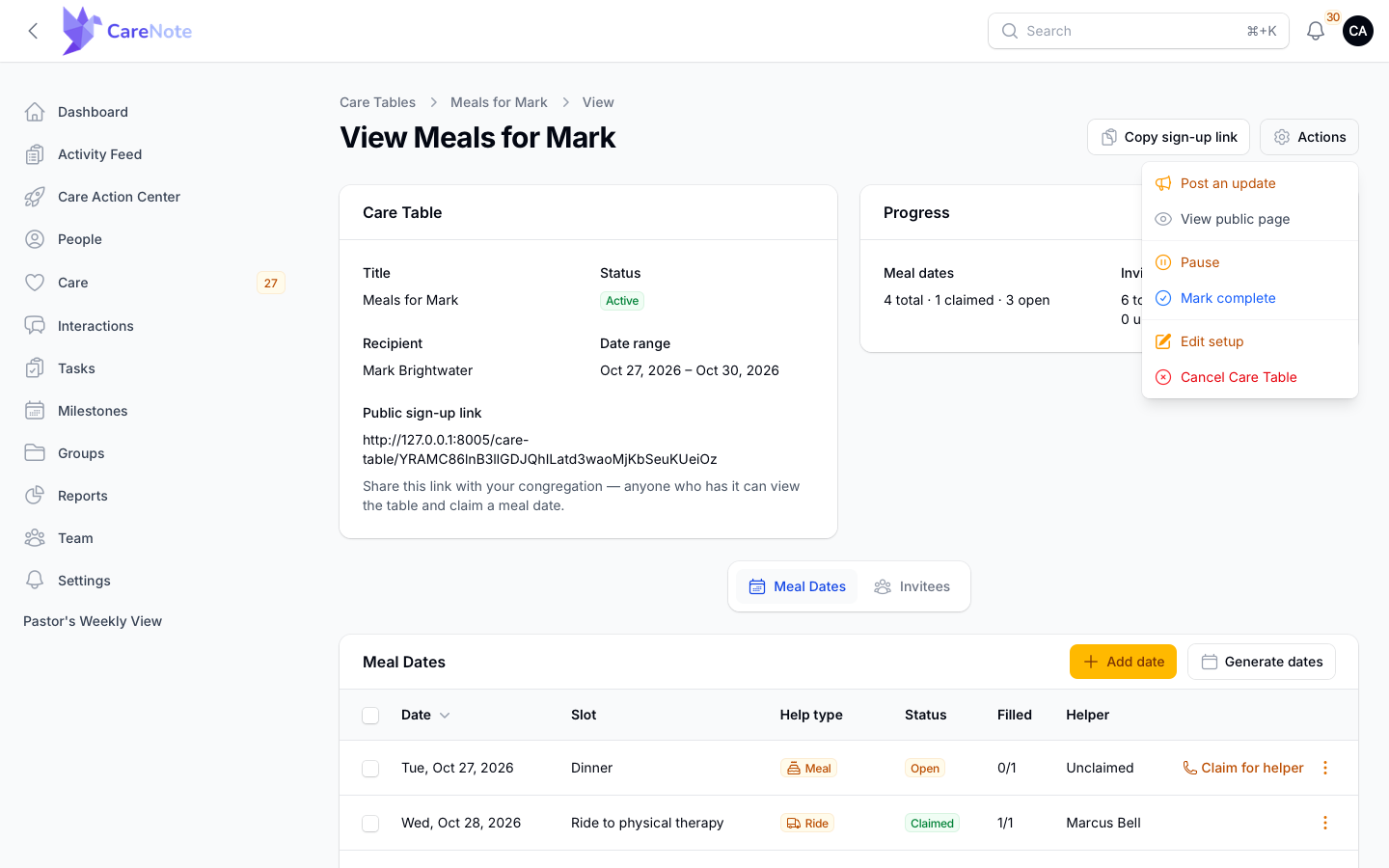
A new table is a Draft. If you plan to share the public link yourself, open Actions on the Care Table and choose Activate. It needs a drop-off address and at least one date. Sending invitations also makes a ready draft active.
When it is Active, the Actions menu offers Post an update, View public page, Pause, Mark complete, Edit setup, and Cancel Care Table. Only an active table accepts sign-ups.
If you cancel by mistake, a cancelled table shows Restore Care Table. It comes back at the same link, or returns to Draft if it is not ready.
6. Keep everyone posted
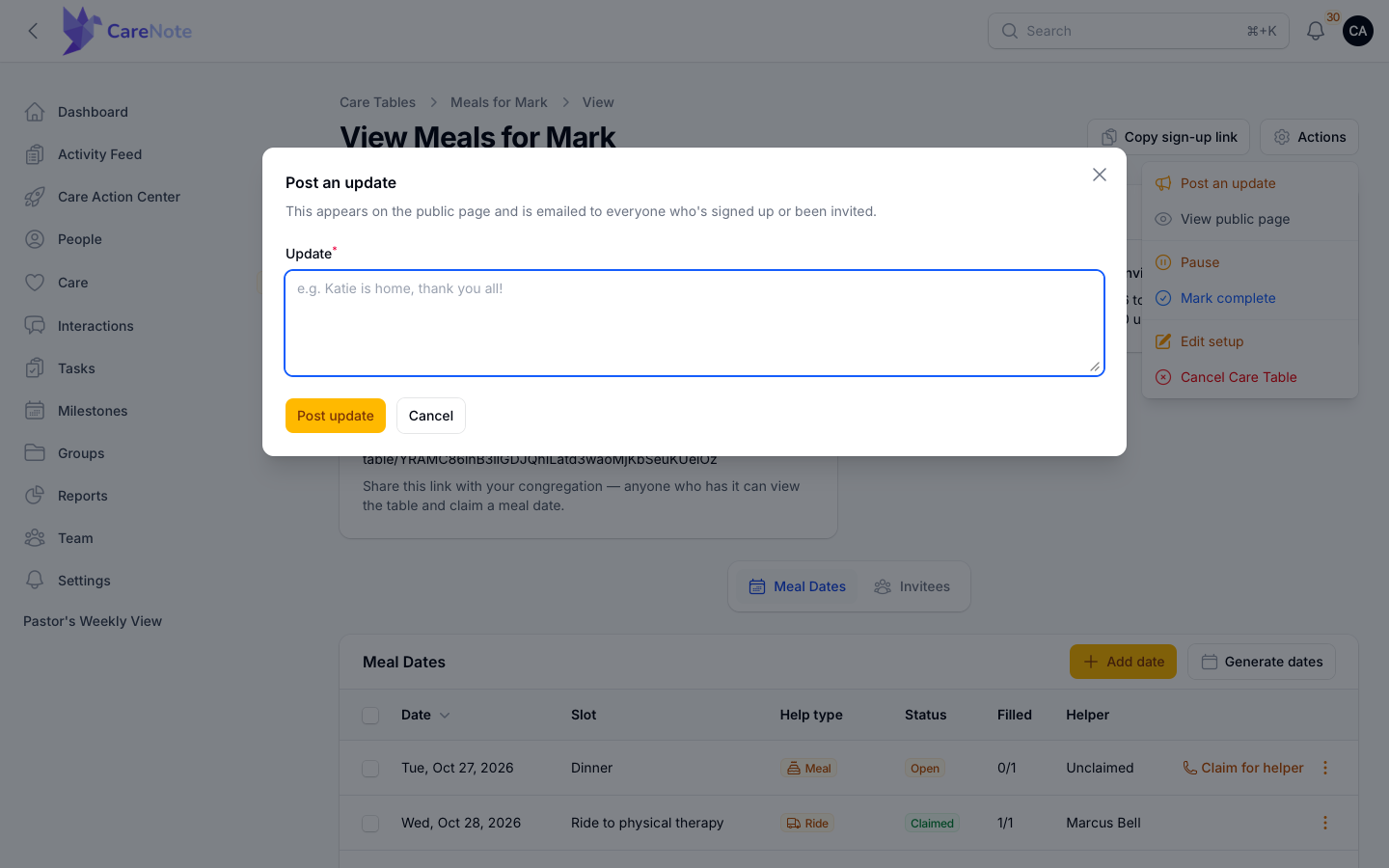
Choose Post an update to write a note, such as "Katie is home, thank you all!" It appears on the public page and is emailed to everyone who has signed up or been invited.
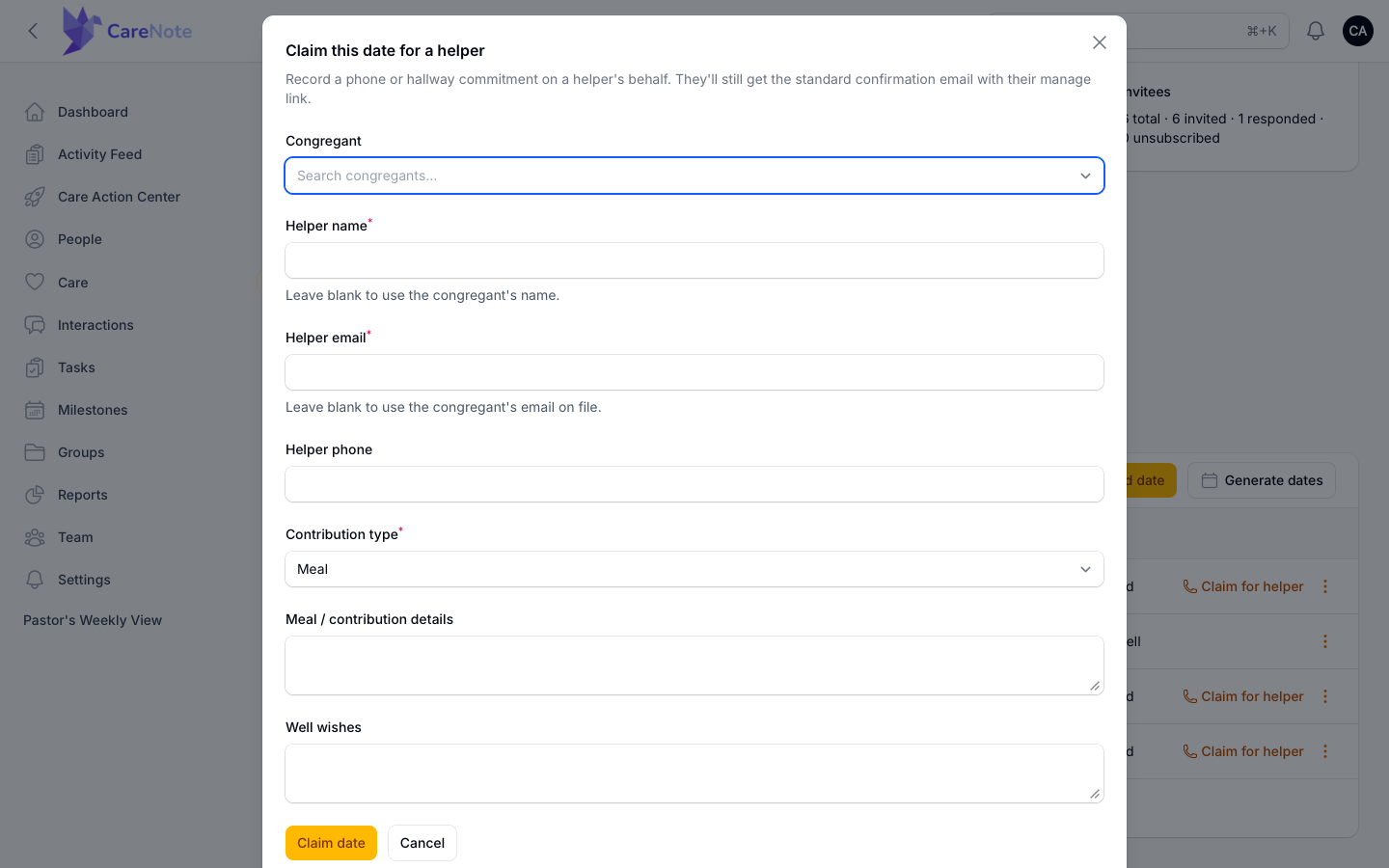
If someone calls the office to commit to a date, use Claim for helper on that open date. They still receive the standard confirmation email.
What a helper experiences
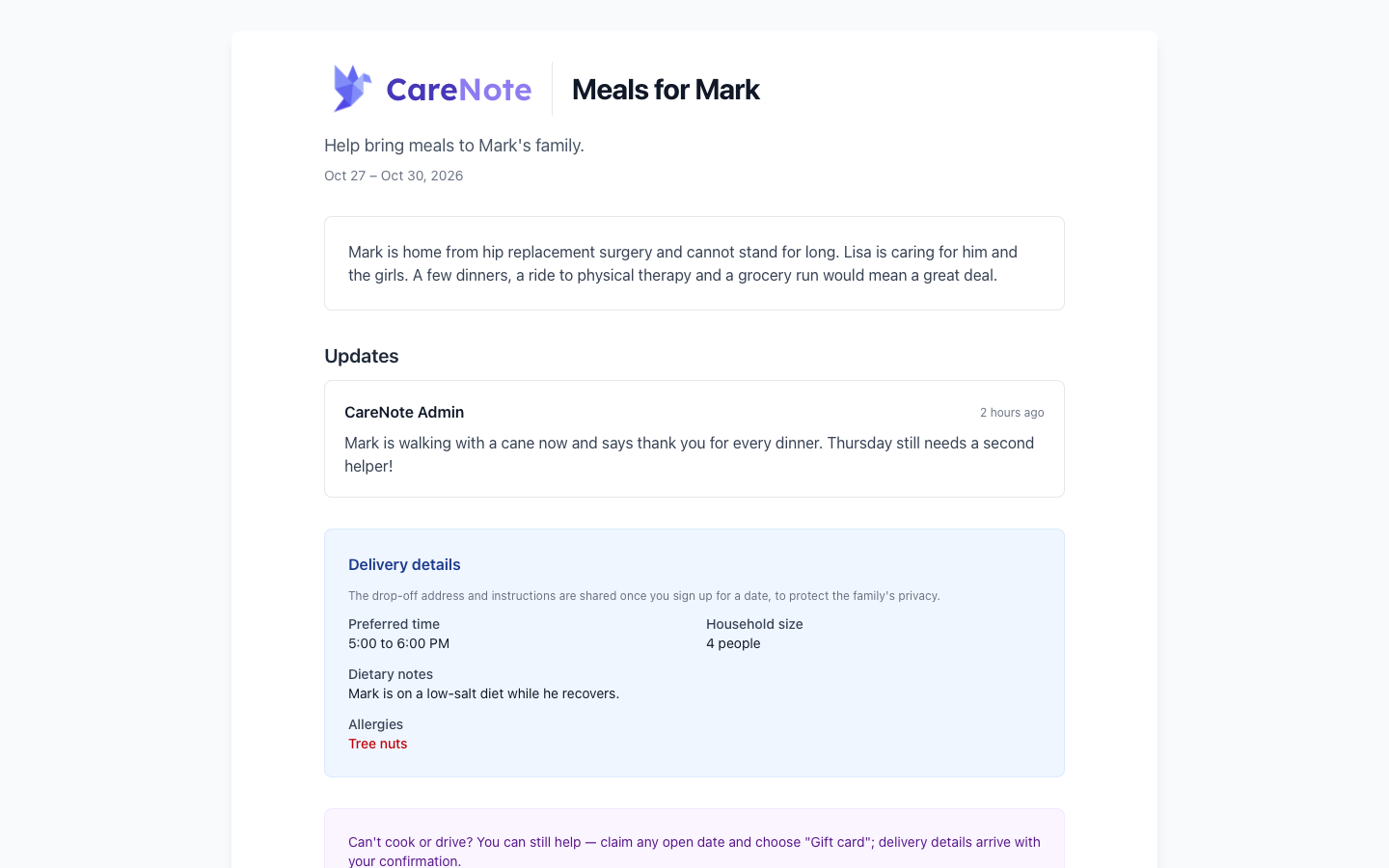
Helpers never log in. They open the link and see:
- the family's story, photo, and any updates
- the preferred time, household size, dietary notes, and allergies in red
- a calendar with an icon for each help type and a count such as "0 of 2 spots filled"
- buttons to share the page by email, text message, WhatsApp, or a copied link
The page does not show the drop-off address or instructions. They are shared once someone signs up, to protect the family's privacy.
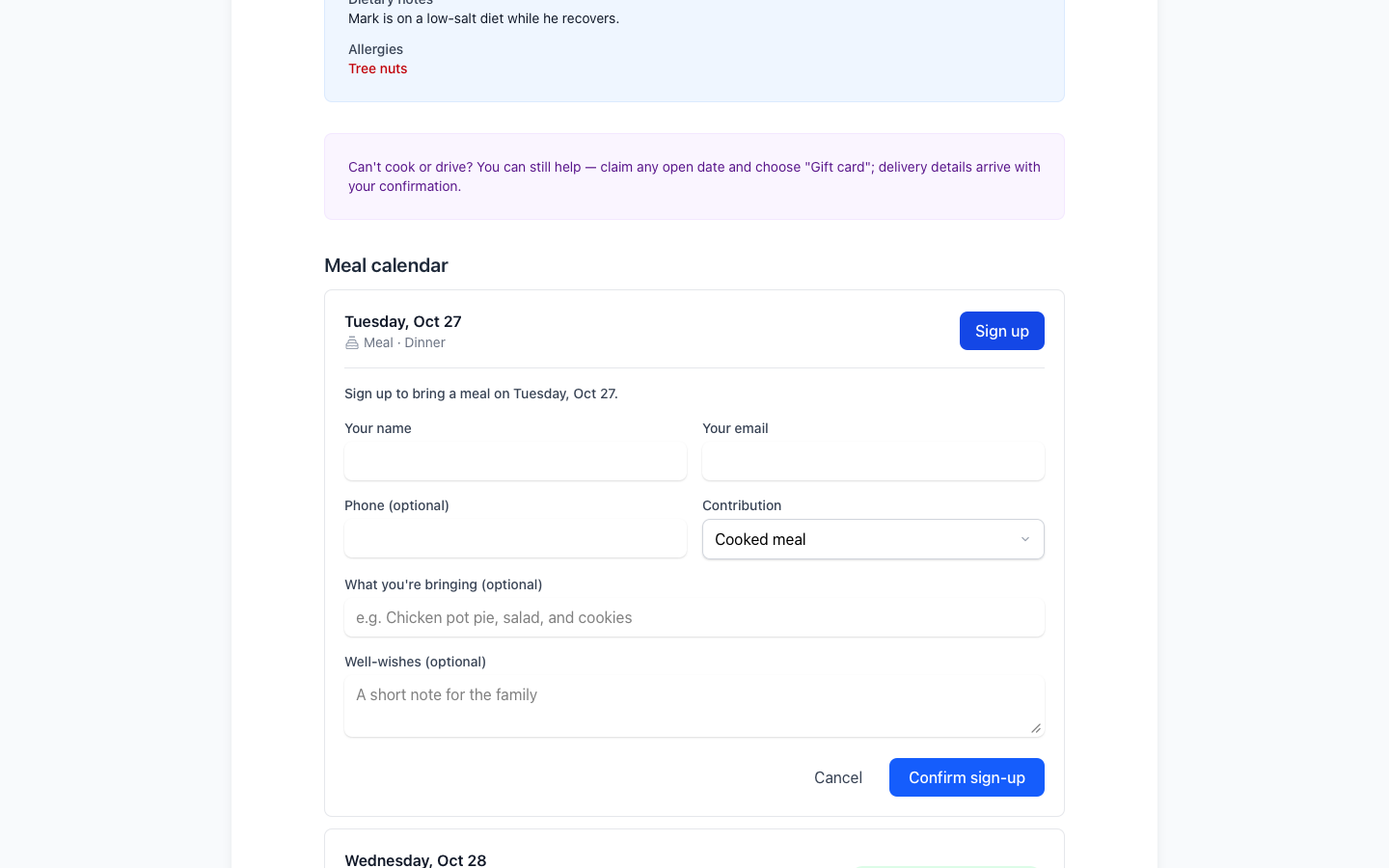
To take a date, a helper clicks Sign up. The form heading names the task, such as "Sign up to bring a meal on Tuesday, Oct 27." Meal dates include a Contribution choice of Cooked meal, Gift card, or Something else. Other dates ask for details instead.
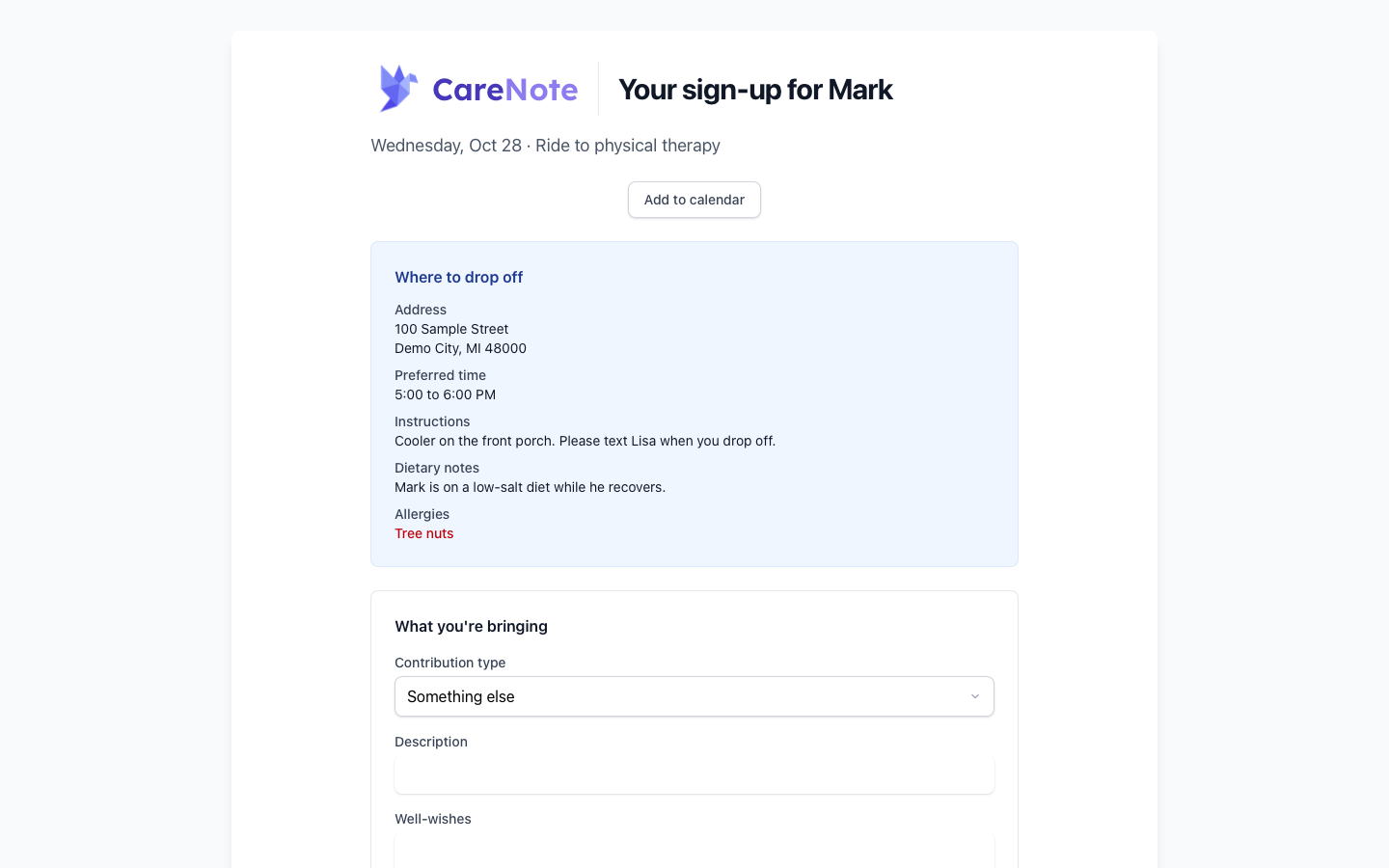
After signing up, the helper gets a confirmation email and a sign-up page with the drop-off address, time, instructions, and an Add to calendar button.
If your team has a giving link in settings, the public page also offers "Give through (your church)'s benevolence fund" for people who would rather give a gift card or a gift.
Staying on top of it
- Helpers who claimed a date get a reminder the day before.
- Invitees who have not signed up get a nudge about once a week while dates are open.
Reminders stop when you pause or cancel the table, and you can turn them off with Send reminders to helpers. When a helper claims or releases a date, the coordinator always gets an in-app notice. Email follows that person's own Sign-up pages notification settings, and Administrators are notified by default too.
A family point person has a private link to edit delivery details, add or remove dates, and see who signed up, but never sees the invitee list.
Frequently asked questions
Do helpers need a CareNote account? No. The link in the invitation, or the public page link, is all they need.
Can people outside our church help? Yes. Invite anyone by name and email, or share the public link. They only see that one Care Table.
Is the family's address public? No. The public page holds back the address and instructions until someone signs up.
Can I undo a cancellation? Yes. Choose Restore Care Table from the Actions menu.
Can a Care Request have more than one Care Table? No. Once one exists, the menu offers Manage Care Table.