
Care Needs: Organizing Practical Help from a Care Request
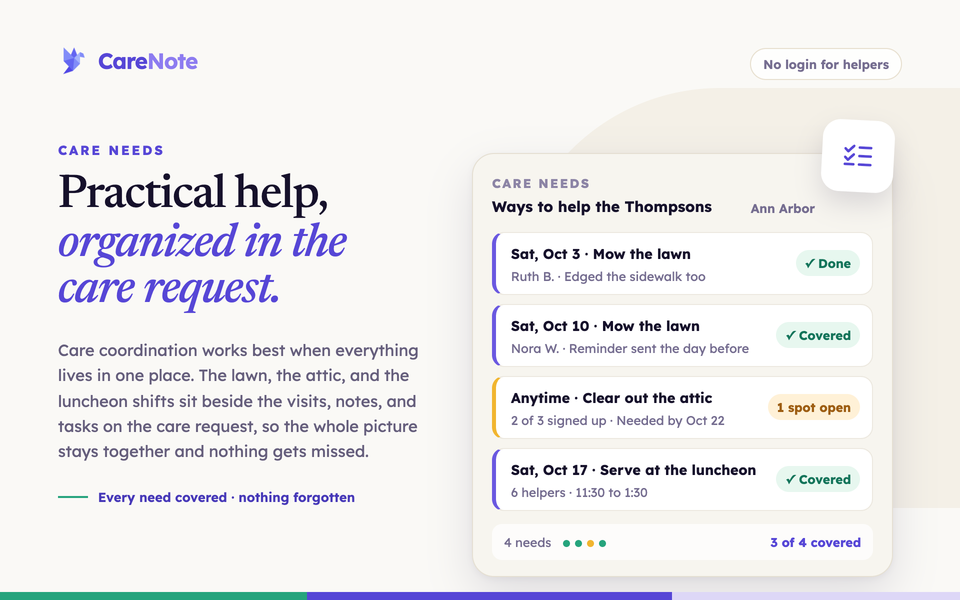
When someone in your congregation is recovering from surgery, caring for a sick spouse, or planning a loved one's memorial, the help they need is often practical: mow the lawn for five weeks, clean out an attic, change the oil, staff a luncheon in shifts. Organizing that usually means a big email, a pile of replies, and one person trying to remember who said yes to what. Care Needs is a practical-help sign-up built into the Care Request instead. The needs, the helpers, and the finished work sit beside the visits, notes, and tasks your team already keeps, so the whole picture stays together and nothing gets missed.
Introducing Care Needs: practical help, organized (1:44)
What Care Needs is
Care Needs is an optional CareNote add-on that adds a practical-help sign-up page to any Care Request. As the coordinator, you list each thing the family needs help with, then invite people to help. Helpers say "I can help" on a simple page, no CareNote account required. You can invite specific people, a whole group with one click, congregants who match a filter, or anyone by email, including neighbors and relatives who attend somewhere else.
Care Needs is the sibling of Care Table. Care Table organizes meals; Care Needs organizes everything else a family needs a hand with. Each Care Request can have one Care Needs page.
Care Needs is not turned on by default. You can turn it on under Settings > Optional Paid Add-ons > Care Needs.
Setting up Care Needs
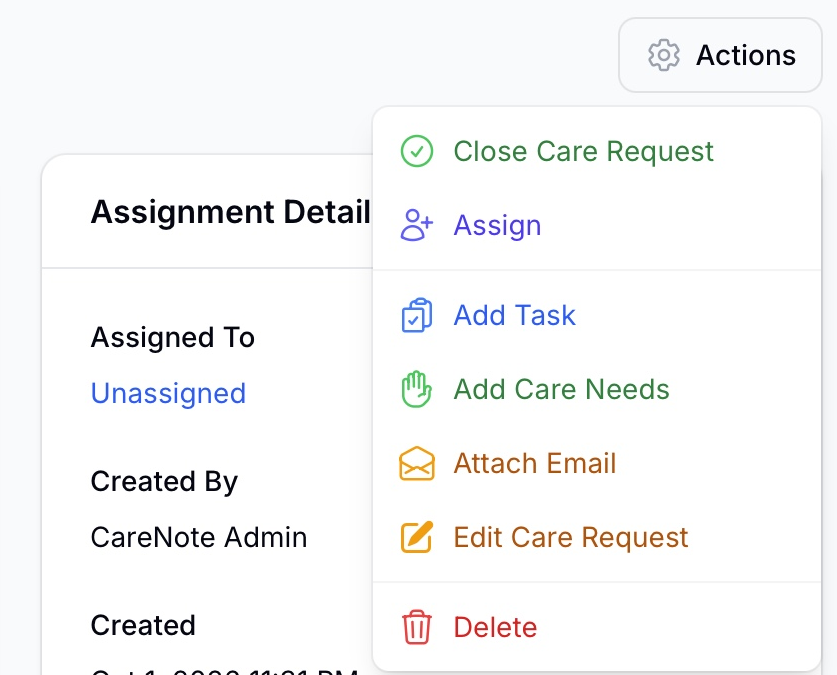
- Open the Care Request for the person who needs help, click the Actions button in the top right, and choose Add Care Needs. CareNote creates a Care Needs page for that request and opens it. (Once a page exists, that same menu item becomes Manage Care Needs.)
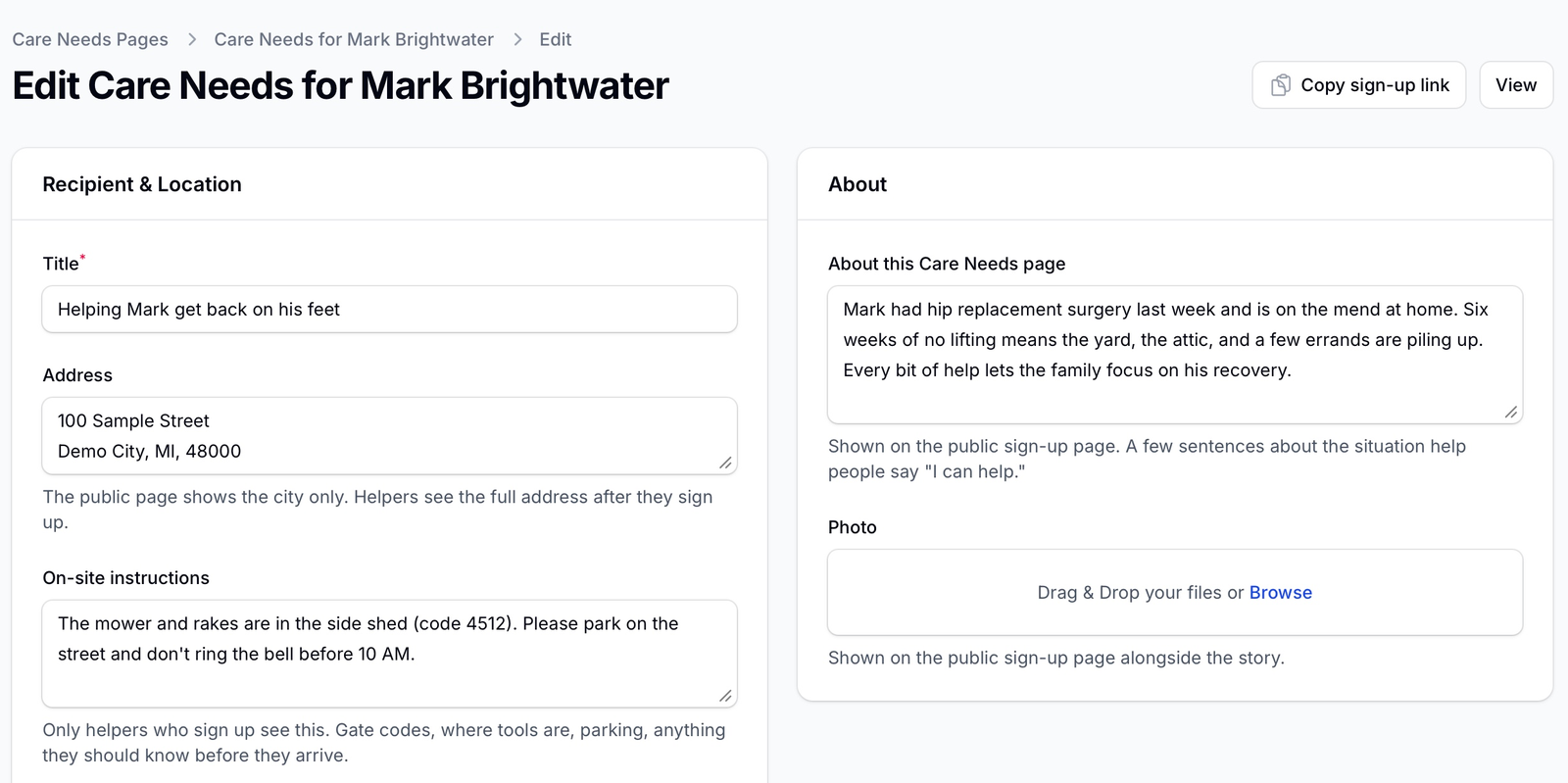
- Open the page's Actions menu and choose Edit setup to fill in the details:
- Recipient & Location: a Title, the Address, On-site instructions (gate codes, where the tools are, parking), and a Contact name and Contact phone for who helpers should reach on the day. The public page shows the city only. Helpers see the full address and the on-site instructions only after they sign up.
- About: a few sentences in About this Care Needs page and an optional Photo. Both appear on the public sign-up page and help people say yes.
- Family point person: the name and email of someone in the family who can see who is coming and post updates.
- Options: Send reminders to helpers is on by default. Show a giving link adds "Can't help in person? Give instead" to the public page once your team has a giving link set in Team Settings.
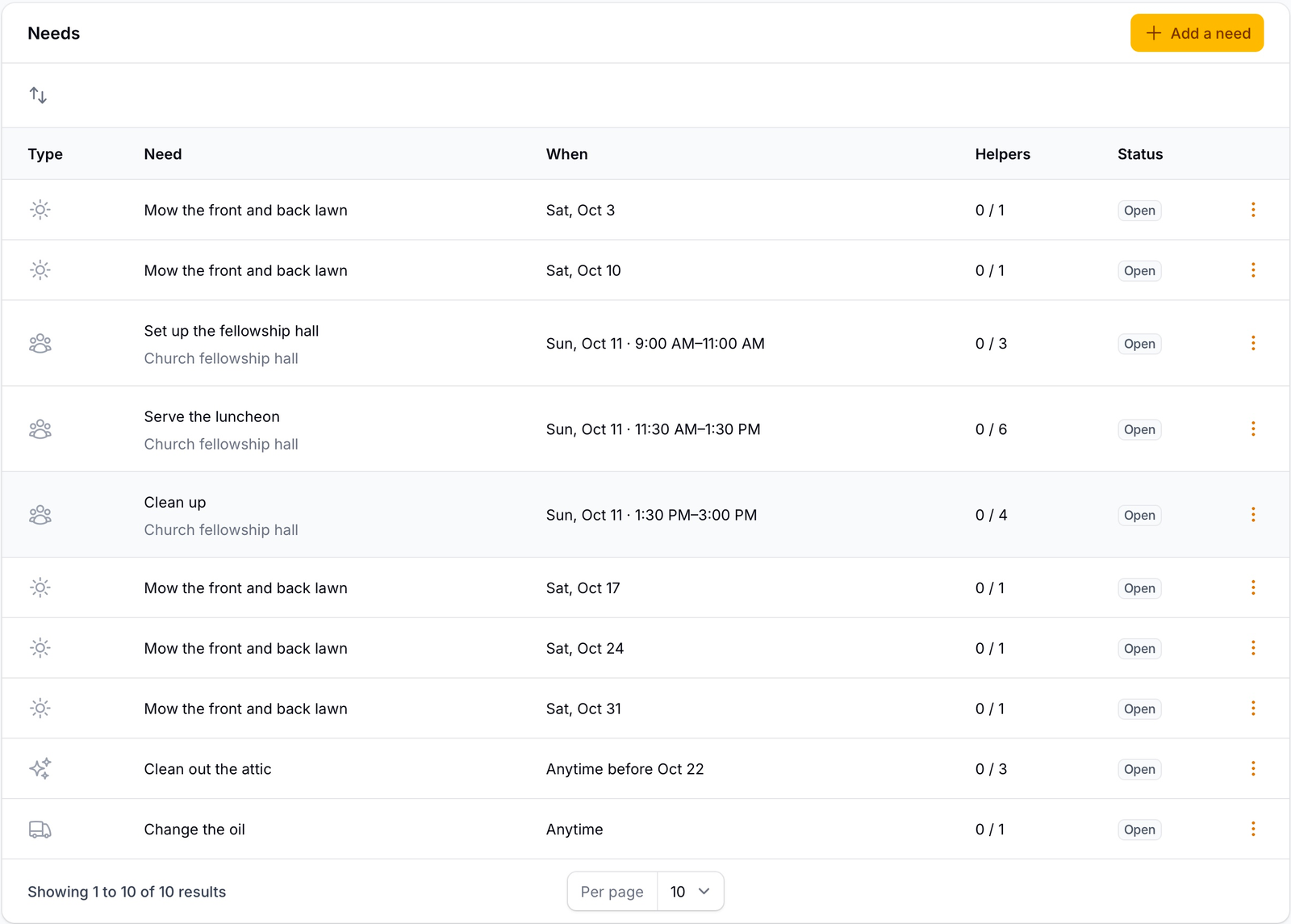
- On the Needs tab, click Add a need for each thing the family needs. Every need has:For help that recurs, open a dated need's row menu and choose Repeat this need. Pick Every week or Every other week, then either a number of times or a date range, and CareNote creates the copies. Dates that already have that need are skipped. For an event, add one timed need per shift, for example set up, serve, and clean up, each with its own helper count.
- a Type: Yard work, Home repair, Cleaning, Moving, Transportation, Errands, Childcare, Pet care, Event serving, or Other
- a Title and an optional Description
- When: On a date for a specific day, or Anytime with an optional Needed by deadline
- an optional Start time and End time, which turn a need into a shift
- Location (if different), for help that happens somewhere other than the home, such as the church fellowship hall
- Helpers needed, from 1 to 50
- Supplies / what to bring
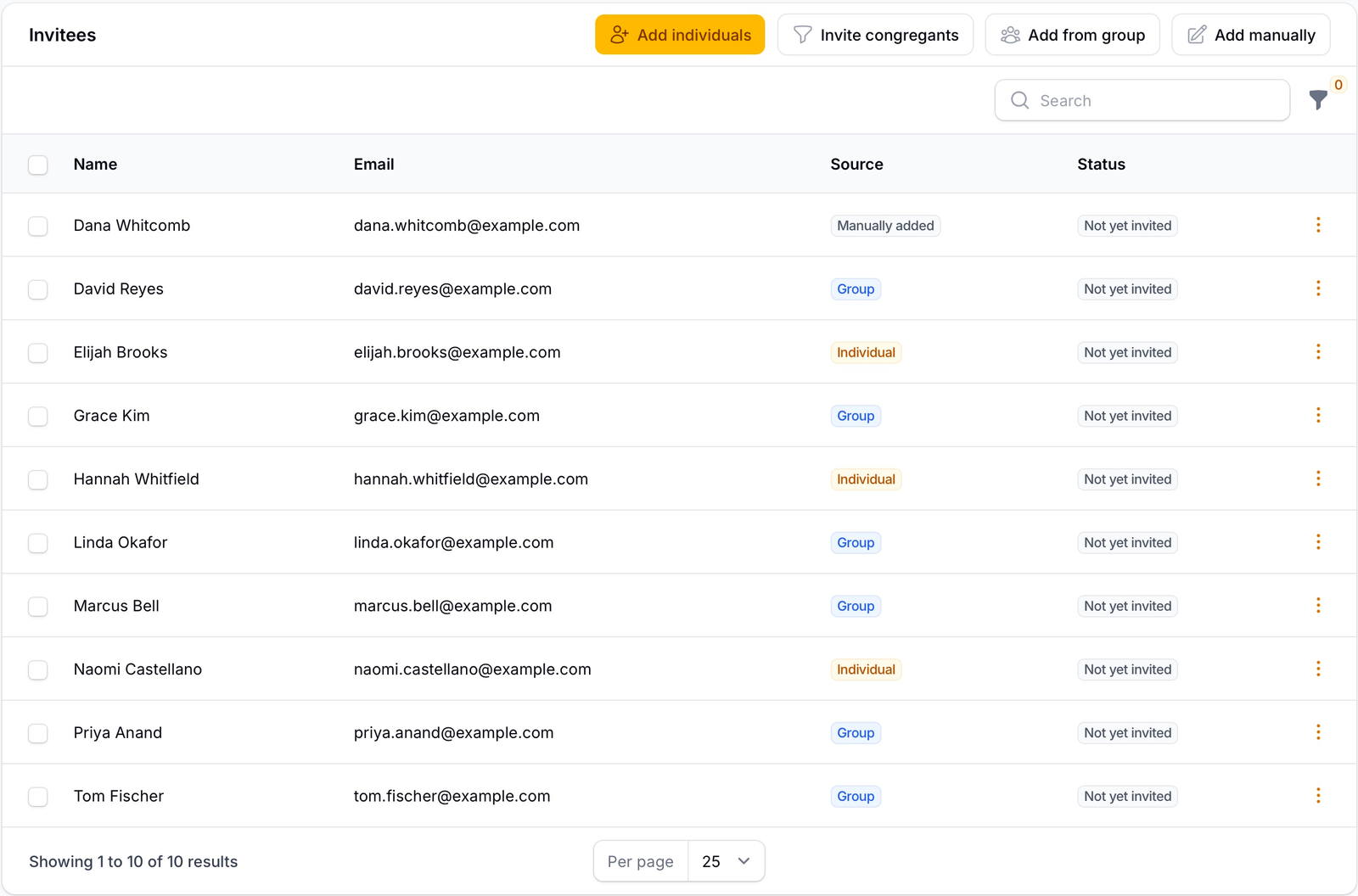
- On the Invitees tab, build your list from any combination of four sources: Add individuals to search people already in CareNote, Invite congregants to add everyone matching an affiliation, classification, campus, or age range, Add from group to add a whole group, or Add manually to type in names and emails for people outside your system. People already on the list, or without an email, are skipped, so nobody is invited twice.
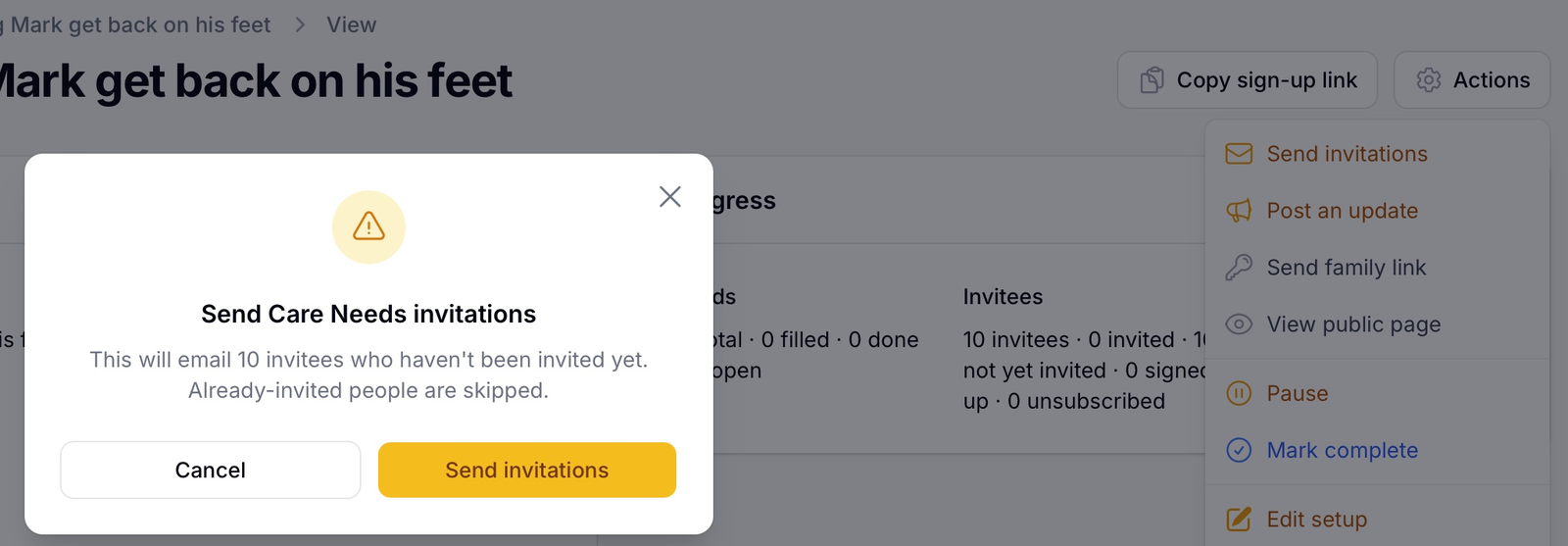
- When the page is ready (it needs an address and at least one need), open Actions and choose Activate, then Send invitations. CareNote tells you how many people are about to be emailed and sends each invitation individually. Building the invitee list on a draft never emails anyone; invitations go out only when you send them. While the page is active, anyone you add later is invited right away.
Each invitee gets their own email with a private link. No one sees a group list or anyone else's contact information. If you would rather share the link yourself, Copy sign-up link sits next to the Actions button.
What a helper experiences
Helpers never log in or create an account. Everything happens through the link in their email.
- A helper opens the link and sees the story, the city, and the needs. Dated needs are grouped by day, and flexible needs appear under Anytime. Each need shows its type, what to bring, and how many helpers have signed up so far, by first name only.
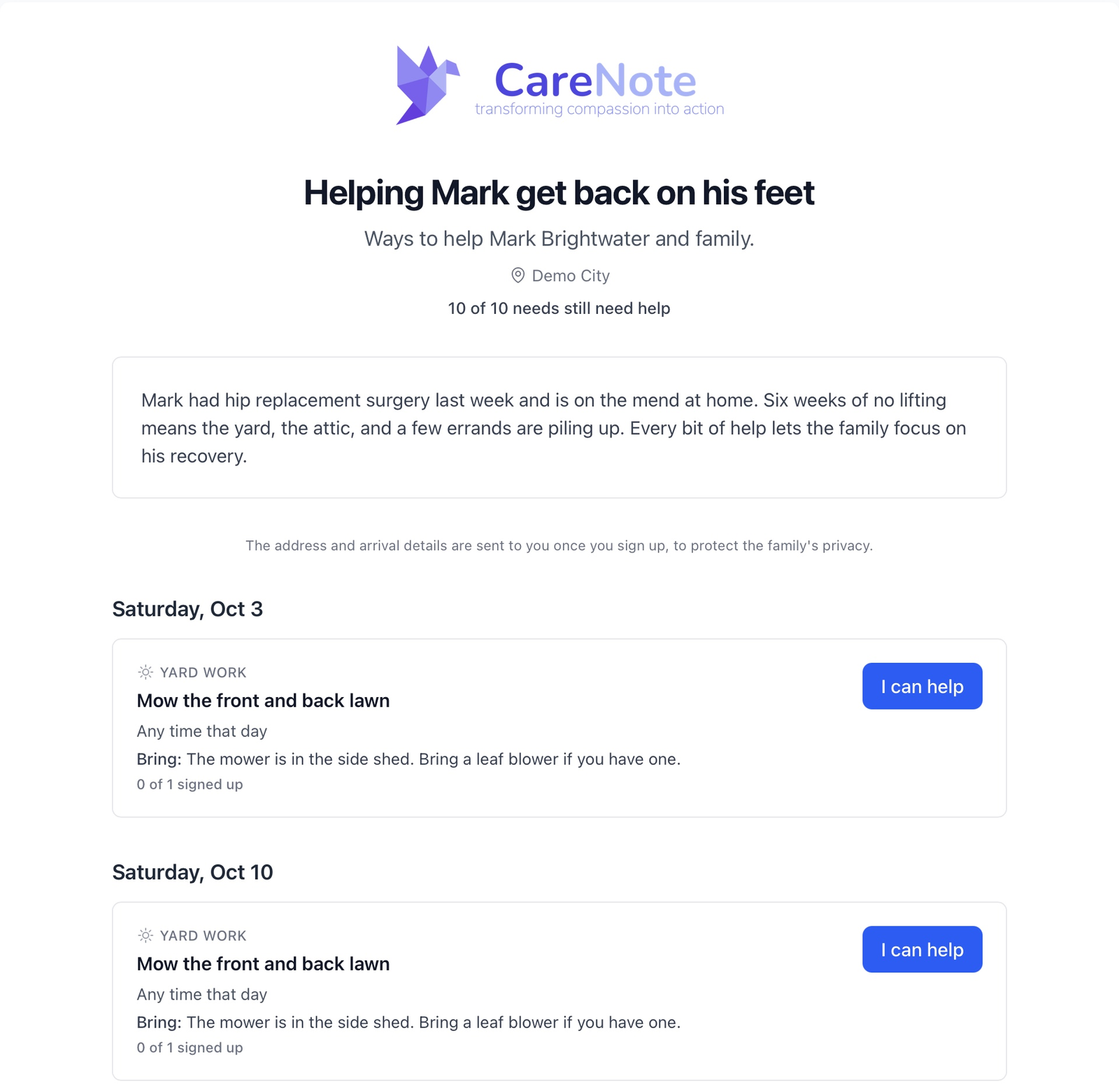
- To take a need, they click I can help and a short form opens right there: Your name, Your email, an optional phone number, and an optional note for the family. Then they click Sign me up. When a need has all the helpers it asked for, it shows Covered, thank you!
- Their confirmation email carries the full address, the on-site instructions, what to bring, the day-of contact, and a link to their own sign-up page.
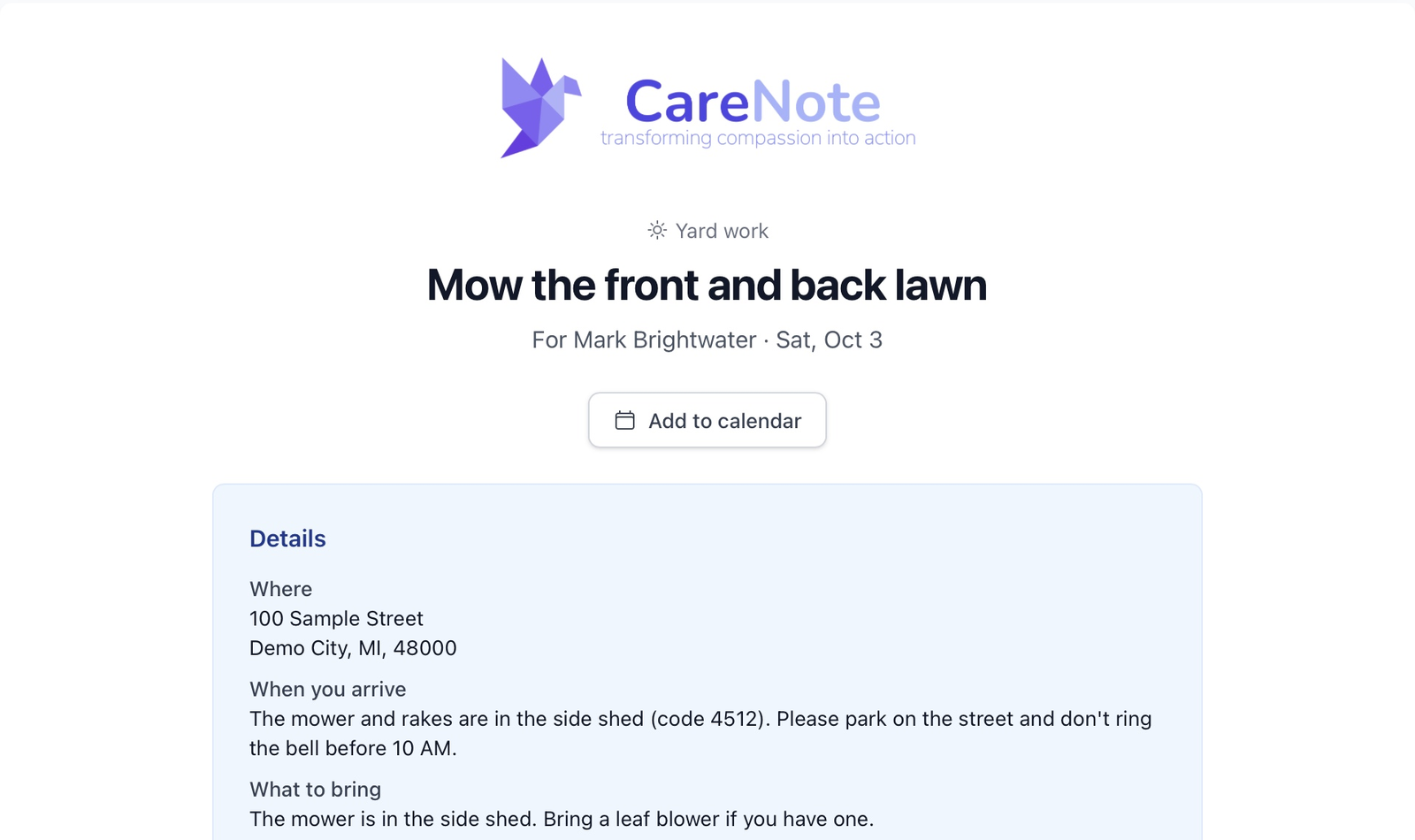
On that page a helper can Add to calendar, update their phone number or note, or Cancel my sign-up if plans change, which opens the spot for someone else. When the work is finished, they click Mark it done and can add an optional How did it go? note. A dated need can be marked done on or after its date.
Staying on top of it
Care Needs keeps things moving without you chasing anyone:
- Helpers with a dated need tomorrow get a reminder the day before.
- Invitees who haven't signed up get a short "here's what's still open" nudge, at most once a week, and only while a need is still open. Once every need is covered, the nudges stop on their own.
The page's Progress section shows how many needs are open, filled, and done, where your invitations stand, and the next upcoming need. The Sign-ups tab lists who signed up for what, their notes, and how it went. From a need's row menu you can also Sign up a helper for someone who called the office, Mark done a need yourself, or Reset (clear sign-ups) to start a need over.
The page's Actions menu covers the rest:
- Post an update shares a short note on the public page and emails everyone who has signed up or been invited.
- Pause stops reminders and nudges until you Resume.
- Mark complete closes the page to new sign-ups, stops scheduled emails, and records a milestone on the Care Story. A page with nothing left ahead is also completed automatically.
- Cancel Care Needs takes the page down and stops all emails. You can restore it later.
When a helper signs up, cancels, or marks a need done, the coordinator hears about it. The coordinator is whoever is assigned to the Care Request, or its creator if it is unassigned.
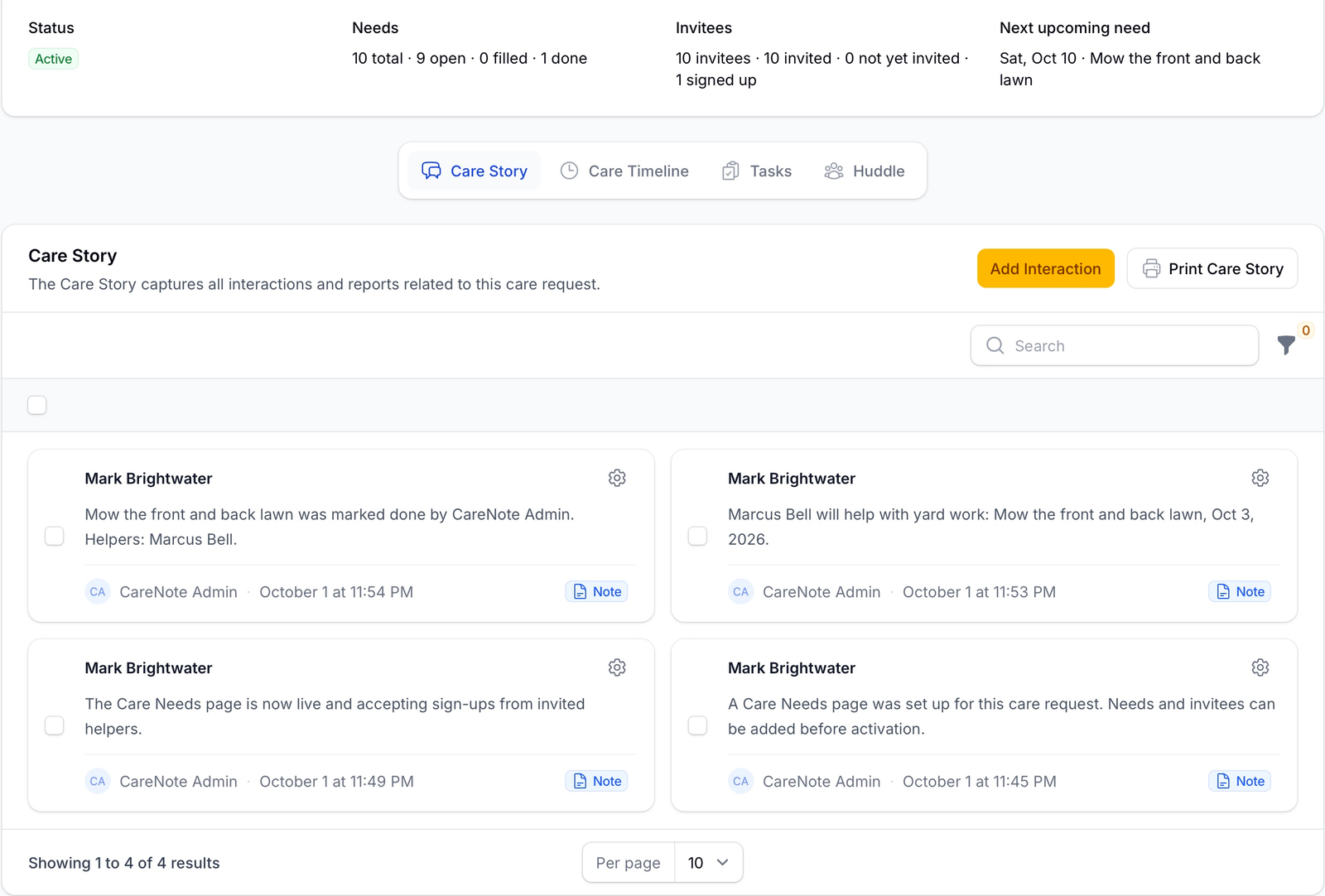
Every claim and every finished need lands on the Care Story as a touchpoint, alongside the visits and notes for that person. When someone mows the lawn, the Care Request shows it.
The family point person
If you add a family point person, open Actions and choose Send family link to email them a private manage link. Through it they can keep the address, arrival instructions, contact, and story current, add a need the church didn't know about, remove a need nobody has signed up for yet, and post a thank-you that appears on the public page and reaches everyone helping. They also get an email when a helper signs up, cancels, or finishes a need. They never see the invitee list.
Frequently asked questions
Do helpers need a CareNote account? No. Helpers never log in, install anything, or create an account. The link in their invitation email is all they need.
Who sees the family's address? Only helpers who sign up. The public page shows the city only. The full address and the on-site instructions appear in the helper's confirmation email and on their own sign-up page.
Can one need take several helpers? Yes. Set Helpers needed on each need. The public page shows how many have signed up, and the need shows as covered once it is full. A memorial luncheon might ask for three people to set up, six to serve, and four to clean up.
What happens if a helper cancels? Their spot opens again right away, the coordinator and family point person are told, and invitees who haven't signed up will see the need in their next nudge.
How do reminders work? Helpers with a dated need get a reminder the day before. Invitees who haven't signed up get a nudge at most once a week while something is still open. You can switch reminders off with Send reminders to helpers, and pausing the page stops them too.
Someone called the office to help. How do I add them? Open the need's row menu and choose Sign up a helper. Pick the person from your congregation or enter their name and email. They get the same confirmation email and sign-up link as everyone else.
Can I use Care Needs and Care Table on the same Care Request? Yes. Each Care Request can have one Care Table for meals and one Care Needs page for practical help, and both appear in the Care Request's Actions menu.
What shows up on the Care Story? The page being created, activated, completed, or restored; each claim; each cancelled sign-up; each finished need; and any need that is reset. Invitations, reminders, nudges, and posted updates do not add entries.
Watch it in action
The Care Needs tutorial on training.carenote.app walks through every step above in under five minutes, and the two-minute explainer shows the whole flow from a helper's point of view. Care Needs is an optional add-on; the Care Needs page on carenote.app has the overview and pricing.