
Creating and Managing Milestones
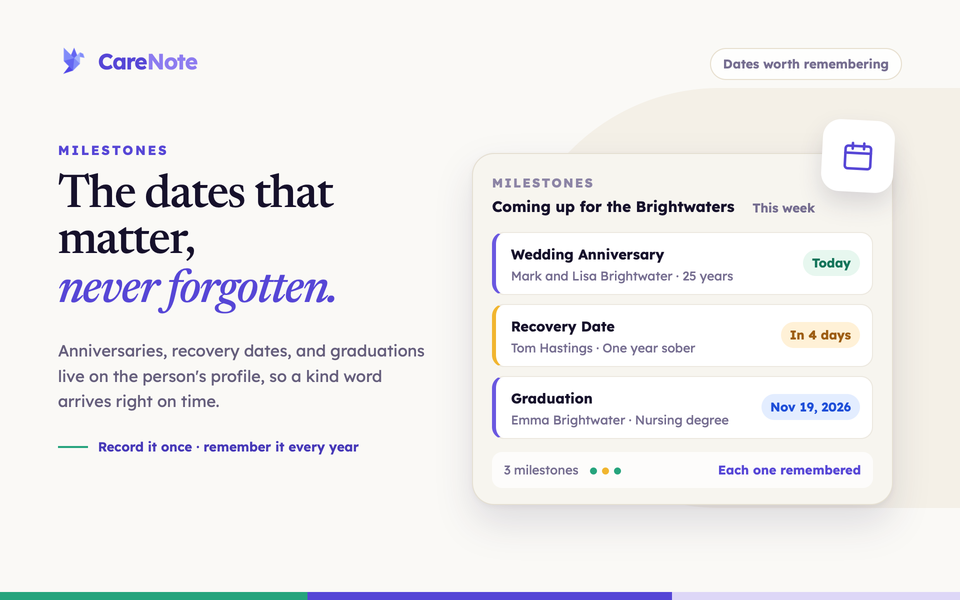
Some dates matter more than others: a sobriety anniversary, the day someone came home from the hospital, a wedding anniversary, the anniversary of a loss. Milestones give your care team a place to record these dates, so a caring text or a well-timed visit doesn't depend on someone remembering it off the top of their head.
Watch: Church Milestones: Remember Birthdays, Anniversaries & Grief Dates | CareNote.
This guide walks through what a milestone is, how to create one, how to find the ones you've already logged, and how to reschedule or edit them later.
What is a Milestone?
A milestone is a named event tied to a date and a person's profile: "Anniversary," "Recovery Date," "New Job," or "Graduation." Each one has a required note describing what the date means, and can optionally belong to a category so you can group related milestones together.
Milestones also show up in the person's Activity (their Care Story) and in the daily prayer digest, so the date reaches your team without anyone hunting for it. If your church has several campuses, CareNote limits how widely milestone notifications are sent so people aren't flooded with dates from other campuses.
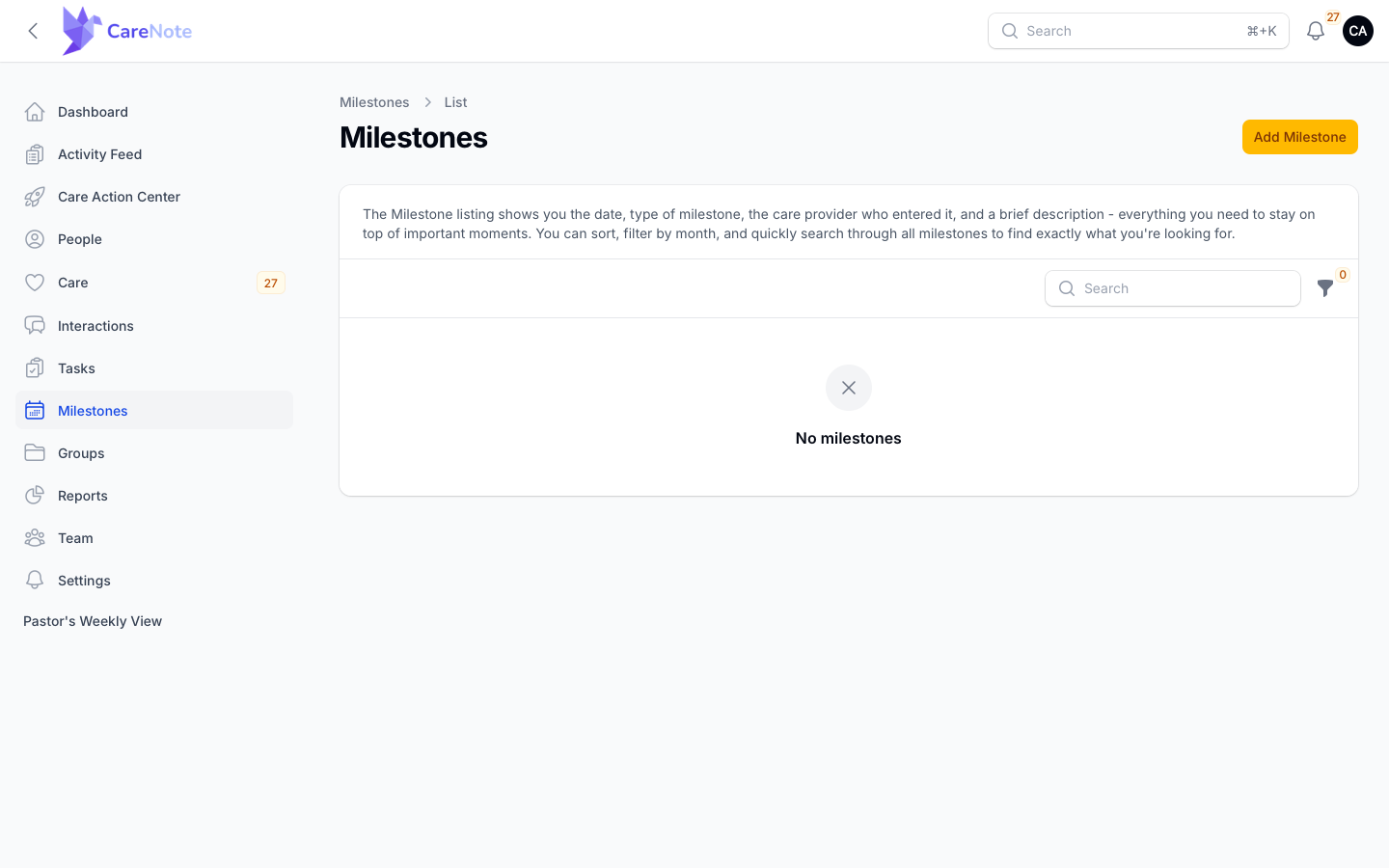
Administrators find Milestones in the left navigation, between Tasks and Groups. The list is a card grid. Each card shows a color-coded date pill, the milestone's title, the person it belongs to, and the note. The pill colors tell you where a date sits at a glance:
- Green reads "Today."
- Amber shows a relative date, like "In 4 days," for the next seven days.
- Blue shows the full date for anything further out.
- Gray shows the full date for dates that have already passed.
1. Create a milestone
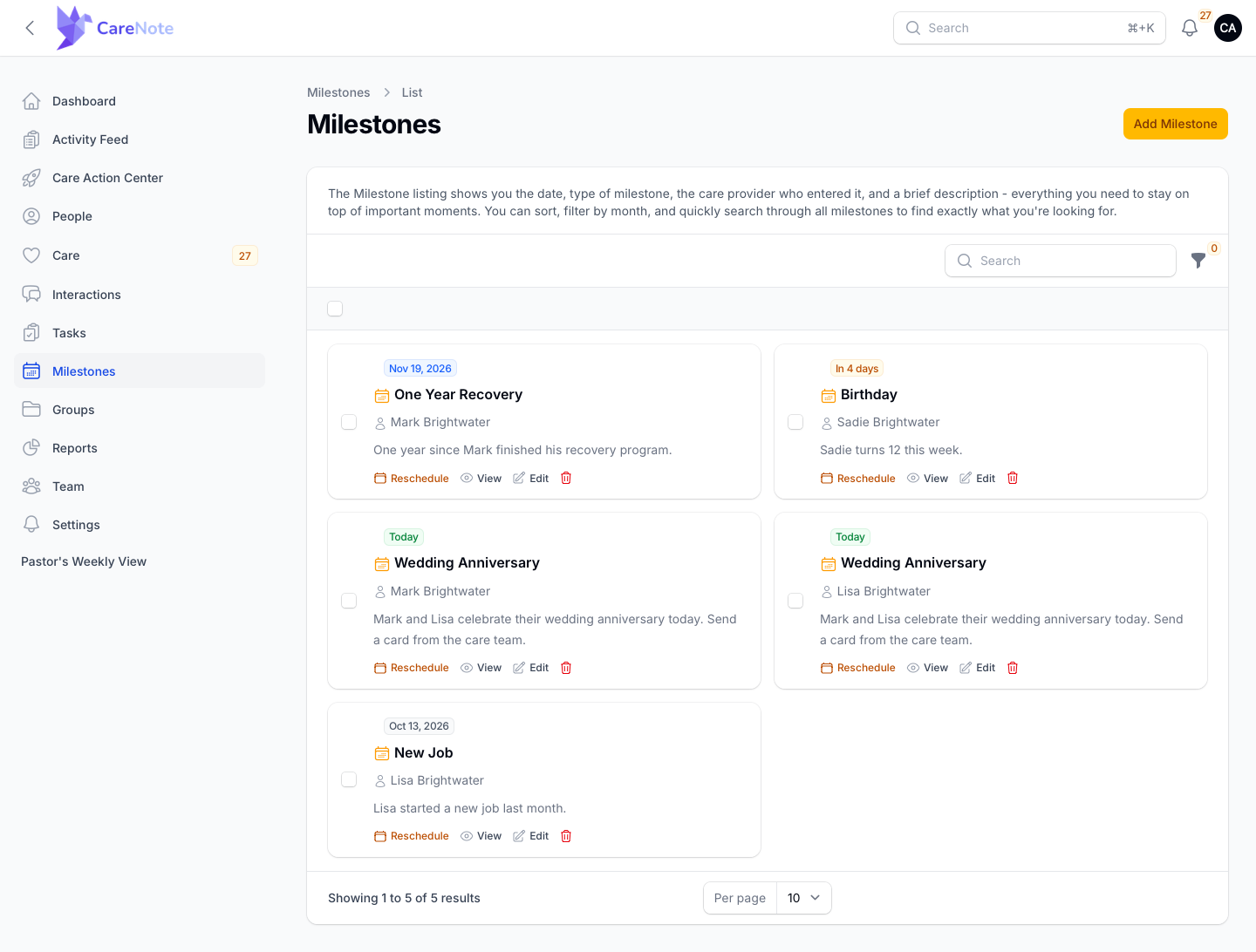
- Click Milestones in the left navigation, then Add Milestone.
- Enter a Milestone name, such as "Anniversary" or "Recovery Date."
- Choose the Person. Search your profiles, or click the small plus button next to the field to add a new person without leaving the form.
- Write a Milestone Note describing what the date means. It's required.
- In the second card, set the Milestone date. It starts on today's date. Optionally choose a Category.
- Click Create, or Create & create another if you have more to log.
2. Link a milestone to a second person
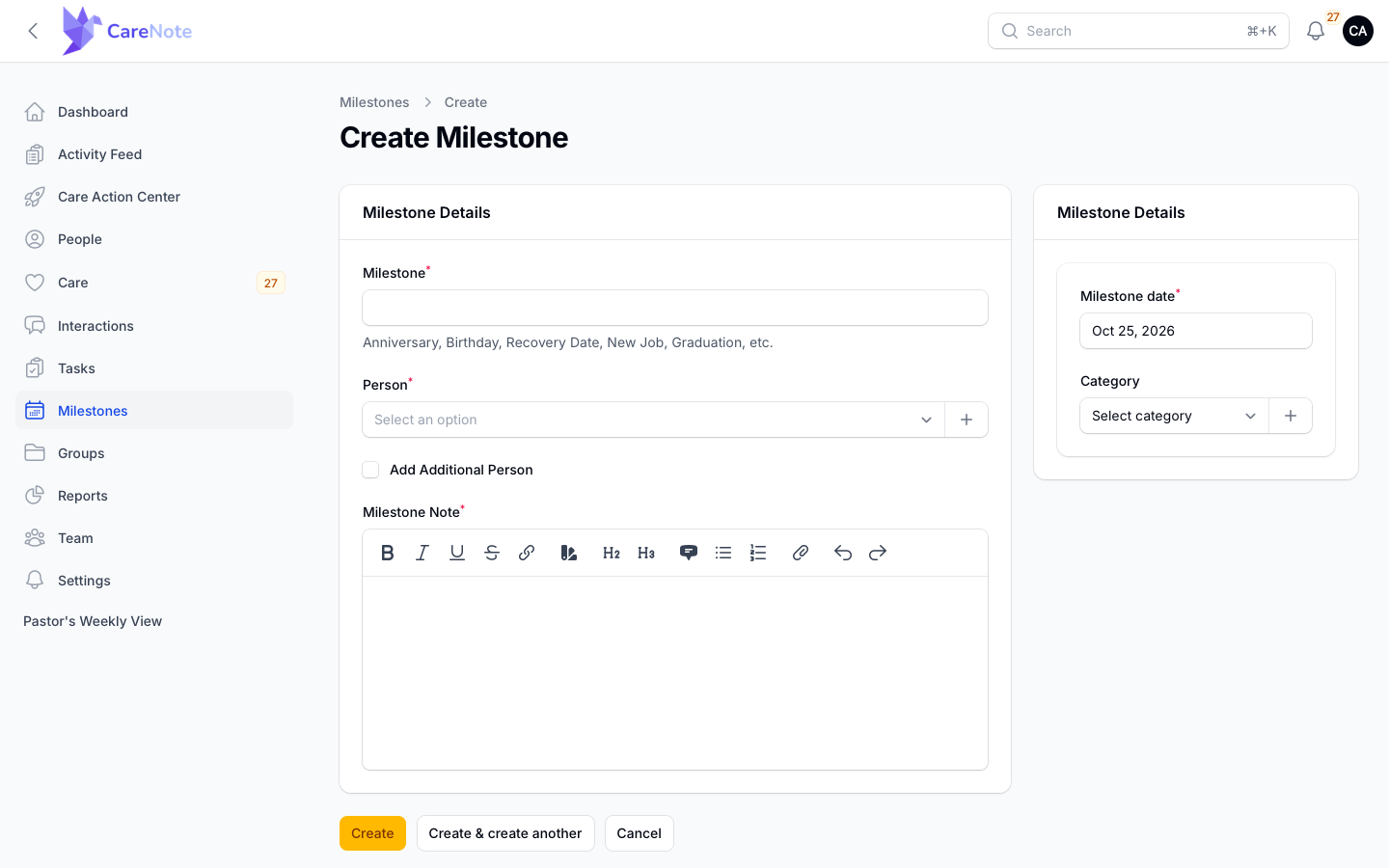
Some milestones belong to a couple. Check Add Additional Person and a second, required Additional Person field appears.
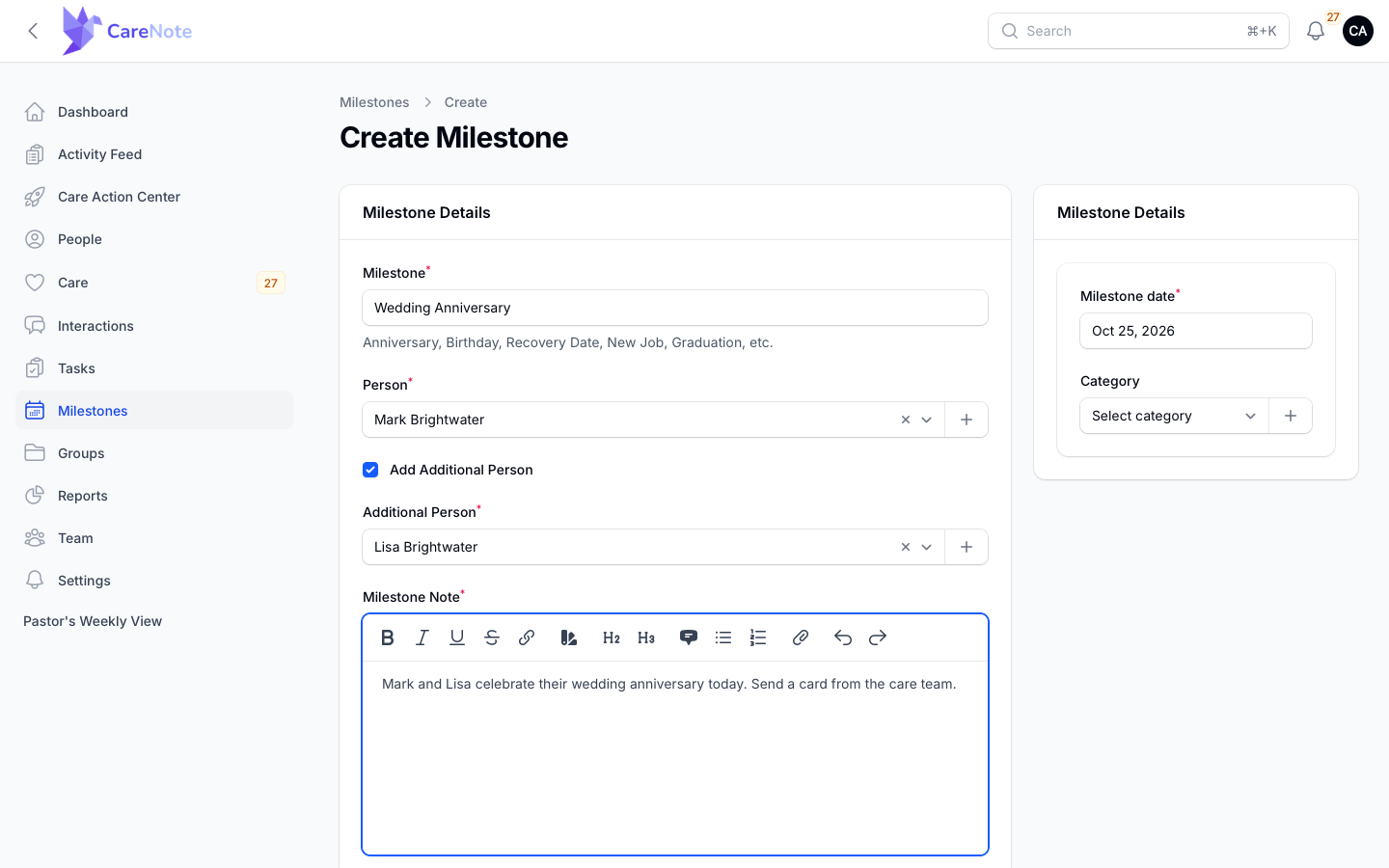
This doesn't create one milestone shared by two people. CareNote creates two separate milestones, one per person, with the same name, note, date, and category. You'll see two cards in the list. Changing one does not change the other, so if you move a date, move it on both cards.
3. Find and filter milestones
Search by milestone name or person name. The list shows the most recent dates first. Click the filter icon above the cards to open the Filters panel. The icon shows a badge with the number of active filters.
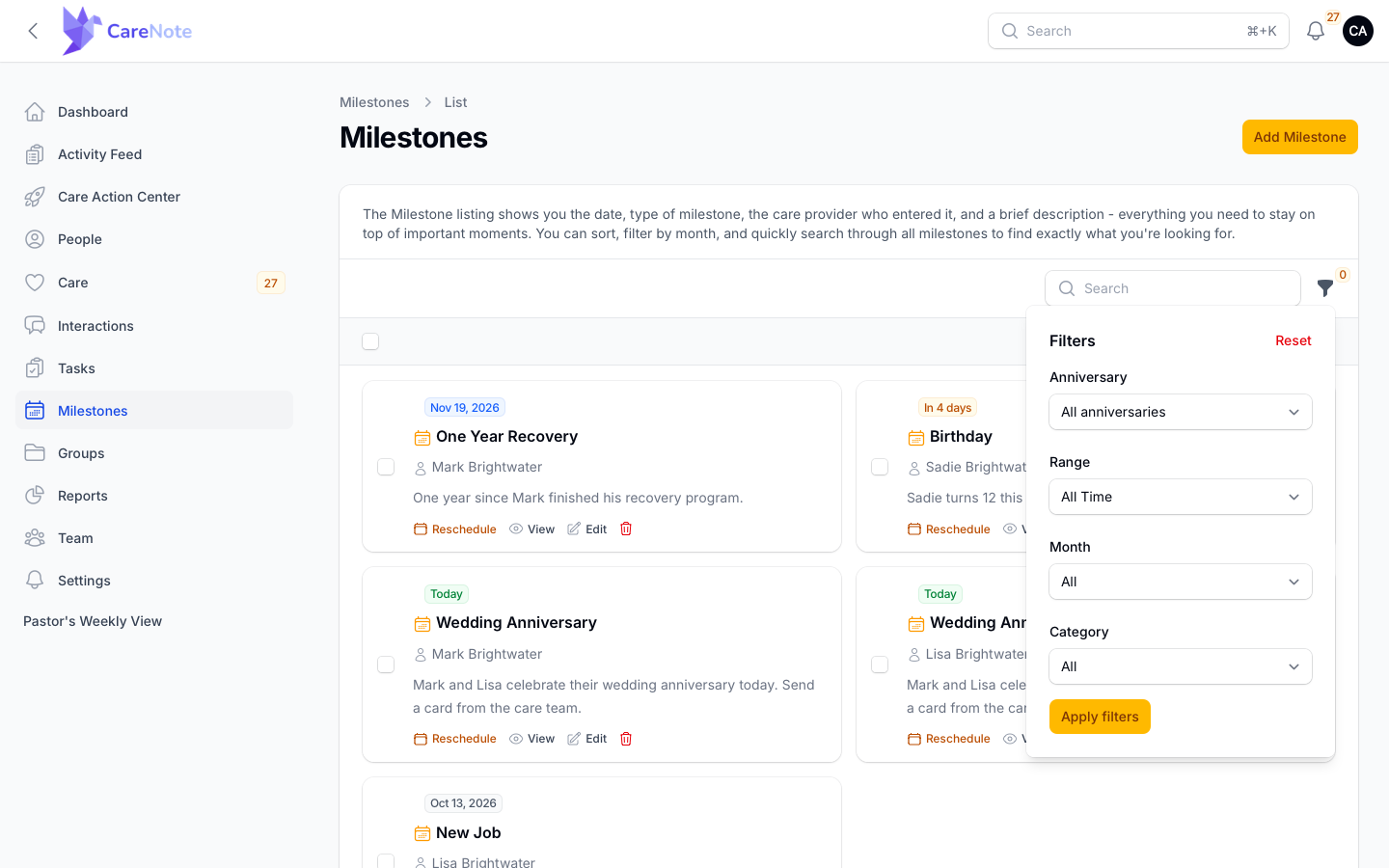
- Anniversary matches the month and day, whatever year the milestone was first logged. Use it for "who has a date coming up," since most milestones repeat every year.
- Range matches the exact date you stored: Today, This Week, Last Week, This Month, Last Month, This Quarter, Last Quarter, This Year, Last Year, or a Custom Range. It does not repeat by year.
- Month shows milestones in a calendar month, any year.
- Category shows milestones in one category.
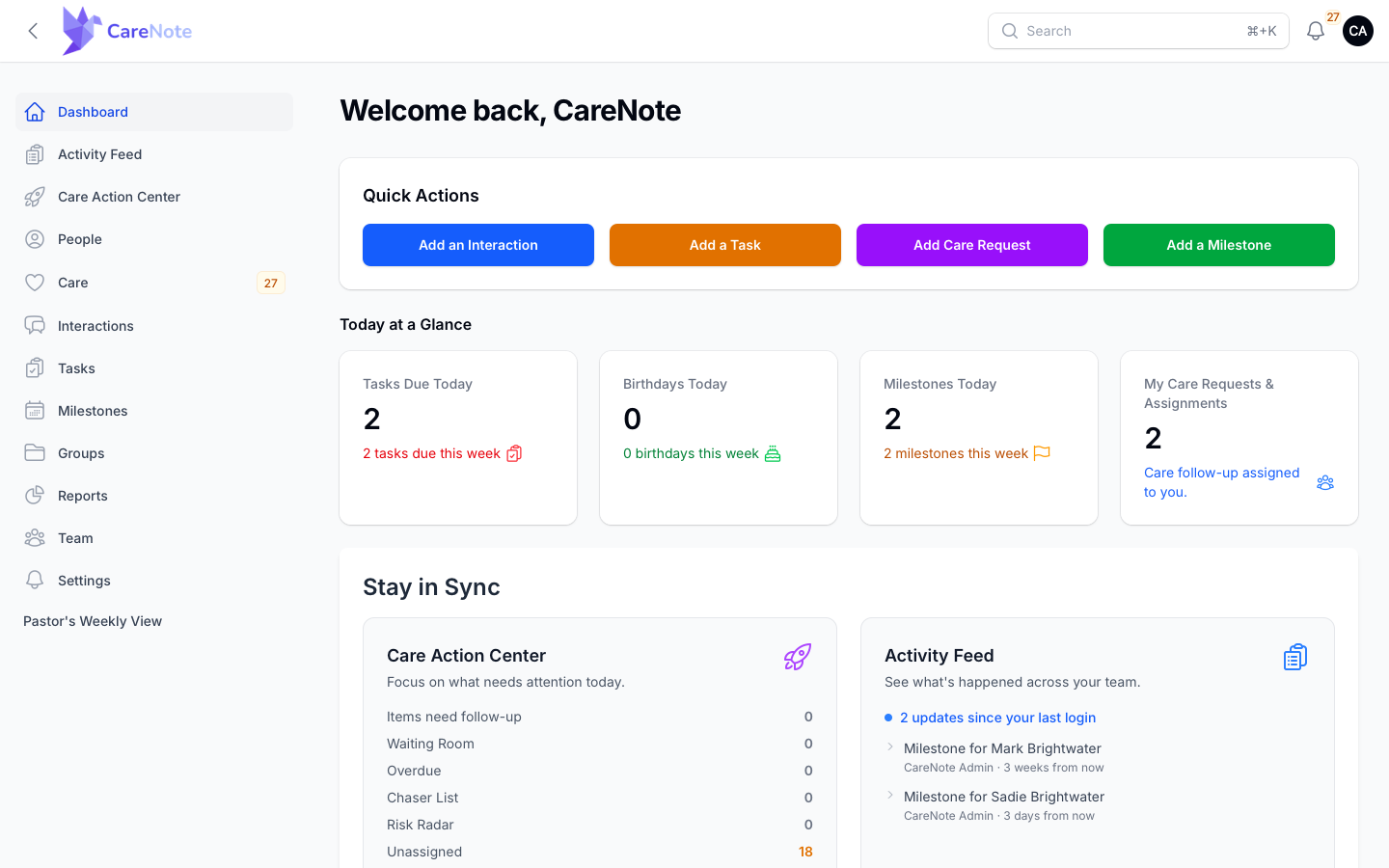
On the admin dashboard, the Milestones Today stat is a shortcut. Click it and you land on the Milestones list with the Anniversary filter already set to today. Its sub-line tells you how many milestones fall this week.
4. Reschedule, view, edit, and delete
Each card has quick actions:
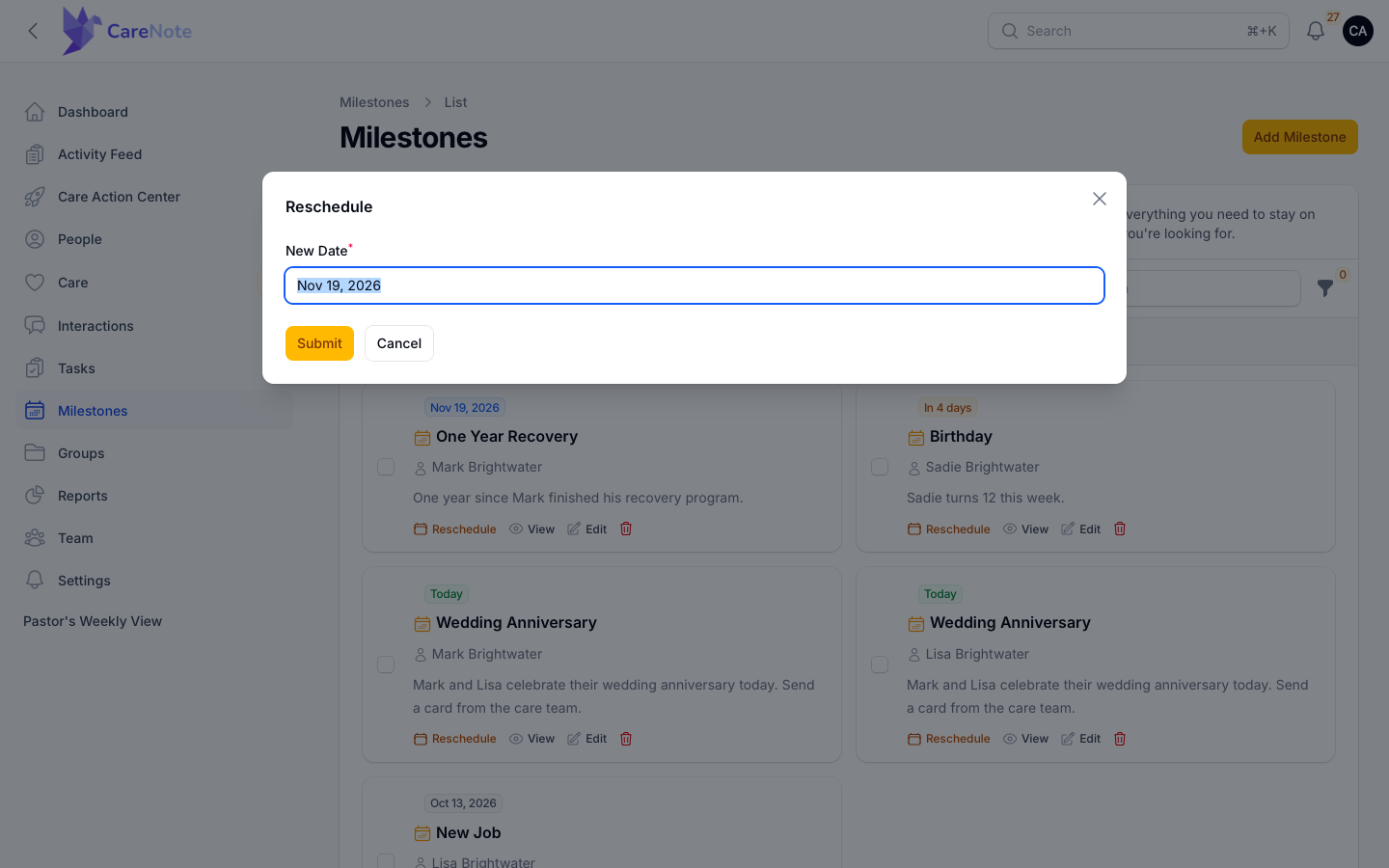
- Reschedule opens a small window with one field, New Date, so you can move a date without opening the full form. Click Submit to save.
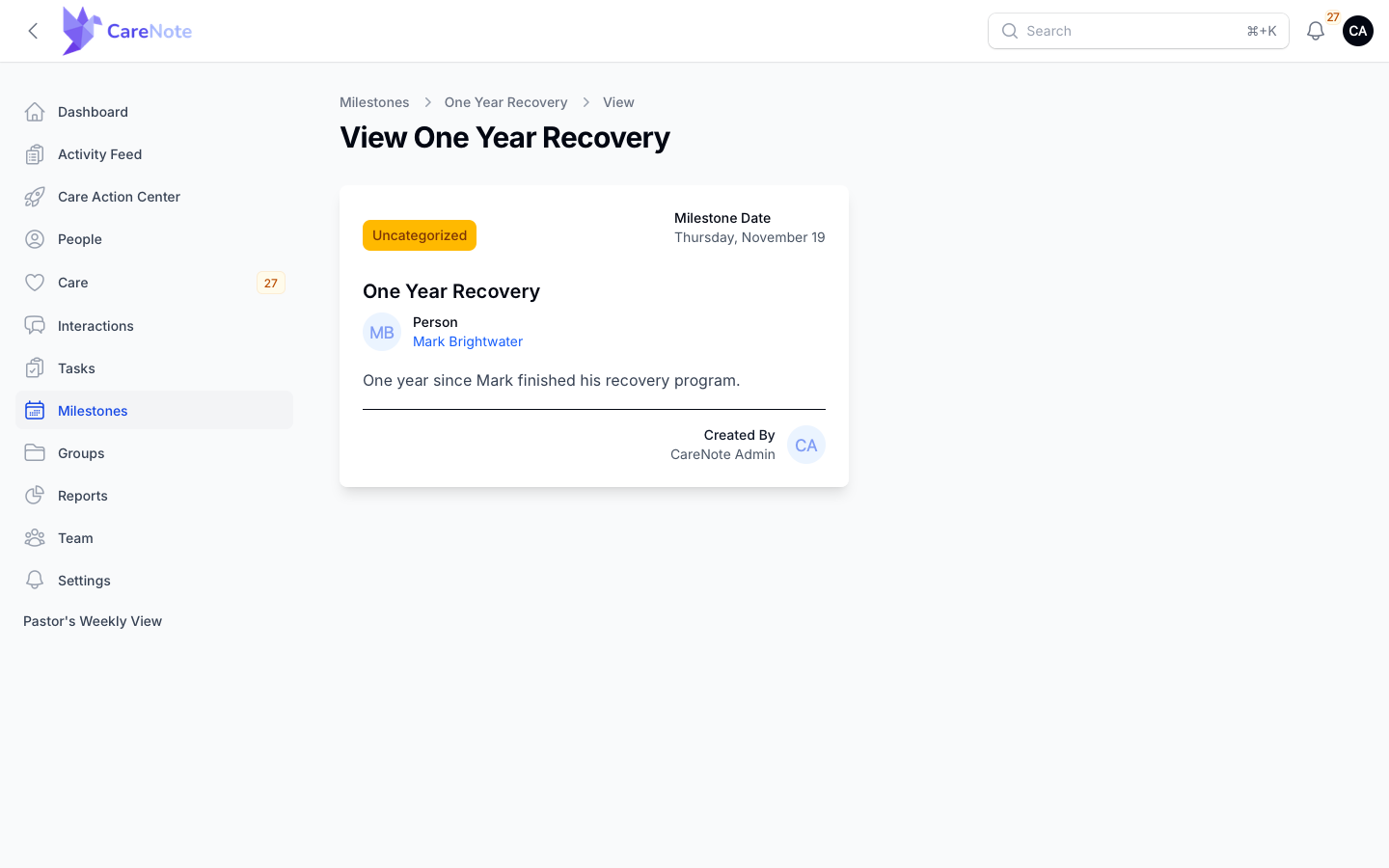
- View opens the milestone's page with its category (or an amber Uncategorized badge), date, person, note, and who created it.
- Edit opens the full form. The Milestone Note only appears when you create a milestone and is hidden on edit, so check your wording before saving.
- The trash icon deletes the milestone. Check the boxes on several cards to delete in bulk.
5. Milestones on a person's profile
Open a person's profile and choose the Milestones tab to see only their milestones. Click Add Milestone there and the person is already filled in, so the form skips the Person and Add Additional Person fields.
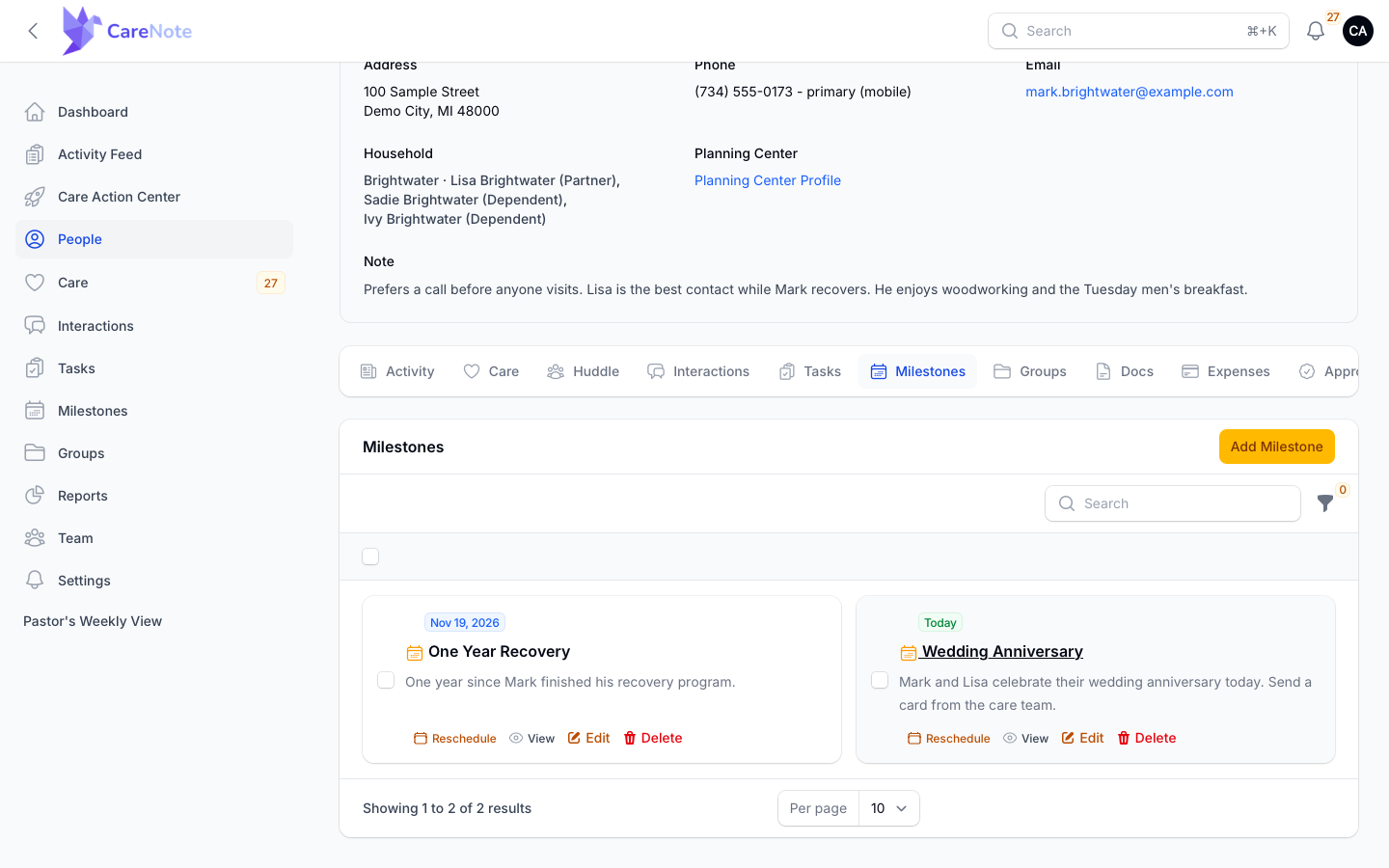
The tab works a little differently from the main list:
- Its filter panel has only Category. There is no Anniversary, Range, or Month.
- Edit opens in a small window instead of a full page.
- The delete action is labeled Delete in words rather than a trash icon.
Team Members see this Milestones tab and the Add Milestone button on a person's record too, even though they have no Milestones item in the left navigation.
Frequently asked questions
What happens when I check "Add Additional Person"? CareNote creates two separate milestones, one for each person, with the same name, note, date, and category. They aren't linked afterward, so editing or rescheduling one leaves the other alone.
Can I change a milestone's note after I create it? Not from the edit form. If a note needs correcting, delete the milestone and recreate it, or add the correction as a note on the person's profile.
What's the difference between Anniversary and Range? Anniversary matches month and day only, so it surfaces yearly dates no matter which year they were entered. Range matches the exact stored date, which suits one-time events or a specific window such as a custom start and end date.
Who can create and manage milestones? Administrators get the full Milestones list in the left navigation. Team Members can add and manage milestones from the Milestones tab on a person's record. If you're not sure what your role allows, ask your CareNote administrator.