
The Daily Prayer List and Prayer Digest
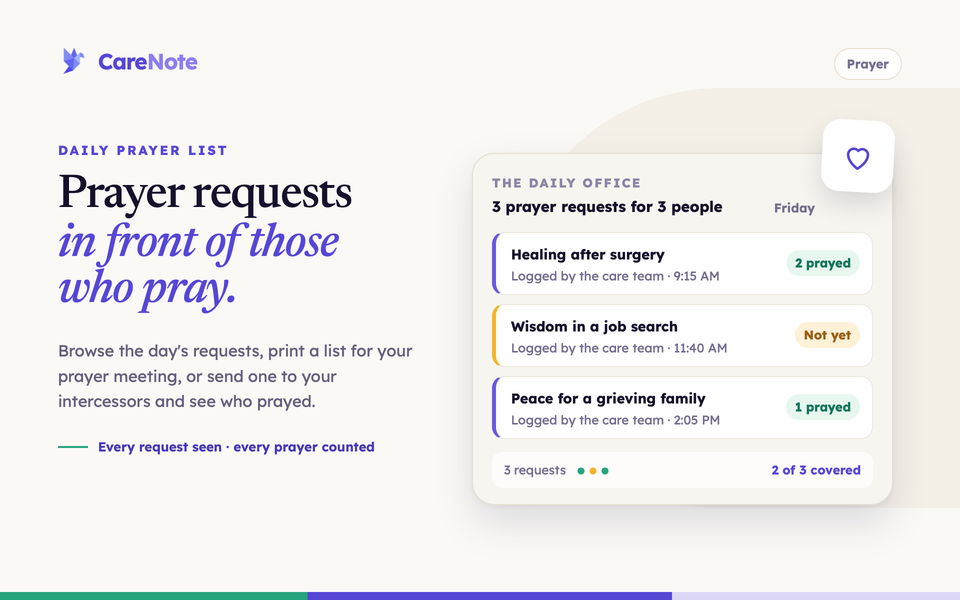
CareNote gives you four connected ways to keep prayer requests in front of the people who pray: a page you can browse any morning, an automated email that lands before the day starts, a printable list for your prayer meeting, and a list you can send on purpose with confirmation tracking built in.
Watch: How to Manage Prayer Requests at Your Church (Daily Prayer List) | CareNote.
What it is
Every prayer need your team logs starts as an Interaction of type Prayer Request. From there it can show up in four places:
- The Daily Prayer List page: an in-app page showing who your team is praying for, paired with liturgical prayers for the day.
- The Prayer Digest: an automated email each morning (about 5:30 AM Eastern) summarizing yesterday's care activity alongside the same liturgical prayers.
- Print Mode and Print selected: a clean, paper-friendly list of requests, with room to write notes.
- Send Prayer List: an email you send yourself, with an "I Prayed" link so you can see who actually prayed.
They share the same prayer requests but do different jobs. Only Send Prayer List produces confirmation tracking.
How to view the Daily Prayer List
- From the Reports hub, find the Daily Prayer List card and click View Prayer List. Team Members can open it too.
- The page opens to today, labeled "THE DAILY OFFICE," with the date spelled out as the heading.
- Use the Previous day and Next day buttons, or click the date field for a calendar picker.
- Requests are grouped by person. Each card shows the person's name and request count, with the prayer text, who logged it, and the time.
- Click View details on any request to open the underlying Activity Log entry.
- Expand DIVINE HOURS at the bottom for the day's liturgical prayers, such as The Call to Prayer and The Lord's Prayer.
- On a day with nothing logged, you will see "No prayer requests were recorded on this day" and an Add Prayer Request button.
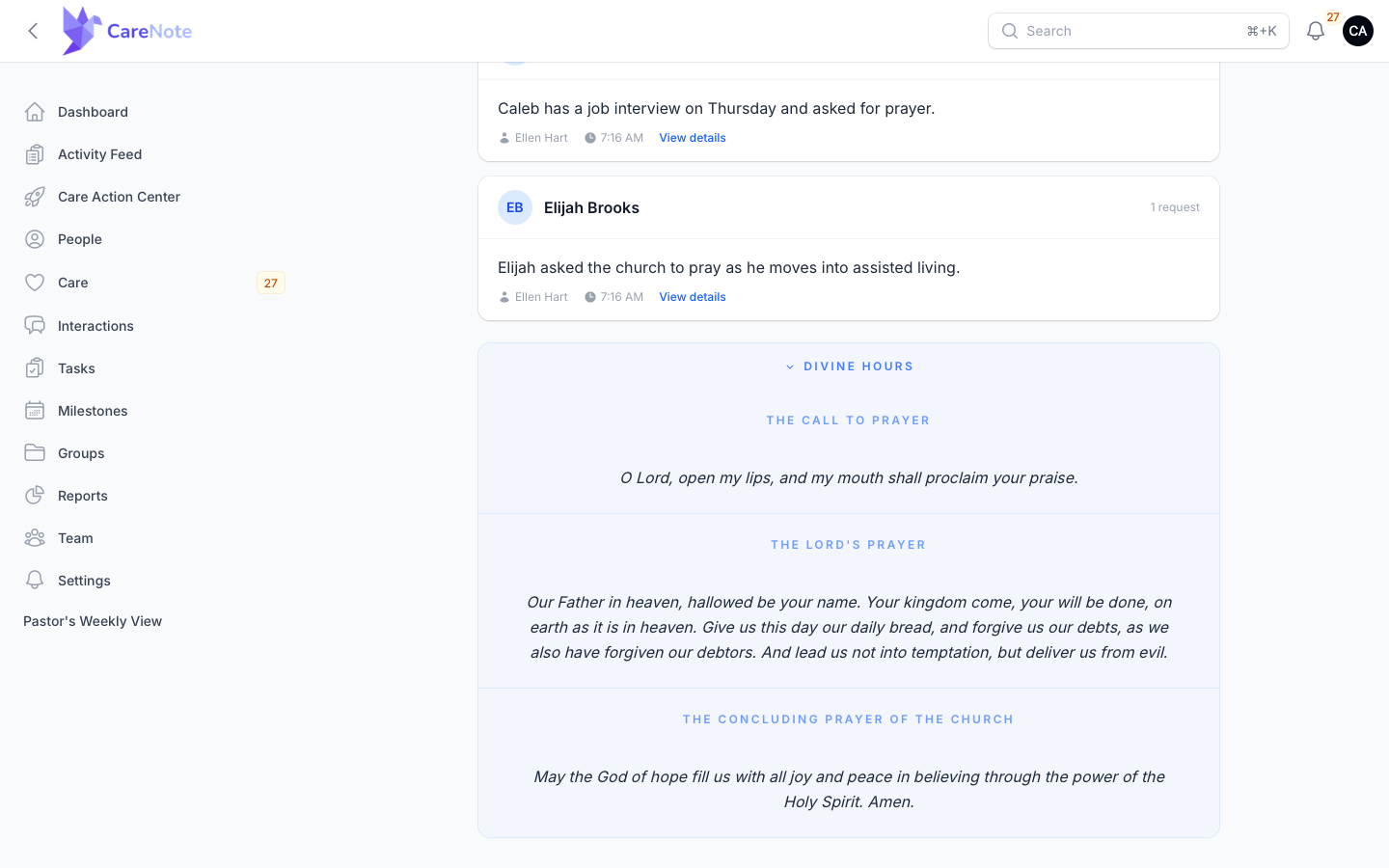
The page shows only prayer requests that are not marked private.
How to open an interaction's Prayer Activity
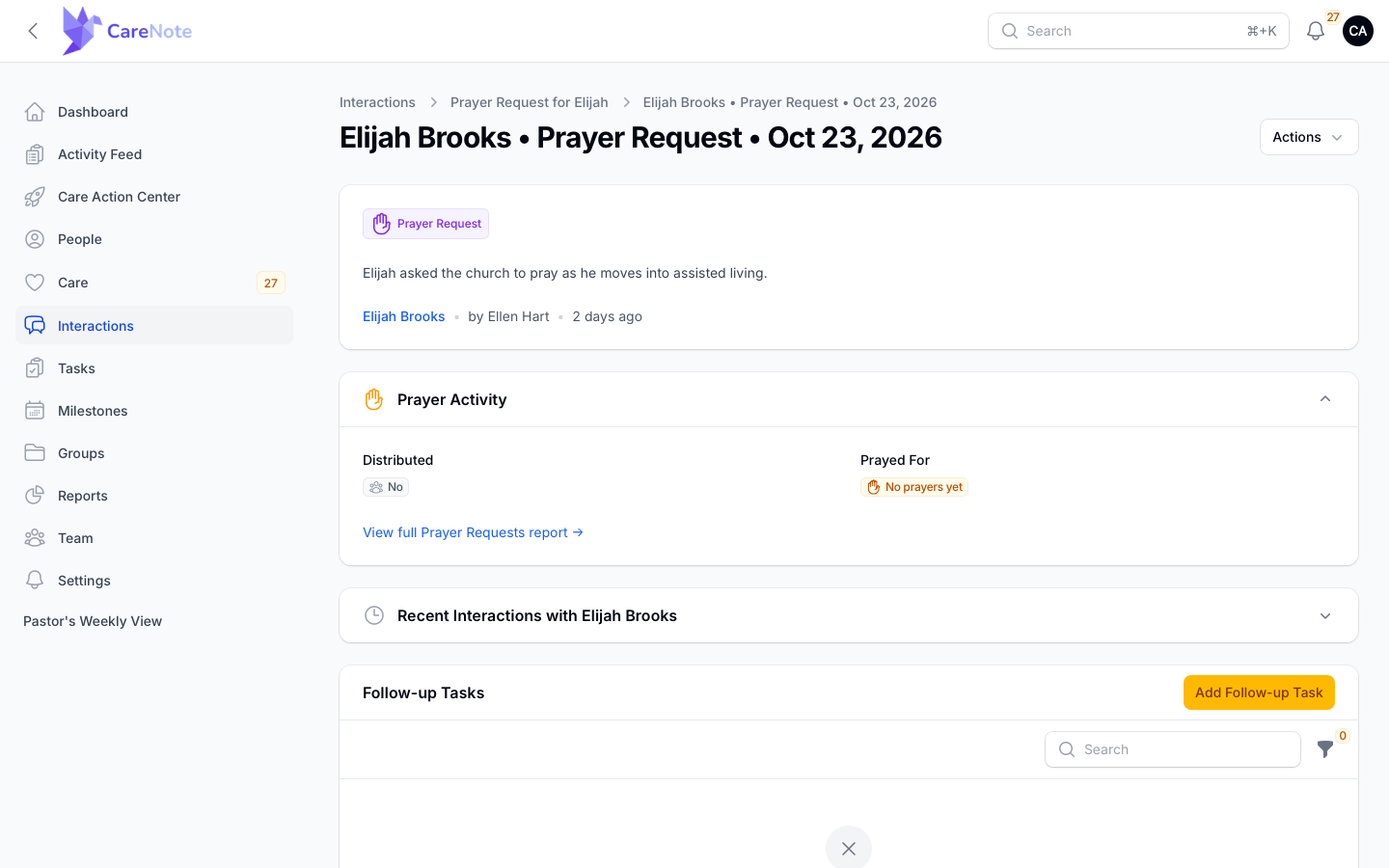
Open any prayer request from the Interactions list. The Prayer Activity card shows Distributed (Yes or No) and Prayed For, which reads "No prayers yet" until someone clicks "I Prayed." A link takes you to the full report.
How to print a prayer list for a meeting
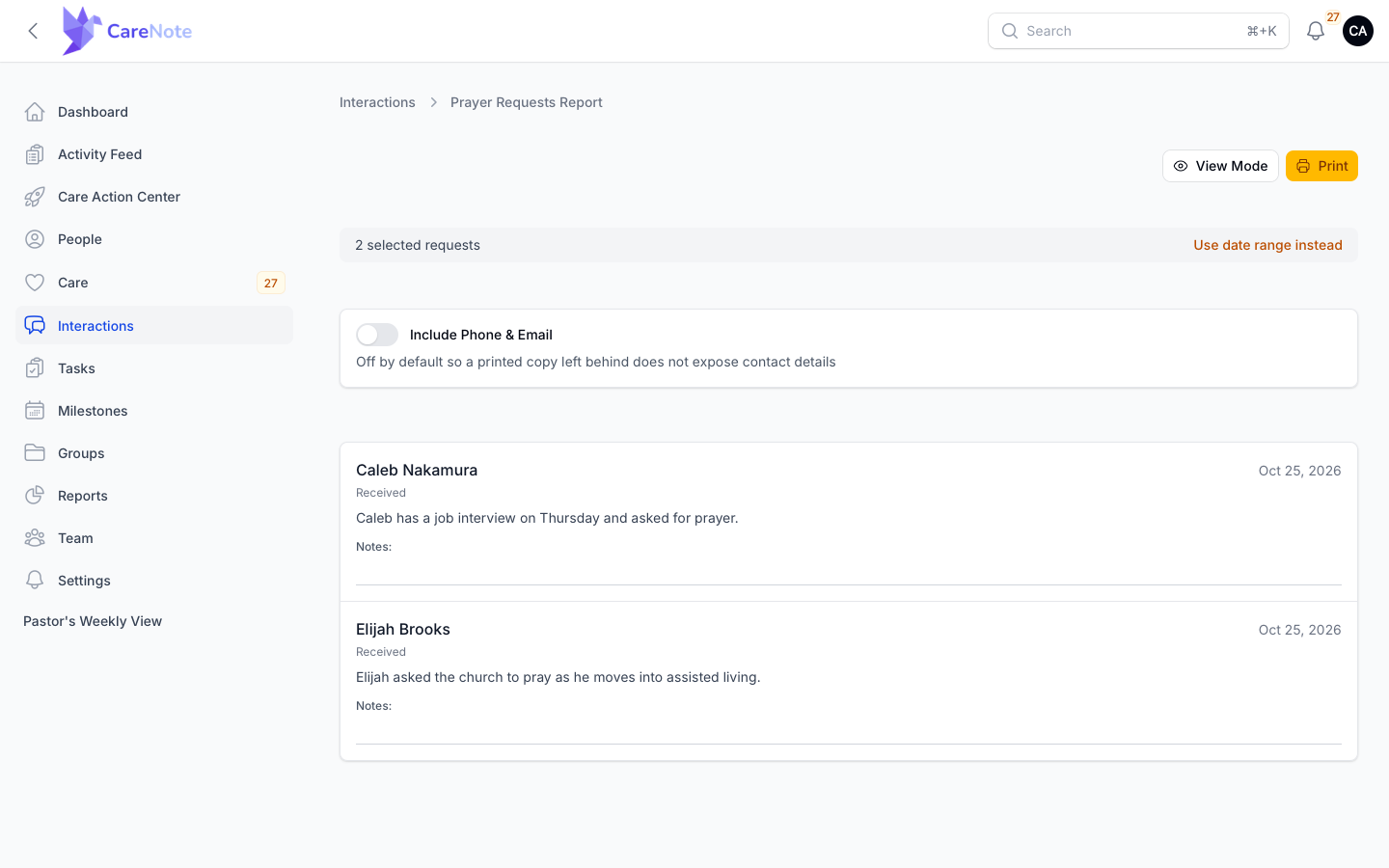
Print Mode turns the Prayer Requests Report into a list you can hand out.
- From the Reports hub, click View Prayer Requests on the Prayer Requests Report card.
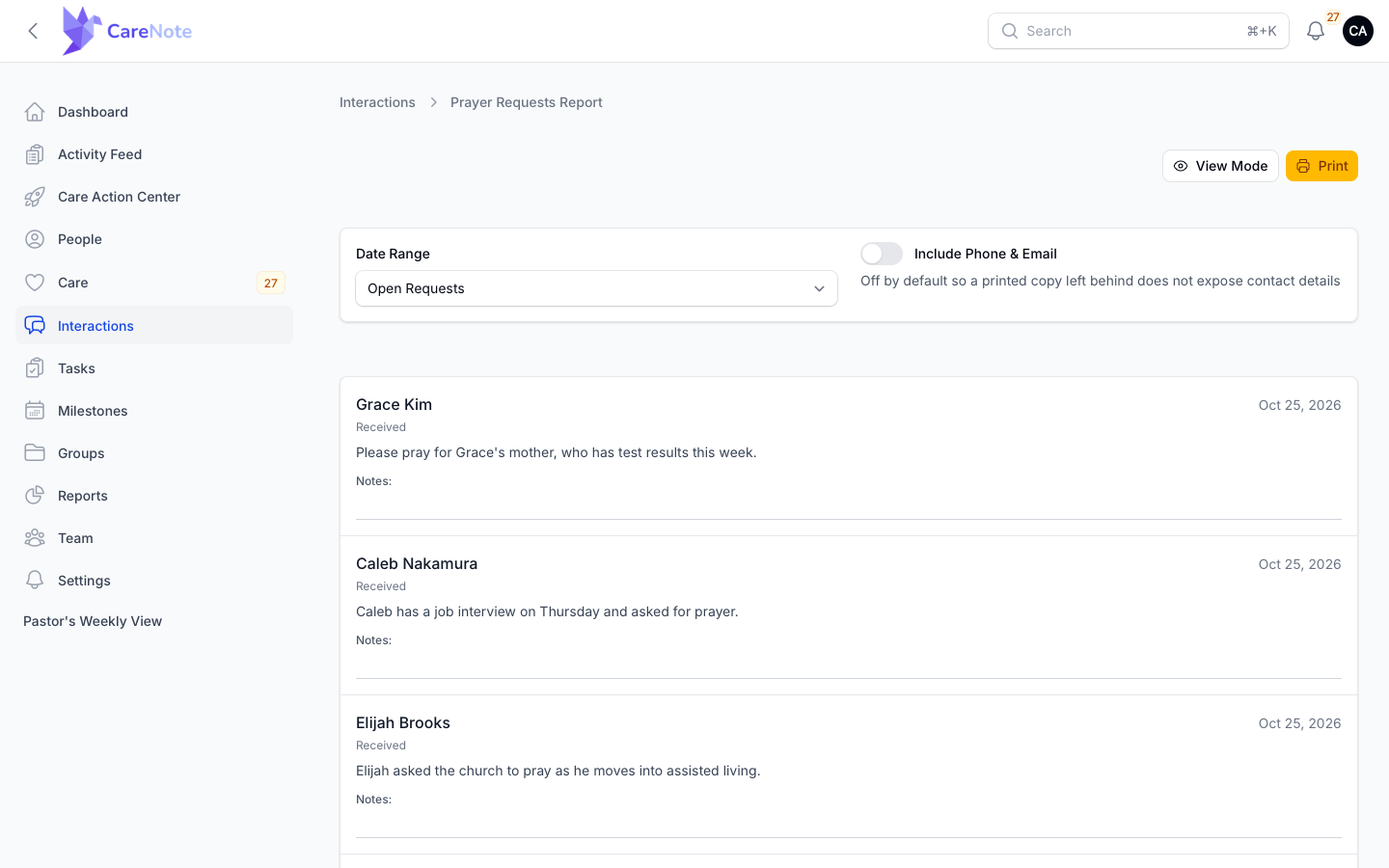
- Click Print Mode. The button changes to View Mode, and a Print button appears.
- Pick a Date Range: Open Requests, Last 7 Days, Last 30 Days, or Custom Range.
- Leave Include Phone & Email off unless you need it. It is off by default so a printed copy left behind does not expose contact details.
- Click Print. Each entry shows the name, date, status, and request, followed by a blank "Notes:" line.
To print only certain requests, go to Interactions, open the Prayer Requests tab, tick the rows, open Bulk actions, and choose Print selected. The preview shows how many requests you picked, up to 200. Click Use date range instead to switch back.
How to send a prayer list
- Go to Interactions and open the Prayer Requests tab.
- Tick one or more requests.
- Open Bulk actions and choose Send Prayer List.
- Under Send To, choose Selected users to pick people by name, or A group.
- For selected users, confirm the Email Subject (it defaults to "Prayer List").
- Click Submit. A message confirms how many people received the list and how many requests it included.
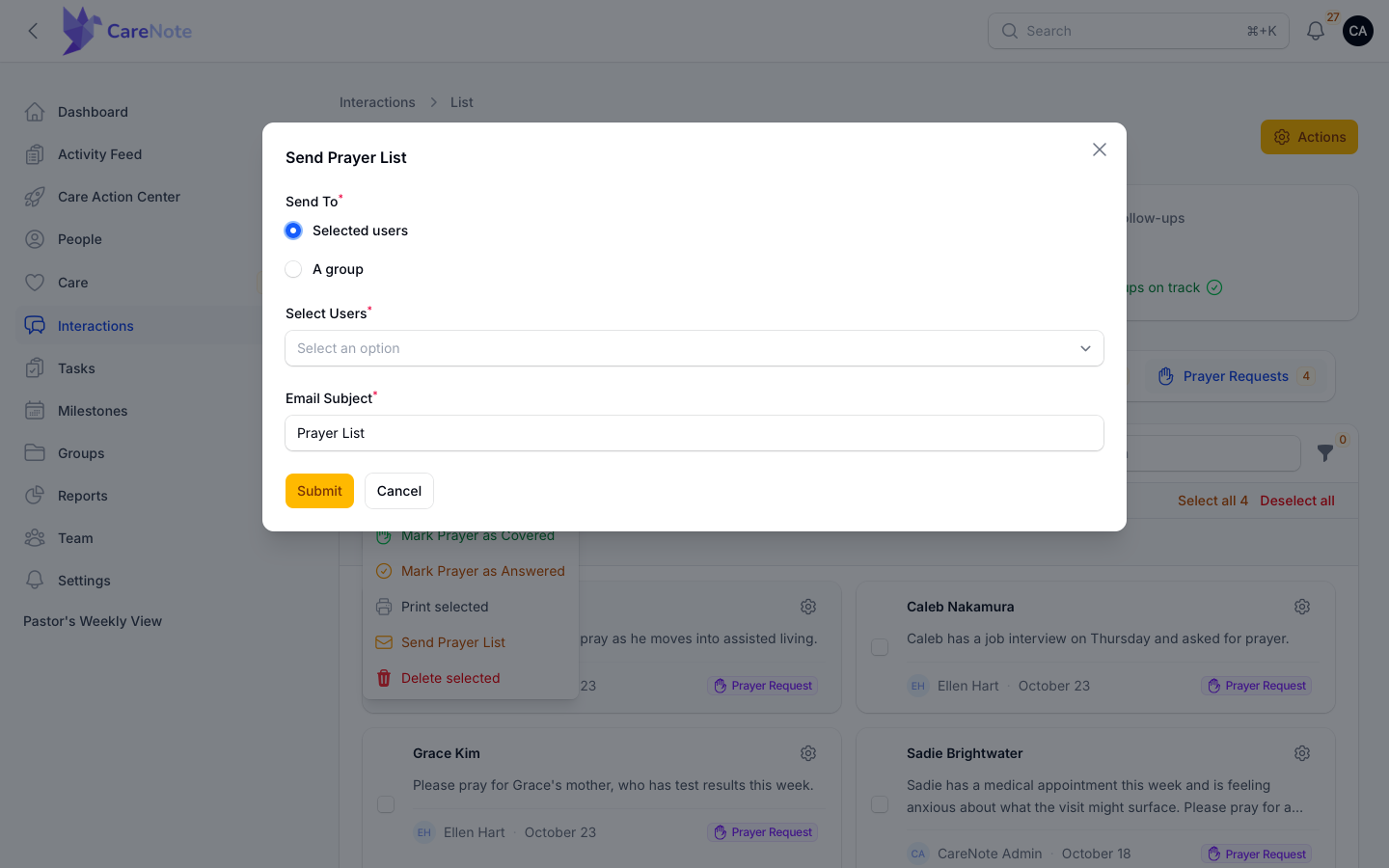
Each prayer includes a signed "I Prayed" link, good for 7 days, when it goes to a known user. A click records a confirmation.
Sending from a group
Administrators can also send from a group's Interactions tab in the Admin panel. Tick requests, open Bulk actions, and choose Send Prayer List. Send To offers Team Members and Congregants. When you tick Congregants, Scrub personal details turns on automatically, so each person receives an anonymized version of the prayer instead of the original. Scrubbed sends carry no "I Prayed" link.
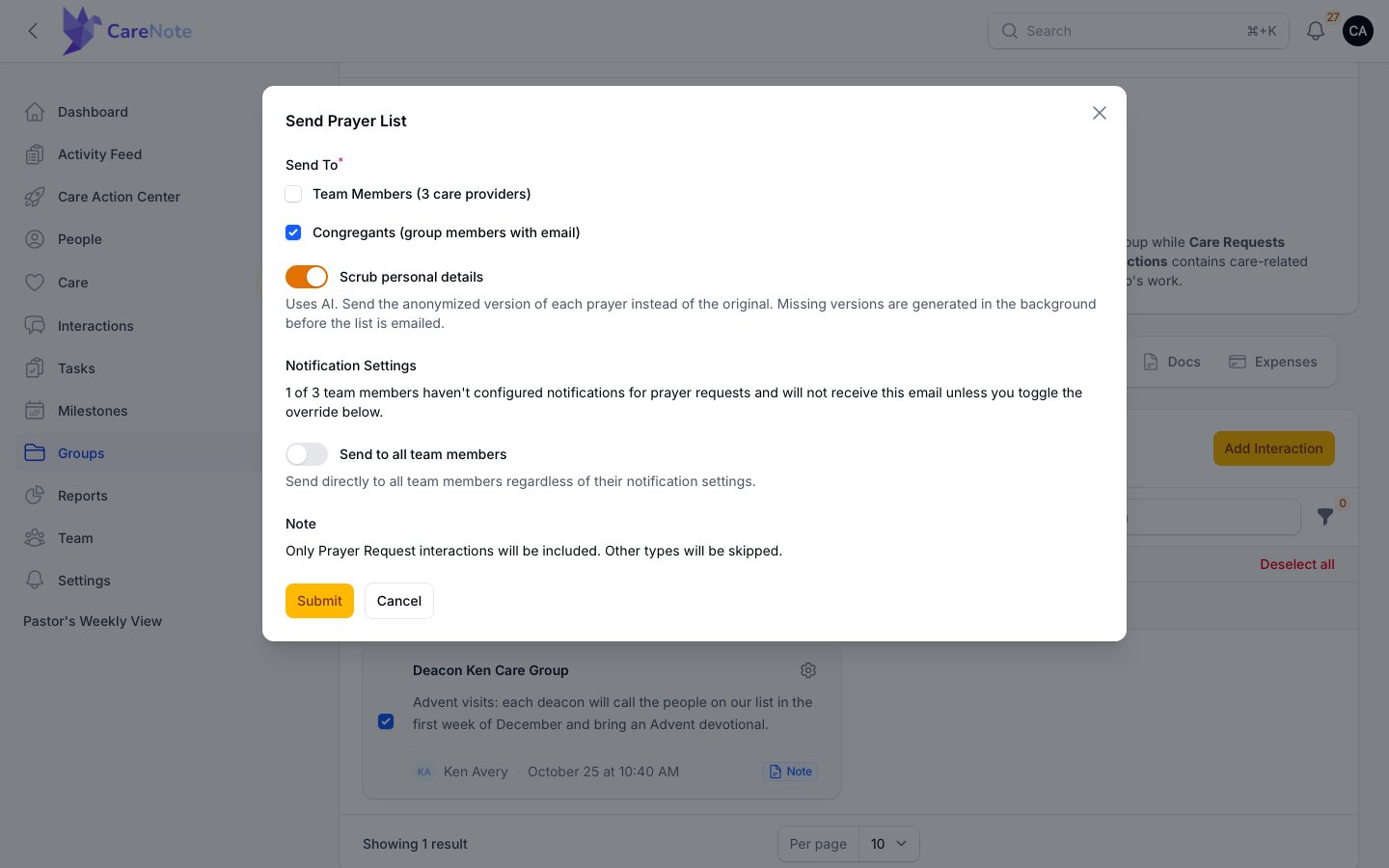
Scrubbing uses AI. If your owner turns off Prayer request scrubbing (or the master Allow AI features switch) in Team Settings, the original prayers are sent instead. The Team Member group page offers only Delete selected.
How to turn on the automated Prayer Digest
The digest has two switches: one for the team, one for each person.
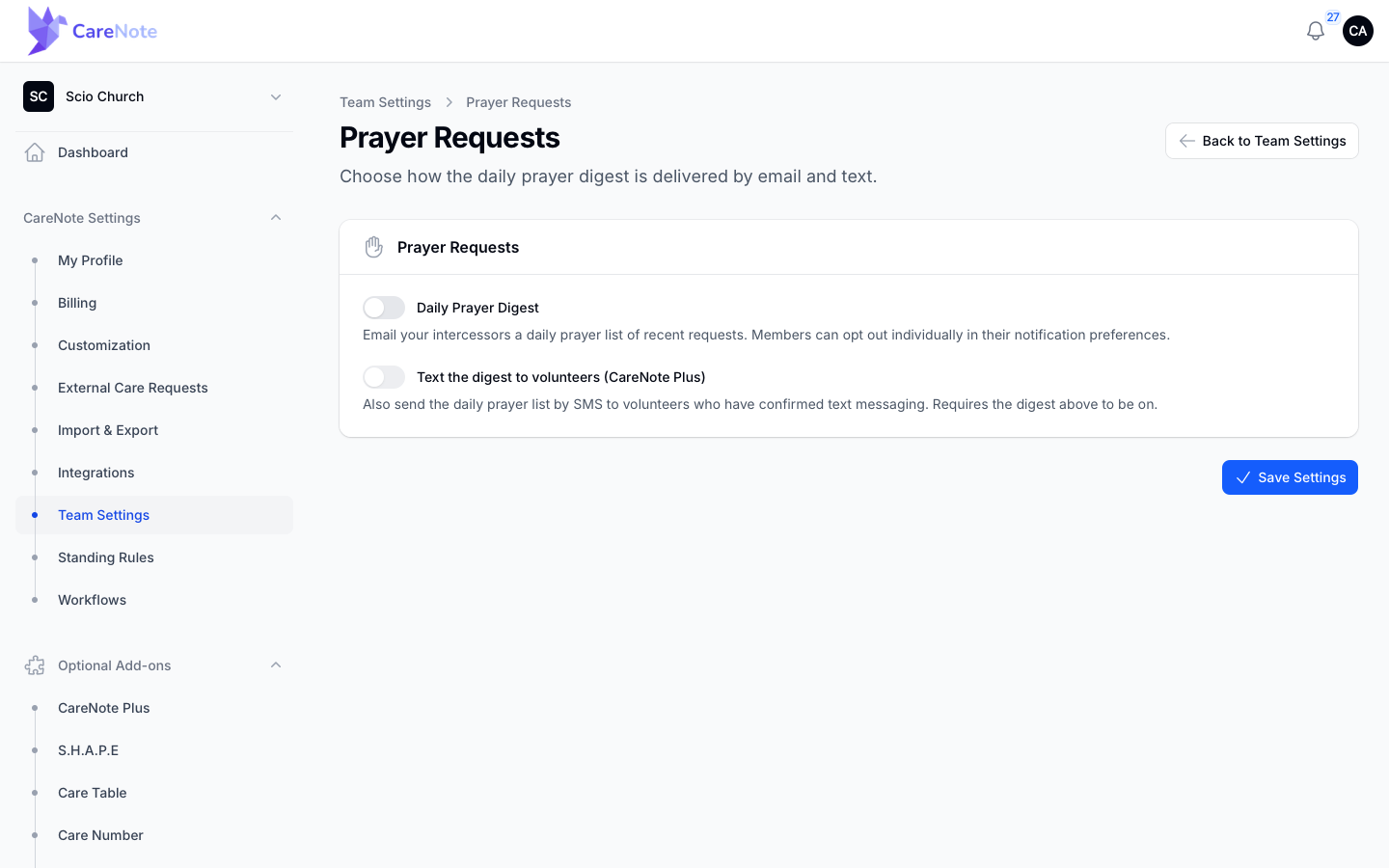
Team level (owner). In the Owner panel, open Team Settings, then the Prayer Requests card. Turn on Daily Prayer Digest and click Save Settings. If your team has CareNote Plus, a second toggle just below it adds the digest by text message. It is disabled until the digest is on, and it reaches only people who have confirmed text messaging.
Personal level (everyone).
- Click Notifications to open the notifications hub.
- Choose Manage notification settings.
- Open the Prayer Requests tab.
- Use the Daily Prayer Digest row, along with New Prayer Request and I Prayed Notifications.
- Click Save Changes.
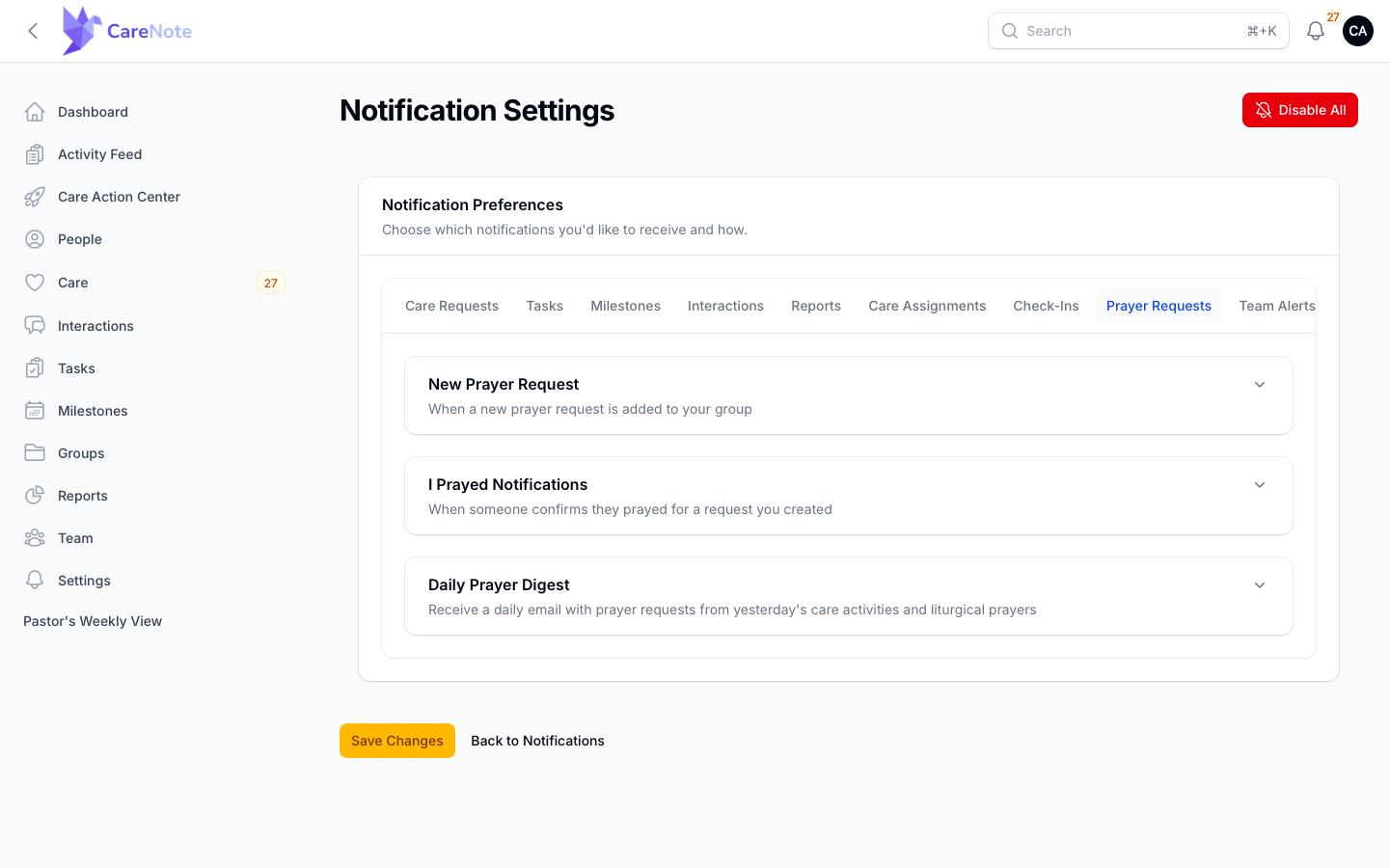
The digest covers the previous day's care activity, grouped by person, followed by the Divine Hours prayers. If nothing was logged, it still arrives with the day's prayers. It has no "I Prayed" links.
How to track coverage on the Prayer Requests Report
- From the Reports hub, click View Prayer Requests.
- Four tiles summarize the month: requests, Covered in Prayer, average hours to first prayer, and uncovered requests.
- The table lists each request with its status, confirmations, and whether it was distributed.
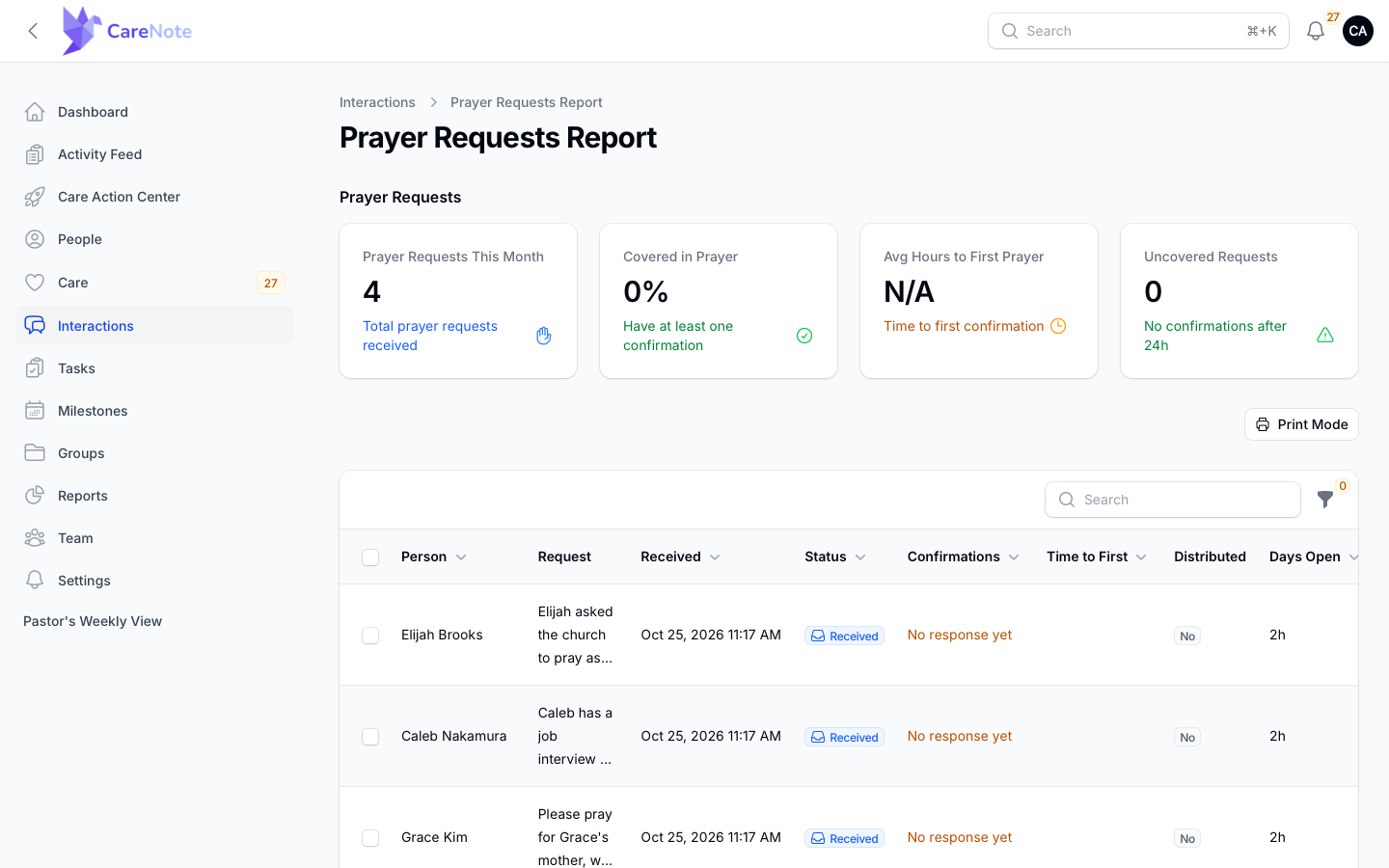
- Status (Received, Covered, Answered, Archived) is a manual label set with Mark Prayer as Covered or Mark Prayer as Answered. It is not proof anyone prayed.
- Covered in Prayer and Confirmations move only when someone clicks "I Prayed."
- Distributed means groups are attached. It does not mean an email went out.
Frequently asked questions
What is the difference between the Daily Prayer List and the Prayer List Report? The Daily Prayer List uses Interactions of type Prayer Request. The Prayer List Report on the Reports hub builds a printable list from active Care Requests. Different data, similar name.
Why does a new request not show up right away? The Daily Prayer List is cached for 5 minutes for today and 24 hours for past dates.
Why did marking a request Covered not change the percentage? Status is manual. Only an "I Prayed" click counts as a confirmation.
Who is told about a prayer request that is not routed to a group? Only the team owners. Route requests to a group that includes everyone you want notified.
Can Team Members send or print a list? They can open the Daily Prayer List and the report. Sending and Print selected are Administrator actions.