
Benevolence Approvals: Documented Decisions Without a Meeting
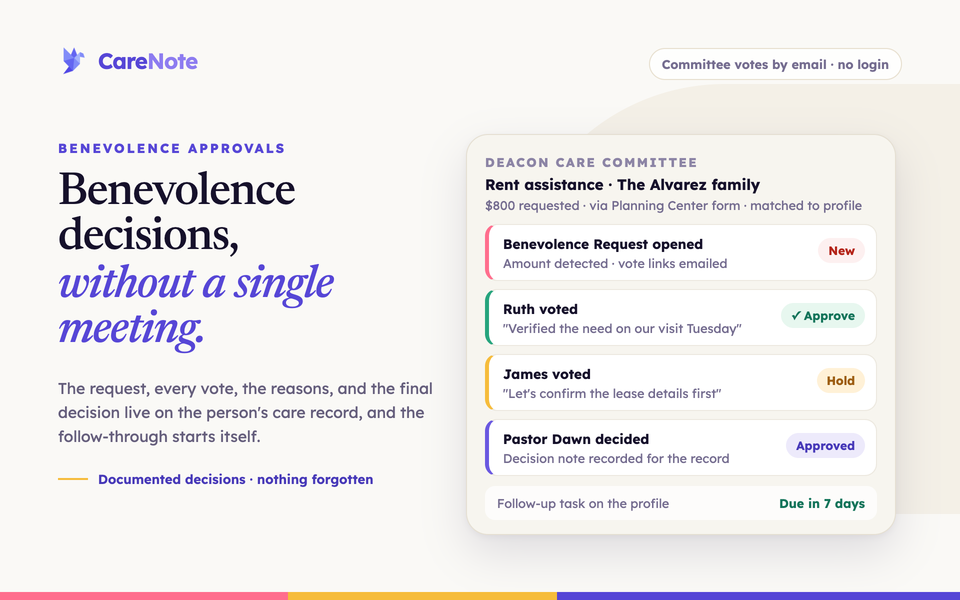
A family comes to the church short on rent after a cut in hours. The need is real and the clock is short. What usually follows is a scramble: a group text to the deacons, votes trickling back one reply at a time, someone chasing the last holdout so a decision can happen before Sunday. Then, weeks later, when the same family asks again, no one can say who agreed, what was verified, or why.
Watch: Introducing Benevolence Approvals.
Benevolence Approvals closes that gap. A request routes to your committee, each member casts an advisory vote from their own inbox, your leadership makes the final call, and every piece of it stays on the person's care record. No meeting required, and a permanent trail every time.
What Benevolence Approvals is
Benevolence Approvals is part of CareNote Plus. It turns a benevolence request into a structured, documented decision that lives on the requester's profile.
A request comes in through a form your church already runs in Planning Center. CareNote matches it to the person's profile, reads the requested amount, and creates an Approval routed to a committee you choose. Every committee member gets a personal, no-login link by email and votes Approve, Deny, or Hold, with an optional note. Those votes are advisory. A group Owner or Manager reviews them and records the final Approve or Deny. On approval, a follow-up task can start on its own.
Two things shape how you set it up. First, approvals are created by automation, never by hand. There is no "new approval" button. An approval exists only because a submission arrived on the Planning Center form you wired up for it. Second, the request has to be for someone who already exists as a profile in CareNote. The match is made by Planning Center id, so a submission from a person CareNote has never seen will not create an approval.
1. Build your committee as a Group
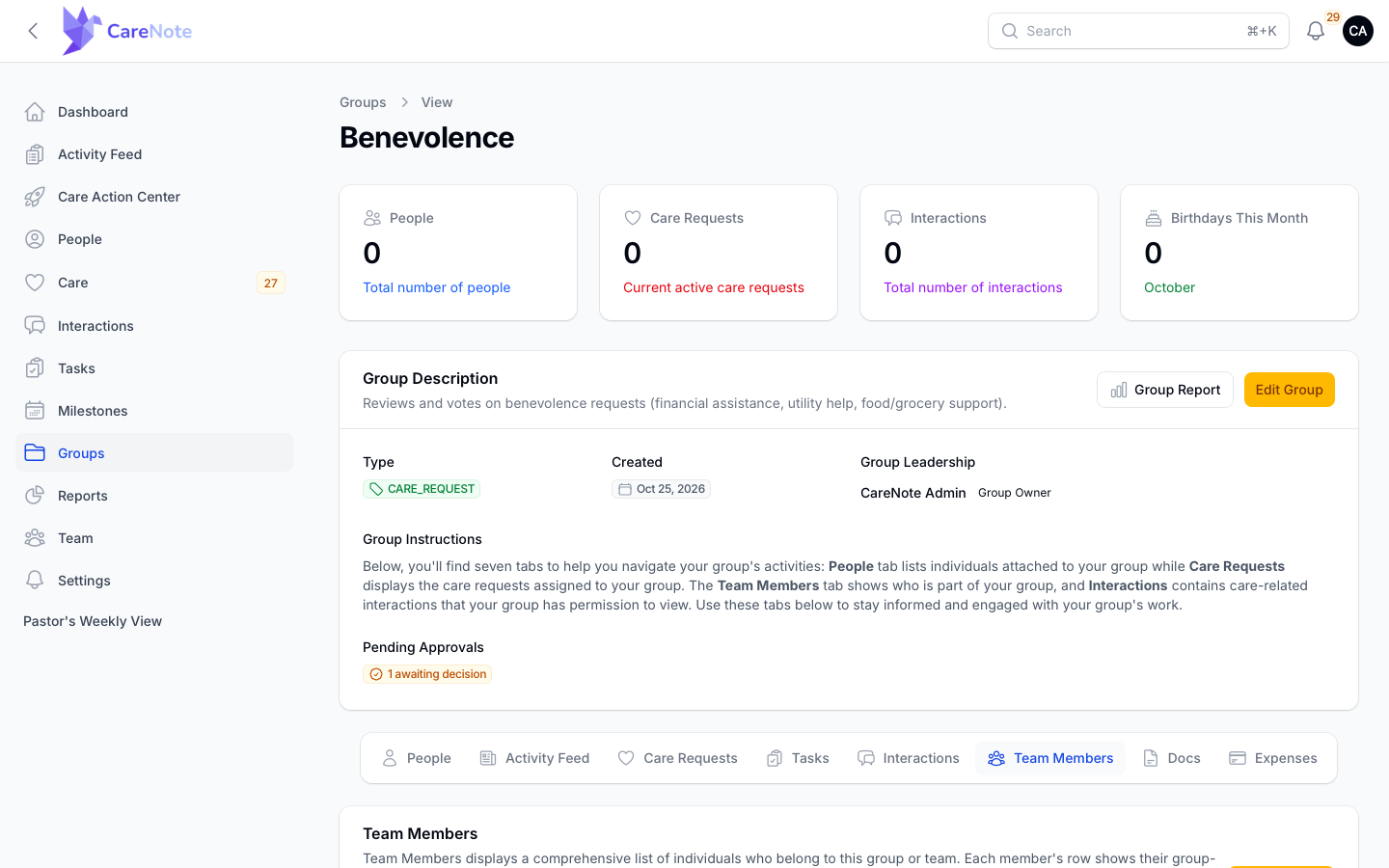
The committee is an ordinary CareNote Group. Add the people who should weigh in as members, and make your decision-makers group Owners or Managers, because those are the roles allowed to record the final decision. (A team owner can always decide.)
2. Add the Create Approval automation to your form
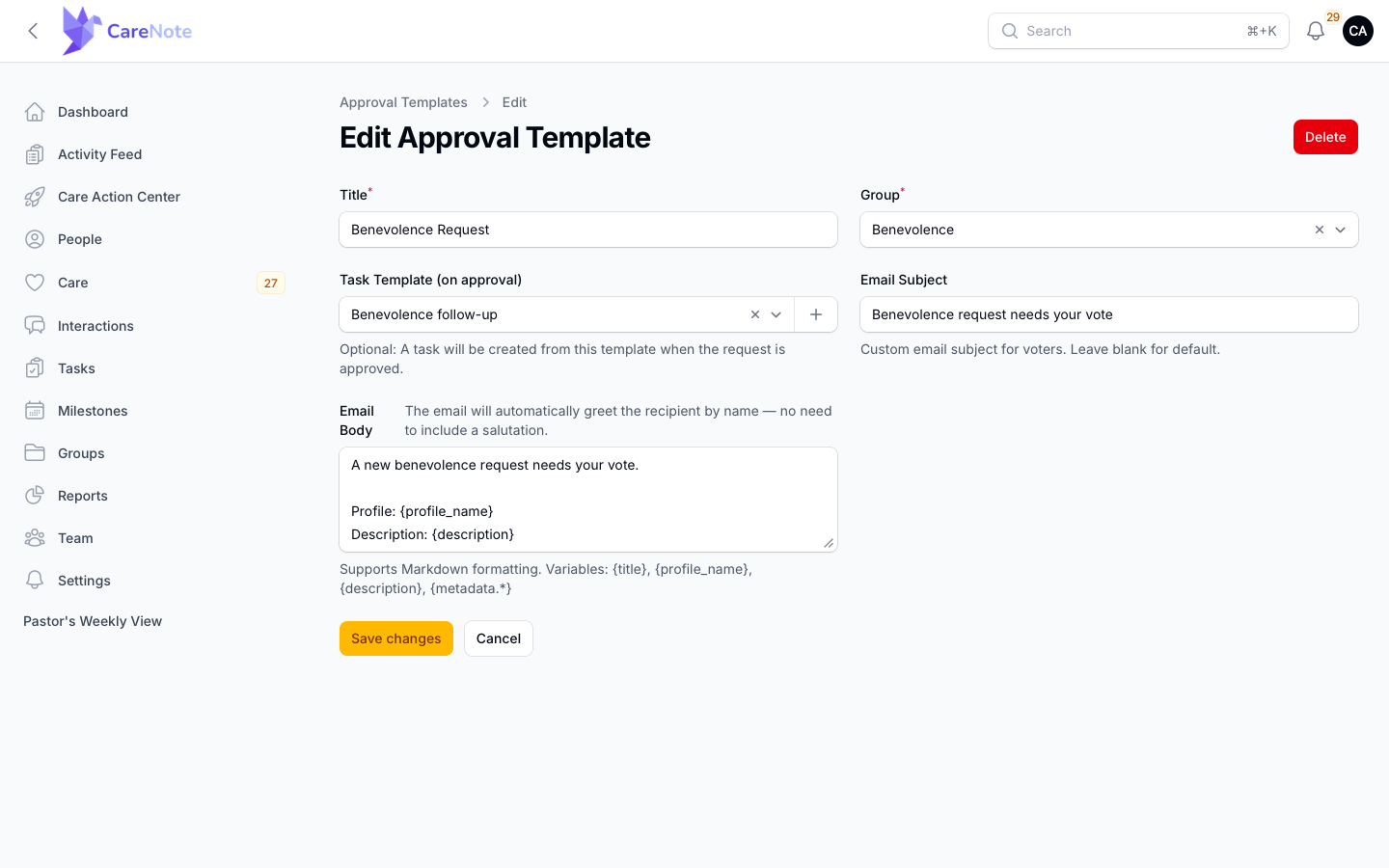
The template and the automation are set up in one place. Open Planning Center Online Integrations from the Planning Center hub, go to Forms, and on your benevolence form open the row menu and choose Add Automation. Pick the Create Approval action. It asks for an Approval Template. Choose one, or use the + beside the field to create it right there:
- Title: a name for this kind of request, such as "Benevolence Request".
- Group (voters): the committee that receives and votes on these requests.
- Task Template (on approval): optional. If you set one, CareNote creates a follow-up task from it whenever a request is approved. Leave it blank and no task is created.
- Email Subject and Email Body: the invitation your voters receive. Both are optional and fall back to a default.
From then on, every submission to that form creates an approval and emails your committee. It fires only on the form you attach it to.
Approval Templates have no menu entry of their own. On a template's edit screen the committee field is simply called Group.
Two details to get right:
- Variables work in the body only.
{title},{profile_name},{description}and{metadata.*}are filled in inside the Email Body. The Email Subject is sent exactly as typed, so leave variables out of it. CareNote greets each recipient by name, so skip the salutation. - Name the amount field plainly. CareNote finds the requested amount by looking for a form field whose name contains "amount" or "requested". A field named "Amount Requested" works. "How much do you need" would not be detected.
3. What the committee experiences
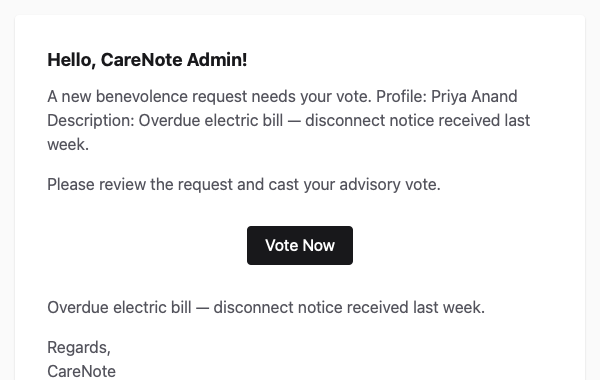
Each member gets an email with their own link and a Vote Now button. No login, no account, no app to install.
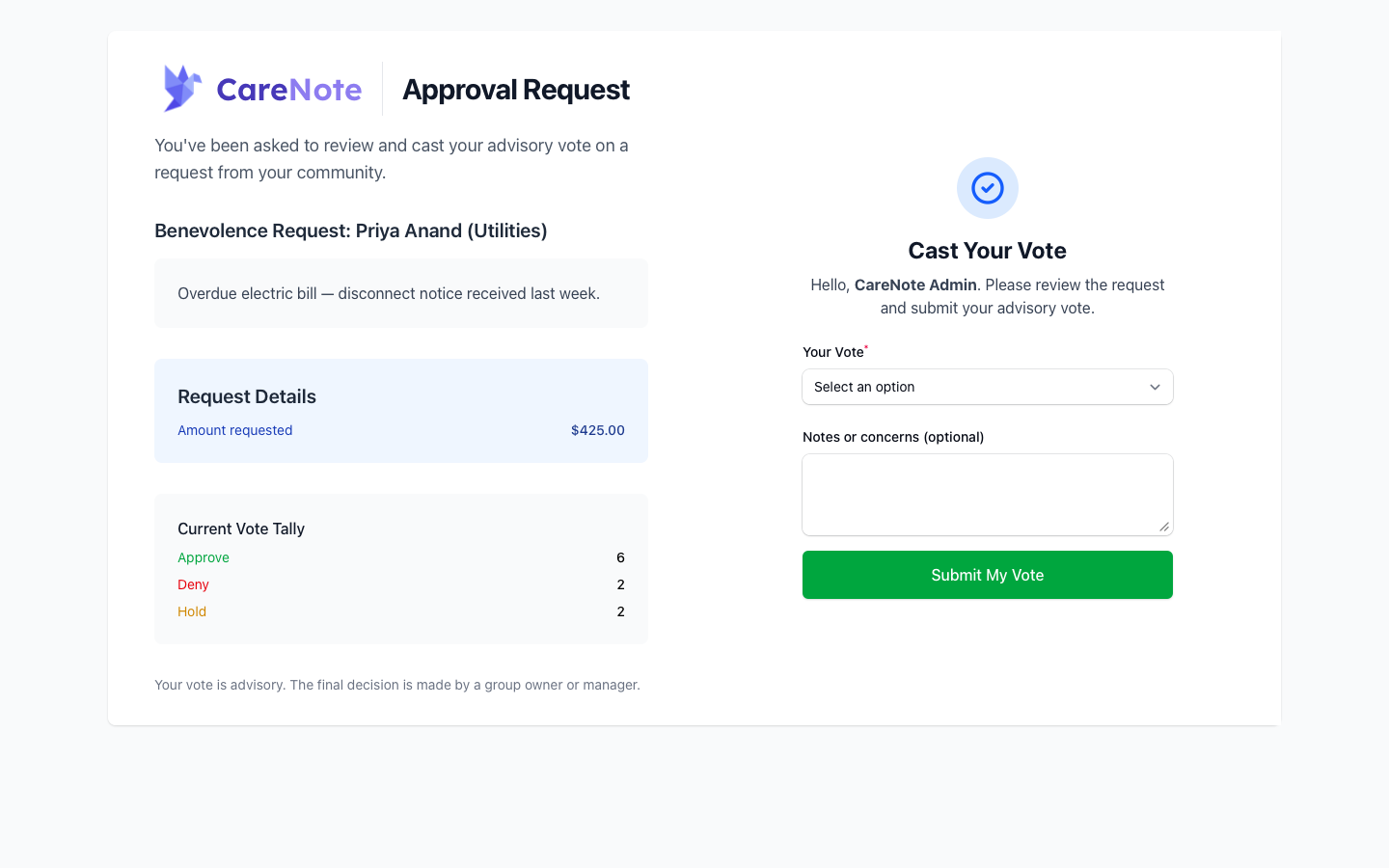
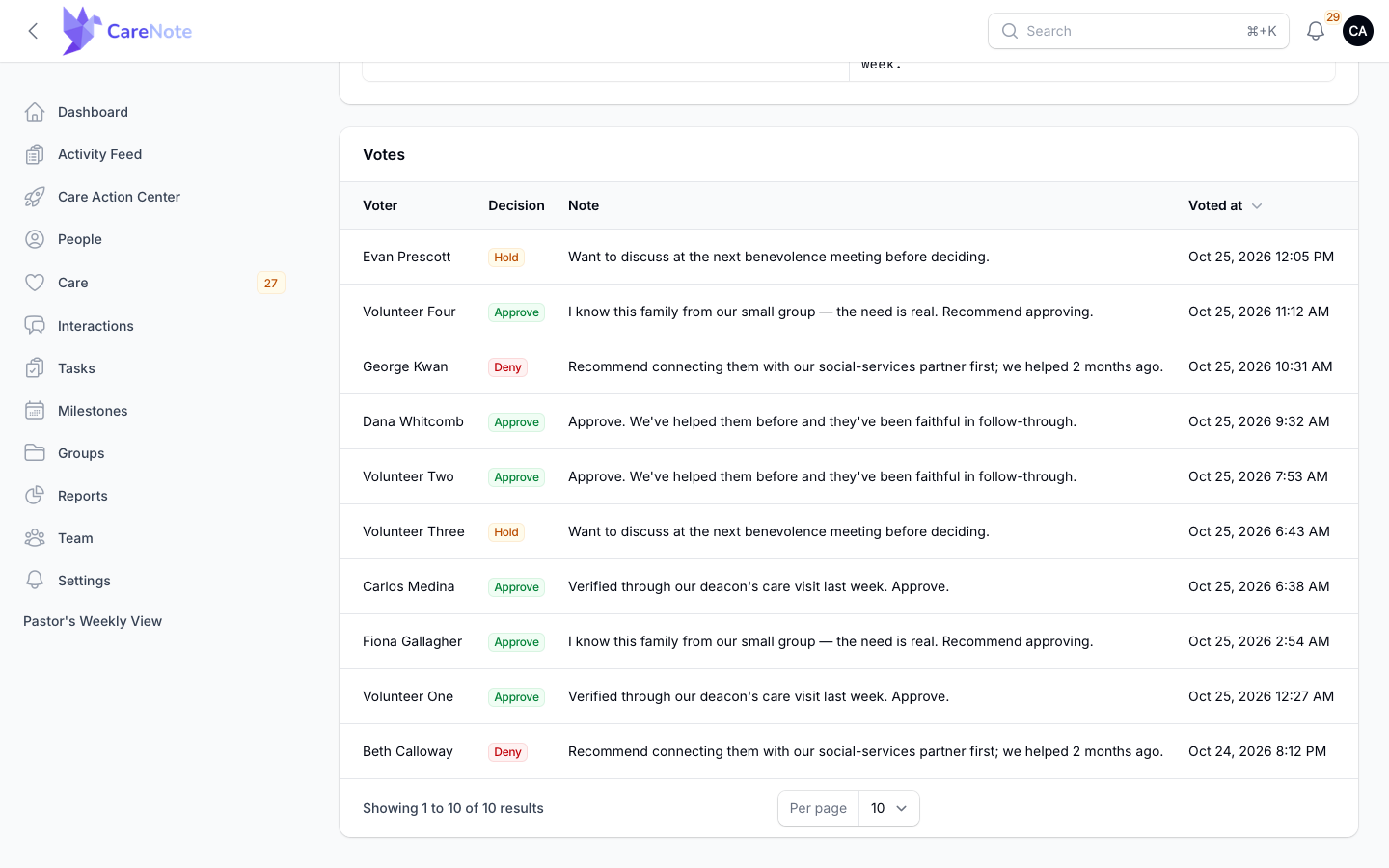
The link opens the vote page. It shows the request, its description, the requested amount and a live Current Vote Tally. The member picks Your Vote, adds optional Notes or concerns, and presses Submit My Vote.
- Each link is personal and good for 30 days.
- Votes can change. While the request is pending, a member can reopen the link and use Change my vote.
- Voting closes with the decision. After leadership decides, a late click cannot overwrite it.
The page says it directly: "Your vote is advisory. The final decision is made by a group owner or manager."
4. The leader decides
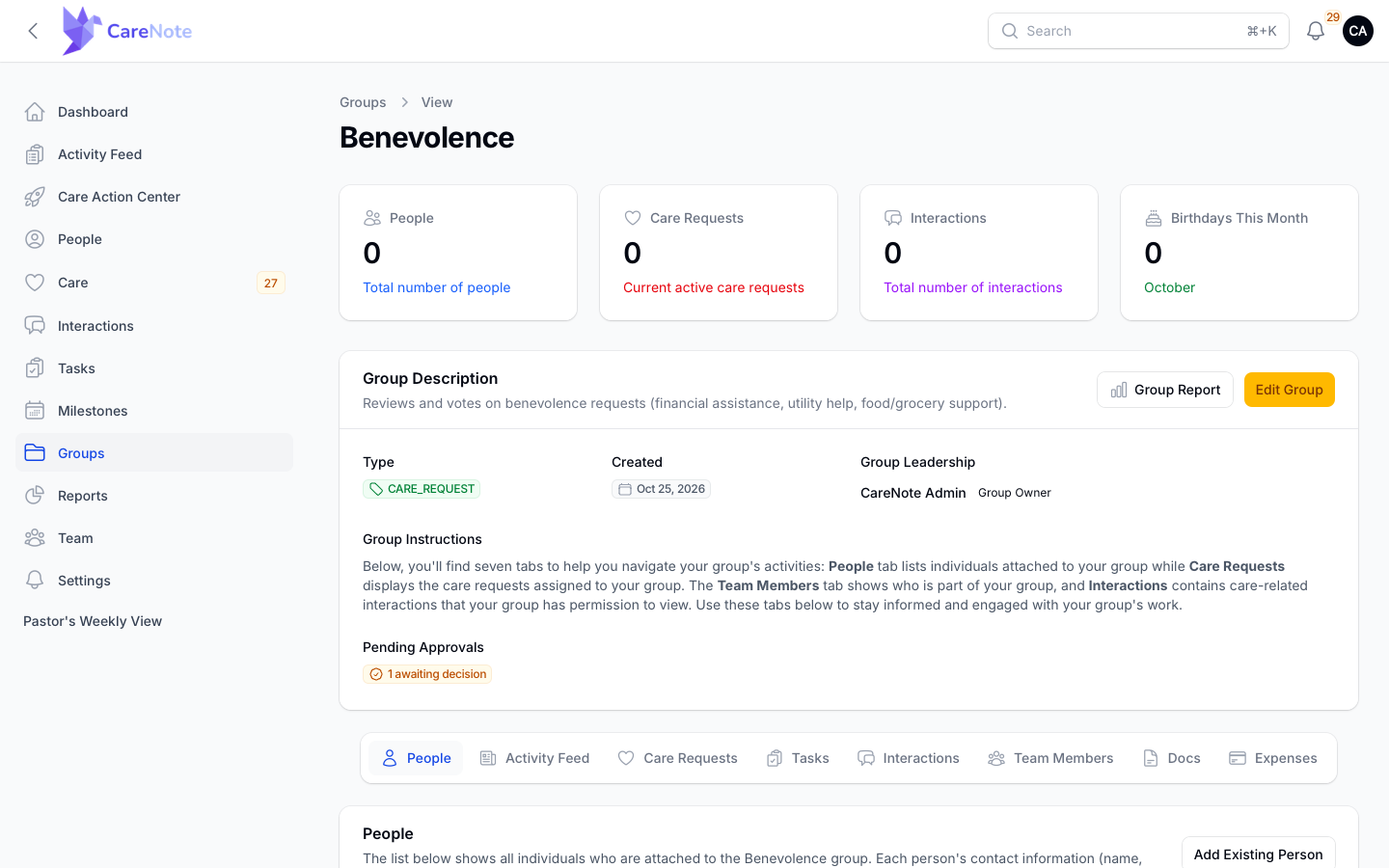
There is no quorum and no automatic outcome. Three Approves do not close a request on their own. Pending approvals are easy to find: when Plus approvals are on and something is waiting, the group page shows a Pending Approvals link reading "N awaiting decision". If your team uses campuses, people limited to a campus only see approvals for their campus.
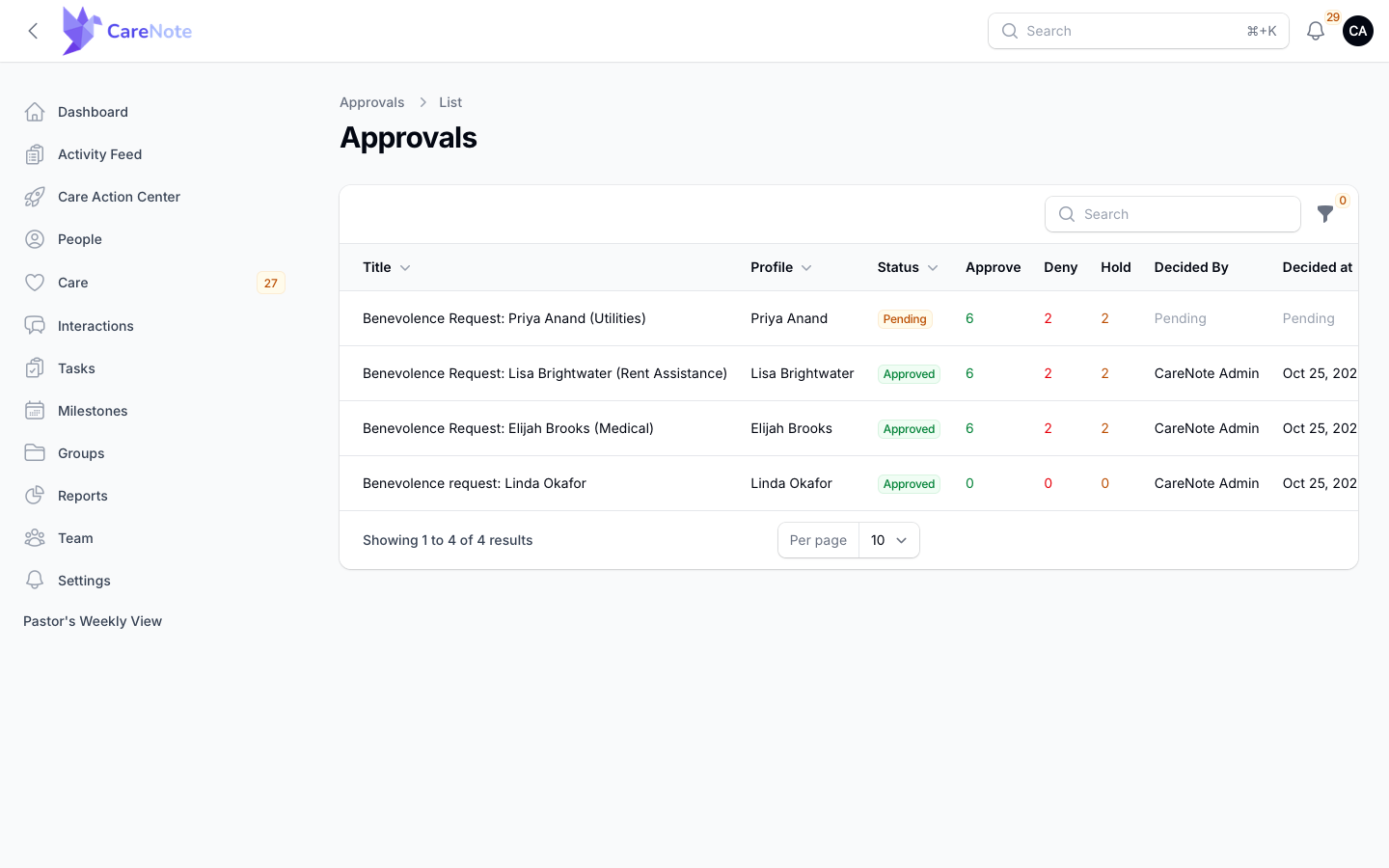
The link opens the Approvals list, with each request's status and vote counts.
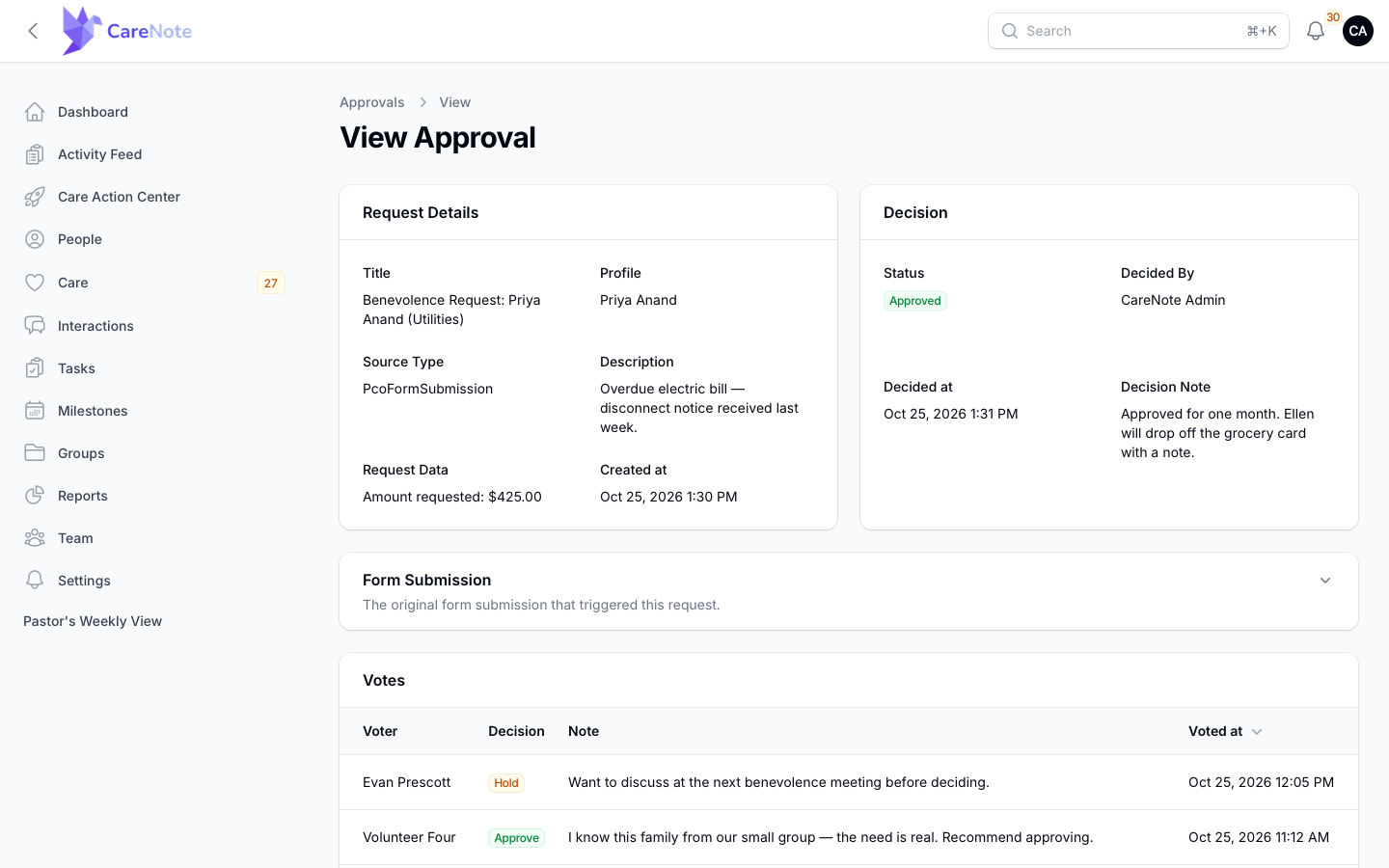
Open a request to see the request details, the original form submission and the votes together. The Form Submission section starts collapsed, so expand it to read every answer.
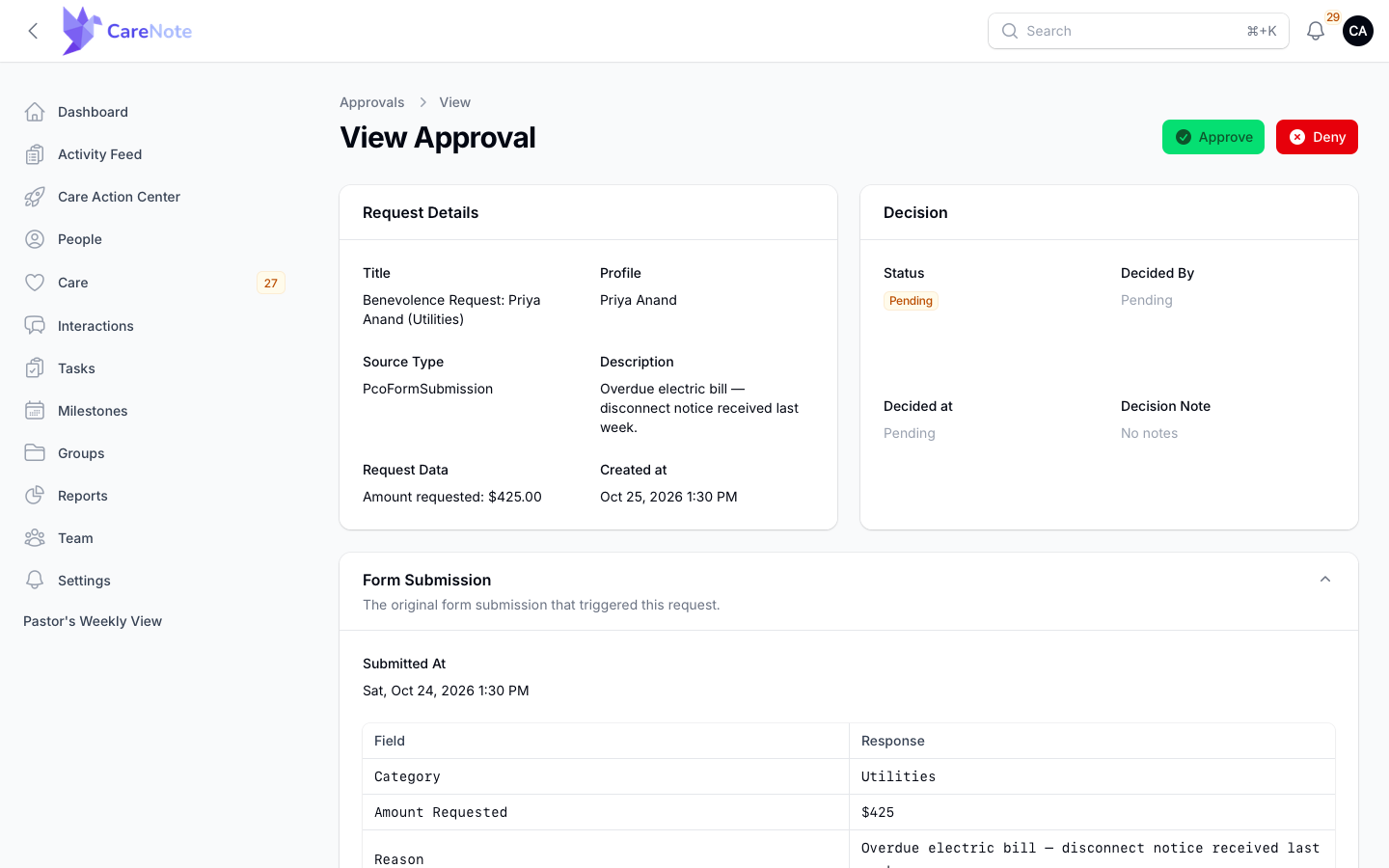
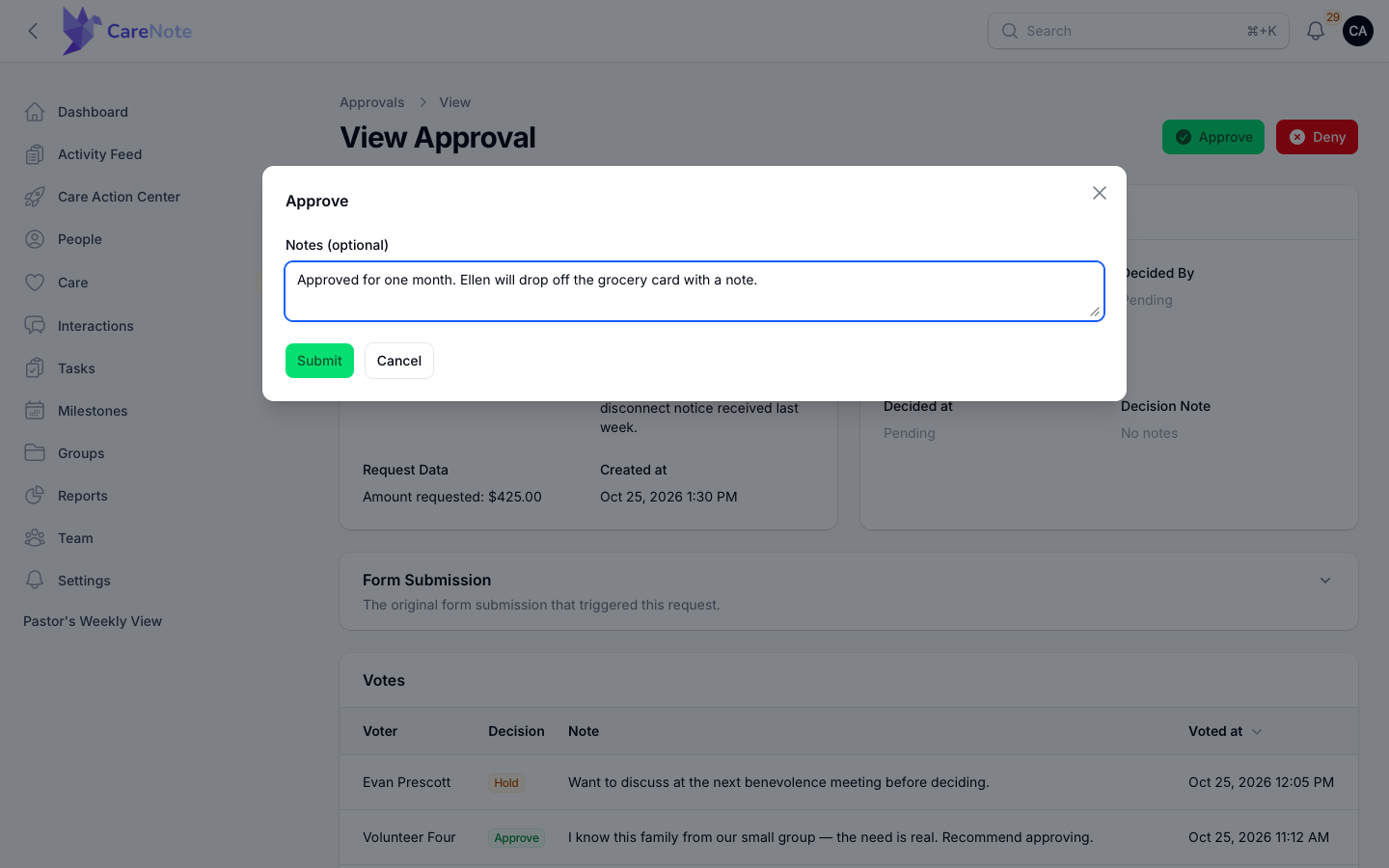
Group Owners and Managers see Approve and Deny buttons in the header. (Hold is a choice for voters only.) Each opens a short modal with a Notes (optional) field for the reasoning.
The outcome is announced inside CareNote, not by email. An approval notifies the committee members, and a denial notifies the group's Owners and Managers.
5. The record and the follow-through
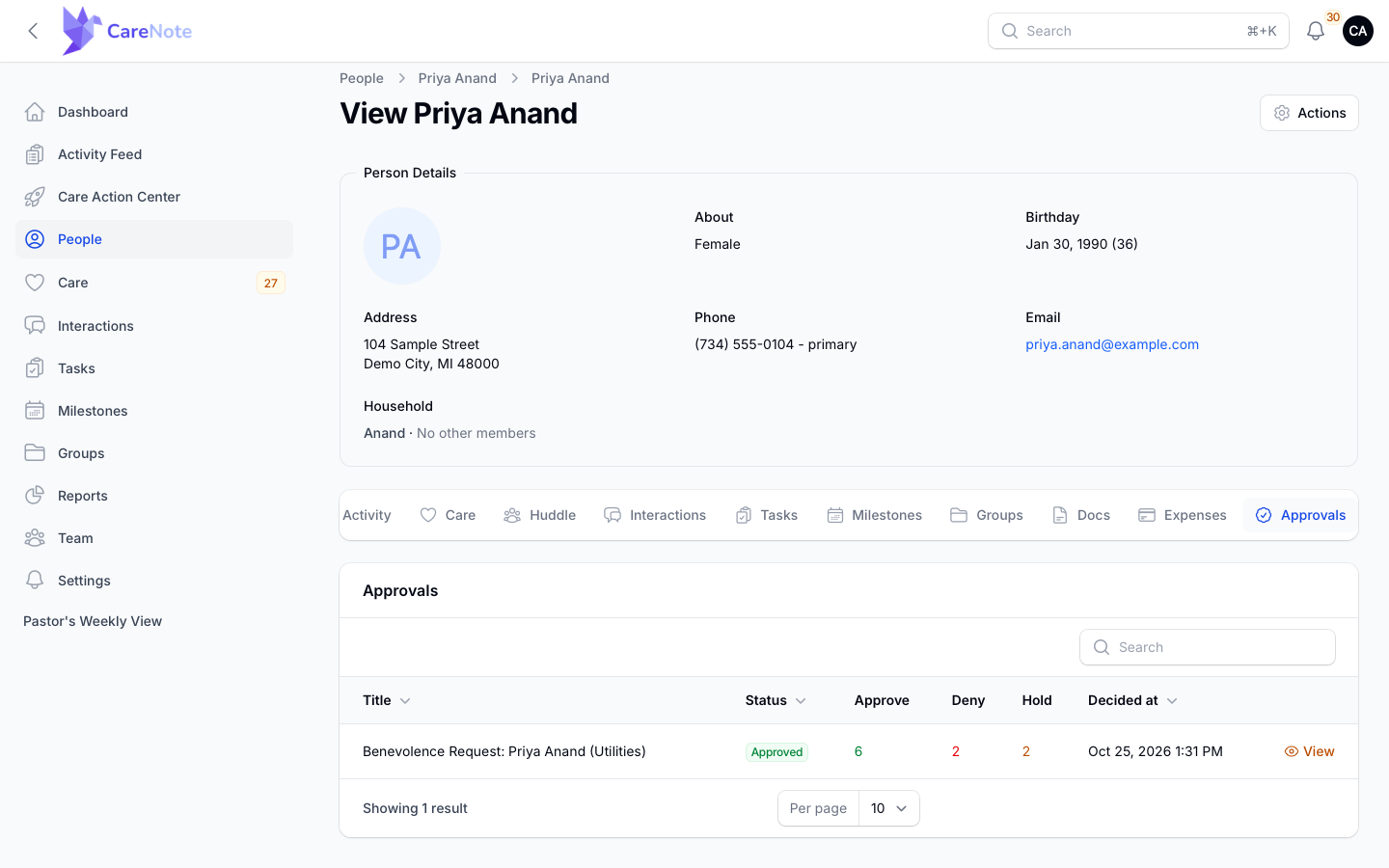
Everything stays attached to the person. Their profile has an Approvals tab, after Expenses, listing each approval with its status, vote counts and decided date.
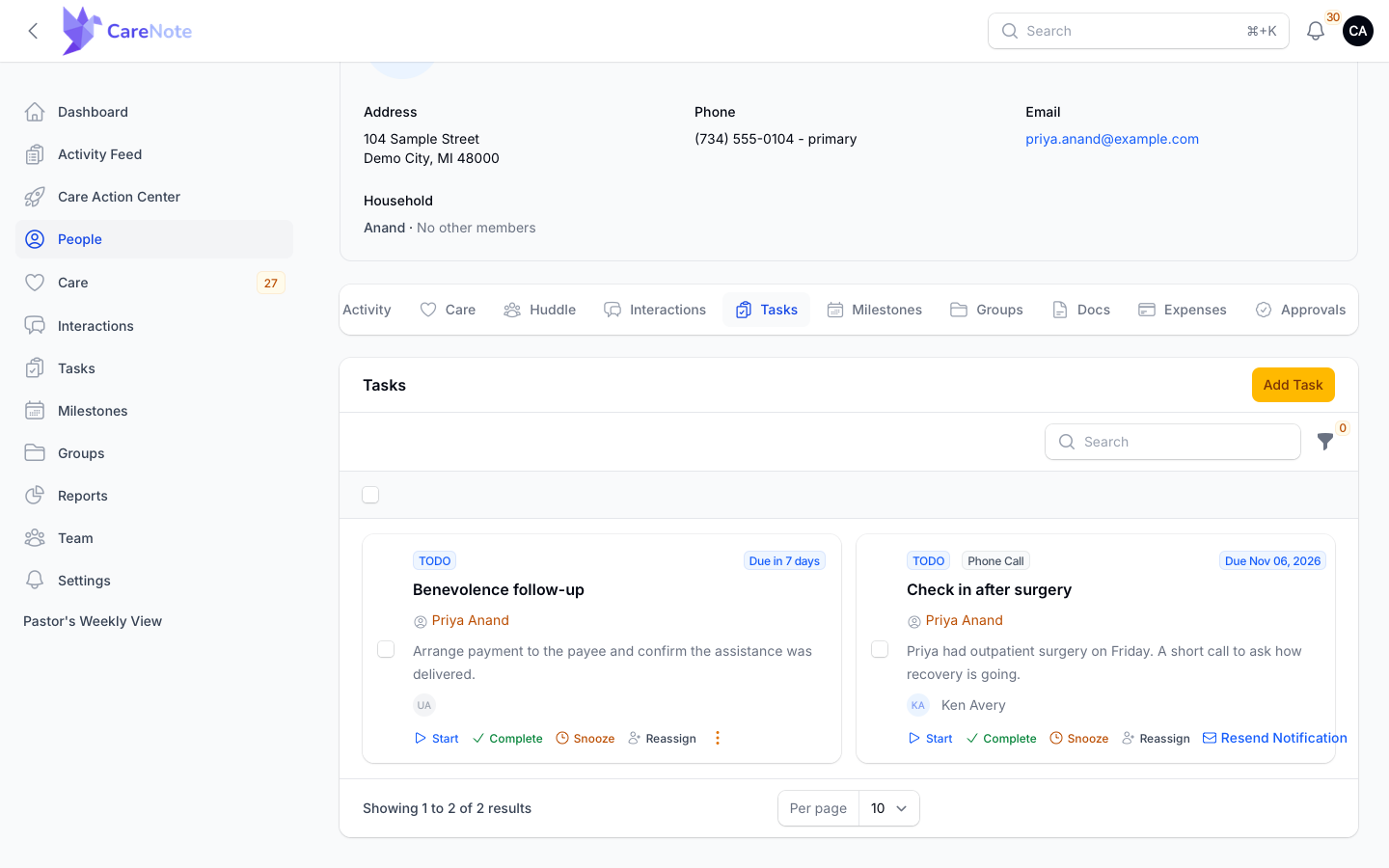
When the template has a task template, approval creates a follow-up task on the profile, due in 7 days, so arranging the payment and confirming it was delivered does not slip. Denied requests never create one.
Frequently asked questions
Can staff raise a request by hand? No. A request arrives only as a submission to the Planning Center form that has a Create Approval automation. That keeps the front door consistent, and each approval carries the original submission with it.
What if the requester is not in CareNote yet? Add or sync them first. The approval is created only when the submission matches an existing profile.
Do committee members need a login? No. Each member votes from a personal link that lasts 30 days.
Does a majority of Approve votes approve the request? No. Votes are advisory. A group Owner or Manager records the final decision.
We do not see Approvals in our navigation. Where is it? Approvals has no left menu entry. Use the Pending Approvals link on the group page, the Approvals tab on a person's profile, or the notification you receive. If your team is not on CareNote Plus, the profile tab shows an Approval Workflows panel instead.