
Creating Your CareNote Account
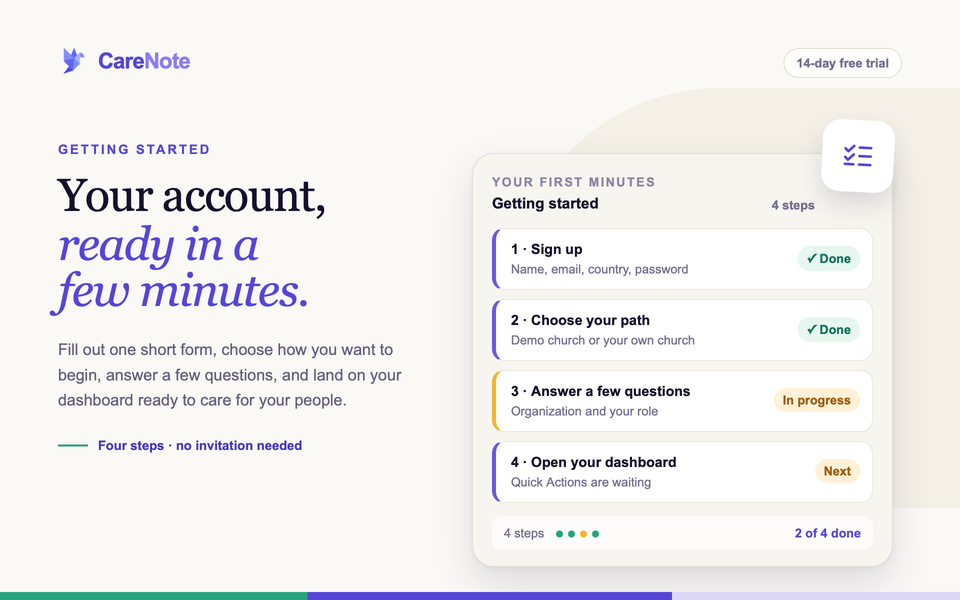
This guide shows you how to create your account, choose how to begin, and find your footing on the dashboard. Creating an account is self-serve. You fill out one form, pick a starting path, answer a short questionnaire, and you are in. Every option includes a 14-day free trial.
Watch: Day One, your dashboard and the Care Action Center.
1. Fill out the sign-up form
Go to the CareNote sign-up page and complete the form. All seven fields are required:
- Name: your full name, in one field.
- Email address: this becomes your login.
- Country: a searchable list that defaults to United States of America.
- Phone Number: enter it in your local format, as the helper text under the field says.
- Timezone: also searchable, defaulting to Eastern Time (ET). Choosing some countries updates it automatically, so check it before you move on.
- Password: use the show/hide icon to check what you typed.
- Confirm password: type it once more.
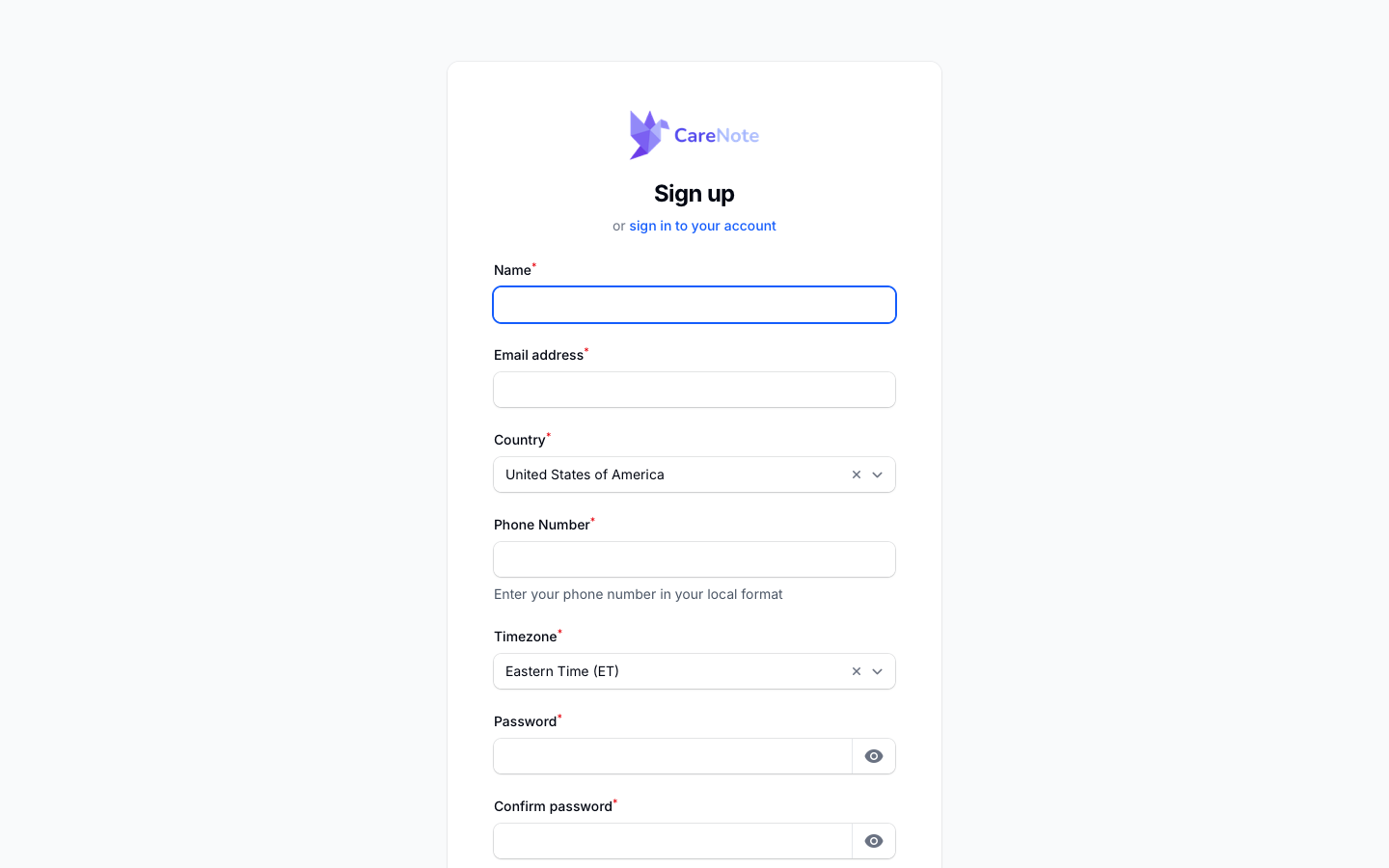
Select Sign up. If you submit several times in a row, CareNote briefly slows you down rather than creating duplicate accounts. You become an Administrator, and a verification email is sent to your inbox.
2. Choose how you want to start
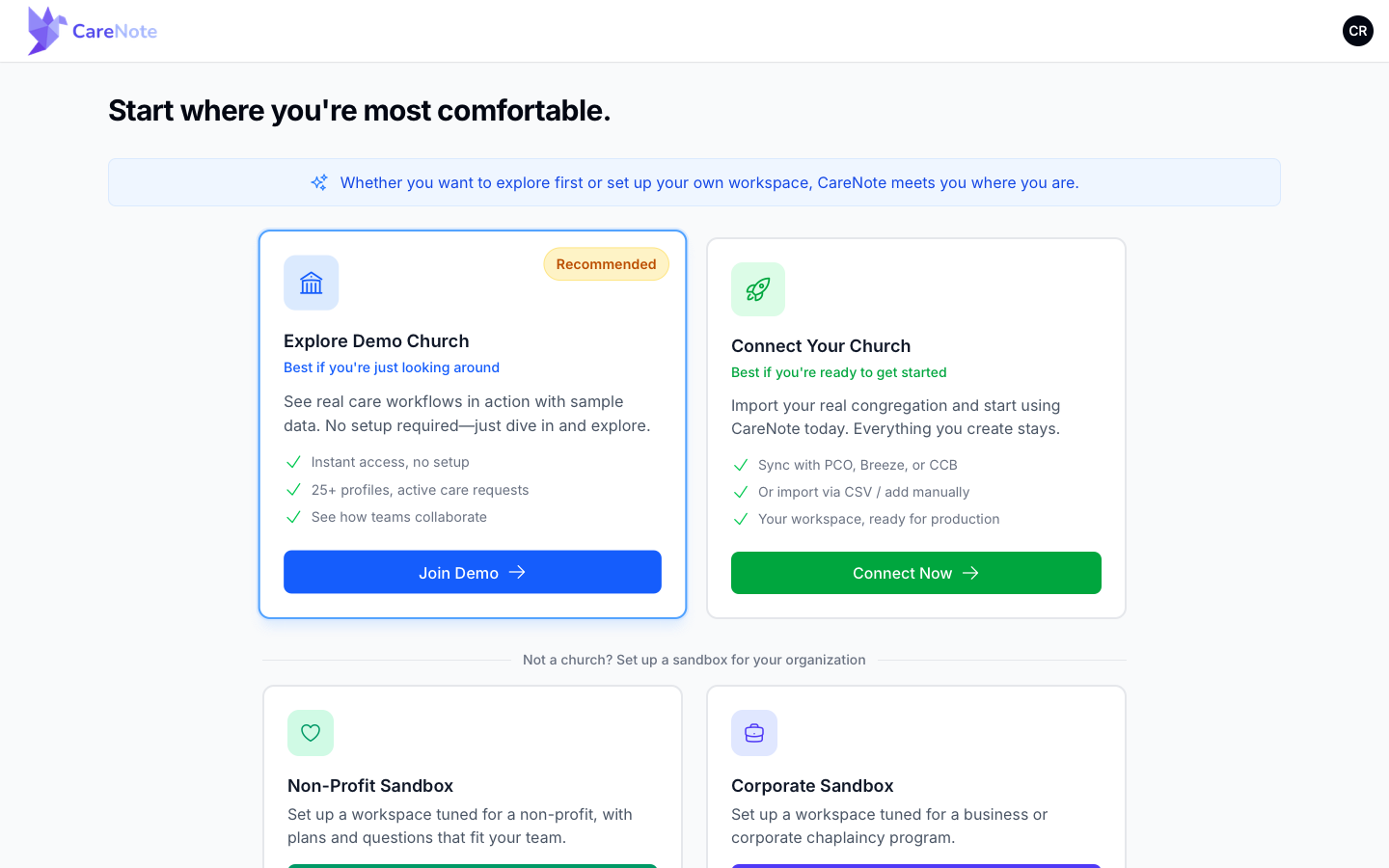
Next you see Start where you're most comfortable. Pick the card that fits:
- Explore Demo Church: join a shared demo church full of sample people and care requests. Choose Join Demo. Demo access lasts 30 days.
- Connect Your Church: set up your own workspace. Choose Connect Now.
- Non-Profit Sandbox or Corporate Sandbox: set up your own workspace for that kind of organization.
Not sure? Use the Book a demo link under the cards to talk with someone first.
3. Answer the short questionnaire
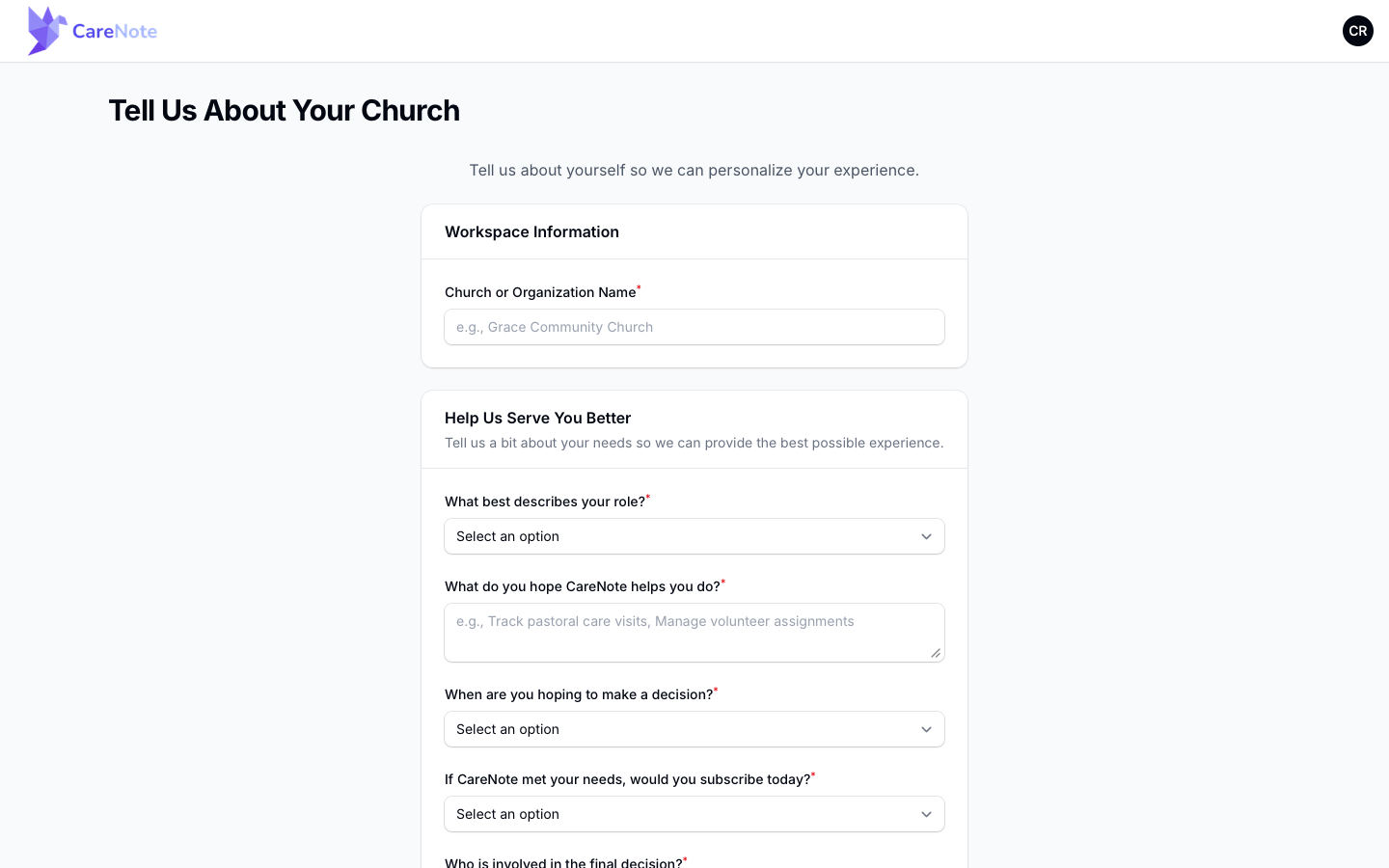
Every path, including Explore Demo Church, continues to a required questionnaire. Submitting it is what places you in the shared demo church or creates your own team. The page is titled "Tell Us About Your Church" for every kind of organization.
If you chose Join Demo, you are asked for your Church or Organization Name.
If you chose Connect Now or a sandbox, you are also asked What type of organization are you? with Church, Non-Profit and Corporate choices. A sandbox card pre-selects its type for you, and you can change it.
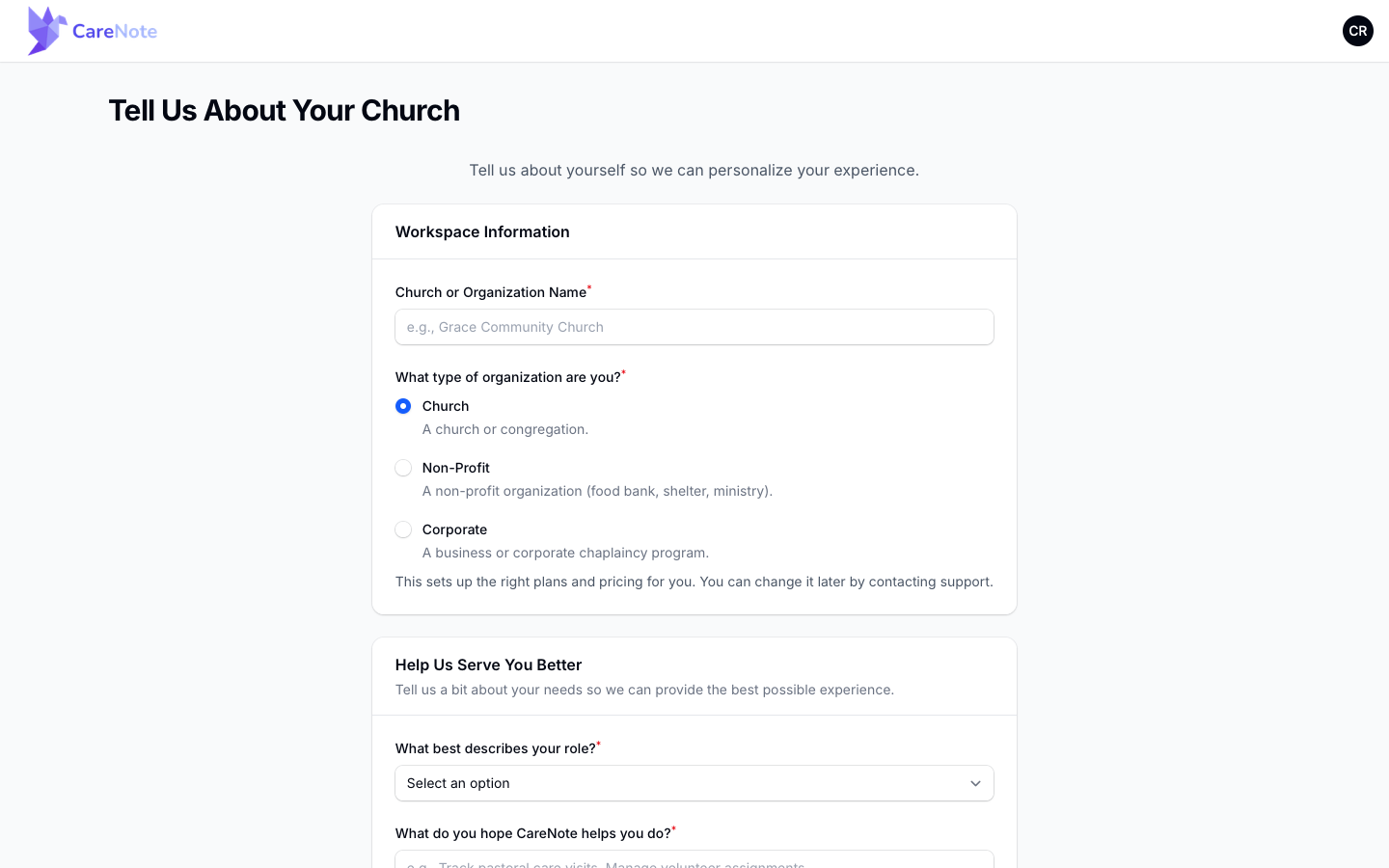
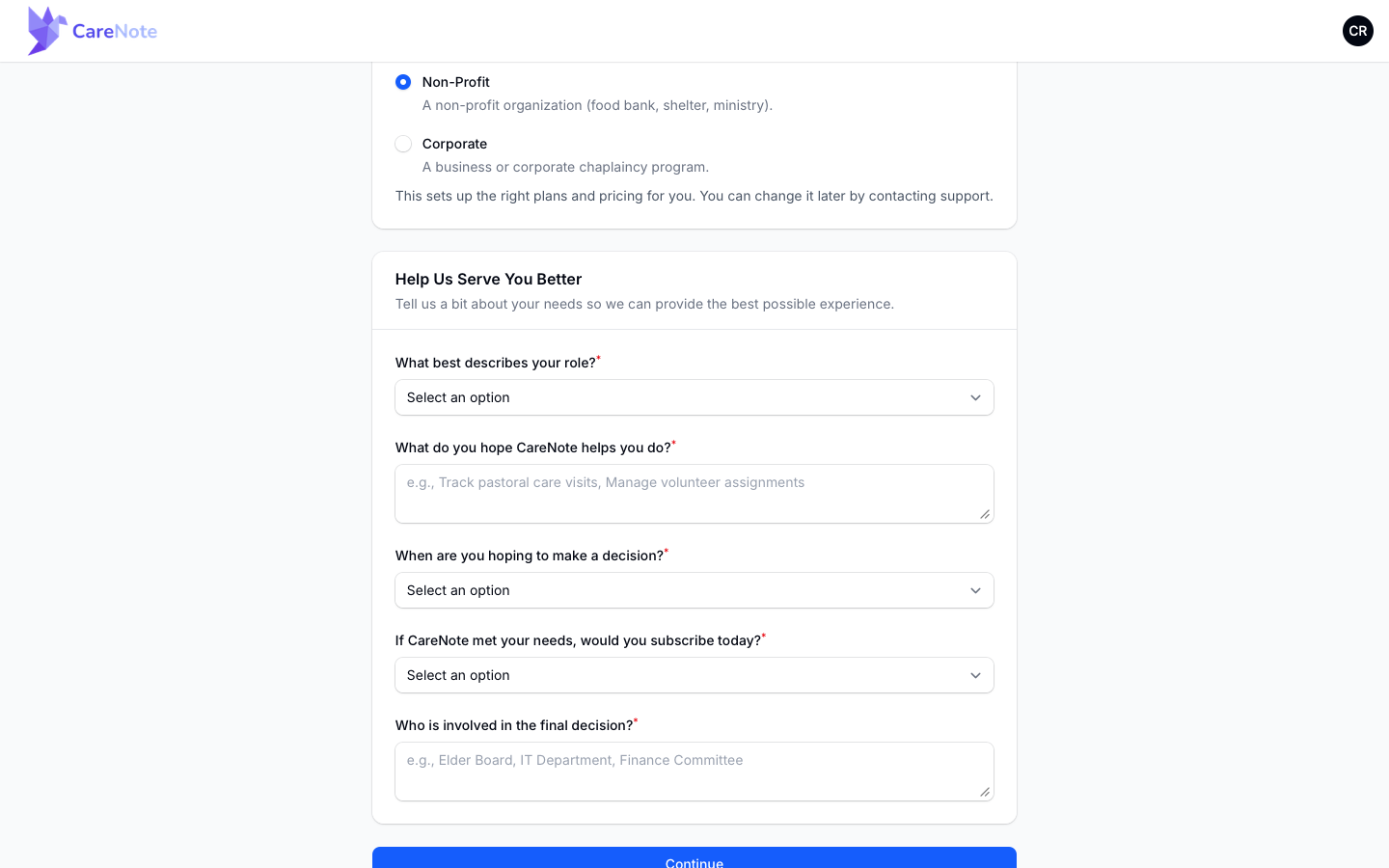
Under Help Us Serve You Better, all five questions are required:
- What best describes your role? The choices depend on the organization type. A Non-Profit, for example, sees Executive Director, Program Director, Case Manager and more.
- What do you hope CareNote helps you do?
- When are you hoping to make a decision? From As Soon As Possible (1-2 weeks) to Just Exploring Options.
- If CareNote met your needs, would you subscribe today? Yes or No.
- Who is involved in the final decision?
Select Continue to finish.
4. Take your first look at the dashboard
You land on your dashboard with a Welcome back greeting. Quick Actions let you start right away: Add an Interaction, Add a Task, Add Care Request and Add a Milestone. Below them, Today at a Glance shows what needs attention, and Stay in Sync links to the Care Action Center and the Activity Feed.
Use the left navigation to move around: People, Care, Interactions, Tasks, Milestones, Groups, Reports, Team and Settings.
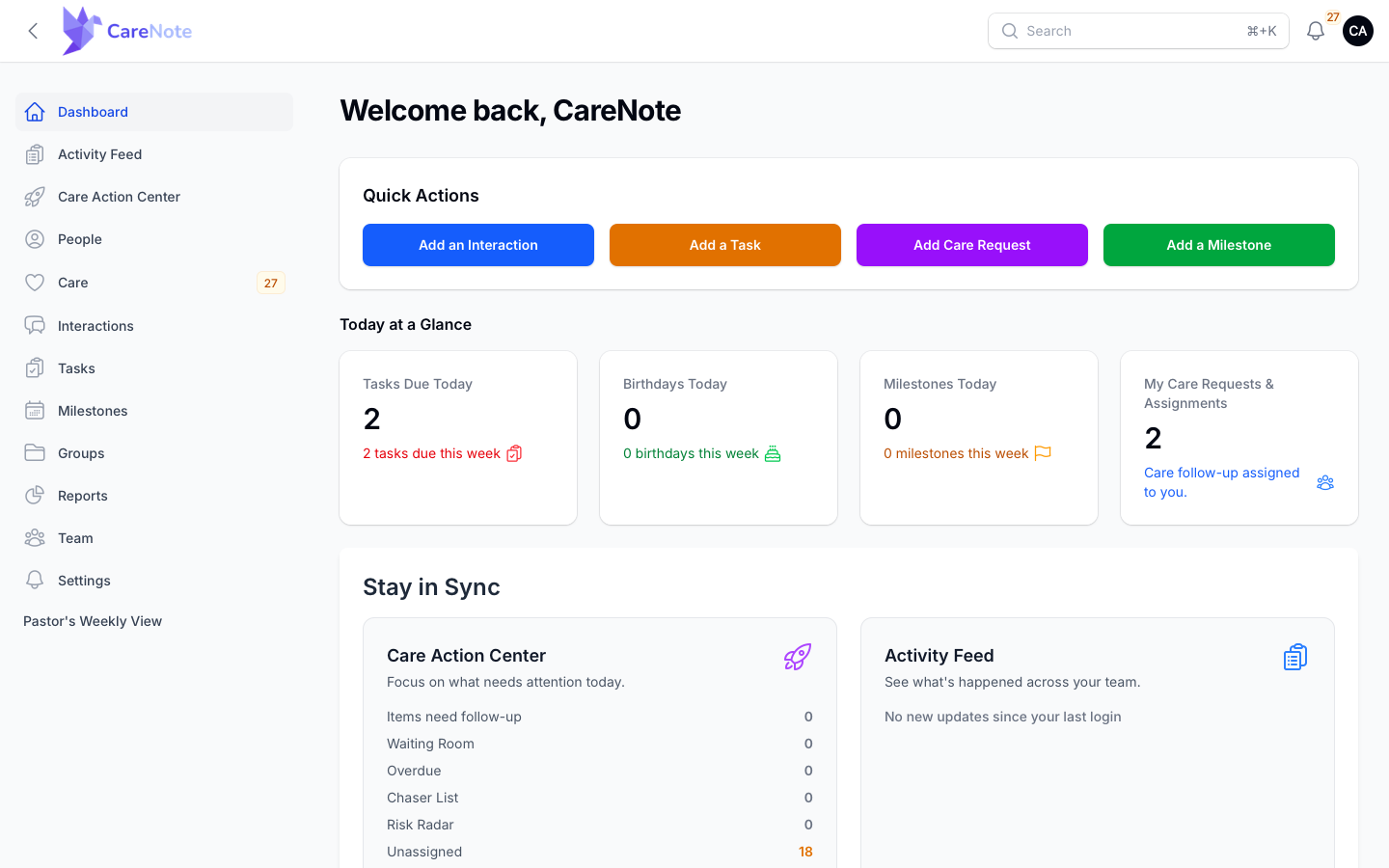
On a new team you will also see a Get Started checklist. This screenshot comes from a team that has already finished it.
5. Sign in later
There is one sign-in page for everyone. Enter your email address and password, and CareNote sends you to the place that fits your role. Use Remember me on a device you trust, or Forgot your password? if you need a reset.
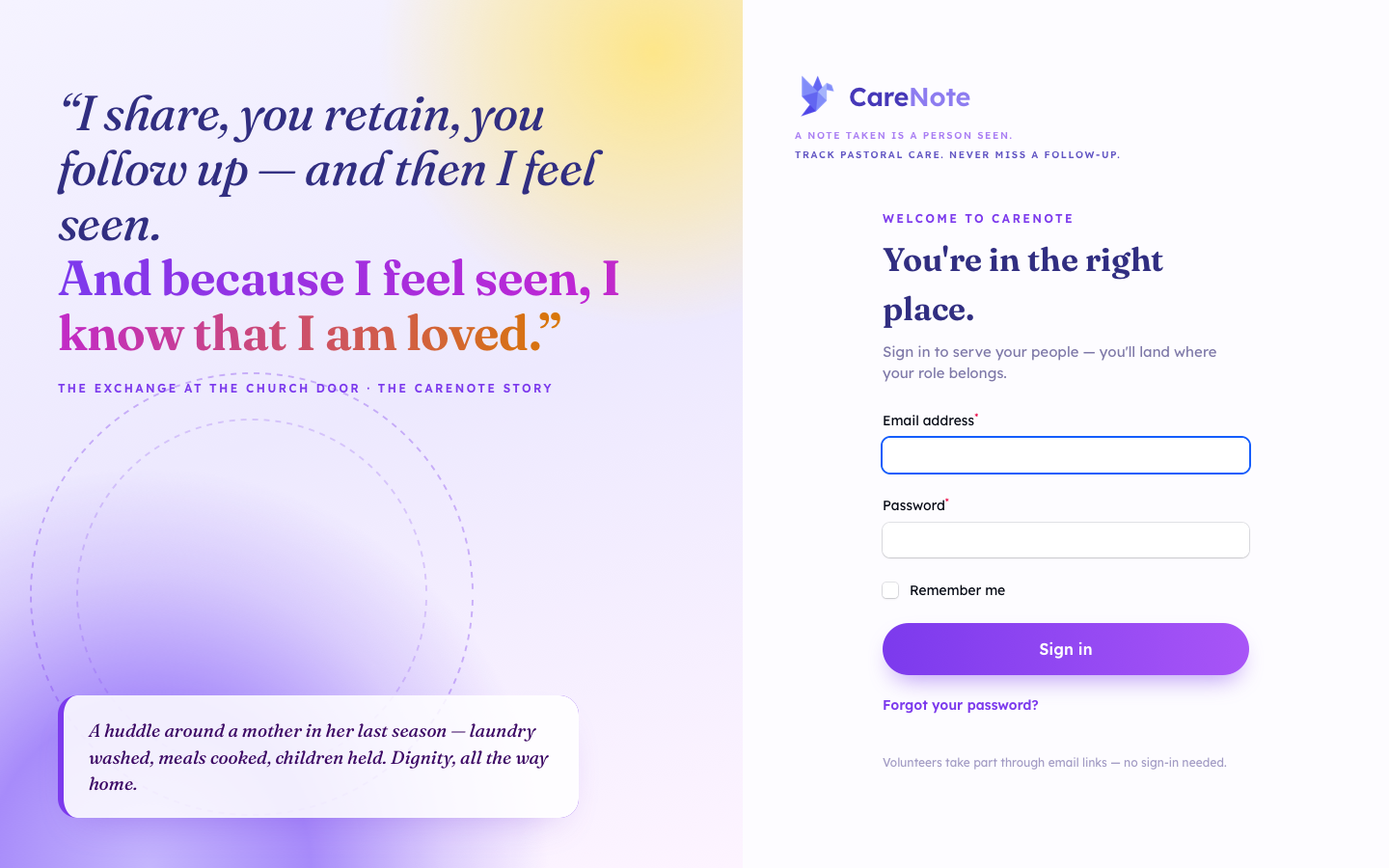
People who help through email links do not need to sign in at all.
6. Turn on two-factor sign-in (optional)
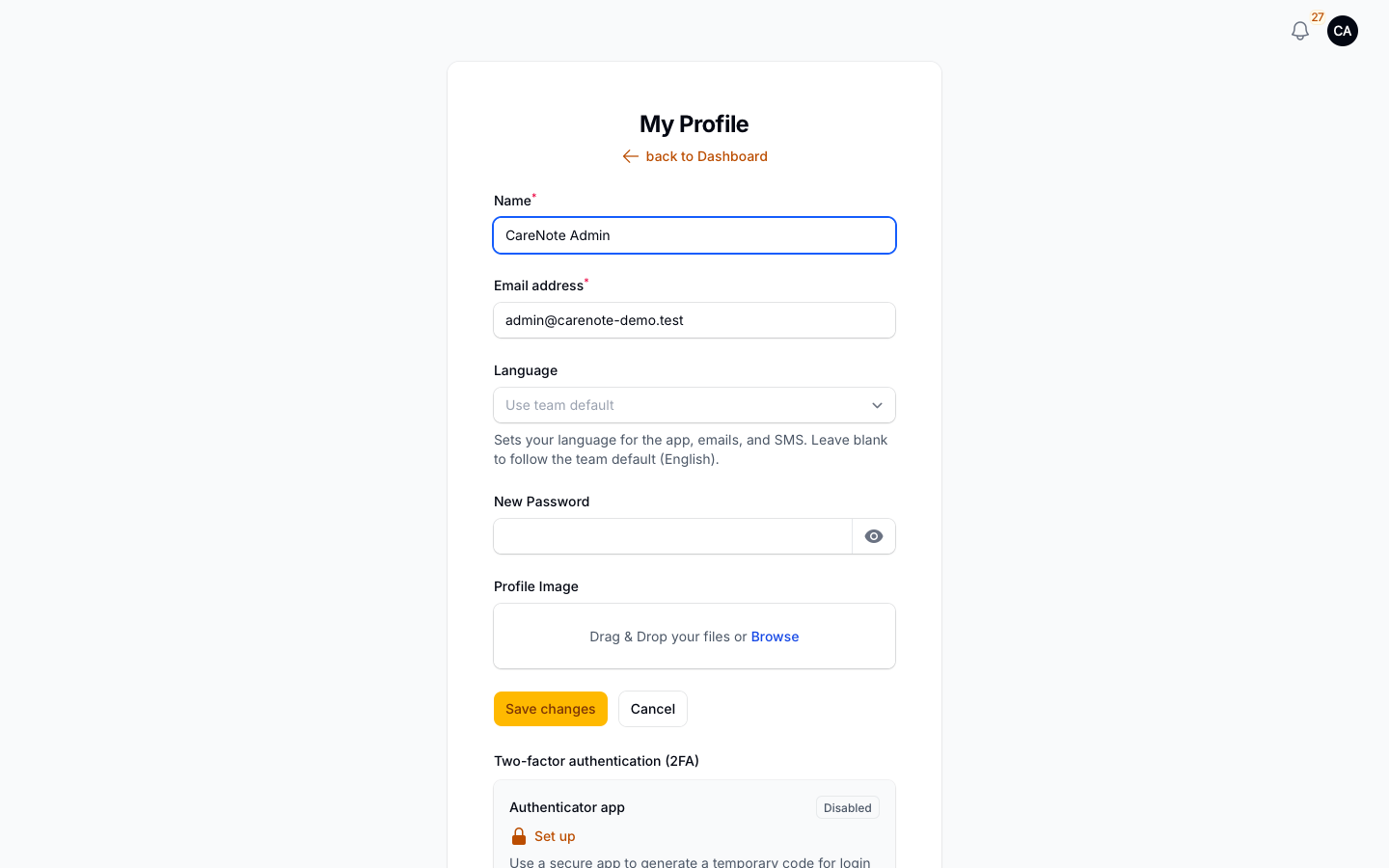
For extra protection, open My Profile and find Two-factor authentication (2FA). It uses an authenticator app on your phone to generate a temporary code at sign-in. Choose Set up next to Authenticator app and follow the steps, and save your recovery codes somewhere safe.
Frequently asked questions
Do I need a credit card to sign up? No. Creating your account and starting your 14-day free trial do not ask for payment details.
What role do I get? You become an Administrator of your own workspace. The sign-up form has no option to join an existing team. If your team already uses CareNote, ask whoever manages it to invite you.
Can I look around before adding my own people? Yes. Choose Explore Demo Church to explore sample people and care requests. Demo access lasts 30 days.
I picked the wrong organization type. Can I change it? Yes. The questionnaire notes that you can change it later by contacting support.
What happens when my trial ends? You see a Subscription Required screen where you can subscribe, delete your account, or in some cases book a demo call.