
Care Interaction Links: Logging Care Without a Login
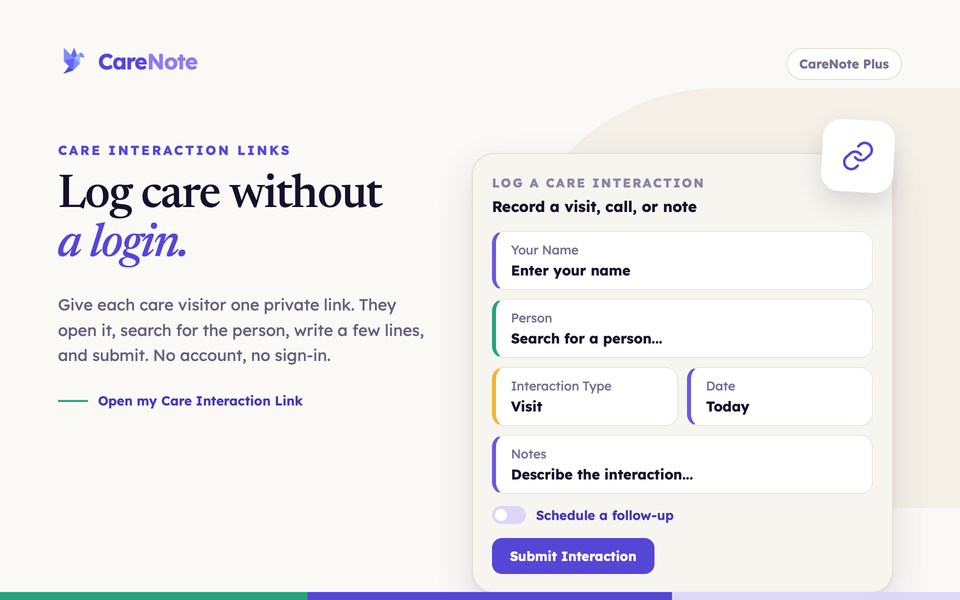
Some of your best care happens through people who will never open a dashboard: the lay minister who visits on Tuesday afternoons, the neighbor who calls the widows on her street, the retired deacon who prays with the shut-ins. If logging that care means creating an account and remembering a password, it often goes unrecorded.
Watch how a care visitor opens their link and logs a visit in about a minute.
A Care Interaction Link fixes that. It is a private web address you give to one person. They tap it, search for the person they cared for, write a few lines, and submit. No account, no sign-in, about a minute. The interaction lands in CareNote like any other. Care Interaction Links are part of CareNote Plus.
What a Care Interaction Link is
Each link belongs to one person on your team and has a name you choose so you can tell links apart. It works on a phone or computer and can be reused for every visit or call. A link lasts one year. Anyone holding the link can log interactions, so treat it like a key and revoke it if it ends up in the wrong hands.
Links are managed from your Owner settings. The page is not in the left navigation. Open it from your CareNote Plus settings, or go straight to /settings/<your team number>/care-interaction-links. It lists every live link, meaning links that have not been revoked or expired.
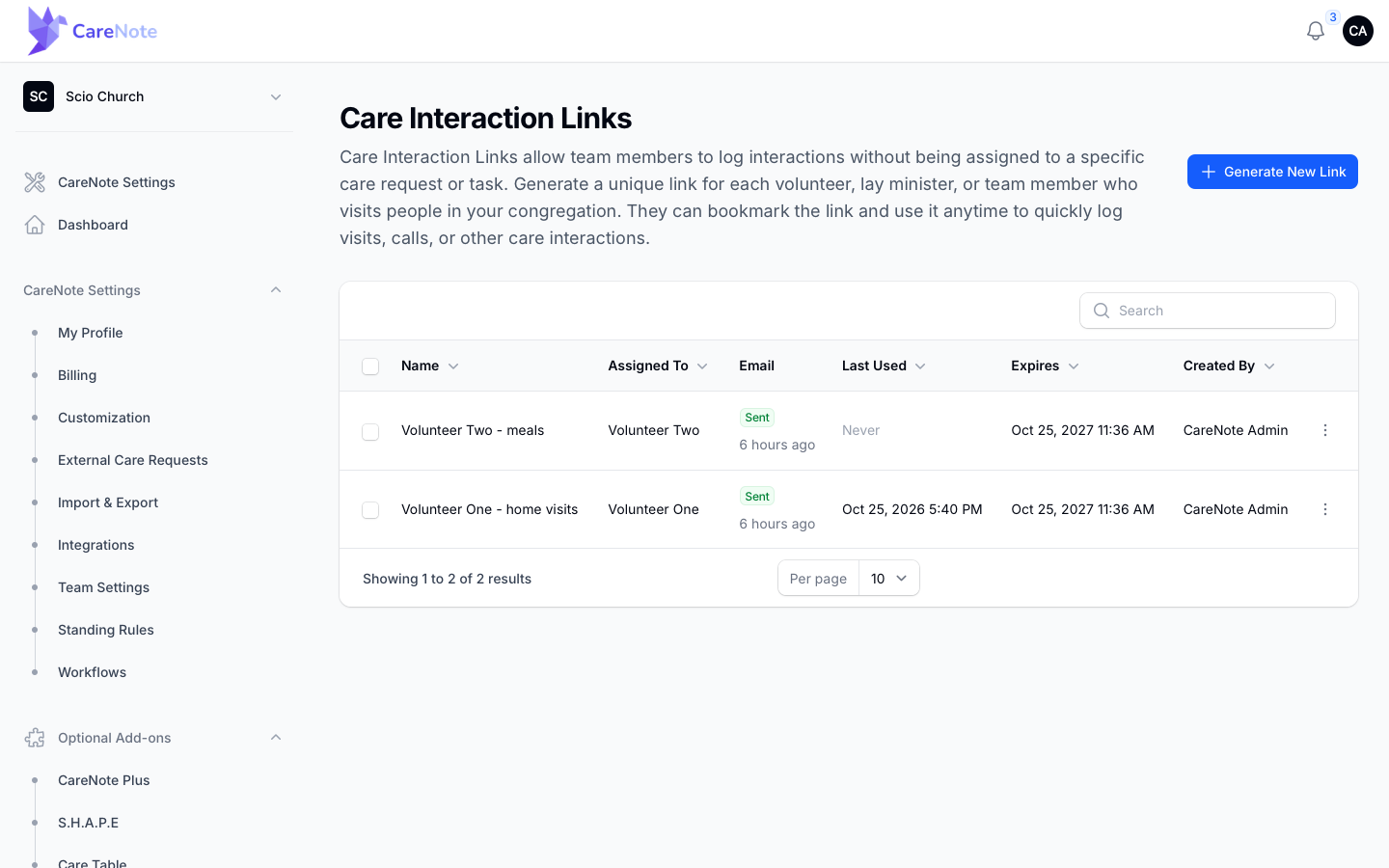
1. Generate a link
- Open Care Interaction Links and click Generate New Link.
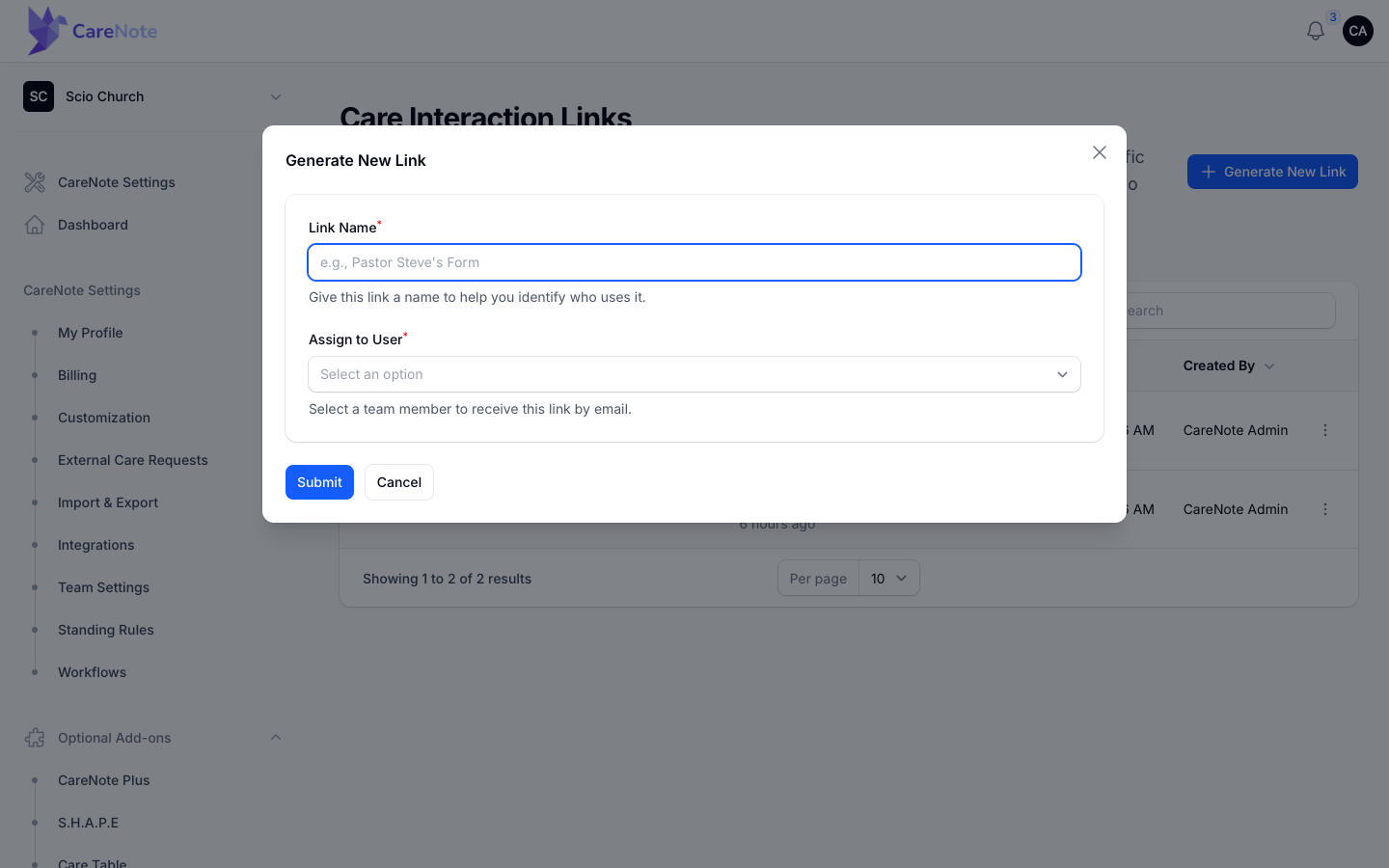
- Type a Link Name, something that helps you recognize whose link it is.
- Choose who the link is for under Assign to User.
- Click Submit.
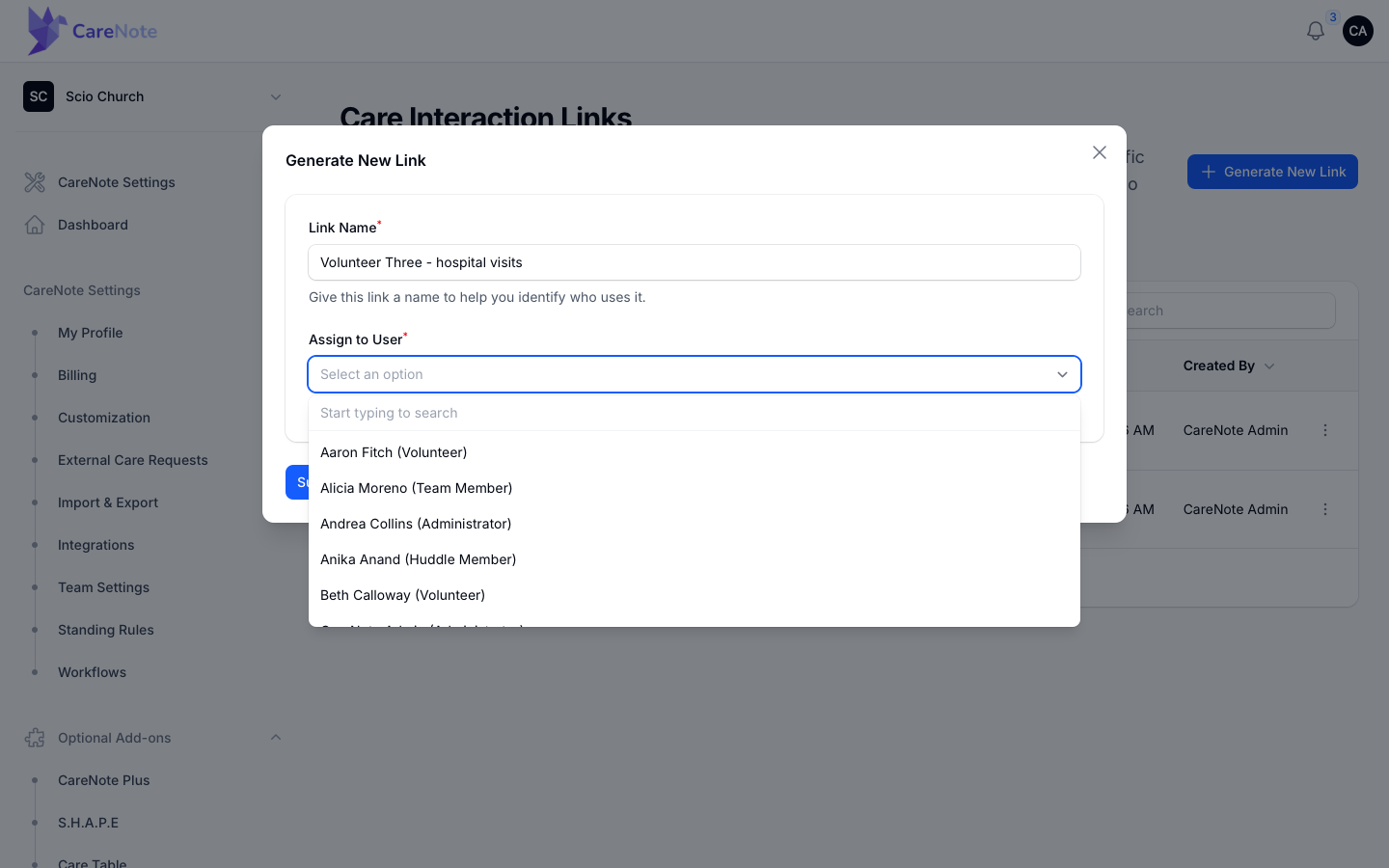
The assignee list is searchable and each option shows the person's role in parentheses, such as "Name (Volunteer)". You can assign a link to an Administrator, Huddle Member, Team Member, or Volunteer.
Submitting creates the link and emails it to the person you assigned. You will see a "Volunteer Form Link Created" confirmation.
2. See what your people receive
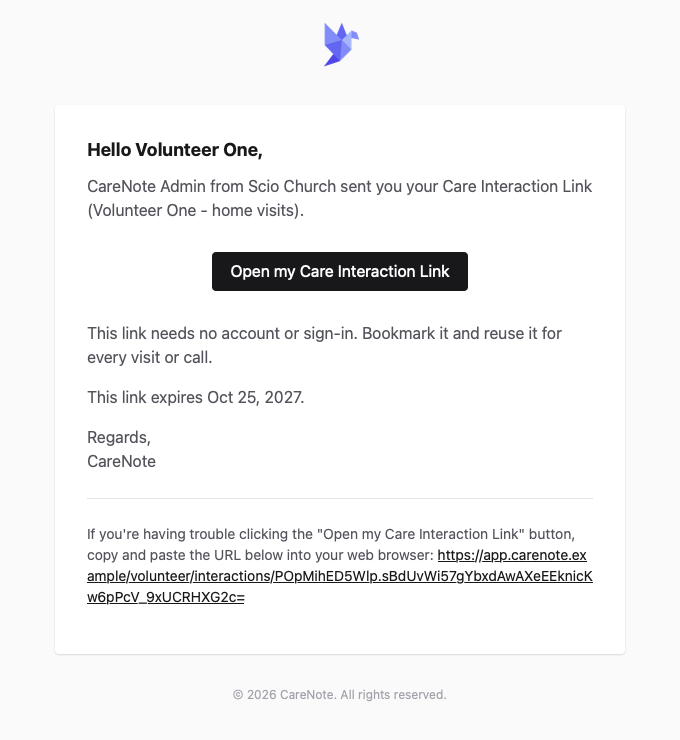
The email subject is "Your Care Interaction Link" followed by your church name. It says who sent the link, offers a button labeled Open my Care Interaction Link, and explains that no account or sign-in is needed. It also gives the date the link expires.
3. Check that the email arrived
The Email column shows a badge for each link: Queued, Sent, or Failed. A link that has never been emailed shows "Not sent". The table refreshes itself every 30 seconds, so a Queued badge turns to Sent without you reloading.
One thing to know: Sent means the mail provider accepted the message. It does not promise the message reached an inbox. If someone says nothing came, check their spam folder first. Failed usually means the address on their profile needs fixing.
Last Used shows "Never" until the person opens the form and submits something, which makes it easy to spot links nobody has started using.
4. Copy, send, regenerate or revoke a link
Open the three-dot menu on any row.
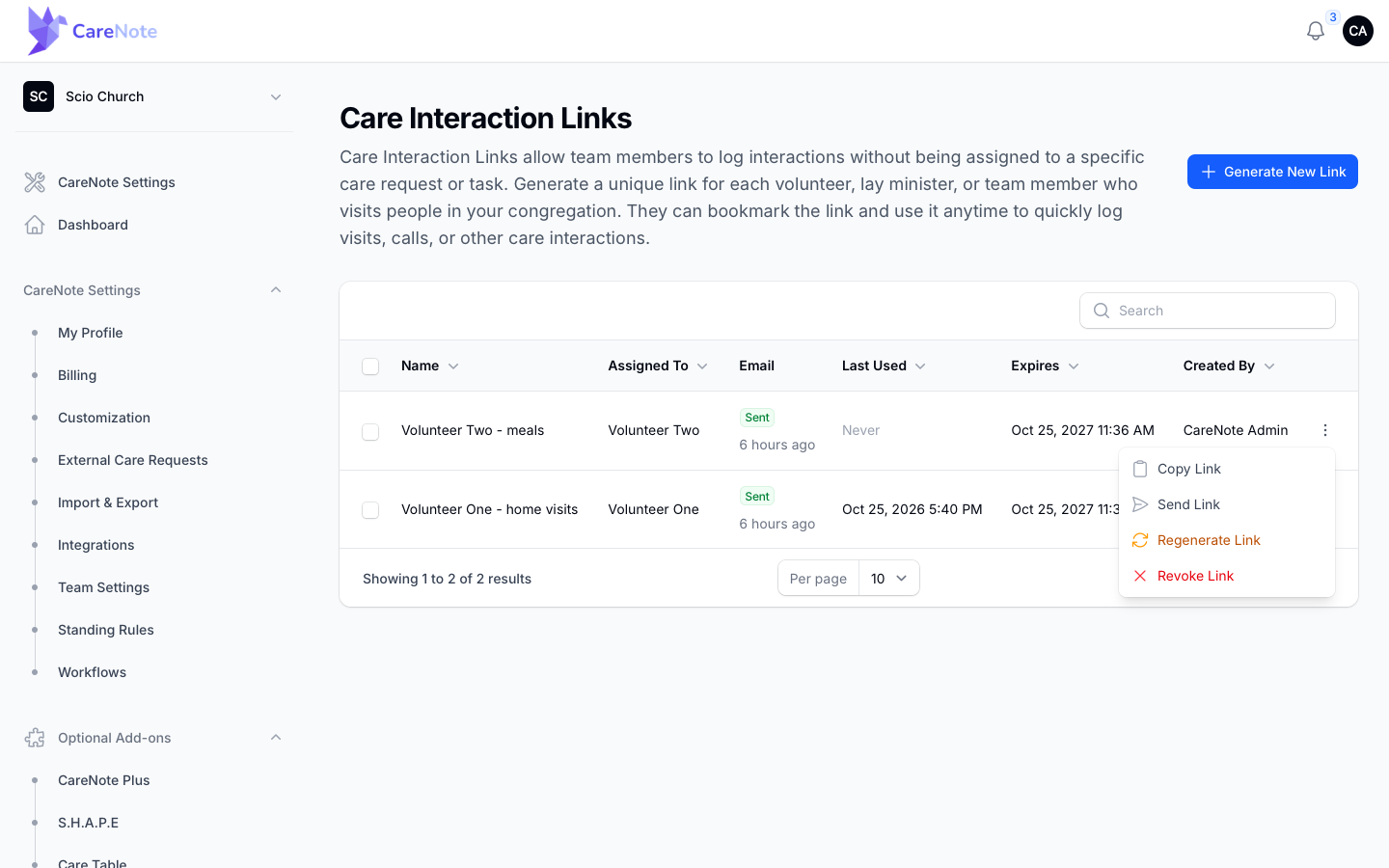
- Copy Link shows the full address in a read-only box with a copy button.
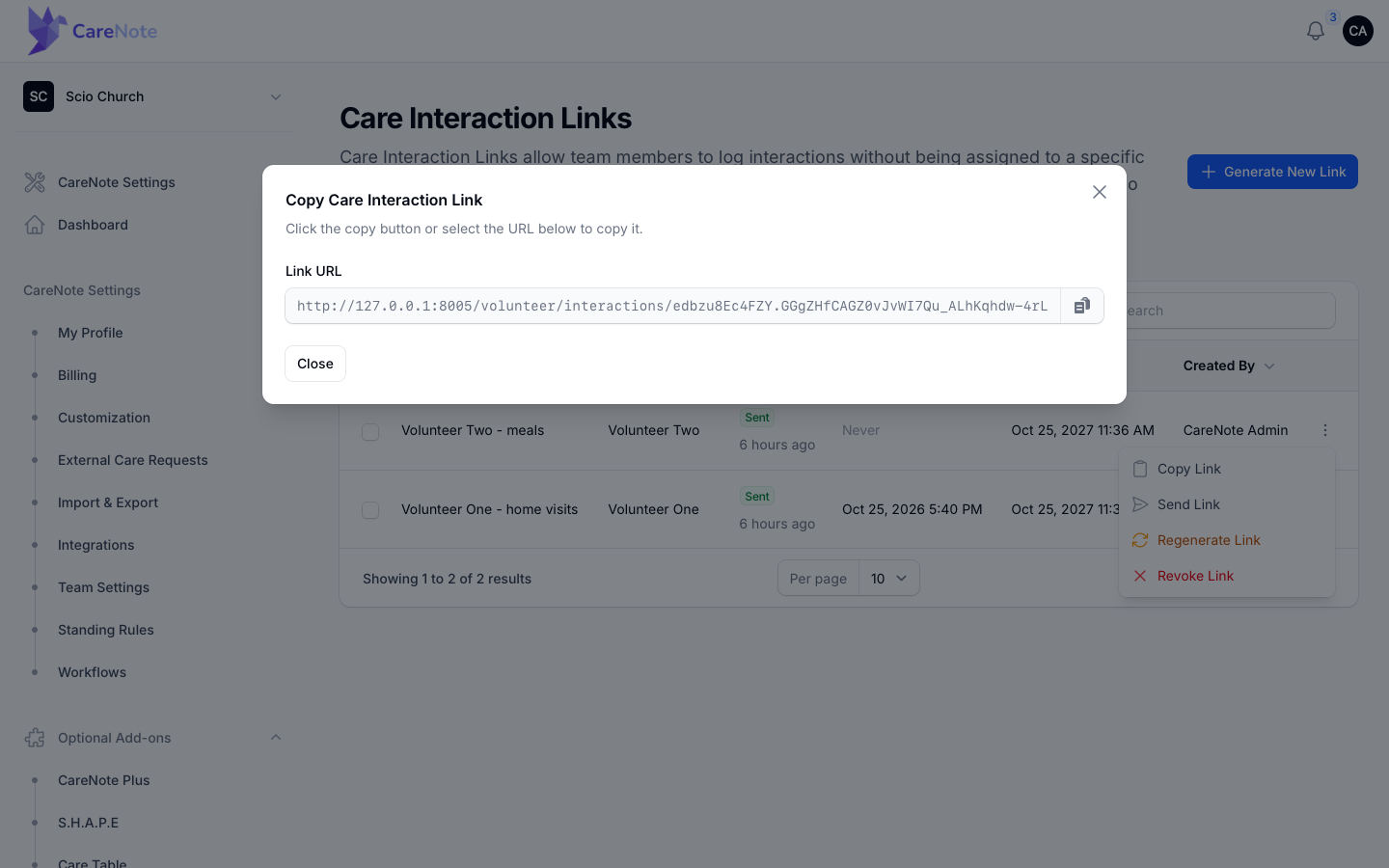
- Send Link emails the link to someone. The assignee is filled in for you. If you pick a different person, CareNote creates a new link for them and revokes the old one, so one link never quietly belongs to two people.
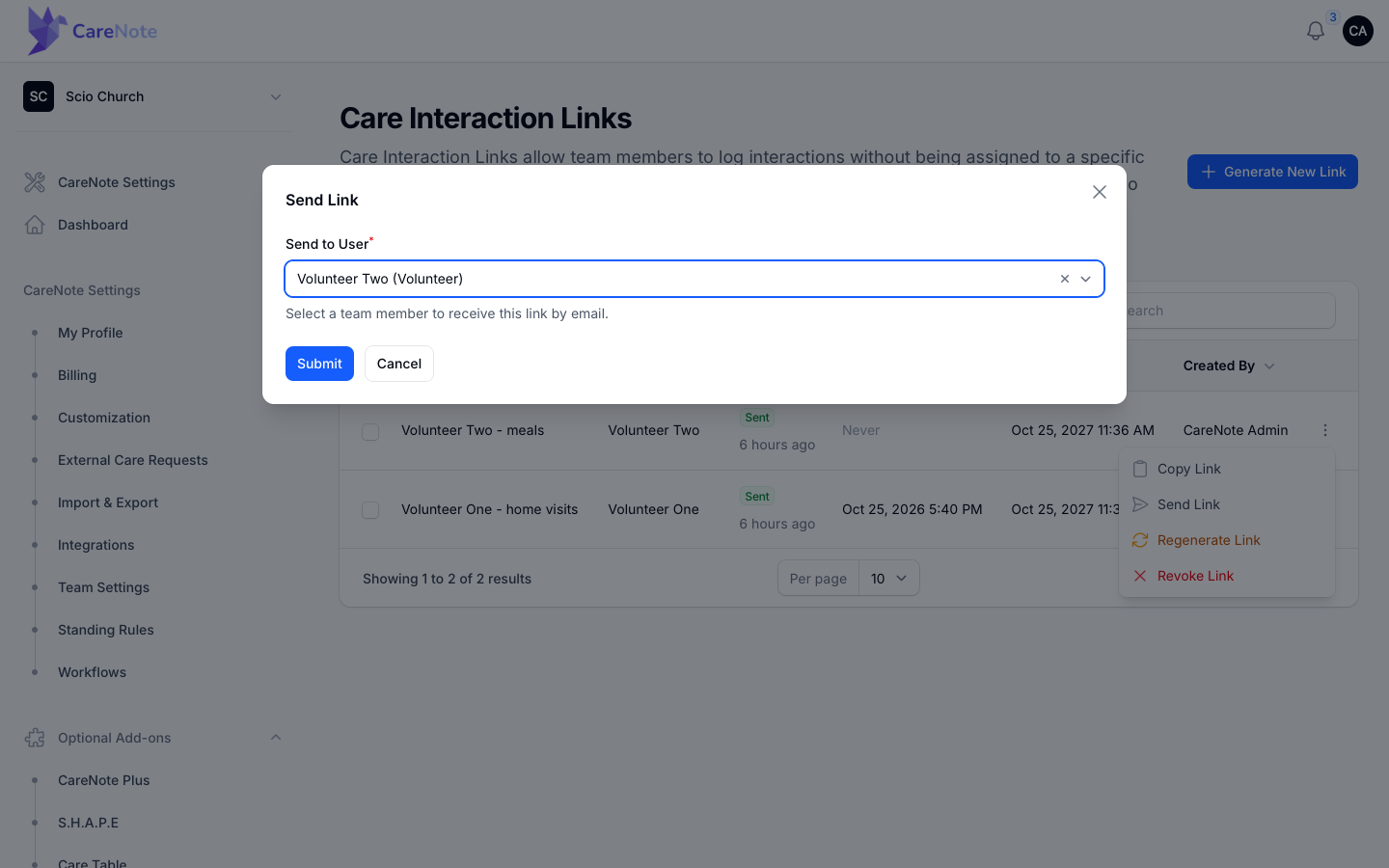
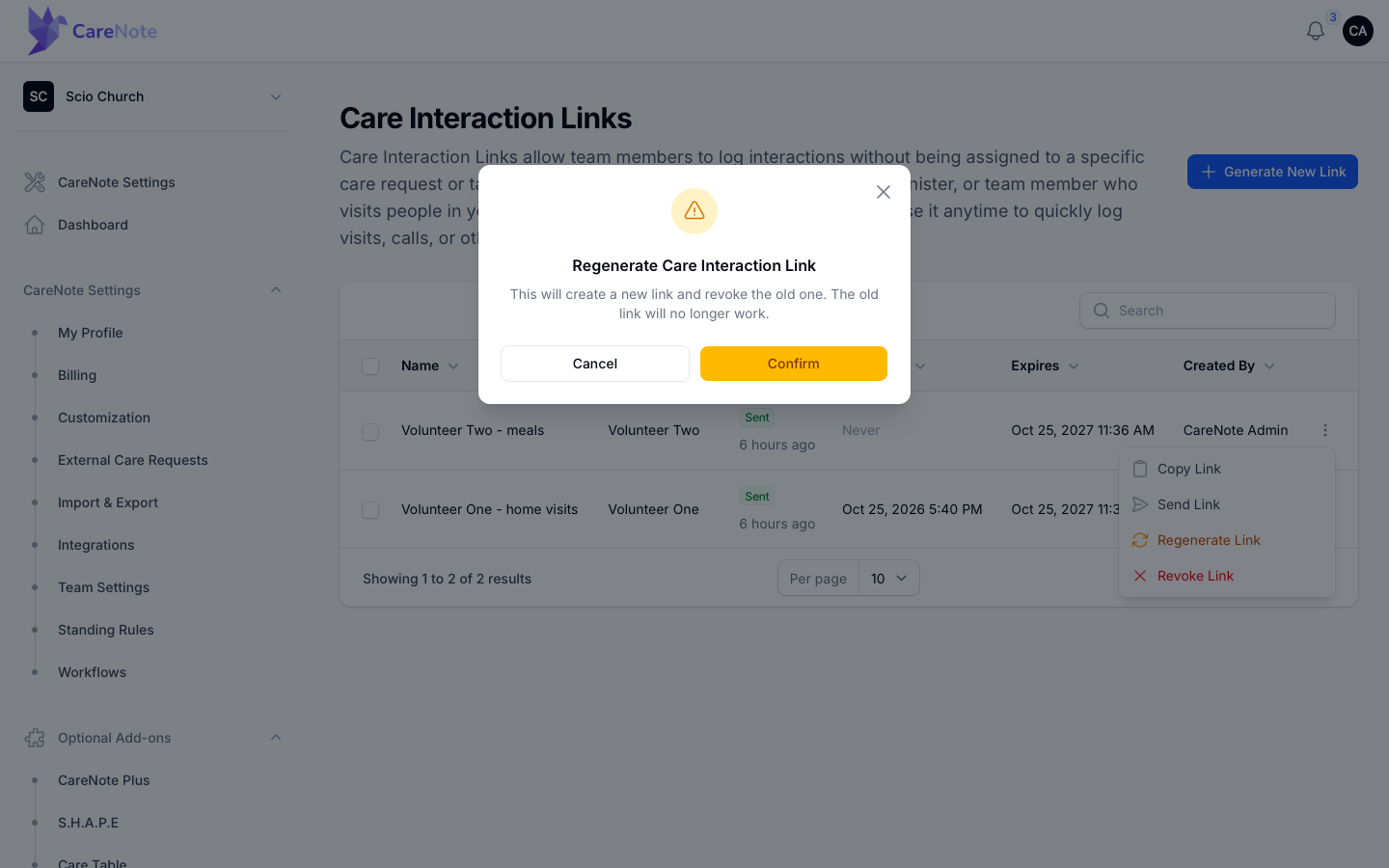
- Regenerate Link creates a new link and revokes the old one. The old link stops working immediately.
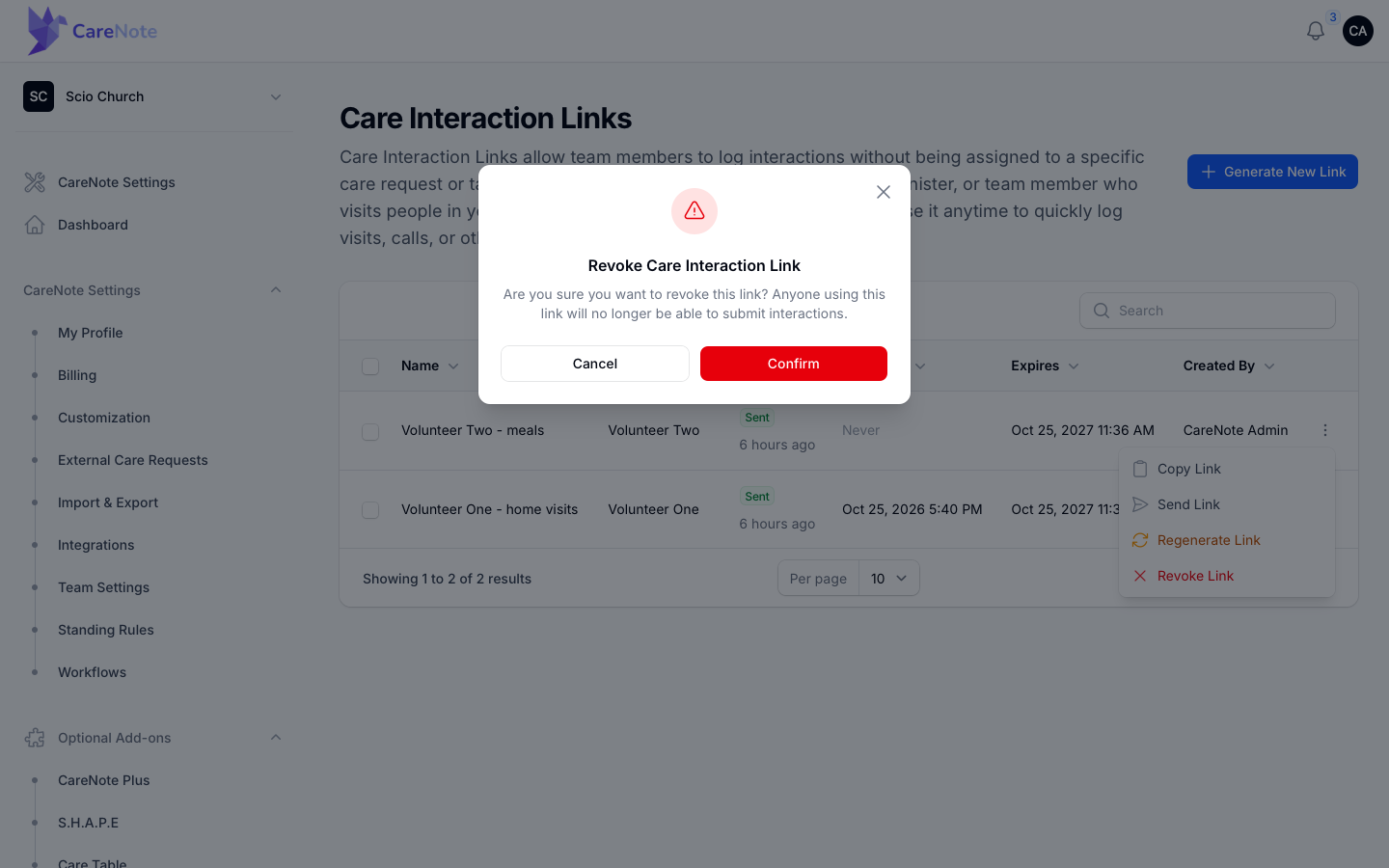
- Revoke Link turns a link off. Anyone using it can no longer submit interactions.
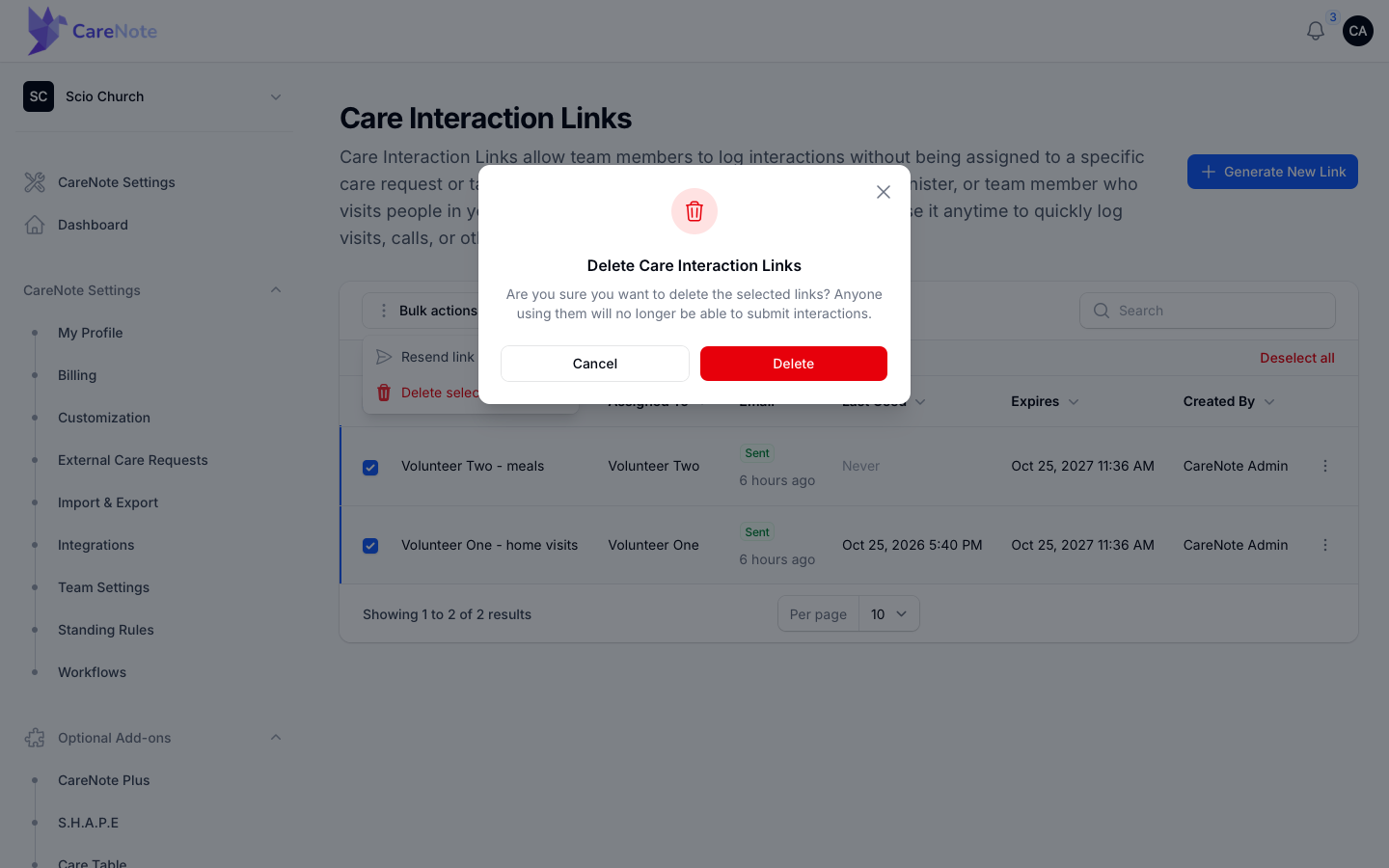
5. Resend or delete several links at once
Tick the boxes beside the links you want, then open Bulk actions.
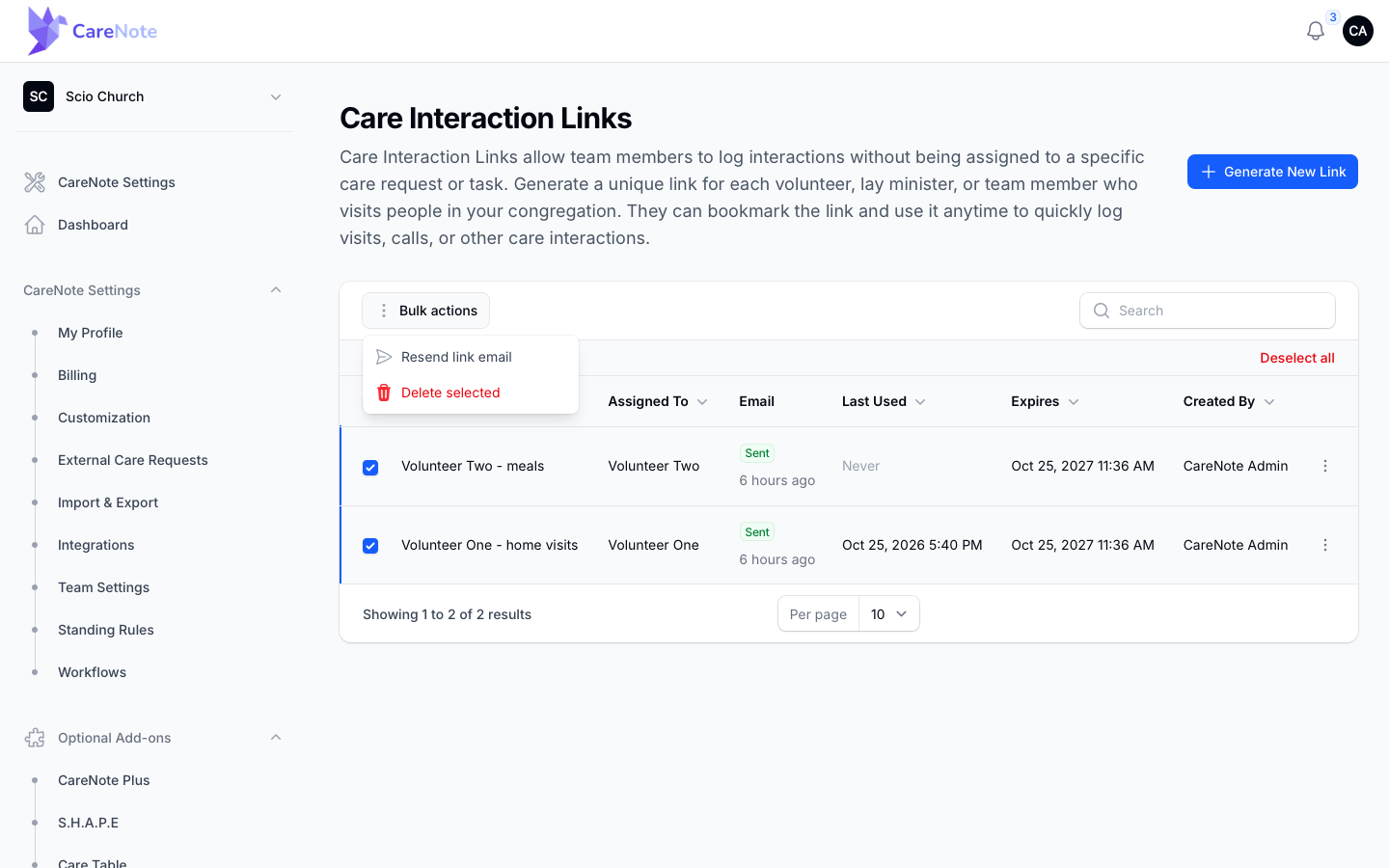
Resend link email emails each selected link again to the person it is assigned to. Links with no assigned person are skipped, and a "Resend Complete" message tells you how many were queued and how many skipped. Resending is only available in bulk, so select a single row if you only need one.
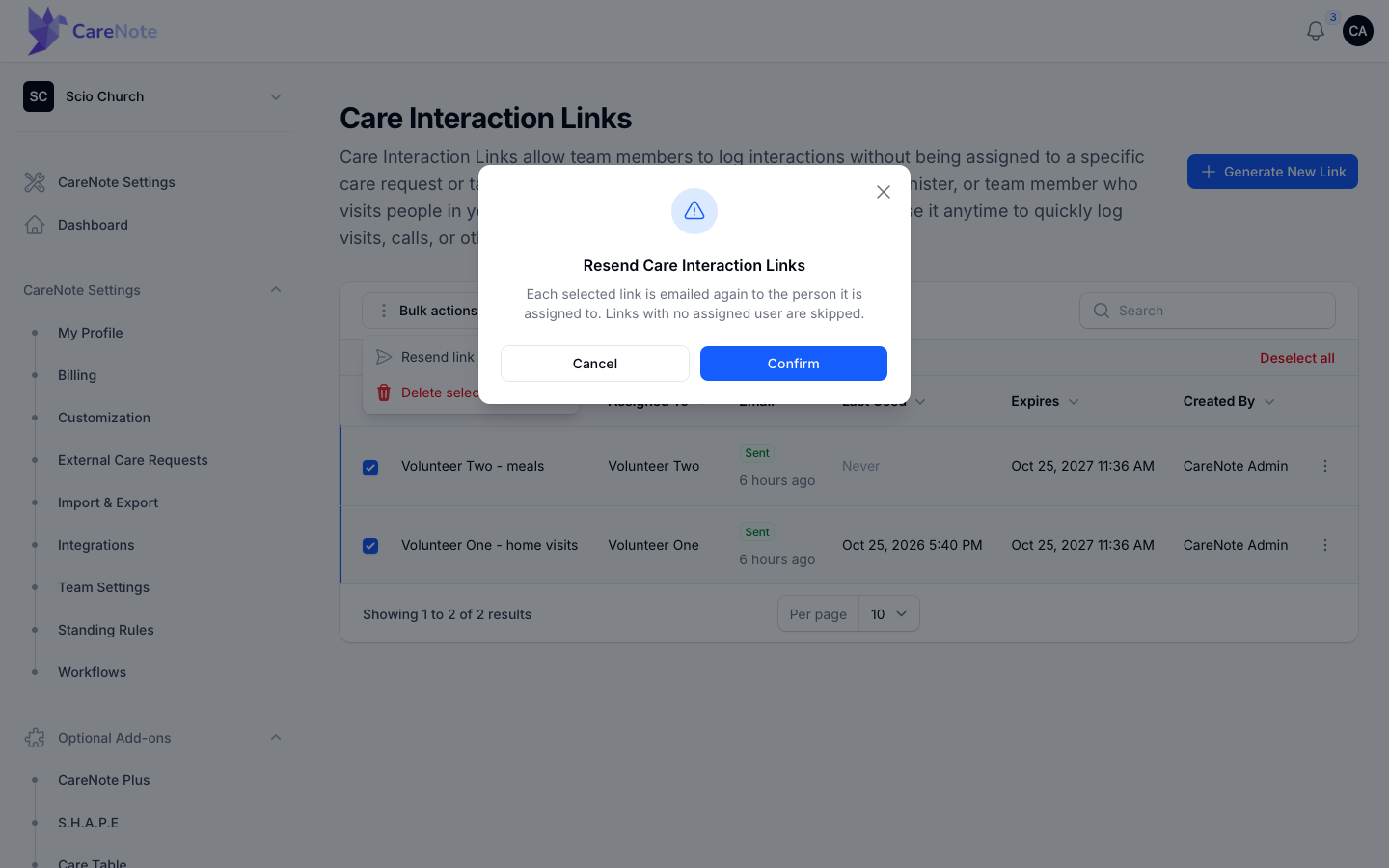
Delete selected removes the links for good, and anyone using them can no longer submit.
6. What your people do with the link
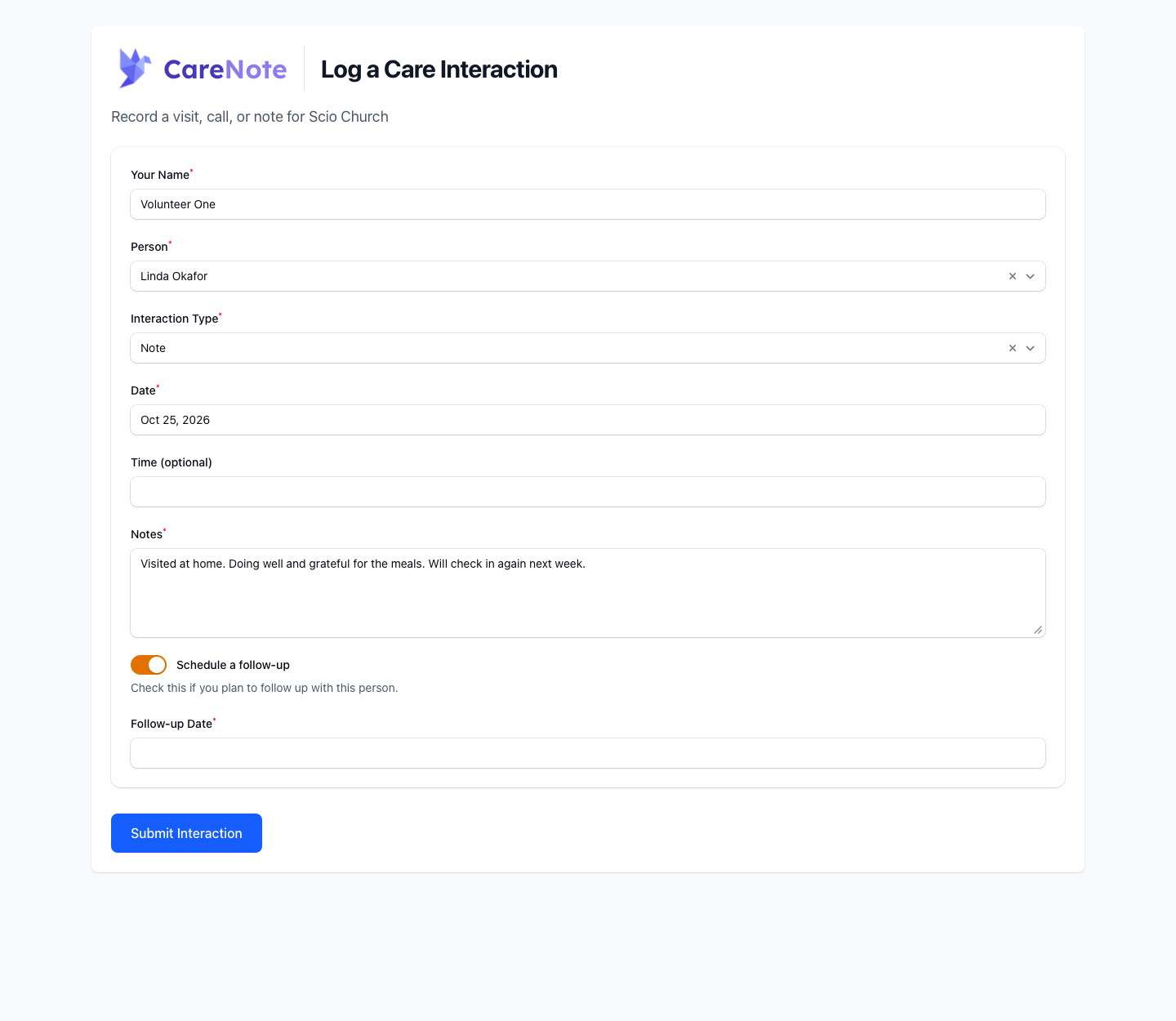
The link opens a page titled Log a Care Interaction. There is nothing to install and no login.
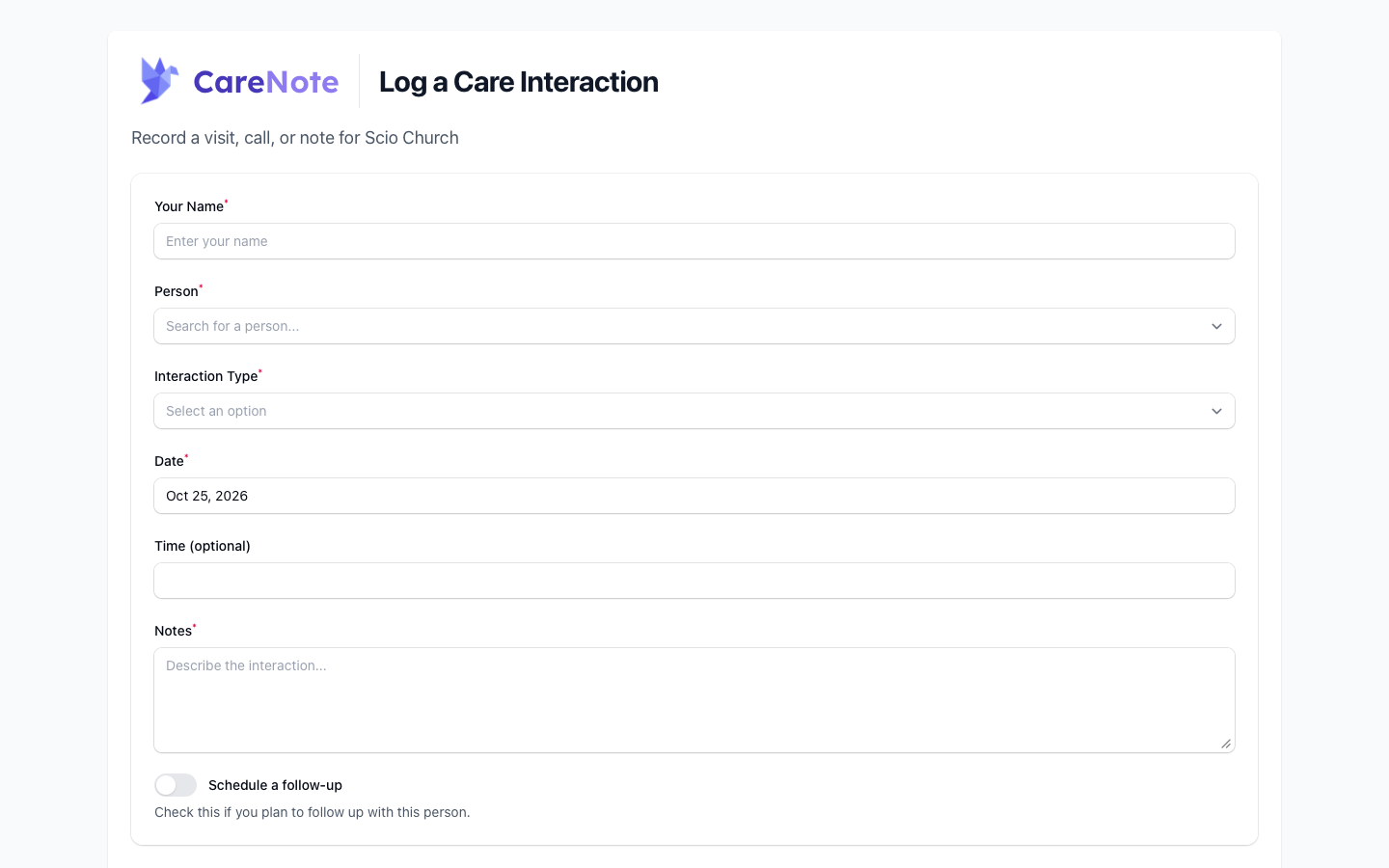
- Enter Your Name.
- Search for the Person they cared for. Results are limited to your team.
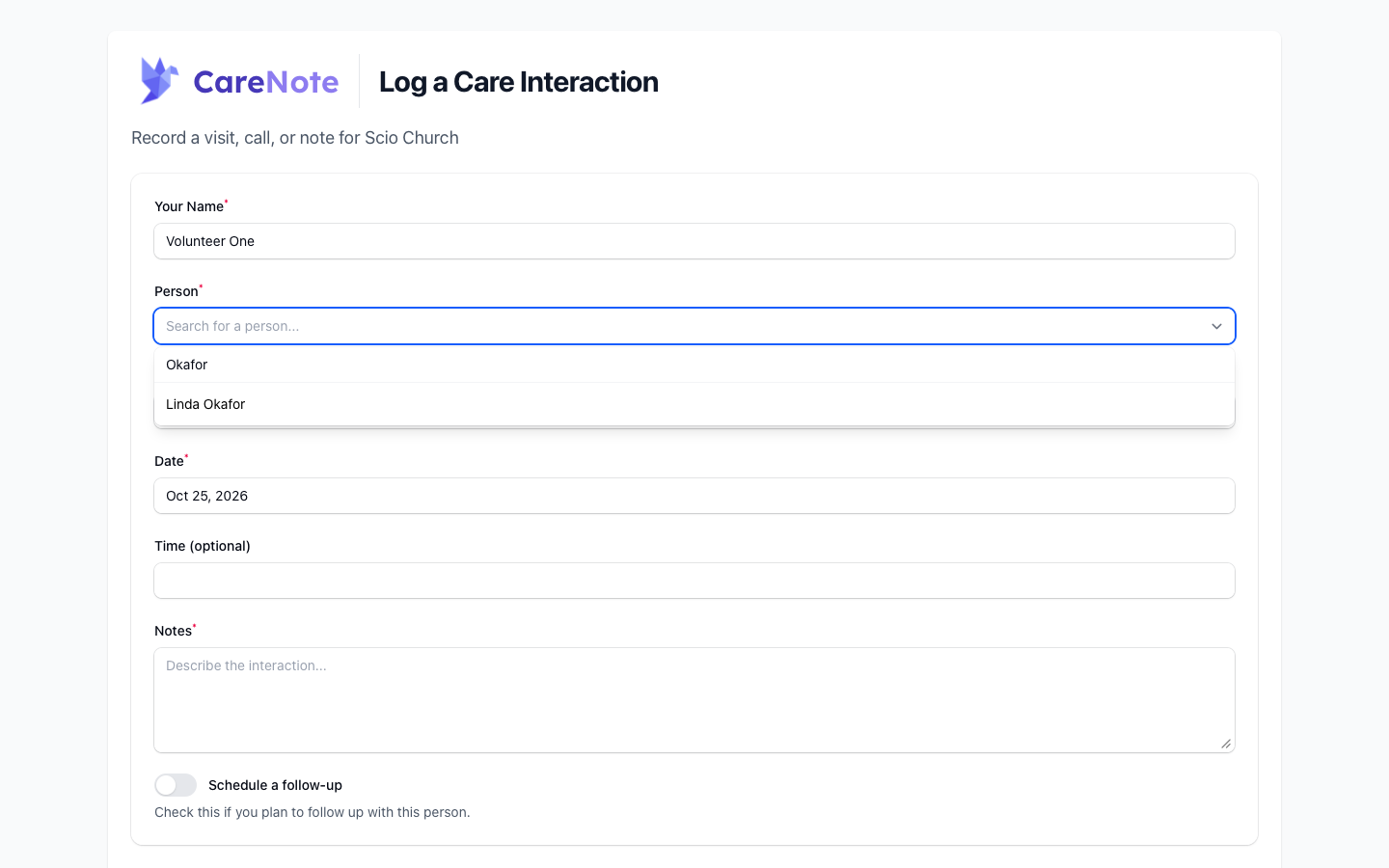
- Choose an Interaction Type: Note, Update, Visit, Prayer Request, Phone Call, or Email.
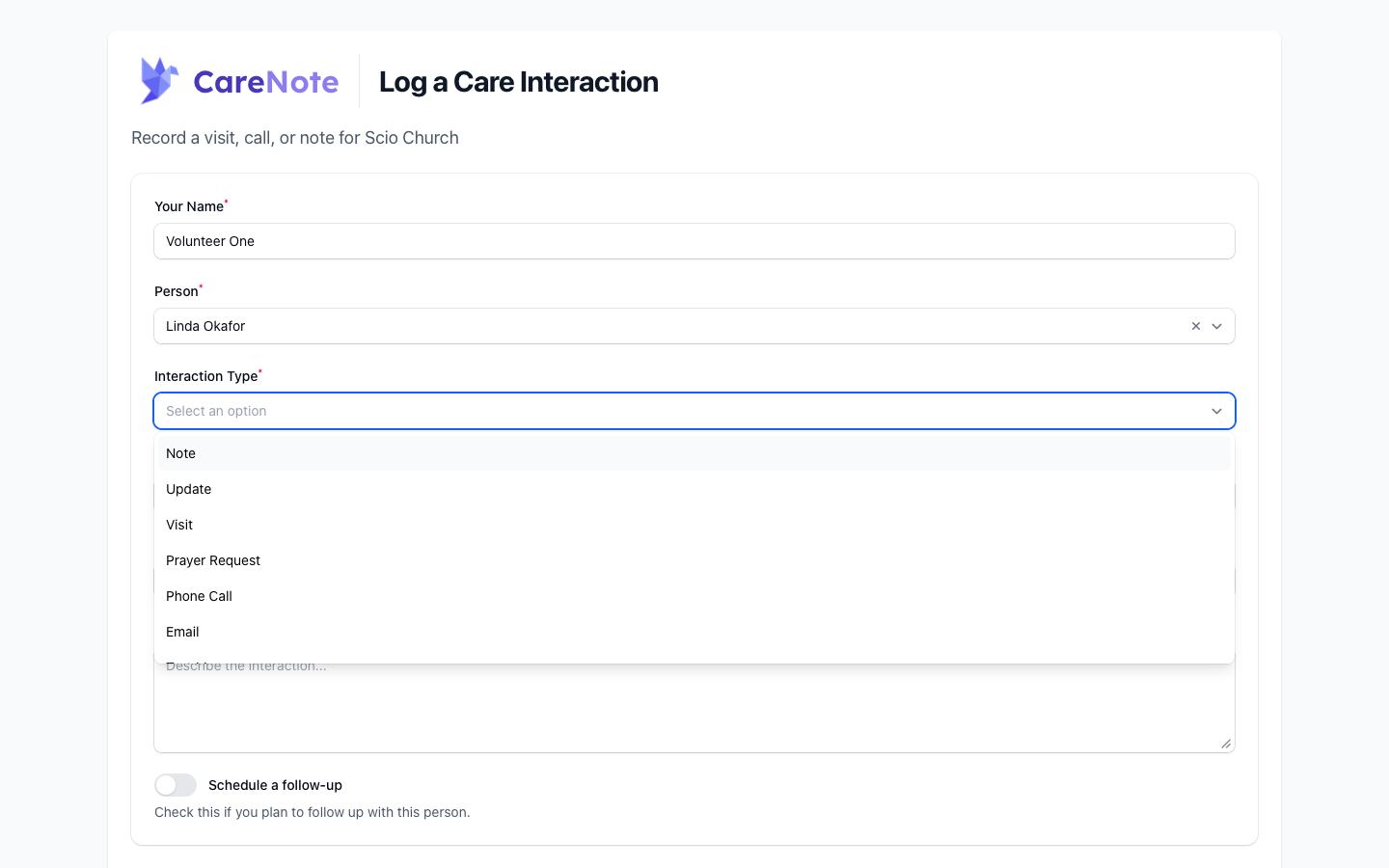
- Confirm the Date, which starts as today, and add a Time if you like.
- Write what happened in Notes.
- Turn on Schedule a follow-up to reveal a Follow-up Date.
- Click Submit Interaction.
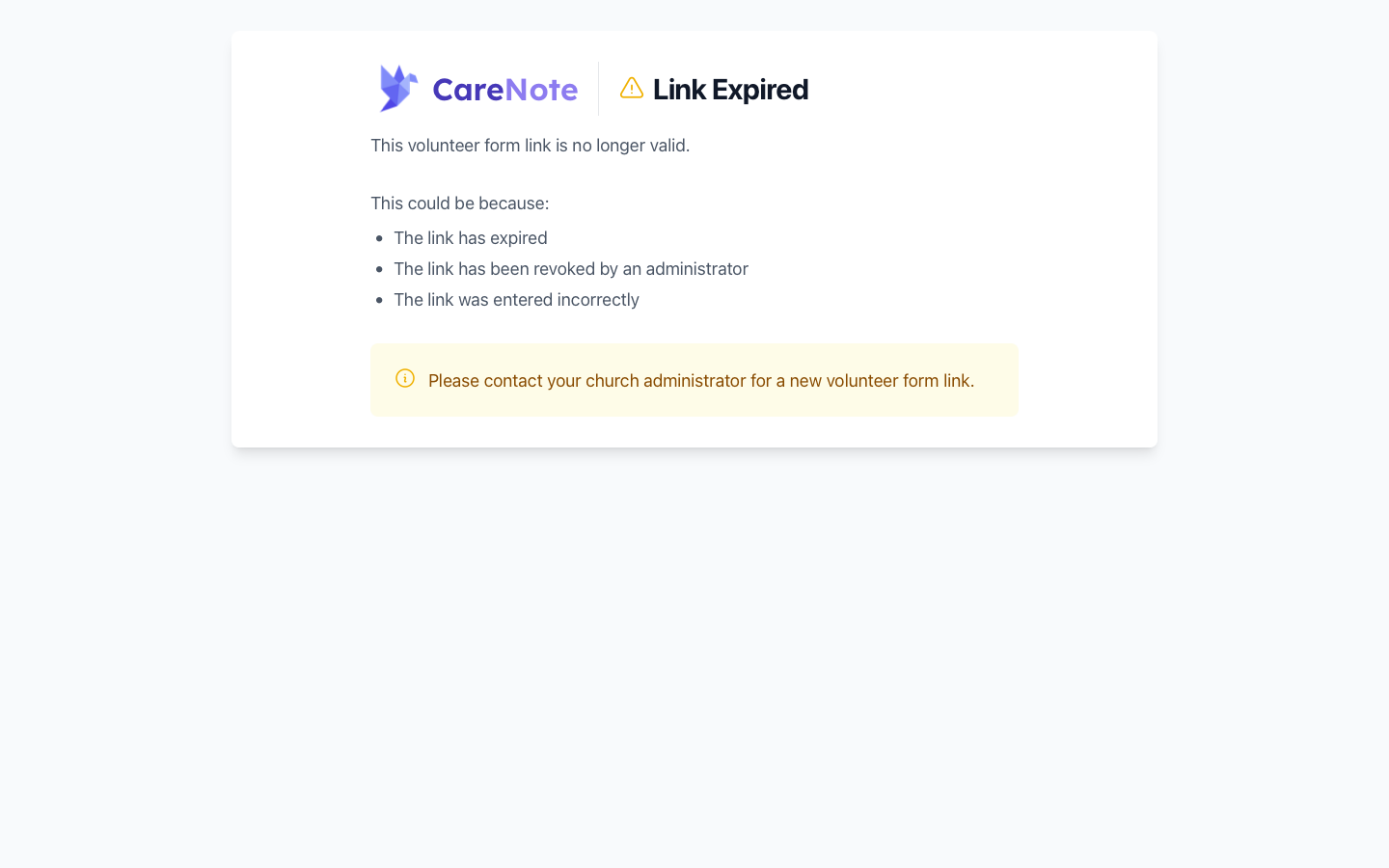
If a link has been revoked, regenerated, or has expired, the page says "Link Expired" and asks the visitor to contact their church administrator for a new one.
Frequently asked questions
Does the person need a CareNote account? No. The link is the only thing they need. The Volunteer role itself has no login at all and reaches CareNote only through this form.
How long does a link last? One year from the day it is created. The expiry date is in the Expires column and in the email.
Why is a link missing from the table? The table only lists live links. Revoked, deleted, and expired links drop off the list.
Can I give a link to a Team Member or Administrator? Yes. Assignees can be Administrators, Huddle Members, Team Members, or Volunteers. The settings page that manages links is an Owner settings page.