
Custom Dashboards: Build Your Own Care Reporting View
Your senior pastor asks, "How is care going this week?" You could pull numbers from three different pages and hope they line up. Or you could open one page that already answers it.
Watch the 2:35 walkthrough of building, arranging and sharing a custom dashboard.
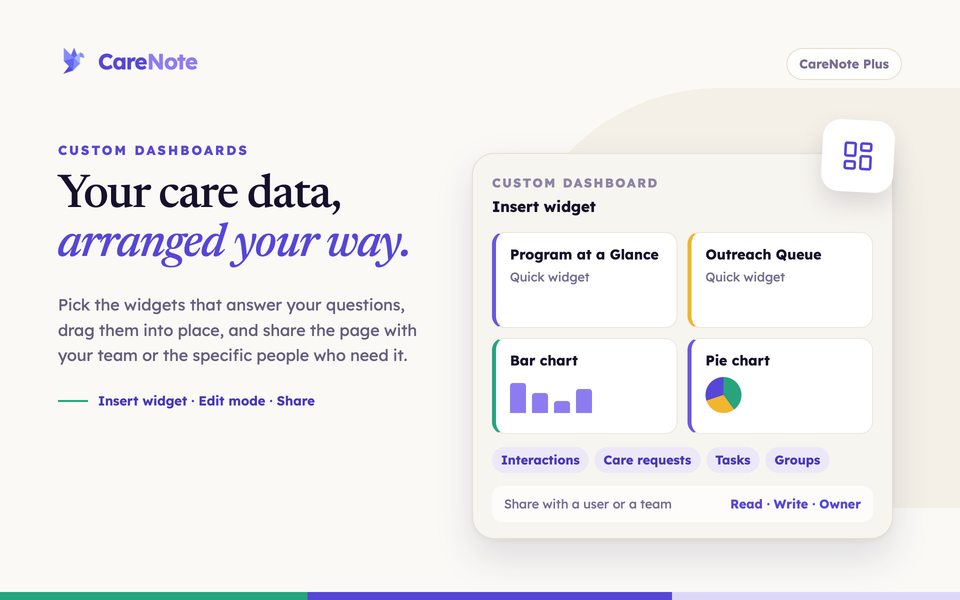
Custom Dashboards let you build that page yourself. You choose the widgets, drag them into the order you like, and share the result with your whole team or with only the people who need it. No developer, no spreadsheet. Custom Dashboards are part of CareNote Plus.
1. Find Custom Dashboards
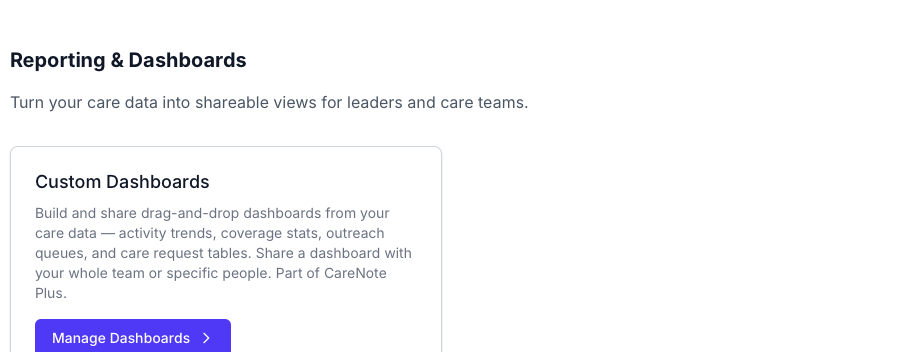
In the Admin panel, open Settings and find the Reporting & Dashboards card group. On the Custom Dashboards card, click Manage Dashboards. If your team is not on CareNote Plus yet, that button reads Learn about CareNote Plus instead.
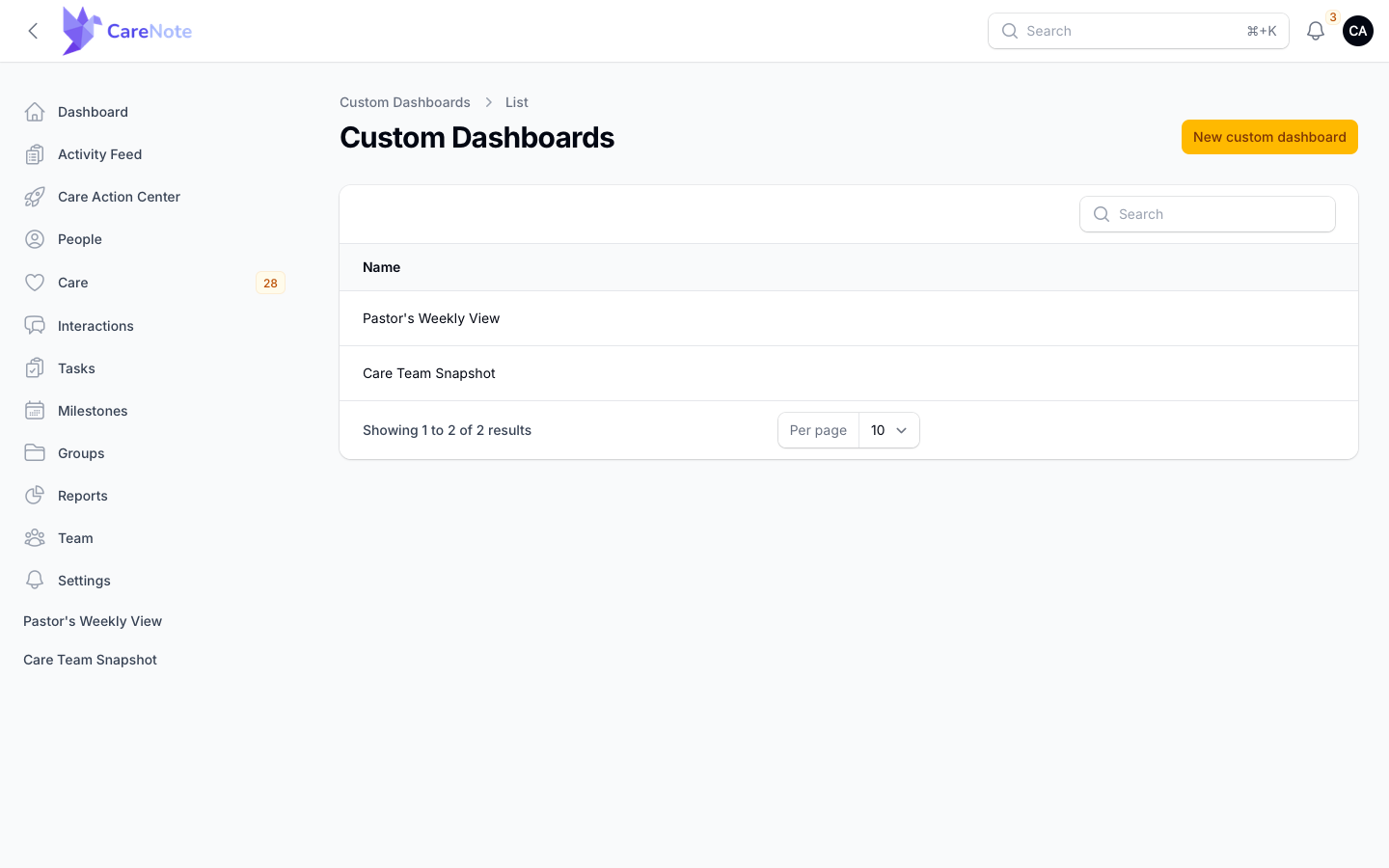
The list page is not in the left navigation. Each dashboard you build is, though: by default it gets its own link in the left navigation once it exists.
2. Create a dashboard
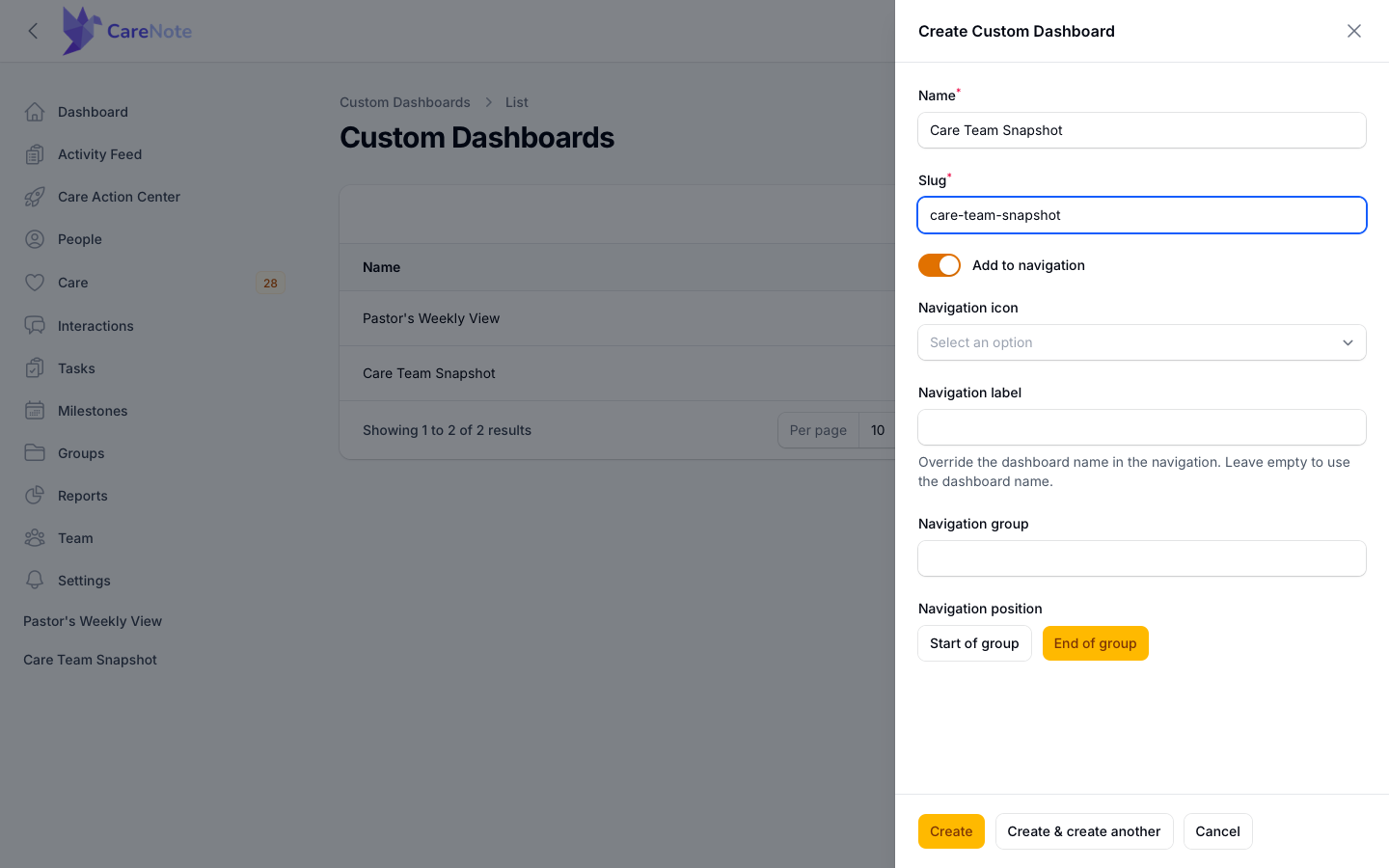
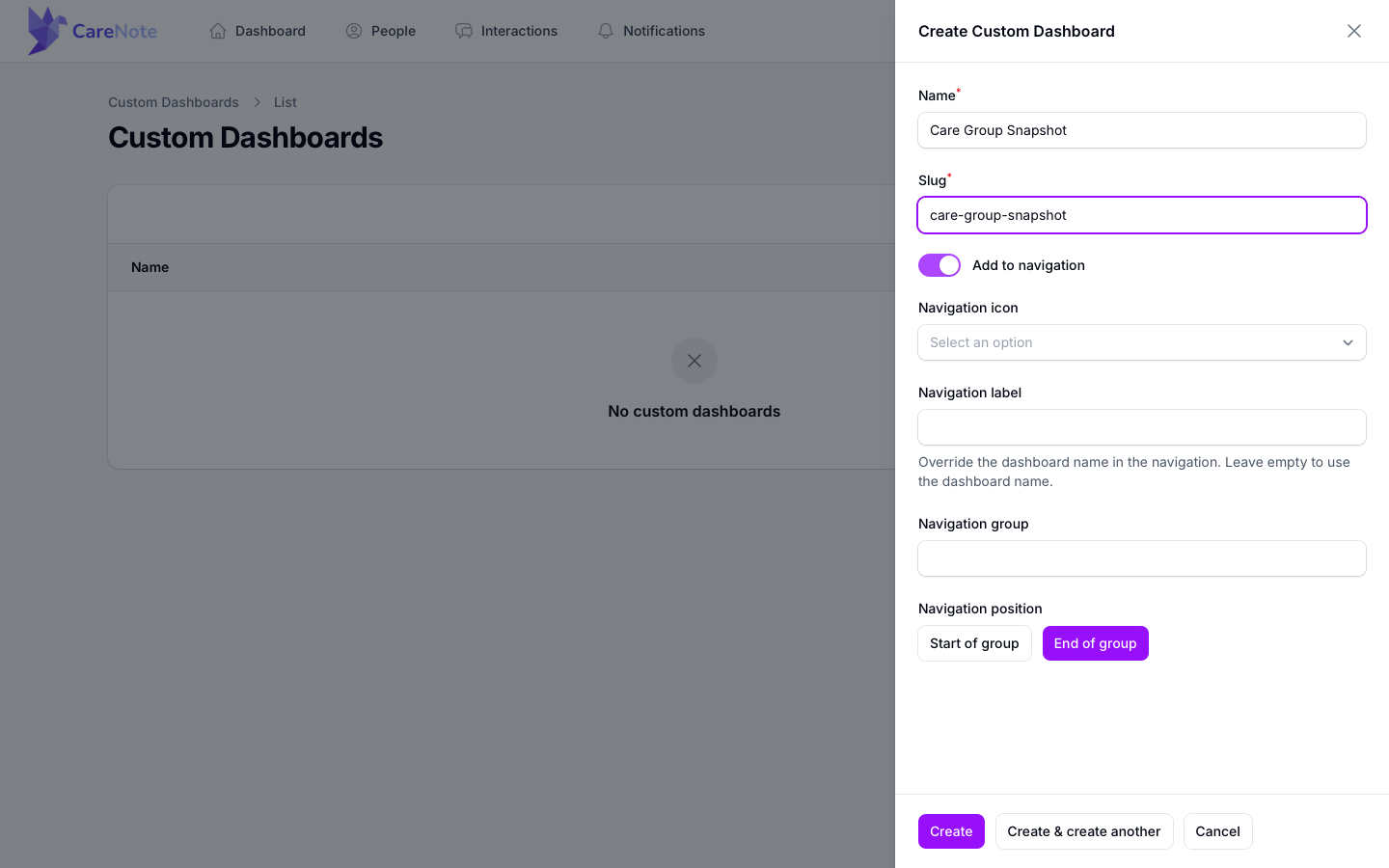
- Click New custom dashboard.
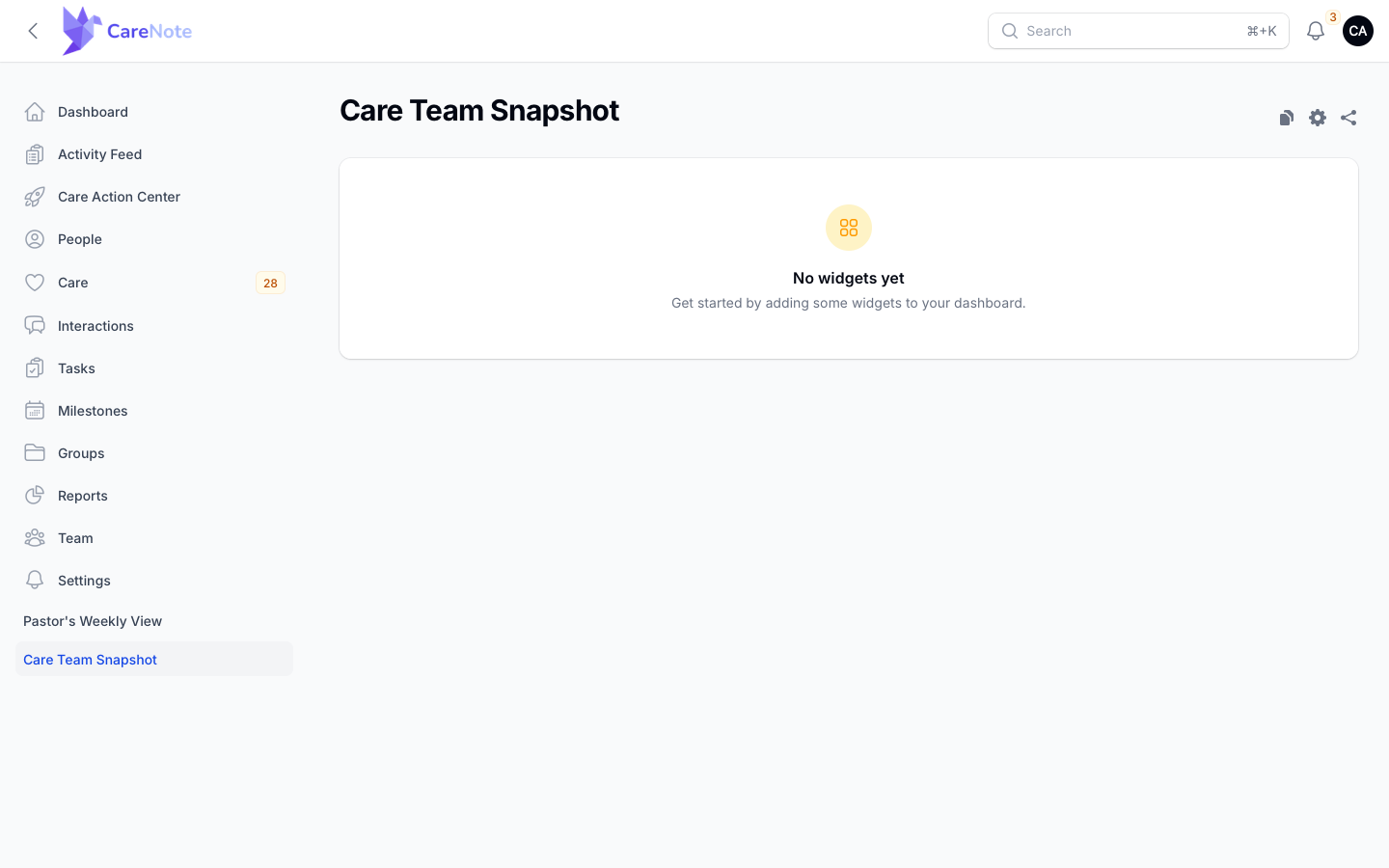
- Type a Name, such as Care Team Snapshot.
- Type a Slug. It is not filled in for you, so use short lowercase words joined by hyphens, like care-team-snapshot.
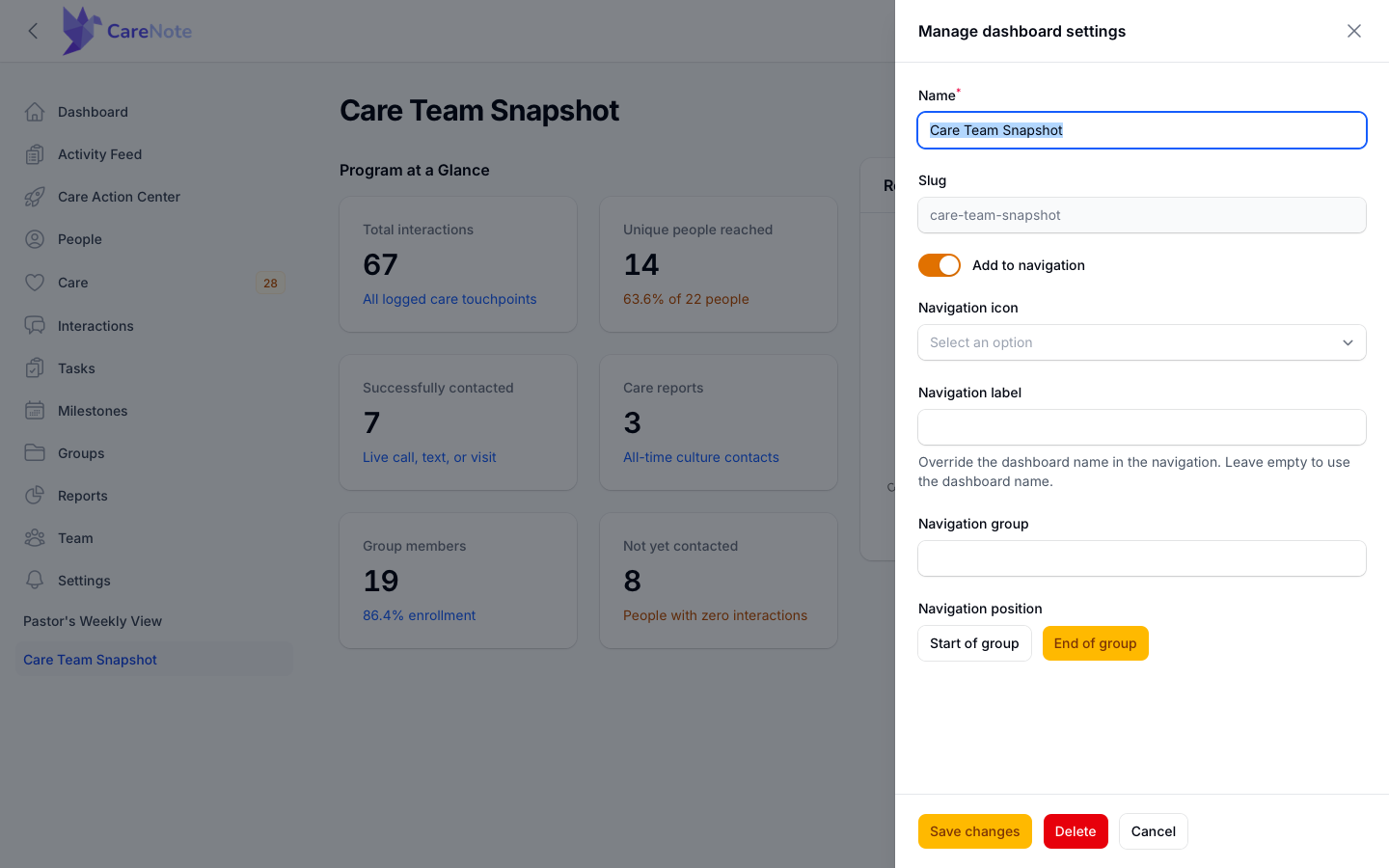
- Leave Add to navigation on if you want a link to this dashboard in your navigation. You can also set the Navigation icon, Navigation label, Navigation group, and whether it sits at the Start of group or End of group.
- Click Create. Use Create & create another if you are building several.
A new dashboard starts empty, with a No widgets yet message and an Insert widget button.
3. Insert a ready-made widget
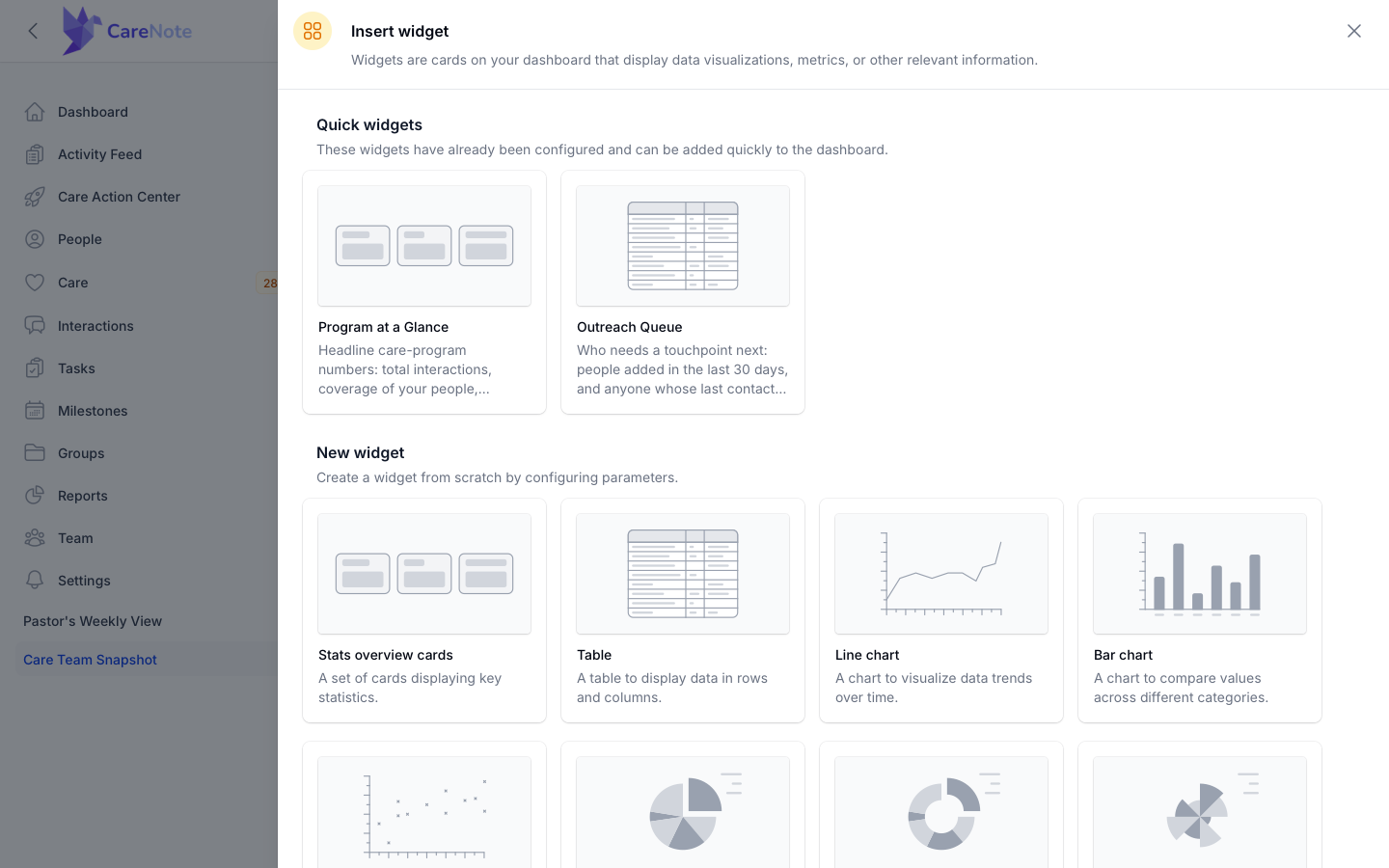
Click Insert widget. Under Quick widgets, two cards are already configured for you:
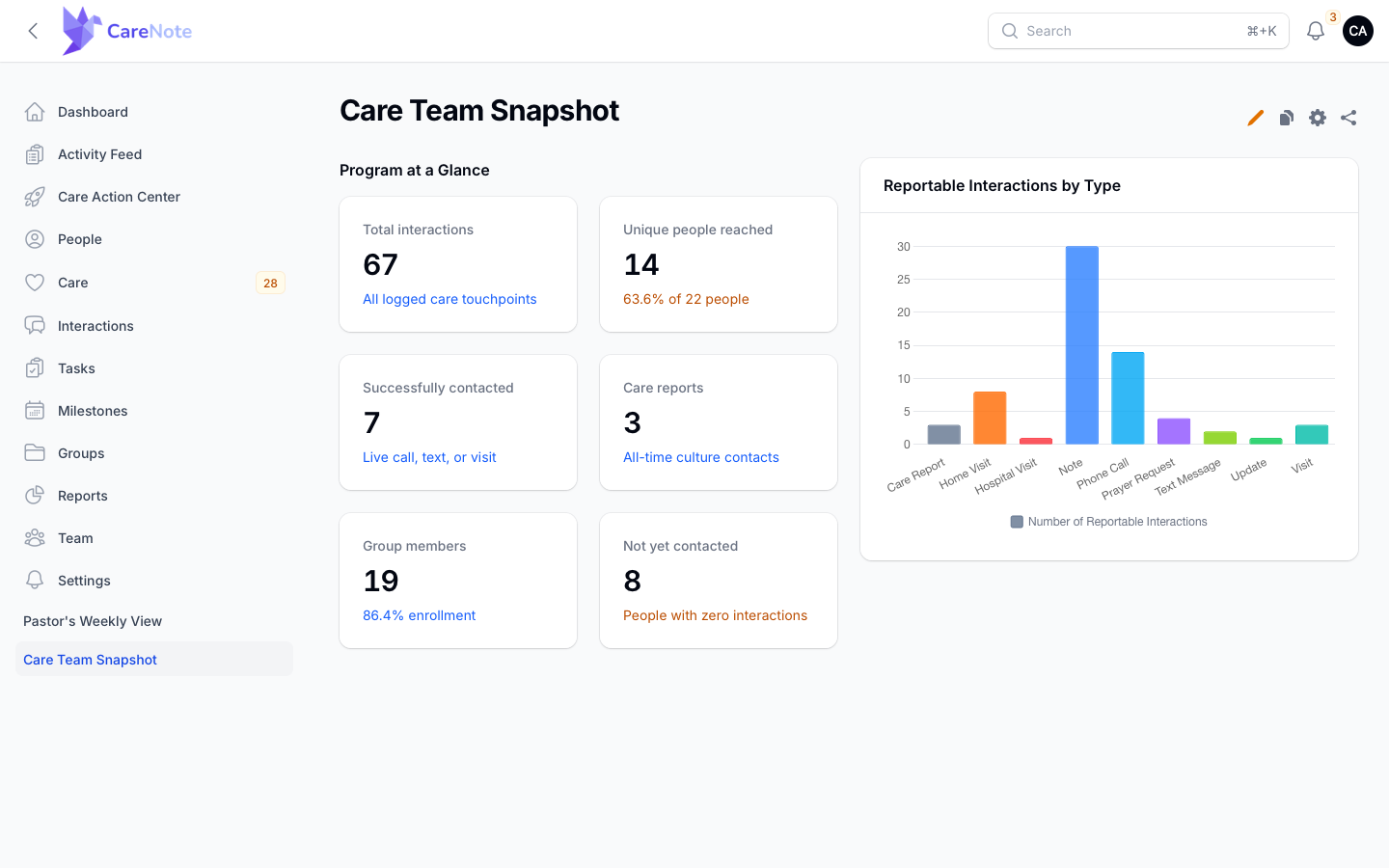
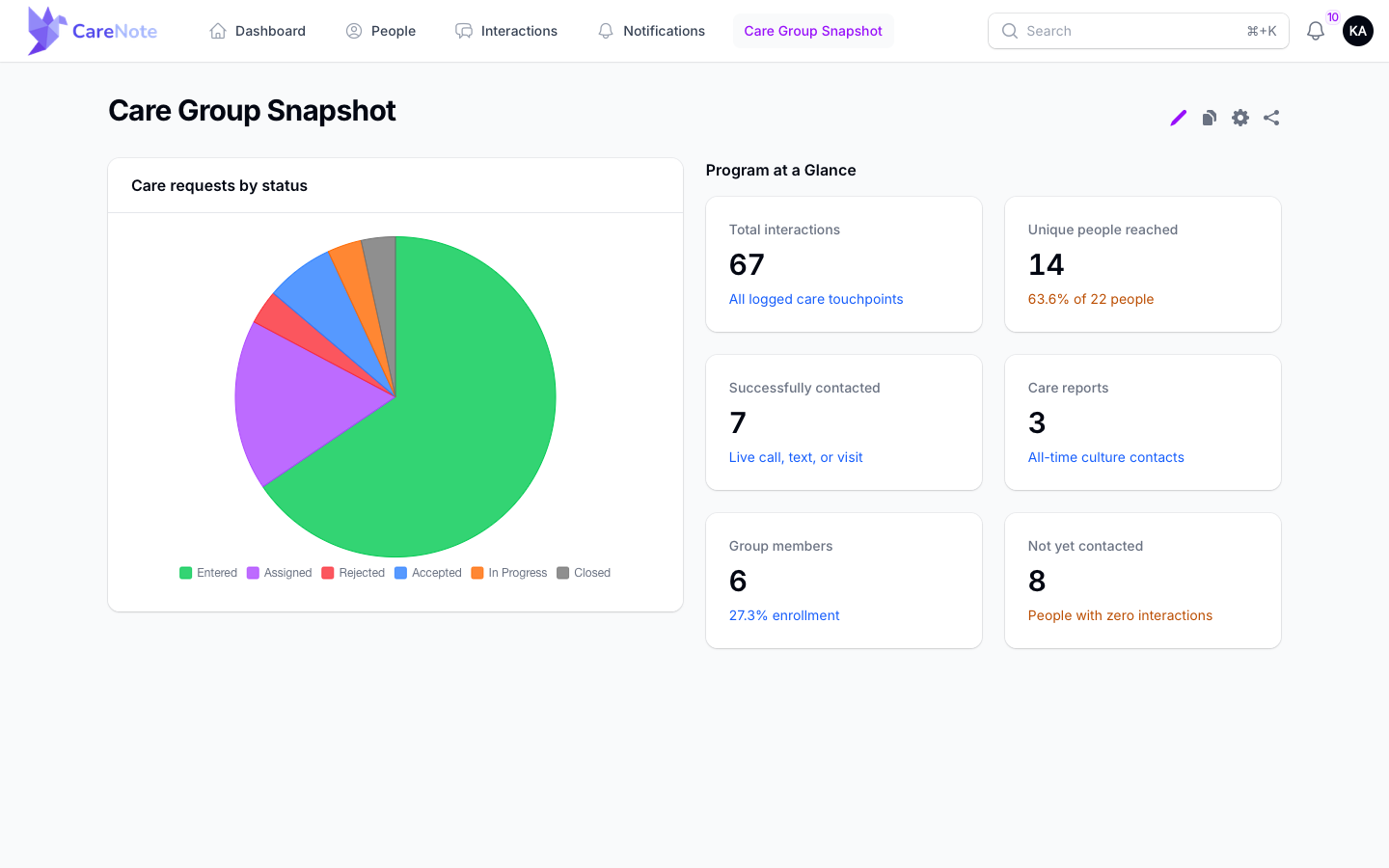
- Program at a Glance shows headline numbers: total interactions, coverage, successful contacts, care reports, group enrollment, and never contacted.
- Outreach Queue lists people added in the last 30 days and anyone whose last contact was 60 or more days ago.
Select a card and click Insert widget. You will see a Widget inserted message.
4. Build a chart or table from scratch
Under New widget, choose Stats overview cards, Table, or a chart: Line chart, Bar chart, Scatter chart, Pie chart, Doughnut chart, or Polar area chart. Click Configure widget, then:
- Give it an Editor label. This name shows only while you are editing the dashboard.
- Pick a Data source: Visitations, Reports, Profiles, Care requests, Groups, Interactions, Milestones, Tasks, or Assignments.
- Choose how to group it. For Interactions, Group by defaults to Type. For Care requests you can group by Profile, Status, Category, User, Creator, or Is ongoing.
- Choose the Metric: Count, Sum of values, Average value (mean), Smallest value, or Largest value.
- Under Filters, click Add rule to limit the data, for example to one outcome or a date range.
- Under Display, set colors and a Heading.
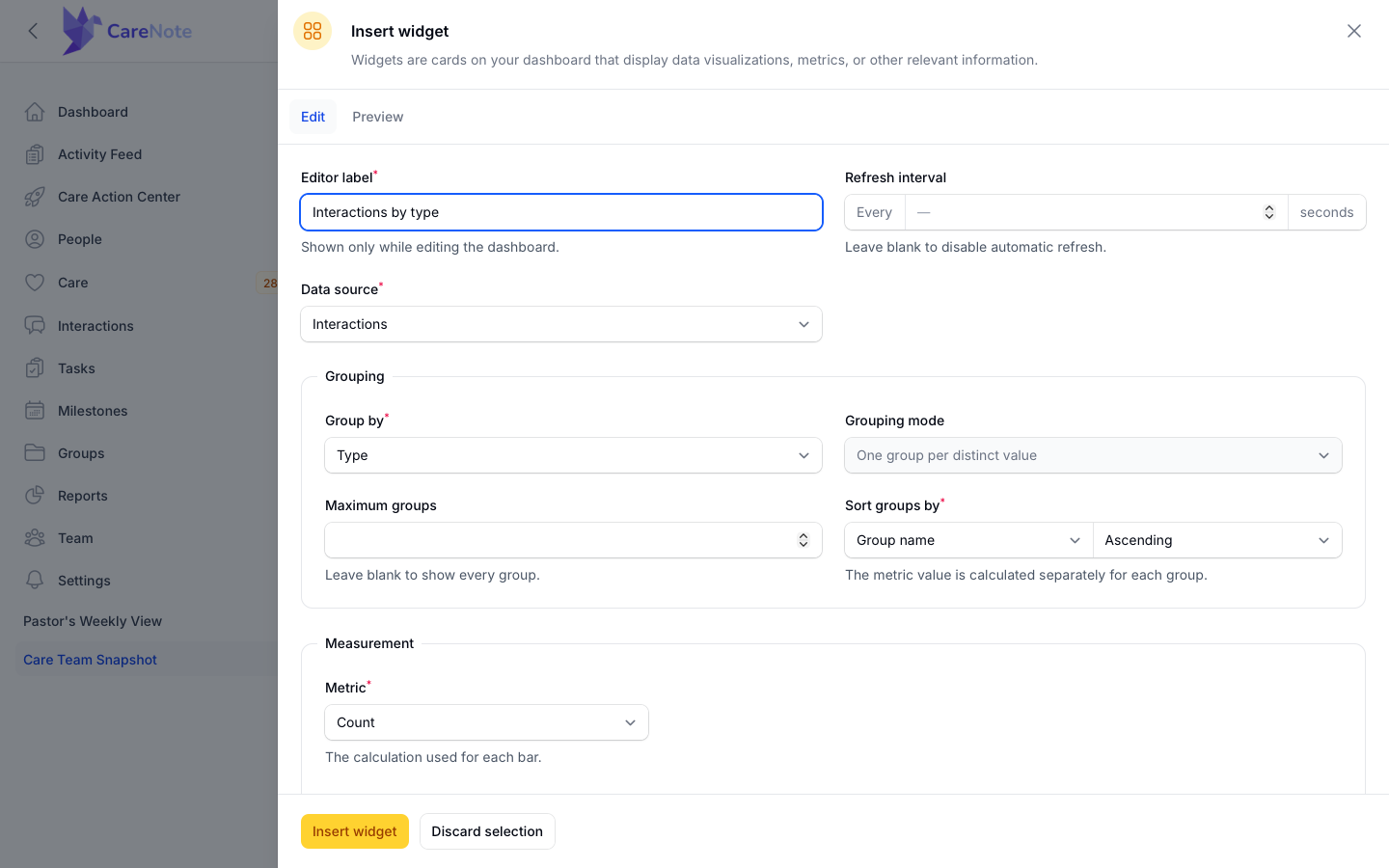
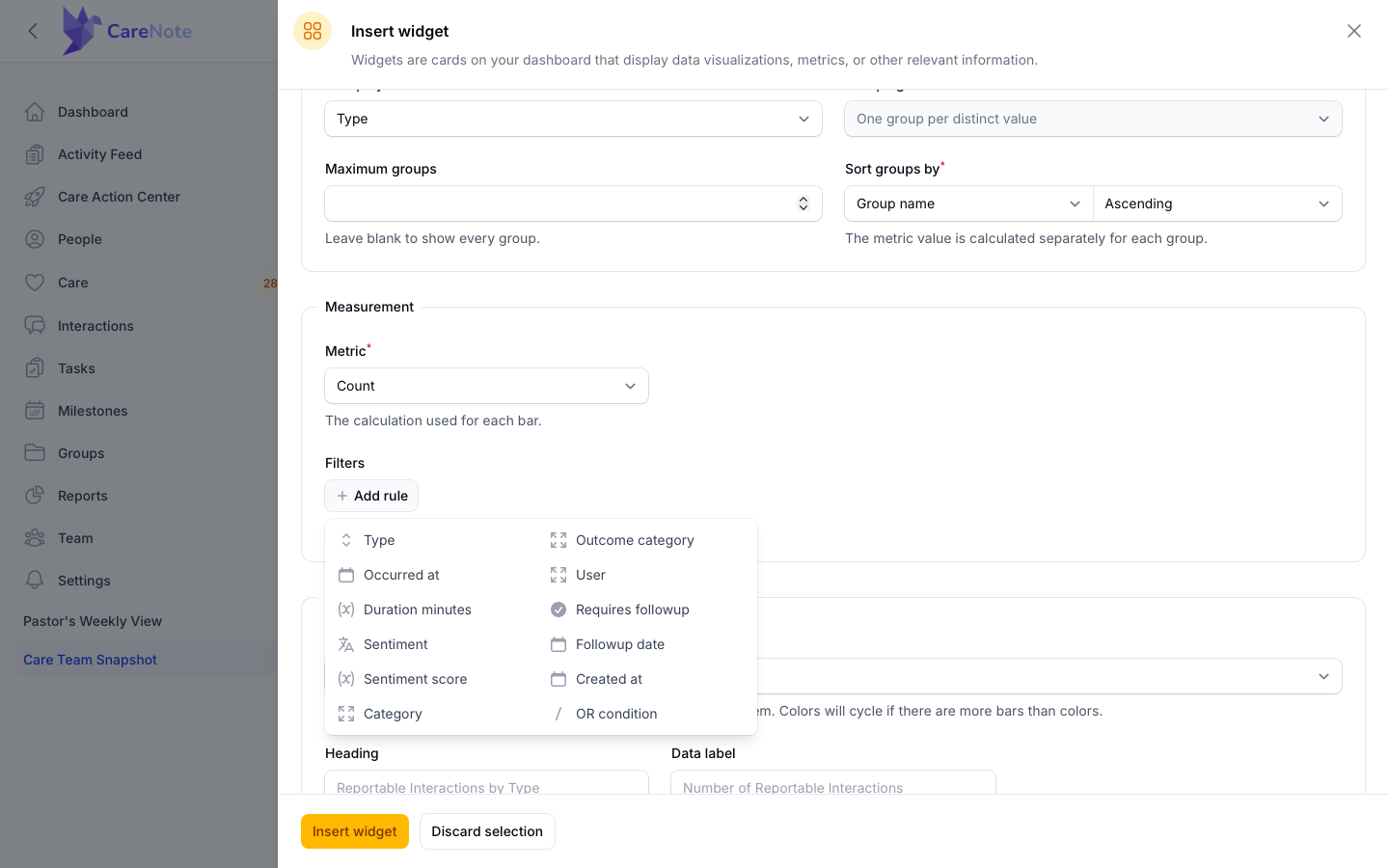
Switch to the Preview tab at any time to see the live chart before you save.
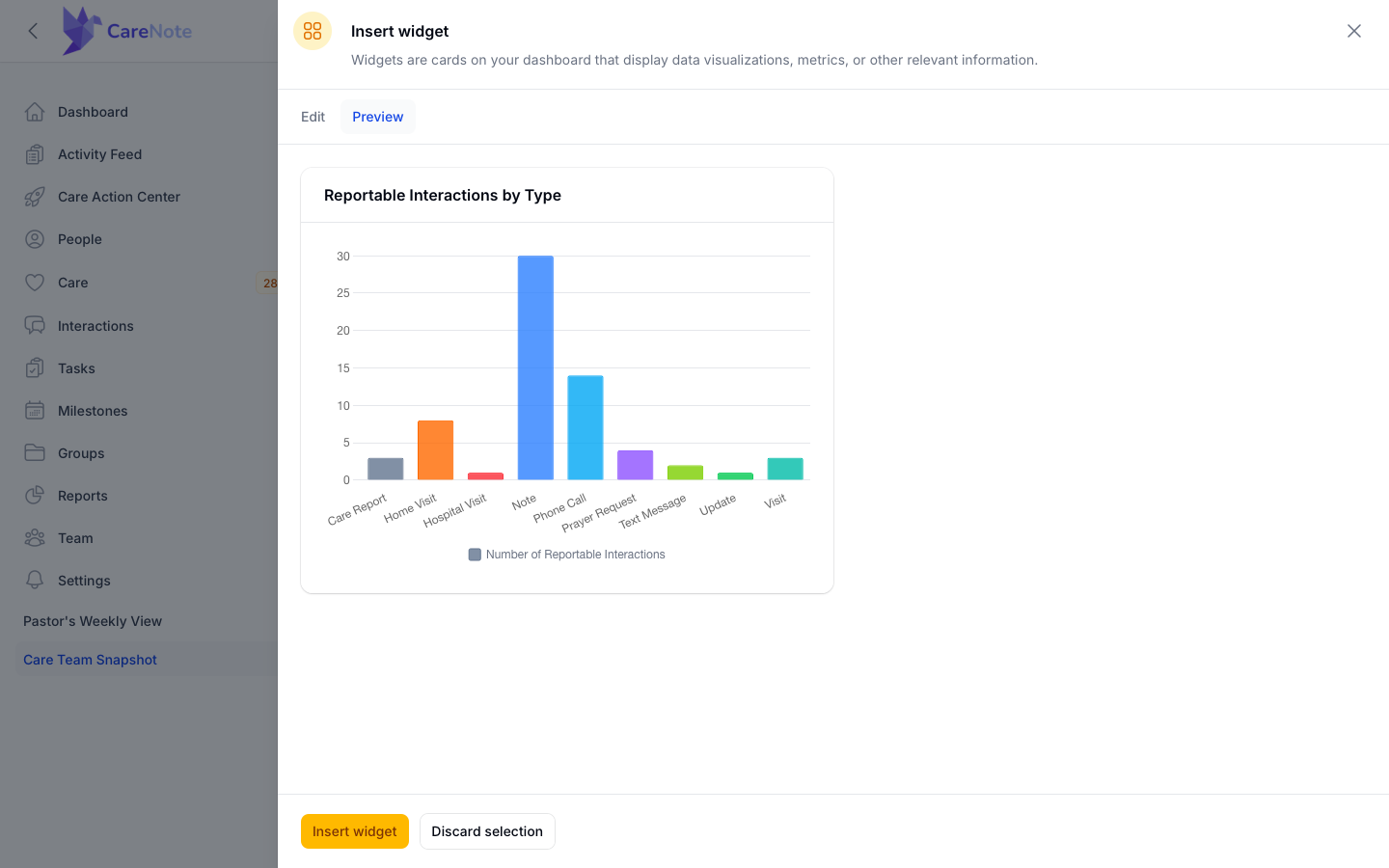
One thing to know: a chart keeps its first automatic heading when you change the grouping later. Type your own Heading, such as "Care requests by status", and it will always say what you mean.
5. Arrange the dashboard
Inserting a widget switches you into edit mode. Later, click the pencil icon (Edit mode) at the top of the dashboard. The pencil appears once the dashboard has at least one widget. While editing you will see Stop editing and Insert widget, and each widget has Edit, Copy, and Delete.
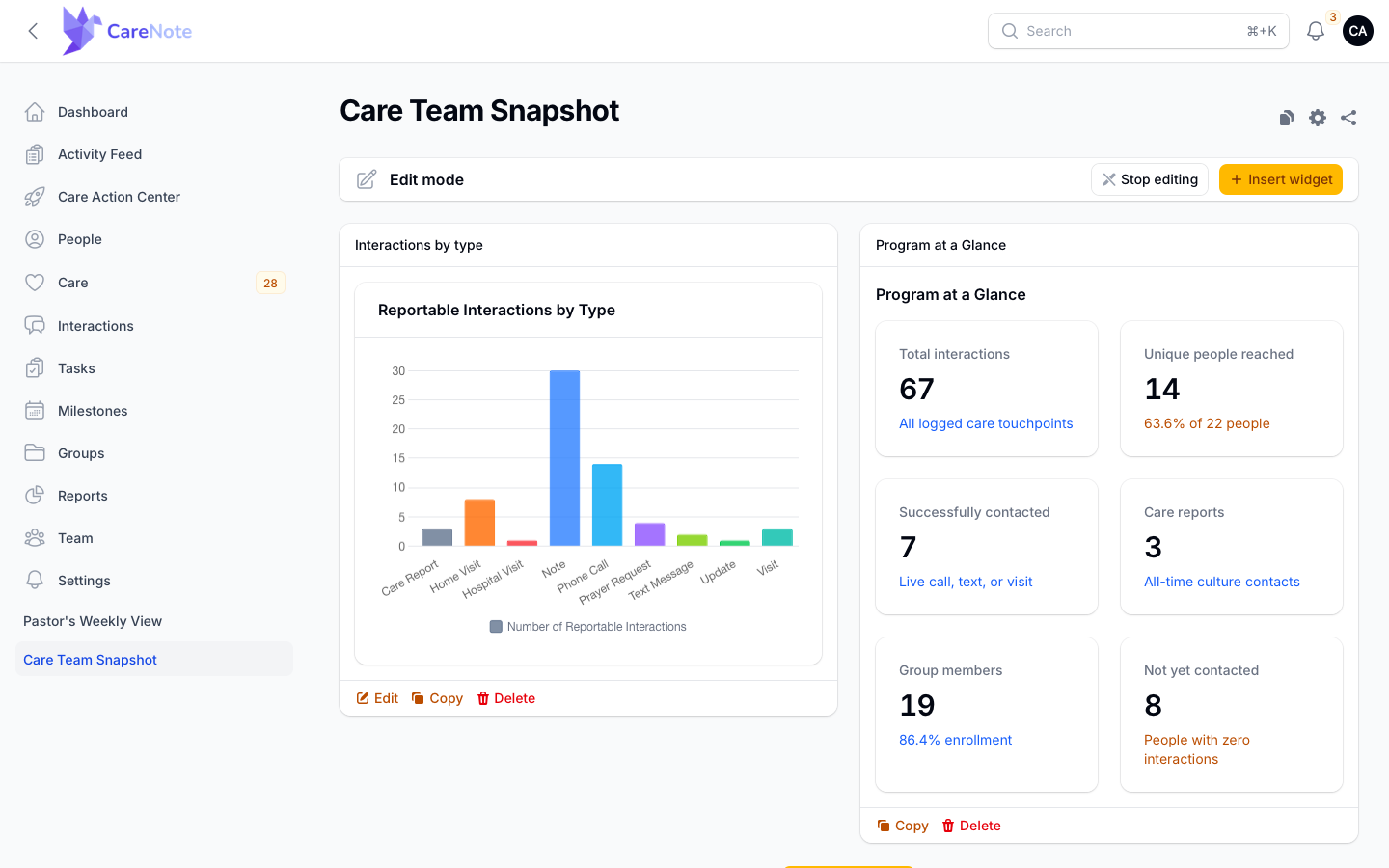
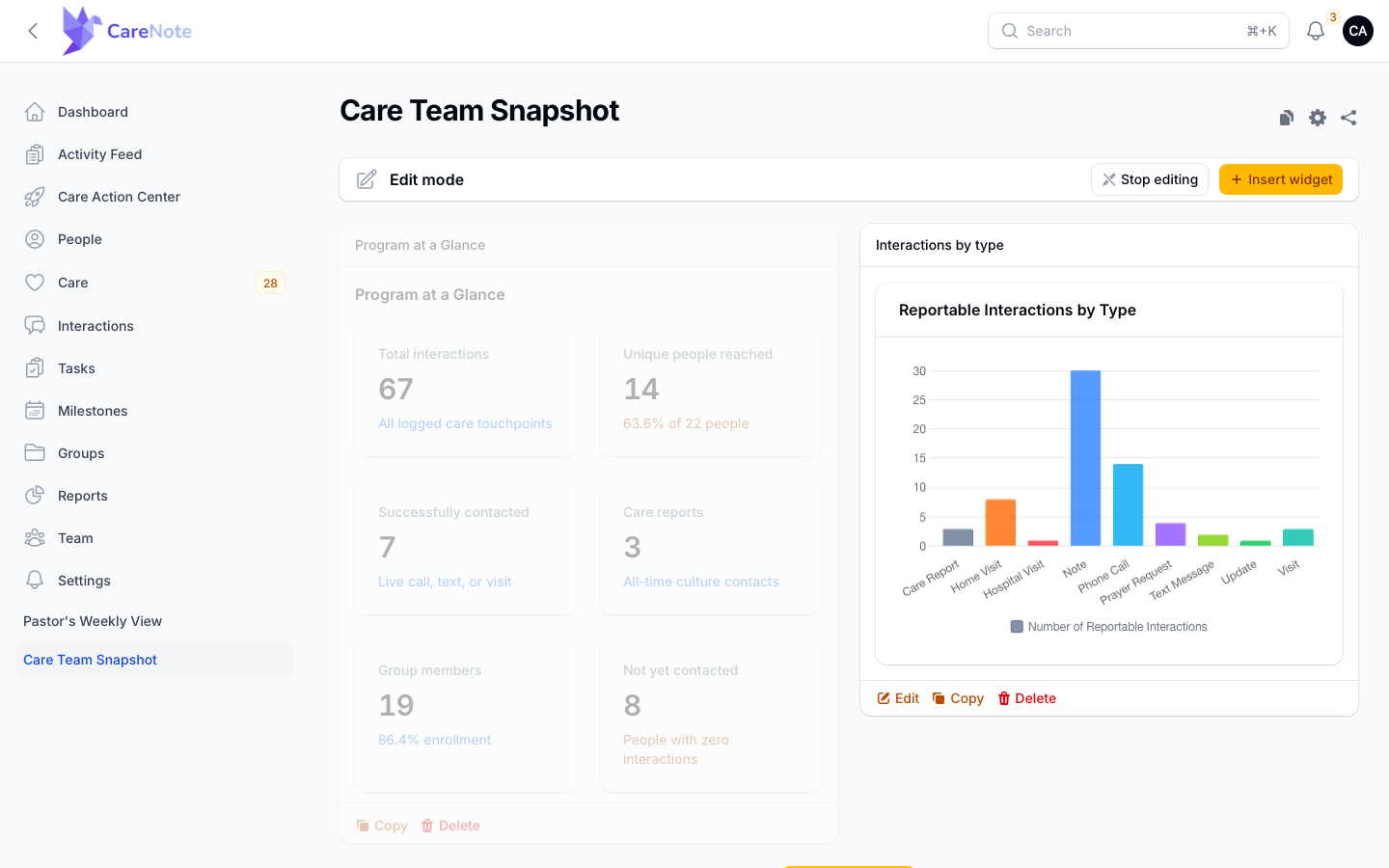
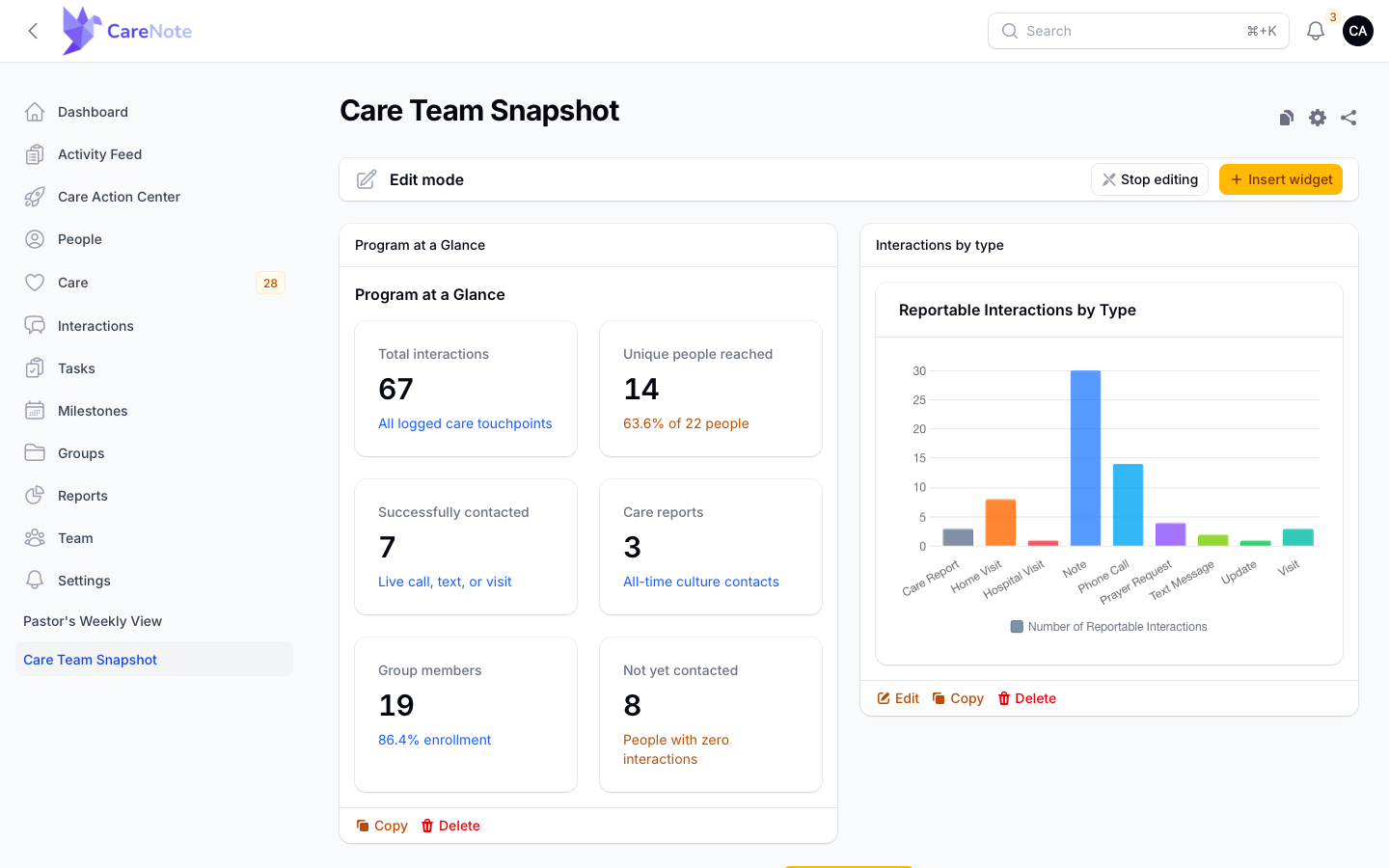
To reorder, press on a widget's title bar and drag it onto another one. The two swap places, and the layout saves on its own. Click Stop editing when you are happy.
6. Share it
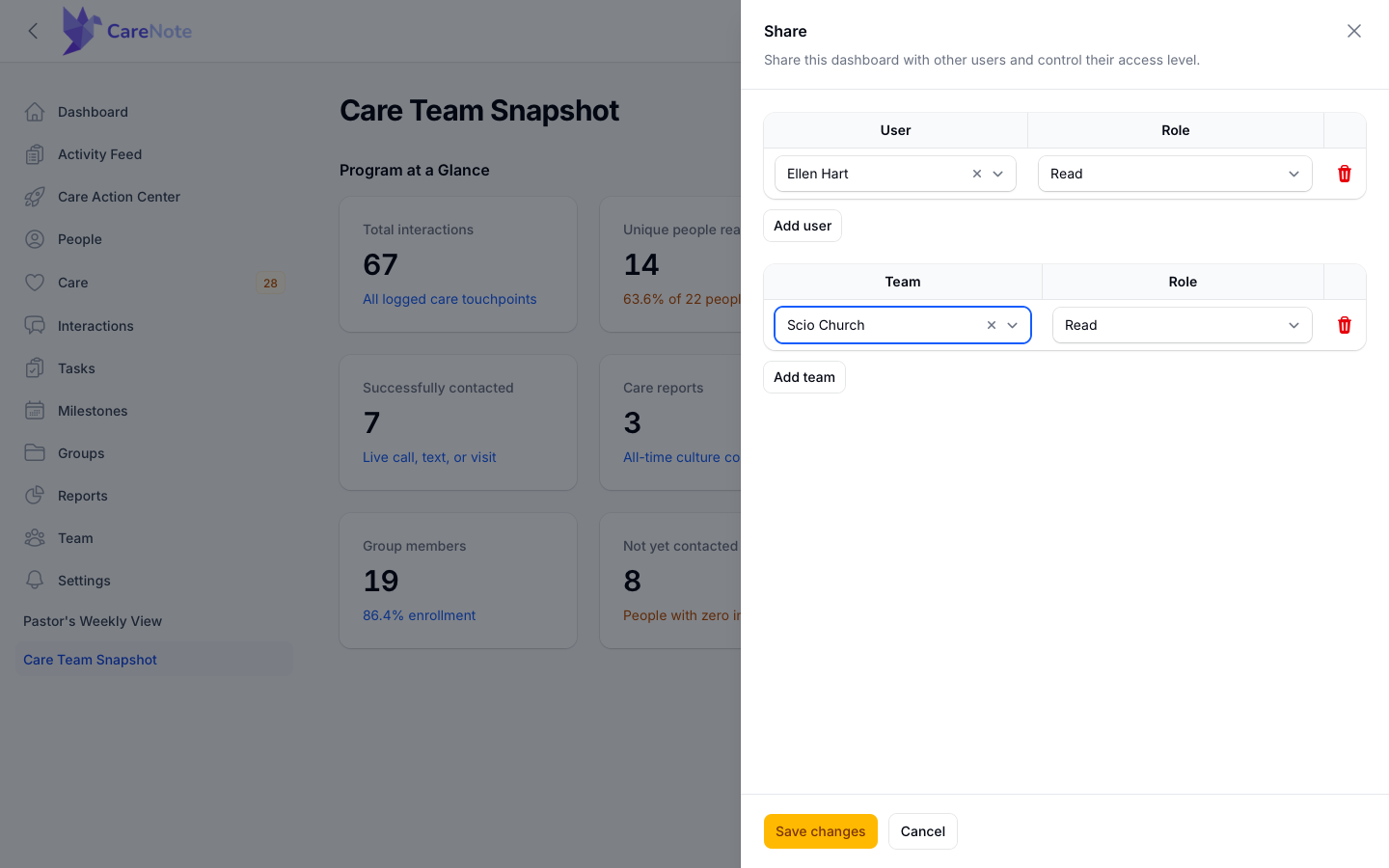
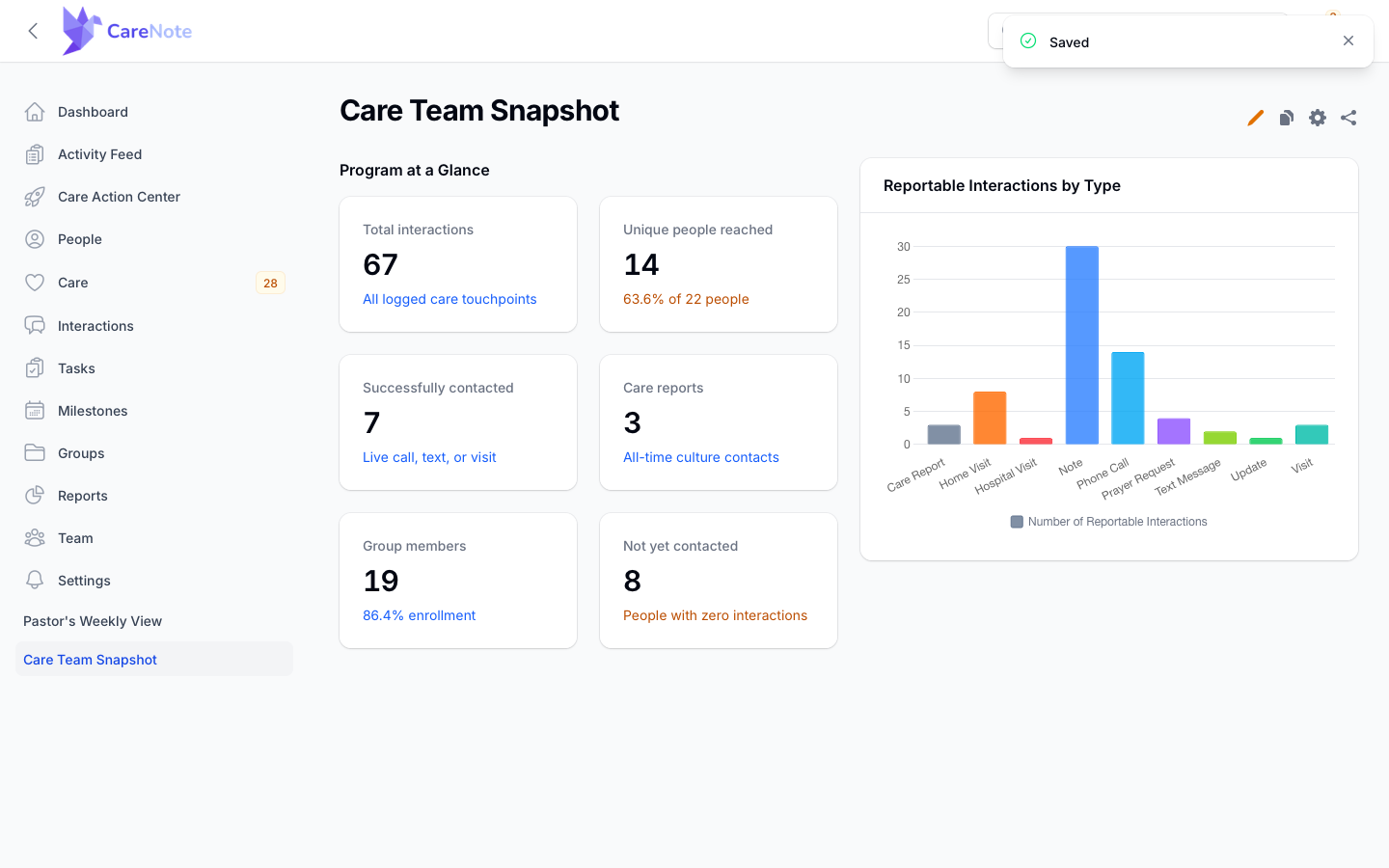
Click the Share icon at the top of the dashboard. Use Add user to search for a person, or Add team to share with your team. Give each row a role: Read (the default), Write, or Owner. The trash icon removes a row. Click Save changes, and a Saved message confirms it. You are automatically an Owner of anything you create.
The other header icons are Clone, which makes a copy under a new name and slug, and Settings, which opens Manage dashboard settings to rename the dashboard or change its navigation options.
7. Team Members build them too
People using the Team Member panel can create, edit, and share dashboards there. There is no menu item for the list, so open /dashboard/<your team number>/custom-dashboards in your browser, or click a dashboard you have pinned in the top navigation bar.
Frequently asked questions
Why can't the person I shared with see my dashboard? Dashboards belong to one panel and one team. A dashboard built in the Admin panel does not appear in the Team Member panel, and the other way around. Sharing reaches only people who use the same panel, in the same team.
Why do my numbers differ from an administrator's? Widgets show what the viewer is allowed to see. For example, Group members in Program at a Glance can be smaller for a Team Member than for an Administrator, because it is limited to what that person can see. The other tiles match.
Why do I see a Learn about CareNote Plus button? Custom Dashboards are part of CareNote Plus. Teams that are not on Plus see that button on the Settings card, and opening a dashboard address directly is not available.
Watch
- Custom Dashboards: Build the View Your Senior Pastor Asked For, a 2:35 walkthrough from creating a dashboard to sharing it