
Zoom Meetings: Recorded Calls That File Themselves
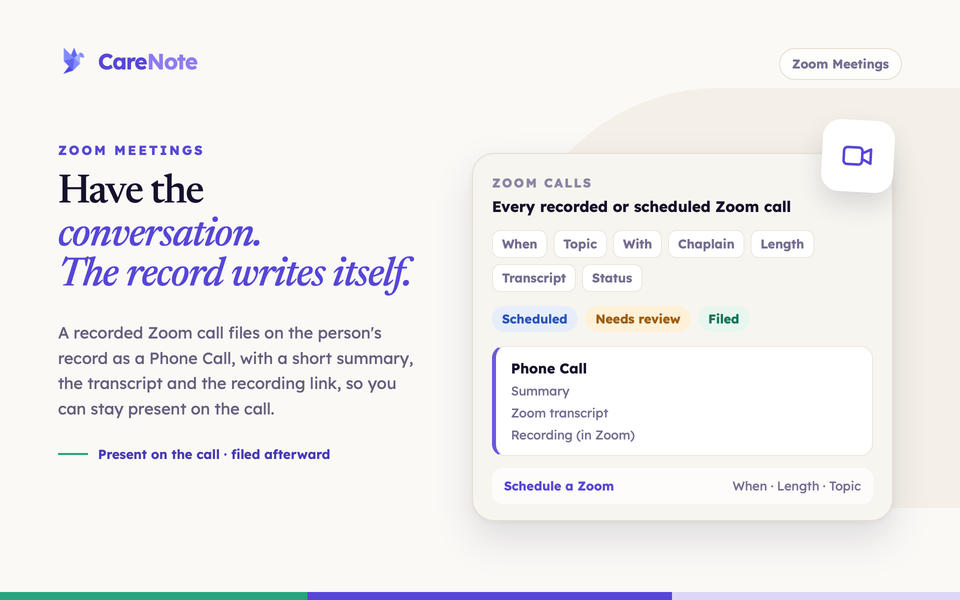
A good care conversation deserves your full attention, not frantic note-taking. Zoom Meetings lets the conversation be the conversation. When a recorded call ends, CareNote files it on the person's record for you.
Watch the Zoom Meetings explainer: recorded care calls file themselves.
What Zoom Meetings does
Zoom Meetings connects your church's own Zoom account to CareNote. When a cloud-recorded Zoom call ends, CareNote receives the transcript, works out who the call was with and who hosted it, and files it as a Phone Call interaction. The filed call holds a short summary, the full transcript and a link to the recording, credited to the chaplain who hosted. Because it is a Phone Call, last-contact dates and reports fill themselves.
You can also schedule a Zoom call straight from a person's profile, with the join link emailed to them.
Zoom Meetings is an enterprise integration, switched on for your team by CareNote. Until it is on, you will not see the page or the Schedule a Zoom action. A Zoom Phone Care Number is a separate integration.
1. Open the Zoom Meetings page
The team owner reaches the page from the Zoom Meetings card on the Integration Hub. It is not in the left navigation. The page shows Connection Status, the credentials form, the filing rules and a Zoom calls table.
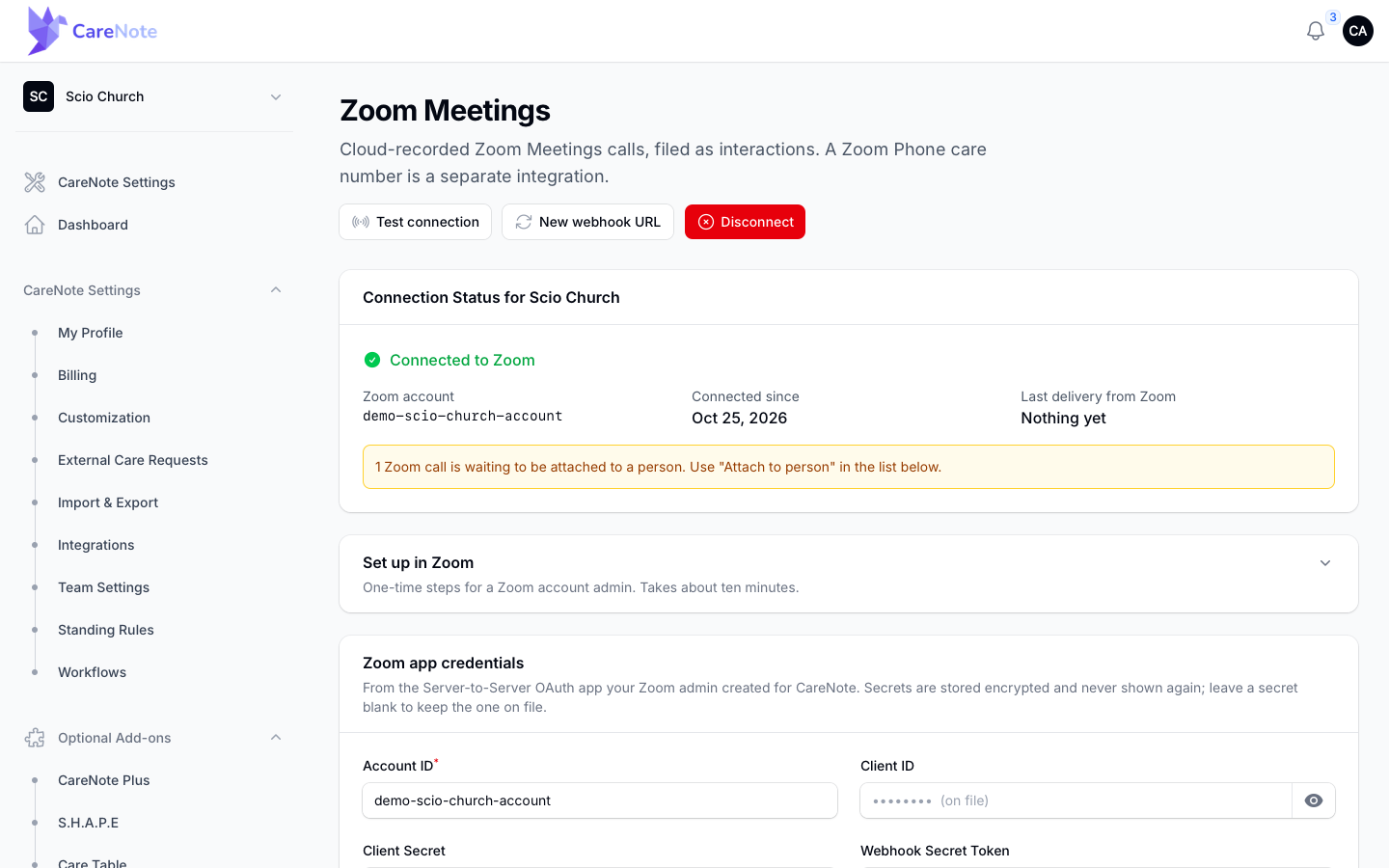
Three header buttons help you manage the connection: Test connection, New webhook URL (the current URL stops working immediately, so you would need to update the Zoom app) and Disconnect, which appears once you are connected.
2. Set up the connection in Zoom
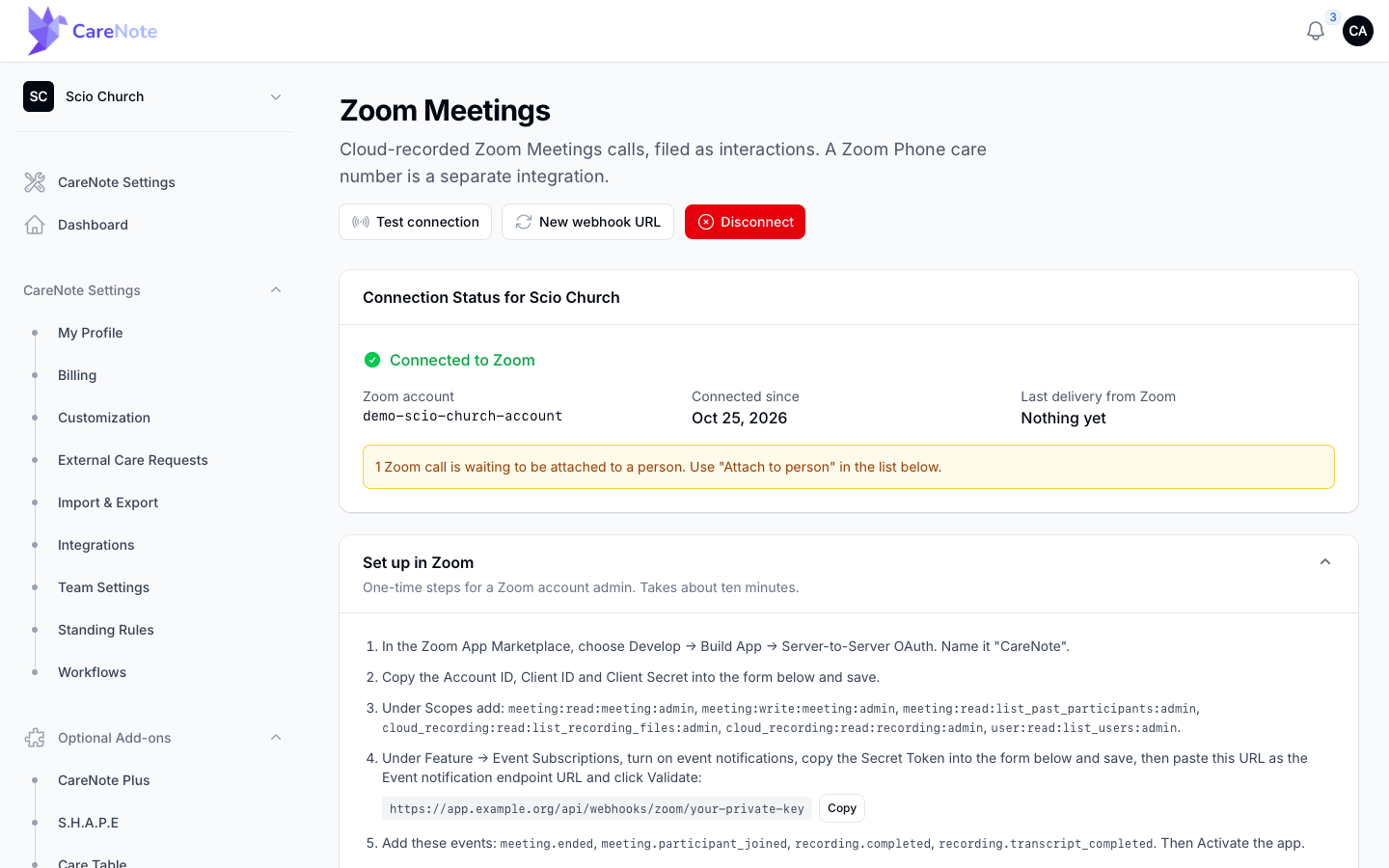
This is a one-time job for whoever administers your Zoom account, and it takes about ten minutes. Open the Set up in Zoom section for the steps. In short, your Zoom admin:
- Builds a Server-to-Server OAuth app named CareNote in the Zoom App Marketplace (Develop, then Build App). It stays private to your account.
- Copies the Account ID, Client ID and Client Secret.
- Adds the scopes listed in the steps.
- Turns on Event Subscriptions, copies the Secret Token, and pastes in the webhook URL from CareNote.
- Subscribes to four events:
meeting.ended,meeting.participant_joined,recording.completedandrecording.transcript_completed.
In Zoom, also turn on cloud recording and audio transcripts. Each chaplain's CareNote email should match their Zoom user.
3. Paste your credentials and test
In Zoom app credentials, enter the Account ID, Client ID, Client Secret and Webhook Secret Token, then click Save Zoom settings. Secrets show as "(on file)" afterward. Leave a secret blank on a later save to keep the one on file. Then click Test connection to confirm CareNote can reach Zoom.
4. Decide how calls are filed
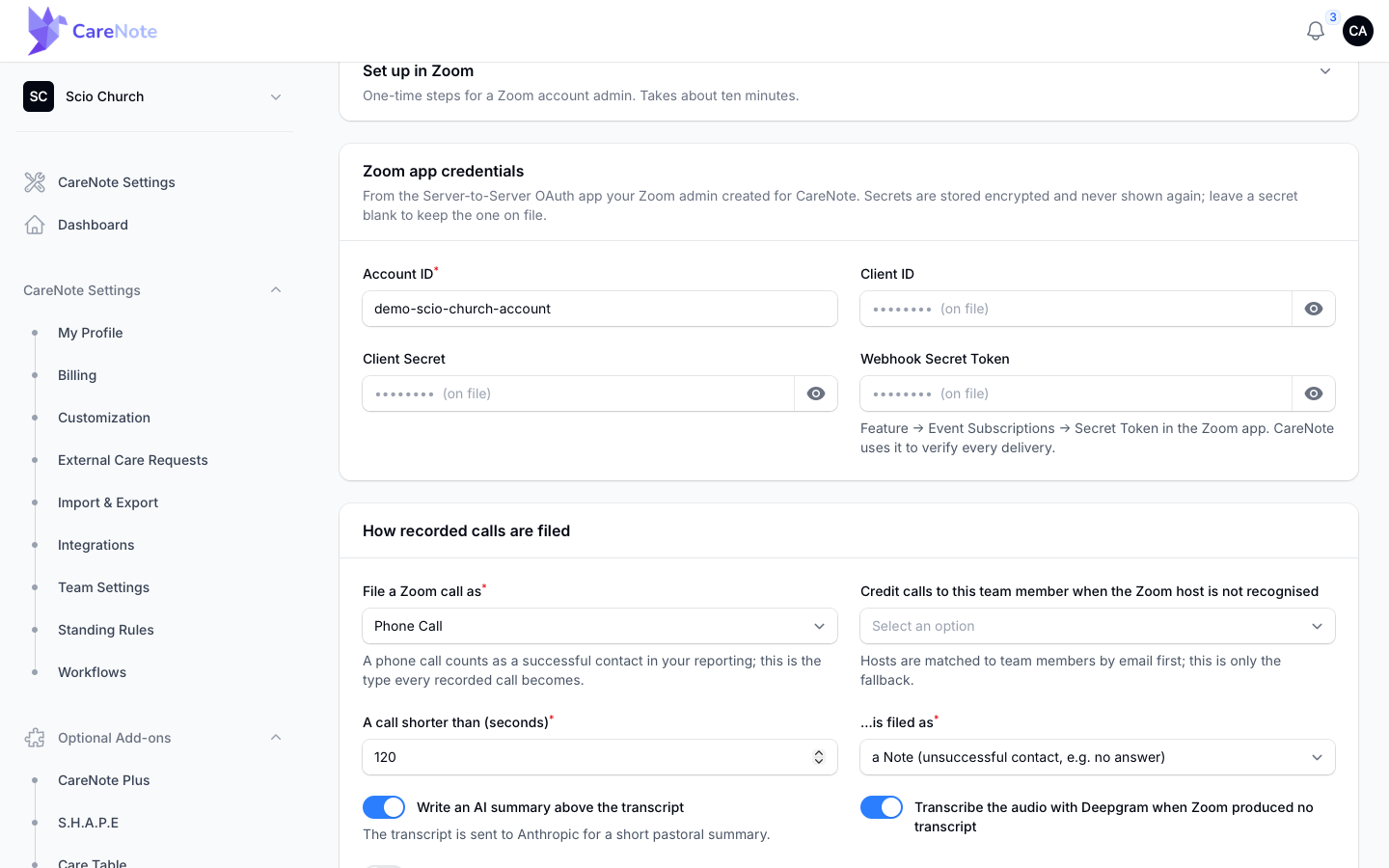
Under How recorded calls are filed, you choose:
- File a Zoom call as: the interaction type, which defaults to Phone Call. A phone call counts as a successful contact in your reporting.
- Credit calls to this team member when the Zoom host is not recognised: the fallback chaplain. CareNote matches hosts to team members by email first.
- A call shorter than (seconds): 120 by default. Shorter calls are filed as a Note (unsuccessful contact, for example no answer) by default. The "is filed as" setting beside it can instead ignore short calls (nothing) or file them as the normal type anyway.
- Write an AI summary above the transcript: the transcript is sent to Anthropic for a short pastoral summary. This also needs your team's AI switch on; if AI is off, the page tells you no summary is written regardless of this setting.
- Transcribe the audio with Deepgram when Zoom produced no transcript: a fallback so a call still gets words.
- File Zoom calls as private to the chaplain: keeps the interaction visible only to the host.
Click Save Zoom settings when you are done.
5. Watch calls arrive, and clear Needs review
The Zoom calls table lists every recorded or scheduled call CareNote knows about, with When, Topic, With, Chaplain, Length, Transcript and Status. Until your first call ends, it reads "No Zoom calls yet."
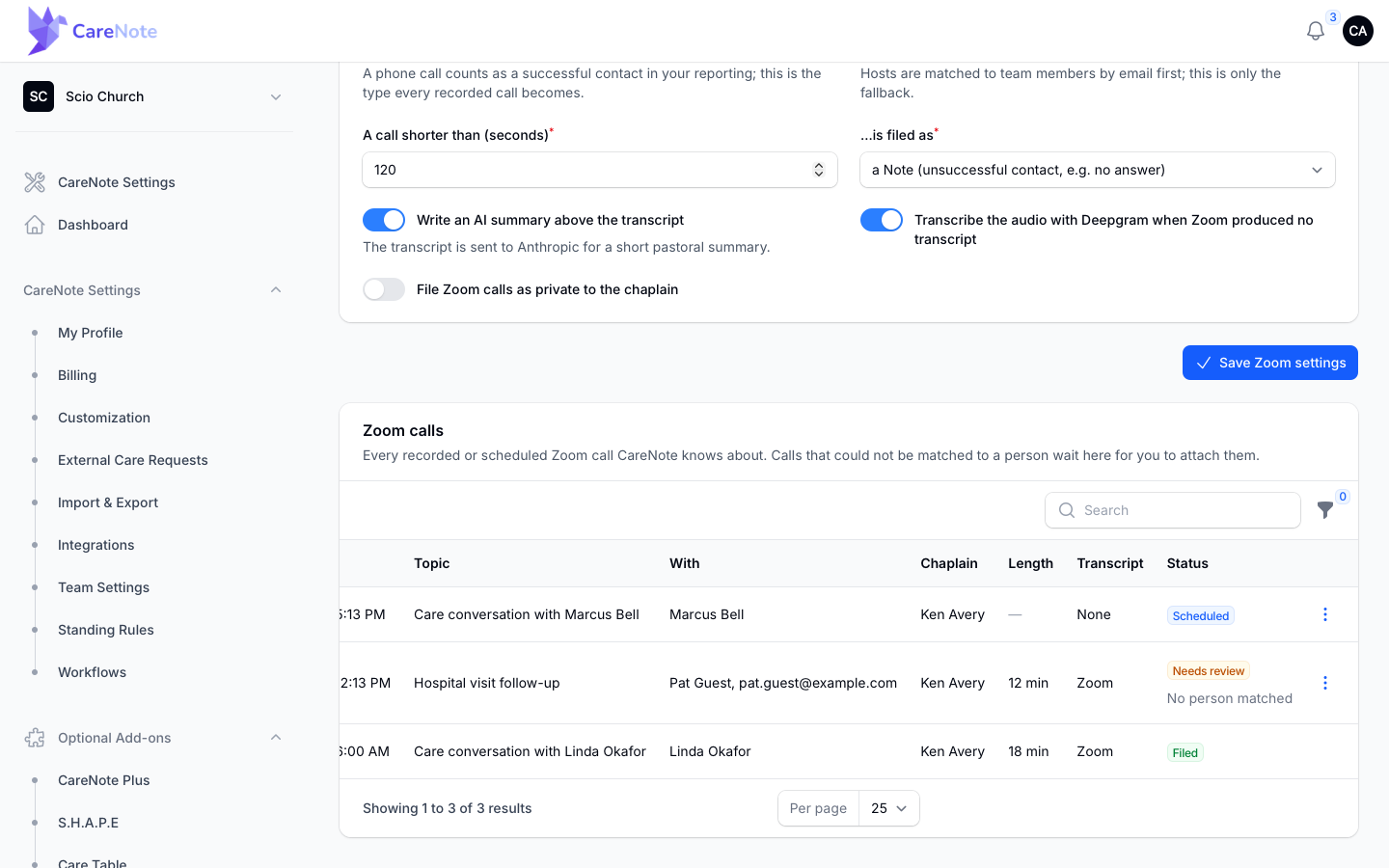
CareNote tries to match the person by the call you scheduled, then by email, phone number and exact name, all within your team. When it cannot, the call waits as Needs review with a reason: "No person matched", "Several people matched", "Host is not a team member" or "Filing failed; use Retry". Owners and Administrators are notified.
Use the row menu to:
- Attach to person: choose the Person and who to Credit to, and the call files.
- Retry: run filing again after a failure.
- Ignore: set the call aside.
6. Find the filed call on the person's record
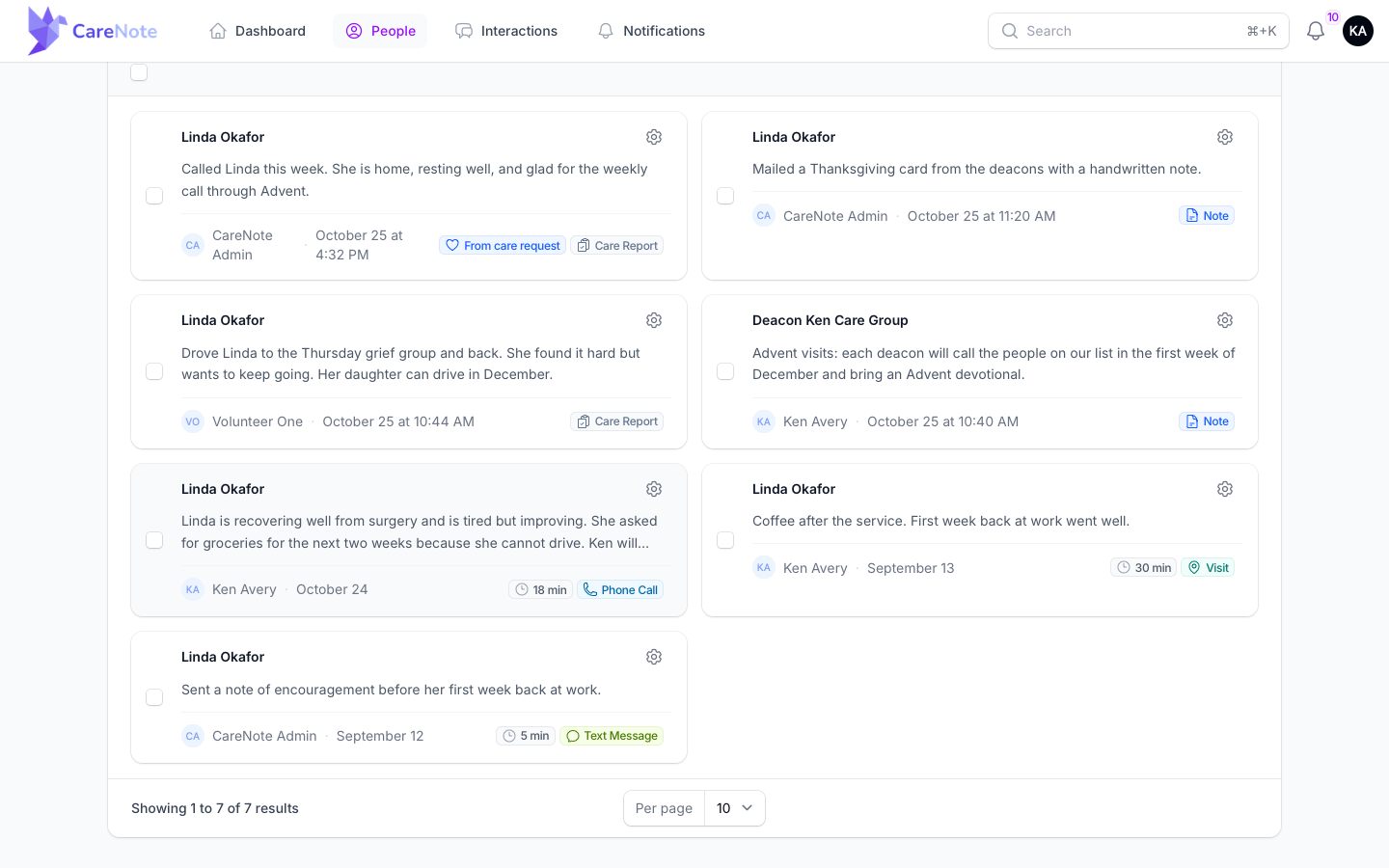
Open the person and go to the Interactions tab, in either the Admin or the Team Member view. The filed call appears as a Phone Call with its length.
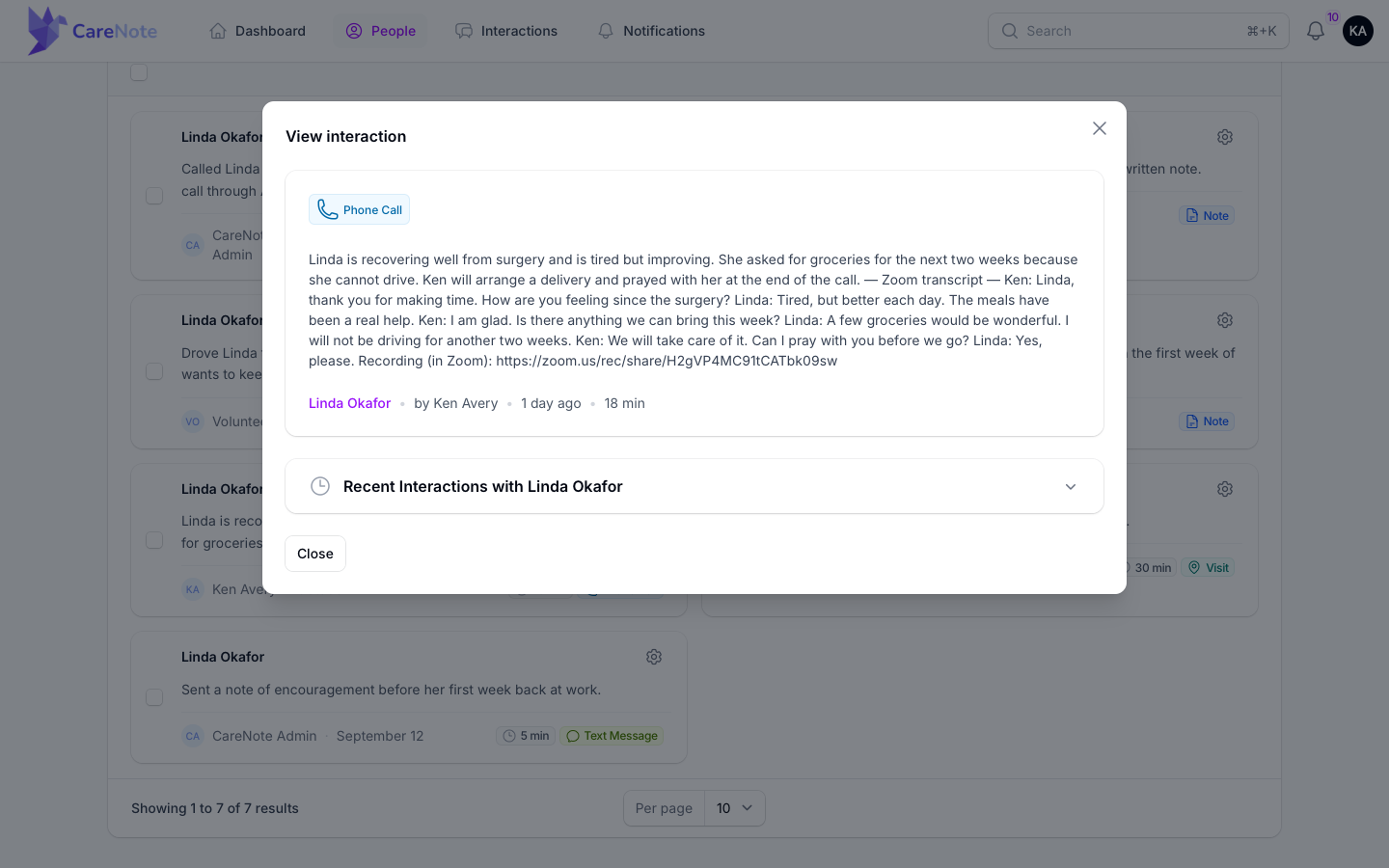
Click the card to open View interaction. You will see the summary first, then Zoom transcript, then a Recording (in Zoom) link. The recording stays in Zoom. If there was no transcript, the interaction says so.
It is a regular interaction, so privacy and follow-ups work as usual.
7. Schedule a Zoom from a profile
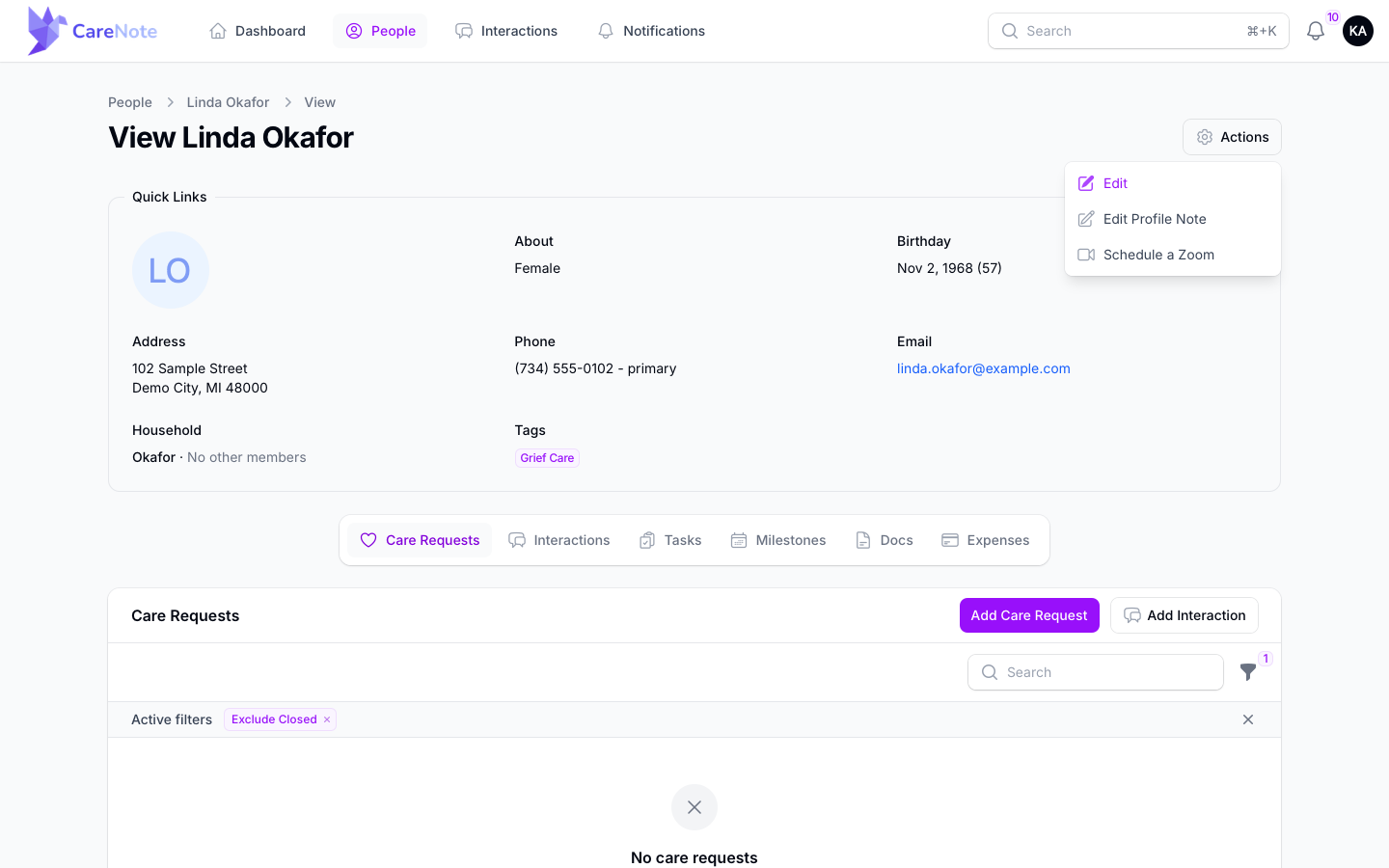
Open a person's profile, click the gear Actions menu and choose Schedule a Zoom. Administrators and Team Members both have it. The action appears once Zoom is switched on and credentials are saved.
In the Schedule a Zoom call form, set:
- When, shown in Detroit time. A time that has already passed is refused.
- Length, 30 minutes by default.
- Topic, which starts as "Care conversation with" the person's name.
- Note to include in the invitation, if you like.
- Email the join link, on by default. If the person has no email address, the toggle is off and you will need to share the link yourself.
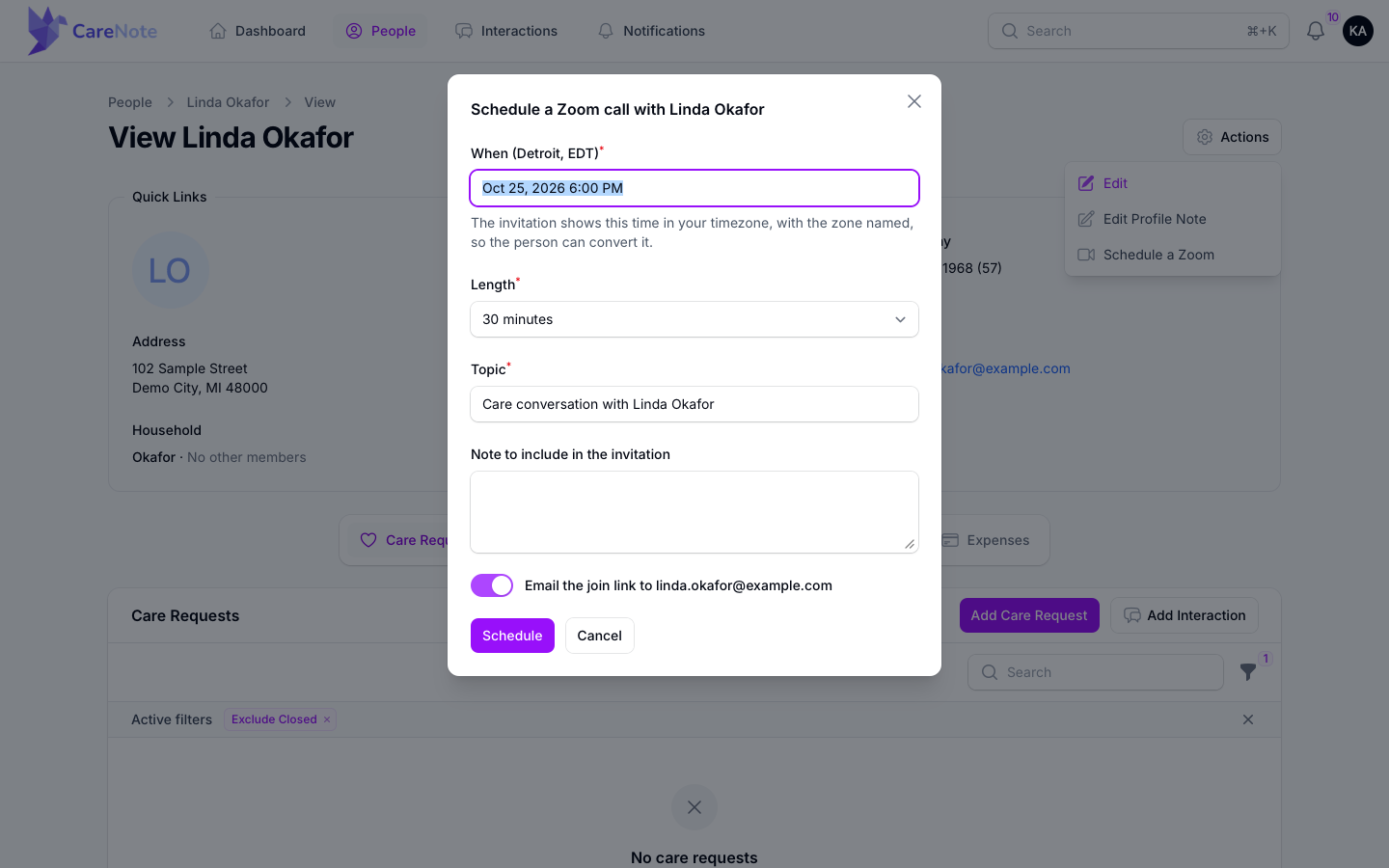
Click Schedule. The call shows in the table as Scheduled, and once it is recorded it files to this person automatically.
Frequently asked questions
Where is the recording kept? In Zoom. CareNote stores the link, not the video.
Why is my call under Needs review? CareNote could not tell for certain who the call was with, or who hosted it. Read the reason under the status, then use Attach to person.
Who can see the Zoom Meetings page? Only the team owner. The page lives in the Owner panel and opens from the Zoom Meetings card on the Integration Hub. Everyone else can still schedule a Zoom from a profile, but they do not see the settings.
A call has no transcript. What now? Check that Zoom is creating audio transcripts for recordings. Without one, CareNote can transcribe the audio with Deepgram if that setting is on.