
Team Roles and Team Access: Who Can See and Do What
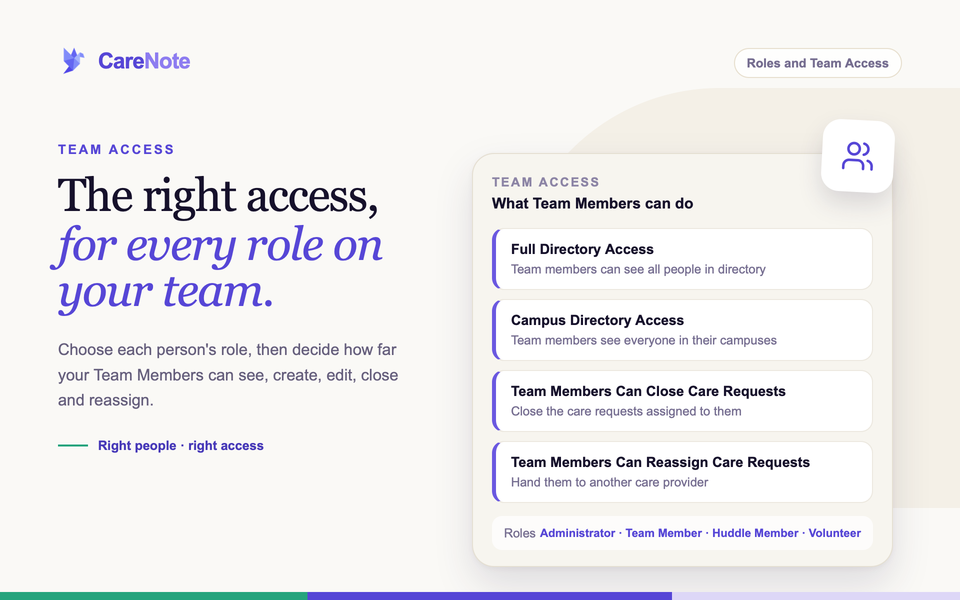
A caring team works best when everyone can reach what they need and nothing more. A new deacon should be able to log a hospital visit on day one. A helper who only brings meals should not need a login at all. CareNote gives you two simple controls for this: a person's role, and a set of Team Access switches that decide how far Team Members can reach.
Watch the team roles and permissions tutorial for Administrators, Team Members and Volunteers.
This guide explains the roles, shows you how to move someone to email-only access, and walks through every Team Access switch.
The roles on your team
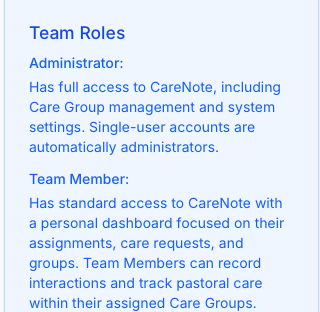
Your team has three paid logins (Administrator, Team Member and Huddle Member), plus Volunteers, who are email-only and often free. CareNote Plus adds features, not logins.
- Administrator: manages the team, settings, and everyone's records. Administrators work in the Admin area.
- Team Member: cares for people day to day from their own Dashboard, with People, Interactions and Notifications in the top menu.
- Huddle Member: the third paid login that opens its own Huddle area instead of the Dashboard or Admin area.
- Volunteer: no paid login. Volunteers get care assignments and updates by email only, and are often free.
The team owner is an Administrator who also shows as Site Owner in the Team list.
1. See everyone on your team
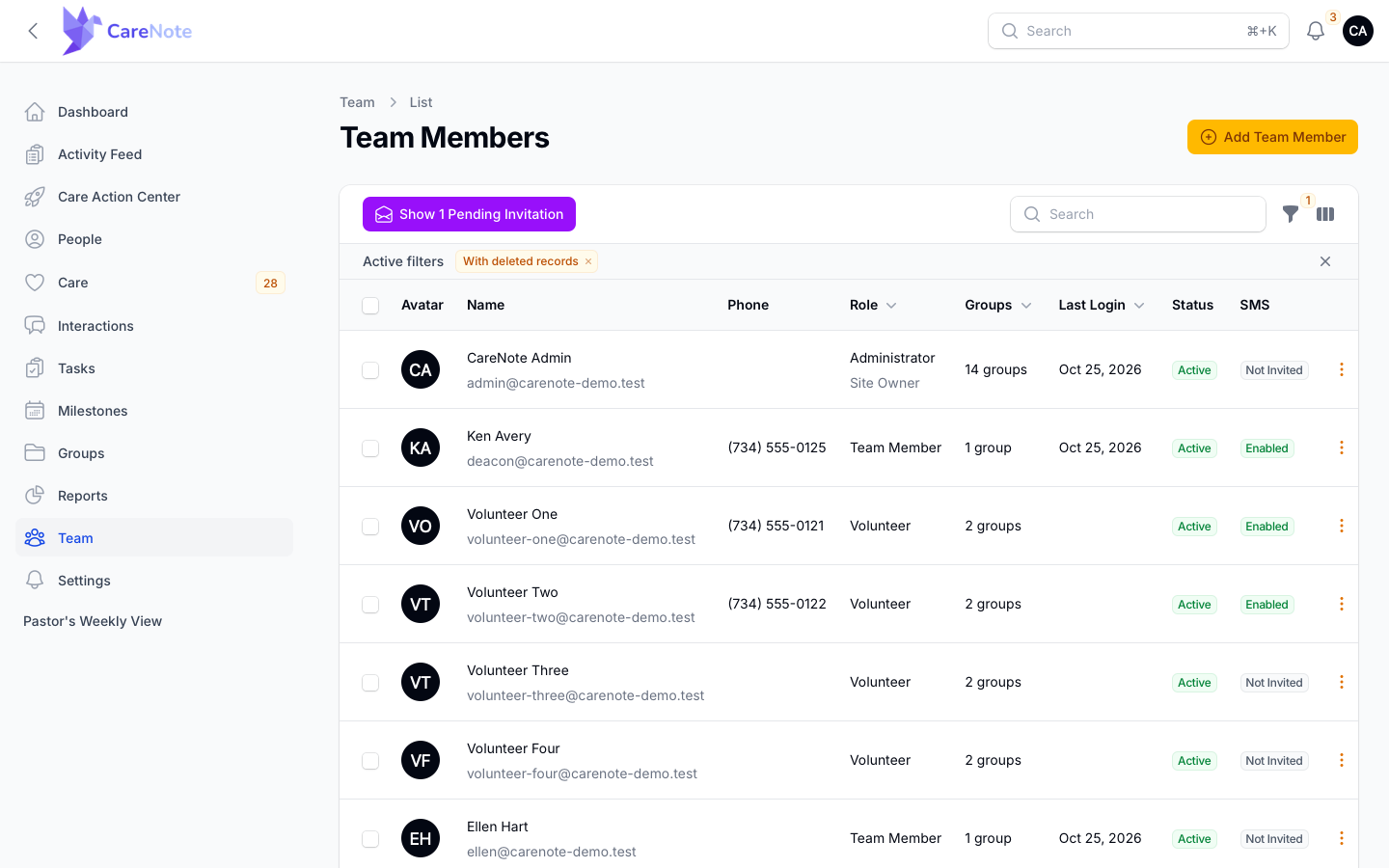
- In the Admin area, click Team in the left menu.
- The Team Members page lists each person with Avatar, Name, Phone, Role, Groups, Last Login, Status and SMS.
- Use Add Team Member to invite someone, or the pending invitations link to review invitations that have not been accepted.
The With deleted records filter is on by default, so you will see it in the filter badge.
2. Move someone to email-only access
Someone stepping back from a staff role but still helping with care? Demote them instead of deleting and re-inviting.
- On the Team Members page, open the three-dot menu on their row.
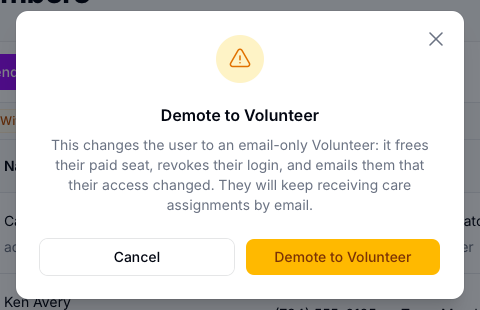
- Choose Demote to Volunteer.
- Read the message, then click Demote to Volunteer to confirm, or Cancel to stop.
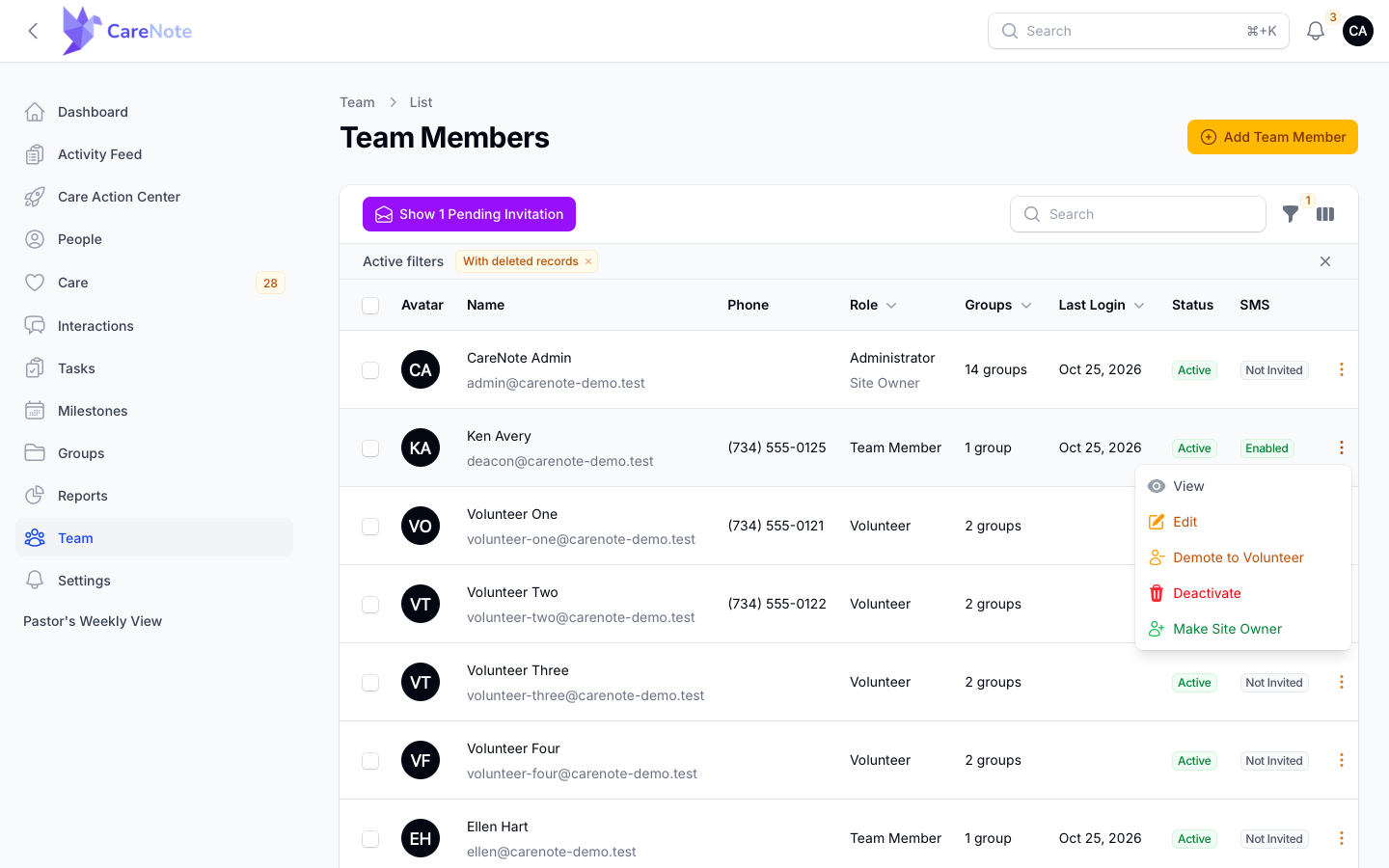
The confirmation explains what happens: the person becomes an email-only Volunteer, their login is revoked, and CareNote emails them that their access changed. They keep receiving care assignments by email.
You cannot demote yourself or the Site Owner.
3. Open the Team Access switches
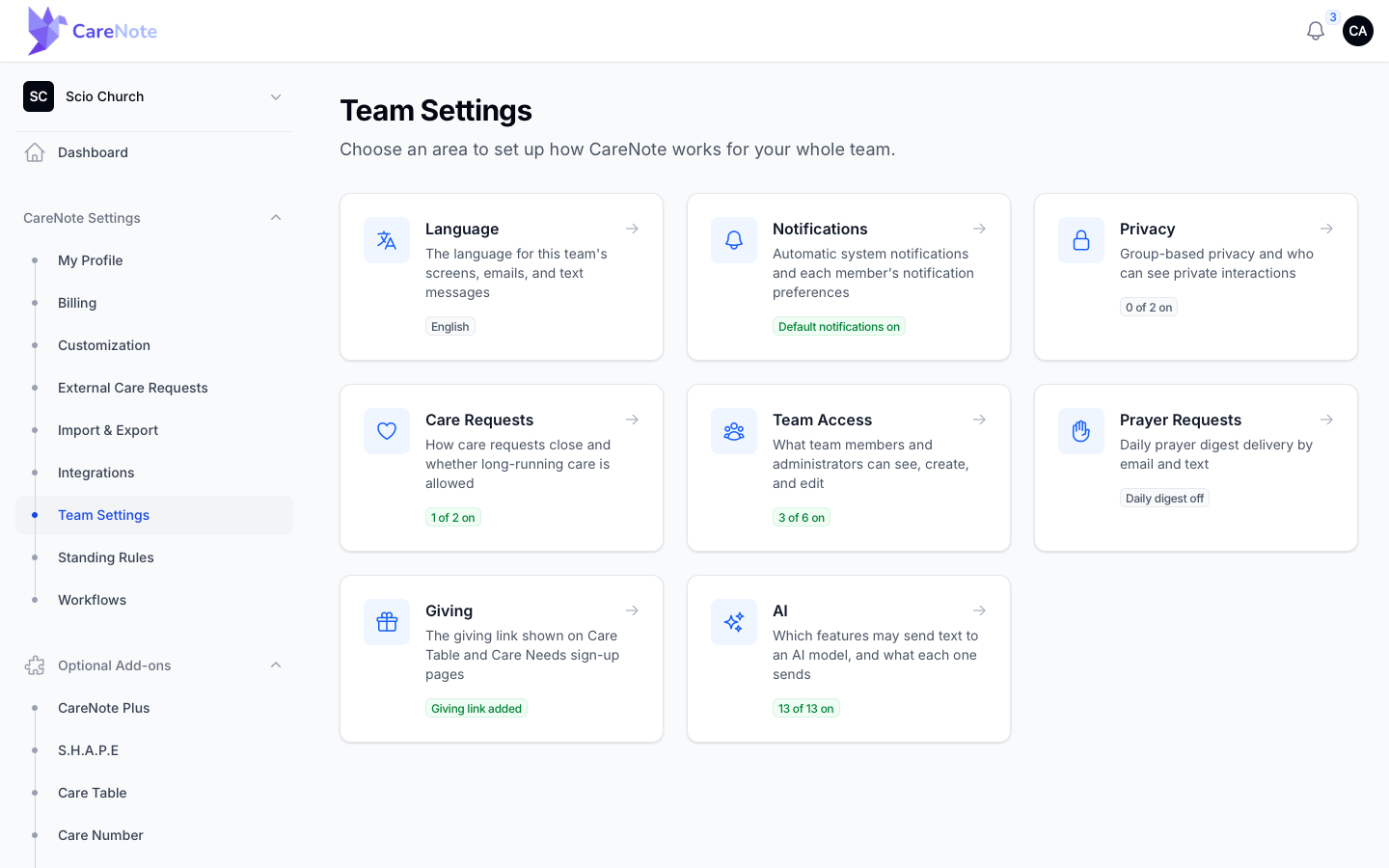
- Sign in to the Owner settings and open Team Settings.
- Click the Team Access card. Its badge, such as "3 of 6 on", tells you how many switches are on.
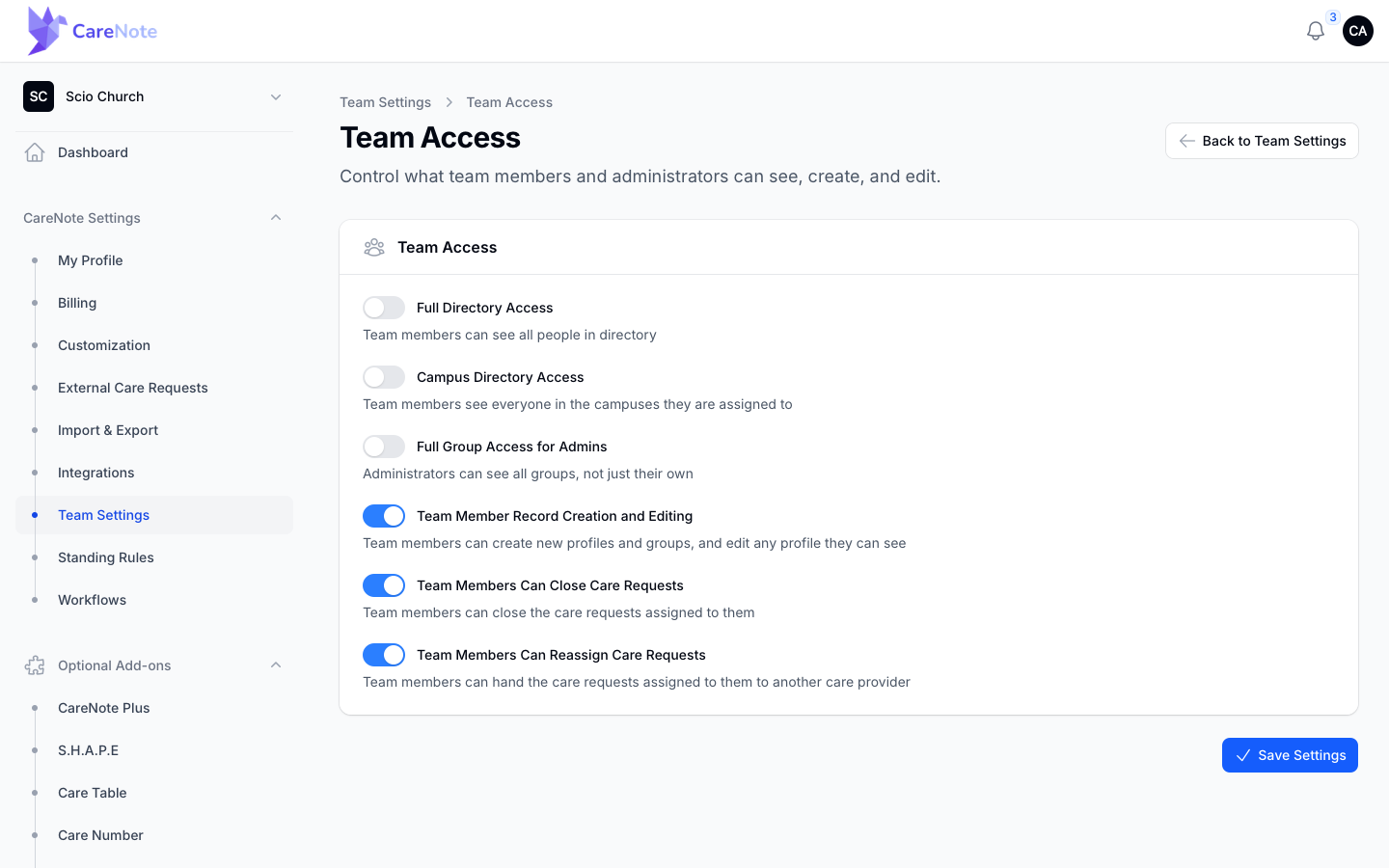
- Turn switches on or off, then click Save Settings.
4. Choose what Team Members can see
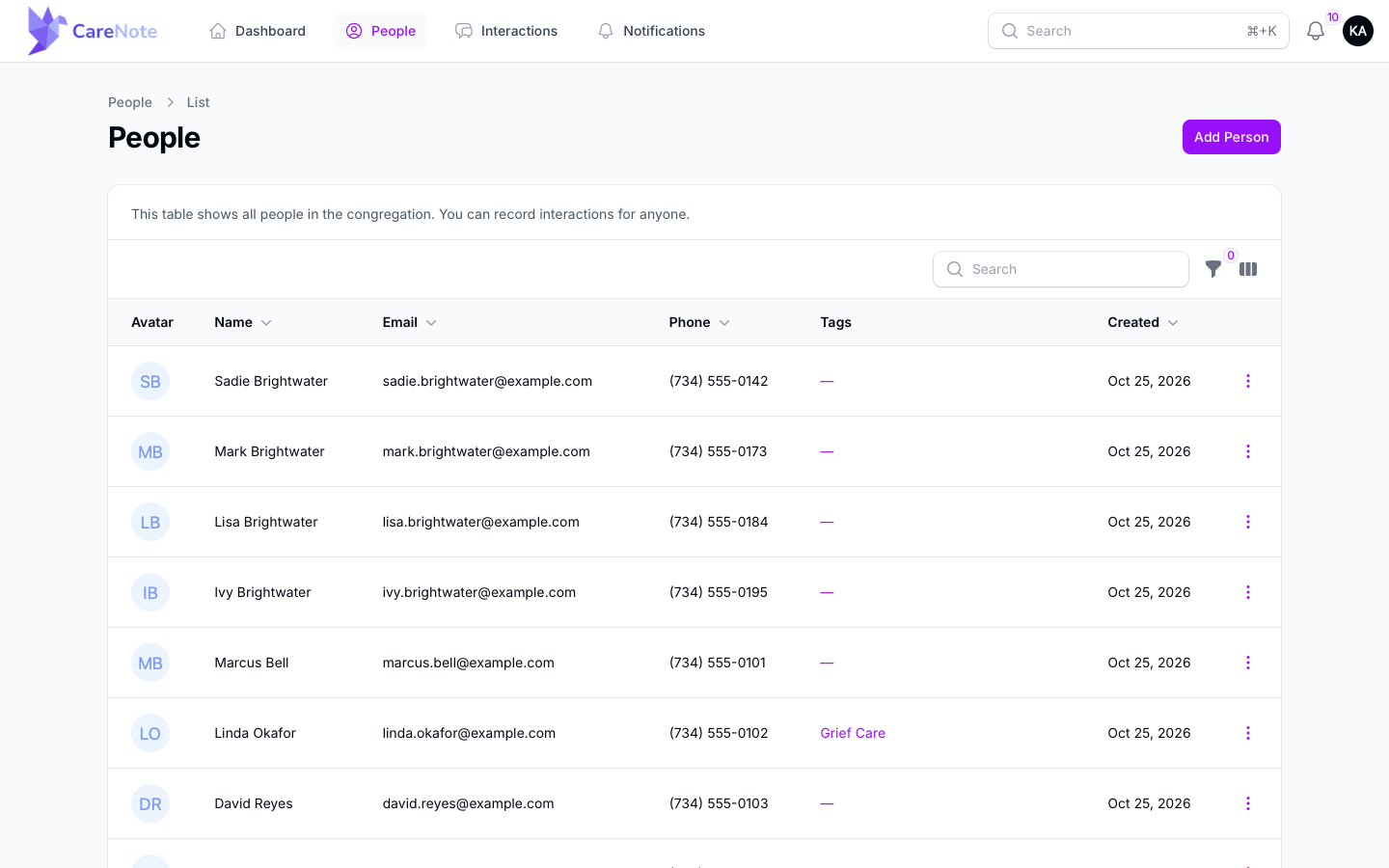
Full Directory Access lets Team Members see all people in the directory. With it off, a Team Member's People list shows only people they are connected to: people they follow, people in groups they belong to, and people tied to their care request assignments.
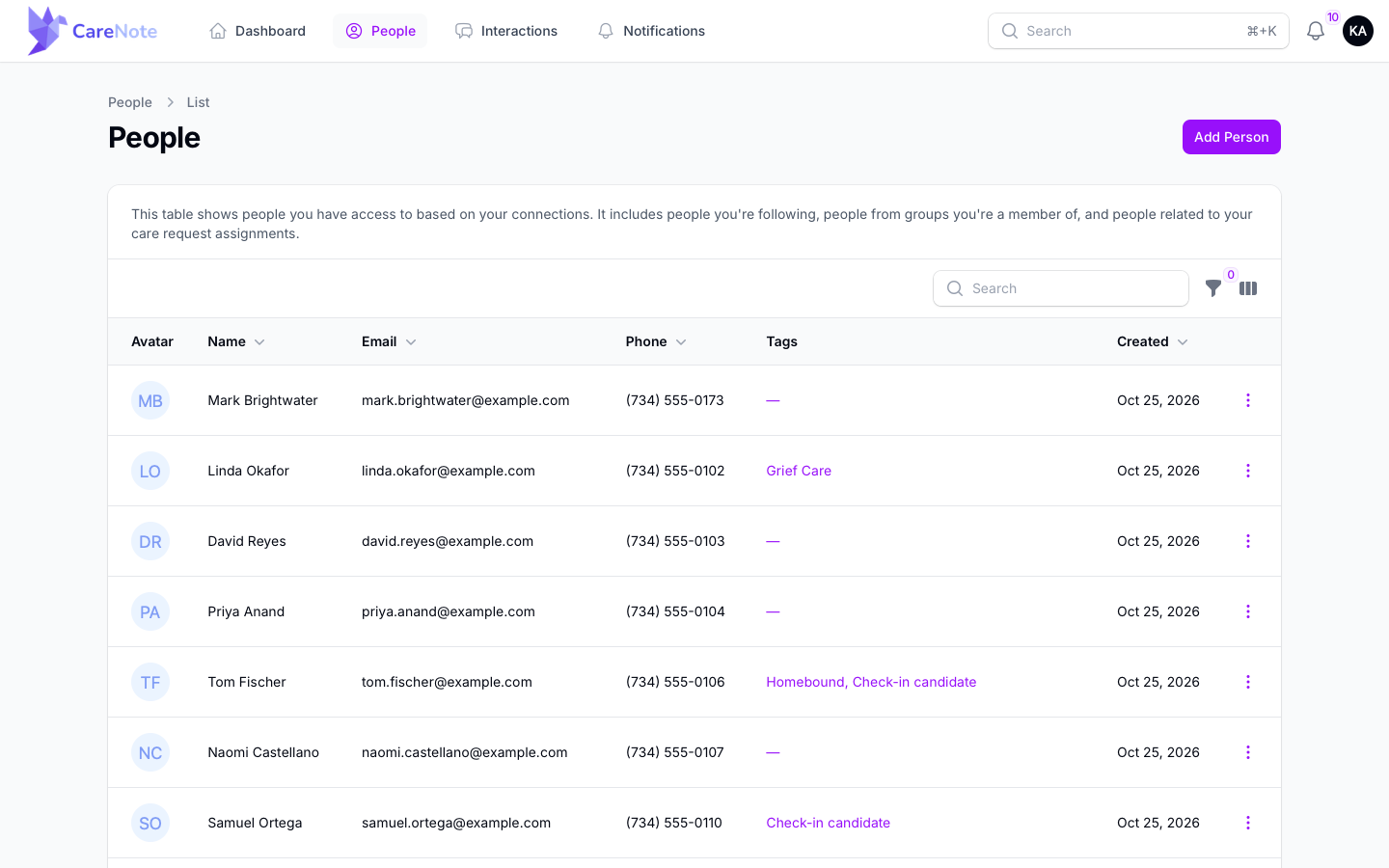
Turn it on and the notice changes to "This table shows all people in the congregation. You can record interactions for anyone." and the list widens.
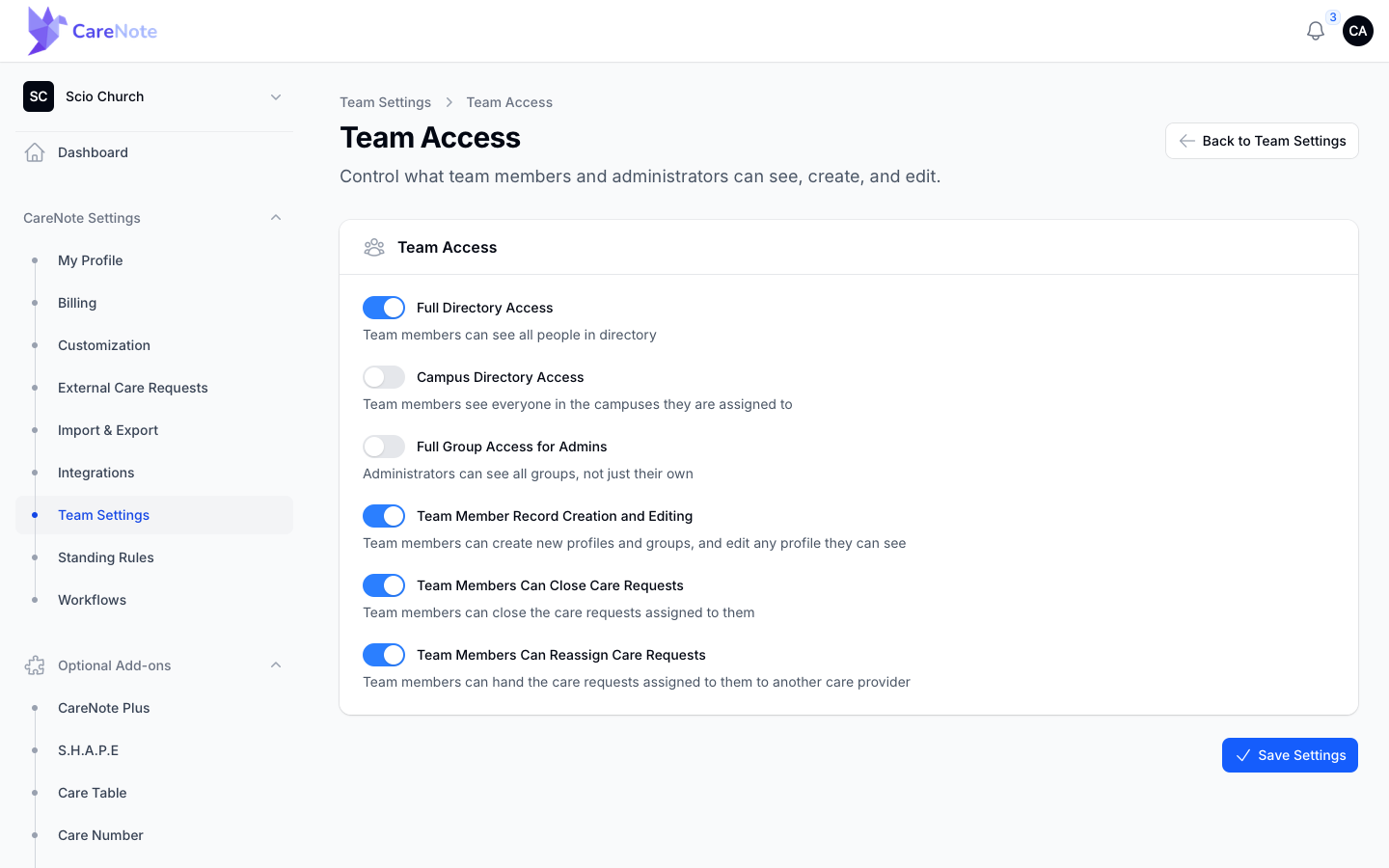
Campus Directory Access is the middle path. Team Members see everyone in the campuses they are assigned to. To assign a campus, open the person from Team, choose Edit, and use the Campuses card.
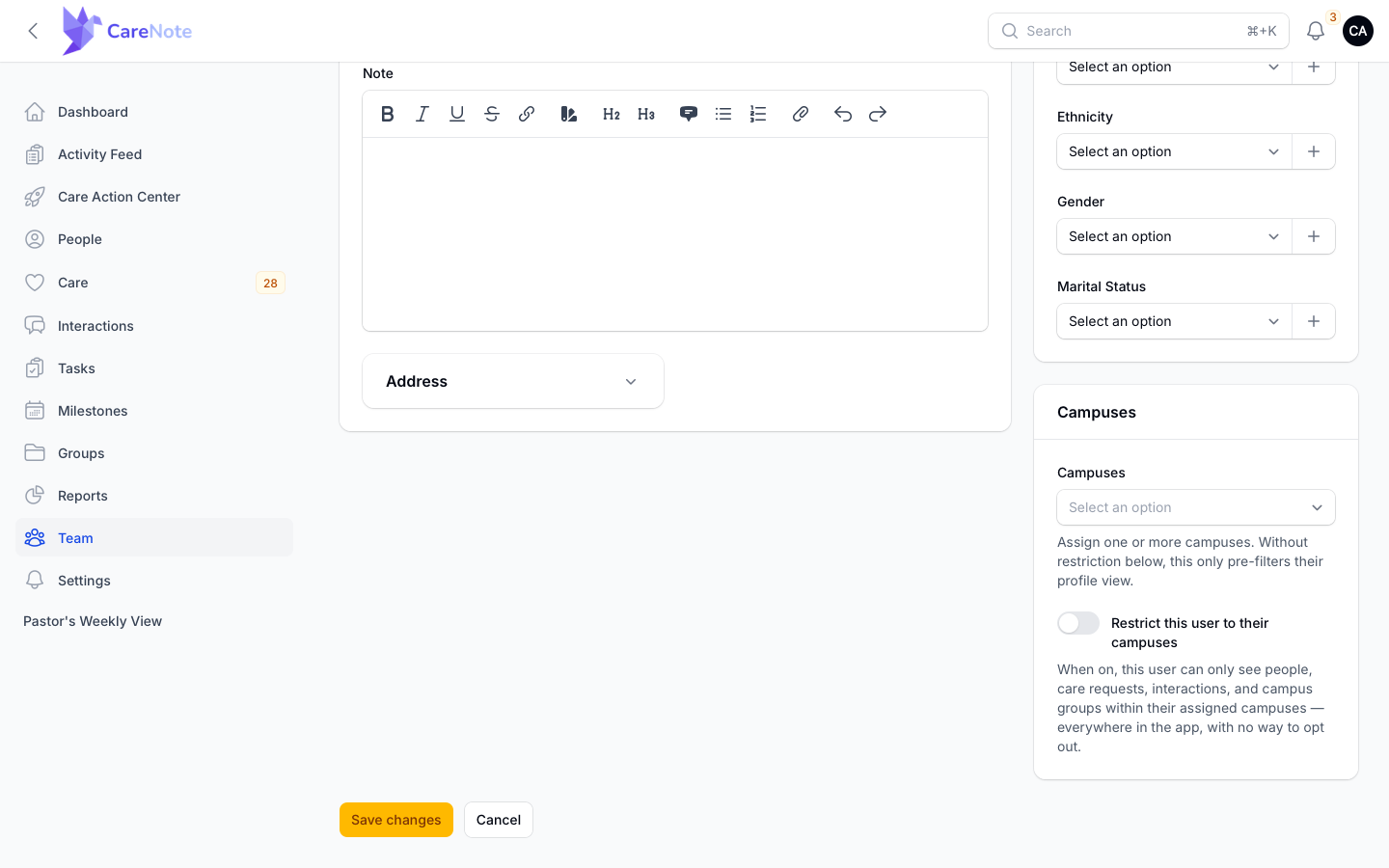
On that card, Restrict this user to their campuses goes further: when on, that person can only see people, care requests, interactions and campus groups within their campuses, everywhere in the app.
Full Group Access for Admins lets Administrators see all groups, not only their own.
5. Choose what Team Members can do
- Team Member Record Creation and Editing: Team Members can create new profiles and groups, and edit any profile they can see. Turn it off if you want data entry to stay with Administrators.
- Team Members Can Close Care Requests: Team Members can close the care requests assigned to them.
- Team Members Can Reassign Care Requests: Team Members can hand their assigned care requests to another care provider.
6. See what your Team Members see
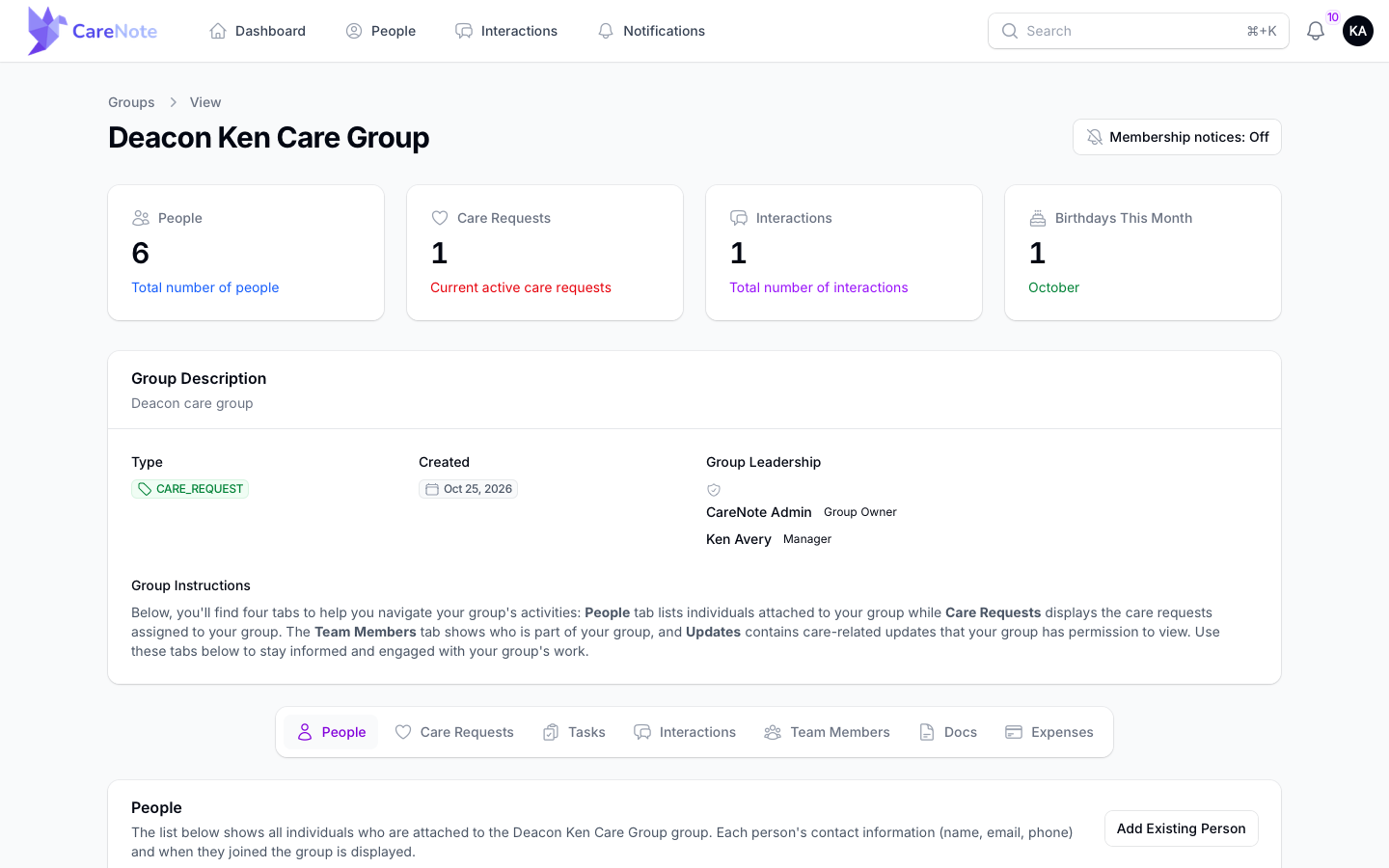
A Team Member lands on a Dashboard with My People, Care Requests, Tasks Due and Visits Due. Further down are their groups and Recent Activity.
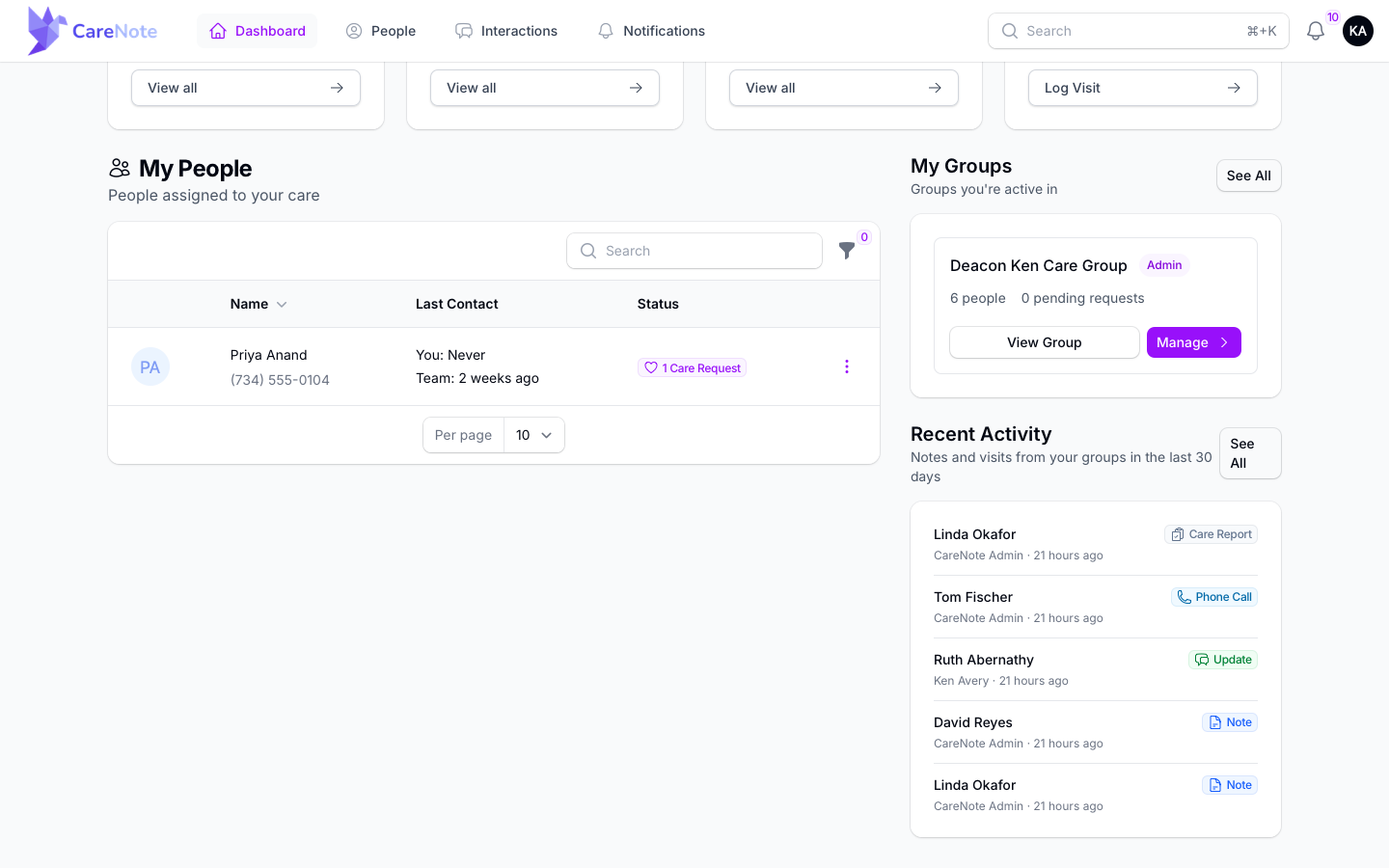
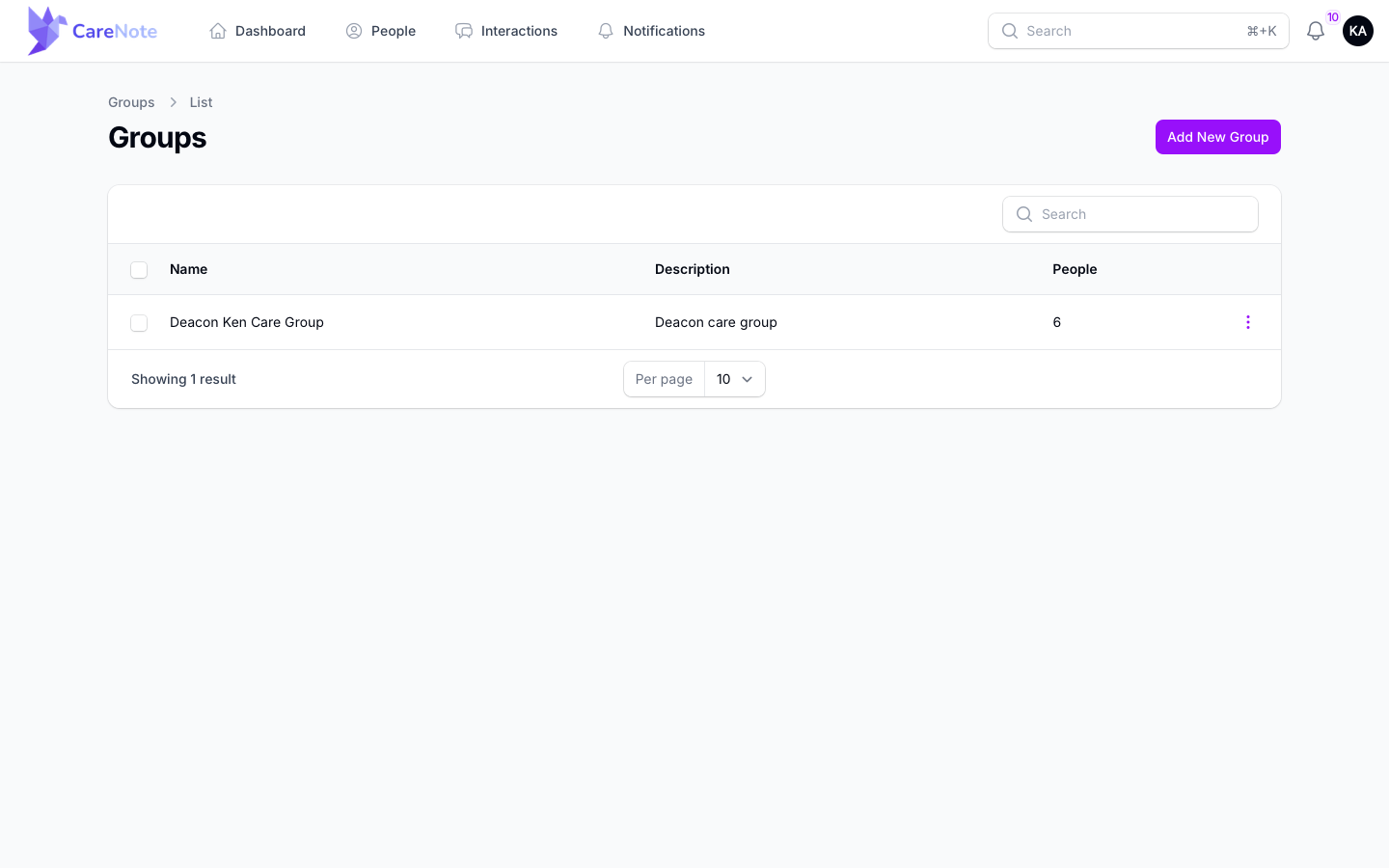
Their Groups list shows only their own groups, and each group page has leadership and tabs for People, Care Requests, Tasks and more.
Frequently asked questions
Will the person know? Yes. CareNote emails them that their access changed to email-only.
Does a demoted person lose the care they were assigned? No. They keep receiving care assignments by email.
I turned a switch on but my Team Member still does not see the change. Make sure you clicked Save Settings, then ask them to reload the page.
Who can change Team Access? They live in Owner settings, under Team Settings. The Admin area, where you manage the Team list, is a separate place.