
The Care Action Center: Your Daily Mission Control
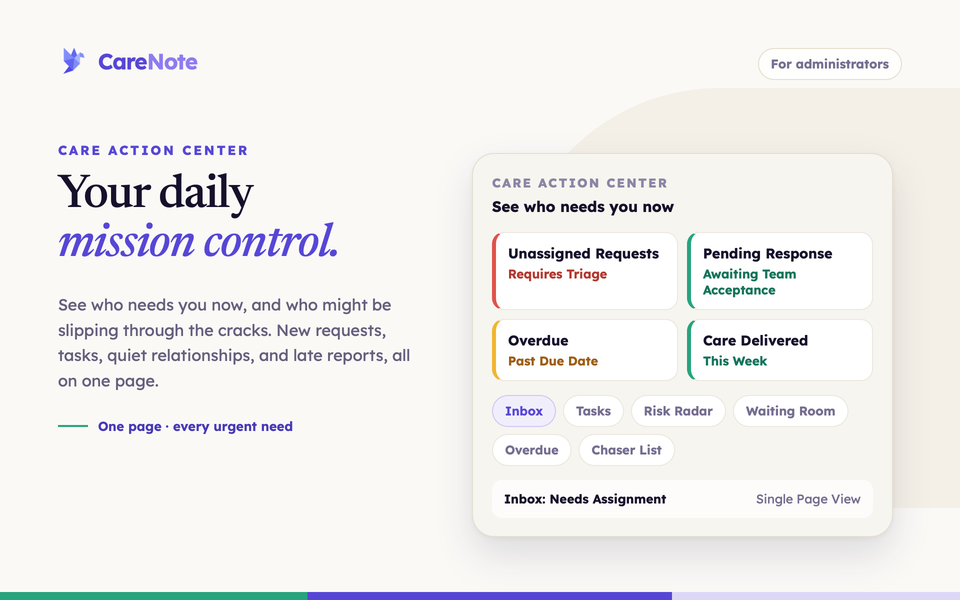
Most care teams start the day with the same questions. Who is waiting on us? Who have we not heard from? What is late? The Care Action Center answers all of them on one page.
Watch a short walkthrough of the Care Action Center and each of its six tabs.
What it is
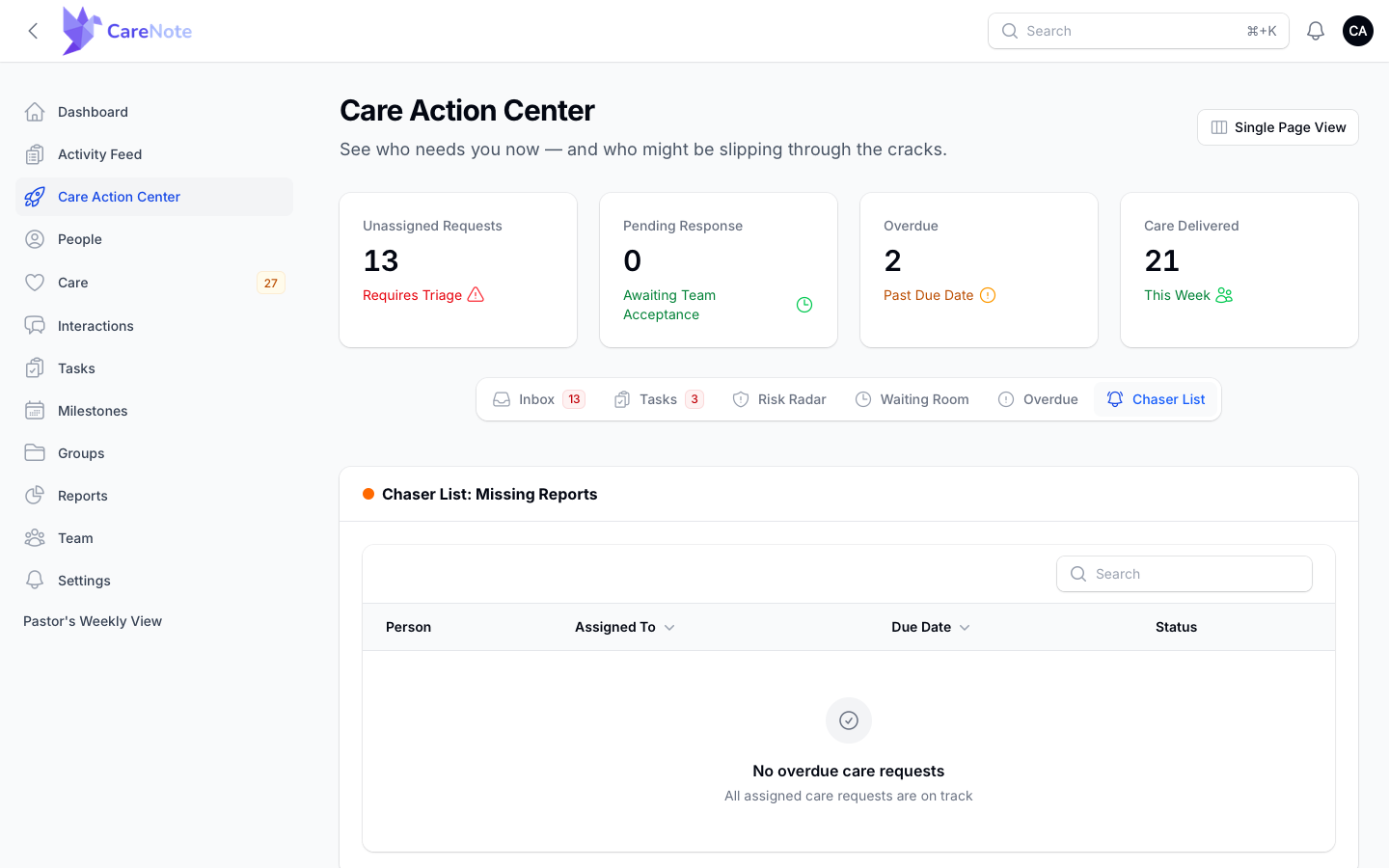
The Care Action Center is a dashboard for administrators. Look for the rocket icon in your left navigation. Its subtitle sums up the job: "See who needs you now, and who might be slipping through the cracks."
Only users with the Administrator role can see it, and everything on the page belongs to your own team.
Four stat cards sit across the top:
- Unassigned Requests, labeled "Requires Triage"
- Pending Response, labeled "Awaiting Team Acceptance"
- Overdue, labeled "Past Due Date"
- Care Delivered, labeled "This Week"
Each card is a link. Care Delivered opens Care Delivered Insights, a separate page with its own charts. The cards are counted separately from the tabs below them, so a card and its matching tab will not always match.
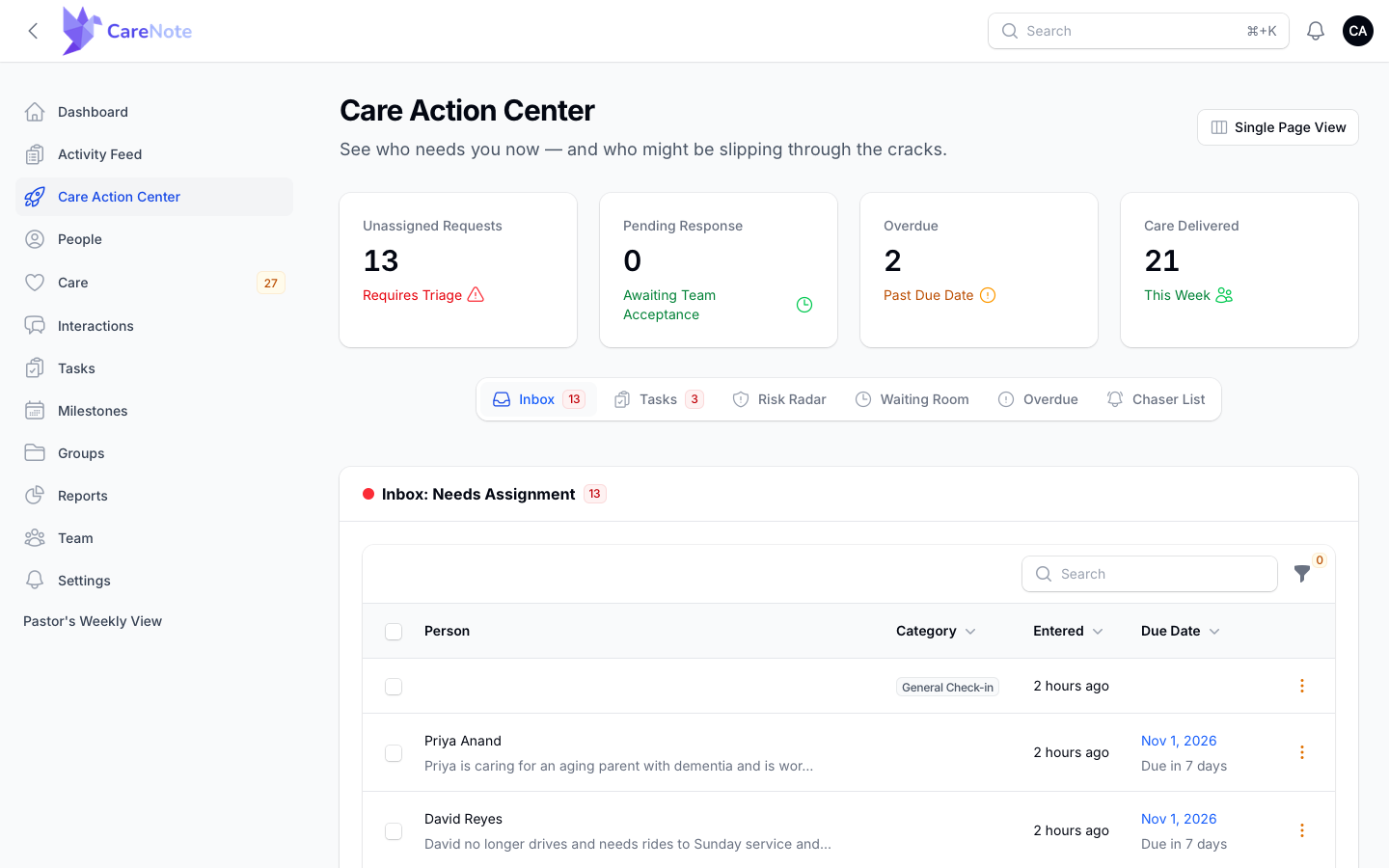
Under the cards is a row of six tabs: Inbox, Tasks, Risk Radar, Waiting Room, Overdue, and Chaser List. A red or amber count badge appears on a tab only when there is something in it, so a tab with no badge is one you can skip today.
1. Triage the Inbox
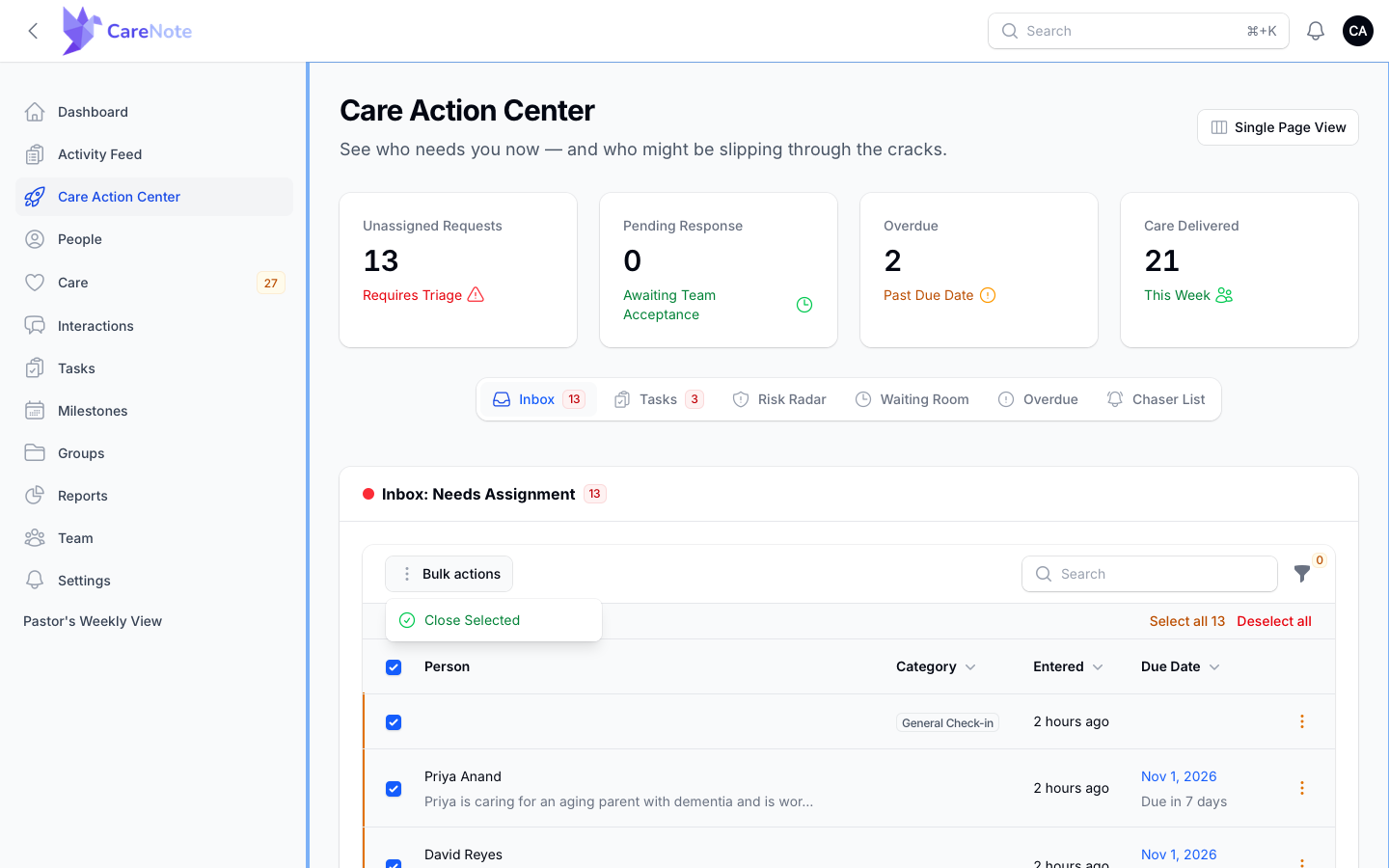
The Inbox, headed "Inbox: Needs Assignment", is your triage queue: care requests that have come in and have not been assigned to anyone yet. Requests that were routed to a group are not listed here.
If your team has a Care Number, calls and texts that need review also appear in a "Needs review" section above the unassigned requests, and the Inbox badge counts both.
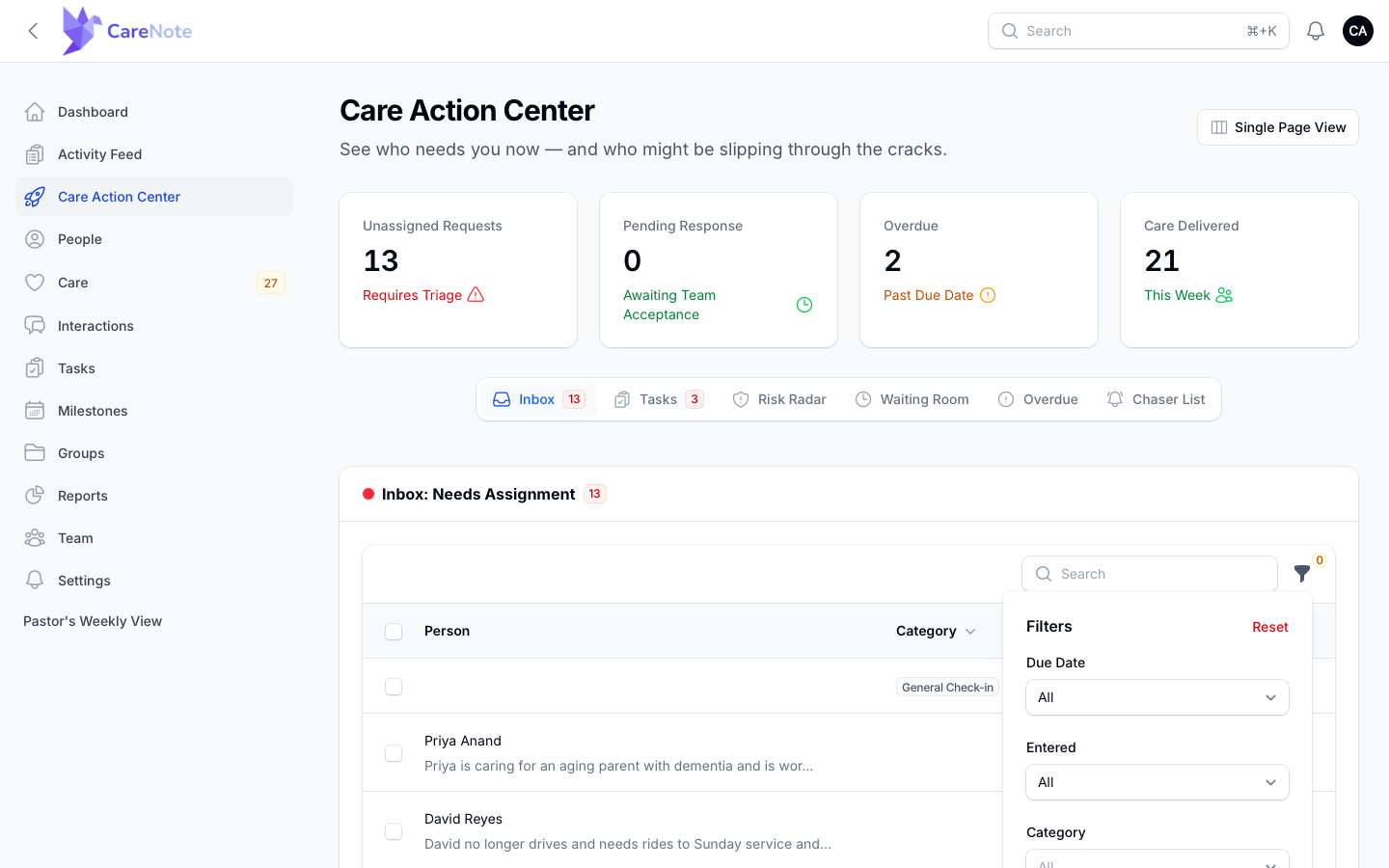
To assign a request, open the row's Actions menu and choose Assign Care Request. Pick Care Provider or Care Group and then who should take it.
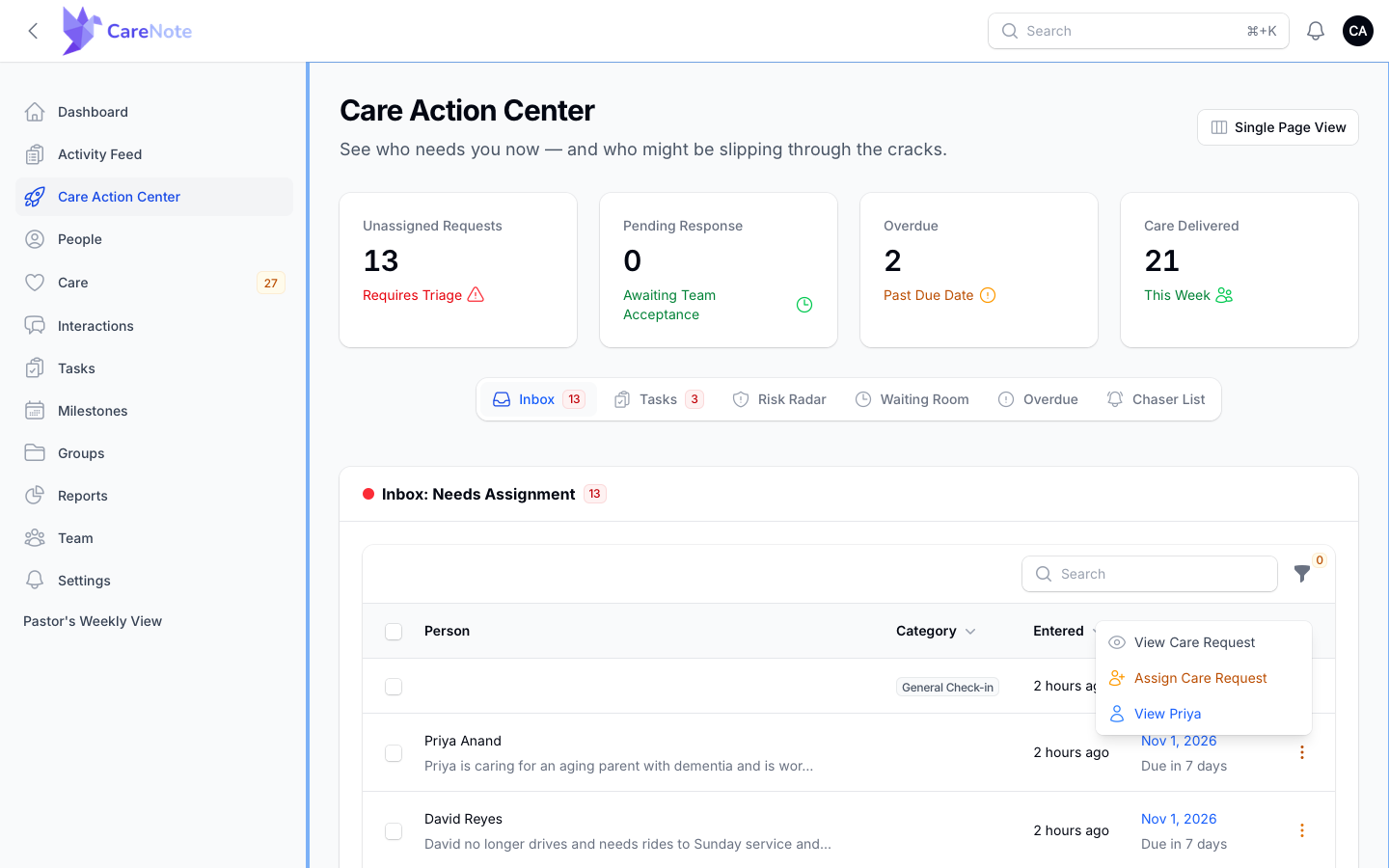
When the list gets long, open Filter and narrow it by Due Date, Entered, or Category. Each defaults to "All". Select Apply filters, or Reset to start over.
Some requests never need follow-up, such as a batch that arrived from a form import. Tick the rows, open Bulk actions, and choose Close Selected. CareNote asks you to confirm before it closes them without assigning anyone.
2. Work the Tasks tab
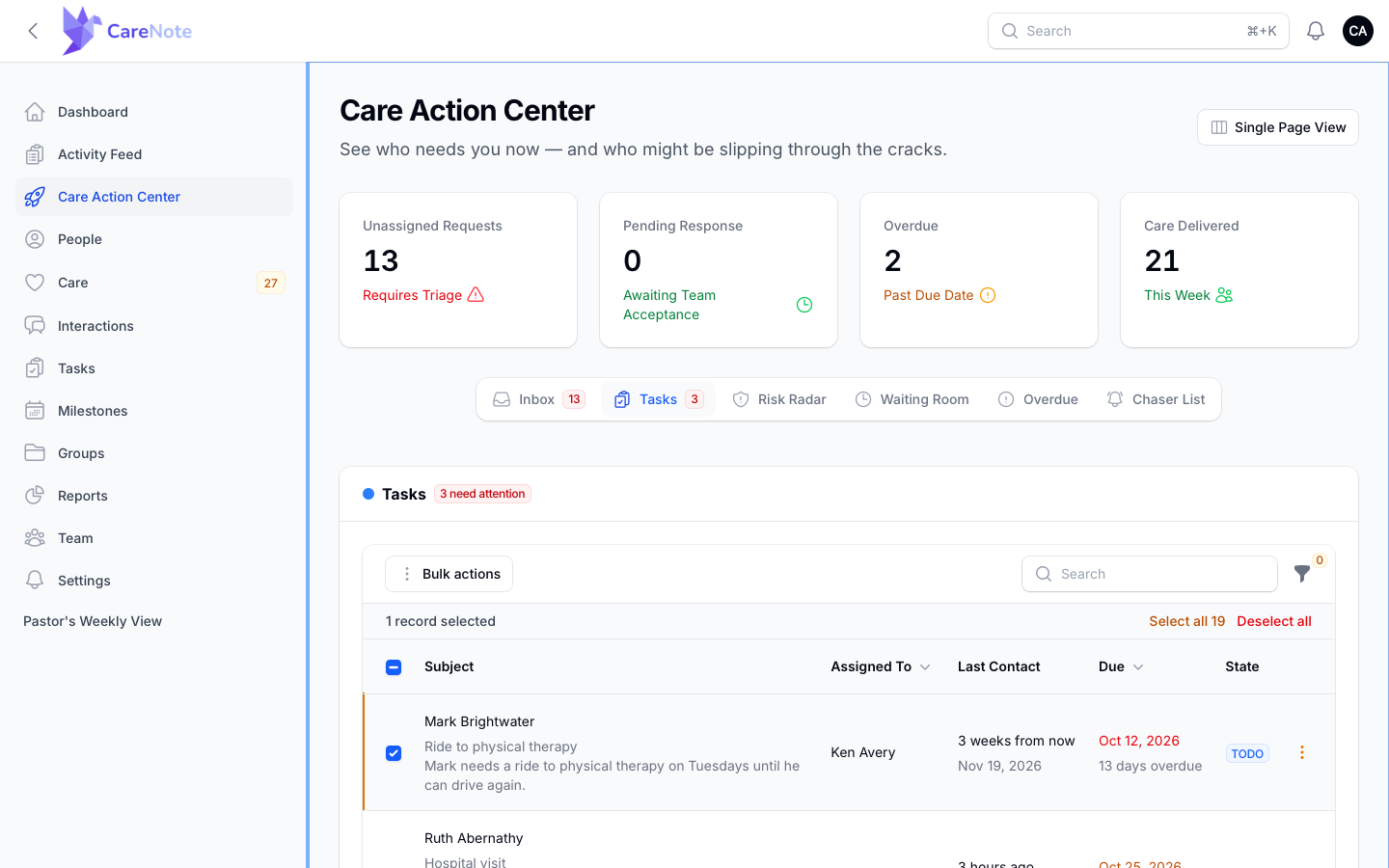
The Tasks tab is your team's follow-up list. A red "3 need attention" pill (your number will differ) flags what is due or past due. The columns are Subject (the person, then the task name and the first line of its description), Assigned To, Last Contact, Due, and State.
Narrow the list with the Assignment, State, Due, and Category filters. Large teams page through results ten at a time.
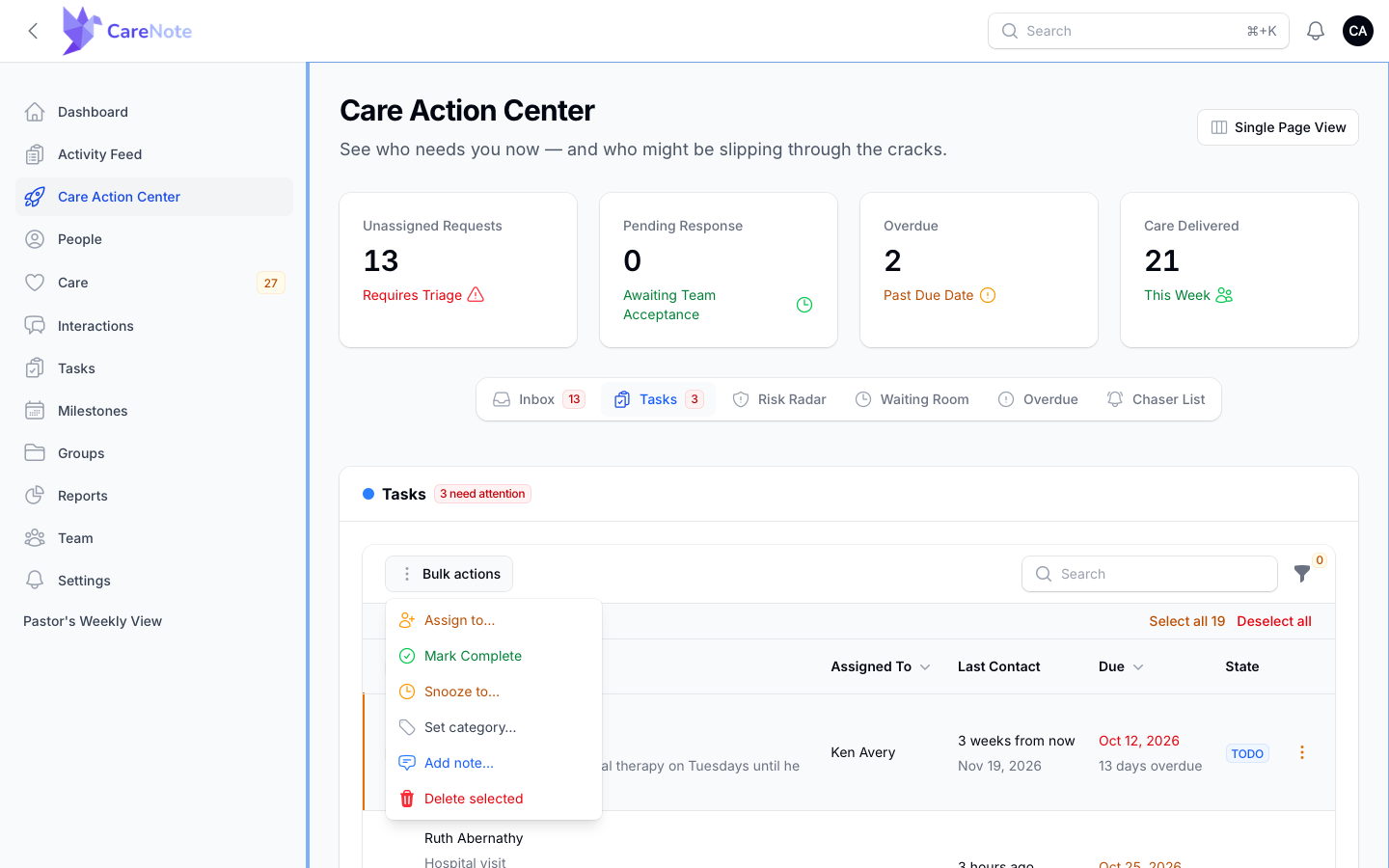
Tick several tasks and Bulk actions appears with six choices: Assign to, Mark Complete, Snooze to, Set category, Add note, and Delete selected.
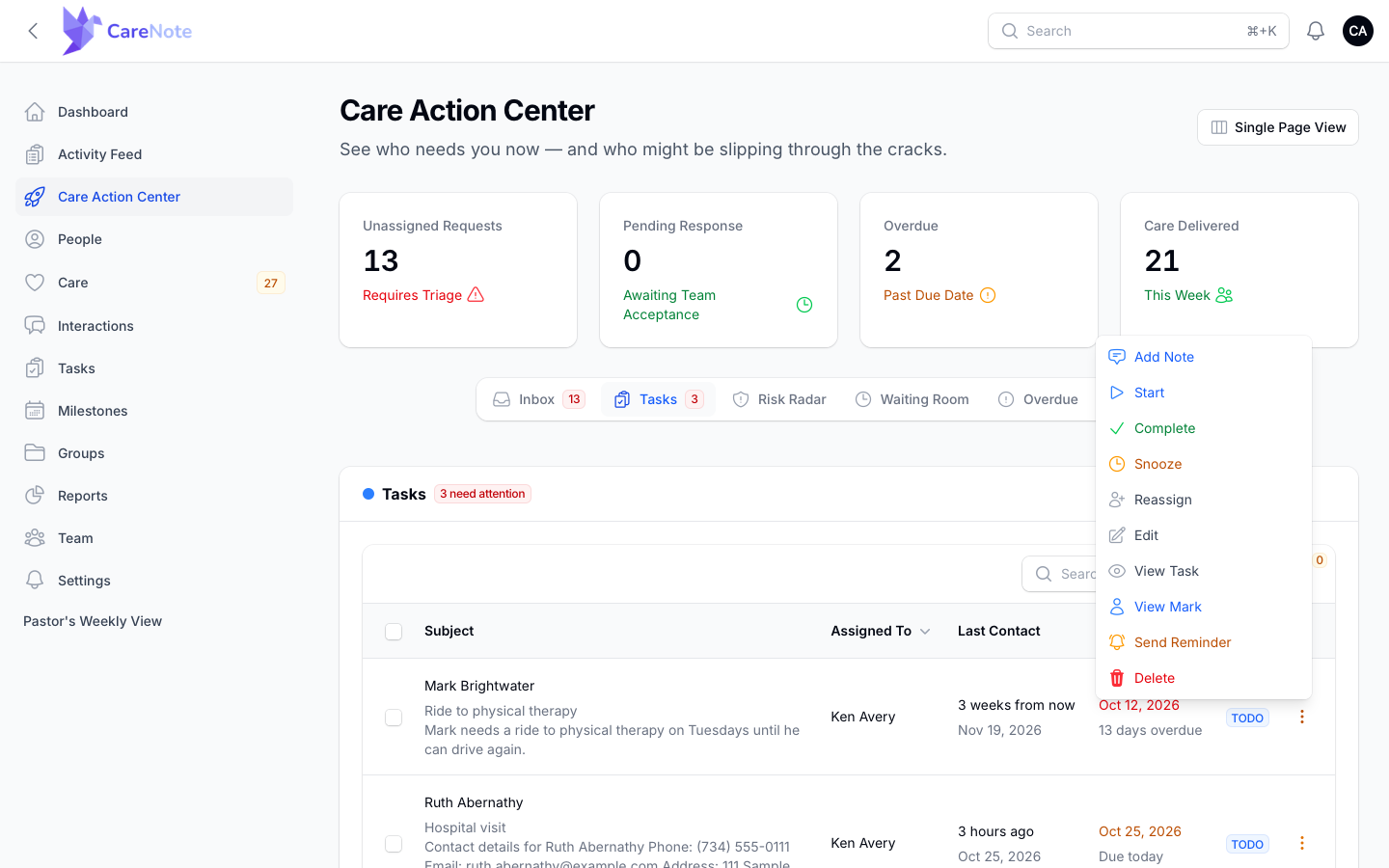
For one task at a time, use the row's Actions menu, which includes Complete, Snooze, Reassign, and Send Reminder.
For the full story on creating and managing tasks, see How to manage tasks in CareNote.
3. Watch the Risk Radar
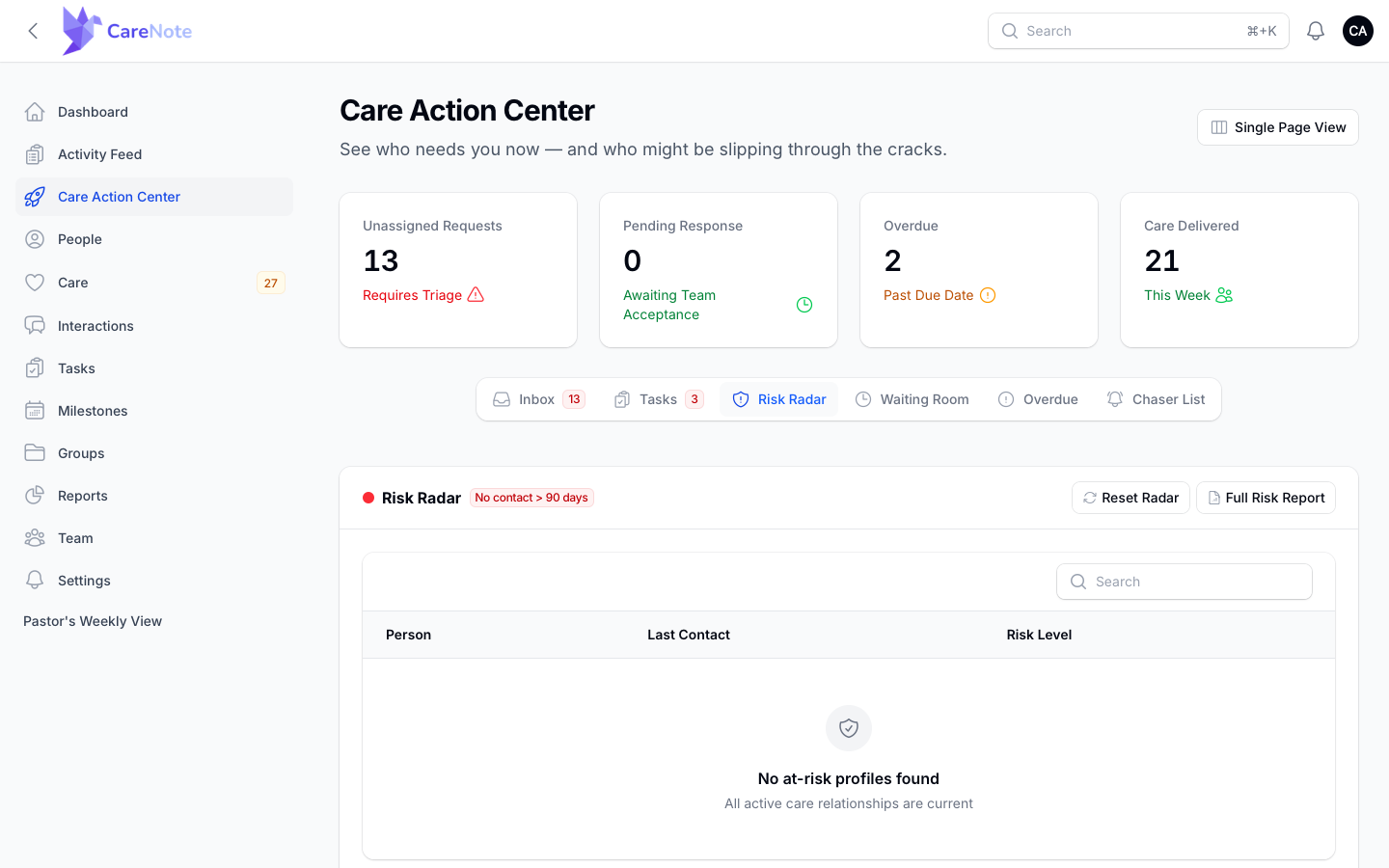
Risk Radar lists people who are still active in your care system but have gone quiet. The panel carries a red "No contact > 90 days" pill, and each row shows the person, their last contact, and a risk level.
Two buttons sit at the top right. Full Risk Report opens the Missing Care Report, which lists people with no interaction and no care request in the last 30 days, with search, sort, and a CSV export.
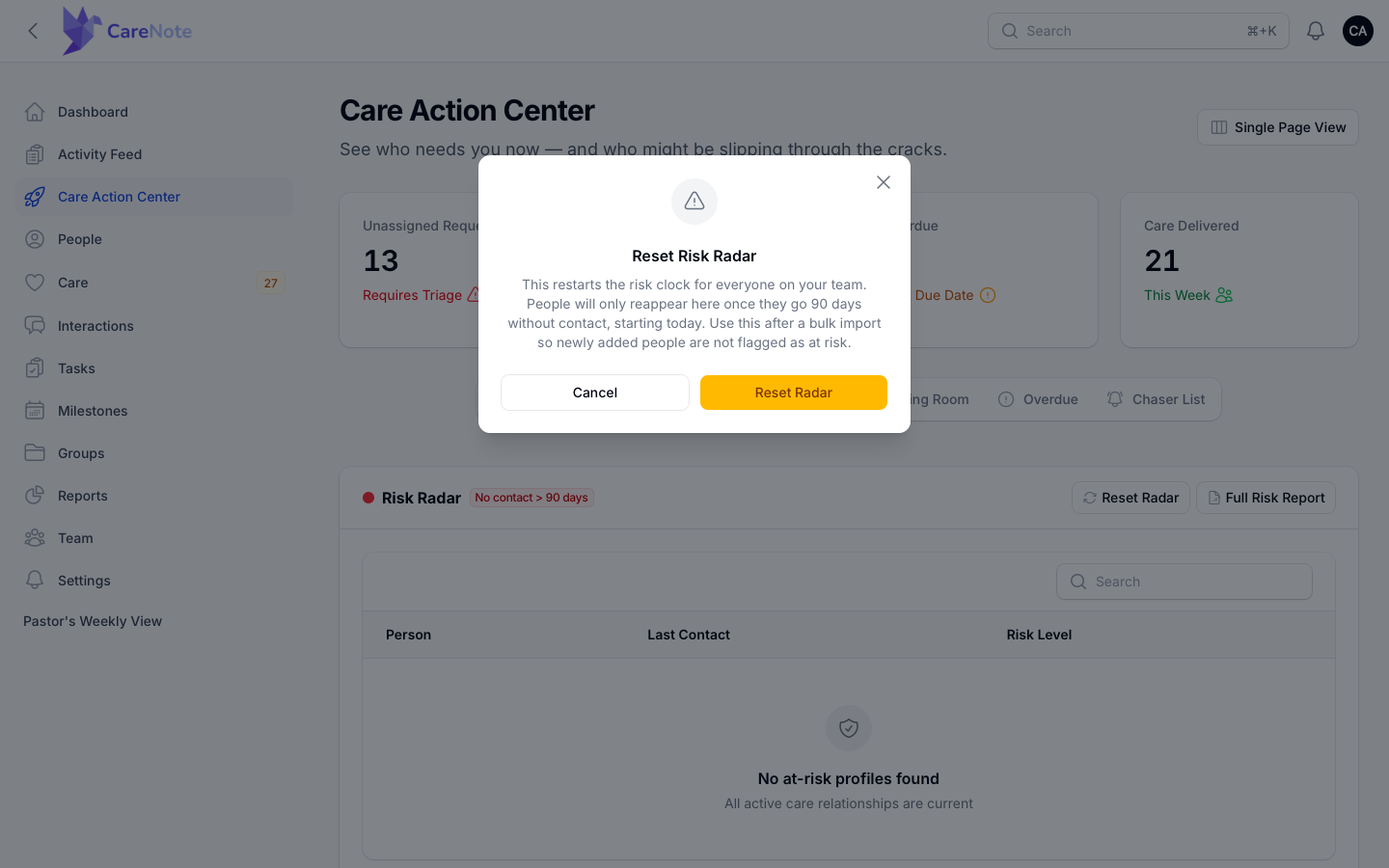
Reset Radar restarts the 90-day risk clock for everyone on your team. People only reappear on the radar once they go 90 days without contact, counting from today. Use it after a bulk import so new people are not flagged. CareNote asks you to confirm first.
4. Check the Waiting Room, Overdue, and Chaser List
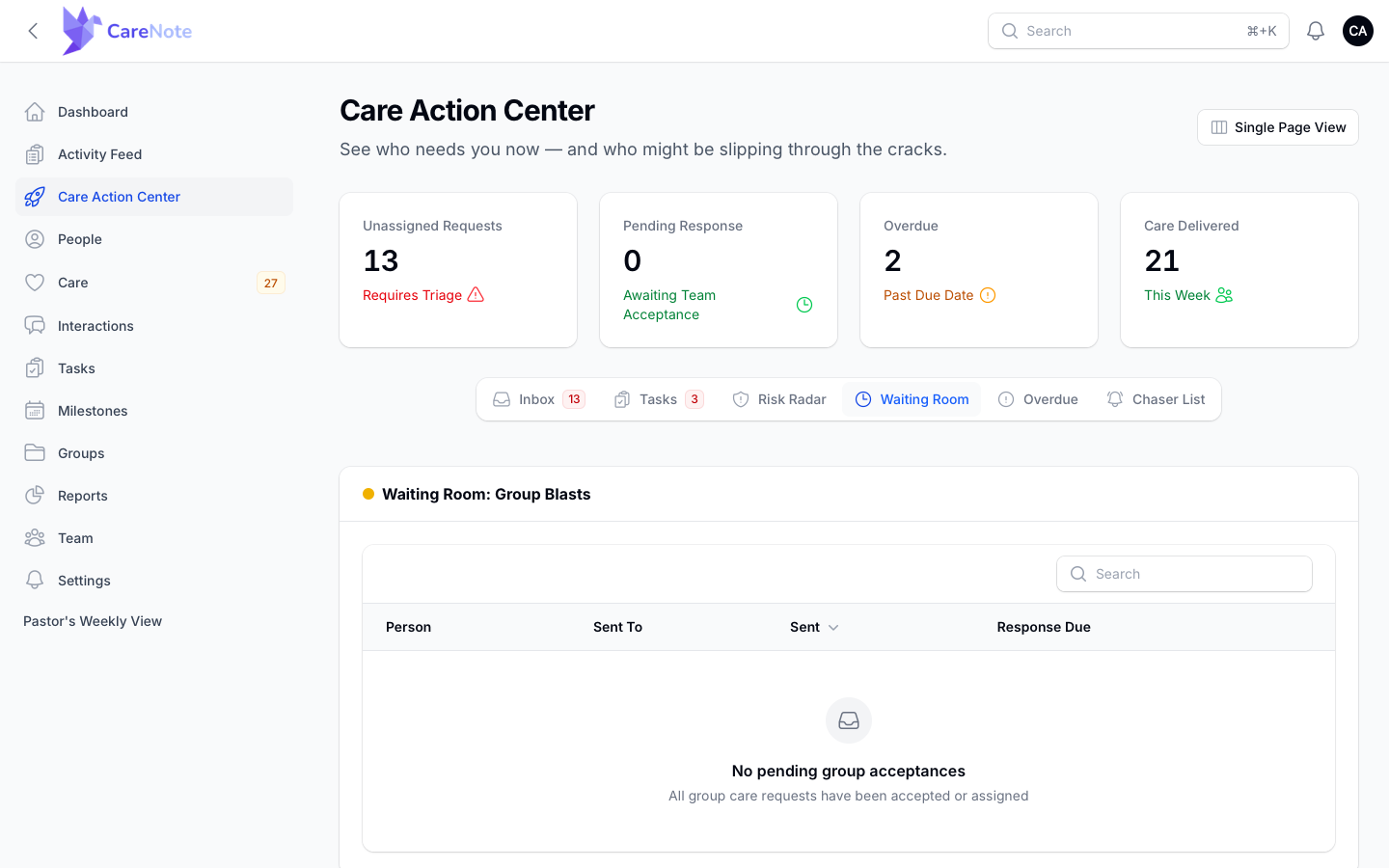
Waiting Room: Group Blasts shows care requests sent to a group that nobody has accepted yet, with the person, who it was sent to, when it was sent, and when a response is due. If a group is slow to answer, use the row's Reassign action to send it to a Care Provider or a different Care Group.
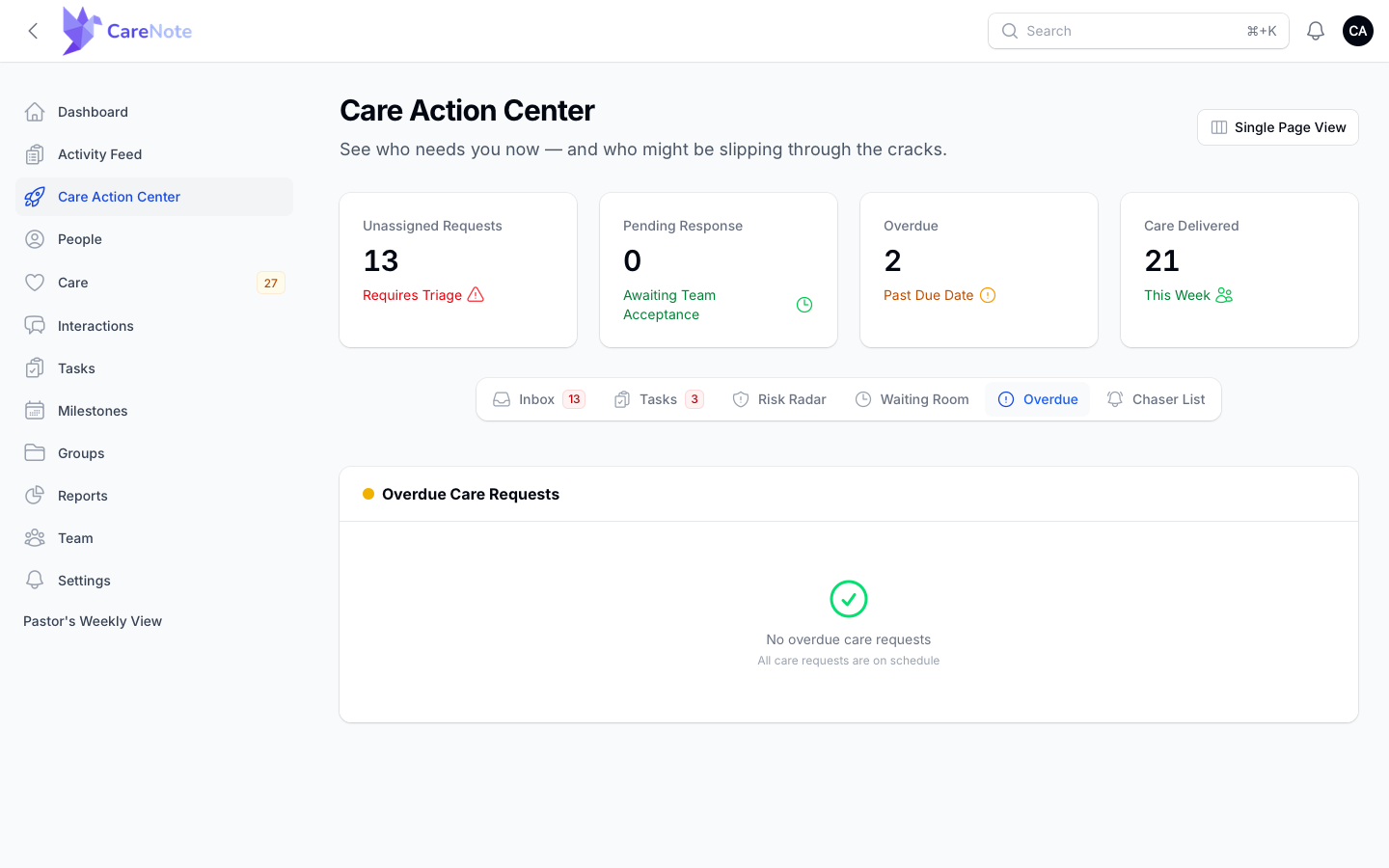
Overdue lists care requests past their due date. It has no filters of its own. It reads "No overdue care requests" when you are on schedule.
Chaser List: Missing Reports lists care requests where the assigned person has not turned in a report. Sort by Assigned To or Due Date to find the oldest first. Row actions are Create Care Report, View Care Request, Send reminder, and a link to the person.
5. Use Single Page View for the whole picture
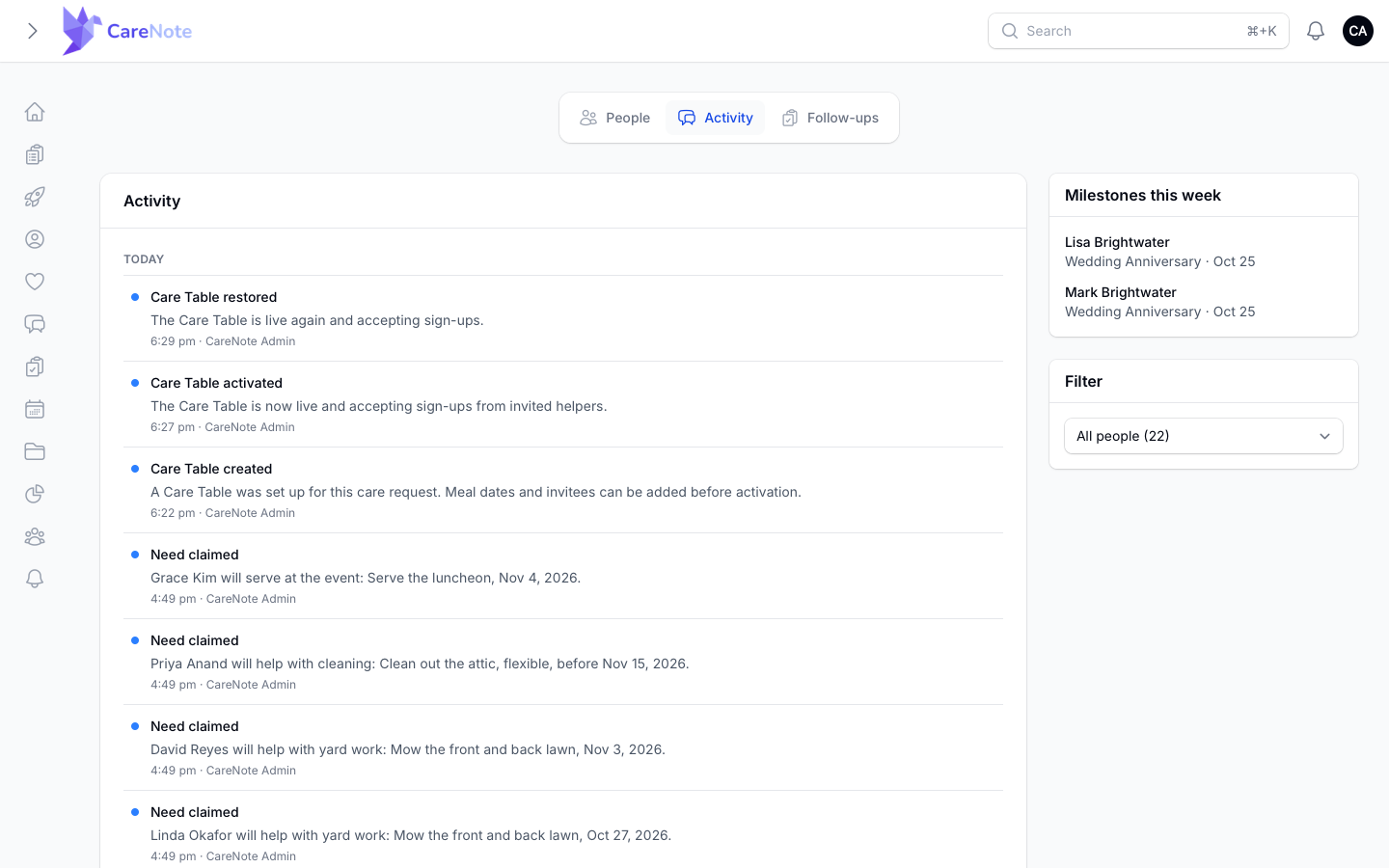
The Single Page View button at the top right opens the Care page. It has three tabs: People, Activity, and Follow-ups. Activity shows a timeline grouped by day, with a "Milestones this week" card. You can also reach it from Reports as the Care Page Report.
Frequently asked questions
Who can see the Care Action Center? Only users with the Administrator role. It does not appear for Team Members.
Do the stat cards always match the tabs? No. They are counted separately, so the Overdue card can show a number while the Overdue tab is empty. Use the card as a nudge and the tab as the working list.
Why did my Risk Radar suddenly empty out? Someone on your team likely used Reset Radar. That restarts the 90-day clock for everyone, so people return only after 90 more days without contact.
Why does a tab have no number on it? Badges appear only when a tab has items. No badge means nothing is waiting there.
Is the Needs review section missing from my Inbox? It shows only for teams that have a Care Number.