
Importing from Planning Center Online
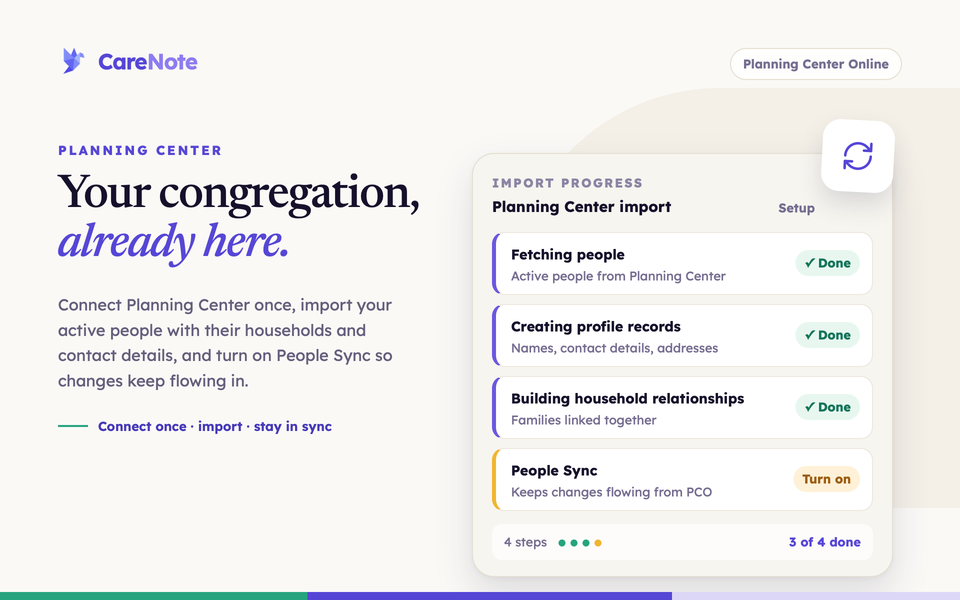
Connect the two once, import your people, and your care team starts with real names, households, and contact details instead of a blank slate.
Watch: importing people from Planning Center Online.
This guide walks you through connecting Planning Center, running the import, turning on People Sync so changes keep flowing, and seeing what the CareNote Plus sync options add.
What the Planning Center integration does
Planning Center is CareNote's most complete integration. It brings your active PCO people into CareNote as profiles, matched by their Planning Center ID, with their households and contact details. People who are inactive or archived in PCO are skipped on purpose. If your church has more than one campus, the sync also assigns each person's campus from PCO whenever it matches a campus in CareNote. People without a campus, or with one CareNote cannot match, are left as they are.
In the Admin panel, a profile that has a Planning Center URL also shows a Planning Center field with a Planning Center Profile link that opens their PCO record in a new tab. The Team Member dashboard does not show this link.
Importing people is included on the base plan. These extras come with CareNote Plus:
- Forms Integration: turn PCO form submissions into care requests
- Import Notes: bring PCO notes into CareNote profiles
- Import Anniversaries: import wedding anniversaries as milestones
- Export Interactions: send CareNote interactions back to PCO as notes
- Tab Sync: put people into CareNote groups based on their PCO tabs
- Lists Browser: use PCO Lists to build care groups
- Workflows: browse PCO Workflows
You do not need any of these to start.
1. Find the Planning Center hub
Planning Center lives in your CareNote Settings, and only your team owner can reach it.
- Click your user avatar in the top right corner.
- Choose CareNote Settings.
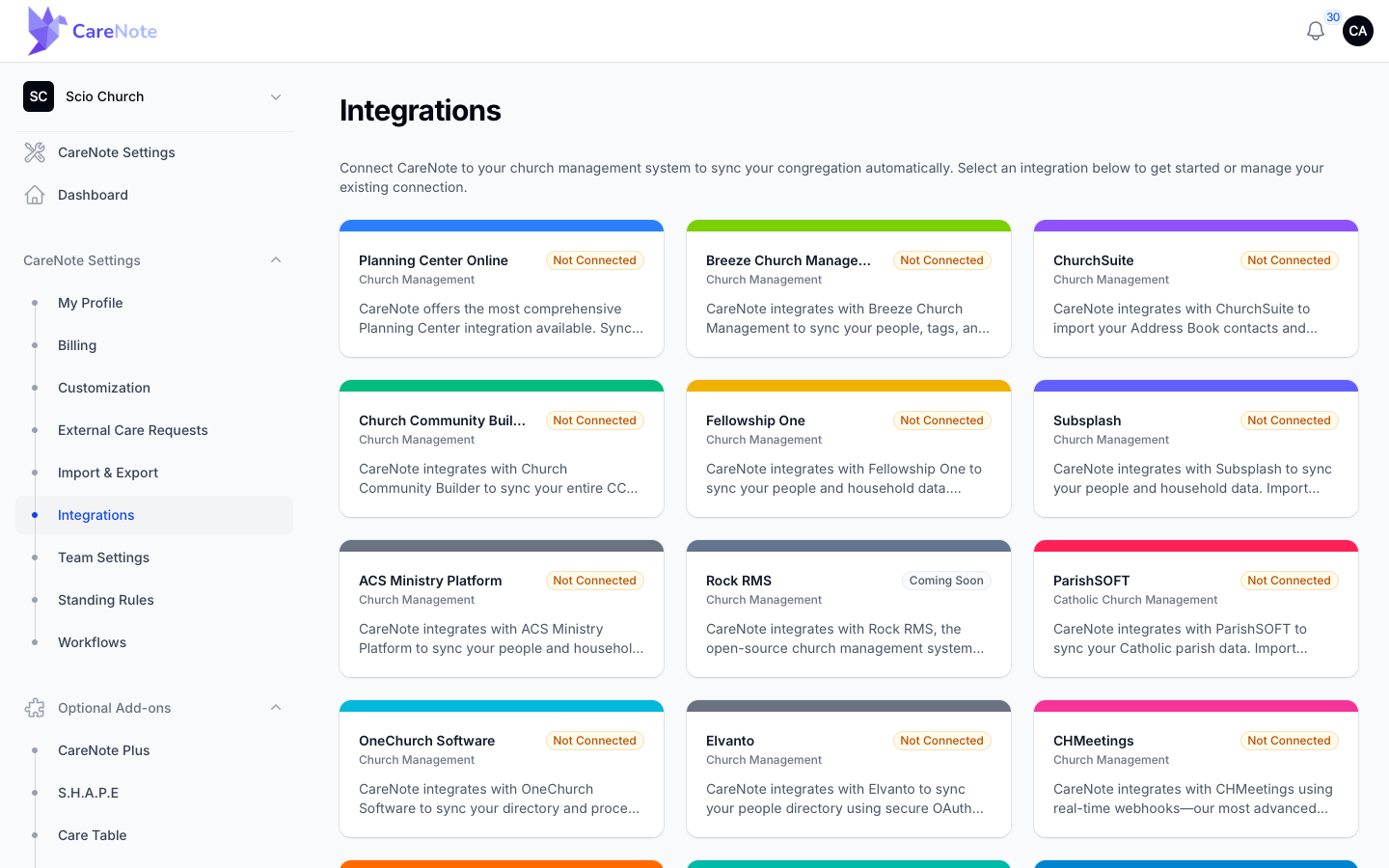
- In the left sidebar, click Integrations.
- Click the Planning Center Online card.
2. Connect your Planning Center account
Before you connect, the hub shows a "Not Connected to Planning Center" banner, and every card except Connection Status is locked.
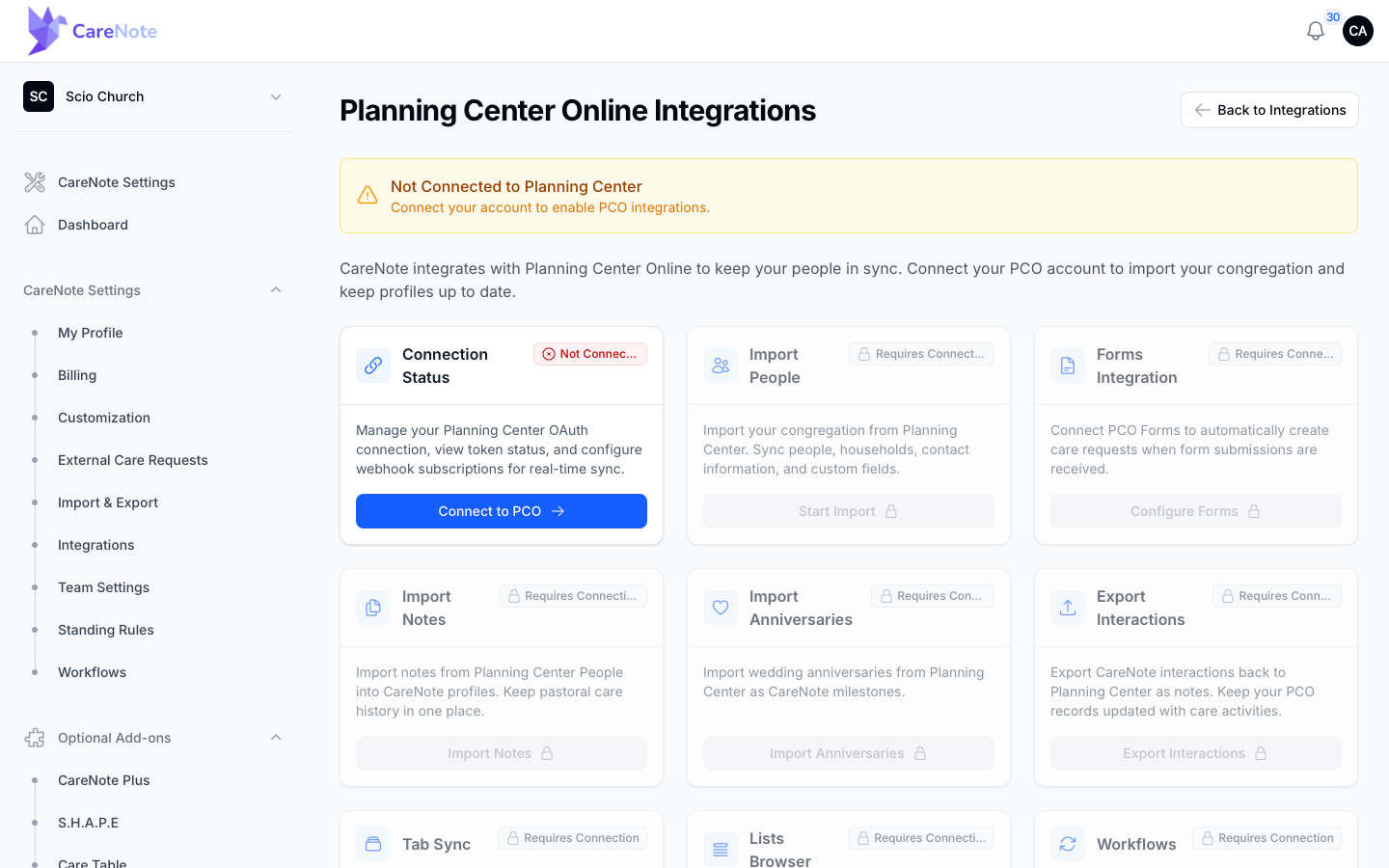
- On the Connection Status card, click Connect to PCO. This opens the page titled Planning Center Online. Once you are connected, the same button on the card reads Manage Connection. If you land on that page, click Connect to Planning Center Online.
- Sign in to Planning Center and approve access.
- Planning Center returns you to CareNote, and the hub shows the connection as active.
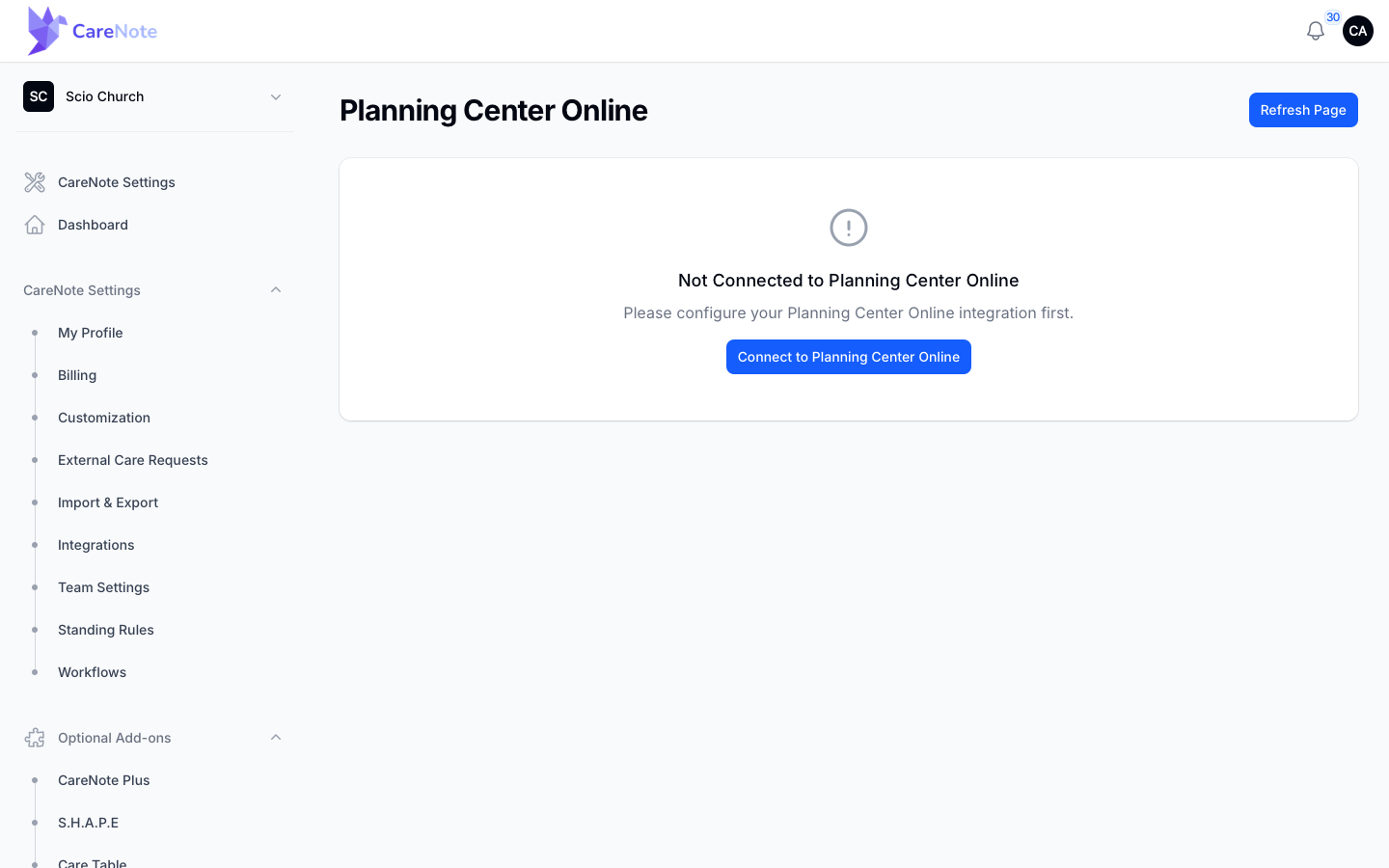
The connection belongs to your whole team, so you only do this once. If you ever need to switch to a different Planning Center account, use Disconnect from PCO on the Planning Center Online page and connect again.
3. Import your people
- On the hub's Import People card, click Start Import.
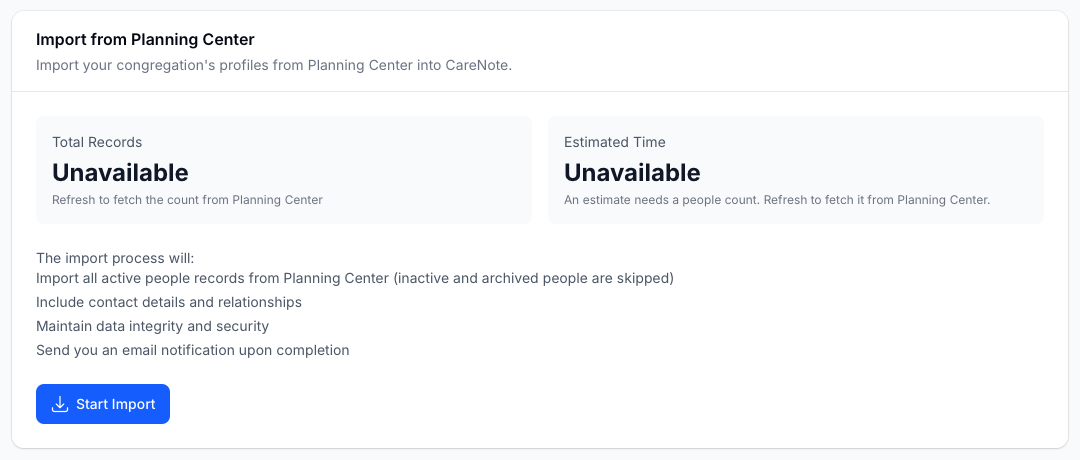
- This opens the Import from Planning Center page. It shows how many people Planning Center has and an estimated time. Click Refresh count from PCO to update the count, which is labeled with the time it was taken.
- Review the list of what will happen, including that inactive and archived people are skipped, then click Start Import on this page. The import begins only from here.
CareNote then takes you to the Planning Center Import Progress page, which walks through six steps: fetching people, processing contact information, creating profiles, importing addresses, building households, and finalizing.
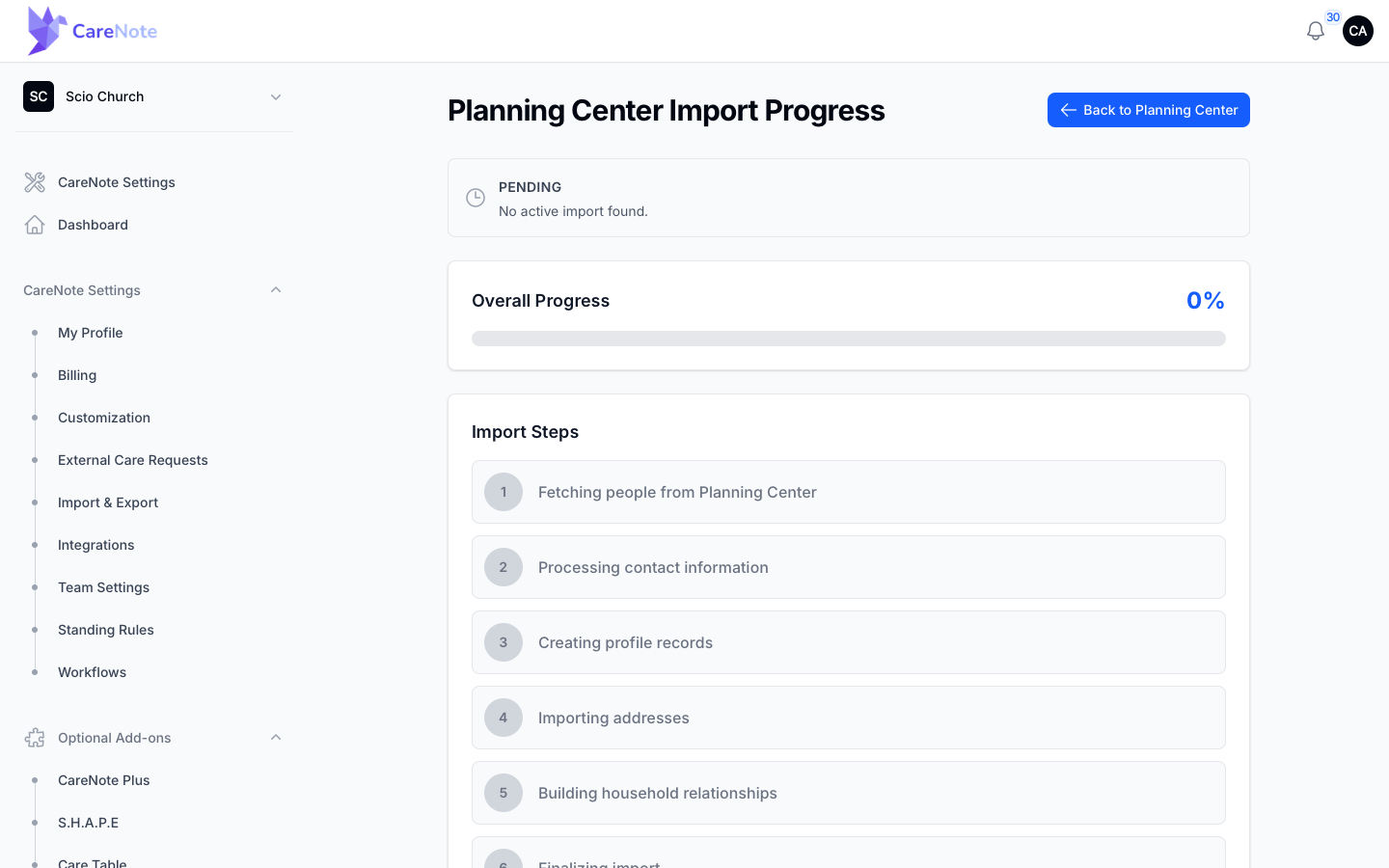
When it finishes, the page gives you a breakdown: how many people were imported, how many inactive or archived people were skipped, and how many could not be imported. Total Records is expected to be larger than Profiles Created, because skipped people are counted in the total. Your team owner also gets an email when the import completes.
Only one import can run at a time. If your connection expires partway through, the owner is asked to reconnect before continuing.
4. Turn on People Sync
This step is easy to miss, and it is what keeps your people current. Until you do it, the import is a one-time snapshot.
- On the hub's Connection Status card, click Manage Connection. This opens the page titled Planning Center Online.
- Find People Synchronization. It shows People Sync Status: Enabled or Disabled, and whether the Created, Updated, and Deleted webhooks are active.
- Click Enable People Sync.
Once it is on, changes in Planning Center flow into CareNote on their own. Until then, the Connection Status card on the hub reads "No Webhooks".
5. Add the CareNote Plus syncs
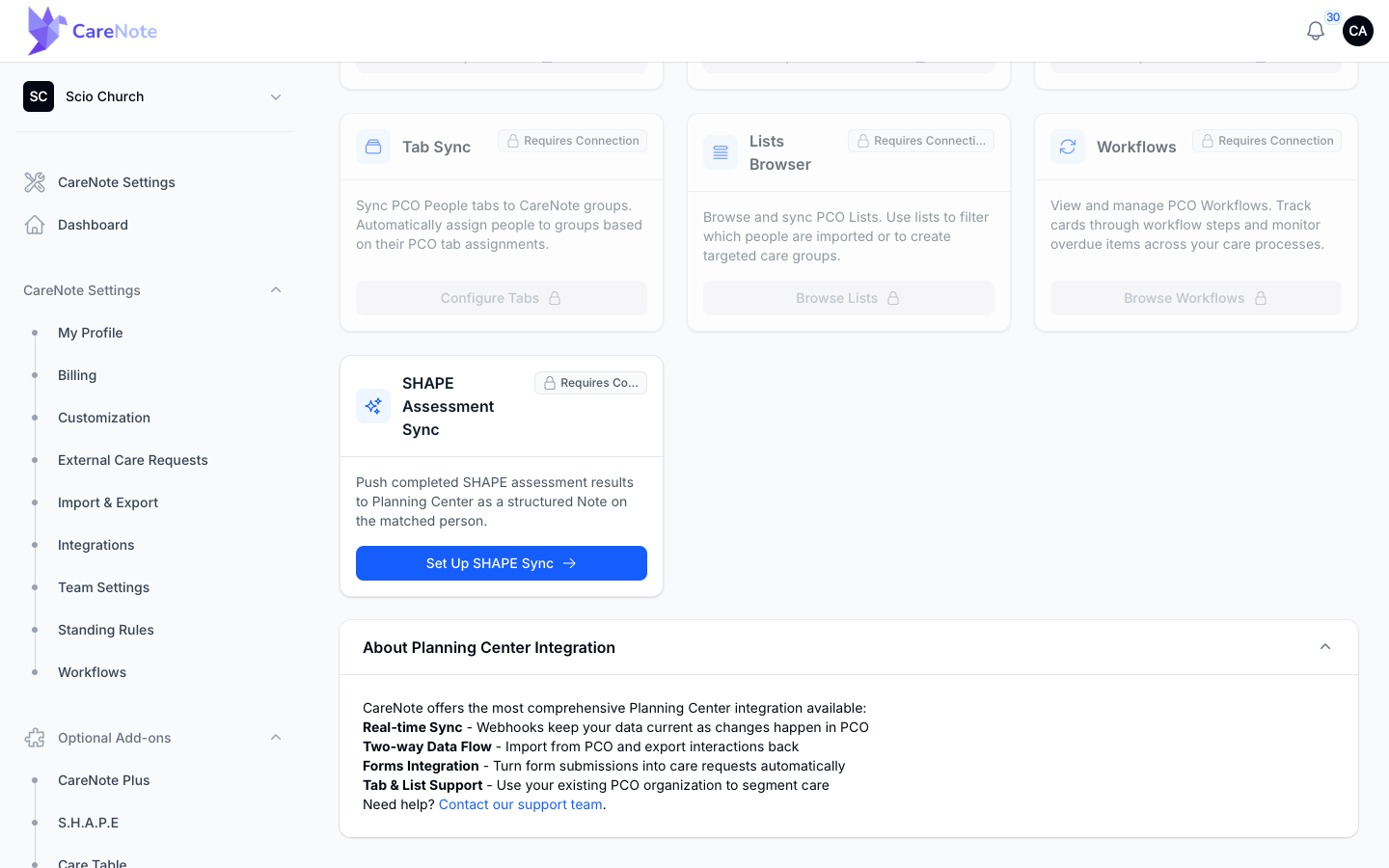
With people in, the Plus cards unlock on the hub, each with its own button such as Configure Forms, Configure Tabs, or Browse Lists. Forms Integration is the one most teams start with, and it has its own guide and video.
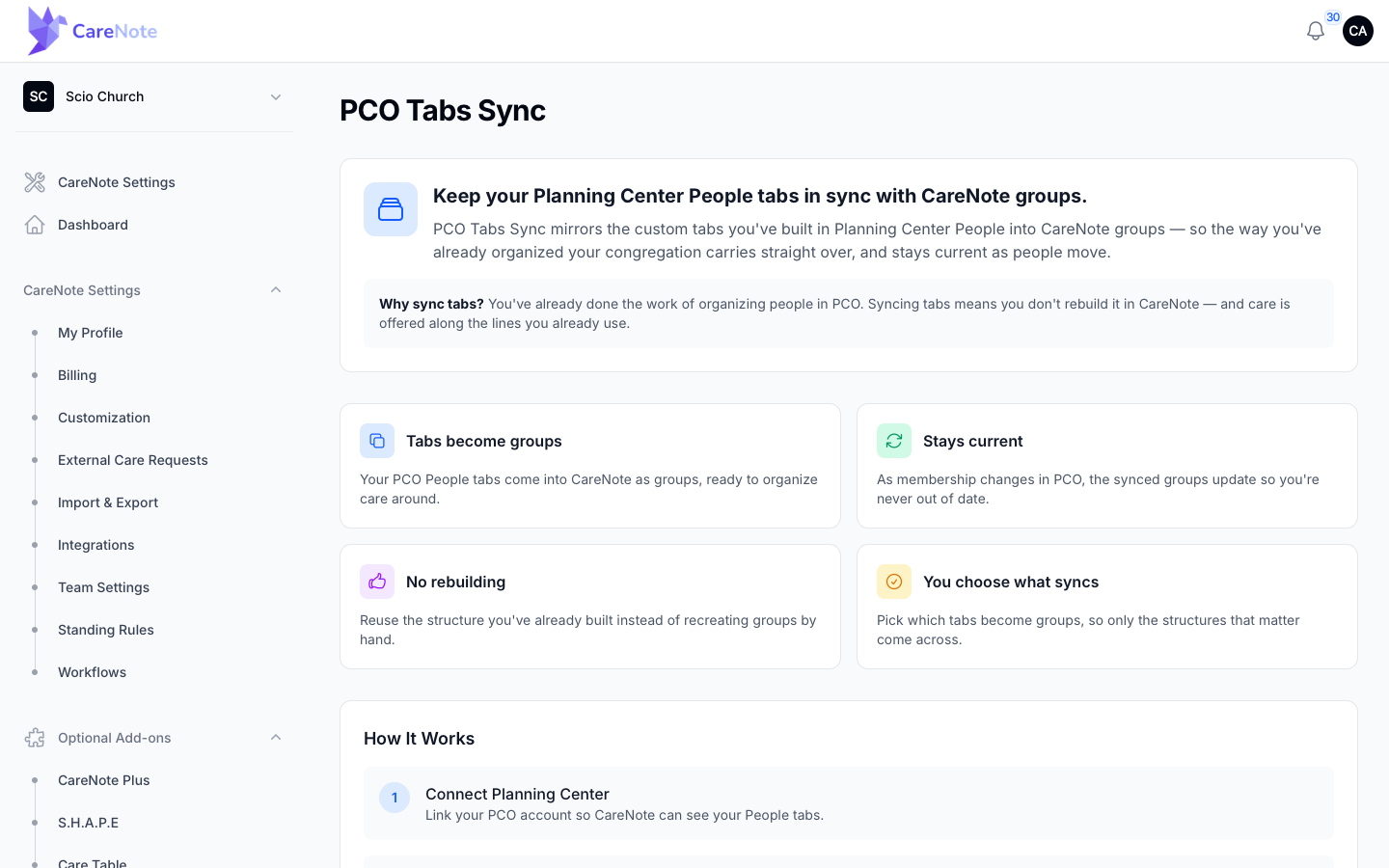
Tab Sync turns PCO tab values into CareNote groups. Those groups mirror Planning Center: when someone leaves a tab value in PCO, they are removed from the group in CareNote at the next sync, which runs twice a day. A synced group shows a banner saying so, because edits made by hand in CareNote are overwritten. To start over, open the tab's configuration in the PCO Tab Sync list and choose Reset from Planning Center.
6. If your church has the SHAPE add-on
Teams with the S.H.A.P.E add-on also see a SHAPE Assessment Sync card. It sends completed assessment results to Planning Center as a note on the matching person. Click Set Up SHAPE Sync (it becomes Manage SHAPE Sync once on). It needs a Planning Center connection first, and the S.H.A.P.E page says so until you have one.
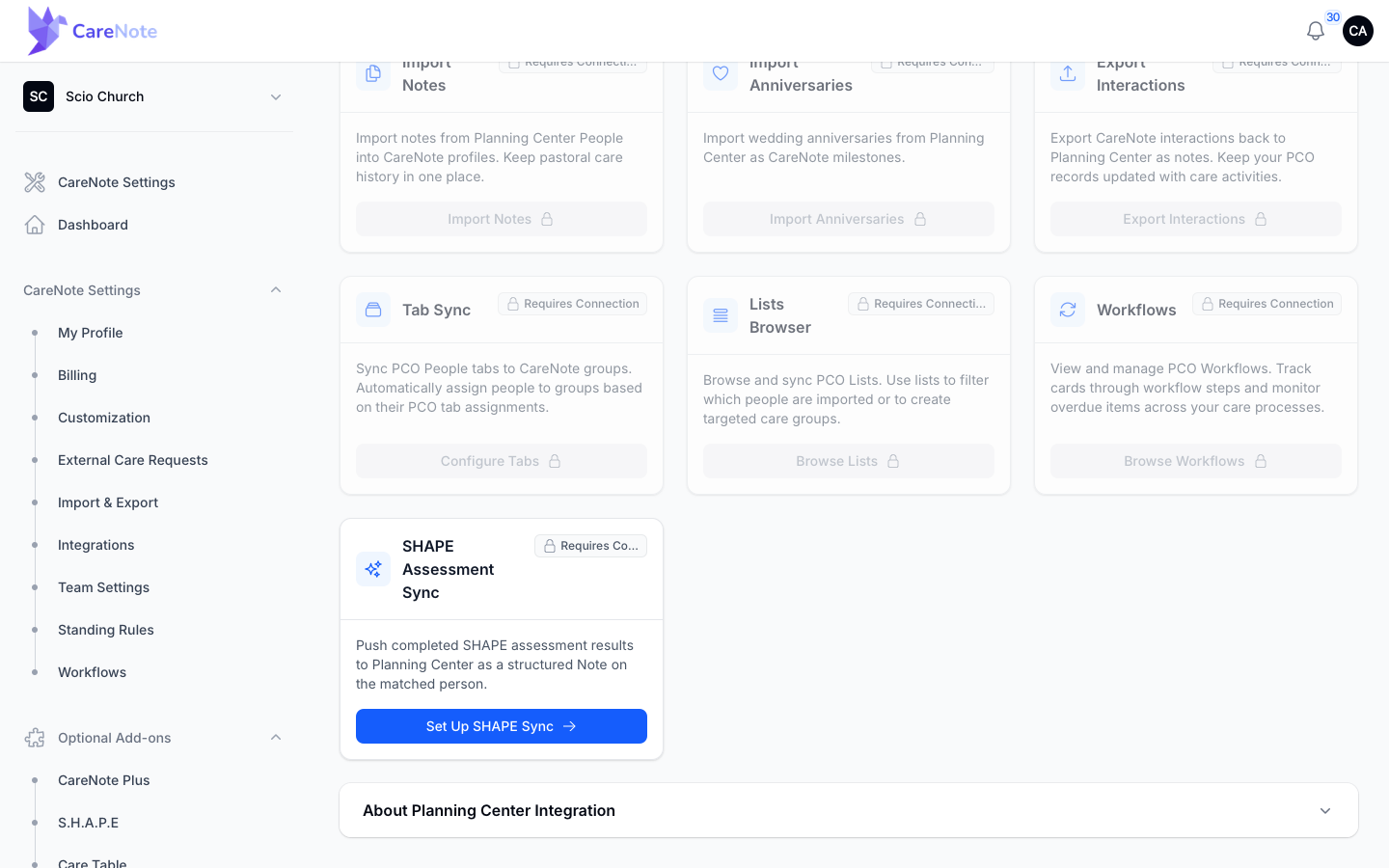
Want the full picture of what the integration can do? Expand About Planning Center Integration at the bottom of the hub.
Frequently asked questions
Do I need CareNote Plus to import my people? No. Importing people, households, and contact details is on the base plan. Plus adds Forms, Notes, Anniversaries, Lists, Tab Sync, and Workflows.
Why are some people in Planning Center missing from CareNote? The import brings in active people only. Inactive and archived people are skipped, and the progress page counts them separately so the numbers add up.
Will CareNote stay up to date after the import? Yes, once People Sync is enabled on the Planning Center Online page (Manage Connection on the hub). Without it, the import is a snapshot.
Who can connect Planning Center? Your team owner. The connection is shared by the whole team.
What if I see a reconnect notice? Your connection with Planning Center has expired. Open the Planning Center Online page (Manage Connection on the hub) and re-authorize, then pick up where you left off.