
Connecting Church Community Builder to CareNote
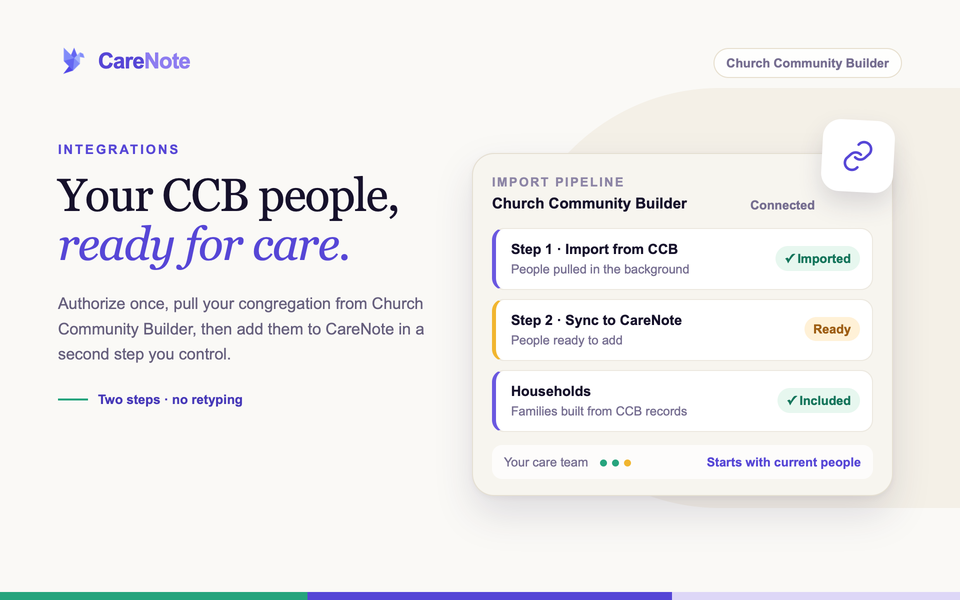
Connecting the two lets you bring your congregation across in a couple of clicks, so your care team starts with real names, contact details, and households.
This guide covers what the connection does, how to set it up, how the two-step import works, and what to expect when you run it again.
What the CCB integration does
CareNote connects to CCB with OAuth 2.0, the same secure handshake many apps use. You sign in on CCB's own page and approve access. Your CCB login is never shared with CareNote.
Once connected, CareNote can pull people from CCB into a holding area, then add them to CareNote as People. It keeps track of who has already been linked, so you do not get duplicate profiles. The import brings each person's name, contact details, and birthday, and builds households for the families CCB has on record. Group memberships are not imported, so group rosters will not appear in CareNote.
If your church has more than one campus, CCB campuses become CareNote campuses, and people who are synced are assigned to the right one. CareNote sets the campuses up for you, and they stay current as people sync.
Only the team owner can set this up. Integrations is in the Owner settings area, which Admins, Team Members, and Huddle Users cannot open.
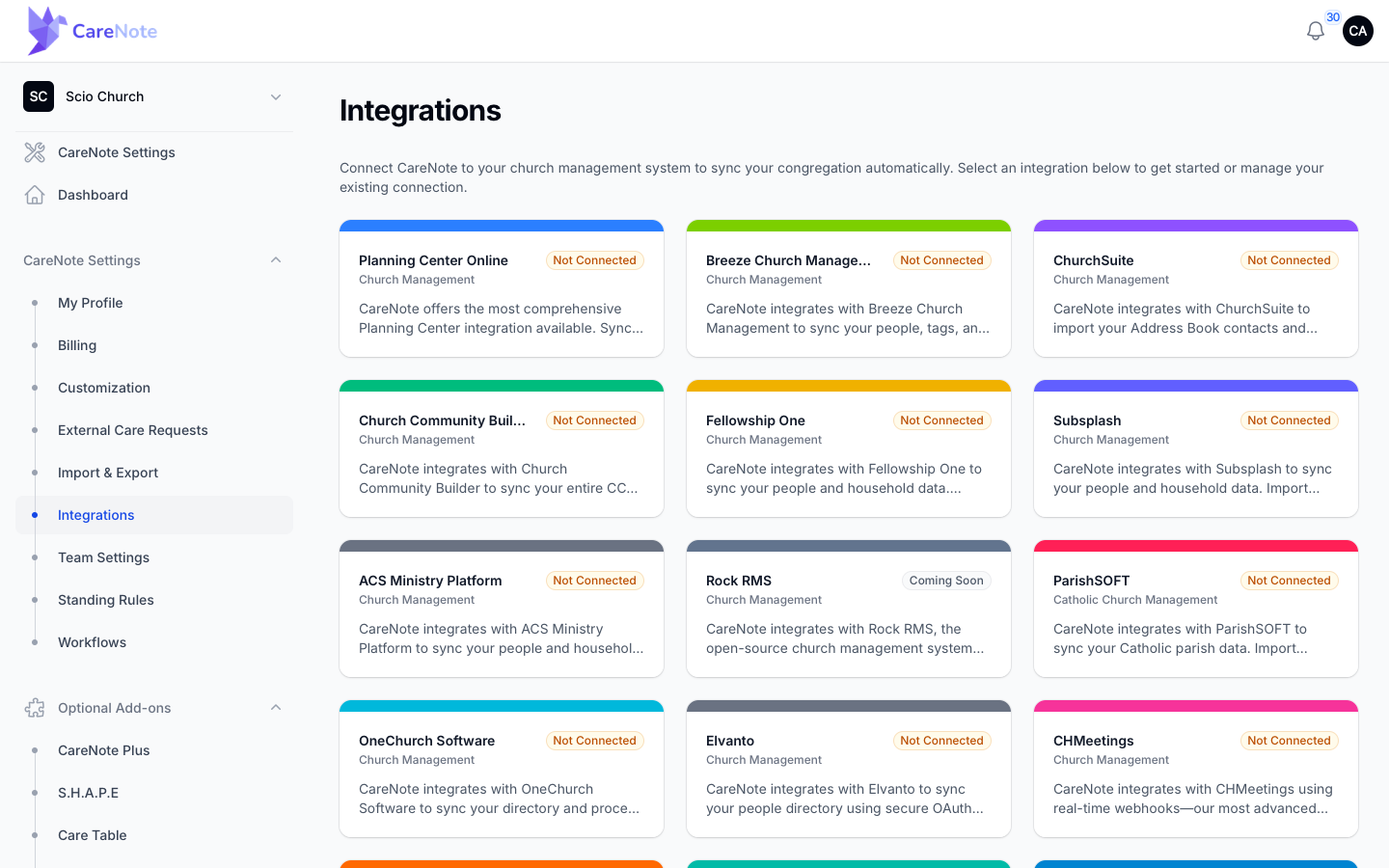
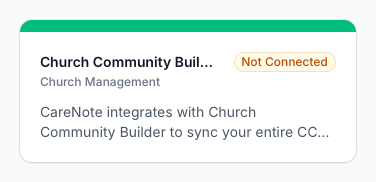
Each card shows a status pill. Church Community Builder reads "Not Connected" until setup is finished. Its name is shortened on the card, but the category says Church Management.
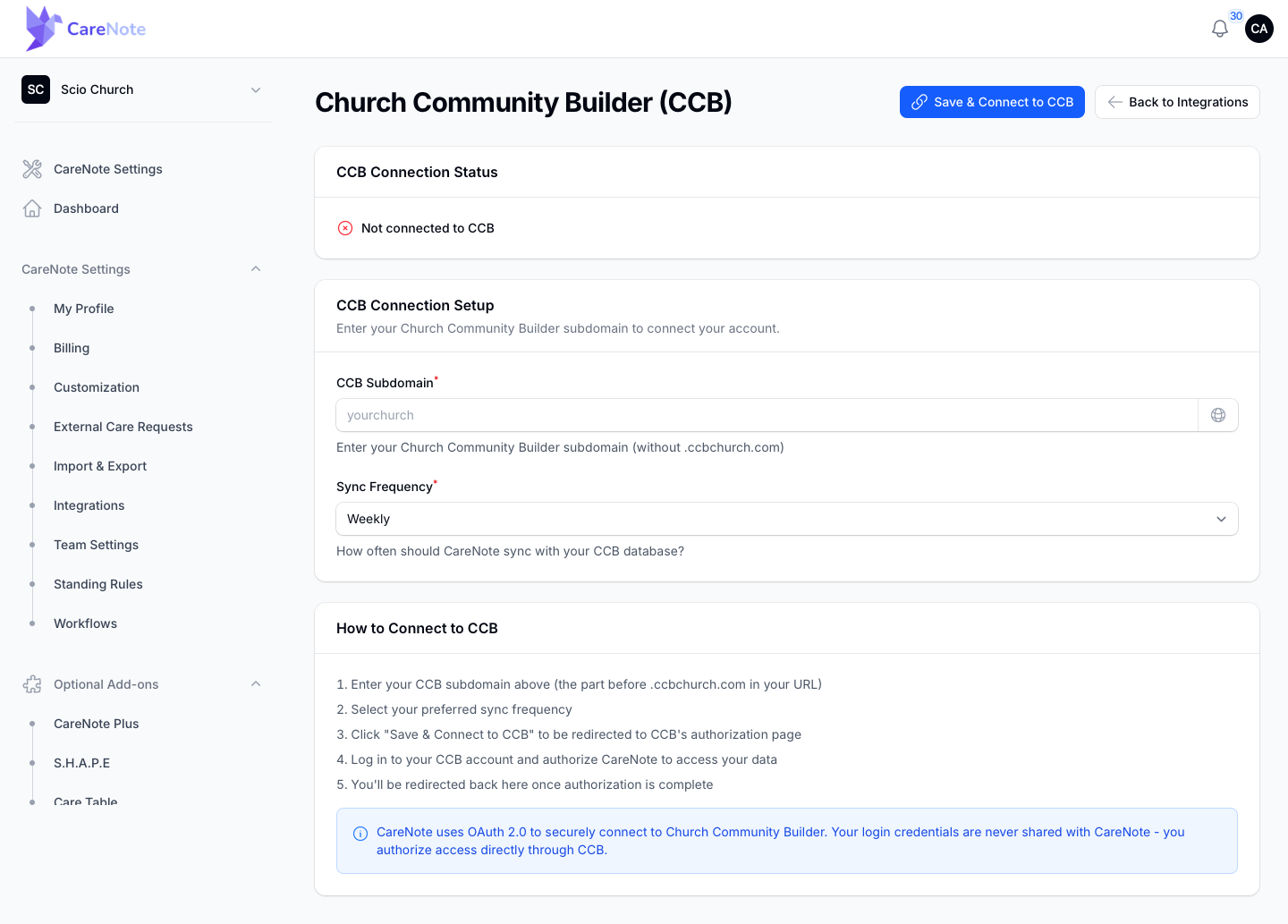
1. Connect Church Community Builder
- In CareNote, open Settings, then Integrations.
- Click the Church Community Builder card.
- Enter your CCB Subdomain, the part before .ccbchurch.com in your CCB address. If your site is mytown.ccbchurch.com, enter "mytown".
- Leave Sync Frequency as it is, or pick Daily, Weekly, or Monthly. See the FAQ below, because this setting does not schedule anything.
- Click Save & Connect to CCB.
- On CCB's authorization page, sign in if asked and approve access for CareNote.
- CCB sends you back to CareNote, and the page now shows you are connected to your subdomain.
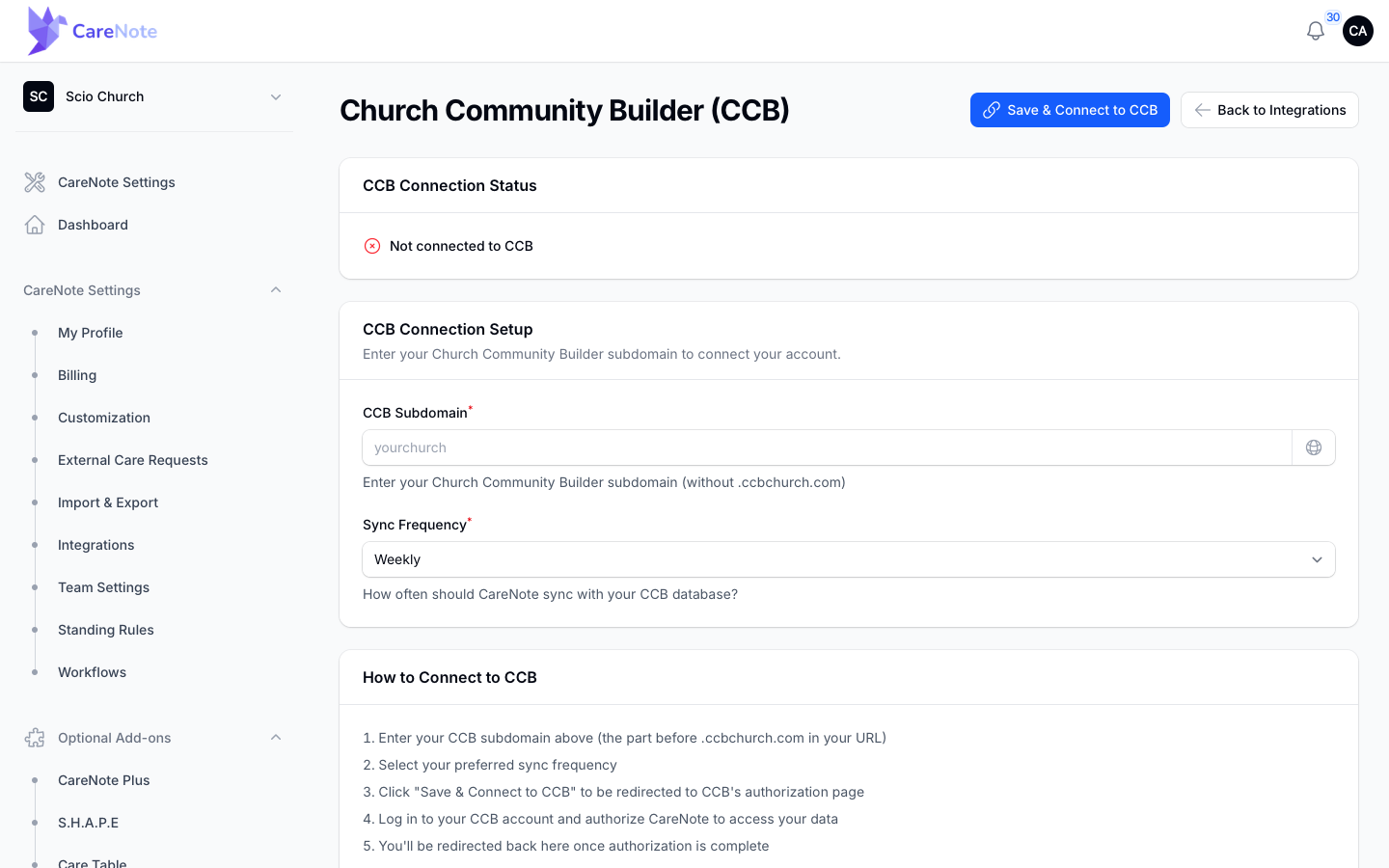
The blue note at the bottom of the page repeats that OAuth 2.0 is used and that your credentials are never shared with CareNote.
2. Import your people in two steps
Once connected, the page header has a gray Actions gear button. Start Import, Sync to CareNote, Test Connection, and Update Settings all live inside it. The Import Pipeline card shows progress for each step.
Step 1: Import from CCB
- Open the gear Actions menu and click Start Import.
- CareNote checks your connection and refreshes it if it expired.
- People are pulled in the background, so you can keep working. The pipeline row shows progress and how many were imported.
- If something goes wrong you will see an error, and you can click Start Import again. If an import stalls, CareNote closes it out overnight so Step 2 does not stay locked.
Step 2: Sync to CareNote
- When Step 1 finishes, the pipeline tells you how many people are ready to add. Open Actions and click Sync to CareNote.
- CareNote matches each person to an existing profile first by their CCB record, then by email or name. Anyone who does not match becomes a new person, with a household built from their CCB family.
- A second progress row tracks the adds, and you are notified when it finishes.
Sync to CareNote is grayed out when nobody is waiting. Inactive and deceased people in CCB are skipped.
3. Running it again later
Start Import refreshes what CareNote has staged from CCB. Sync to CareNote only adds people who are not yet linked to a profile. People already linked are not updated from CCB, so changes to their details in CCB will not appear on their CareNote profile.
A nightly job at 2 AM Eastern also adds already-pulled, not-yet-linked people to existing profiles that match. It never creates new people. New people only appear when you click Sync to CareNote.
4. Disconnect or reconnect
The CCB Connection Status card has a red Disconnect button. CareNote asks you to confirm. Disconnecting stops syncing but does not delete anyone already added. If a saved connection can be restored, a green Reconnect button replaces Disconnect, and one click brings it back. To change your subdomain later, use Update Settings in the gear menu.
Next steps
If your care history lives in a spreadsheet, you can bring it in with Import Interactions from the Actions menu on the Interactions page.
Frequently asked questions
Does CareNote see my CCB login? No. You sign in on CCB's page and approve access. Your password is never shared with CareNote.
What does Sync Frequency do? Right now it is saved and shown as a badge, but nothing runs on that schedule. CareNote only pulls from CCB when someone clicks Start Import.
I changed a phone number in CCB. Why is it not in CareNote? Sync to CareNote only processes people who are not yet linked to a profile. Update already-linked people in CareNote directly.
Does it work for churches with several campuses? Yes. CCB campuses become CareNote campuses, and synced people are assigned to them.
What happens to people if I disconnect? They stay in CareNote. Disconnecting only removes the connection.
Watch
There is no video for the CCB connection yet. This related tutorial covers bringing care history in from a spreadsheet: