
Importing Interactions from a Spreadsheet
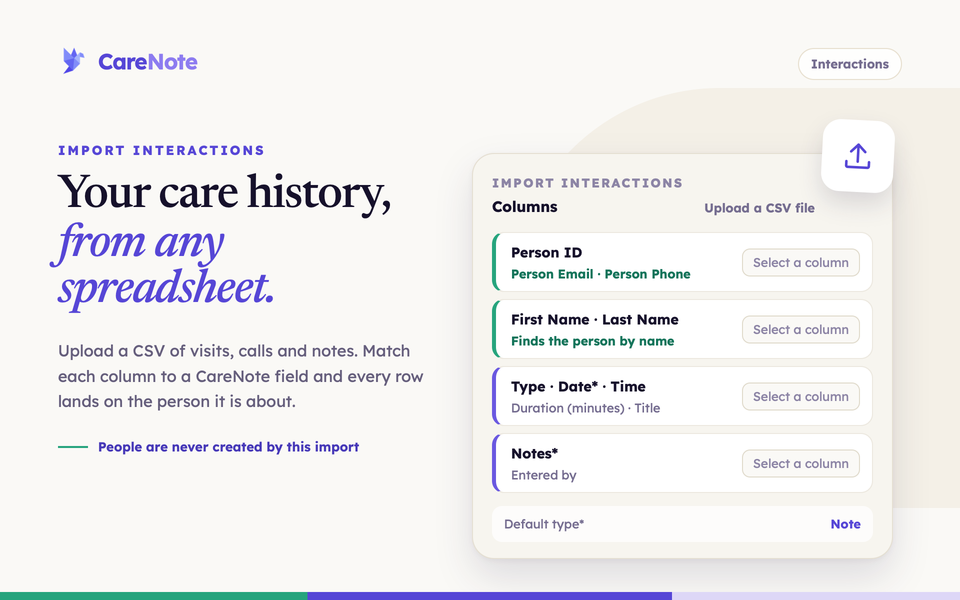
Plenty of care teams kept their history long before CareNote: a spreadsheet of hospital visits, a tab of phone calls, a column of notes. You should not have to retype any of it. The interactions import lets you upload that spreadsheet as a CSV file, and every row lands on the right person's Care Story.
Watch how to import visits, calls and notes from a spreadsheet.
This guide shows you where the import lives, how to match your columns, what the results mean, and how to fix and re-upload anything that did not go through. It works the same way for administrators and for Team Members. For everything else about logging care, see our Logging Care guide.
What the import does
Each row of your spreadsheet becomes one interaction: a visit, a call, a text, a note, or any other interaction type. CareNote finds the person each row is about, and adds the interaction to their Care Story.
Two things are worth knowing up front:
- People are never created by this import. Everyone in your spreadsheet must already be in CareNote. Import your people first, then their interactions.
- Re-uploading is safe. A row that matches an interaction CareNote already has (same person, type, day and notes) is skipped, so a corrected file never doubles your entries.
1. Prepare your spreadsheet
Save your spreadsheet as a CSV file. You need three things in every row:
- Who it is about. At least one of a Person ID, an email, a phone number, a full name, or separate first and last name columns.
- Date. Required.
- Notes. Required.
Optional columns are Type, Time, Duration (minutes), Title and Entered by. If a row has no Type, CareNote uses the Default type you choose later.
Here is a small example from our Scio Church demo team. Every row identifies the person a different way:
| Person ID | Person Email | First Name | Last Name | Type | Date | Notes |
|---|---|---|---|---|---|---|
| 1477075 | Home Visit | 10/02/2026 | Brought a casserole and sat for an hour. | |||
| [email protected] | Phone Call | 10/03/2026 | Follow-up appointment went well. | |||
| Linda | Okafor | Text Message | 10/04/2026 | Sent a note of encouragement. |
Not sure how to lay it out? The import window has a Download example CSV file link with the right headers.
2. Open Import Interactions
The import lives on the Interactions page, not on a person's page.
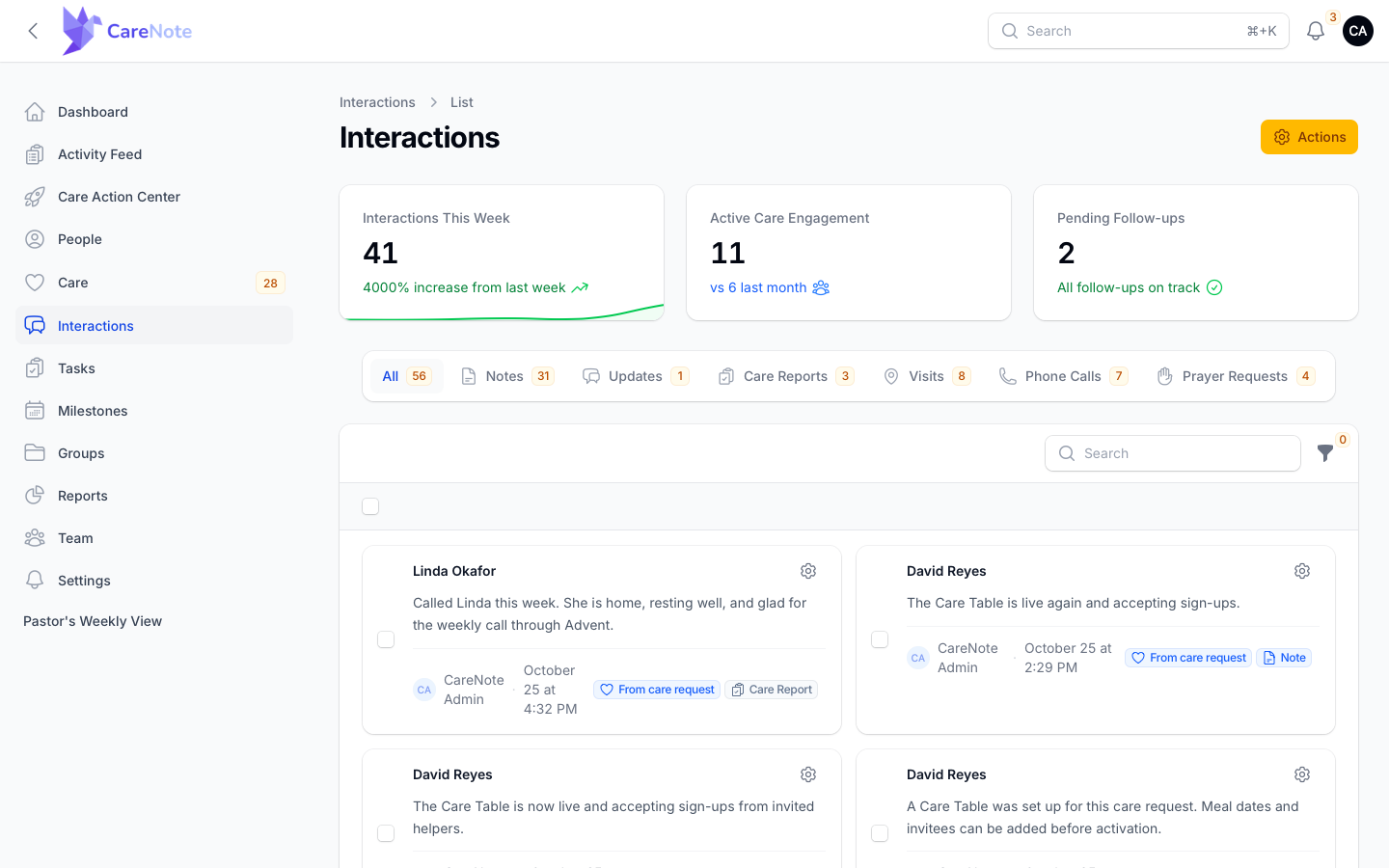
- Administrators: open Interactions in the left navigation.
- Team Members: open Interactions in the top navigation of your dashboard.
Then click the gear Actions button at the top of the list. It holds two items: New interaction and Import Interactions. Choose Import Interactions.
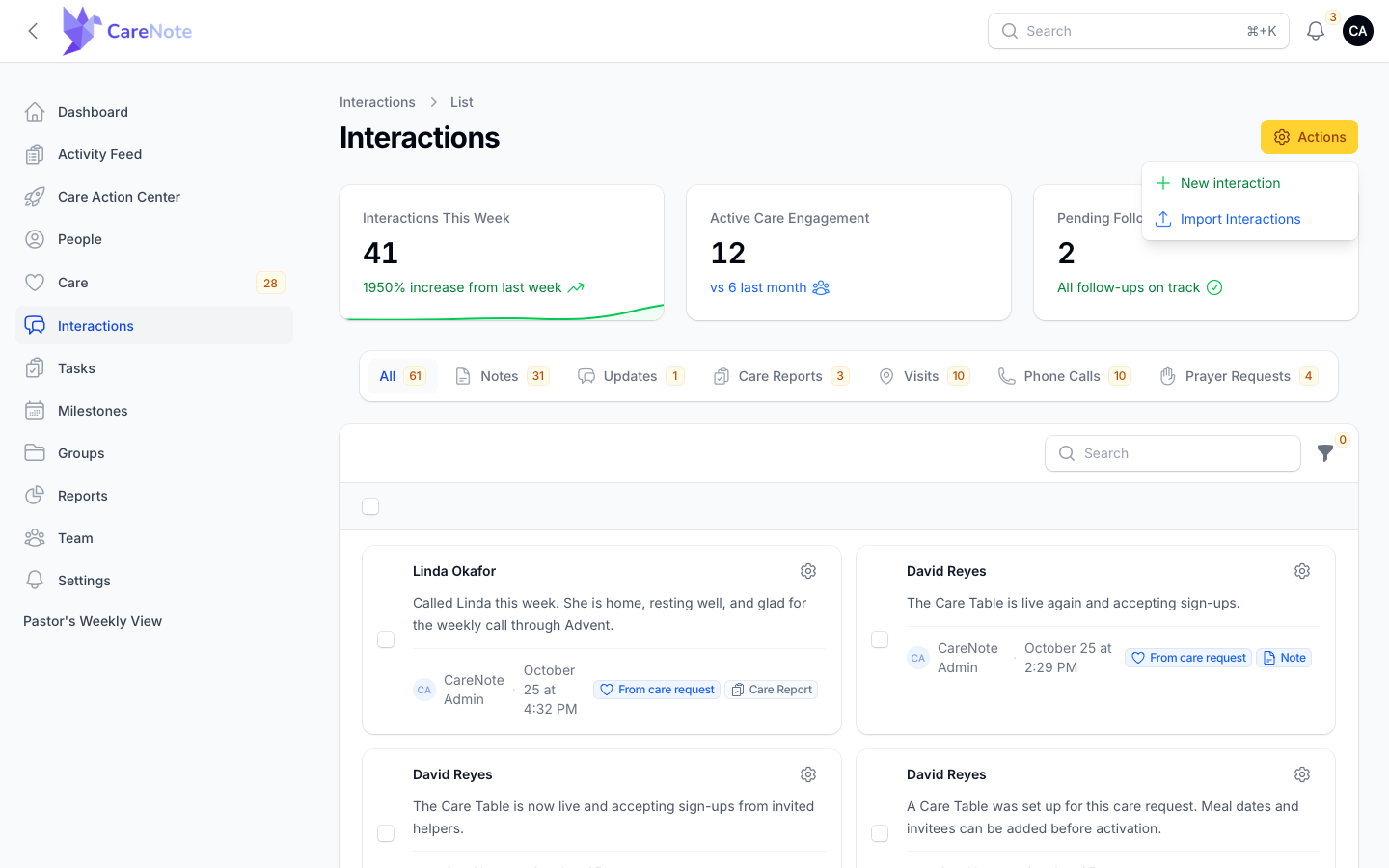
If you do not see the Actions menu, your account may be limited to one campus. Ask an administrator to run the import for you.
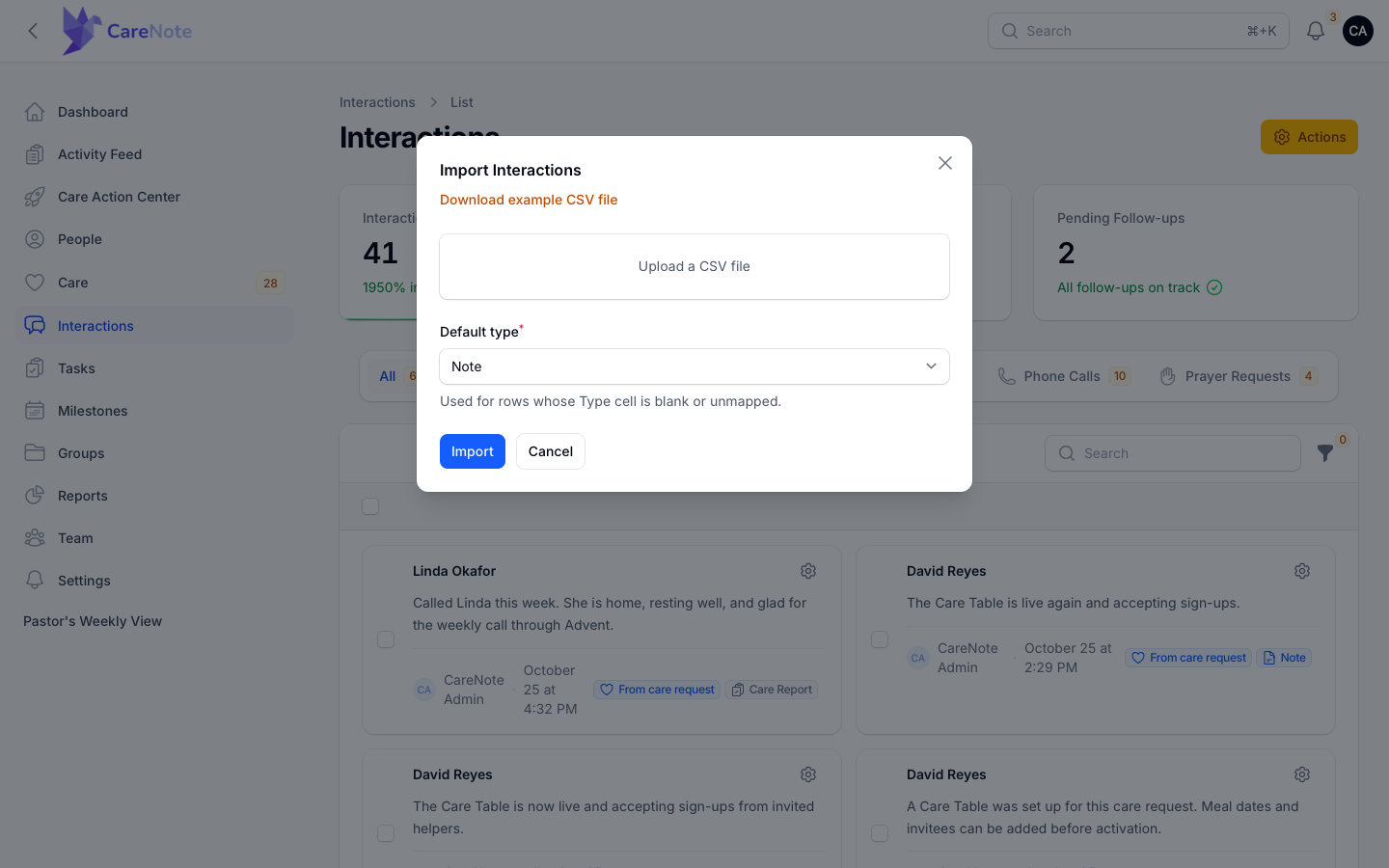
Team Members see the same window, and the same Actions menu appears on your dashboard.
3. Upload your file and match the columns
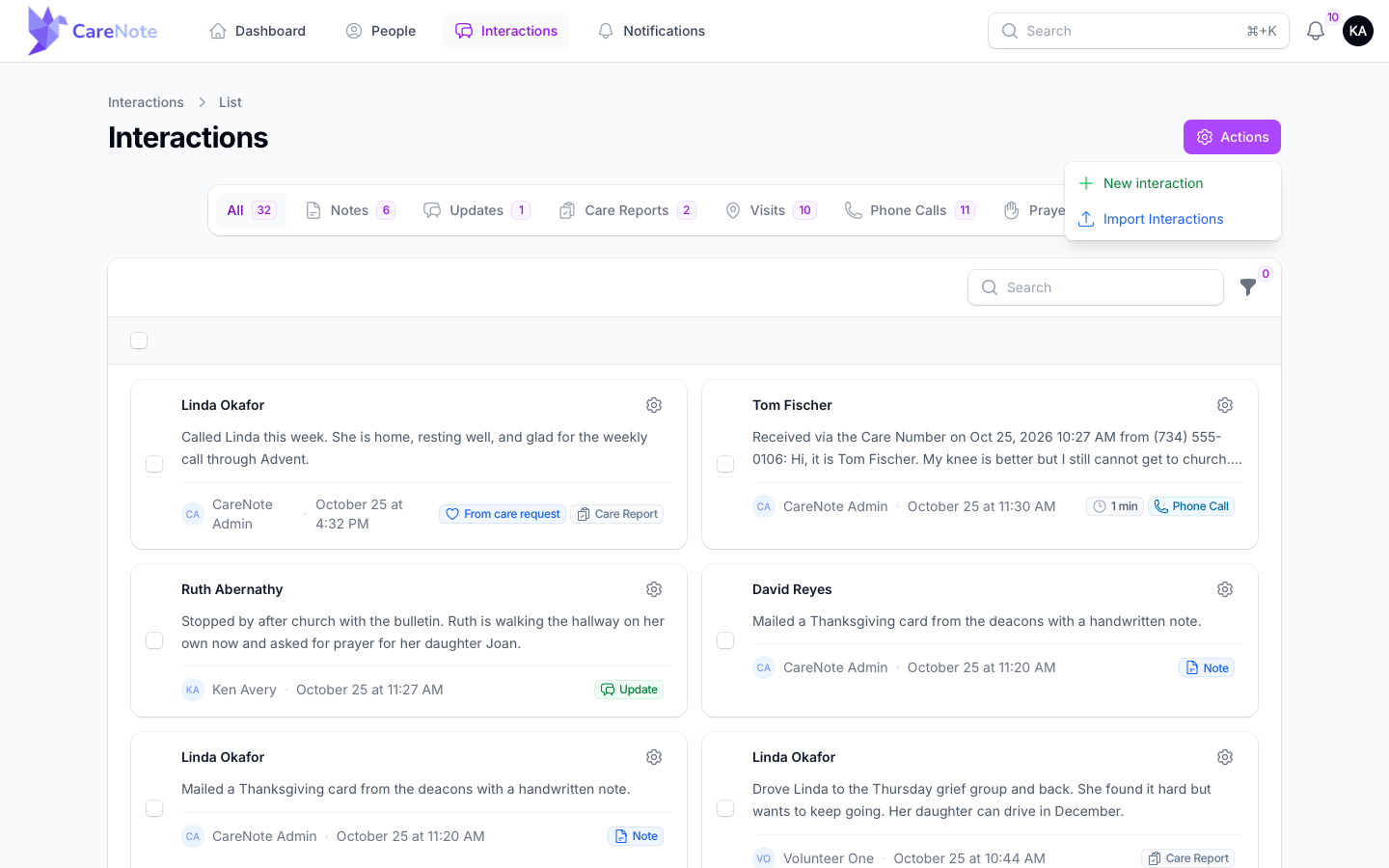
Drop your CSV on Upload a CSV file, or click it to choose the file. A Columns box appears with one dropdown for each CareNote field: Person ID, Person, First Name, Last Name, Person Email, Person Phone, Type, Date, Time, Duration (minutes), Title, Notes and Entered by.
Headers that match a field name are chosen for you. In the example below, Person ID, First Name, Last Name and Person Email were matched automatically. Open any dropdown that still says Select a column and pick the right header from your file.
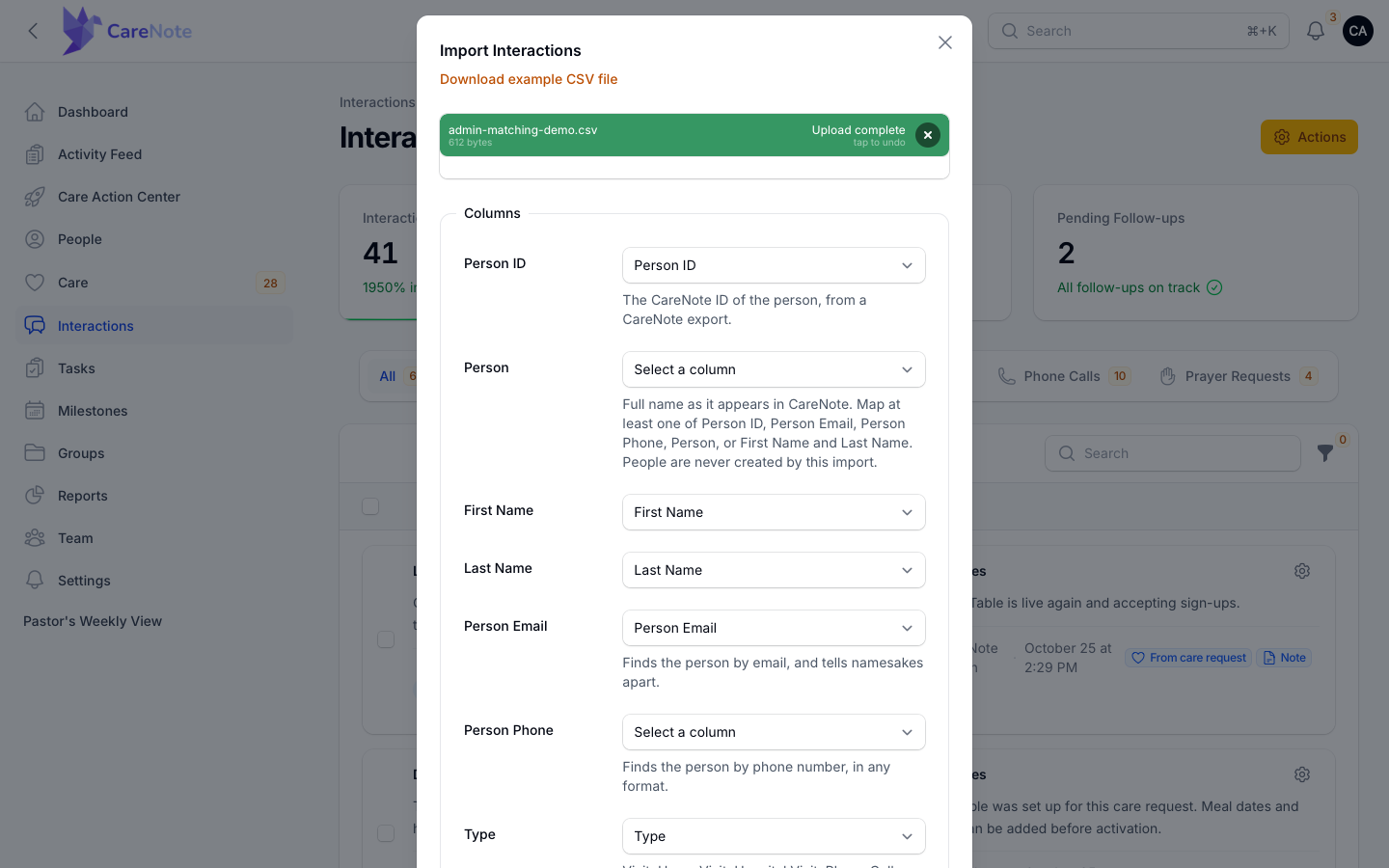
How CareNote finds each person:
- It looks at Person ID, Person Email and Person Phone first, then uses the name.
- A name also tells apart two people who share a family email or phone number.
- Phone numbers match in any format.
- A single full-name column goes in Person. A Team Member's file with a Name header was matched to Person automatically.
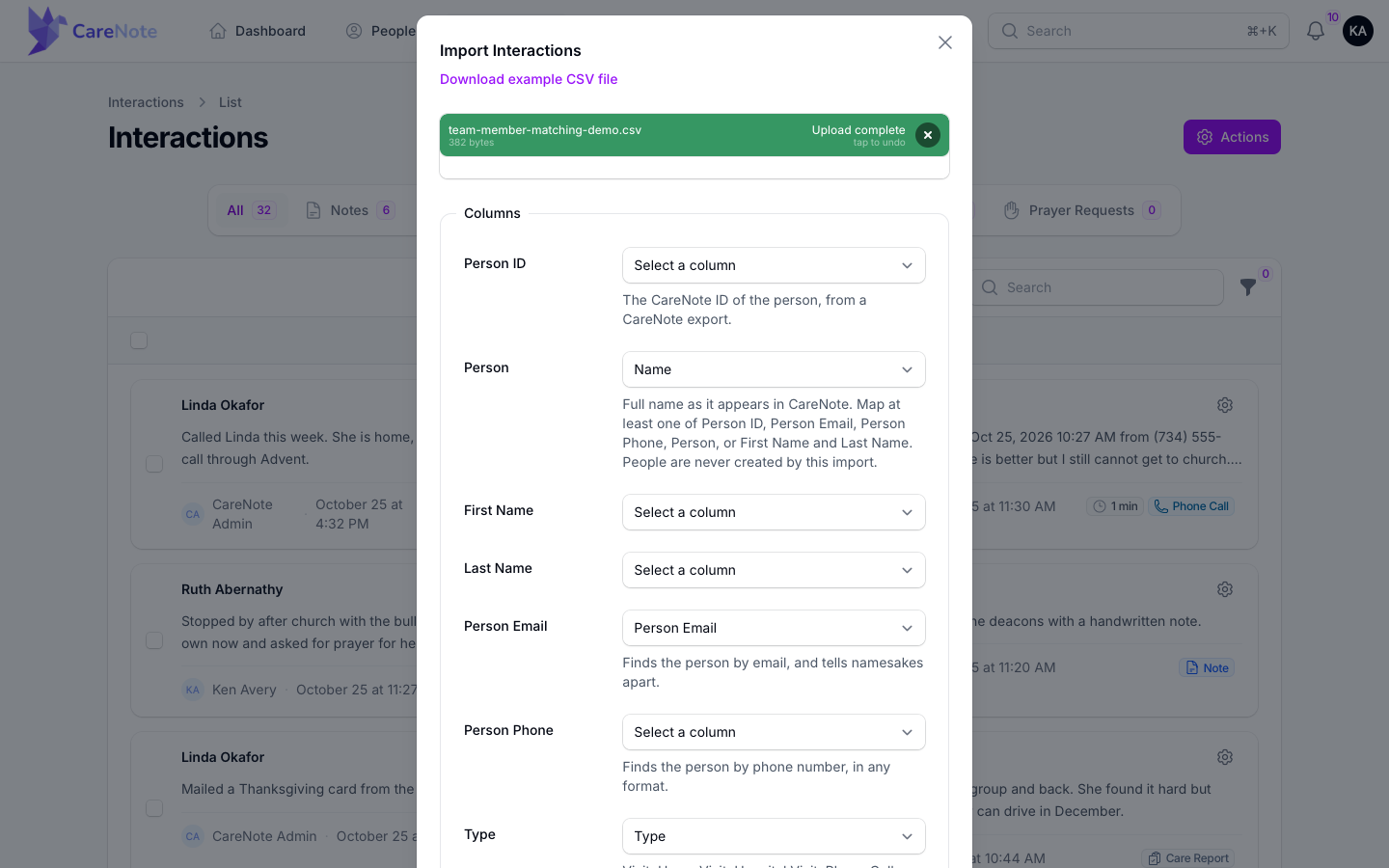
You must map at least one way to identify the person, plus Date and Notes.
4. Choose the Default type and Entered by
Scroll to the bottom of the window. Default type starts as Note. It is used for any row whose Type cell is blank or not matched. The types you can use in a Type column are Visit, Home Visit, Hospital Visit, Phone Call, Text Message, Email, Note, Update and Prayer Request.
Entered by is optional. It credits a row to a team member by name or email. Blank rows are credited to you.
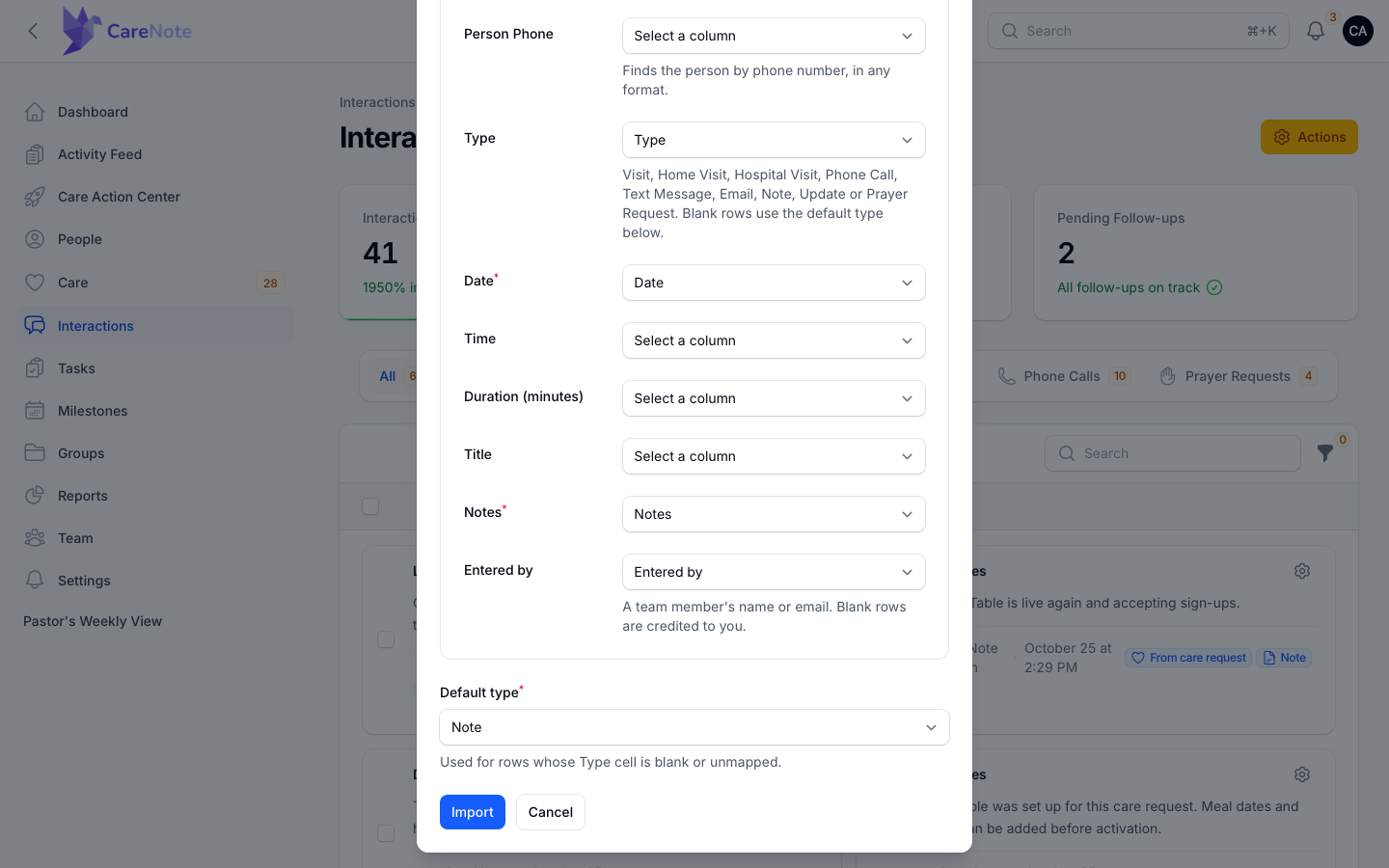
Only an administrator can credit a row to someone else. If a Team Member puts another person in Entered by, that row fails with the message "Only an administrator can credit a row to another team member. Leave Entered by blank, or put your own name there."
Click Import when you are ready.
5. Read the results
When the import finishes, a notice titled Import completed stays on screen until you close it. It tells you how many rows were imported and, if any were not, how many failed. Rows that were already recorded are counted too, in a line such as "2 rows were already recorded and skipped". That is why uploading a corrected file again is safe.
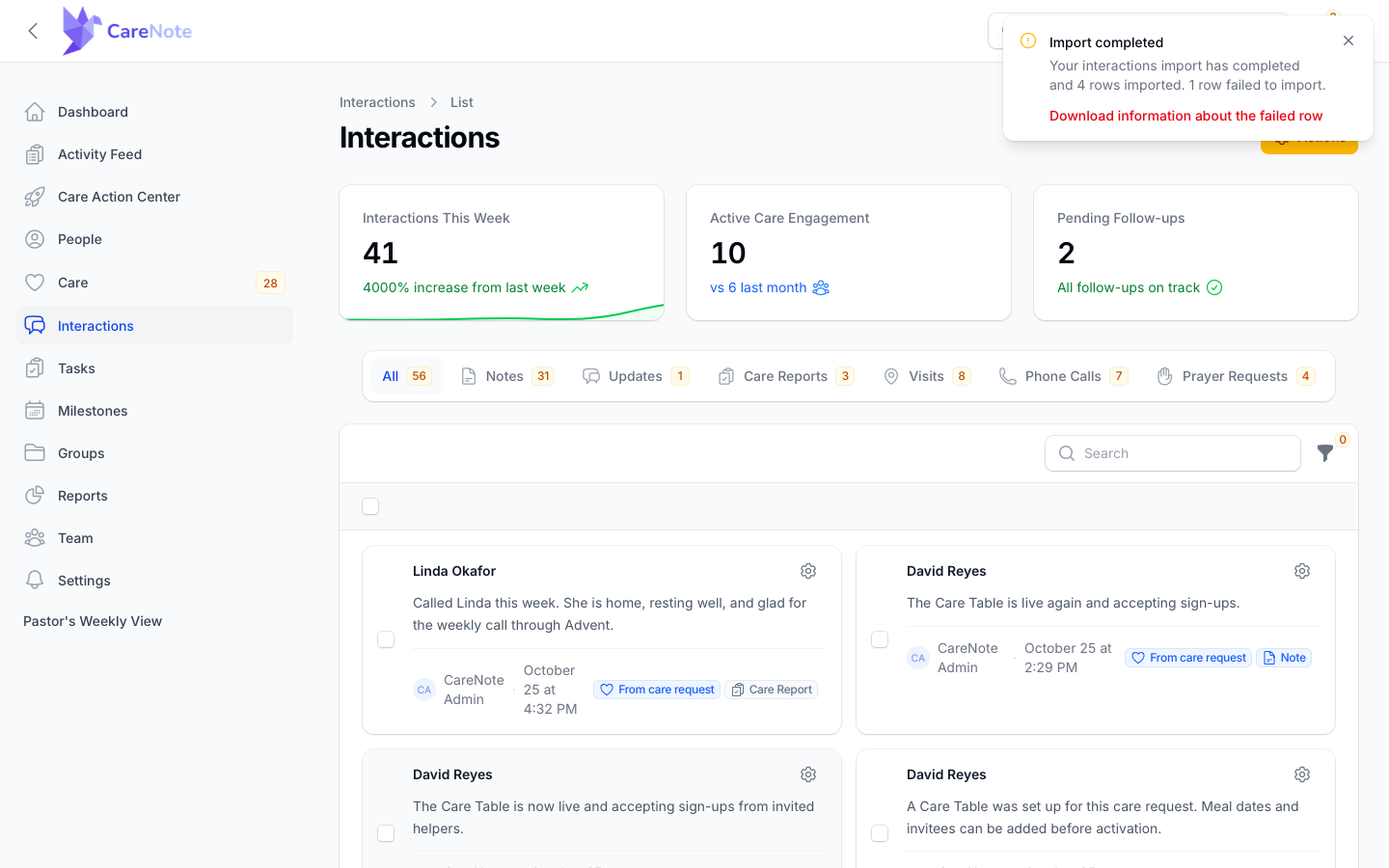
If every row went through, you will see only the imported count.
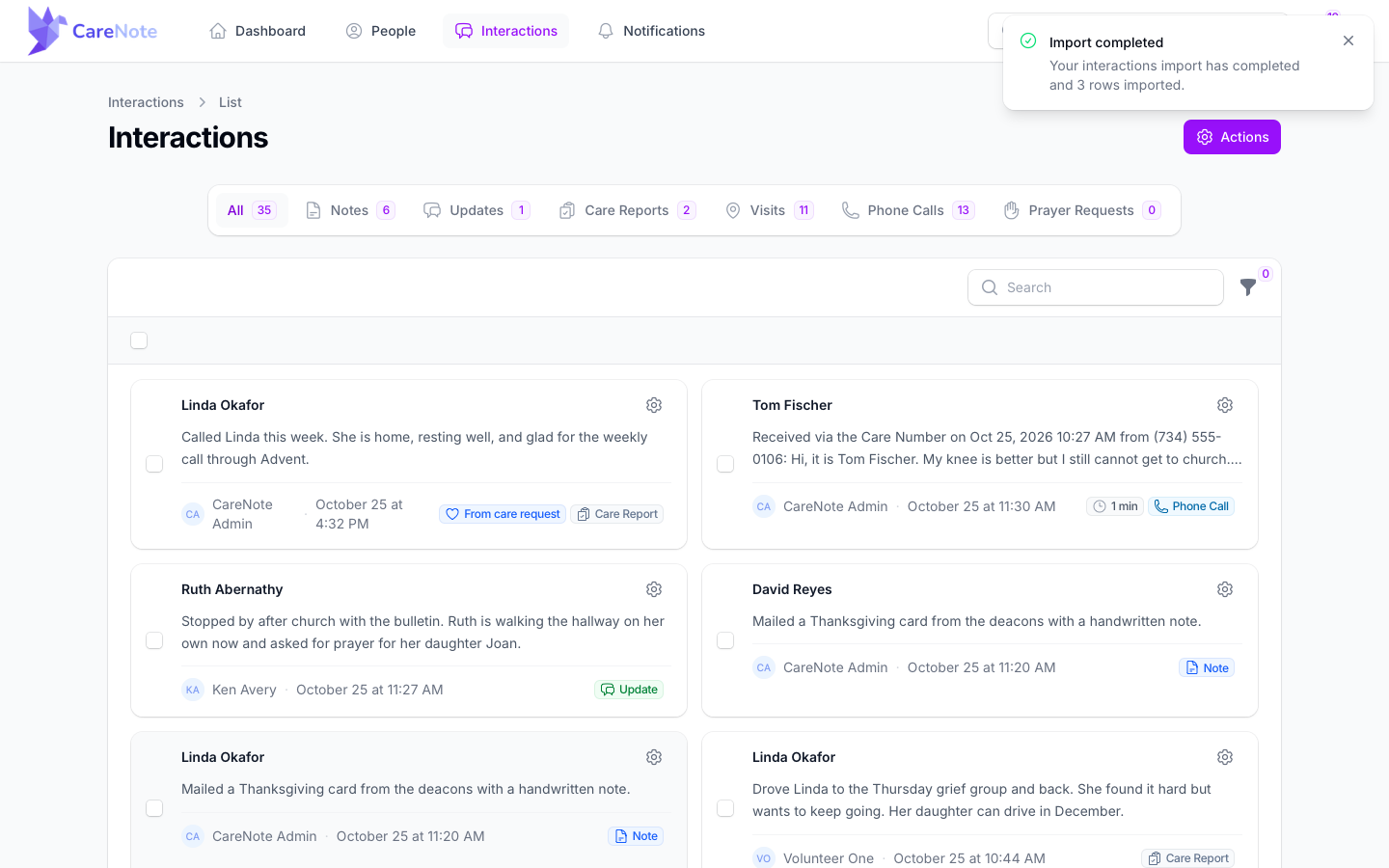
Your new interactions appear on the Interactions list right away, and on each person's Care Story.
6. Fix any failed rows and upload again
When some rows fail, click Download information about the failed row in the notice. You get a file listing each row that was not placed, with the reason. In our example, the row for a person who is not on the team failed with: No person named "Pat Nobody" was found on this team. Import people first, then their interactions.
Other reasons you may see:
- When a Person ID matches no one: "No person with ID 4821 was found on this team."
- When an identifier is shared: "2 people on this team share [email protected]. Add a Person or First Name and Last Name column to tell them apart."
- The row does not say who it is about.
Correct the spreadsheet, or add the missing person to CareNote, then upload the file again. Rows that already went in are skipped.
Frequently asked questions
Can the import add people who are not in CareNote yet? No. The interactions import never creates people. Add them first, then import their interactions.
Will importing old visits send notifications or create tasks? Imported rows are treated as history. They are added to the Care Story without the side effects that come from logging a brand-new note.
Why did the same row not appear twice when I re-uploaded? CareNote skips a row that matches an existing interaction for the same person, type, day and notes. That makes it safe to fix a file and upload it again.
Why is the Actions menu missing? Accounts limited to a single campus cannot import. Ask an administrator, or ask for your campus access to be changed.
Can I credit a visit to another team member? Administrators can, using the Entered by column. Team Members can only import rows credited to themselves.
Watch
- Import Interactions: Bring Visits, Calls and Notes from Any Spreadsheet into CareNote (for Care Administrators)
- Team Members: Import Your Visits and Calls from a Spreadsheet (for Team Members)