
Huddles: Inviting Trusted Care Providers into One Care Request
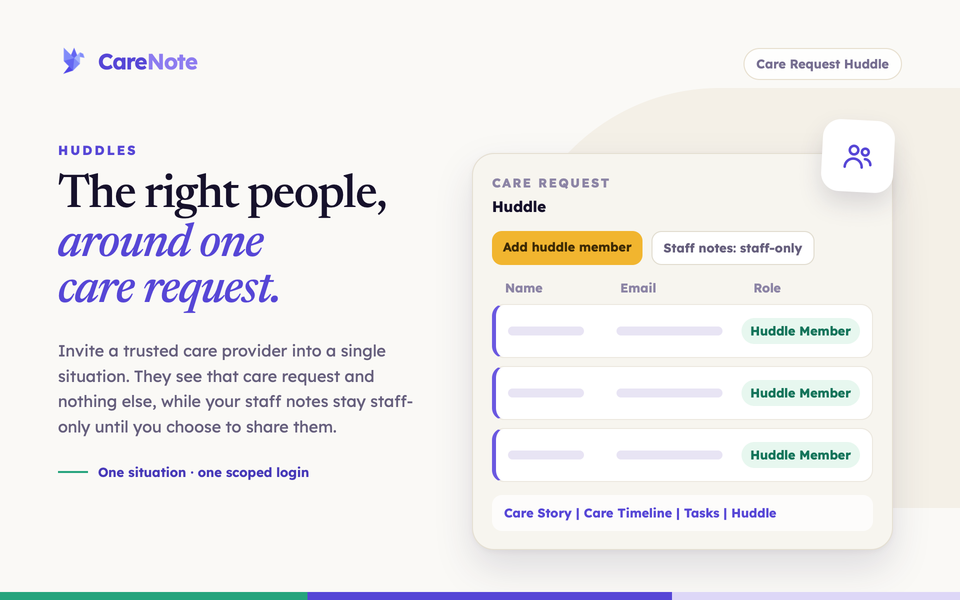
Some of the best care for a hurting family comes from the people closest to them: a neighbor, a small group leader, a chaplain, a relative who also attends. You want them in the loop. You do not want them browsing your whole care roster. A huddle solves that. It gives a trusted person a login of their own that shows one care request, or one person, and nothing else.
Watch the Huddle explainer, which shows how the right people gather around one care request.
What a huddle is
A huddle is a shared, chronological view of the care happening around one situation. The people in it have the role Huddle Member. They sign in to their own Huddle panel, read the care story, and log their own updates. They cannot edit, close or reassign the care request, and they cannot change who else is in the huddle.
There are two kinds of huddle:
- Care request huddle: members see one care request.
- Profile huddle: members "shepherd" one person, and see that person's contact card and Care Story.
Huddles are part of CareNote Plus. If your Huddle tab shows an upsell instead of a roster, that feature needs to be added first.
1. Add a Huddle Member to a care request
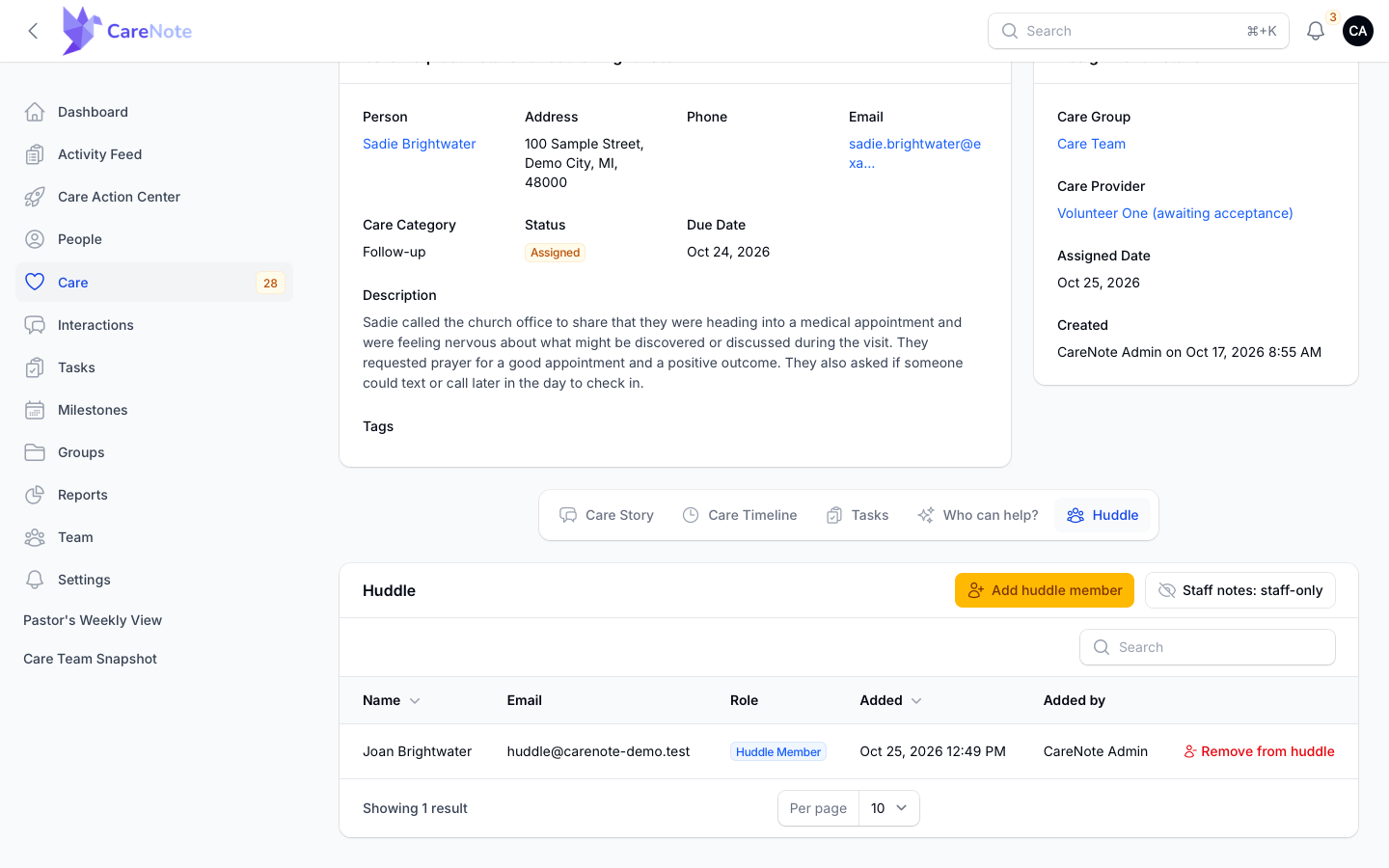
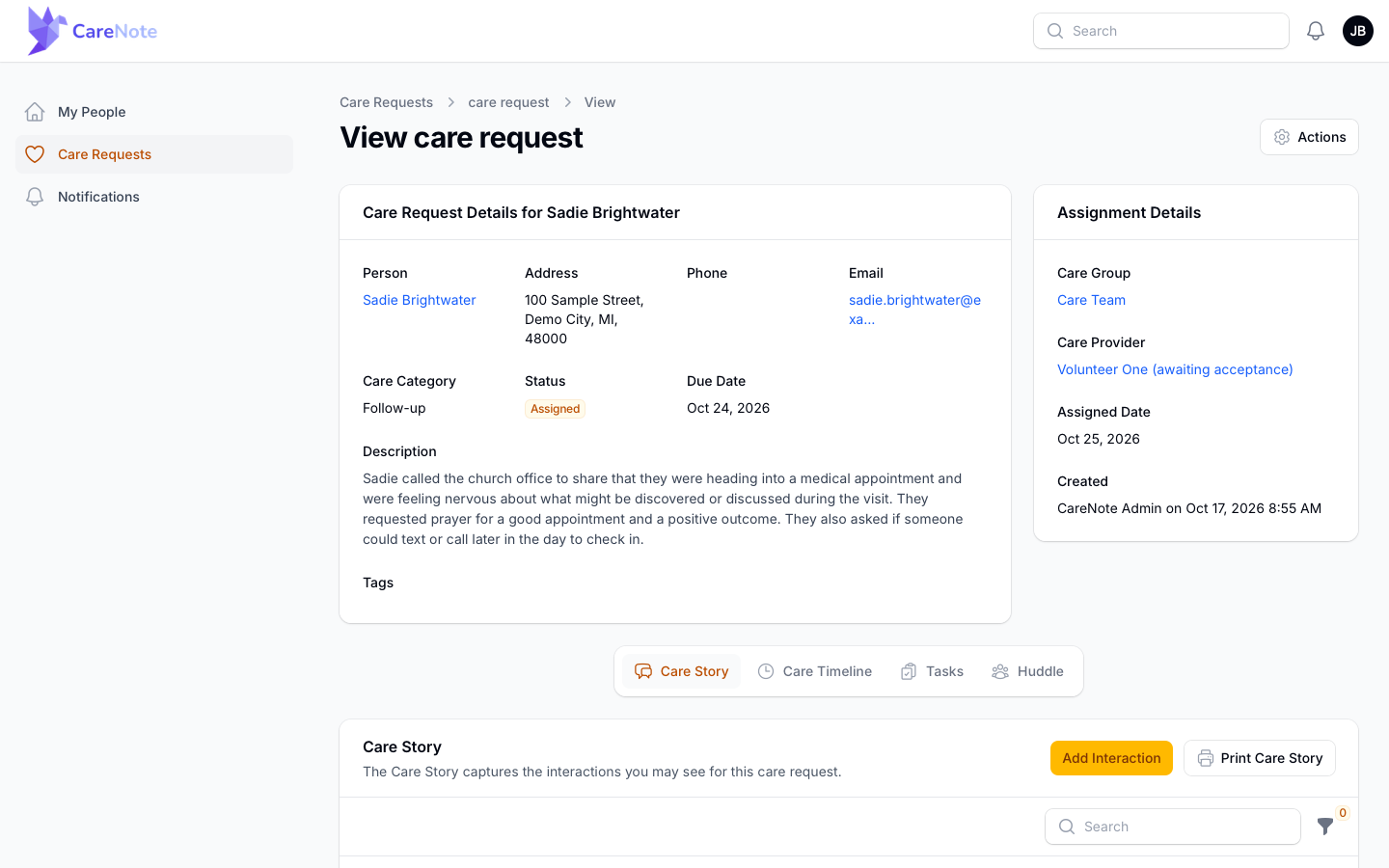
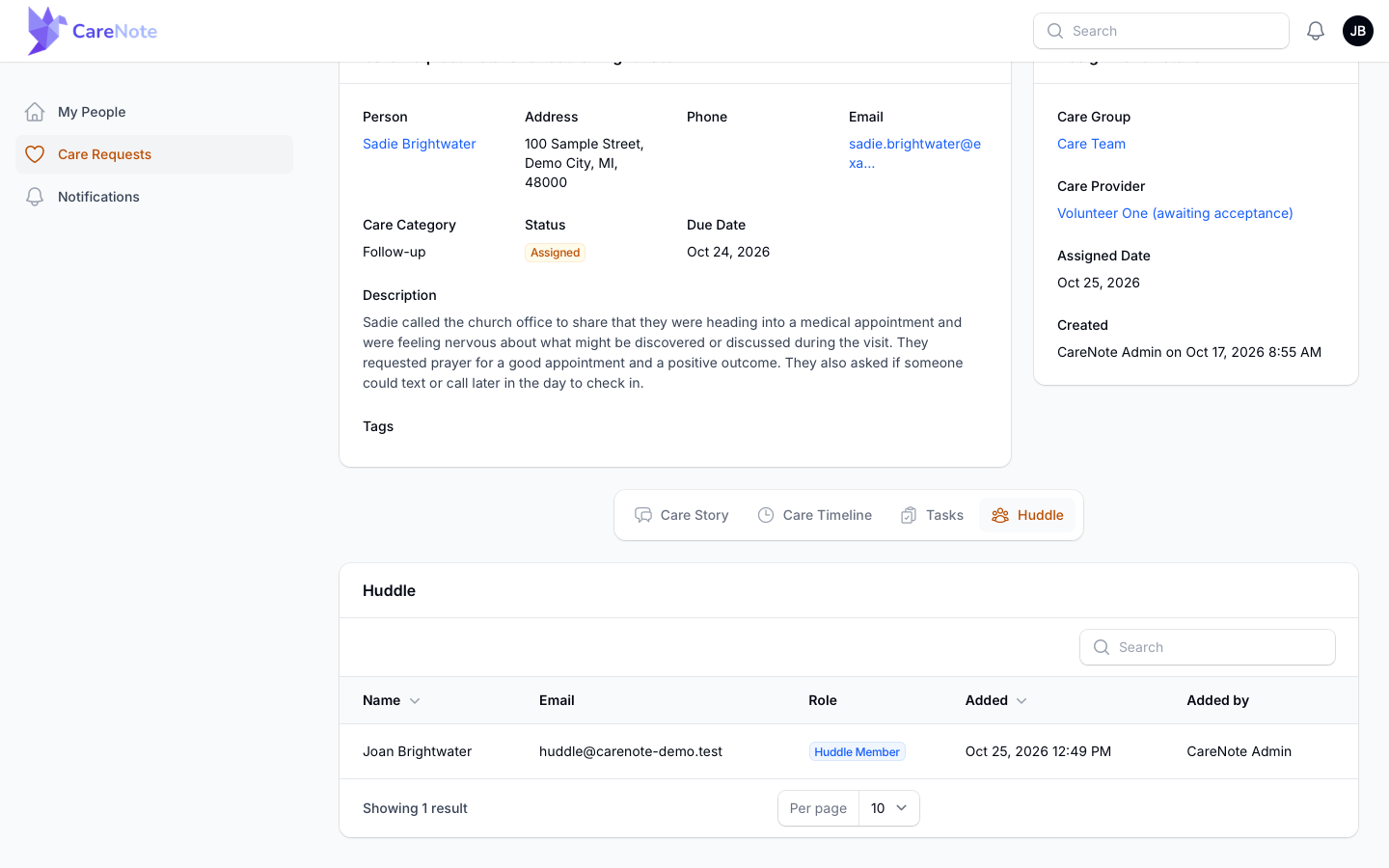
- Open the care request. The tab bar reads Care Story | Care Timeline | Tasks | Who can help? | Huddle. Click Huddle.
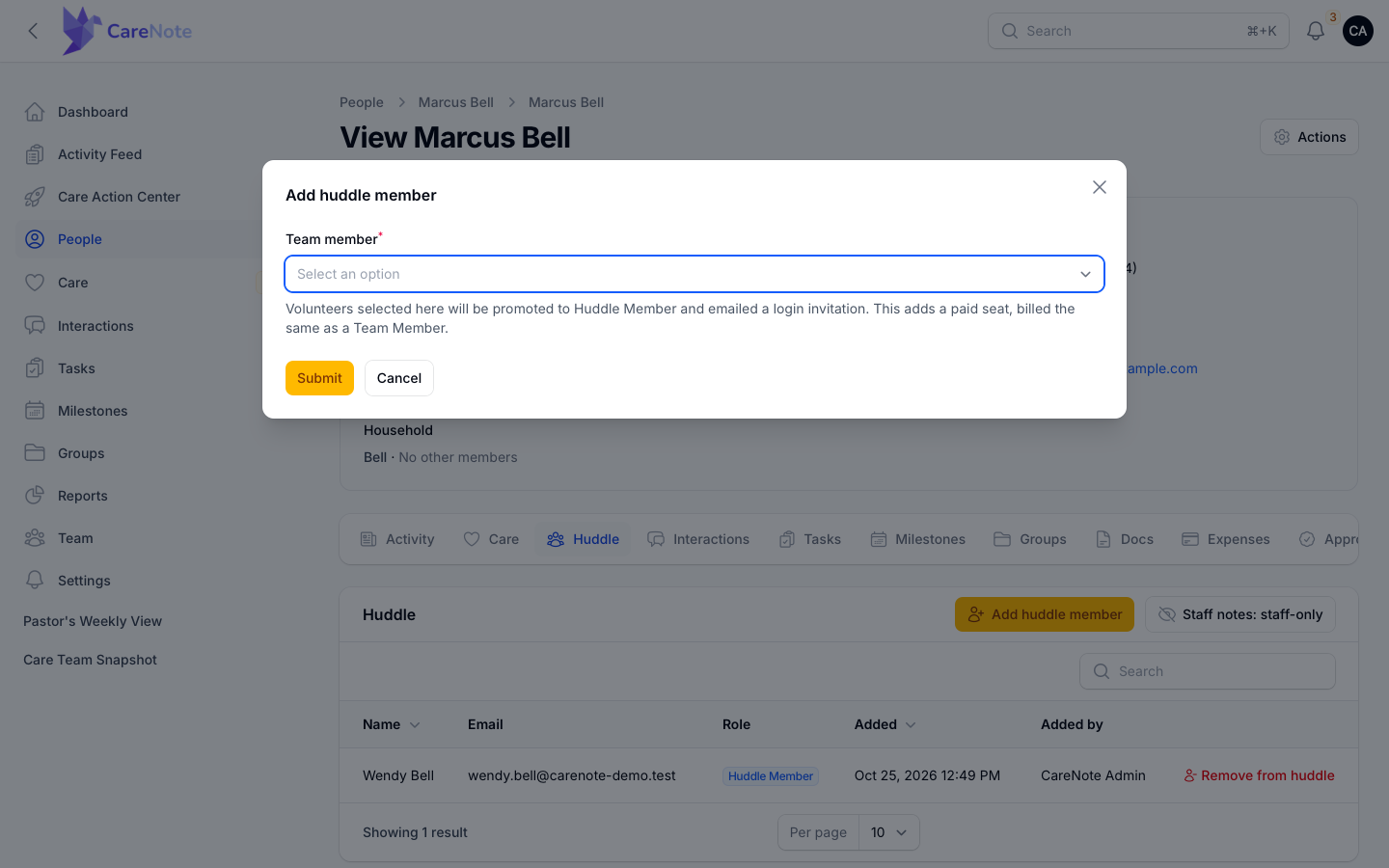
- Click Add huddle member.
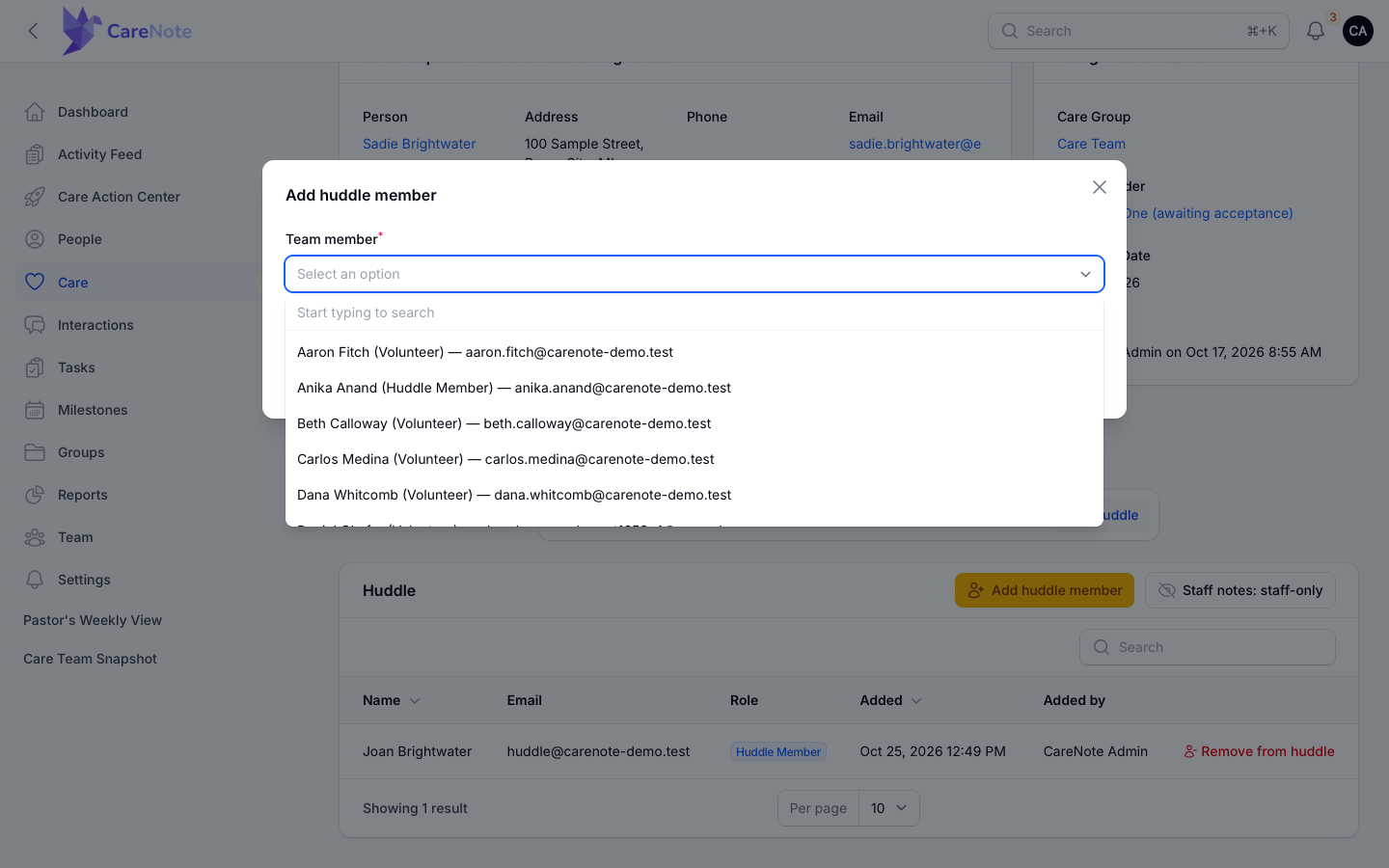
- In the required Team member field, search for the person. Options read "Name (Volunteer)" or "Name (Huddle Member)" followed by their email. Staff Team Members are not listed.
- Click Submit.
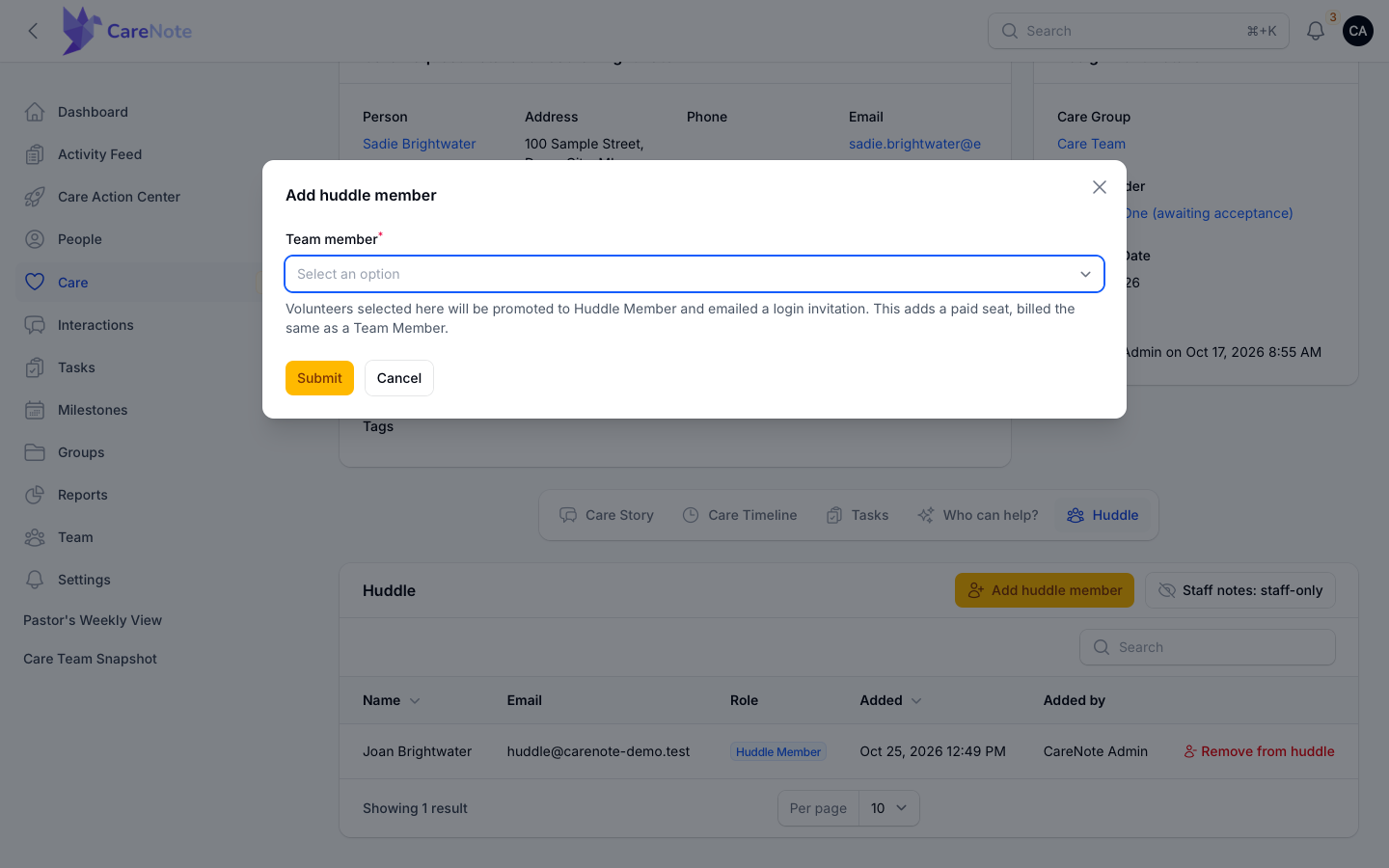
If you pick a Volunteer, CareNote promotes them to Huddle Member and emails them a login invitation. If you pick someone who is already a Huddle Member on another case, they are simply added to this one and no new invitation goes out.
2. Decide whether to share staff notes
By default, a Huddle Member sees only their own entries and the non-private entries other huddle members log. Your staff's internal interactions stay out of view.
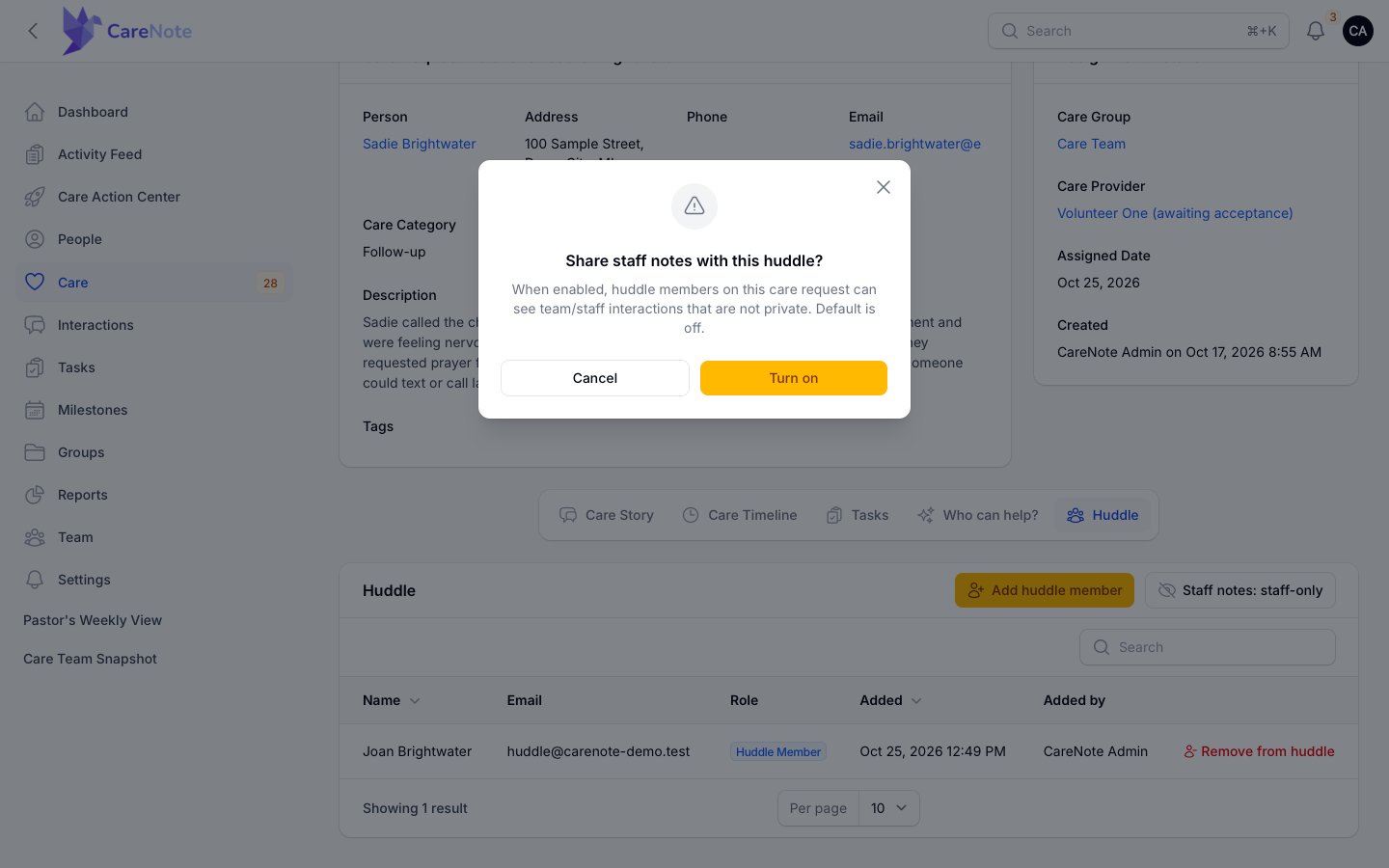
To let the huddle see team and staff interactions on this one care request, click Staff notes: staff-only. The dialog asks "Share staff notes with this huddle?" and explains: "When enabled, huddle members on this care request can see team/staff interactions that are not private. Default is off." Click Turn on, and the button changes to Staff notes: shared. You can turn it off the same way at any time.
3. Shepherd a person with a profile huddle
Sometimes the right group is built around a person, not a single request. A deacon couple given a family to follow up with is a good example. Open the person from People. The profile tabs now include Huddle, with the same Add huddle member and staff notes controls.
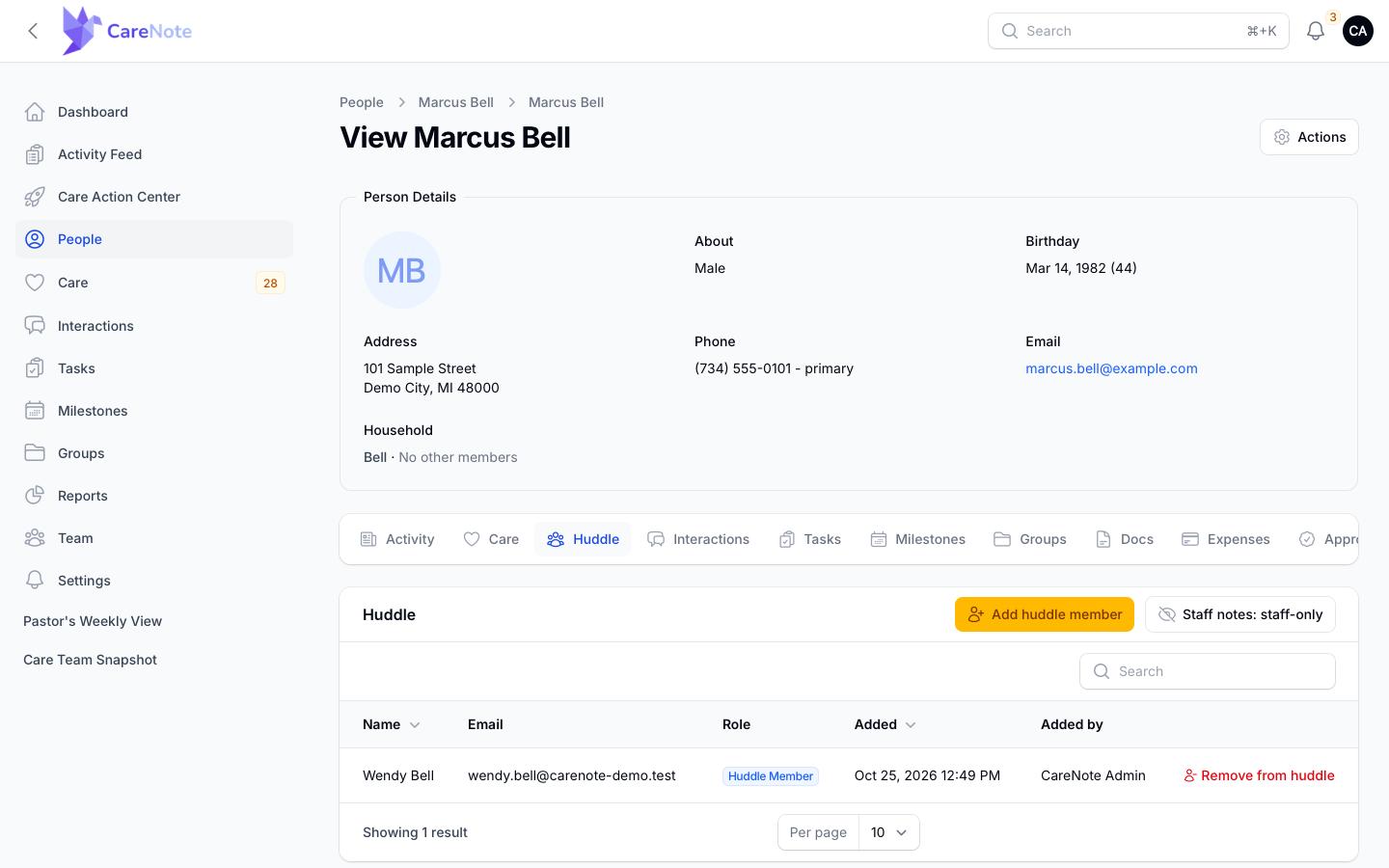
The people you add here are shepherds. When they sign in, the person appears in their Shepherding list, and a care request that person has stays in its own, separate huddle.
4. What a Huddle Member sees
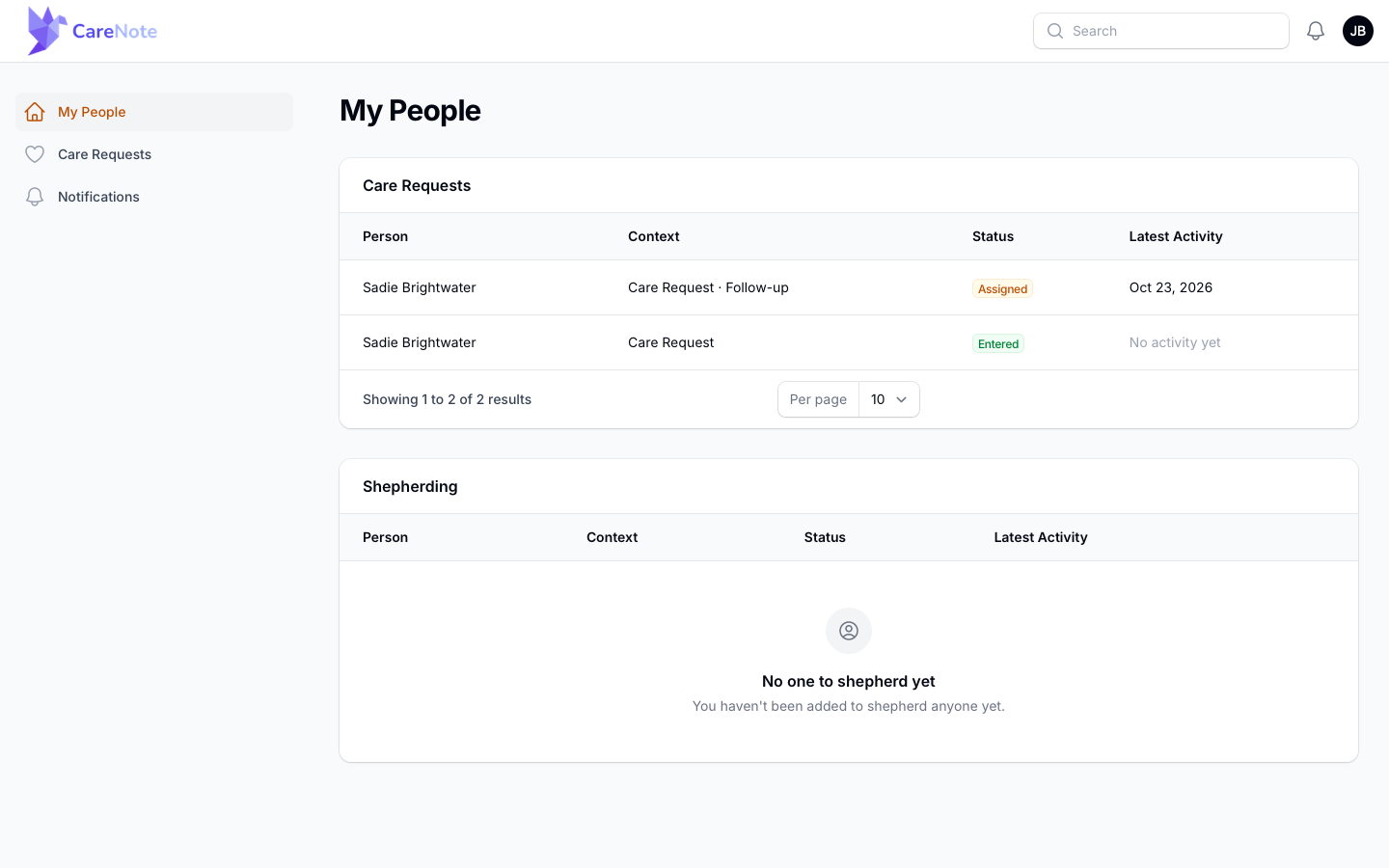
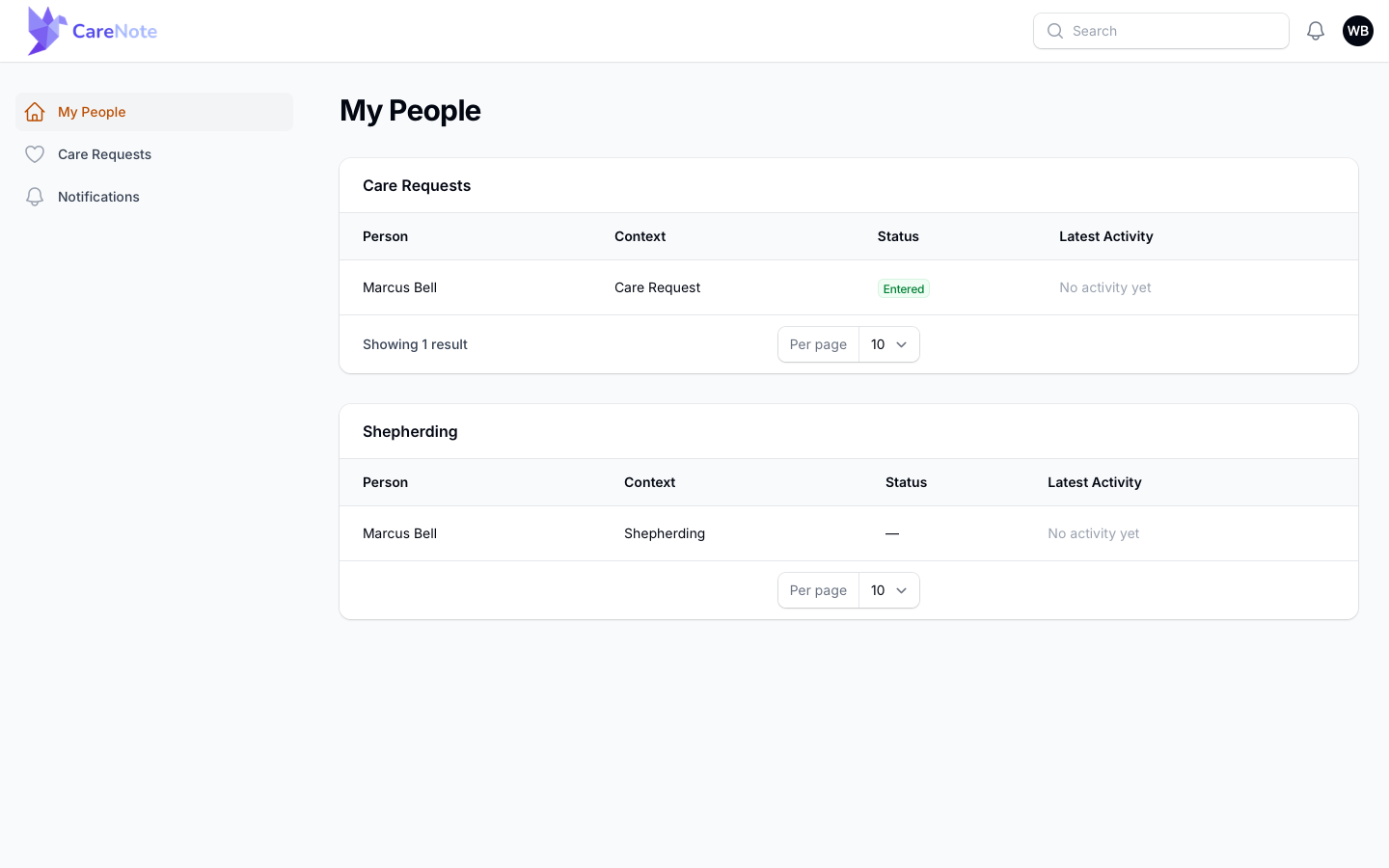
After setting a password, a Huddle Member signs in to the Huddle panel. The left menu has My People, Care Requests and Notifications.
My People has two tables, each with Person, Context, Status and Latest Activity. Care Requests lists the requests they were added to. Shepherding lists the people they shepherd. If they have not been added to anyone yet, it says "No one to shepherd yet."
Opening a care request shows Care Story | Care Timeline | Tasks | Huddle. They can use Add Interaction to log their own updates, so they are contributors, not just readers. Their Huddle tab shows who else is helping, but with no add, staff notes or remove controls.
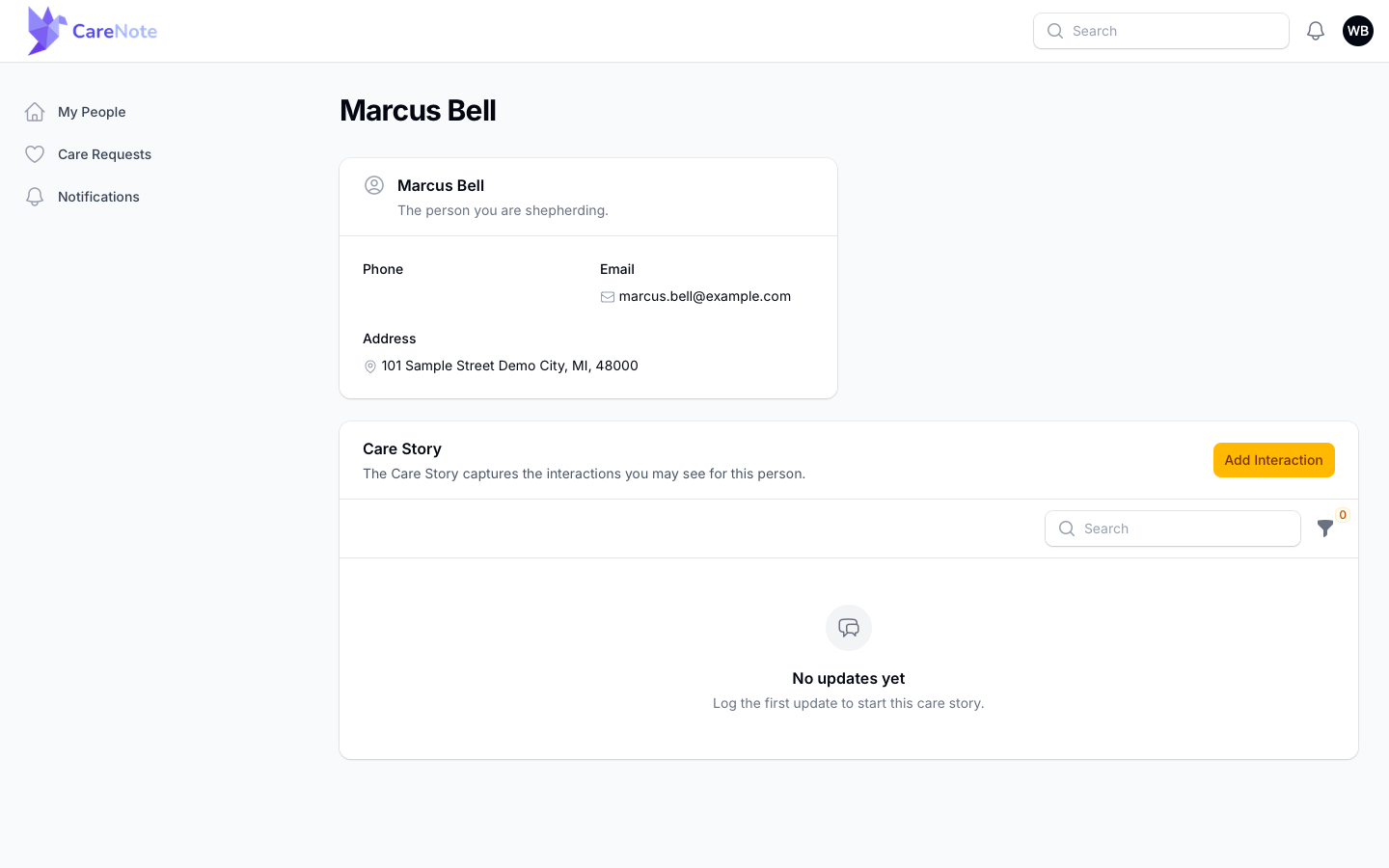
A shepherded person opens as a simple page with a contact card and a Care Story, again with Add Interaction.
5. Notifications for Huddle Members
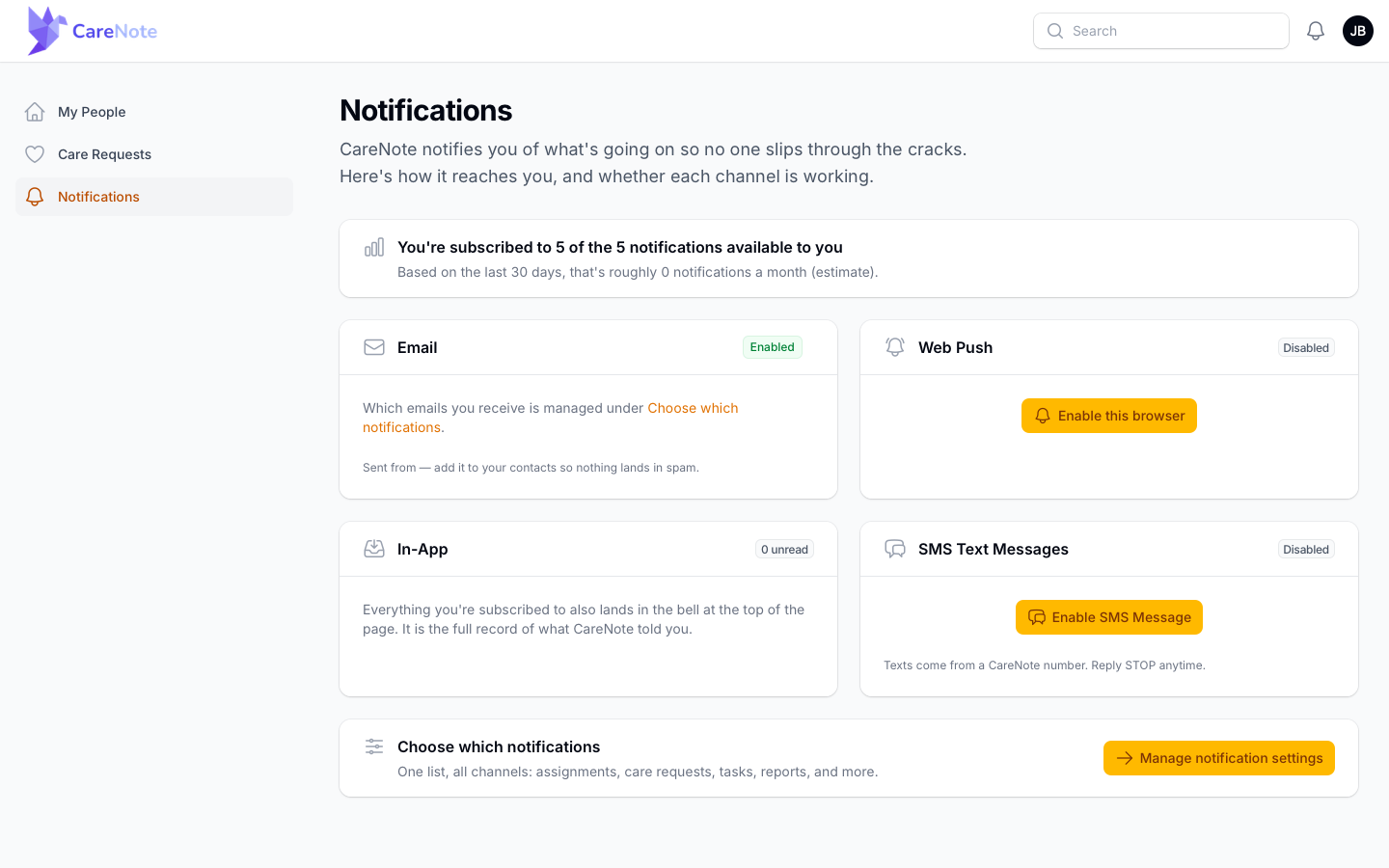
Huddle Members control their own notifications. Under Notifications, a hub shows the Email, Web Push, In-App and SMS Text Messages channels, each with its status and a test button. The footer card, Choose which notifications, opens Manage notification settings.
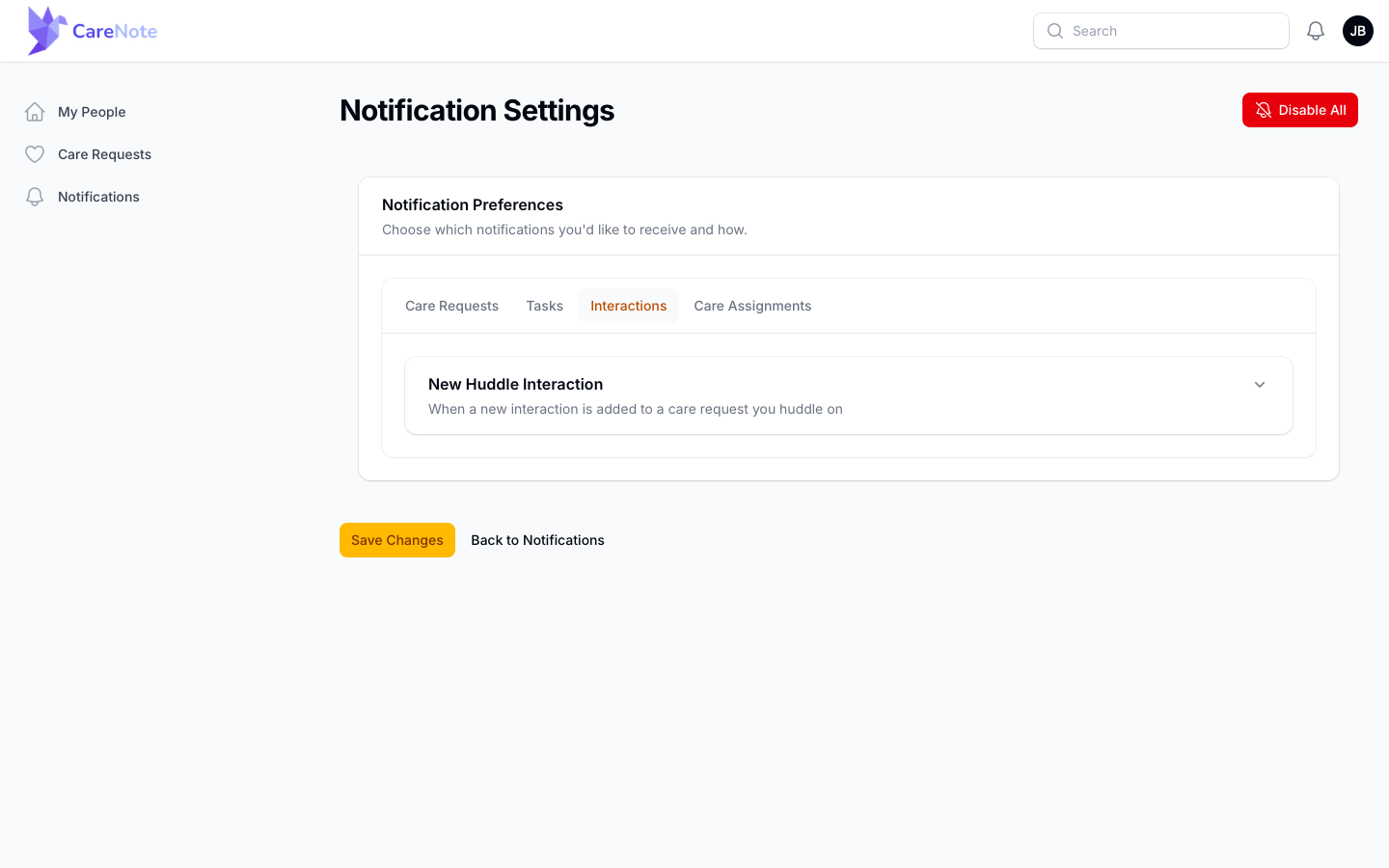
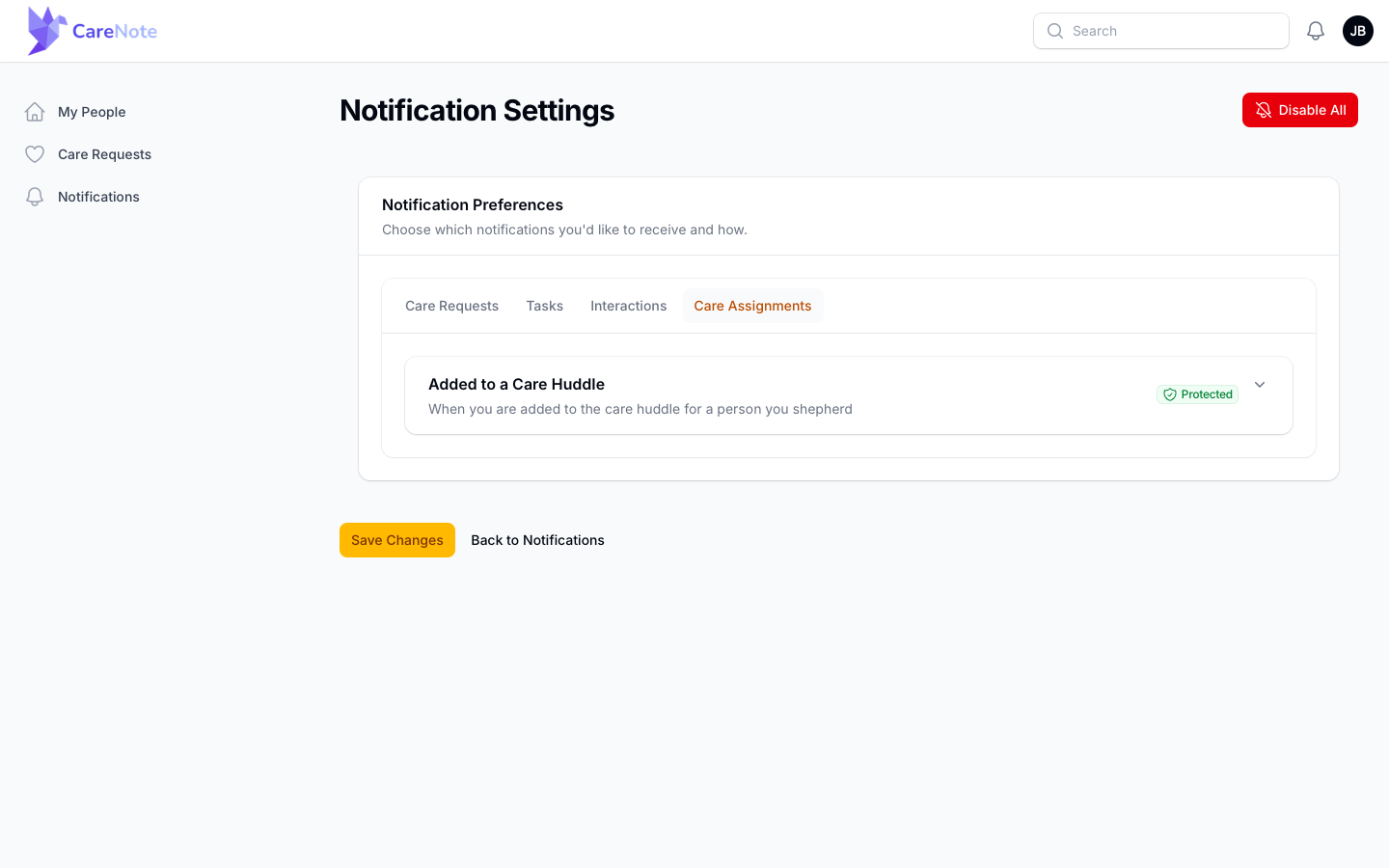
In Notification Settings, two switches matter to a huddle:
- New Huddle Interaction (on the Interactions tab): "When a new interaction is added to a care request you huddle on." Members can switch it on or off per channel. Private entries never notify anyone, and staff entries only reach the huddle when staff notes are shared.
- Added to a Care Huddle (on the Care Assignments tab): "When you are added to the care huddle for a person you shepherd." This one is Protected, so members always hear when they are given someone to shepherd.
6. Remove someone from a huddle
When a person's part in the situation ends, open the Huddle tab and click the red Remove from huddle on their row. The confirmation says "This immediately revokes their access to this care request through the huddle panel." It also offers a toggle, off by default: "Also demote to Volunteer (they lose huddle access everywhere)." Leave it off if they are still on other huddles. Only administrators see this action.
Frequently asked questions
Can a Huddle Member see other people's records? No. Their login shows only the care requests and people they have been added to.
Can a Huddle Member close or reassign a care request? No. They can read, and they can log their own interactions. Editing, closing and managing the huddle stay with your team.
What stays private? Anything marked private is visible only to its author, whatever the staff notes setting is.
Do we need CareNote Plus? Yes. Huddles are a CareNote Plus feature.