
Connecting Subsplash to CareNote
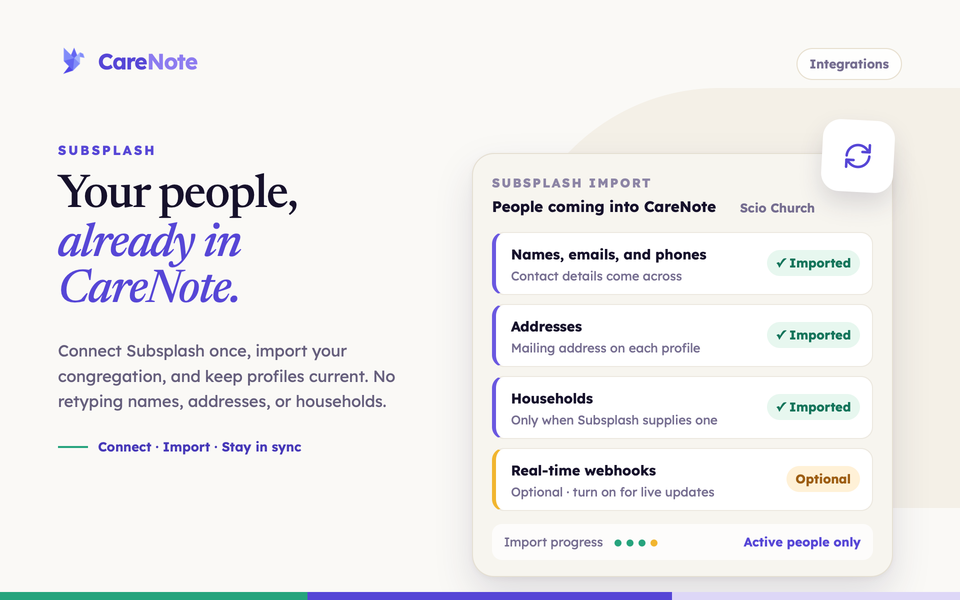
The Subsplash integration brings your congregation across as CareNote profiles, so your care team works from the same roster your office already maintains.
What it is
Subsplash is an app, giving, and engagement platform that many churches use to manage their people. CareNote connects to your Subsplash organization using API credentials and imports people as profiles. It brings in:
- Names, email addresses, and phone numbers
- Date of birth, gender, and marital status
- Addresses
- Households, but only when Subsplash supplies one. CareNote does not guess households by grouping people with the same last name.
Each imported profile keeps a link back to its Subsplash record, so later updates match the right person. The import follows Subsplash's pages of results all the way through, so churches with more than 100 people are covered. It brings in active people only, and it skips sign-in accounts that have no first or last name. Skipped records are counted as failed in the import summary.
No add-on is needed. Connecting Subsplash is included for any team.
How to connect Subsplash
1. Open the Subsplash page
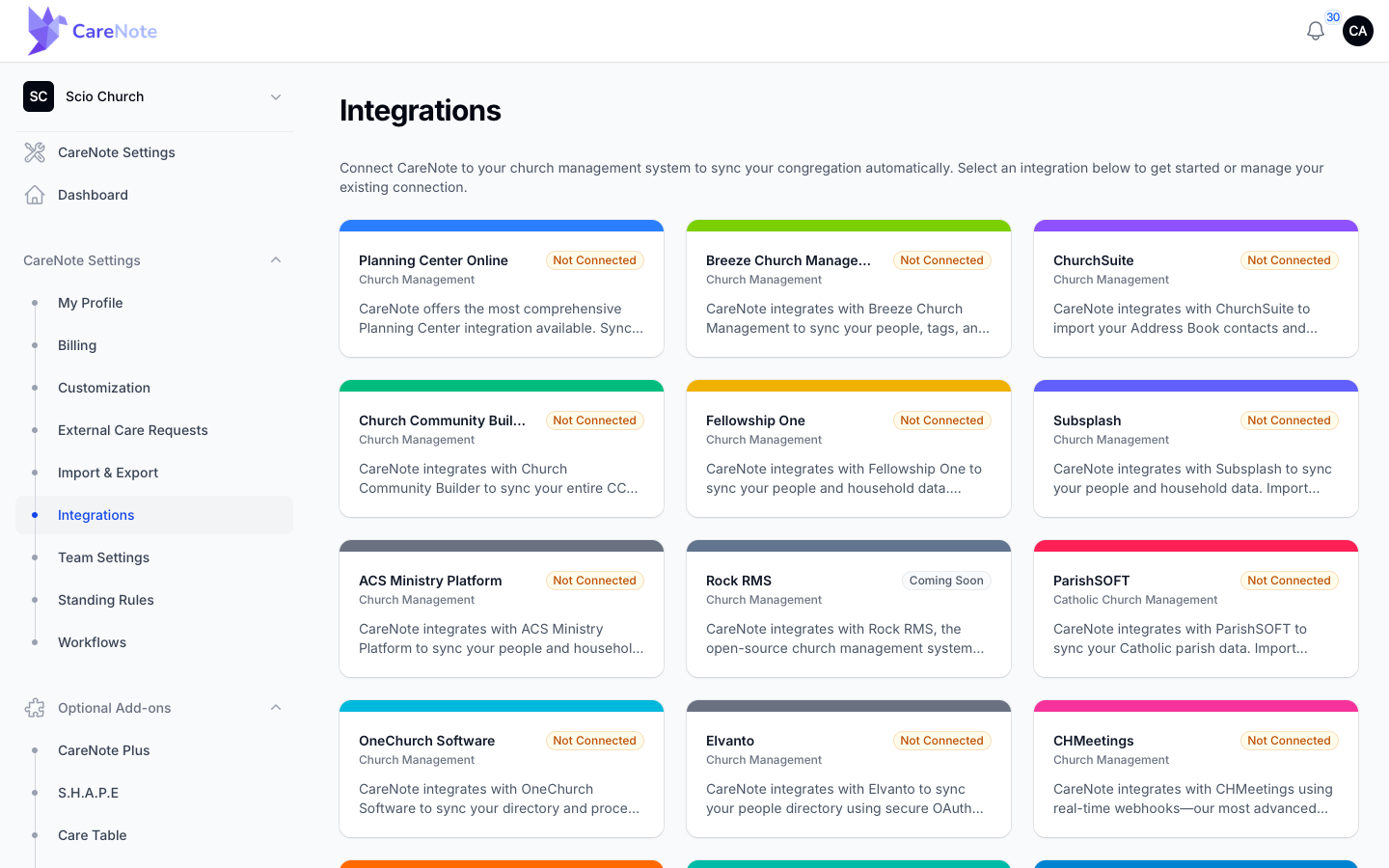
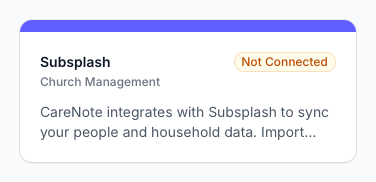
Subsplash lives in the Owner settings area, so you need owner access. Open the avatar menu, choose CareNote Settings, then Integrations. Find the Subsplash card; it reads "Not Connected" until you finish setup. Click it.
2. Gather your Subsplash credentials
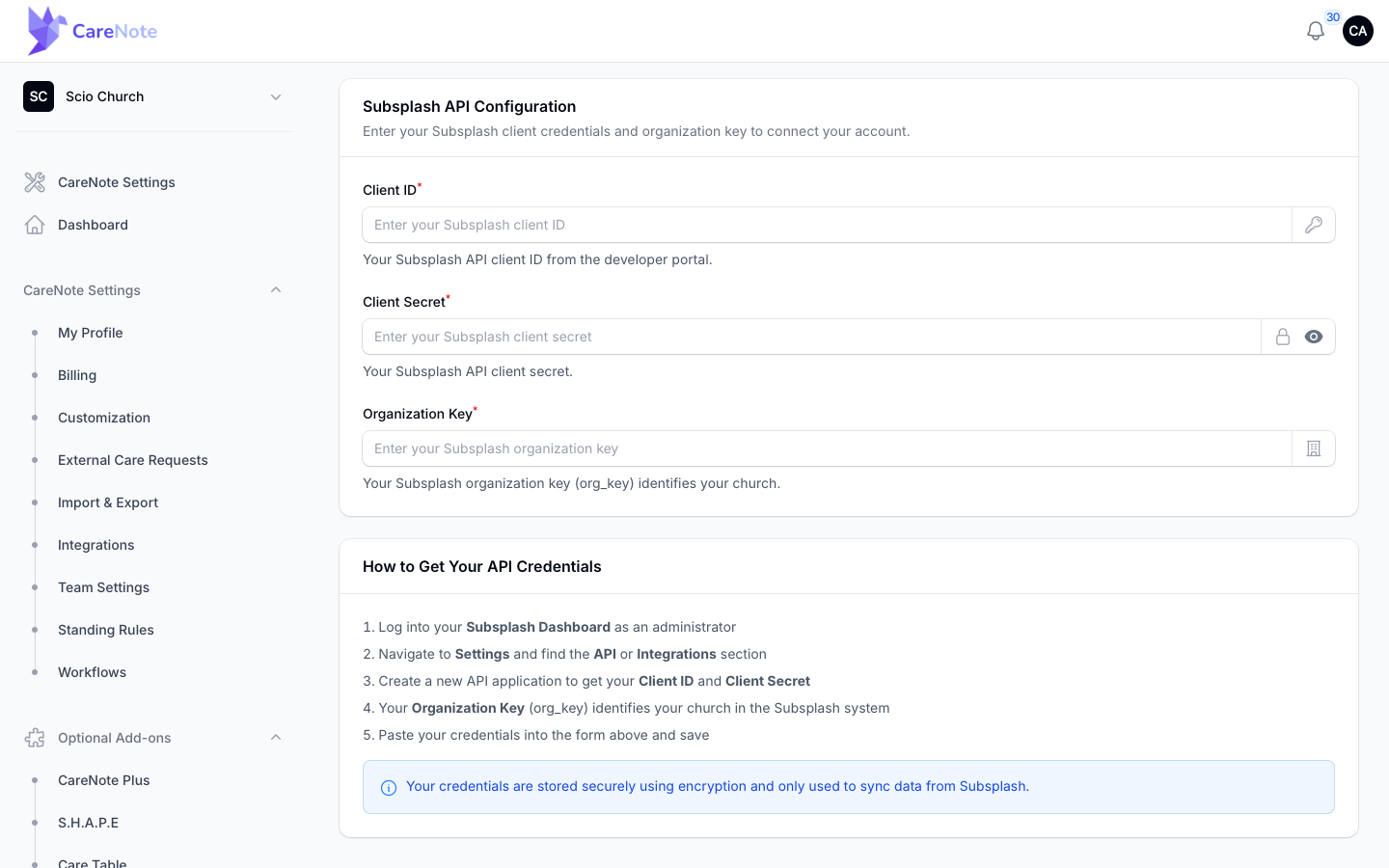
You need three things from Subsplash. The page includes a "How to Get Your API Credentials" box with the steps:
- Log in to your Subsplash Dashboard as an administrator.
- Go to Settings, then API or Integrations.
- Create a new API application to get a Client ID and Client Secret.
- Note your Organization Key (org_key), which identifies your church.
- Paste all three into CareNote and save.
3. Save your credentials
Fill in Client ID, Client Secret (use the eye icon to check what you typed), and Organization Key. All three are required. Then click Save Credentials at the top of the page.
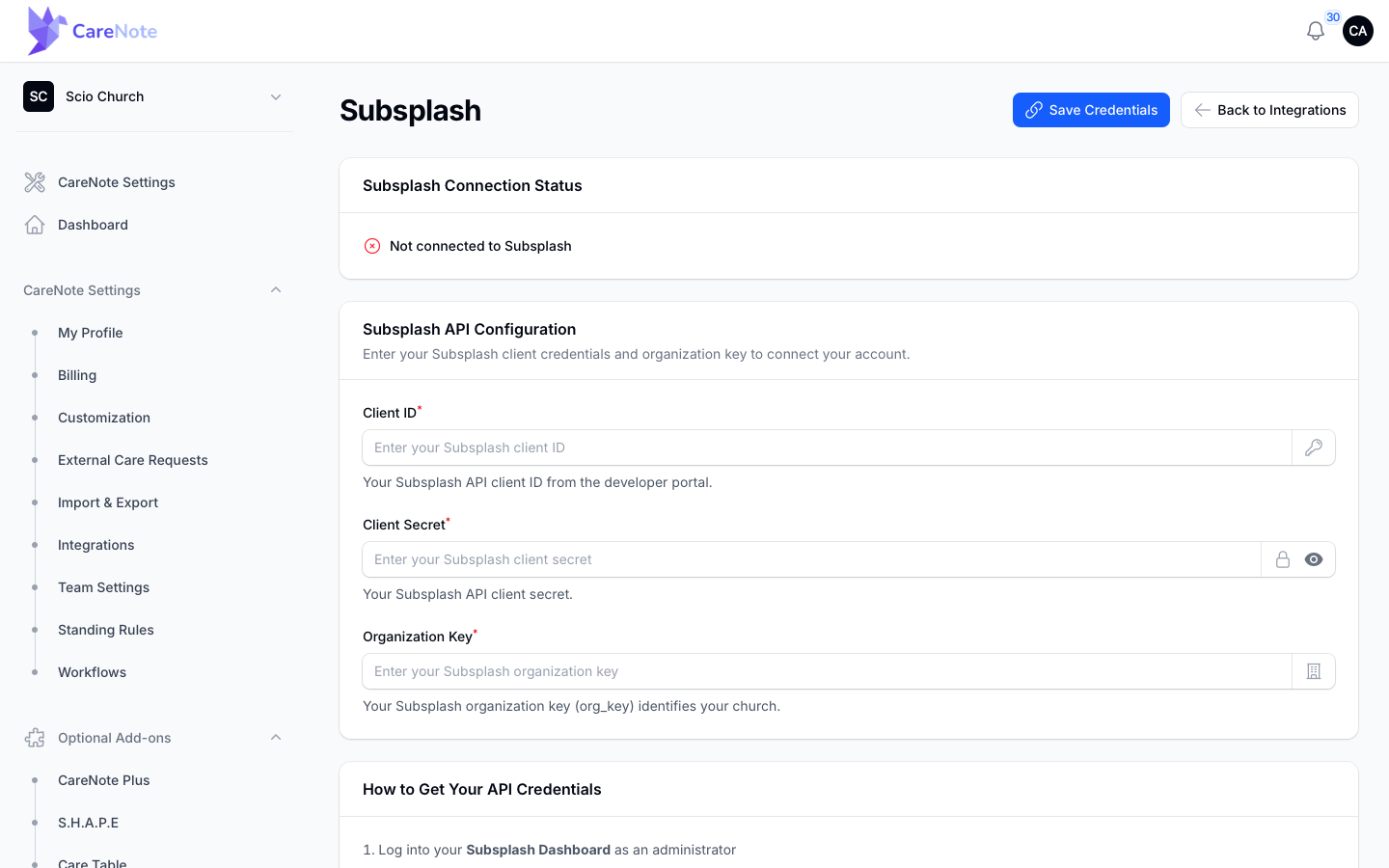
Saving credentials does not import anyone. It only stores them. Once saved, the page switches to its connected view, with these buttons at the top: Import People, Test Connection, Update Credentials, and Disconnect.
4. Test the connection
Click Test Connection. CareNote asks Subsplash for a sample profile and tells you whether it worked. If it fails, click Update Credentials, correct the values, and save again.
5. Import your people
Click Import People, or use the Import People card under Import Options. Nothing is imported until you do this. A panel appears while the import runs and refreshes itself every few seconds. It shows an Importing, Complete, or Failed banner, how many records have been processed, and counters for Processed, Created, Updated, and Failed. Large congregations can take a few minutes.
When it finishes, the status area shows Imported Profiles, Last Sync, and Sync Statistics. CareNote counts a record as failed when it has no first or last name, so open that person in Subsplash and check it.
6. Turn on webhooks (optional)
Under Real-Time Sync (Webhooks) you will see a status badge, Active or Inactive. Click Enable Webhook and CareNote registers with Subsplash, so profiles created, updated, or deleted there are reflected here without another import. Click Disable Webhook to turn it off.
Please read this part carefully: when a profile is deleted in Subsplash, the matching CareNote profile is soft-deleted too. That hides the person, along with their care history, from normal views. If your office sometimes cleans up Subsplash records, either leave webhooks off or tell your office to check with the care team first.
7. Disconnect (if you need to)
Click Disconnect. A "Disconnect Subsplash" box explains that this removes your API credentials and disables webhooks. Confirm and the connection is gone. Profiles you already imported stay in CareNote. You can reconnect later by saving credentials again.
Frequently asked questions
Do I need an add-on to connect Subsplash? No. There is no add-on gate on the Subsplash page.
Who can set it up? Only the team owner. Subsplash is in the Owner settings area, reached from CareNote Settings. Admins, Team Members, and Huddle Users cannot open that area, so they do not see Integrations. It does not appear in the left-hand menu.
What if some people are already in CareNote? CareNote matches on the link to the Subsplash record. People you typed in by hand before connecting have no link, so they may appear twice after the first import. Review your People list and merge any duplicates.
Does saving my credentials start an import? No. Only Import People starts an import. Saving credentials just stores them.
Why did some records fail? Subsplash sign-in accounts without a first or last name are skipped and counted under Failed. Inactive people are not imported at all.
Watch
No video covers this integration yet. Browse the Care Administrators playlist for other setup walkthroughs: