
Public Care Request Forms
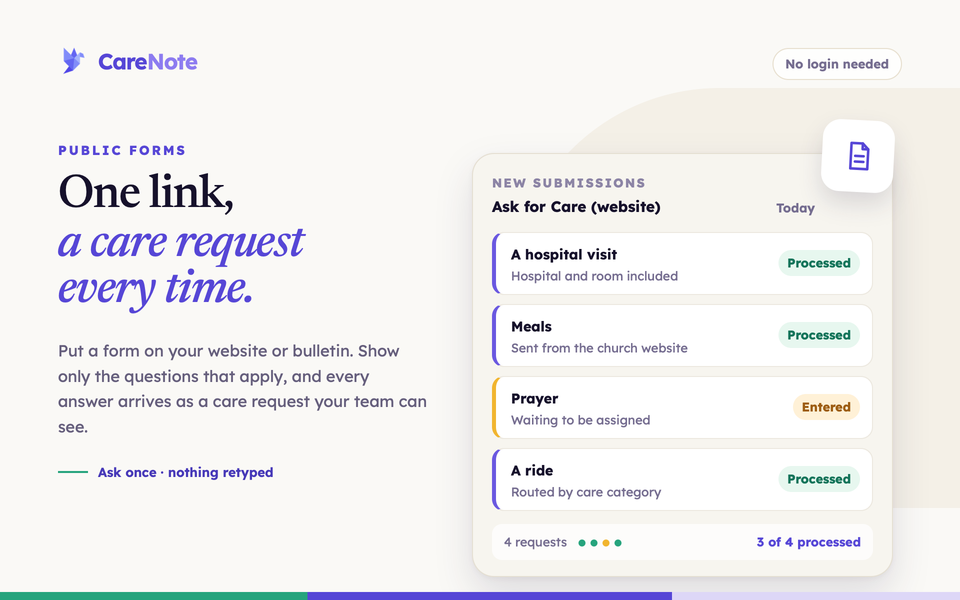
Watch: setting up a public care request form.
Four ways a care request can reach you
CareNote has four ways to bring a care request in from outside the app. This guide walks through the first two.
- Built-in External Care Requests form. A ready-made public page with fixed fields that any team can turn on. It suits teams that want a link live today. You find it under CareNote Settings, then External Care Requests.
- Form Builder (shown as Custom Forms, a CareNote Plus feature). Your own public forms with conditional questions, where each submission links back into CareNote as a care request. You open it from the CareNote Plus page.
- Planning Center Online forms. If your forms already live in Planning Center, CareNote imports the submissions and an automation can turn each one into a care request. Connect a form under Forms Integration in the Planning Center Online integration, which is a CareNote Plus feature. See Planning Center Online Forms Meet CareNote.
- OneChurch forms. If you use OneChurch Software, CareNote brings in form entries and maps them to care requests. Pick a form under Add Form Mapping on the OneChurch Software integration page.
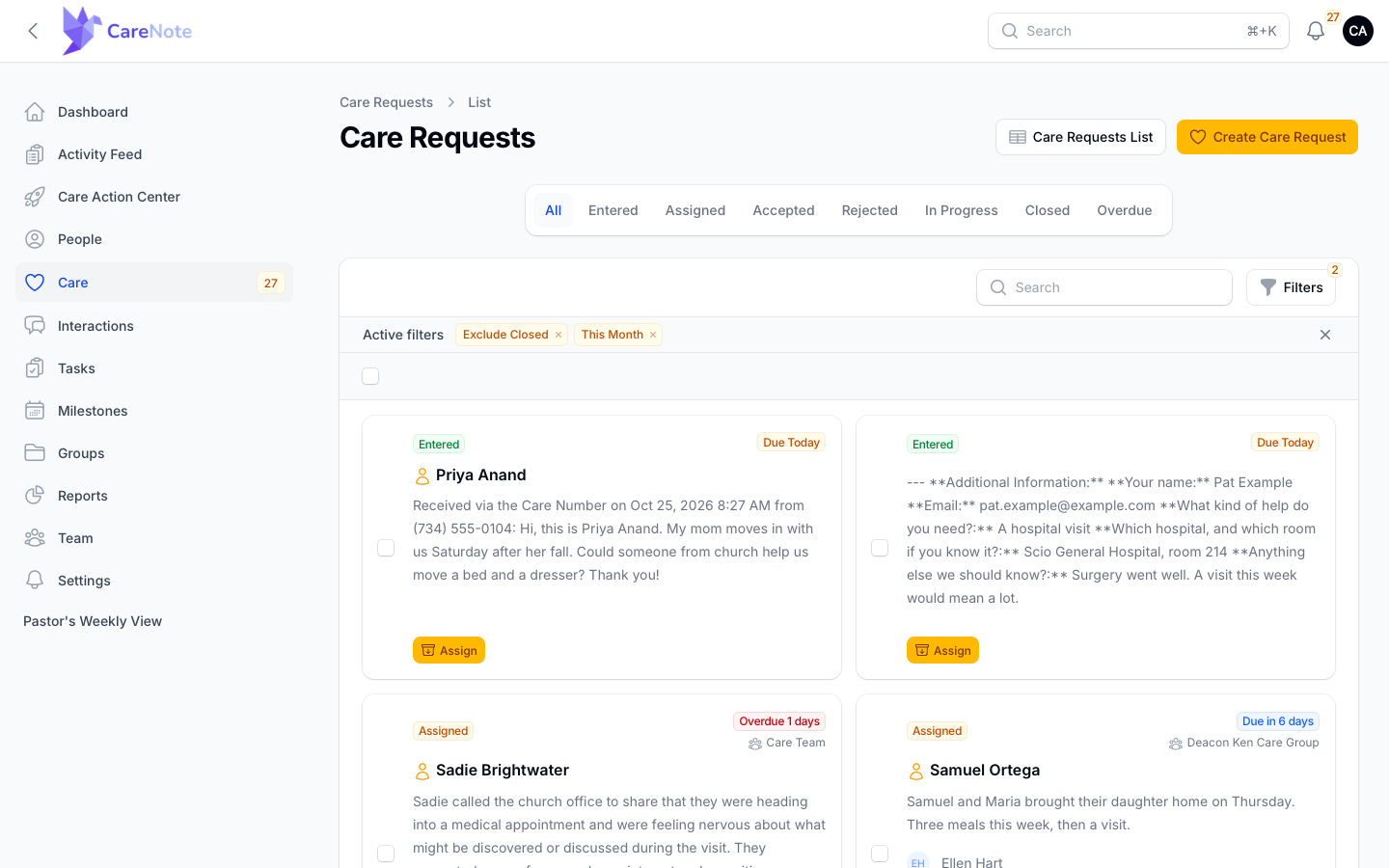
Either of the first two creates a care request right away, in the Entered state (or Assigned, if the form has a Default Assignee). There is no inbox of pending submissions to import or approve first.
1. Turn on the ready-made form
- Open your avatar menu and choose CareNote Settings. This appears for the account owner.
- In the sidebar, click External Care Requests.
- Turn on the Enable toggle.
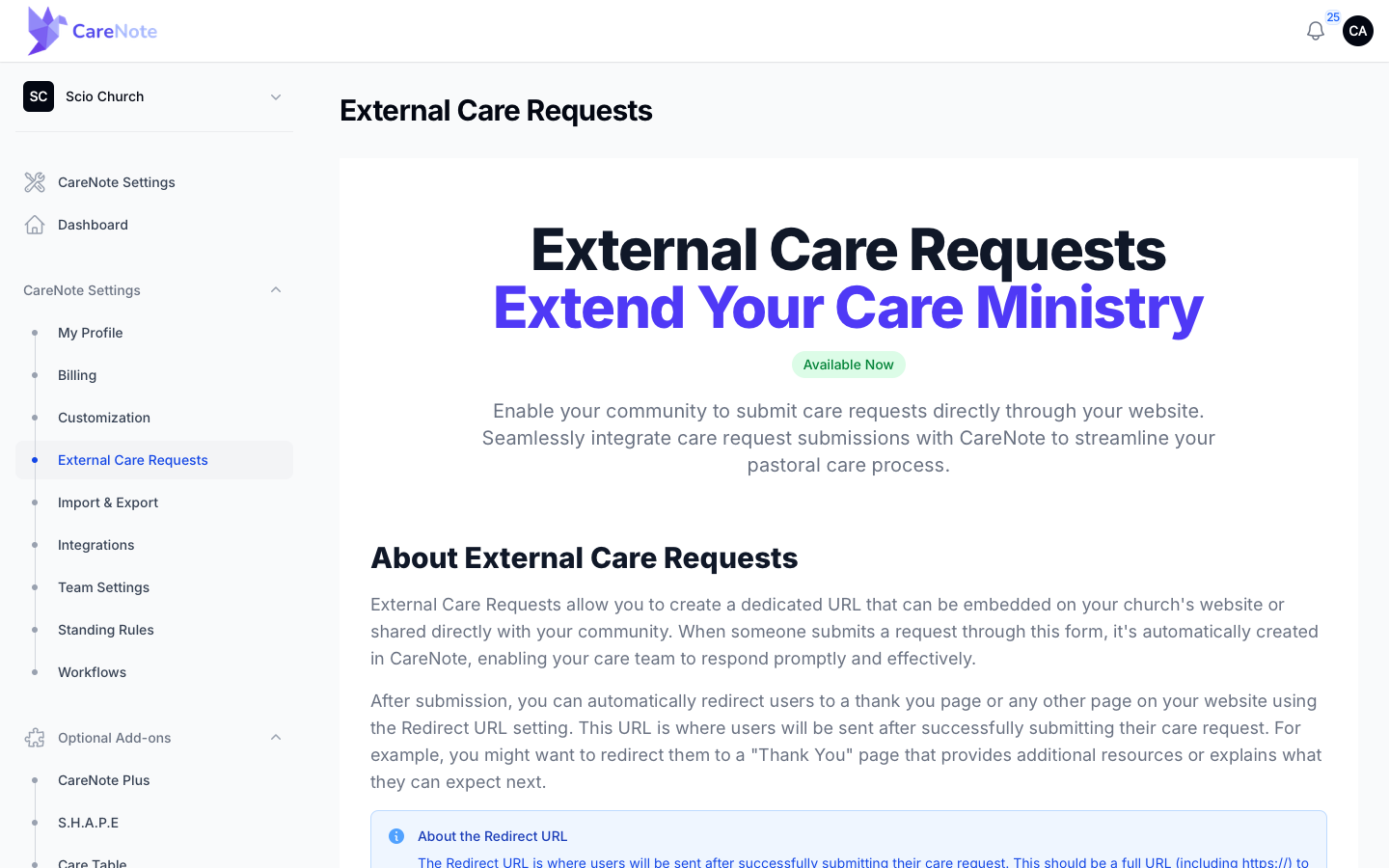
- Enter a Redirect URL, the web page people see after they submit, such as a thank-you page on your website. It is required.
- Click Enable External Care Requests.
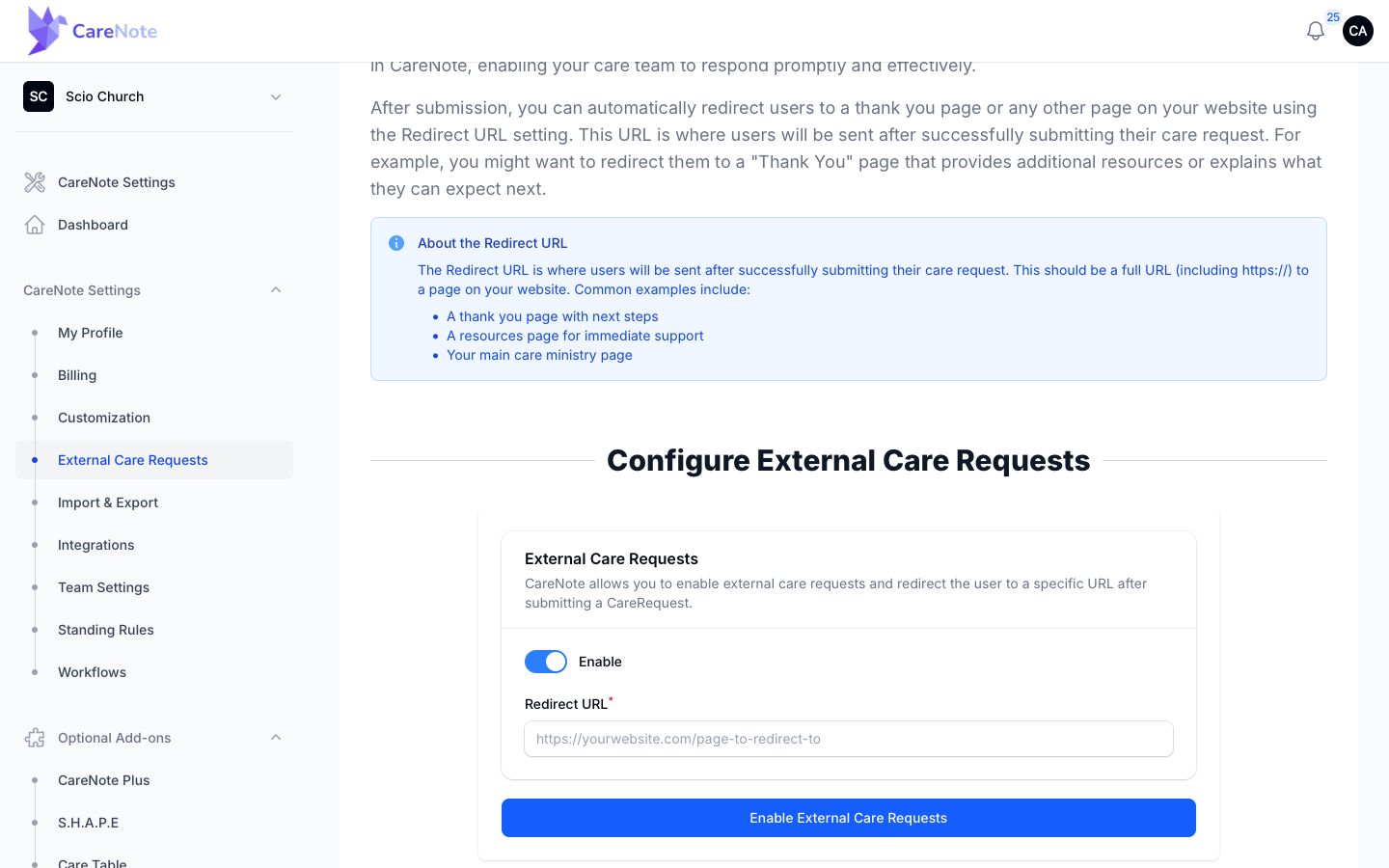
After saving, the page shows your shareable link, built from CareNote's own address plus your team's ID. Put it on a website button, a bulletin QR code, or a text message. Once saved, the page has no control for editing the Redirect URL, so choose it carefully. If a submission ever fails to become a care request, there is no retry screen, so contact support if you suspect one went missing.
2. Build your own form
Use the Form Builder when you want to ask your own questions.
- Open the CareNote Plus page under Optional Add-ons in the Admin panel and click Form Builder in the Care Request Intake section.
- Your existing forms appear in a list with their public title, active status, and submission count. Click Create Form.
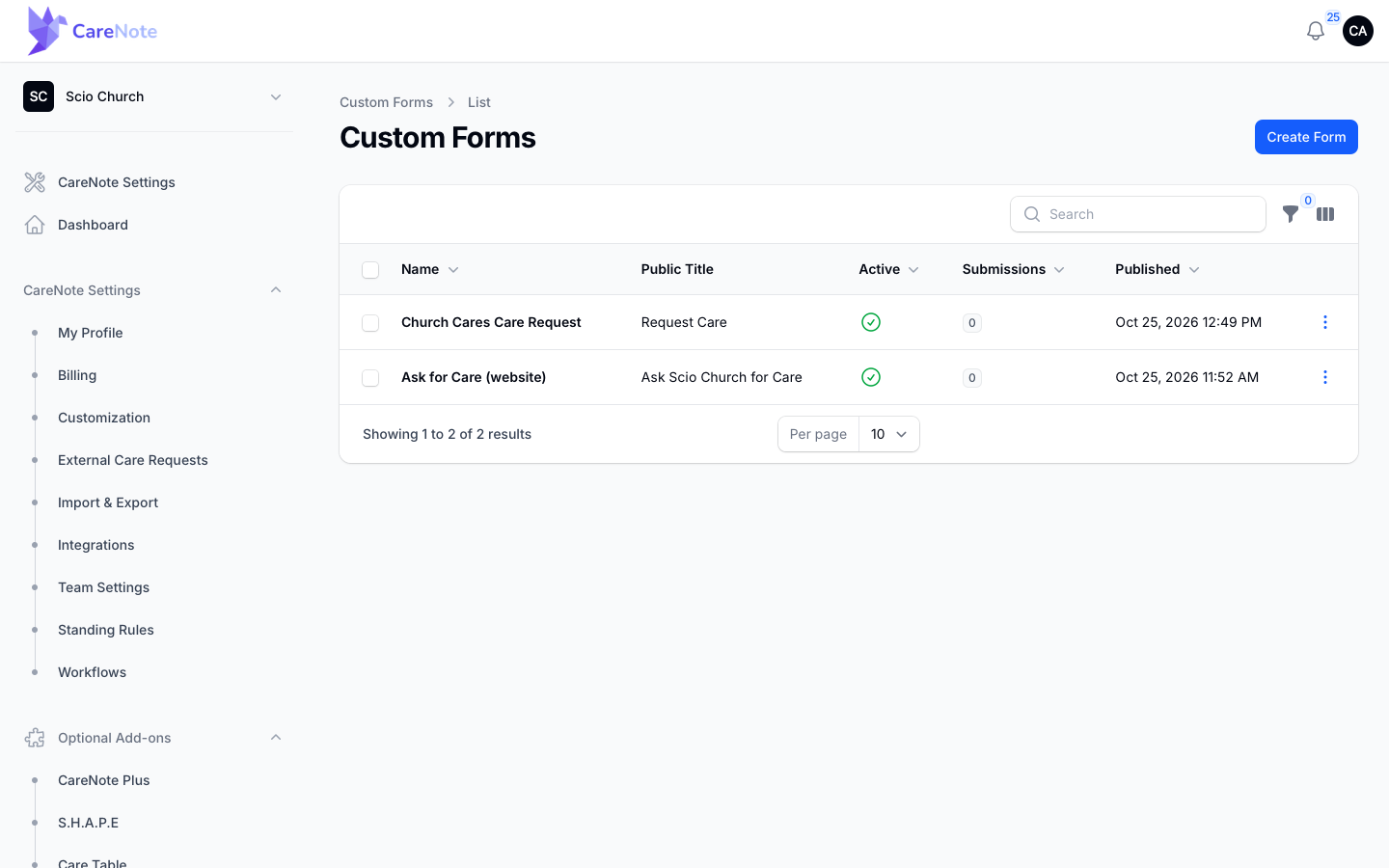
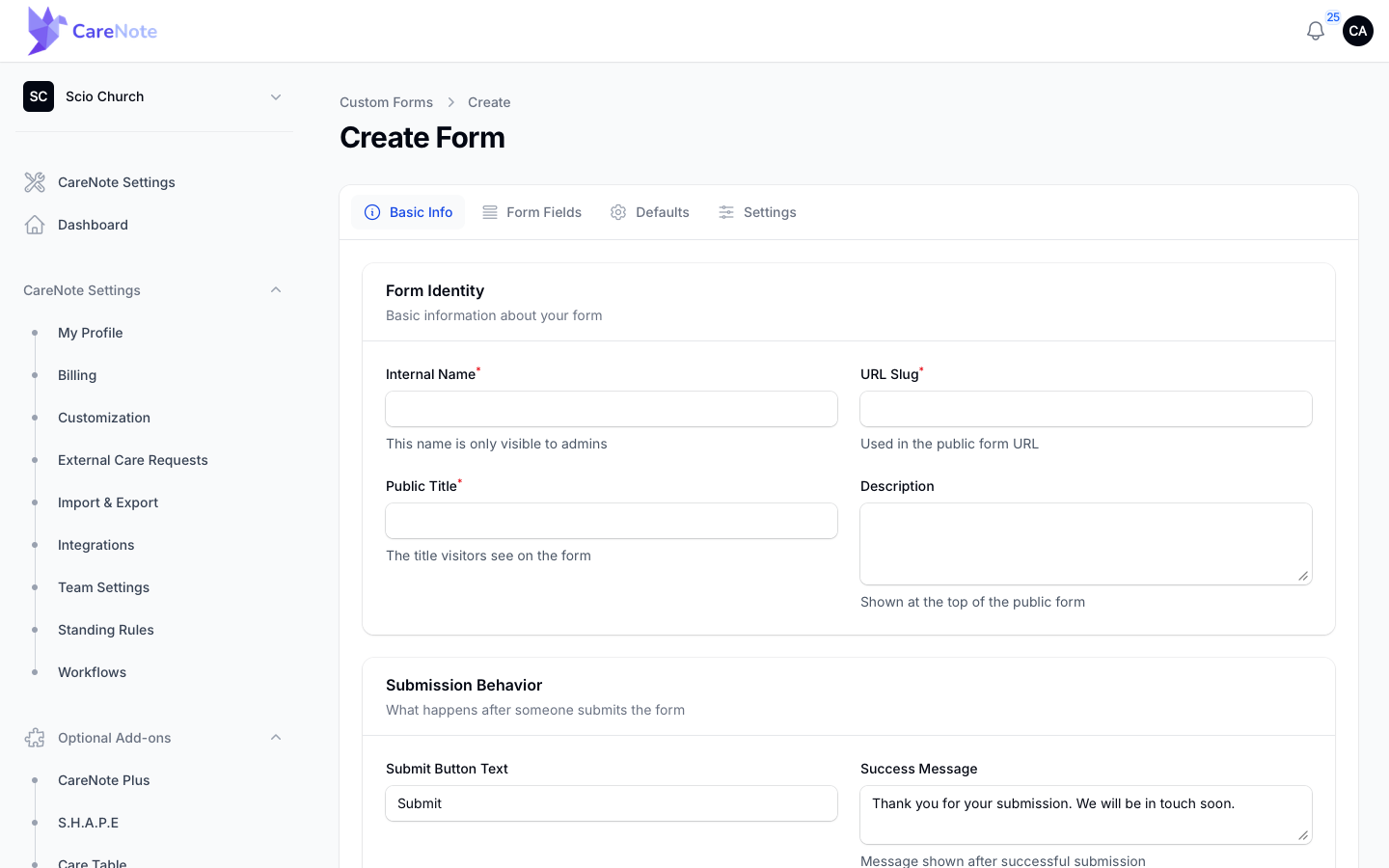
- On Basic Info, fill in the Internal Name (only admins see it), the URL Slug used in the public address, and the Public Title people will see. You can also set the button text, a success message, and an optional Redirect URL.
3. Add fields and link answers to the right place
On the Form Fields tab, each field has a Field Type, Label, Required switch, Field Name, Placeholder, and Help Text. Dropdowns also have an Options list.
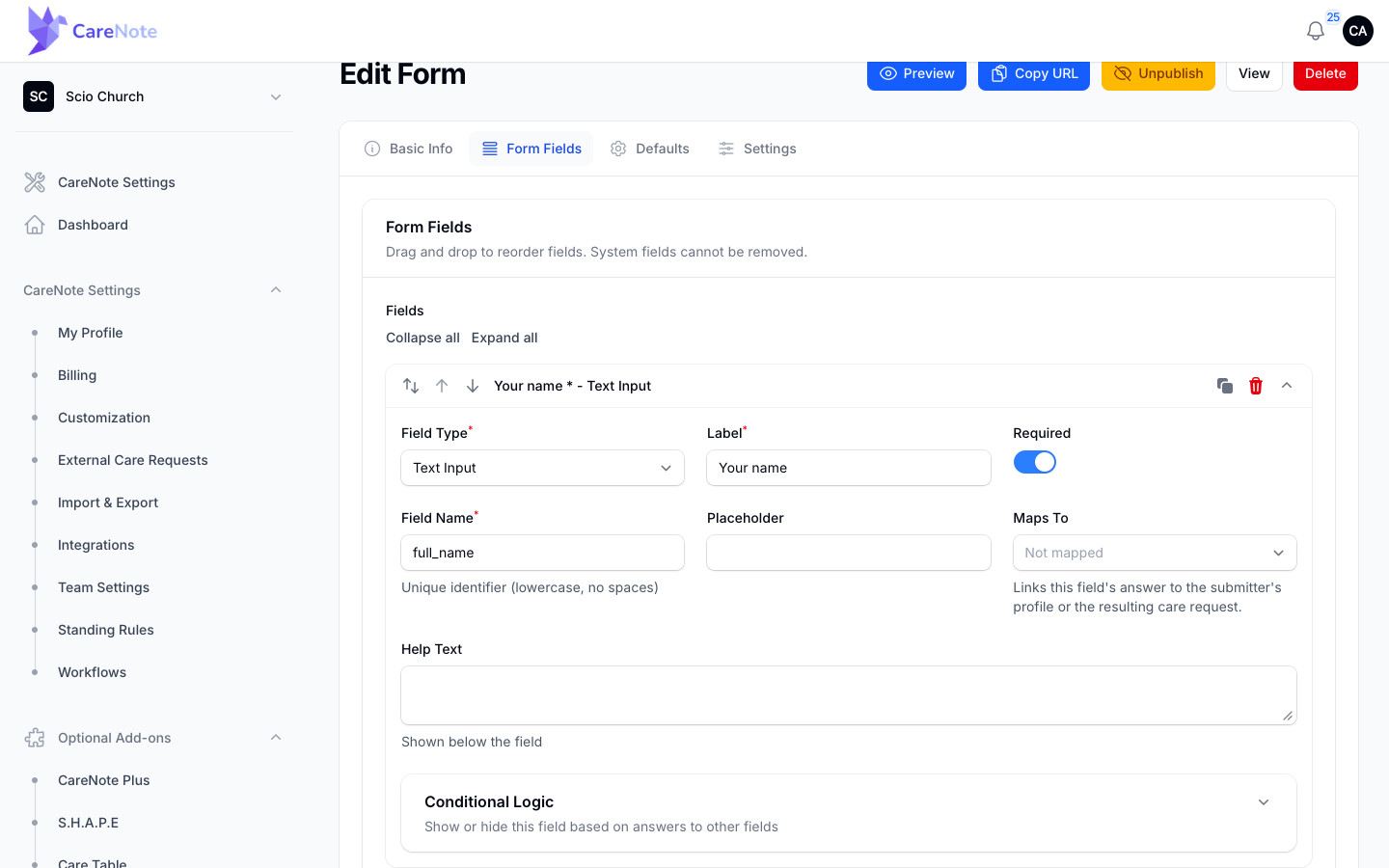
Maps To links an answer to the submitter's profile or the new care request. The choices are submitter full name, first name, last name, email, phone, care request category, and care request description. Map your name and email questions. If you leave them as "Not mapped", the answers are still saved with the submission, but the care request will have no Person attached.
4. Show a question only when it applies
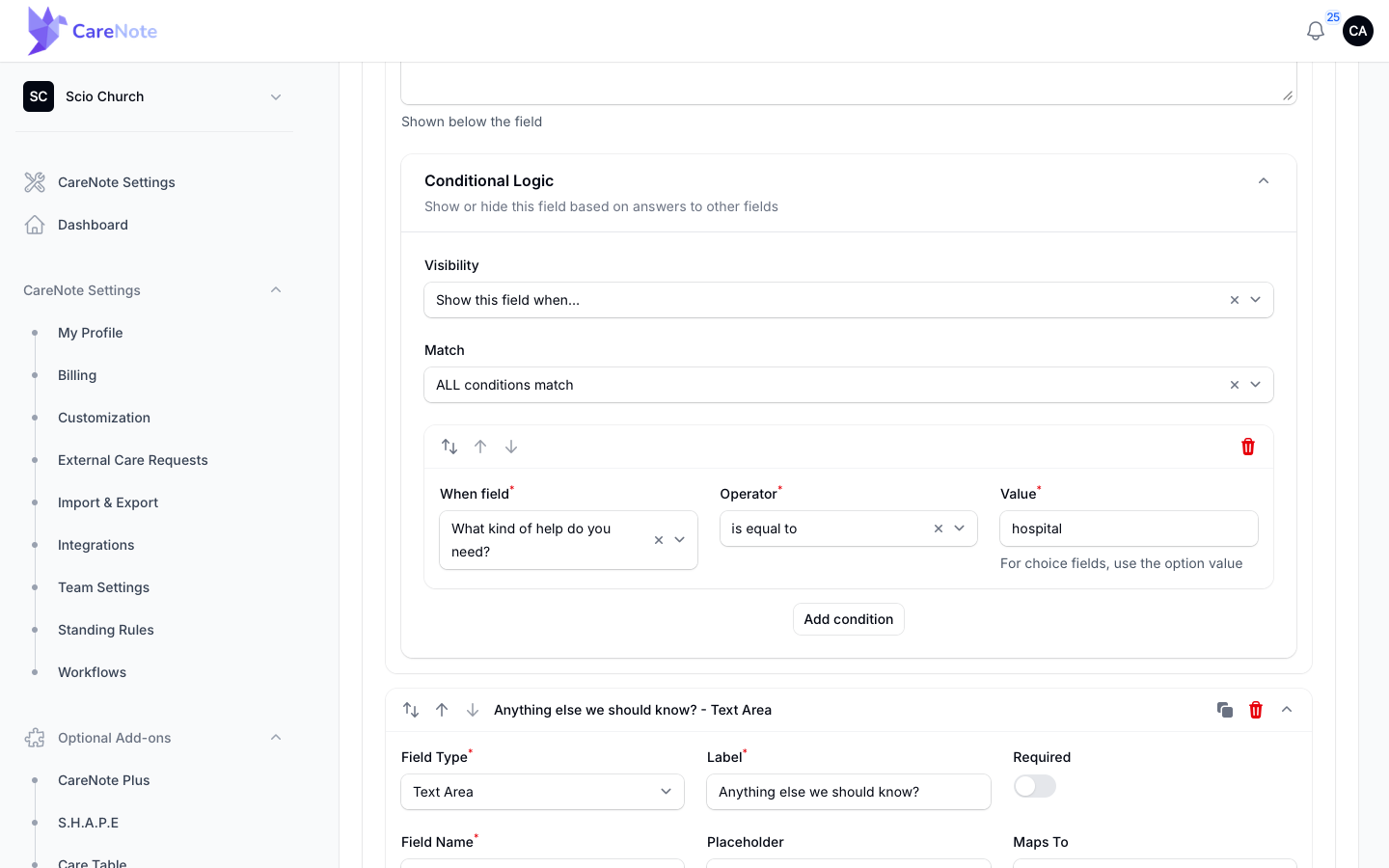
Open Conditional Logic under any field, choose Show this field when..., and pick the earlier question, the operator, and the value. For choice fields, use the option's value, not its label.
5. Set defaults and security
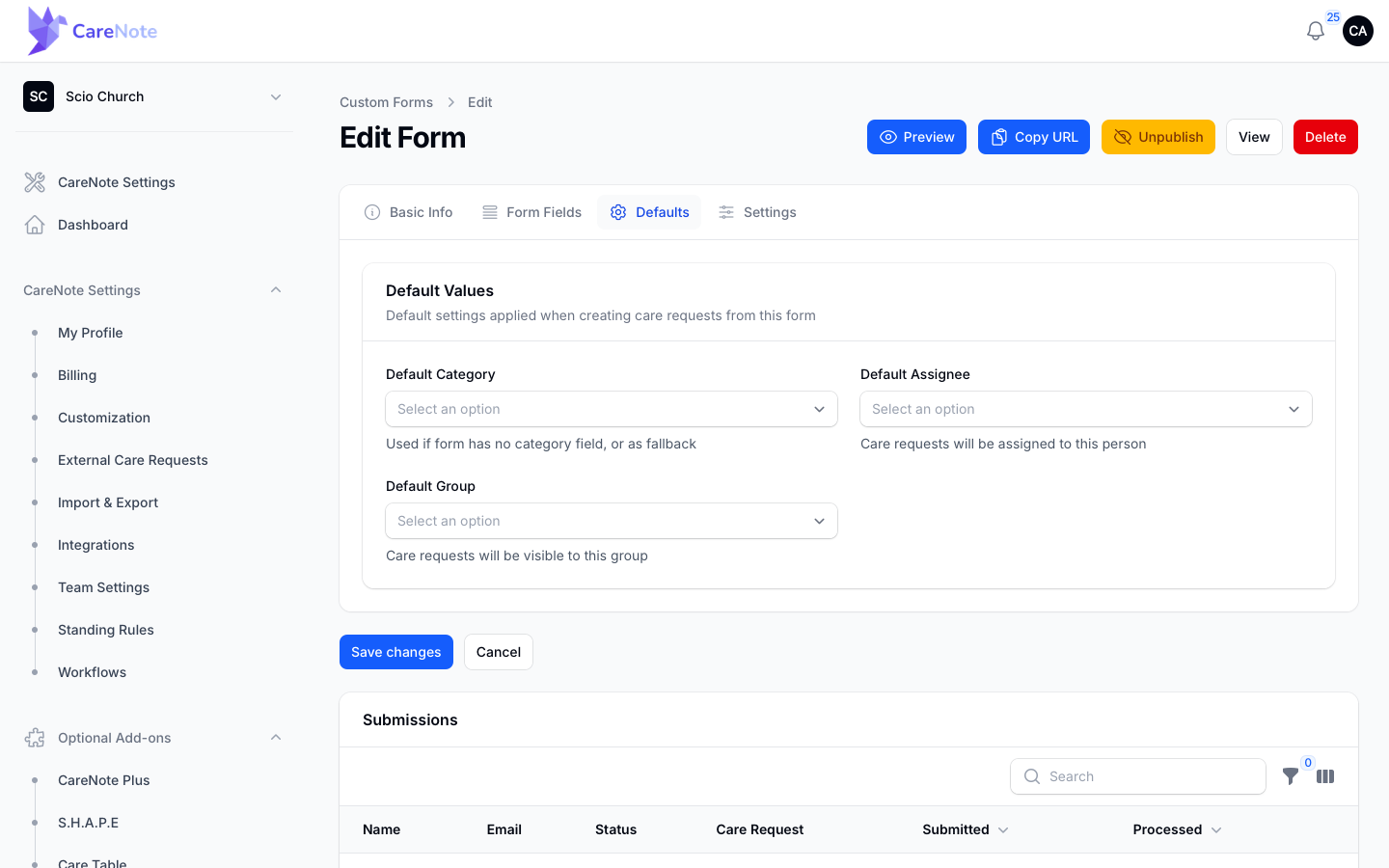
The Defaults tab lets you choose a Default Category, Default Assignee, and Default Group. Every form needs a category, either from a field mapped to Care request category or from the Default Category. Publishing is refused with a message if neither exists.
The Settings tab holds the Active switch, Honeypot Protection (on by default, quietly filters out bots), and the public URL. Require Email Verification is marked as coming soon.
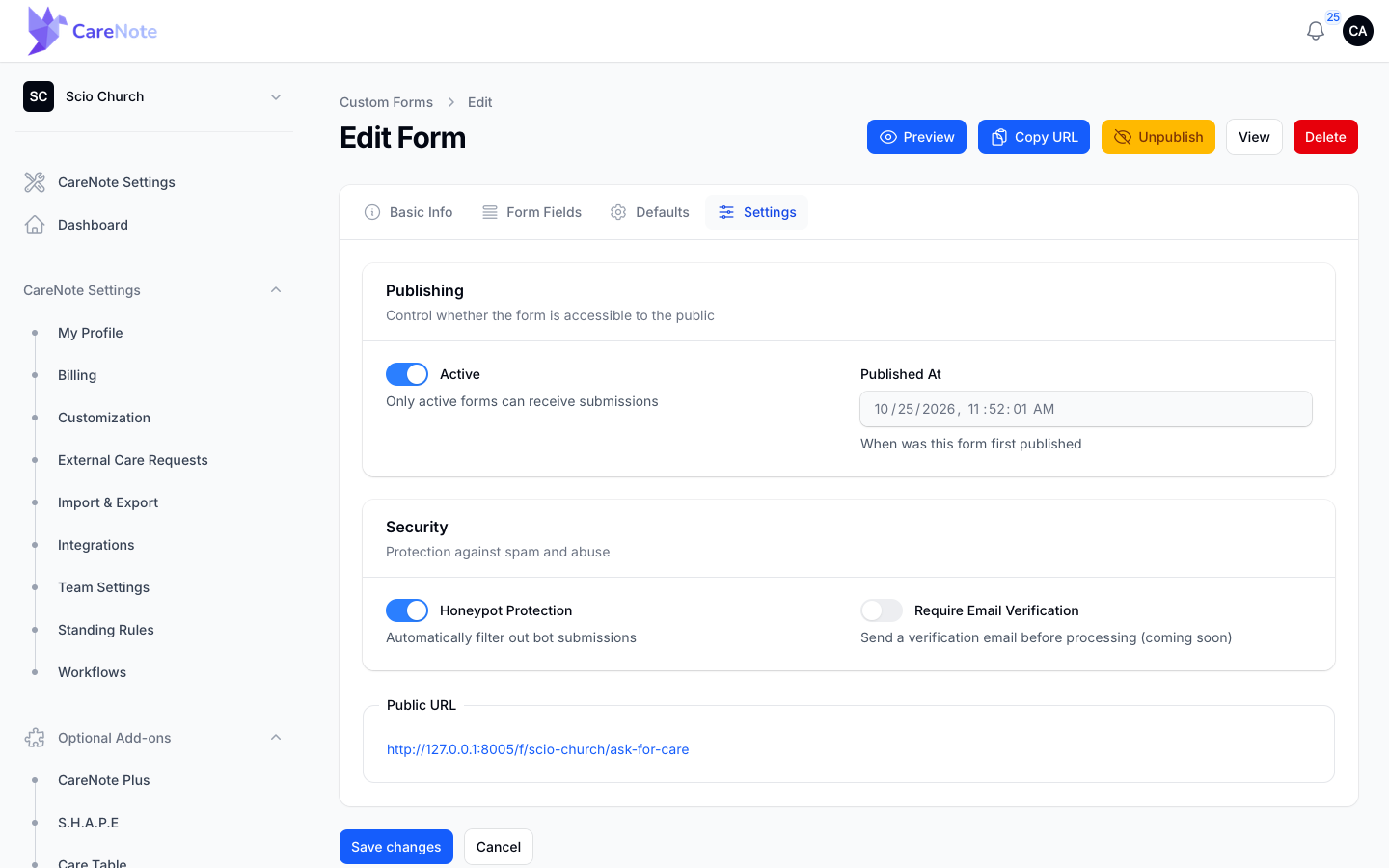
Save your changes, then use Copy URL to share the link.
6. See what your congregation sees
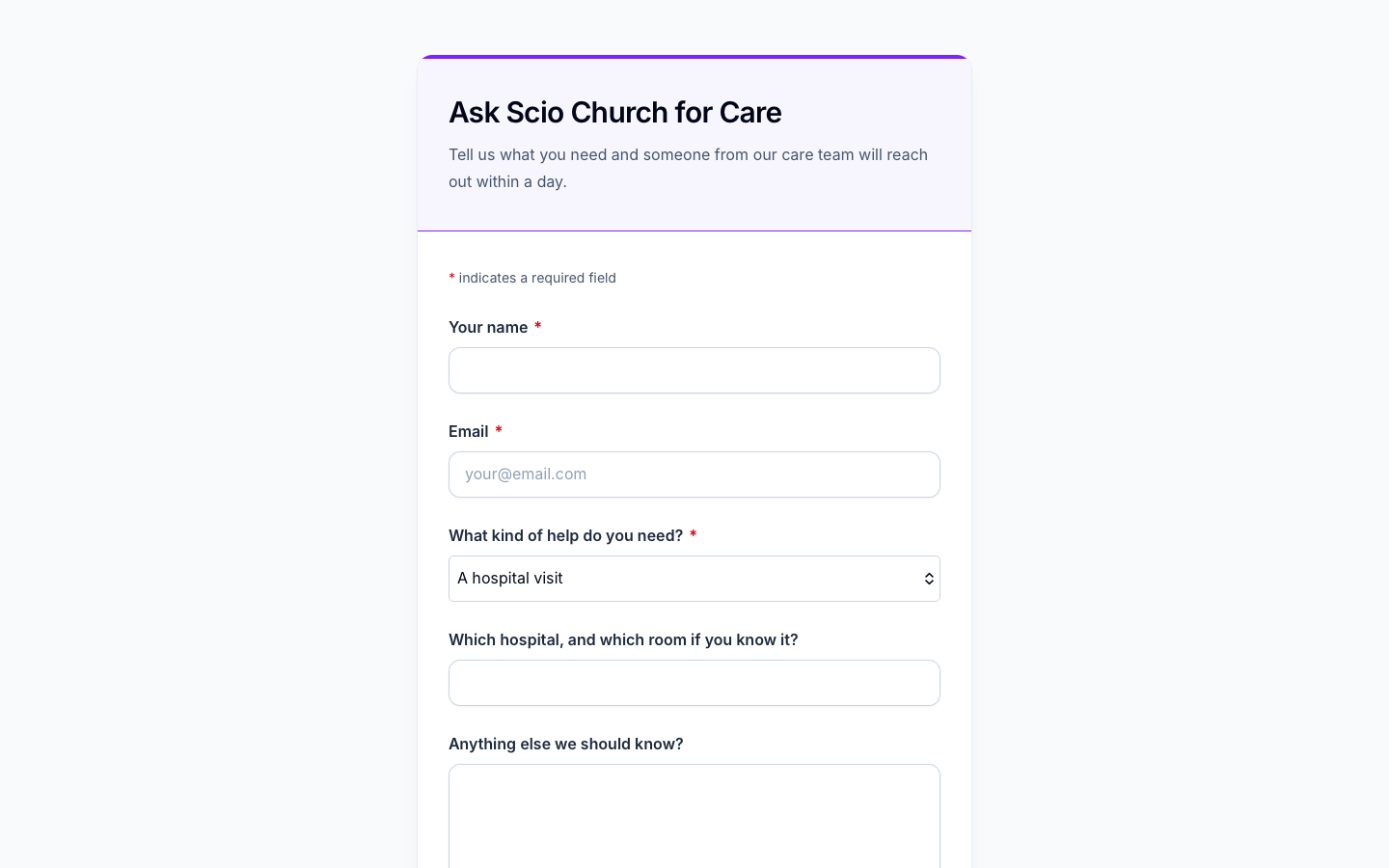
The public form is a clean card with your title, your questions, and a "Powered by CareNote" footer. Conditional questions appear instantly as people choose.
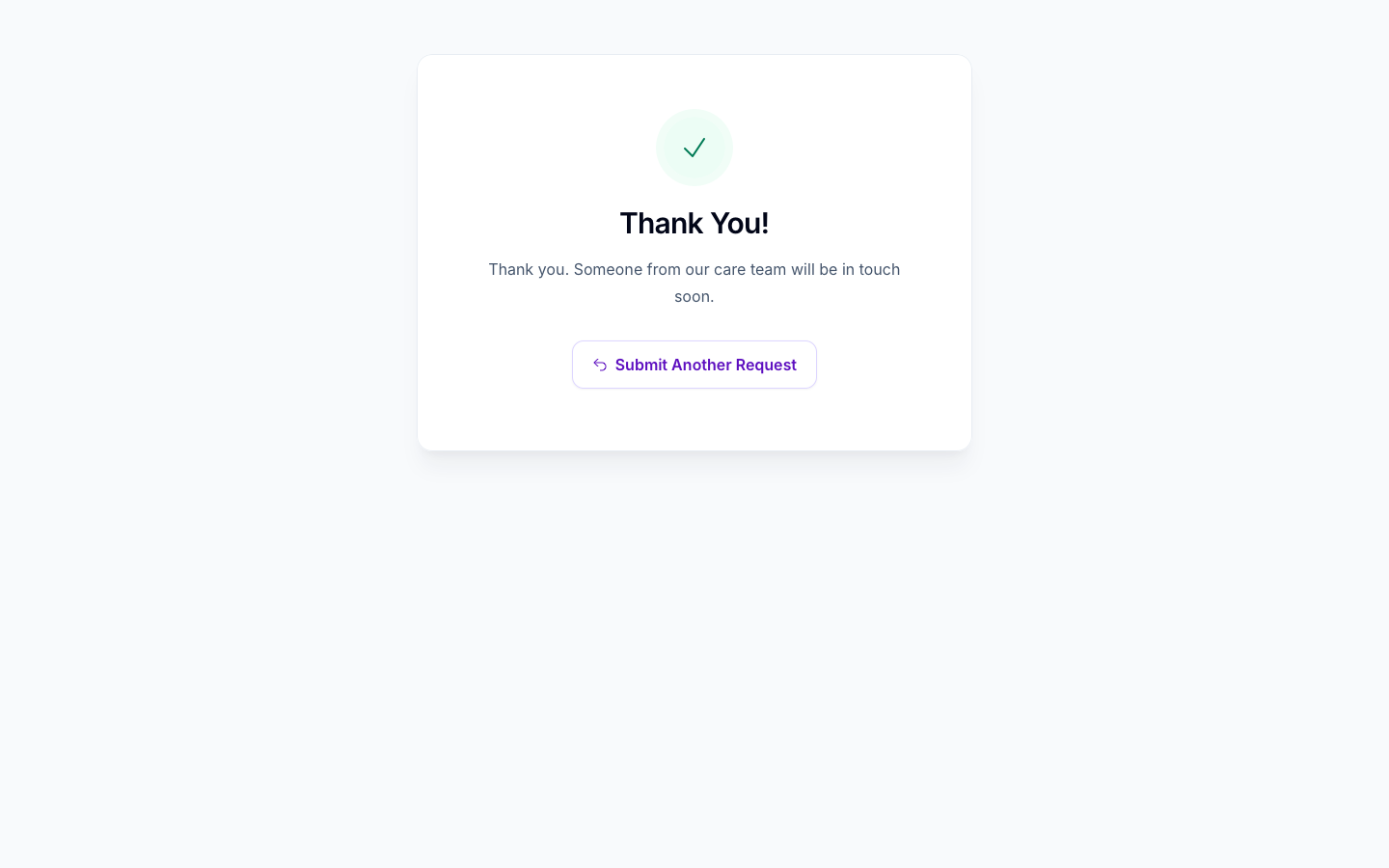
After they send it, people see a thank-you page, or your Redirect URL if you set one.
7. Follow the submission
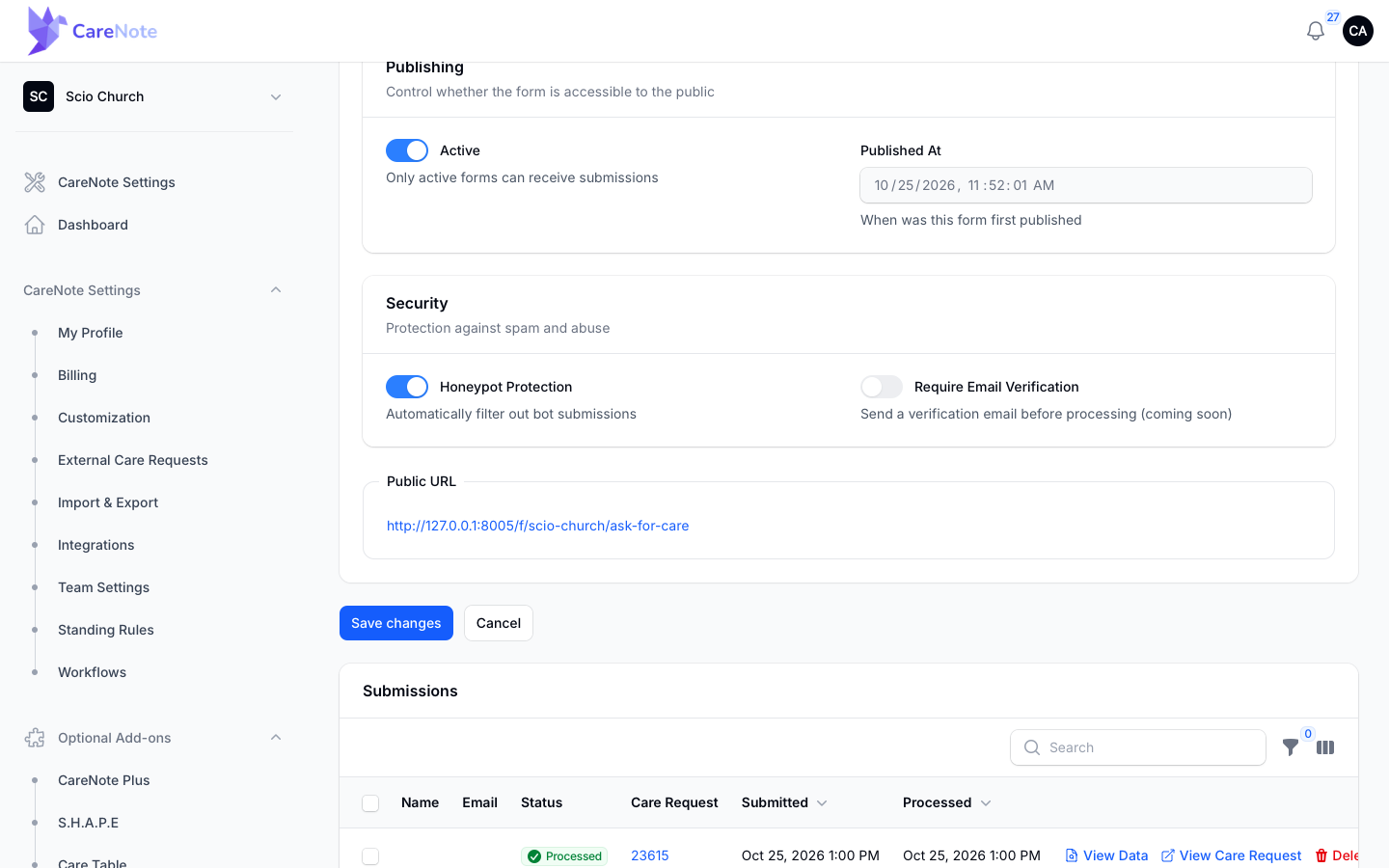
Back on the form's edit page, the Submissions table lists each one. Its Status reads Processed once the care request exists. View Data shows every answer, and View Care Request opens the request.
The care request lands in Admin Care as Entered (or Assigned, when the form has a Default Assignee), due today, with the answers listed under Additional Information. Submissions go through your category automation like any new request, and admins, the default assignee, or the default group are notified.
Frequently asked questions
Do people need an account to submit? No. Both public forms work without a login.
Which should I use? Use External Care Requests for a quick start with fixed fields. Use the Form Builder for your own questions or conditional fields. If your forms already live in Planning Center or OneChurch, connect those instead.
Why did my form refuse to publish, or show "Please select a category"? The form had no category source. Set a Default Category on the Defaults tab, or map a dropdown to Care request category.
Why is the Person blank on my new care request? No field was mapped to name or email. Map them under Maps To and the person is matched or created from the answers.
Does the form carry my church logo? No. It shows your public title and a "Powered by CareNote" footer.