
AI Briefings: Context Before Every Conversation
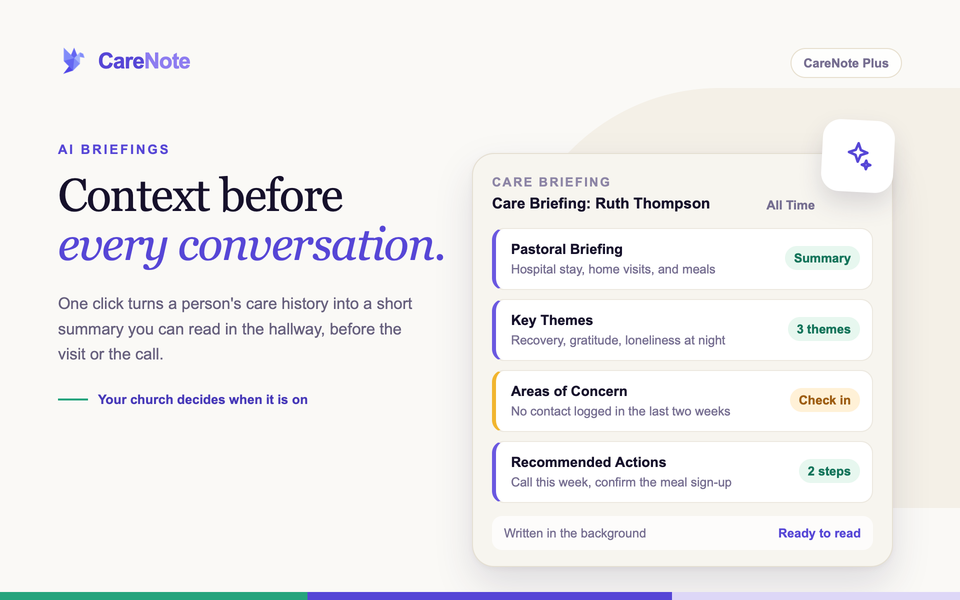
You are about to visit someone in the hospital, or return a call you have been trading for a week, and you have thirty seconds to remember where things stand. What happened at the last visit? Who else on the team has been in touch? Is there a follow-up you promised and forgot?
Watch: turning AI features on and off in Team Settings.
An AI briefing answers that in one click. It reads a person's care history and writes a short pastoral summary: recent activity, the themes that keep coming up, areas of concern, and suggested next steps. It is the two-minute catch-up you wish someone had handed you on the way in the door.
Briefings are part of CareNote Plus. They appear in two places: on a person's profile, and on an individual care request. Your church also decides whether they are available at all, and this guide shows you how.
What a briefing is
A briefing is an AI-written assessment built from what is already in CareNote: interactions, notes, tasks, care requests, and milestones. Instead of scrolling a raw timeline, you get readable sections.
A person briefing looks at everything your team has logged about one person. A care request briefing narrows the lens to a single situation, without the noise of everything else in that person's life.
You choose how far back it looks with the Time Period menu: Last 30 Days, Last 90 Days, This Year, or All Time (the default). Changing the period loads the briefing for that window.
1. Generate a briefing for a person
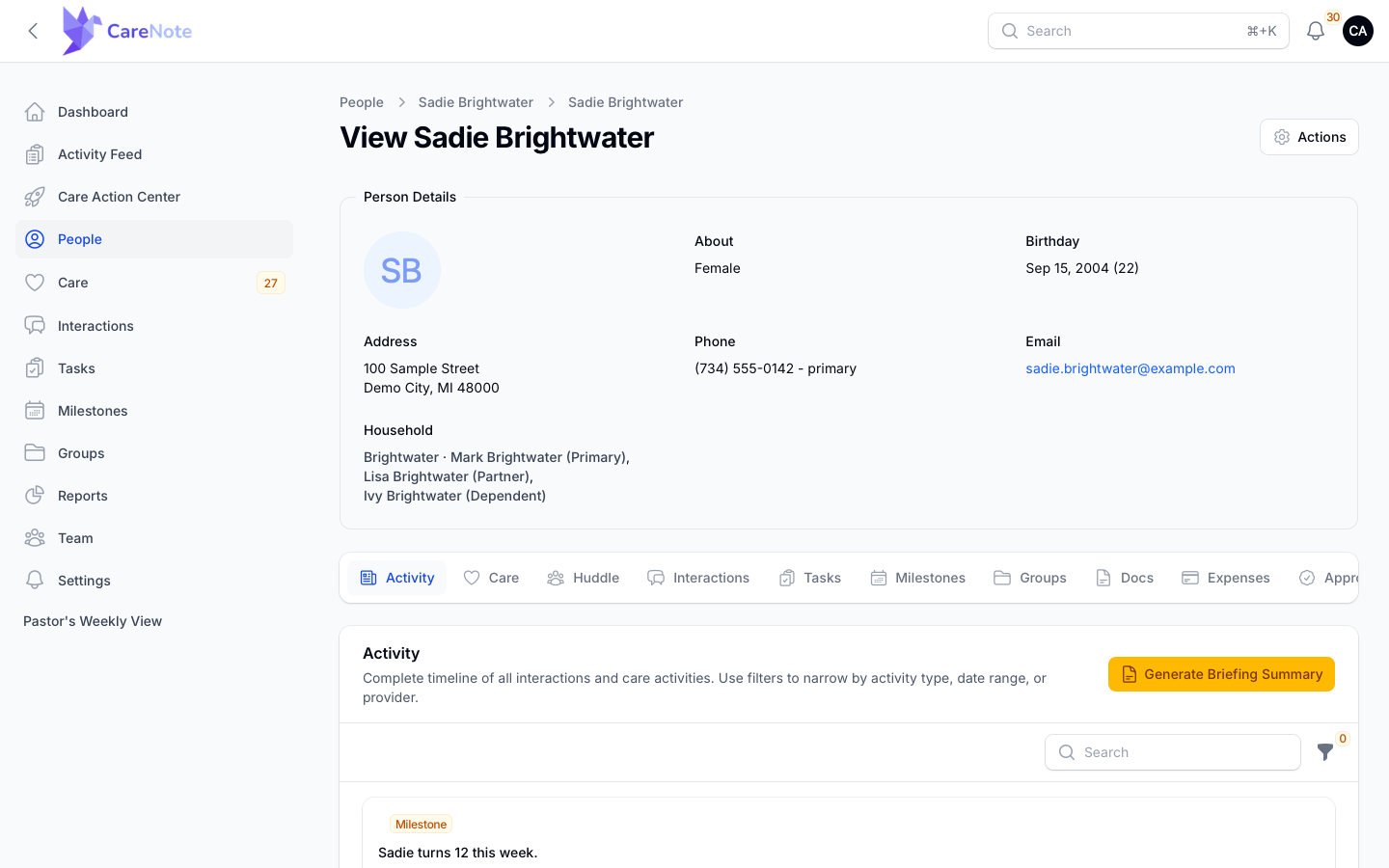
- Open a person from your People list.
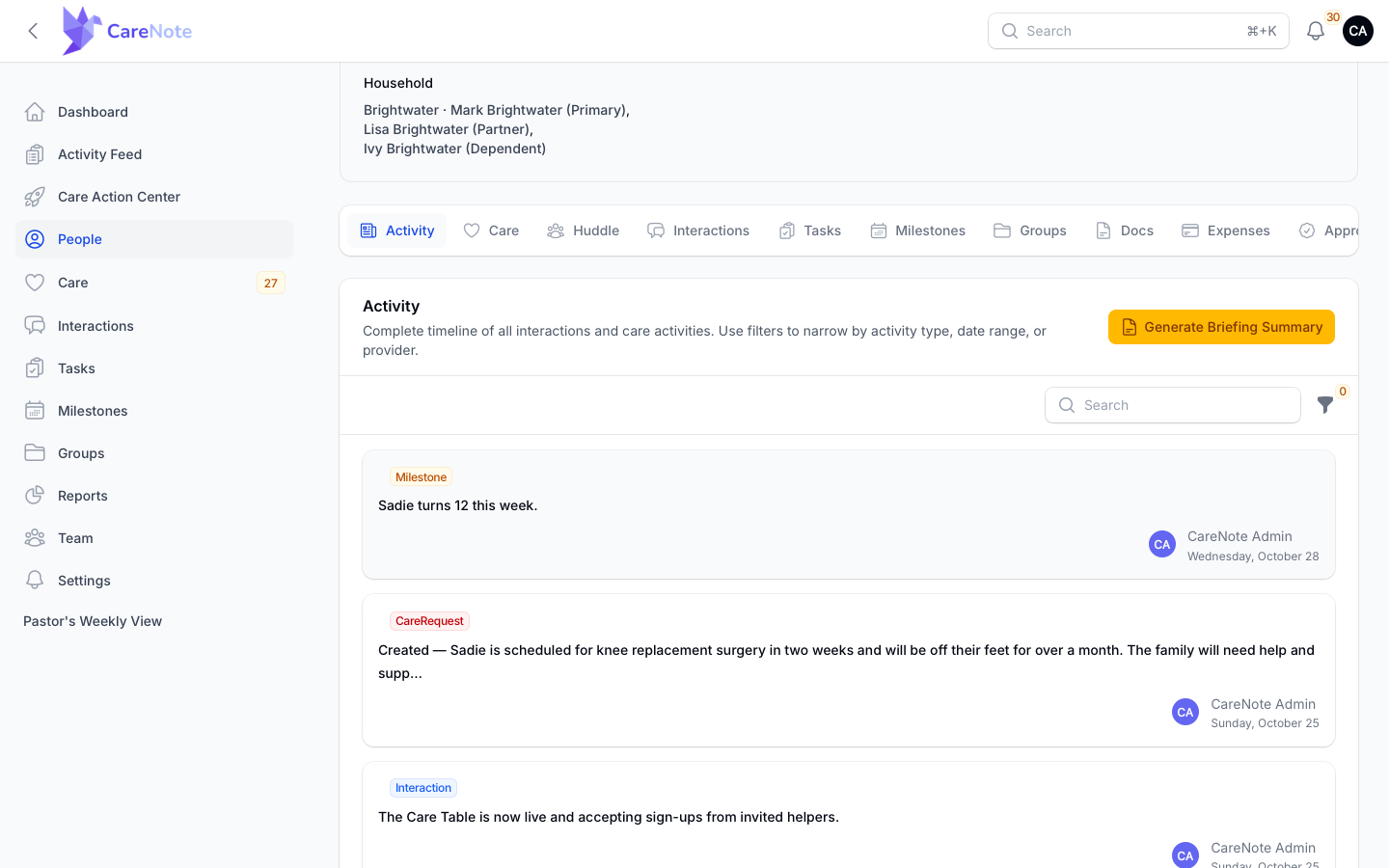
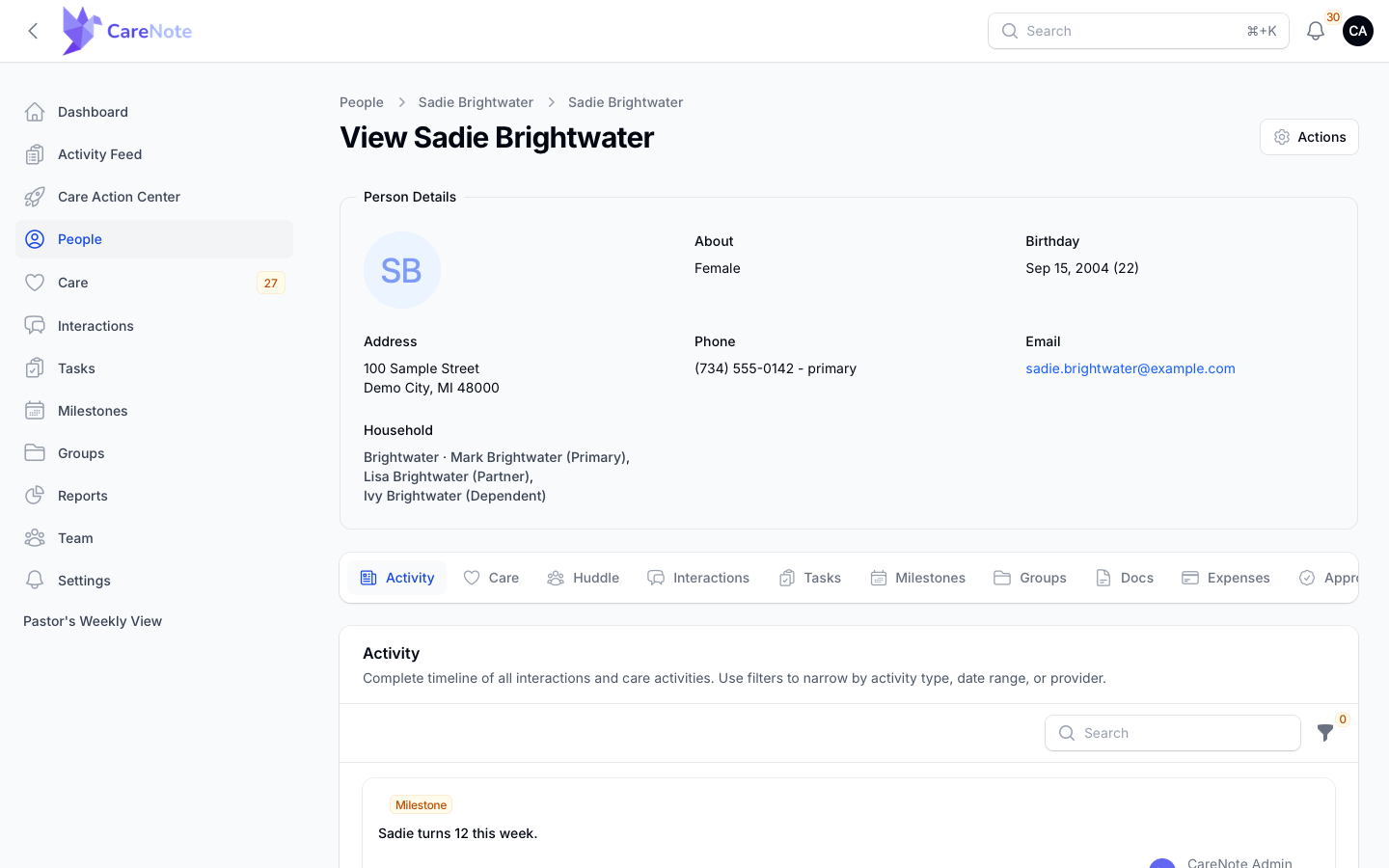
- Stay on the Activity tab, the first tab on the profile. The timeline is there, and at the top right of the Activity panel is the yellow Generate Briefing Summary button. It appears once the person has at least one activity logged.
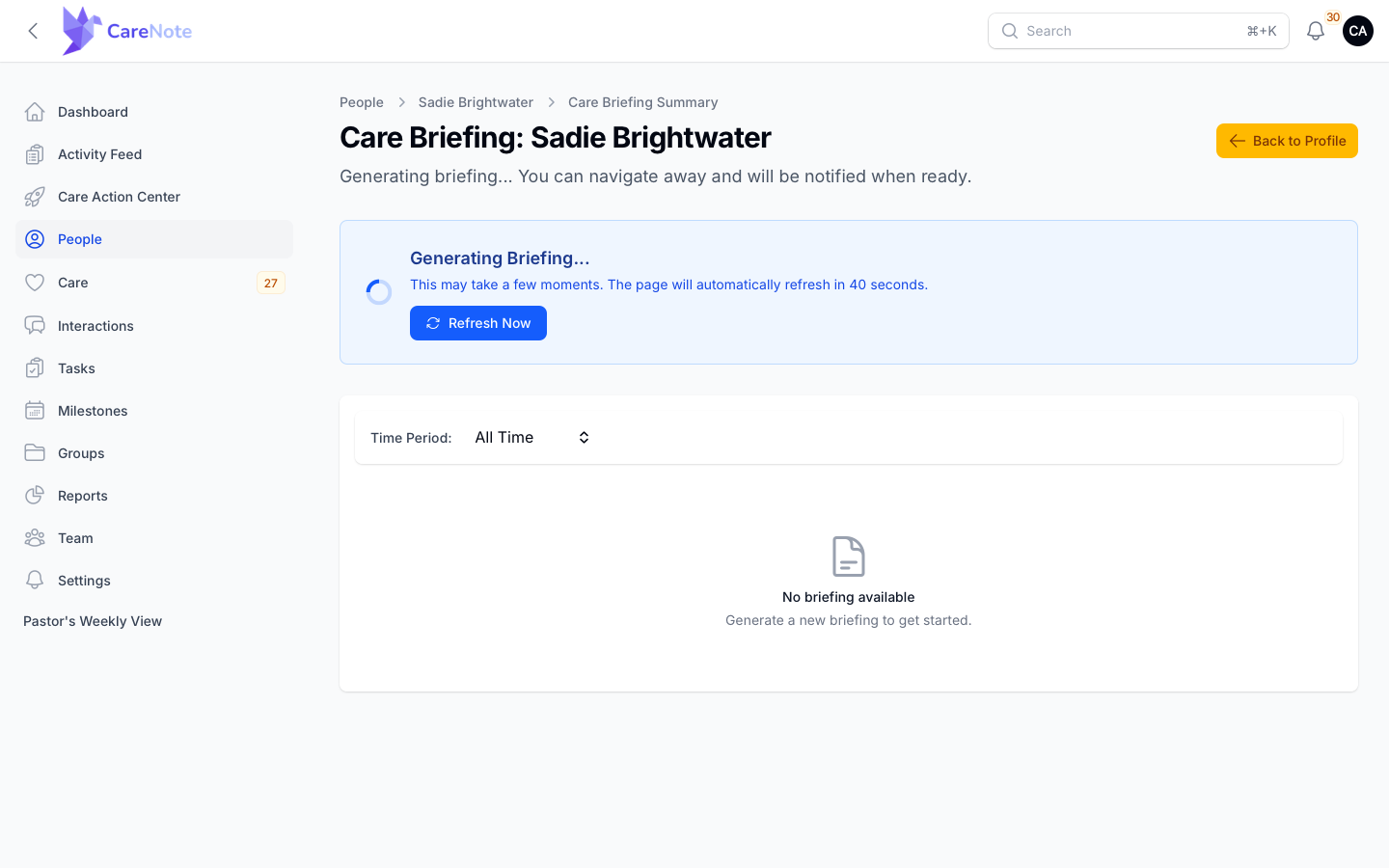
- Click Generate Briefing Summary. You land on the Care Briefing Summary page, headed "Care Briefing: " followed by the person's name.
- Pick a Time Period if you want something other than All Time.
- The briefing is written in the background. You will see a blue "Generating Briefing..." banner, and you are free to navigate away. CareNote notifies you when it is ready. Refresh Now on the banner simply checks again.
2. Generate a briefing for a care request
- Open the care request you want to review.
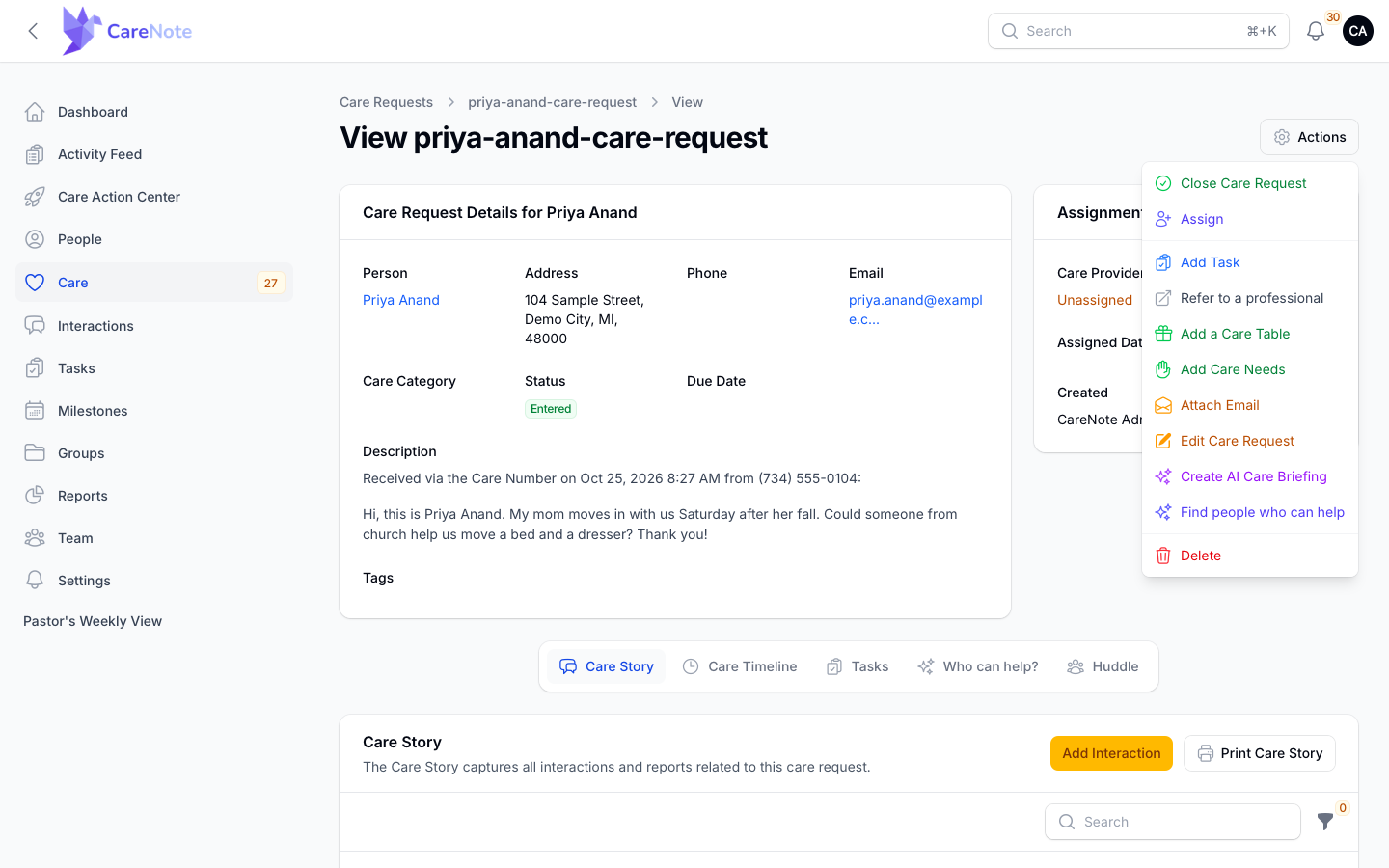
- Open the Actions gear menu and choose Create AI Care Briefing. It sits between Edit Care Request and Find people who can help.
- Pick your Time Period. As with profiles, the briefing is written in the background and you are notified when it is ready.
What is inside a briefing
A finished briefing is built to skim in the hallway or read carefully at your desk. It opens with a Pastoral Briefing, then an Activity Overview with counts of what has happened, the Key Themes and Emotional Tone in the record, and a list of Significant Events. It then lists Areas of Concern beside Positive Developments, followed by Recommended Actions, a Journey Overview, and Continuity Notes.
3. Decide whether your church uses briefings
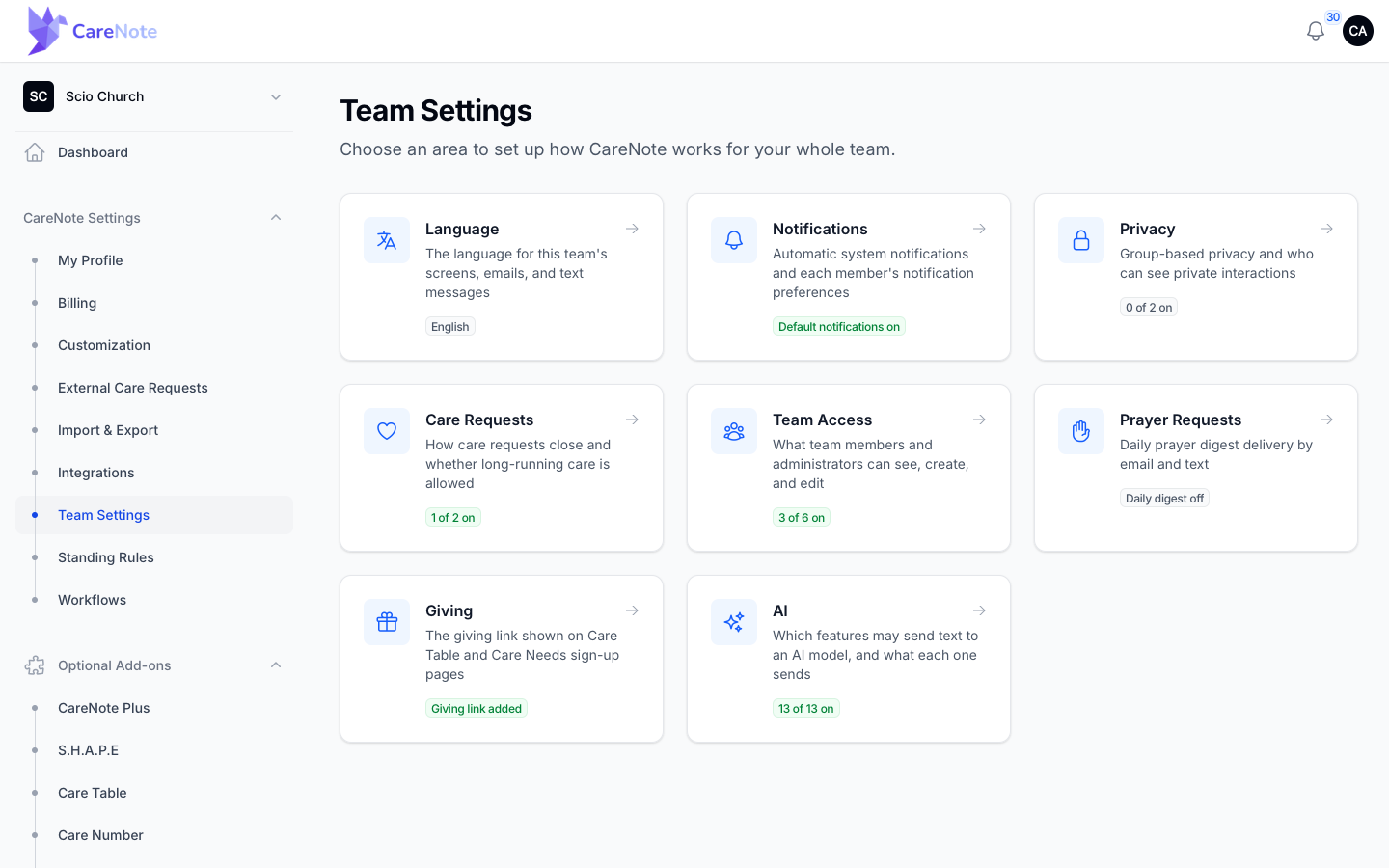
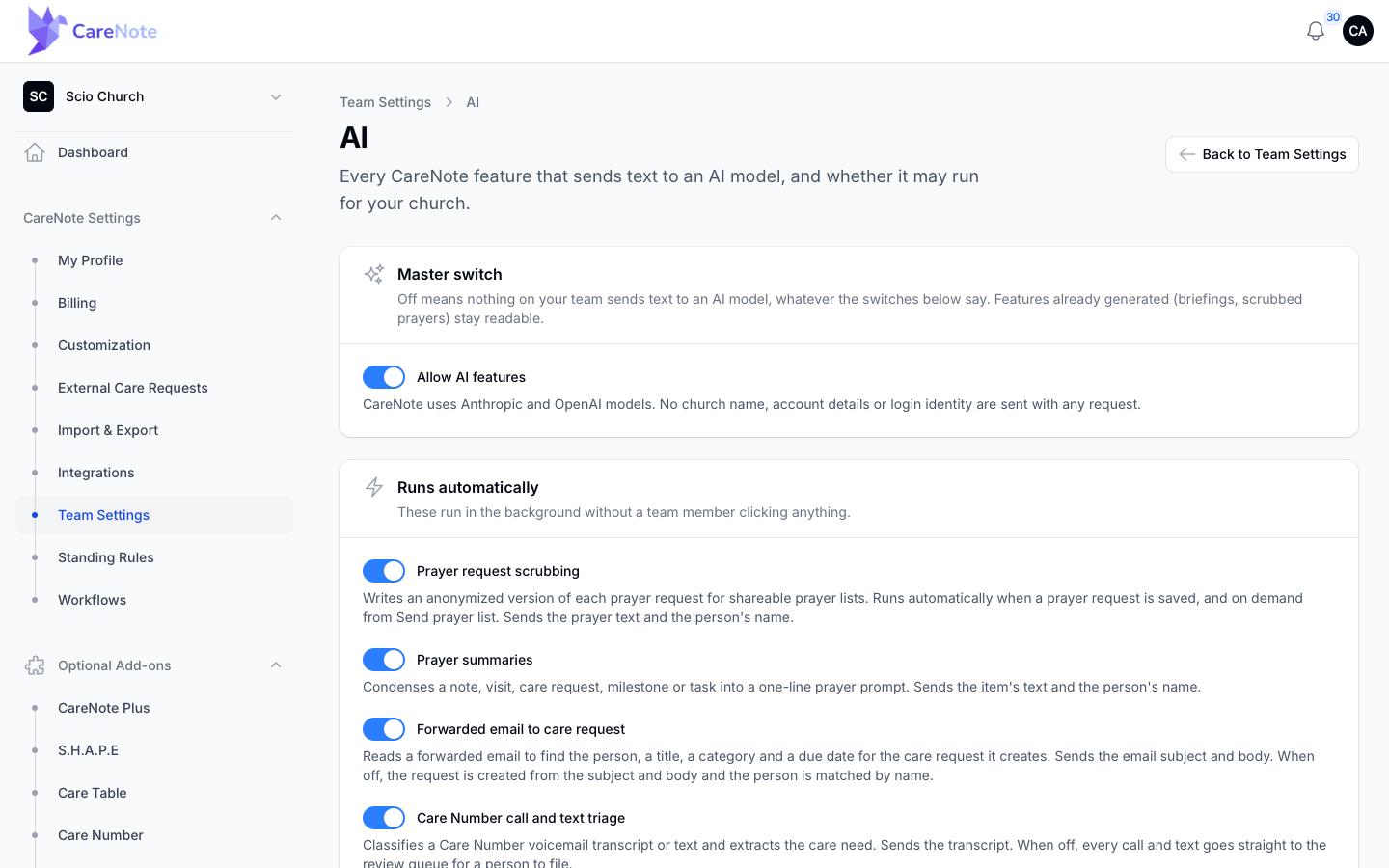
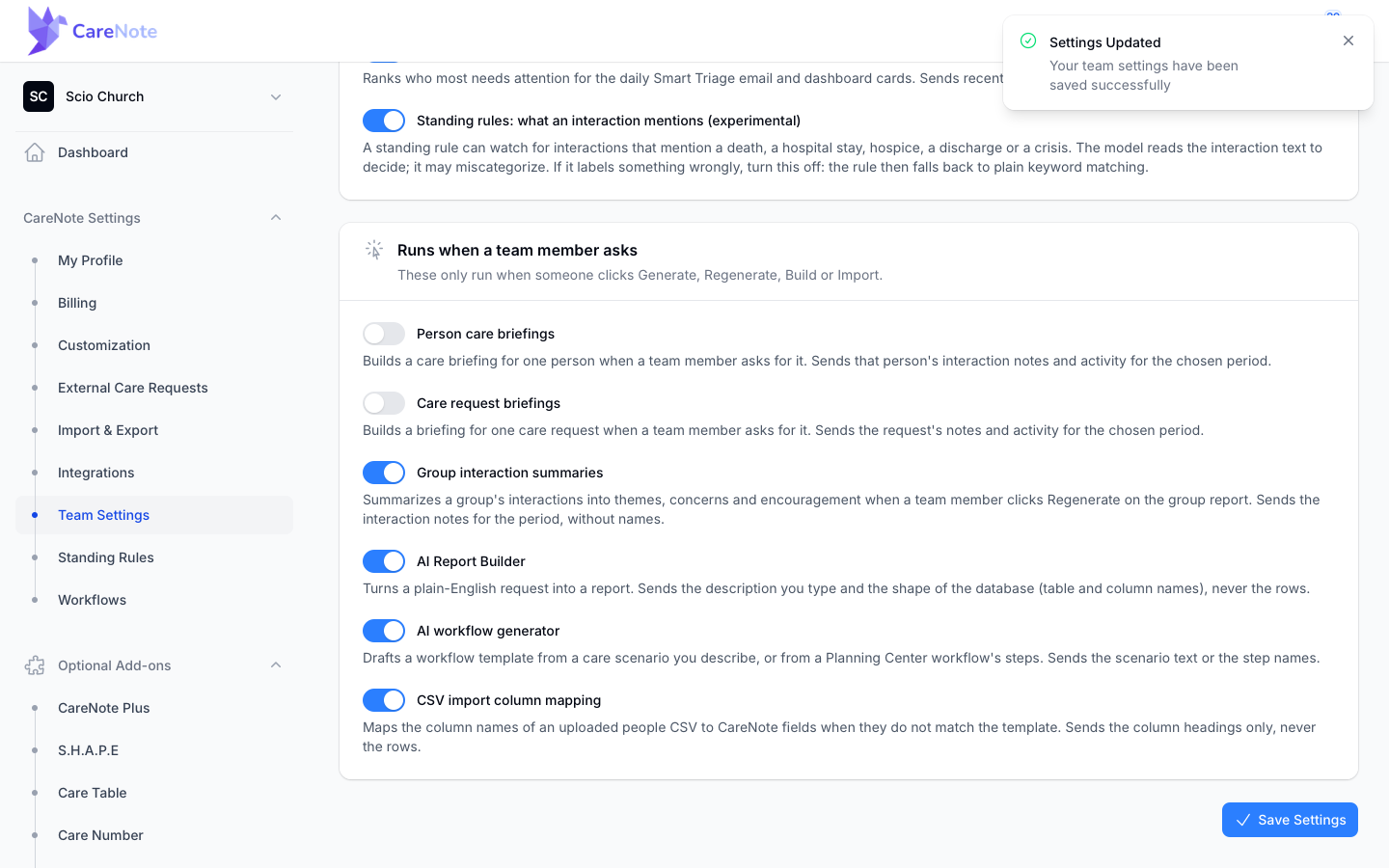
Your church controls this from the Owner panel. Go to Team Settings and open the AI card. The page lists every CareNote feature that sends text to an AI model, with a switch for each and a plain description of what it sends.
- Use Allow AI features at the top as the master switch. Turn it off and nothing on your team sends text to an AI model. The feature switches dim but keep their positions, and briefings you already generated stay readable.
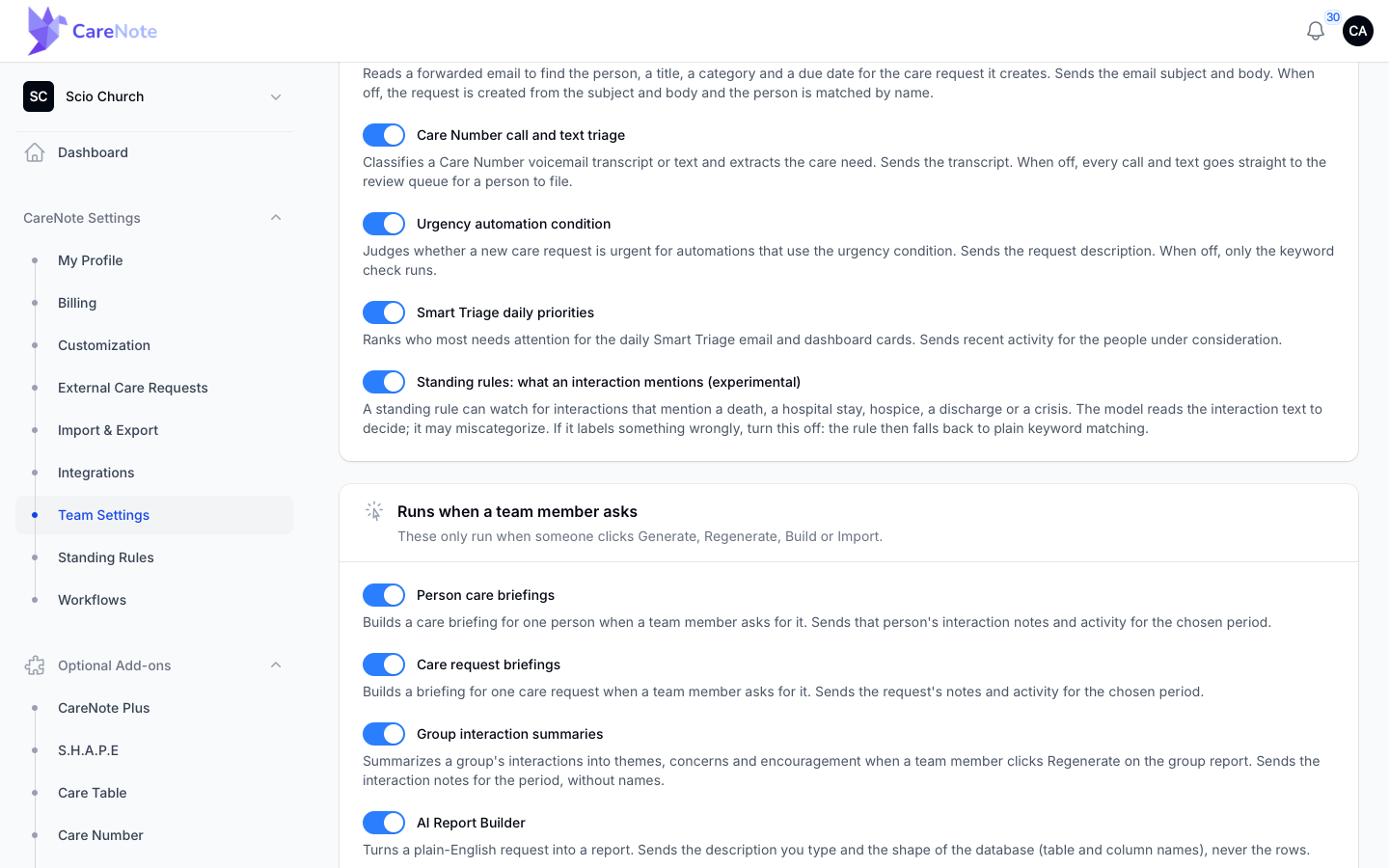
- Under Runs when a team member asks, find Person care briefings and Care request briefings. Each switch describes what it sends, for example "Sends that person's interaction notes and activity for the chosen period."
- Click Save Settings. Nothing changes until you do, and you will see a "Settings Updated" message.
What your team sees when a briefing is off
- On a profile, the Generate Briefing Summary button disappears from the Activity tab.
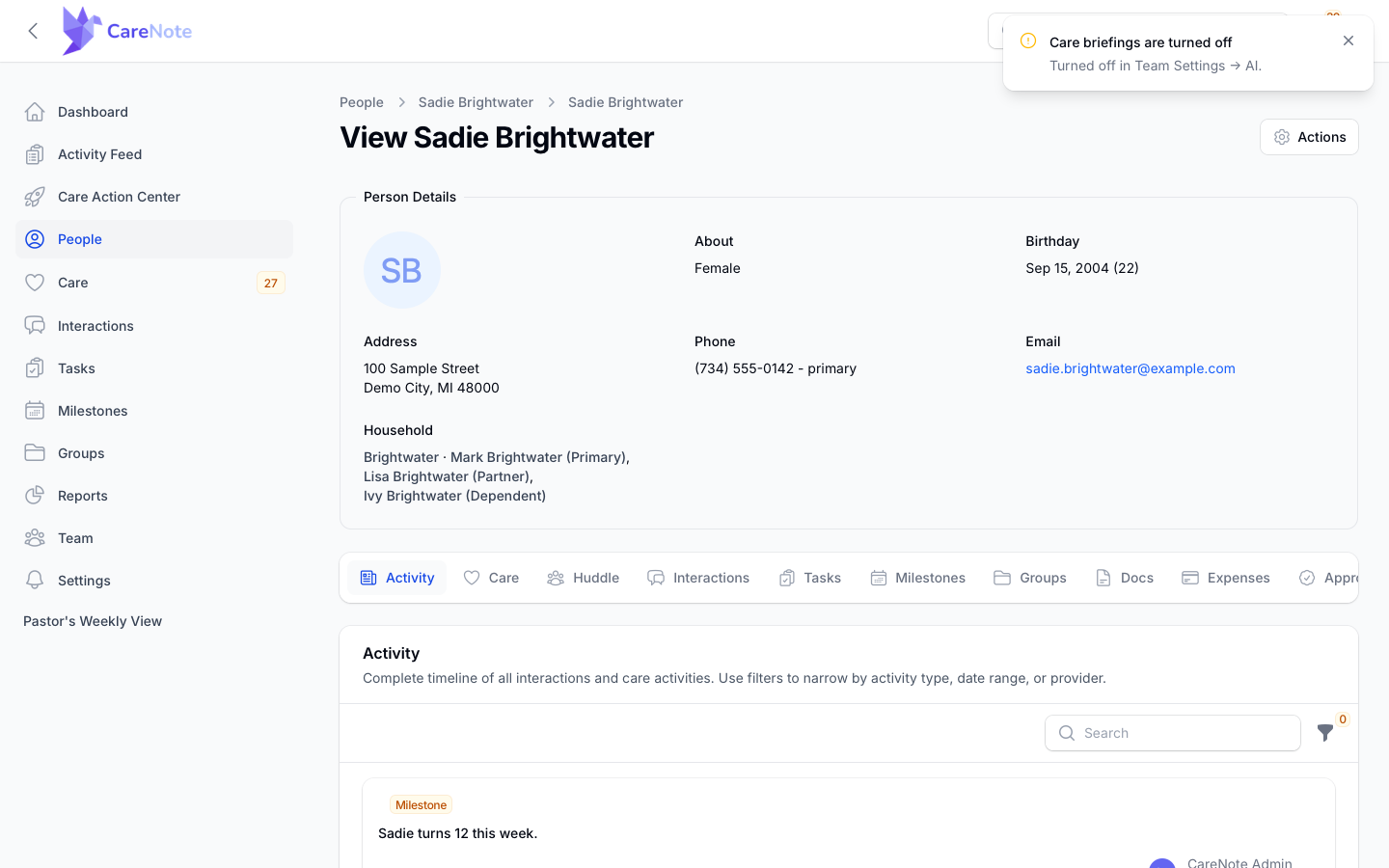
- If someone opens an old briefing link, they land back on the profile with a notice: "Care briefings are turned off. Turned off in Team Settings, AI."
- On a care request, Create AI Care Briefing disappears from the Actions menu.
A note on privacy
You are stewarding people's trust, so here is plainly what happens. Briefings are written by an outside AI service (Anthropic). To write one, CareNote sends the information it is summarizing:
- Person briefings send the person's full name, age, marital status, the number of people in their household, campus, member-since date and years as a member, and their assigned care provider. They also send the date of first contact, the date of the most recent contact, and the total number of interactions. For every activity in the Time Period you chose, they send its name, summary, status, category, sentiment, date, and the name of the staff member who logged it, along with the activity's content and description. Only the content and description are cut off at about 200 characters; everything else goes as written.
- Care request briefings send the request's title, category, status, and description, the names of the assignee and the person who created it, and its created, due, assigned, and completed dates. They also send the care receiver's name and the same activity details as above, including the name of each staff member who logged an activity.
- Not sent: email addresses, phone numbers, street addresses, and your church's name. Staff names are sent where they appear above, but login credentials never are.
The text is not anonymized first, so do not assume names are removed. For deeply sensitive pastoral matters, weigh whether a machine summary is the right tool, the same way you decide what to write down in the first place. If your church would rather not use briefings, the switches above turn them off.
Frequently asked questions
Who can use AI Briefings? Briefings need CareNote Plus, and your church's AI switches must allow them. Without Plus, the profile button shows as locked and points you to information about Plus, and the care request action does not appear. With the switches off, the button and the action are hidden for everyone.
Will the briefing always be current? Not instantly. A briefing is saved for a while so repeat visits are quick: 30 minutes for Last 30 Days, 1 hour for Last 90 Days, 4 hours for This Year, and 24 hours for All Time. New care you log shows up once that time passes. The page has no regenerate button, so if you need fresh results sooner, try a different Time Period.
Do I have to wait while it generates? No. It is written in the background, and CareNote notifies you when it is ready.
Is the briefing the official record? No. It is a reading aid. The interactions, notes, and care requests your team logs are the record. Log care as you always have, and let the briefing help you catch up quickly.