
Joining a CareNote Team as a Volunteer
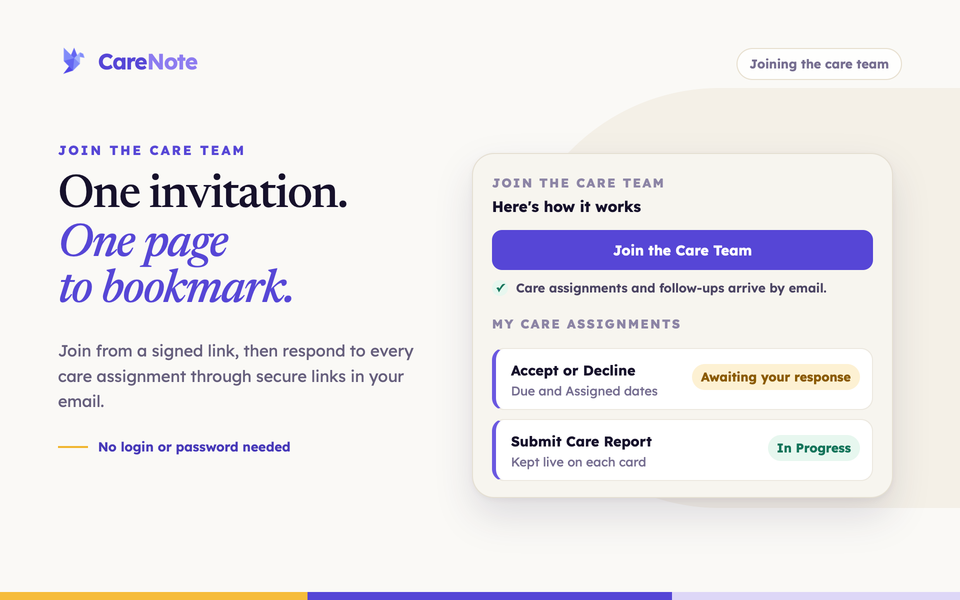
Someone at your church thought of you when a family needed a meal, a call, or a hospital visit. That is a real compliment, and CareNote is built to keep your part simple. You do not create an account, remember a password, or learn a new app. Everything you need arrives by email, and you answer through secure links.
Watch the first Volunteers video, You're Invited, Joining Your Church's Care Team, for a walk through the invitation and the Join button.
This guide covers the invitation, joining, responding to assignments, filing a care report, and getting your link again. Coordinators: the last section is for you.
What joining a care team means
A care team is the group at your church that coordinates care for the congregation: hospital visits, meals, calls, and prayer. As a Volunteer, you are one of the people who carries out that care. Your church's coordinators assign you care requests, and you tell them whether you can help and how it went.
Volunteers never get a login. Every link in your email is made just for you.
1. Open your invitation
Your coordinator sends you an email invitation. Click the link inside it. The page opens with the CareNote masthead and the heading Join the Care Team, and it tells you who invited you: " has invited you to join the care team at ."
Below that, a short note greets you by first name and explains what your church uses CareNote for. The Here's how it works box makes two promises: care assignments and follow-ups arrive by email, and you respond through secure links in those emails with no login or password needed.
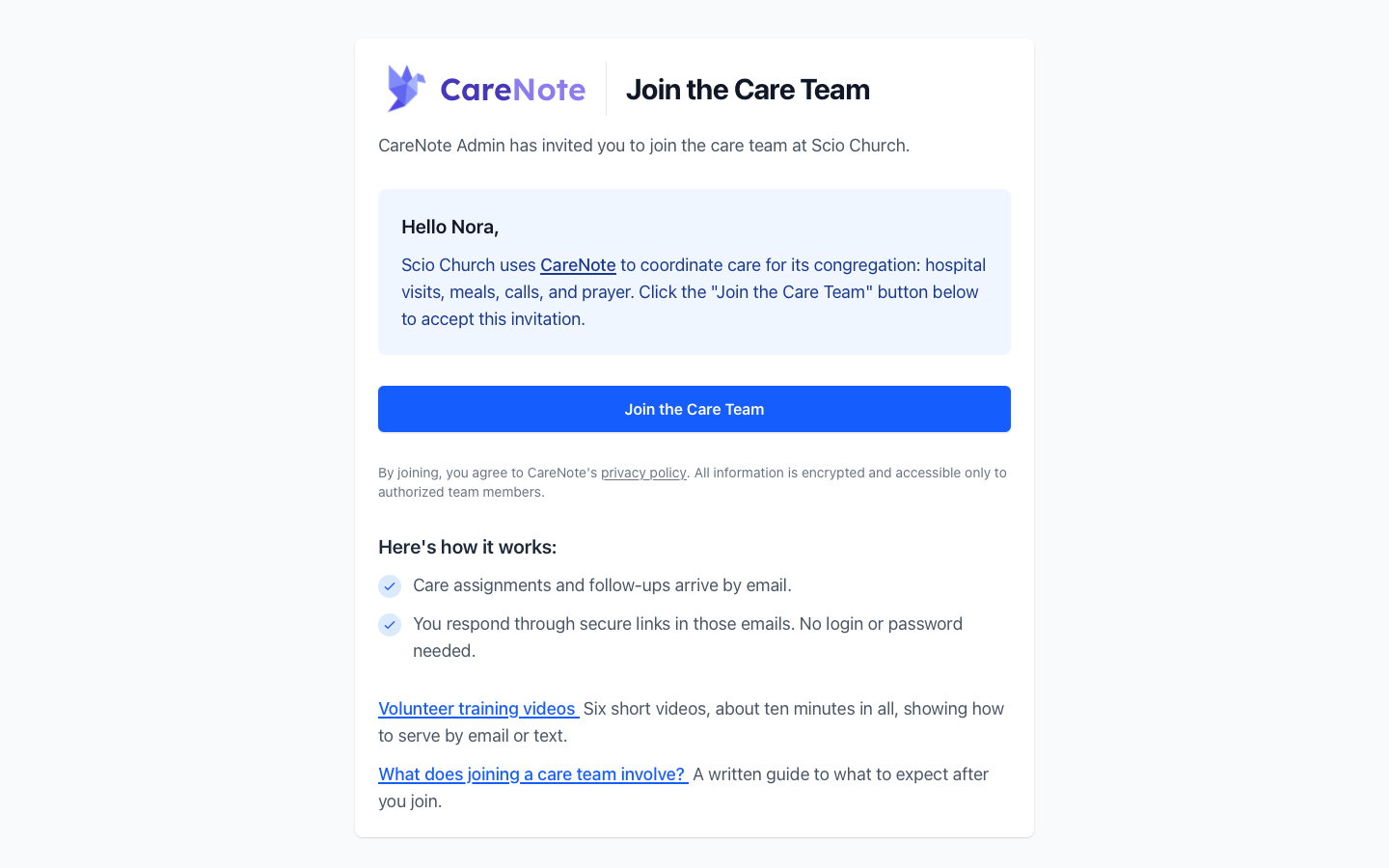
The invitation also links to two helpers. Volunteer training videos is six short videos, about ten minutes in all, showing how to serve by email or text. What does joining a care team involve? is a written guide to what to expect after you join.
The link is signed, which means it only works exactly as it was sent. If a link is cut off or changed, you will see "Access Restricted" and "Invalid signature." Open the original email and click the link again, or ask your coordinator to send a new invitation.
2. Click Join the Care Team
When you are ready, click the blue Join the Care Team button. That is the only step. The small print explains that you agree to CareNote's privacy policy and that your information is encrypted and available only to authorized team members.
If the invitation was already used, CareNote tells you so and sends you on to the confirmation page.
3. Respond to a care assignment
When your church assigns you a care request, you get an email. Every assignment email includes a button to see all of your care assignments, and that button opens My Care Assignments.
This page is the one to bookmark. It reads, "Bookmark this page. It always shows your current care assignments for ." It lists one card for each active request, with the person's name, the category, a status, and the Due and Assigned dates.
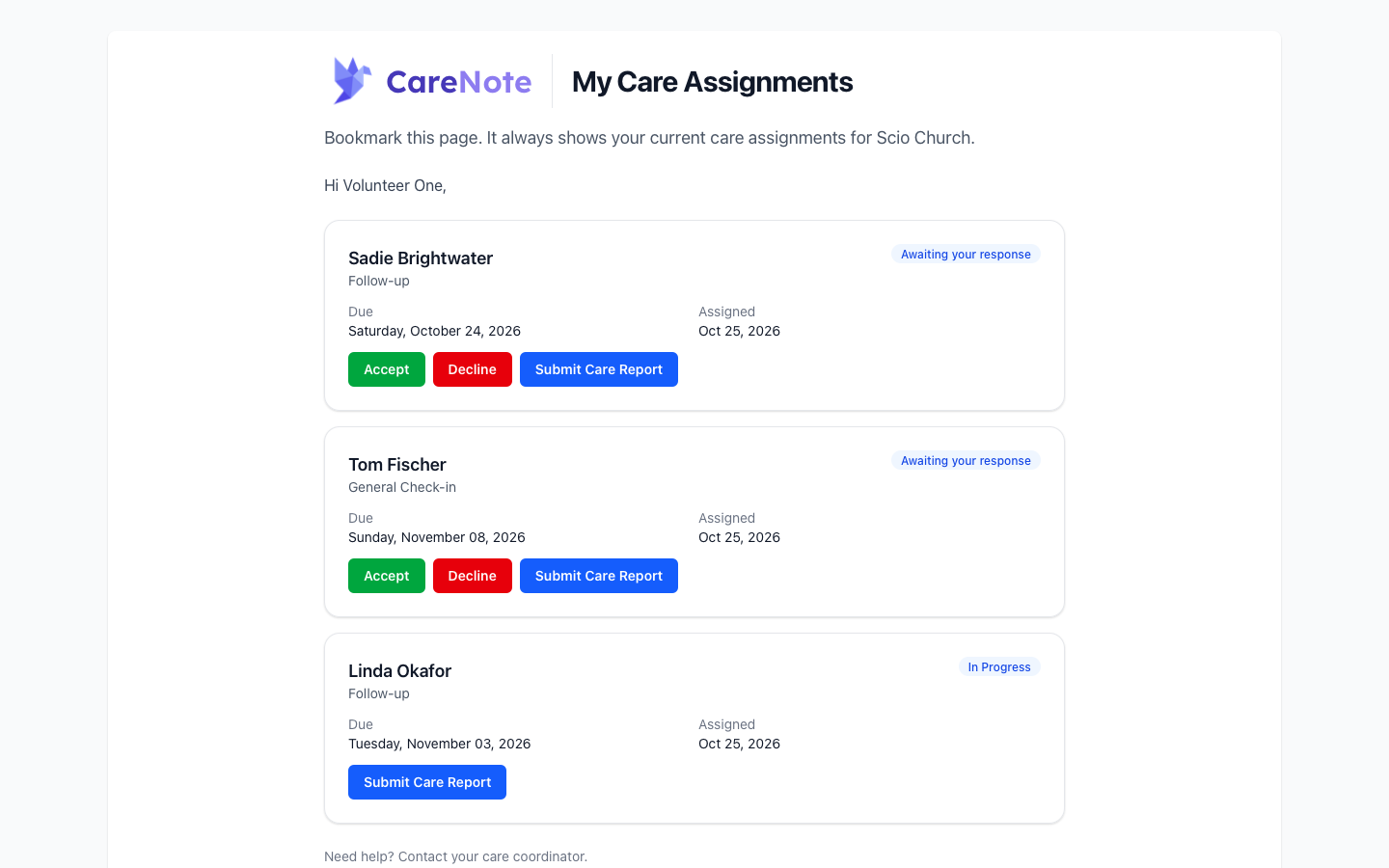
Each card shows only what you can do right now:
- Awaiting your response: choose Accept if you can help or Decline if you cannot. Declining lets your coordinator find someone else, and the request drops off your page.
- In Progress: you accepted it. The card shows Submit Care Report for when you have done the visit.
A request that is still waiting for your answer also keeps a live Submit Care Report button, so you can file a report even if you said yes in some other way, such as by text.
The page's footer says, "Need help? Contact your care coordinator." Your link stays good for a year, and it stops working if you are removed from the team.
4. File your care report
After you have visited, called, or delivered the meal, open the care report link from your assignment email or click Submit Care Report on your card. The page is titled Care Request Details and shows the person, the due date, and the category at the top.
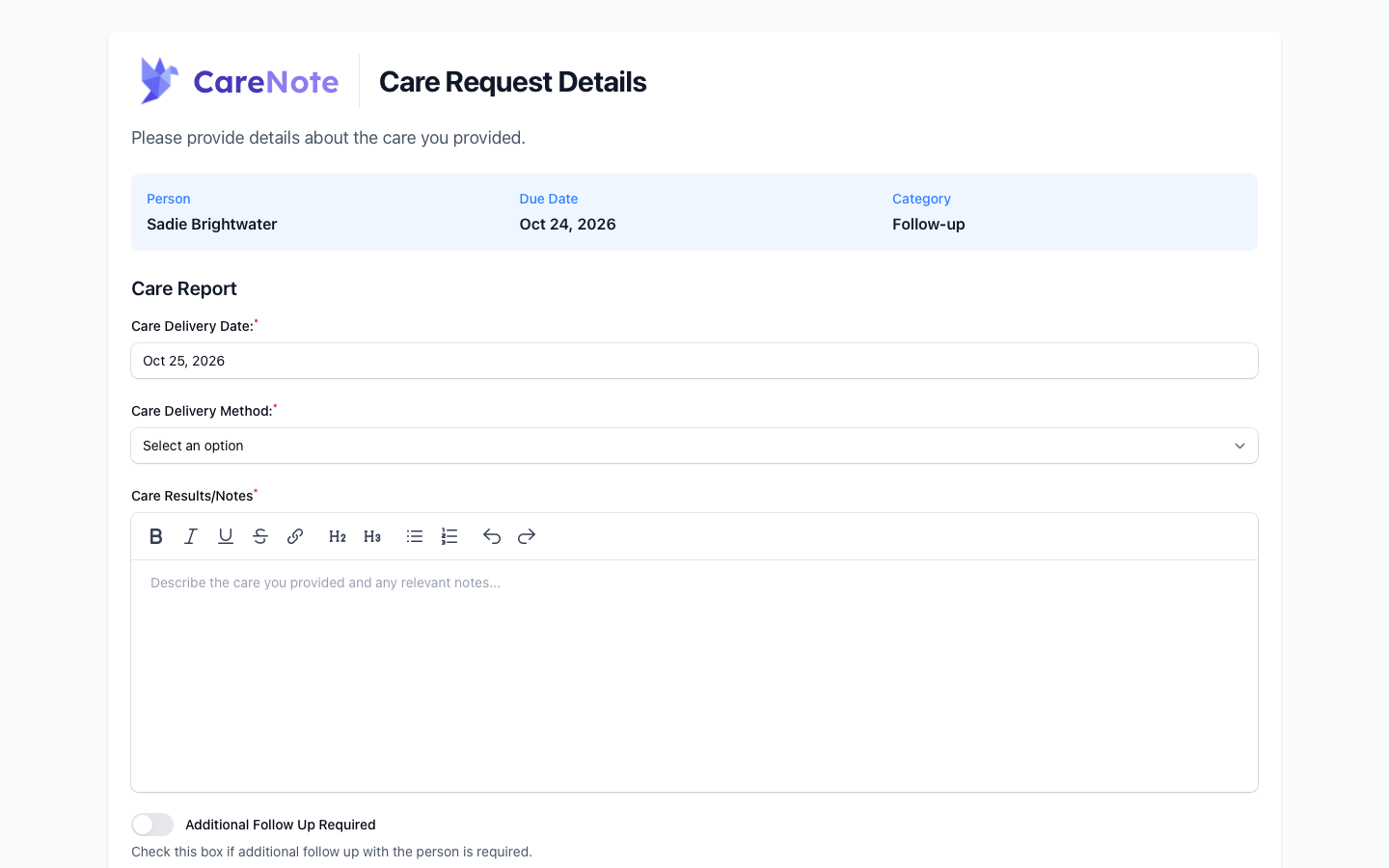
Fill in the form:
- Care Delivery Date: it starts as today's date, so change it if the visit was earlier.
- Care Delivery Method: choose how you provided the care.
- Care Results/Notes: describe what happened and anything your team should know. The editor supports bold, italics, links, headings, and lists.
- Turn on Additional Follow Up Required if the person needs more care. The help text says, "Check this box if additional follow up with the person is required."
- Click Submit Report.
Report, accept, and decline links last for the life of the care request, up to 730 days. You can use the same report link again if you keep serving the same person, until your coordinator closes the request.
5. If you lose your link (for coordinators)
Emails get buried. When a Volunteer cannot find their assignments, you do not need to reassign anything.
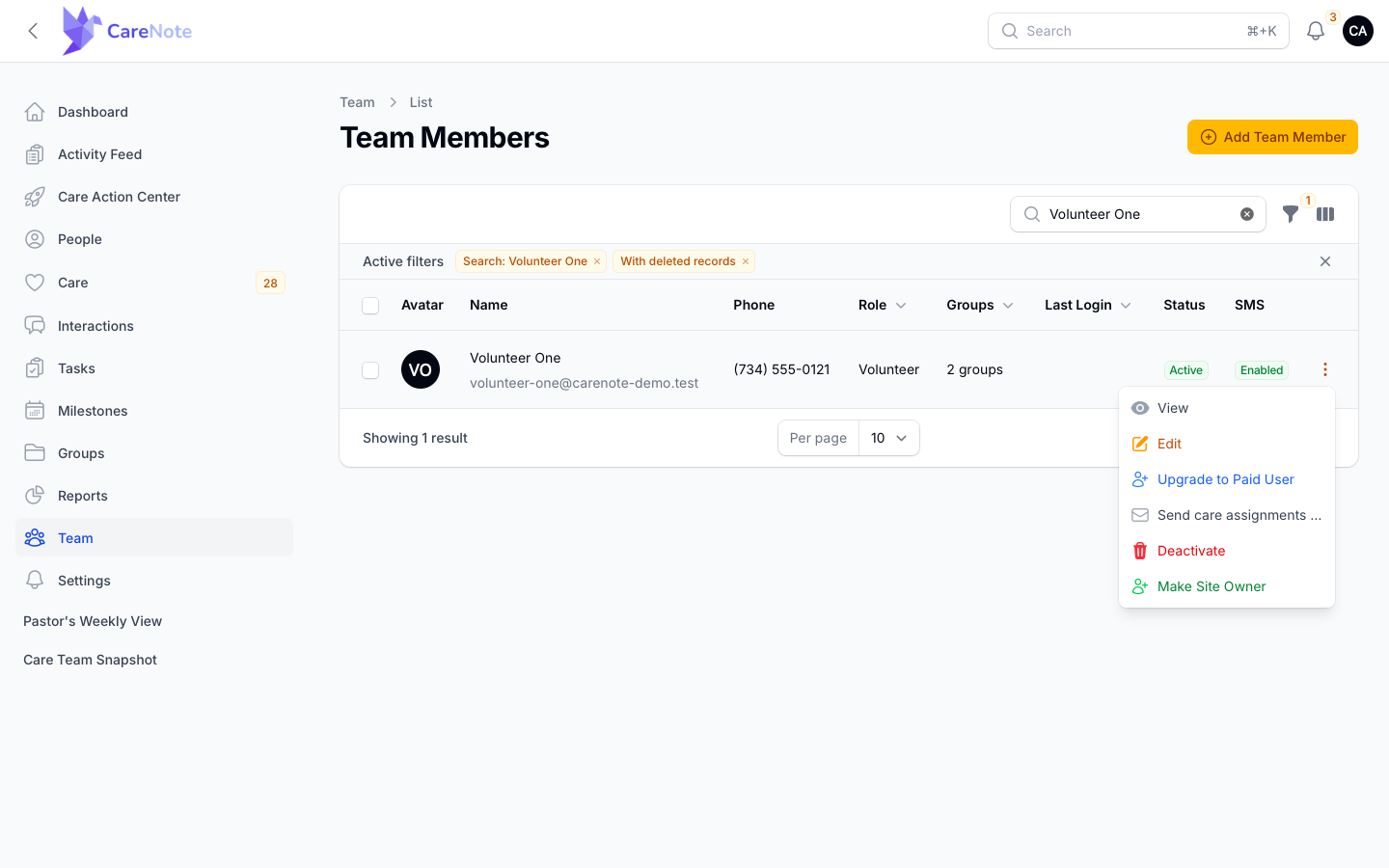
- Open the Admin panel and go to Team Members (
/admin/<team id>/users). - Find the person's row and open its three-dot menu. A Volunteer row shows View, Edit, Upgrade to Paid User, Send care assignments page, Deactivate, and Make Site Owner.
- Choose Send care assignments page.
- Click Send link in the confirmation.
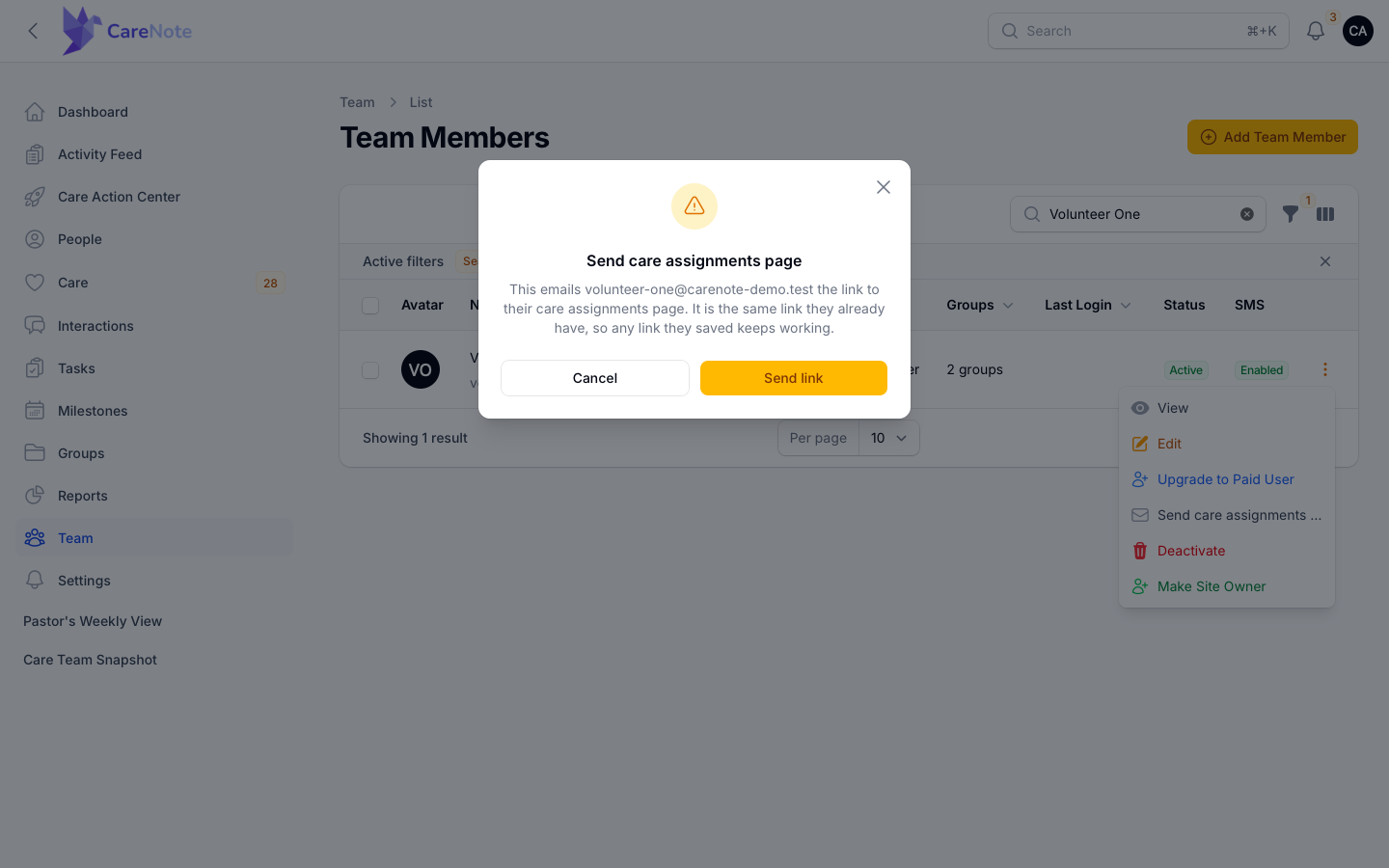
CareNote emails the Volunteer their My Care Assignments link and confirms with "Care assignments page will be emailed to ." It is the same link they already have, so a saved bookmark keeps working. The action lives on the Admin panel list, not in Owner settings.
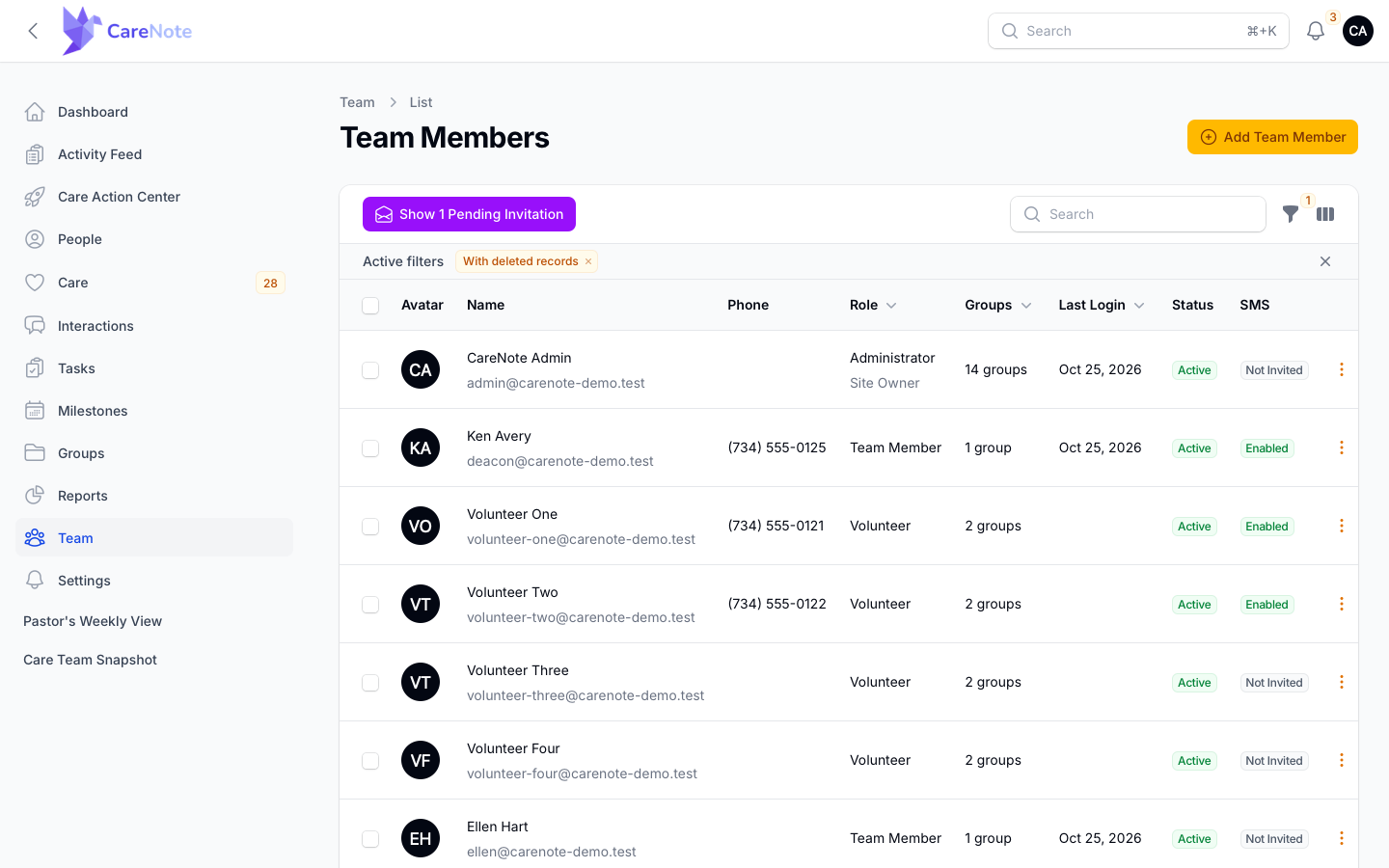
Invitations you have sent but nobody has accepted yet appear behind the Show Pending Invitation button on that same list.
Frequently asked questions
Do I need to create a password? No. Volunteers work entirely from email links. If you try to sign in anyway, CareNote points you back to your email.
I lost the email with my link. What now? Ask your care coordinator to use Send care assignments page. You will get your My Care Assignments link by email, and it shows every request you currently hold.
Why did a request disappear from my page? If you declined a request, it drops off your page. Ask your coordinator if you think something is missing.
How long do my links last? Your My Care Assignments page lasts 365 days. Report, accept, and decline links last up to 730 days or until the request ends, whichever comes first. If you are removed from the team, your links stop working.
Can I file a report if I haven't accepted yet? Yes. A request awaiting your response keeps a live Submit Care Report button next to Accept and Decline.
Watch
- Volunteers 1/6: You're Invited, Joining Your Church's Care Team
- Volunteers 2/6: Your Assignments Arrive by Email (No Login Needed)
- Volunteers 3/6: Filing Your Care Report After a Visit
- Volunteers: My Care Assignments, Every Request on One Page
- How to Use Church Volunteers Who Never Log In (Free Email Volunteers)