
Syncing Notes from CareNote to Planning Center

CareNote now includes a one-way note sync feature with Planning Center Online (PCO). Enable this integration with just a few clicks to automatically push all new notes and updates written in CareNote to your Planning Center account—no manual copy-paste required.
This feature is entirely optional, can be toggled on or off at any time, and ensures your pastoral care history stays synchronized across platforms. In CareNote, both notes and updates can be synced—you choose which items to send to Planning Center on a case-by-case basis.
Why Sync with Planning Center?
We know many churches use Planning Center as their central hub for people management. CareNote's note sync allows your care team to log pastoral notes in CareNote and automatically see those notes reflected in PCO under a dedicated "CareNote" category that respects your privacy and permissions.
By syncing notes, you preserve a unified care history across platforms, ensure your care actions are visible to the right people in the right system, and eliminate redundant documentation.
Before You Begin
To use this feature, you'll need:
- Site Administrator access in CareNote
- An active PCO Integration connection in your app settin
How to Enable the Sync
Note: You must be a Site Administrator in CareNote and already have PCO Integration enabled in your app settings.
- Log in to CareNote.
- Click your Profile Icon → App Settings.
- Scroll to PCO Integration Status.
- Ensure that integration is active and connected via a valid token.
- Toggle on “Enable PCO Note Sync”.
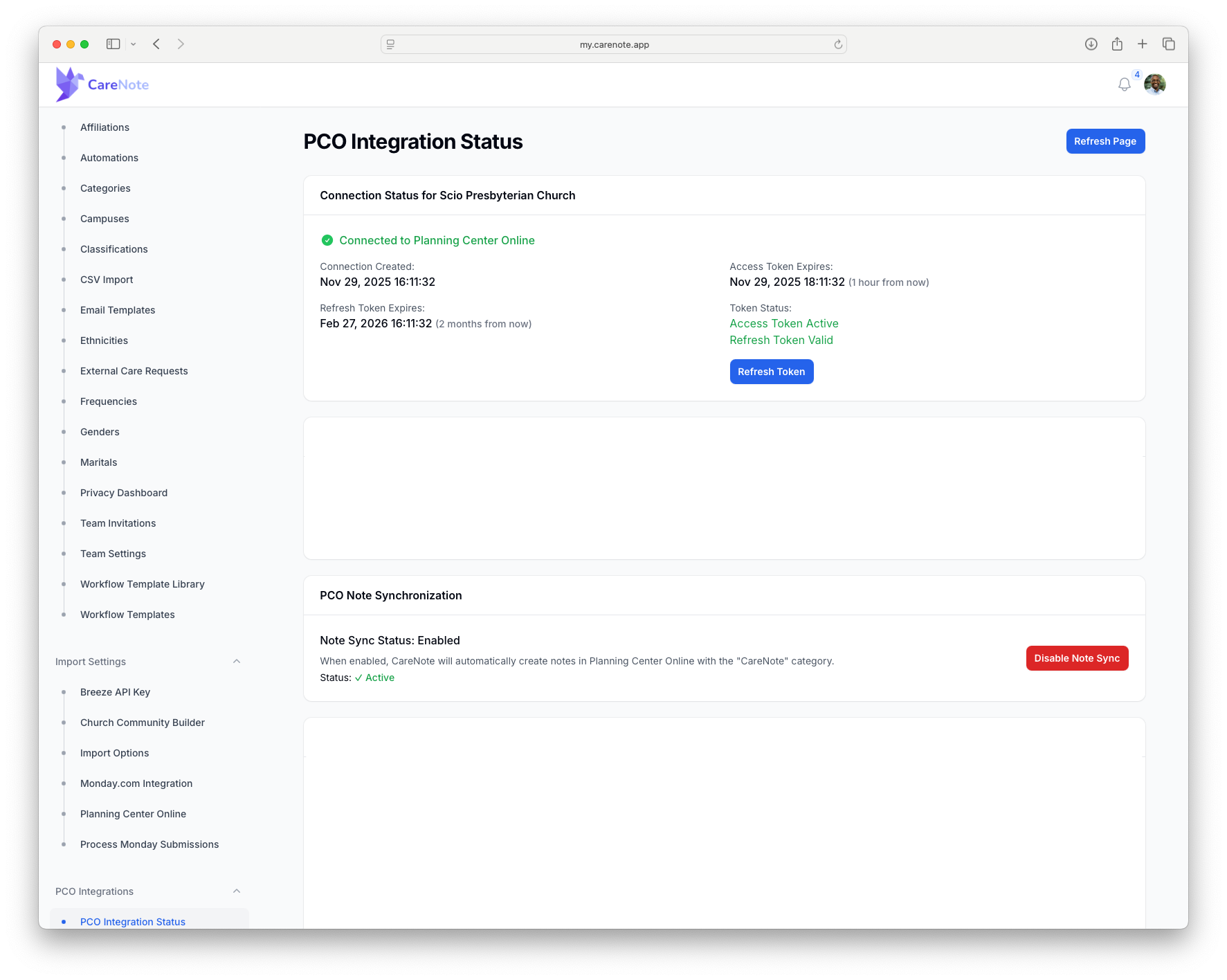
Once enabled, CareNote will automatically create a dedicated CareNote category inside PCO's Notes section. All future notes and updates created in CareNote can be mirrored there.
Syncing Notes and Updates
Once note sync is enabled:
- Navigate to any profile linked to Planning Center (e.g., Kaylee).
- Click “Add Note.”
- A new checkbox will appear: “Sync this note to Planning Center.”
- Check the box, write your note, and click Create.
Your entry syncs automatically to Planning Center in the CareNote category, with the visibility set to manager by default in PCO. The note syncs to Planning Center in the background and remains in CareNote's history, visible only to those with appropriate PCO permissions.
CareNote then:
- Sends the note in the background to PCO.
- Adds it to the dedicated CareNote category in PCO.
- Retains the note within CareNote’s history.
The note is visible only to those with appropriate permissions in Planning Center—by default, typically managers only.
Syncing an Update (Optional)
If you’d also like updates to sync:
- Follow the same process as adding a note.
- When adding an update, the same “Sync to Planning Center” toggle will appear.
- Check the box and submit your update.
Updates will appear in the same CareNote category inside PCO and follow the same visibility settings.
Example Workflow
Here’s what syncing looks like in action:
- You write a new update about Kaylee in CareNote.
- You check the Sync to PCO box and submit it.
- That update appears in Planning Center under the "CareNote" note category.
- Later, you add a follow-up note in CareNote. It’s also mirrored in PCO.
- Your team can view, comment on, and manage both records from either platform.
Frequently Asked Questions
Does this sync past notes?
No. The sync is forward-looking and applies only to notes and updates created after it is enabled.
Can I edit the note in Planning Center after it syncs?
Yes. Once synced, you can edit the note directly in PCO. Changes made in Planning Center won't sync back to CareNote—the sync is one-way only.
Can I disable the sync later?
Absolutely. Simply return to App Settings and toggle off PCO Note Sync.
What happens to notes if I disable the sync?
Notes already synced to Planning Center will remain there. Disabling the feature only prevents new notes from syncing forward.
Who sees the synced notes in Planning Center?
Synced notes follow Planning Center's standard permission rules. By default, the CareNote category is typically visible to managers and those with appropriate note-viewing permissions in PCO.
Ready to Try It?
This feature is included in all CareNote accounts with Planning Center integration.
To get started: Navigate to Profile Icon → App Settings → PCO Integration Status, and toggle on "Enable PCO Note Sync."
Let CareNote bridge your pastoral care workflows with Planning Center—automatically, securely, and seamlessly.
CareNote Works the Way You Do
Some churches want their pastoral care software to stand alone. Others need it to integrate seamlessly with their Church Management System. CareNote does both—because we understand that every church operates differently.
Unlike other tools that force you into rigid workflows, CareNote adapts to yours. Whether you're leveraging Planning Center, working independently, or somewhere in between, CareNote is built to fit into your existing processes—not replace them.
This sync feature is just one example of how CareNote helps you spend less time organizing and more time caring. We're the only pastoral care app designed specifically for the real work of ministry: building relationships, tracking care, and supporting your congregation with confidence and clarity.